Skip to content

Haiku Release Notes

Keep up with everything new in Haiku, or subscribe to RSS to be the first to know when new releases and updates go live.

Feedback that stays on the page

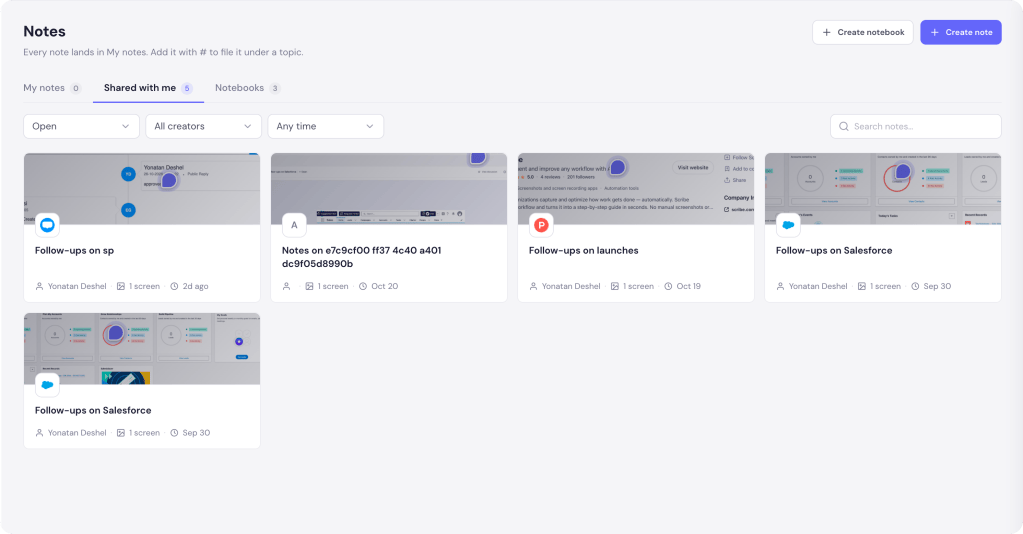
Notes. Mark a spot on any page and leave a note about it. Tag a teammate or someone outside your account, talk it through in a thread, and resolve it when it’s fixed. Teams can keep notes on the same topic together in notebooks, and reply to or resolve notes from Slack. On Enterprise, notebook insights show the themes and sentiment across a notebook’s notes.

Free includes up to 10 notes. Notebooks and Slack are available on Team and Enterprise plans. Insights are available on the Enterprise plan. Learn more
Collections

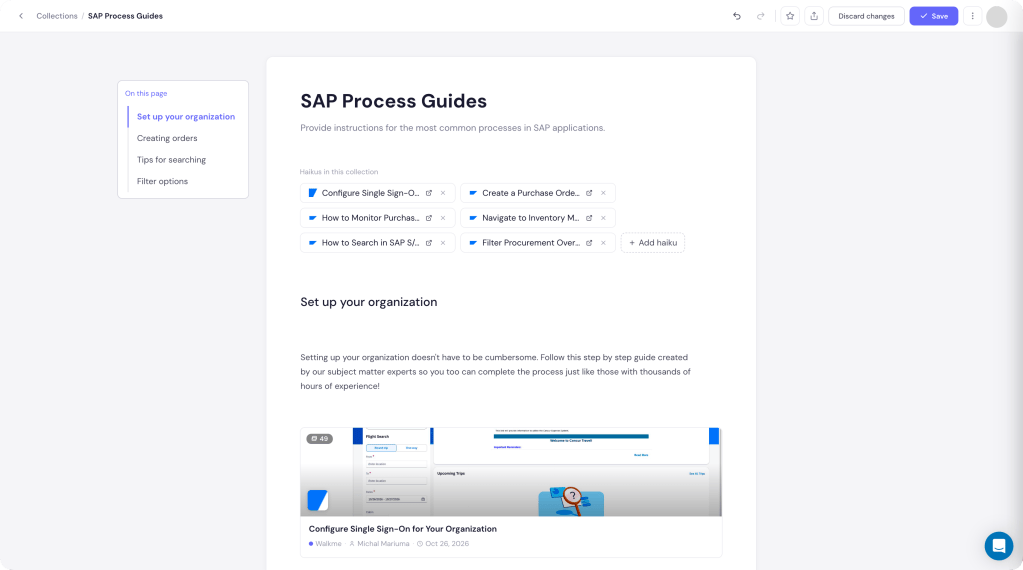
Collections. Put several haikus in one document and add the context around them: headers, text, tables, images, and embedded media. Headers build the table of contents for you. You can also nest one collection inside another. Use collections for SOPs, onboarding manuals, and training that covers more than one app. You can share, comment on, export, and restore earlier versions of a collection.

Available on Pro, Team, and Enterprise plan. Learn more

Capture and edit

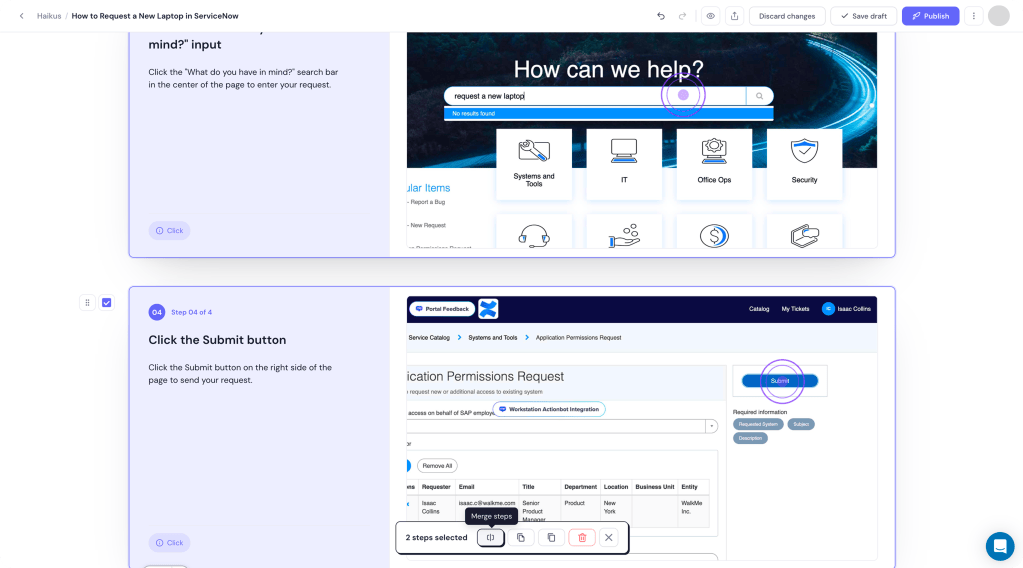
Merge steps. One action, one step. When you click a field and then type or press a key, Haiku now captures it as a single step. You can also merge steps that sit next to each other yourself, and view 2 to 5 merged steps as an animated GIF.

Available on all plans. Automatic merging applies to new captures. GIF view is available on Pro, Team, and Enterprise plan. Learn more

Speak a step. Talk through the process while you capture. Haiku transcripts and adds what you say to your haiku as text, and you can keep capturing while it listens.

Available on all plans when you capture in the browser. Learn more

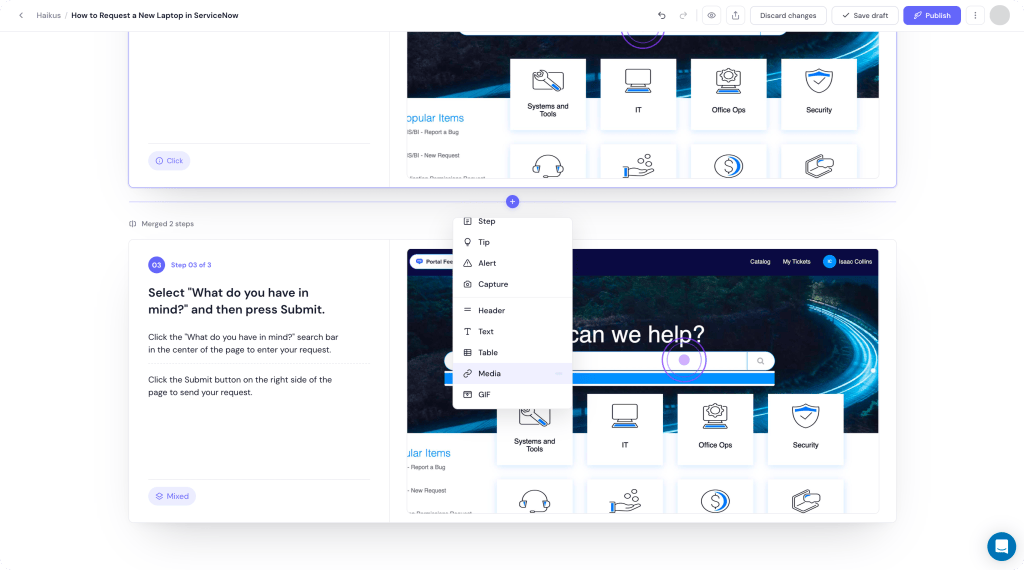
Embedded media. Add videos, forms, documents, and designs to a haiku from tools like YouTube, Loom, Google Docs, Typeform, and Figma. Viewers can watch, fill in, or browse without leaving the guide. Select + between steps, then Media, and paste a link.

Available on all plans. Learn more

Your haikus, ready for AI agents

Export for AI agent. Your steps rewritten as instructions an AI agent can follow, with the context it needs and the details it should check with you first. Download the markdown and hand it to Claude, Cursor, or another AI tool. Beta. Available on Pro, Team, and Enterprise plan.

Learn more

Sharing and access

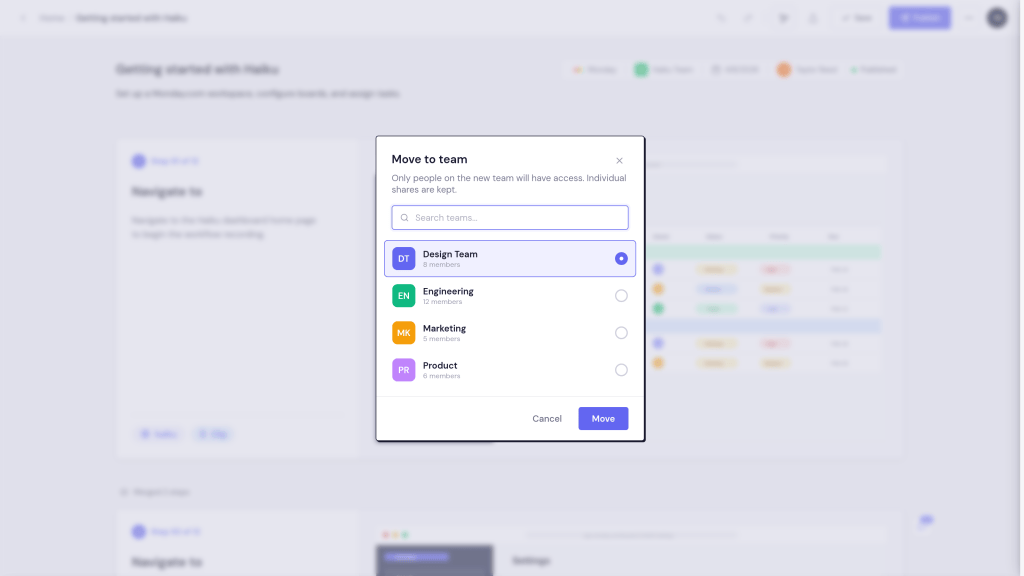
Move to team. Move a haiku to another team. Only people on the new team will have access. Anyone you shared with individually keeps access. Available on the Enterprise plan.

Learn more
Password-protected links. Add a password to a shared link. Share the password with your team. Available on Pro, Team, and Enterprise plan.

Learn more

Create and edit

Start from what you already have. Then shape the words.

Upload from file. Turn a screenshot, a recording, or a document into an editable haiku.

Learn more

Templates library. Browse ready-made haikus by role and start from one instead of a blank page. Available on Teams and Enterprise plans.

Learn more

Rich text. Format the words inside your steps, tips, alerts, and headers. Font, size, bold, color, alignment, links.

Learn more

New ways to export

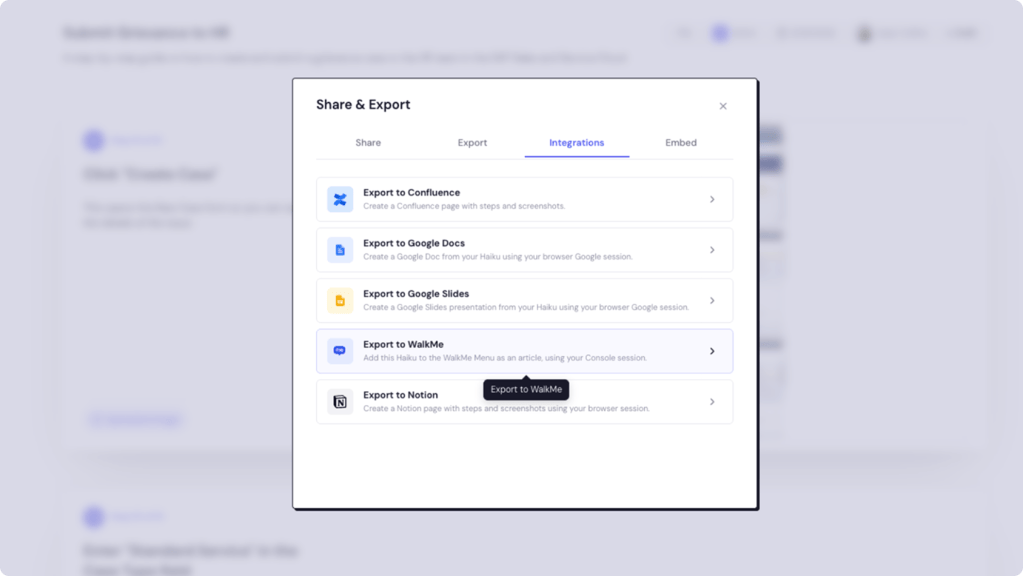
Select Share & Export, then Integrations. Three new places to send a haiku.

Notion. Creates a Notion page with your steps and screenshots. Available on Pro, Team, and Enterprise plan.

Google Docs and Google Slides. Creates a Google Doc, or a Google Slides presentation from your haiku. Available on Pro, Team, and Enterprise plan.

WalkMe. Adds a haiku to your WalkMe Menu as an article resource. Available on the Enterprise plan.

Team controls

Decide what your team sees, and who can see it.

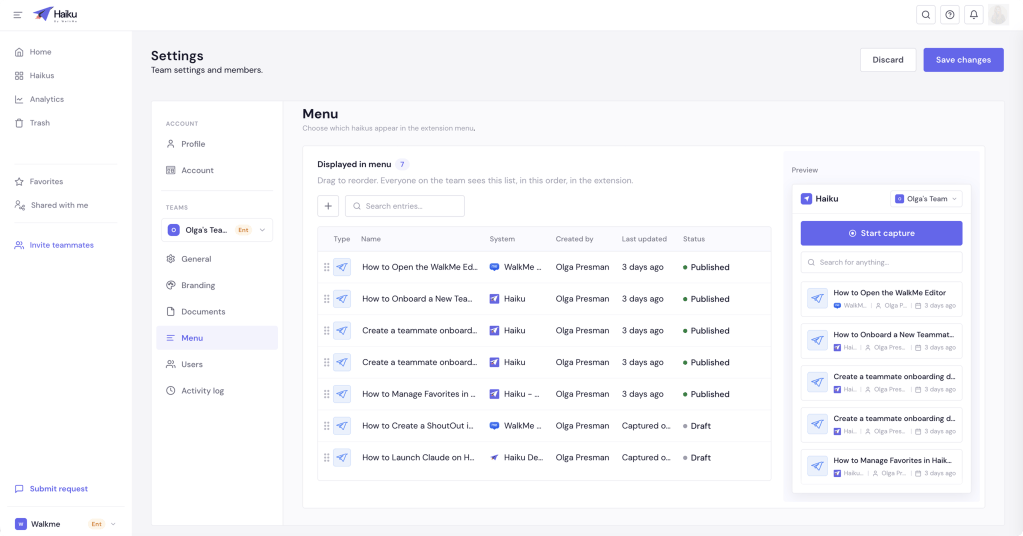
Menu. Choose which haikus appear in the extension menu, and in what order. Available on the Enterprise plan.

Learn more

Publish. Publish a haiku to the extension menu and see its status at a glance. Available on the Enterprise plan.

Learn more
Account visibility. Account admins see every team in their account, including its admins and users. Change roles and remove people from any team. Available on the Enterprise plan.

Learn more

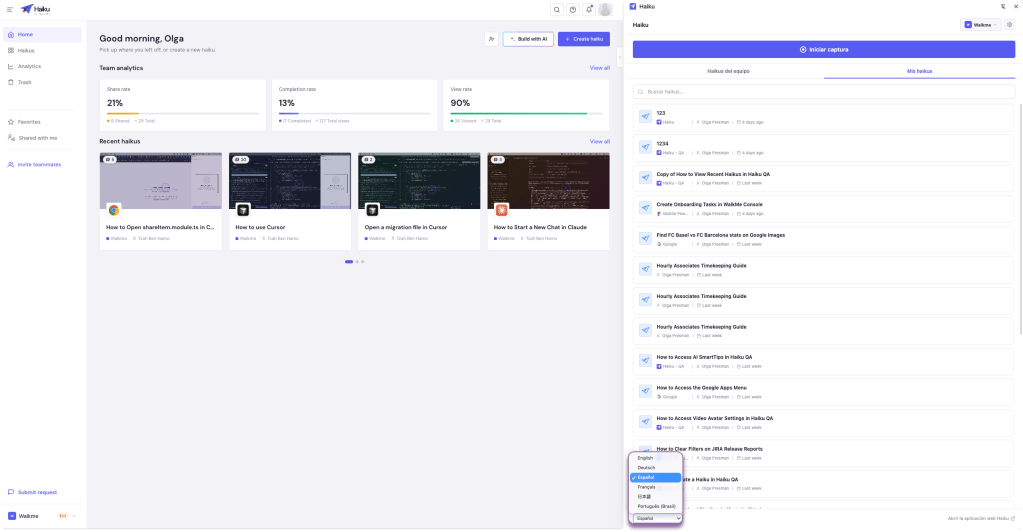
Haiku app in your language

Extension and desktop localization. Haiku now speaks 6 languages: English, German, Spanish, French, Japanese, and Portuguese (Brazil).

Learn more

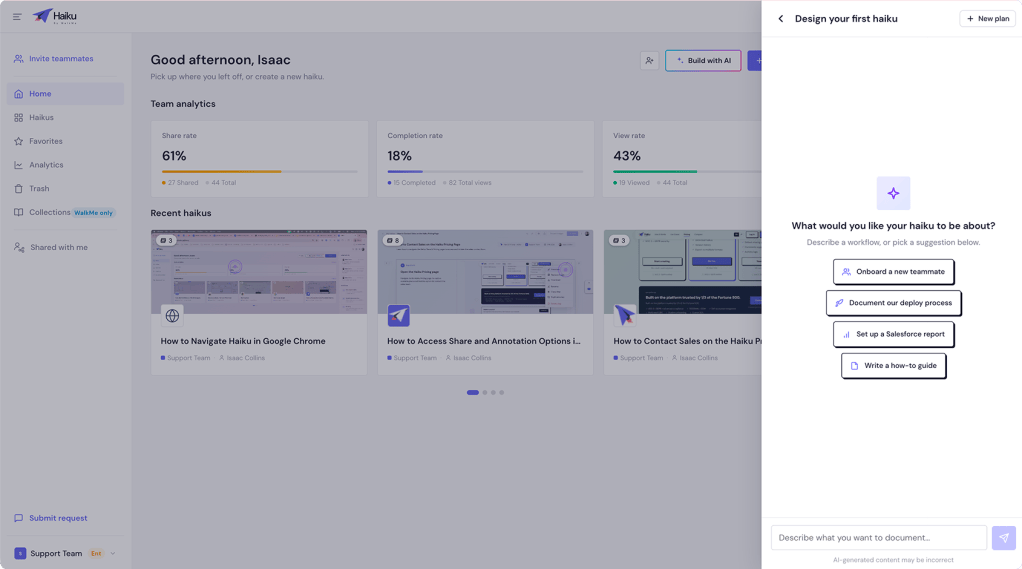
Create and translate with AI

Build and edit with a prompt. Viewers read in their language.

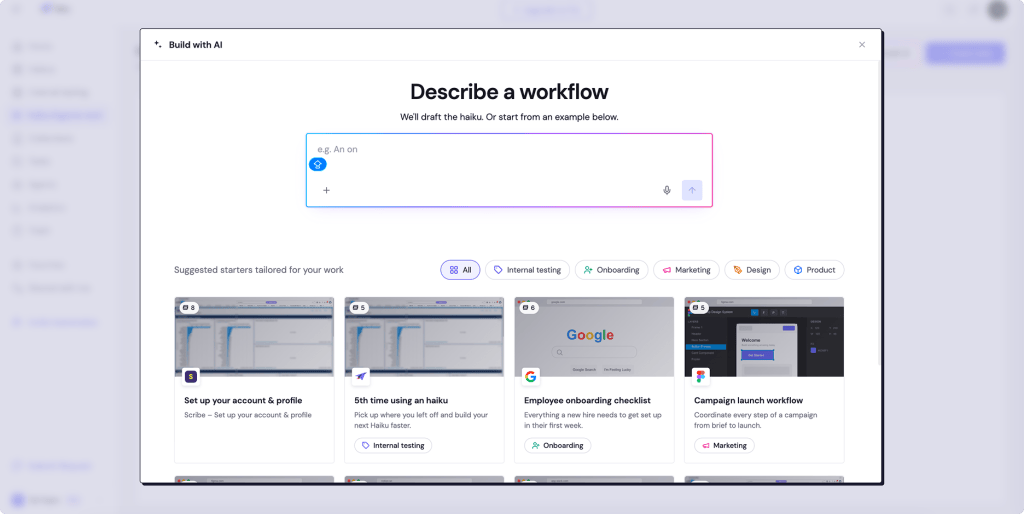
Build. Create a haiku draft from a prompt. Describe the workflow. Haiku builds a draft for you. Capture the real steps after to fill it in.

Edit. Change the haiku with a prompt. Describe the edit in plain language. Haiku rewrites step text, reorders steps, and updates details for you.

Translate. Viewers read your haiku in their own language. Haiku translates the steps in real time as each viewer opens it. No extra versions to create or maintain.

Available on the Enterprise plan.

View and organize

See any haiku in context, and keep your library organized.

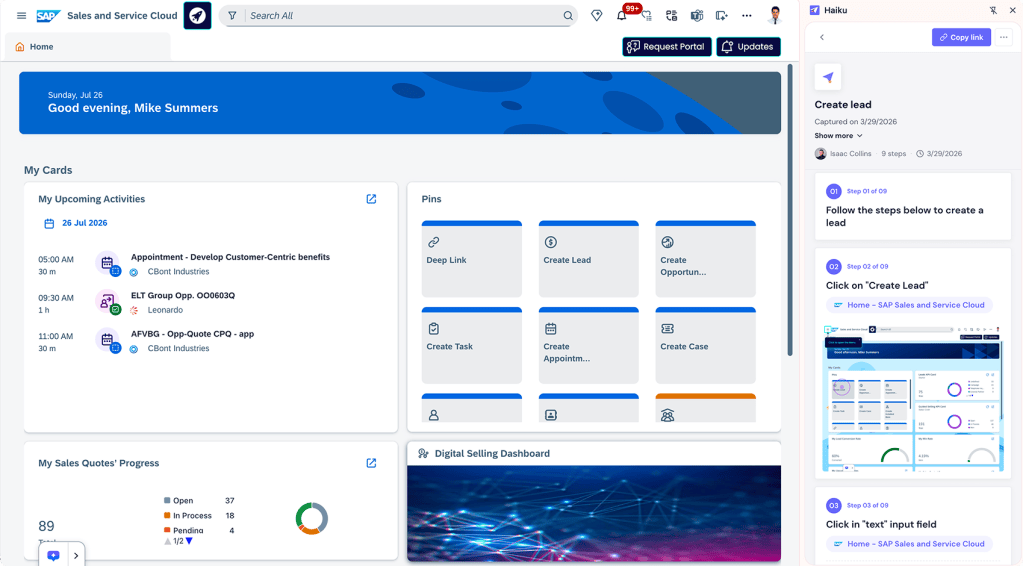
Contextual view. View any haiku within the flow of work. Open the extension and review any haiku side by side with the live page. Scroll through without switching tabs.

Learn more

Folders. Organize your haikus into folders. Group related haikus, then set permissions per folder to control who can view or edit its contents. Available on Teams and Enterprise plans.

Learn more

Start from a template

Templates. Browse a library of example haikus across onboarding, IT setup, product how-tos, and more. Pick one and make it yours.

Learn more

Export and embed

Three new ways to get your haikus out into the world.

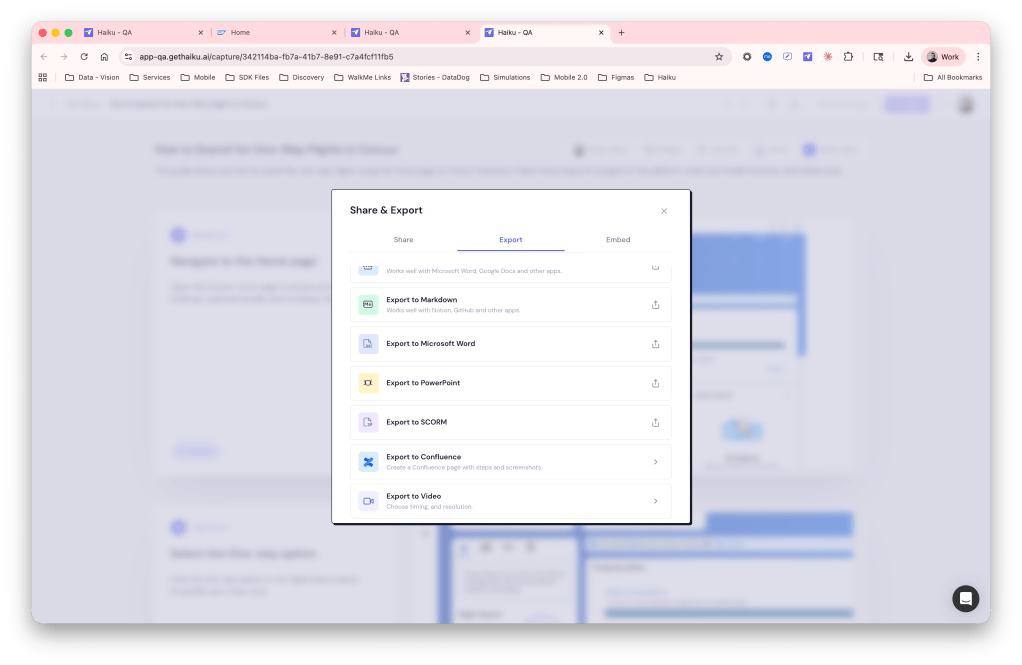
Confluence. Publish any haiku directly to Confluence as a formatted article. Open a haiku, select Export > Confluence, connect your workspace, choose the space and destination page, and publish.

Video. Turn any haiku into an MP4. Haiku converts your steps into a ready-to-share video file. No screen recording. No editing. Just export.

Embed. Put any haiku directly inside another site or tool. Copy the HTML embed code and paste it wherever you need it. When the haiku updates, the embed updates automatically.

Branding

Add your logo, colors, fonts, and a custom cover page to every haiku.

Set them once in your brand kit. Every haiku you create will reflect them automatically.

Capture & edit

Four improvements to how you record and refine your haikus.

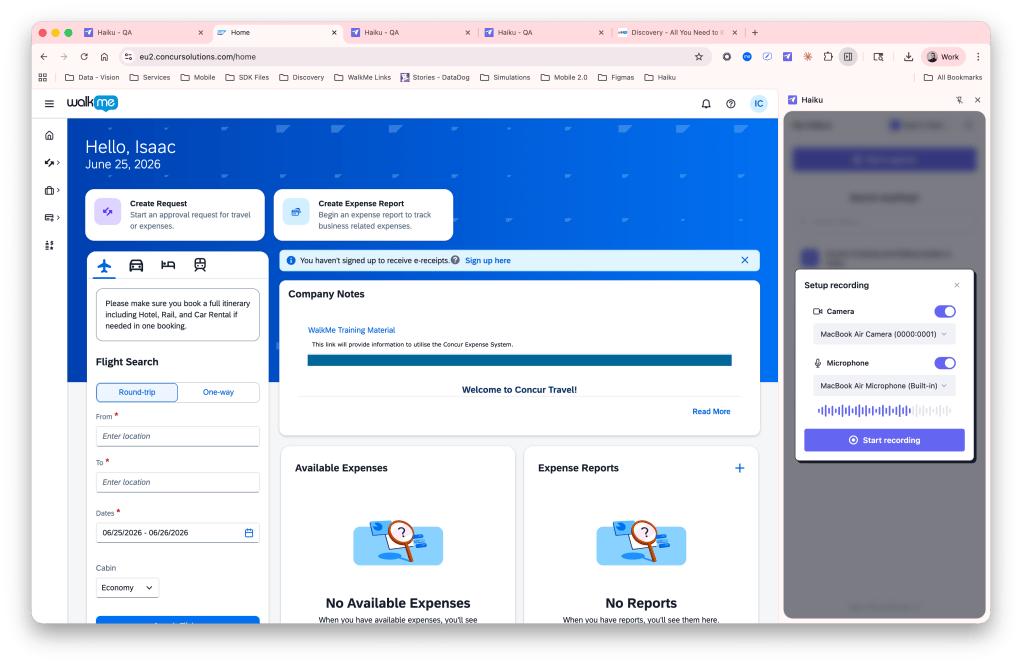
Audio and video recording. Narrate while you capture. Record your voice, your camera, or both alongside the screen capture. The recording attaches to your haiku and plays inline when viewers open it.
​

Learn more

Edit with AI. Describe what you want changed on any step using plain language. Arrows, highlights, blurs, callouts. Then, Haiku updates the annotations for you.

Mobile capture. Create haikus from your phone. Screenshot as you go, then come back and upload. We'll arrange the steps and add the tap markers.

Keyboard shortcuts. Edit haikus faster with your keyboard. Common actions now have shortcuts. Preview, annotate, rename, copy, and delete steps without reaching for the mouse.

Preview mode

Before you share, see exactly what your viewers will see.
​

Open any haiku and select Preview. Two modes:
​

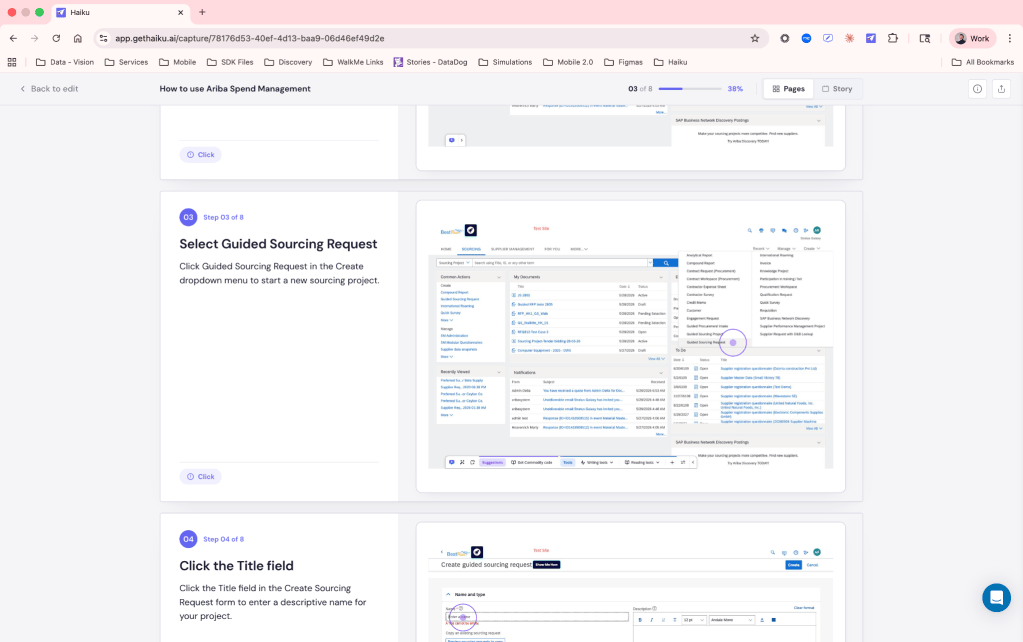
Pages. Your haiku as a scrollable document. Each step appears with its screenshot alongside the text. Clean, linear, easy to follow.
​

Story. Your haiku as a presentation. One step at a time, full screen. Use the arrows to move through it or jump to any step from the thumbnails at the bottom.
​

Switch between them to find the right format for your audience. Share when it looks right.

AI-generated titles and descriptions

When you finish a capture, Haiku writes the title and description for you.
​

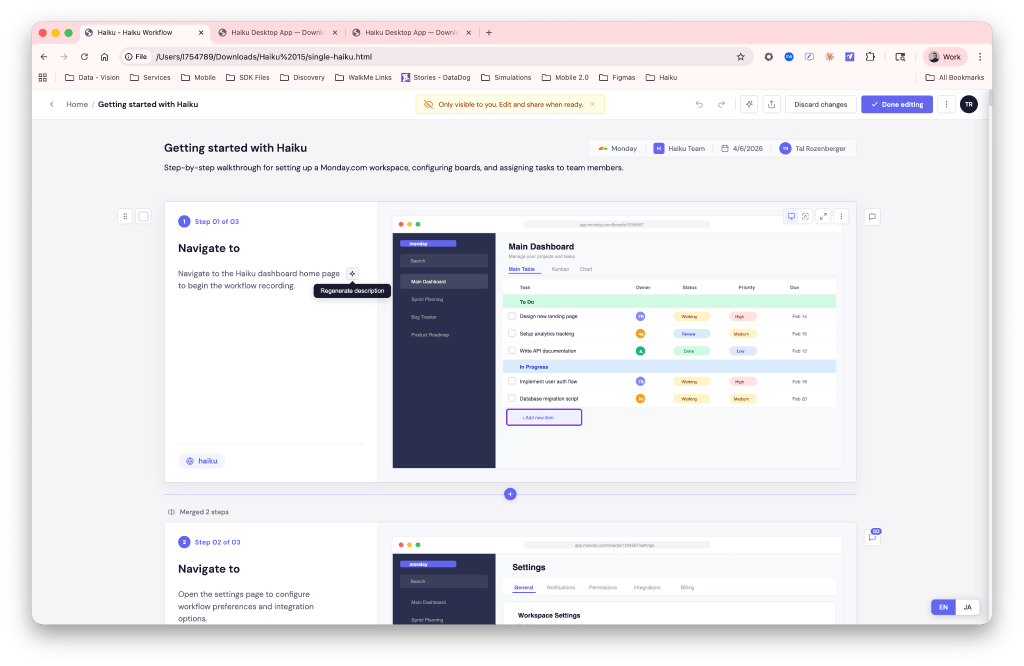
Both are generated automatically using Gemini 3.1 Pro. Select the regenerate button next to any title or description to get a new version.
​

AI generation is on by default. To turn it off, go to the Documents section in Settings.
​

Free plan: AI generation is available for your first 10 haikus.

Desktop capture and Edge support

Two new ways to use Haiku.
​

Desktop capture. Record any workflow on your desktop. Not just inside the browser. Capture any app, any window, anything on your screen.
​

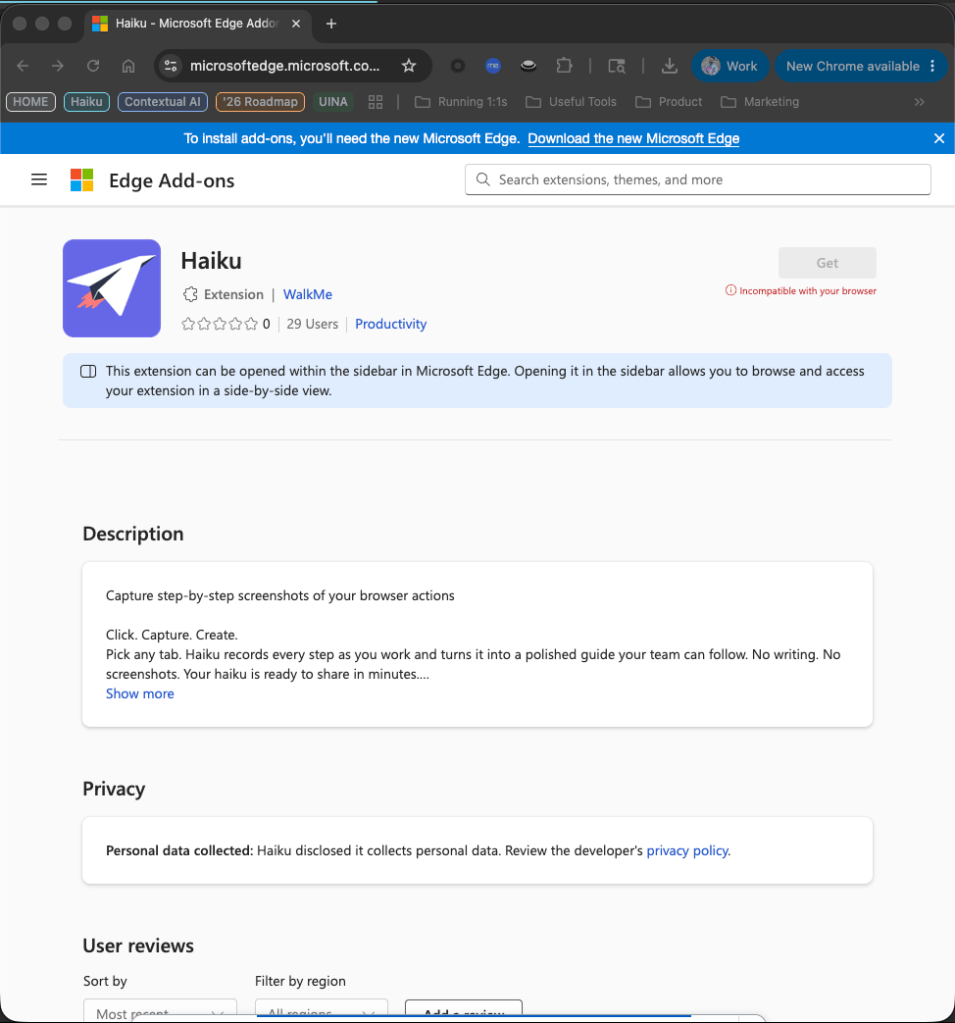
Microsoft Edge. The Haiku extension is now available for Edge. Install it from the Edge Add-ons store and capture the same way you would in Chrome.