Click “Approvals” in the sidebar.
This opens every request waiting for you.
Capture a workflow and Haiku writes the step-by-step guide. Highlight the tricky parts and add the extra details you want. You stay in charge.
This opens every request waiting for you.
Check the vendor and the total before you decide.
The request moves to Approved.
If the total is over $5,000, click “Add approver” and choose Finance.
Capture a workflow and Haiku writes every step. Or describe the process and get a draft with placeholders for the screenshots. Then edit with a prompt, or format the text with fonts, color and links.
 AnnotateStep 4 of 9Done

Mark up the screen with arrows and highlights, and blur sensitive fields by hand or automatically. Add an alert for the step that can’t be undone, a tip for the shortcut, or a table for field values.
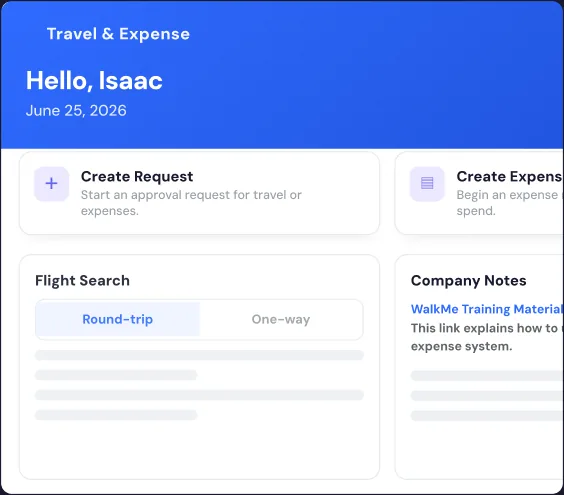
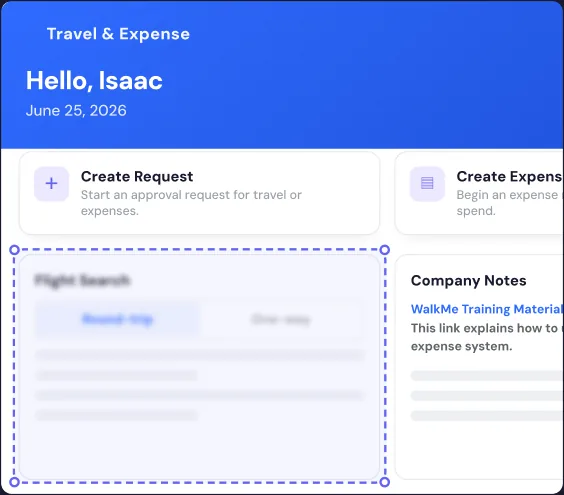

Set your logo, colors, fonts, and cover page once. Every guide picks them up, so readers see your team, not a tool.
Write the guide one time. Each viewer gets a version in their own language, translated the moment they open the guide, across 14 languages. You maintain one guide. Everyone reads their own.
Enter the opportunity name in the highlighted field.
Saisissez le nom de l’opportunité dans le champ surligné.
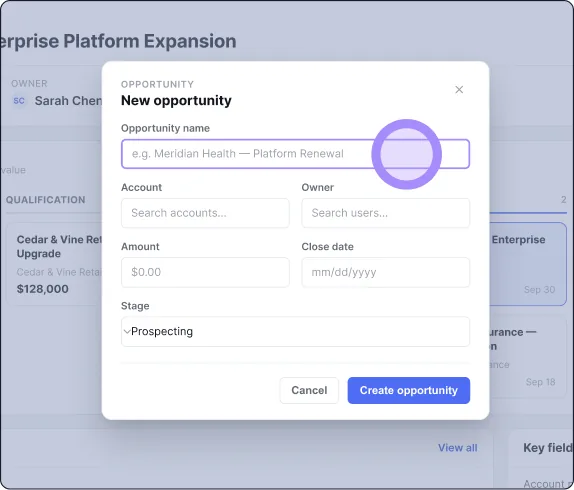
Capture the workflow in your browser or desktop app. When you finish, Haiku writes a title and a description for each step, based on what happened on screen. Want a different line? Select Regenerate, or rewrite the line yourself. Free includes AI titles and descriptions for your first 10 guides.
Yes. Every word and step stays editable. Format text with fonts, bold, color, alignment and links. You can also reorder, merge, split or delete steps. On Enterprise, Edit with AI lets you describe a change in plain language, such as rewriting step text or reordering steps, and Haiku updates the guide.
Yes, on Enterprise. Describe the workflow and Build with AI creates a draft with the steps laid out. Capture the real steps afterward to replace the placeholders. On Team and Enterprise, you can also start from a template.
Open the step's screenshot and blur the field by hand. Manual blur is available on every plan, including Free. On Pro and above, Smart Blur detects sensitive data during capture and blurs it for you. Check the blurred areas before you share. On Enterprise you can use "Edit with AI" and simply describe the area in the image you want blurred and AI takes care of it.
Yes, with Brand Kit on Pro and above. Set your logo, colors, fonts and a cover page once, and every guide uses them. Pro also lets you hide the "Made with haiku" label on shared content.
Yes, on Enterprise. Haiku translates the steps into the viewer's language when they open the guide, across 14 languages. You keep one guide, with no translated copies to create or update.
Capture the task once. Haiku drafts the guide. You add what only you know.
Fill out the form and we'll get back to you as soon as possible.
Tell us about your team and we'll find the right plan together.