1
Click Settings
At the top right, click the gear icon (Settings).
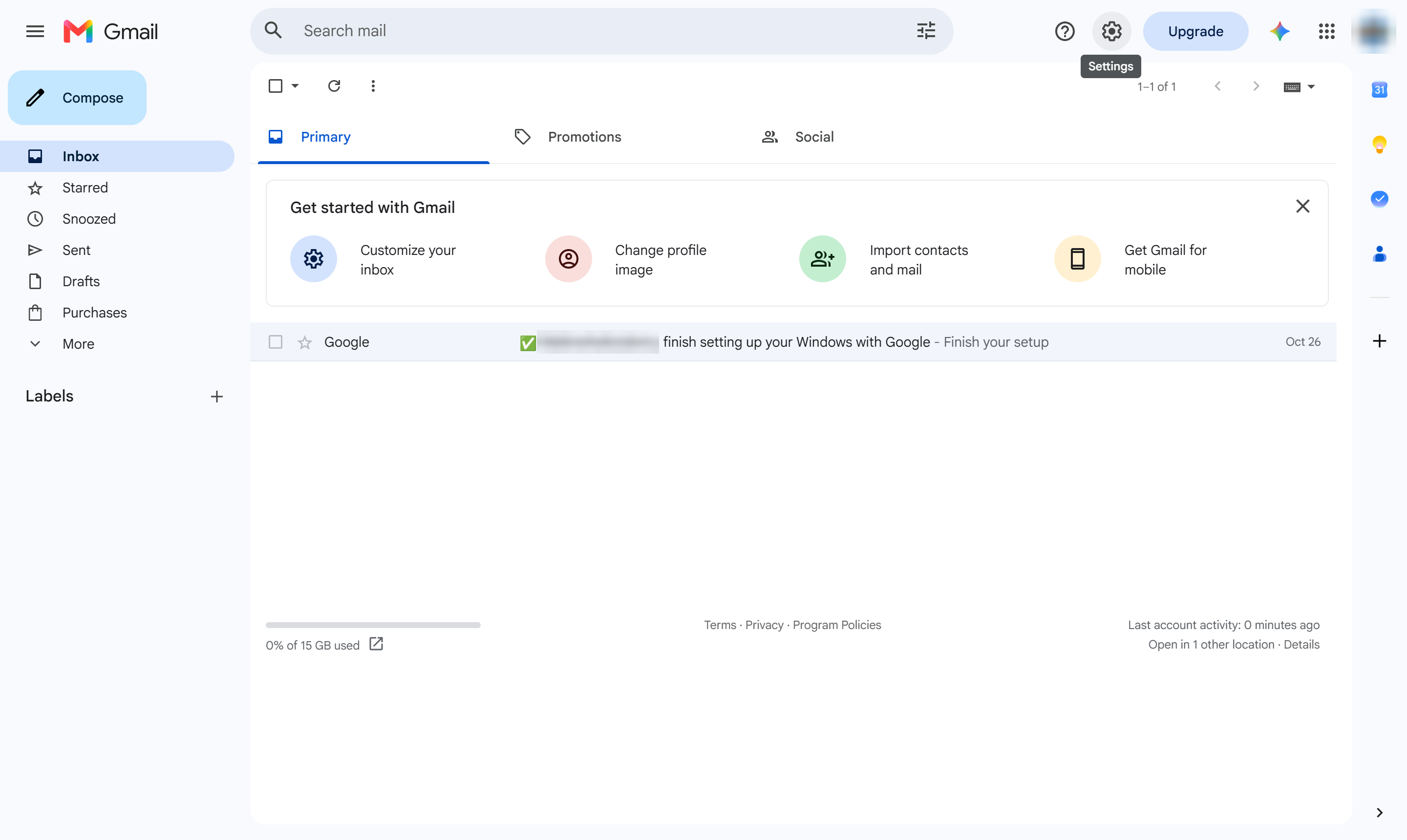

Learn how to configure and use the Undo Send feature in Gmail to recall sent emails before they reach the recipient. You will navigate to the General settings tab to adjust the cancellation period dropdown to 30 seconds and save your changes. Finally, you will compose a test email by filling out the recipient, subject, and message fields, send it, and successfully recall the message using the Undo prompt.
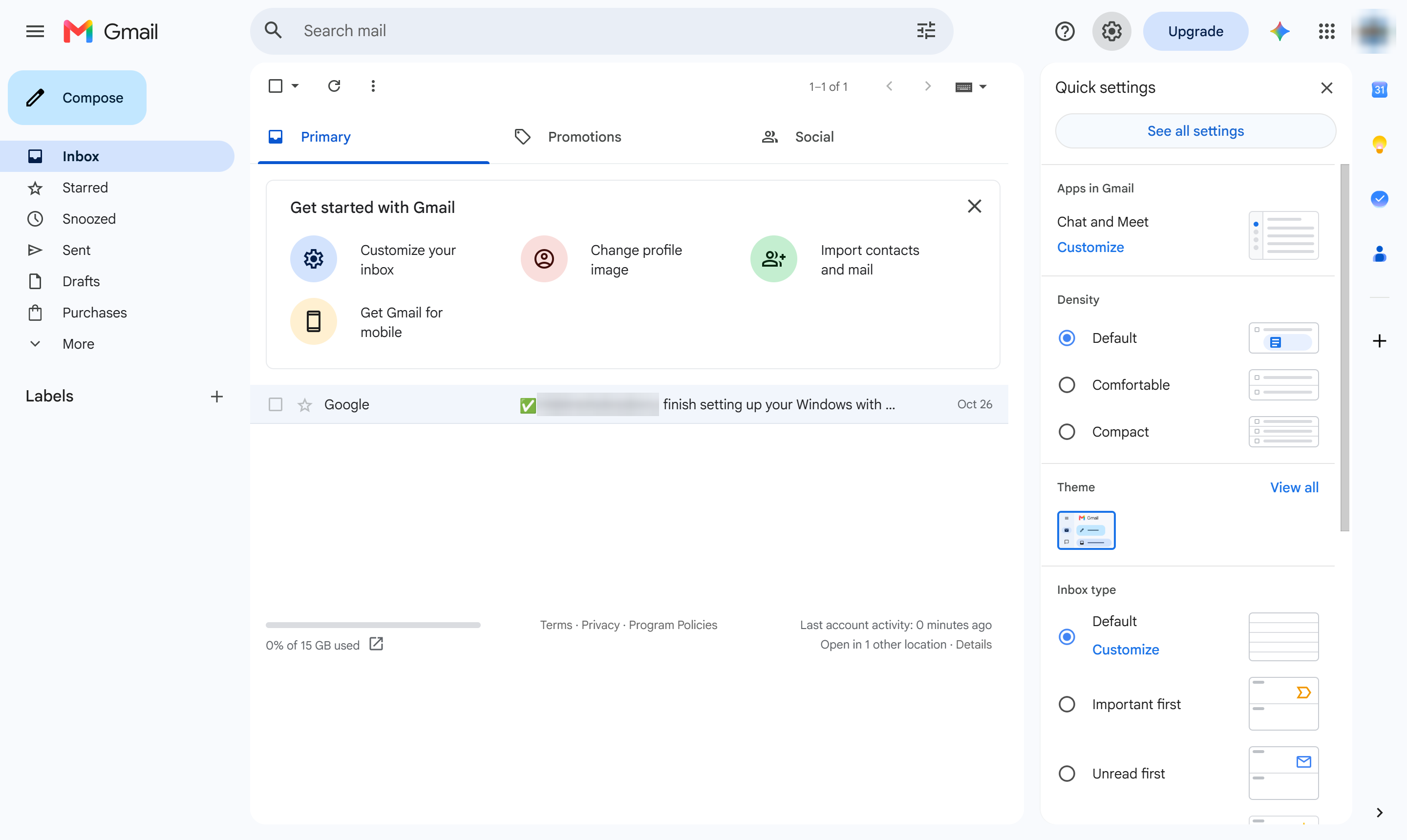
At the top right, click the gear icon (Settings).
Click See all settings.
Open the General tab.
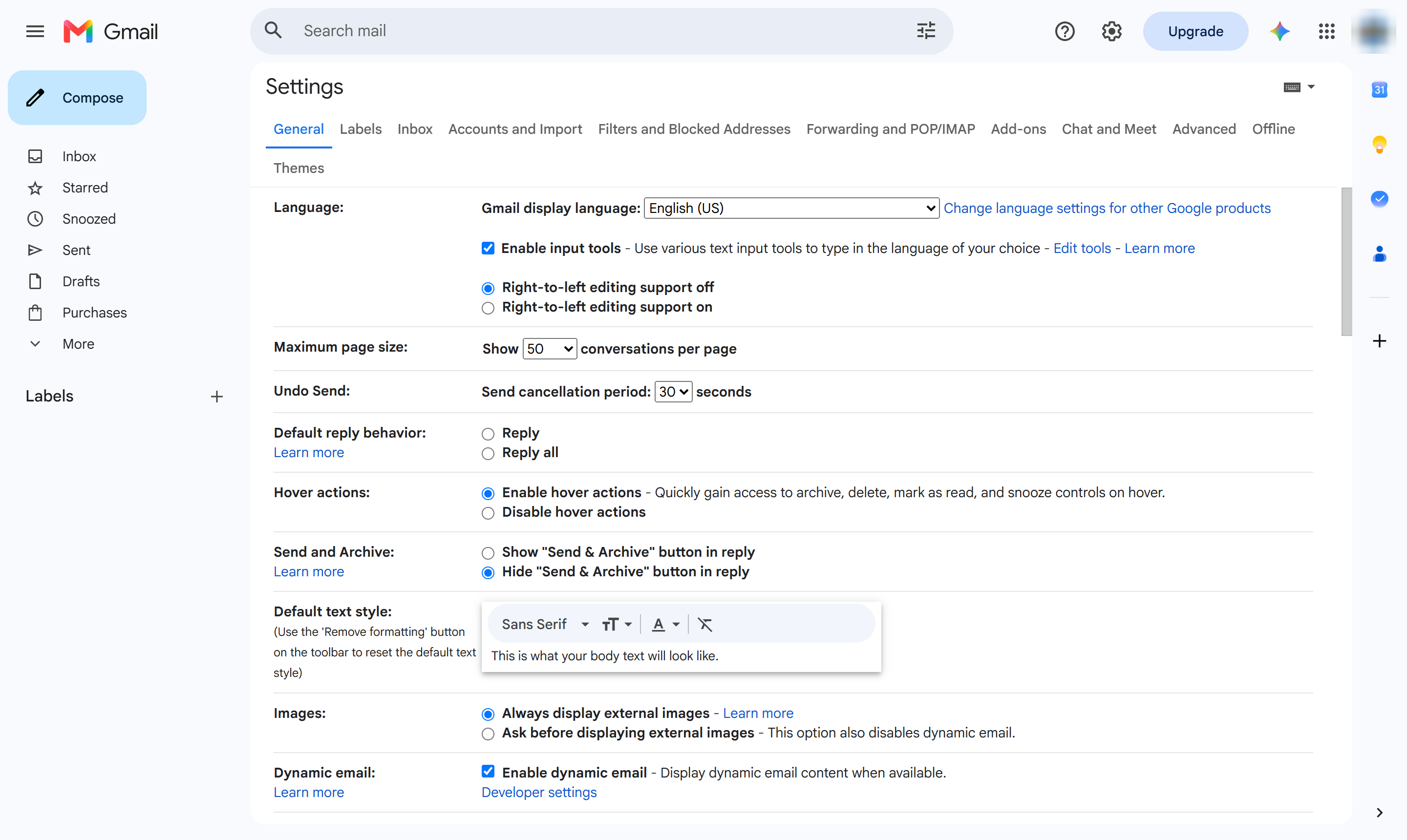
Find Undo Send near the top of General, and click the seconds dropdown.
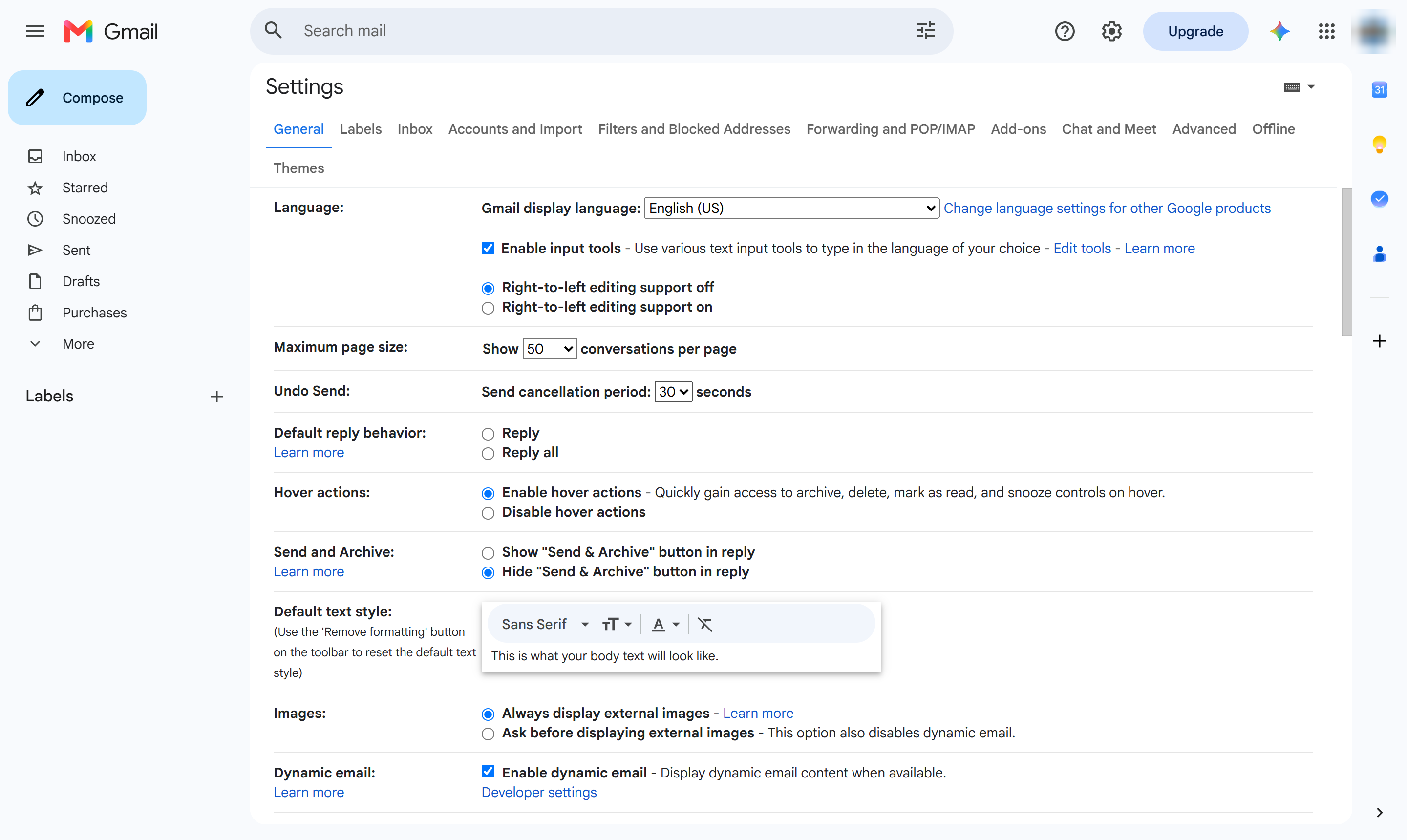
Pick the longest window - 30 seconds - so there is time to click Undo.
Click Save Changes at the bottom of the page.
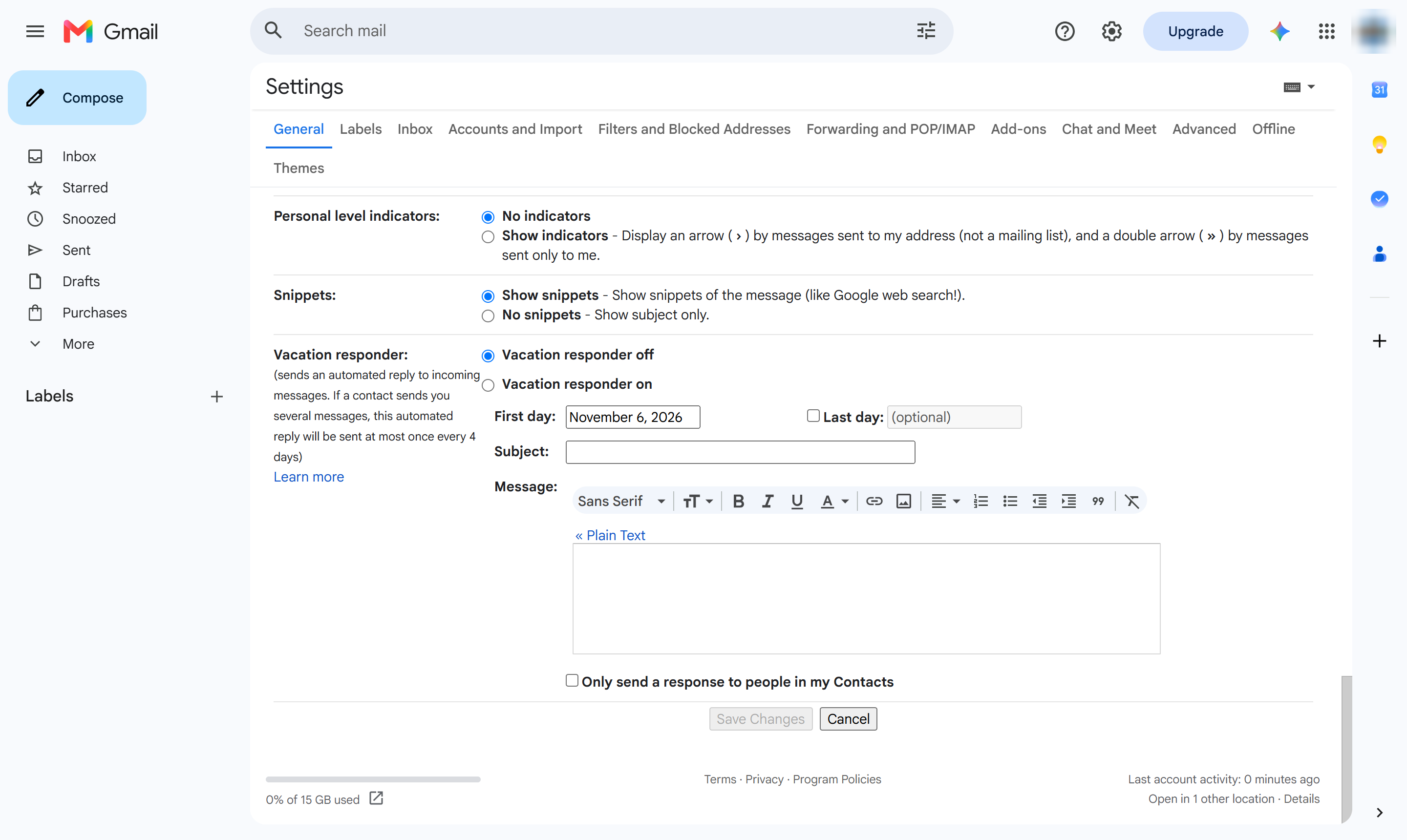
At the top left, click Compose.
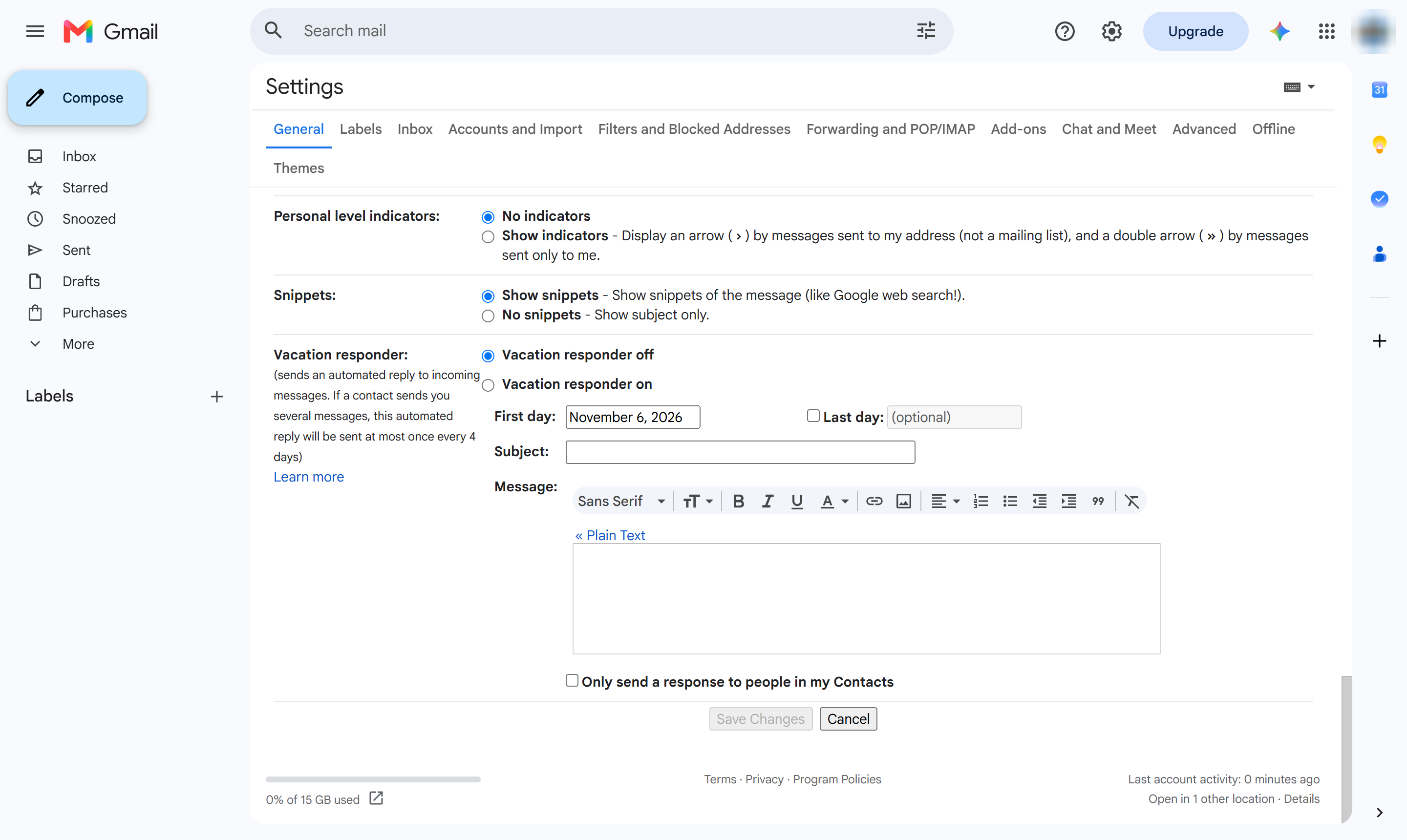
Click the To box.
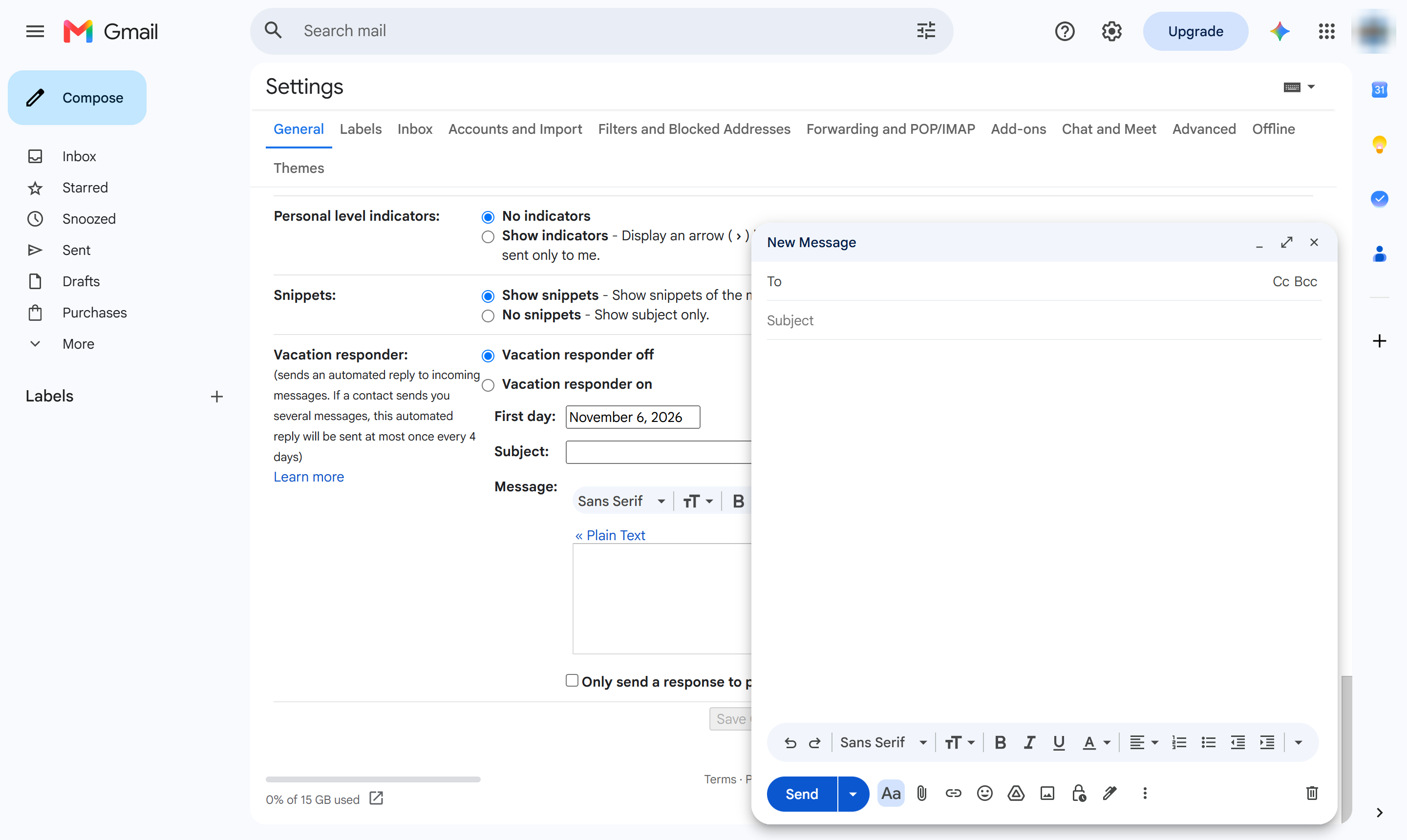
Type the recipient's email address.
Click the Subject line.
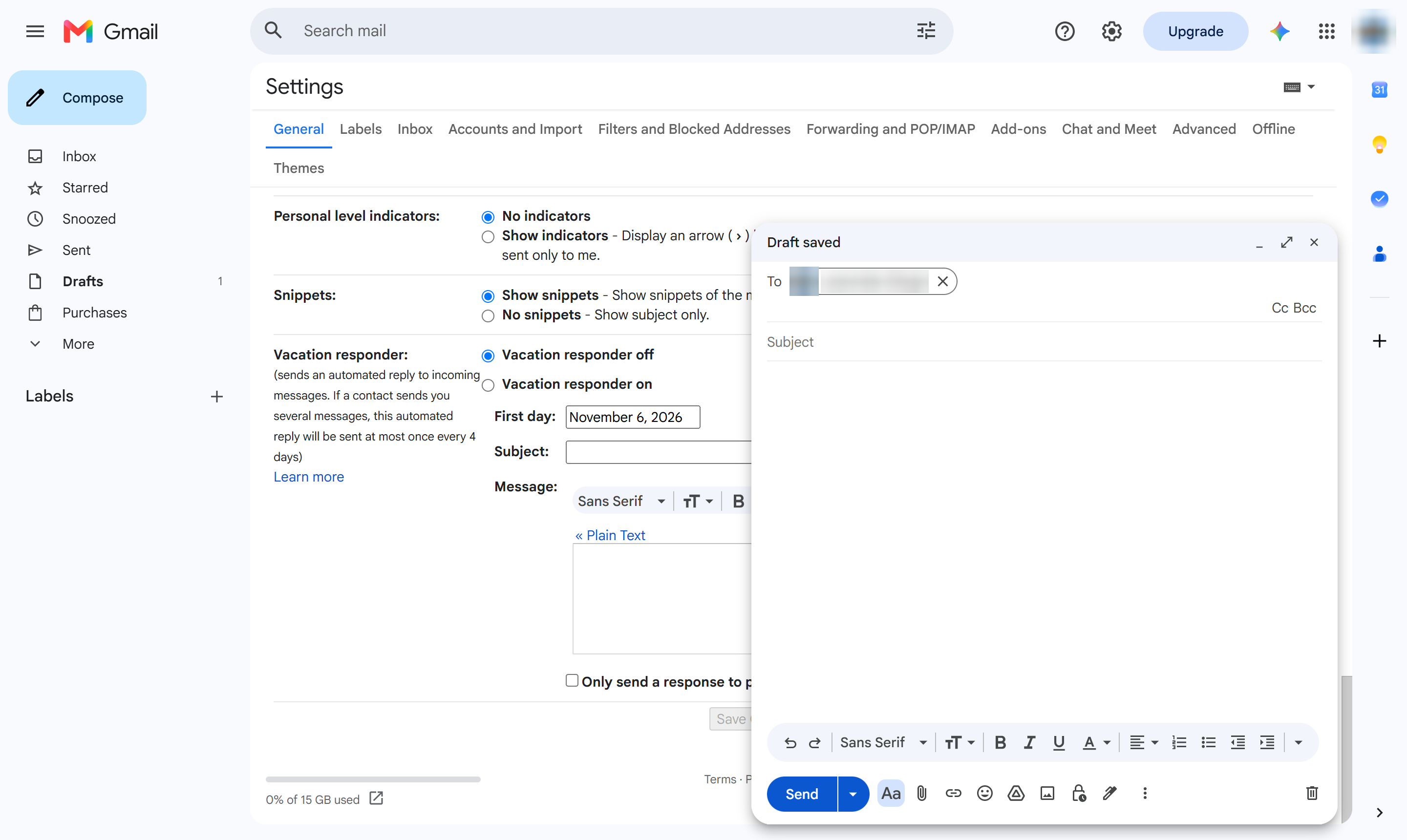
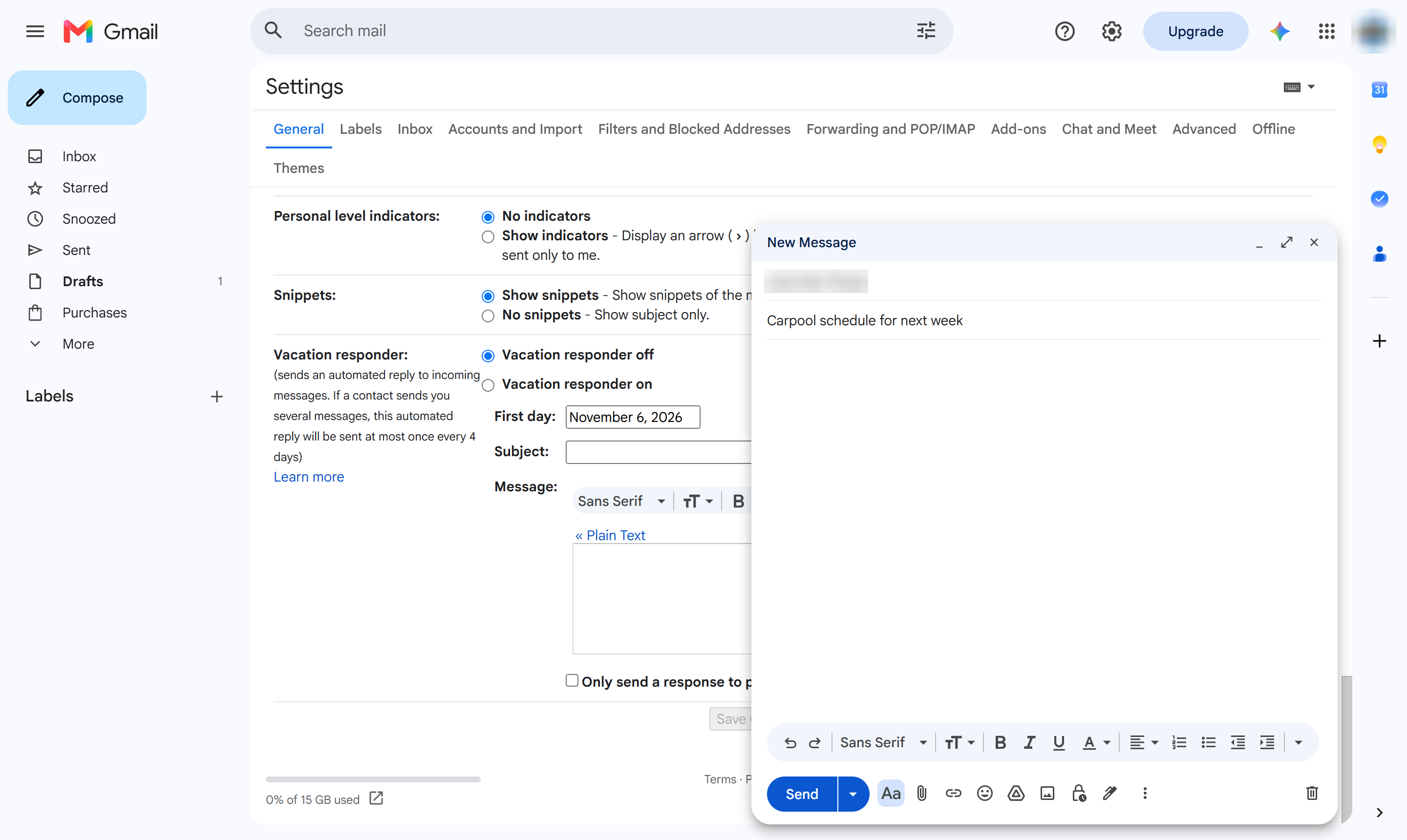
Type a subject line.
Click in the message body.
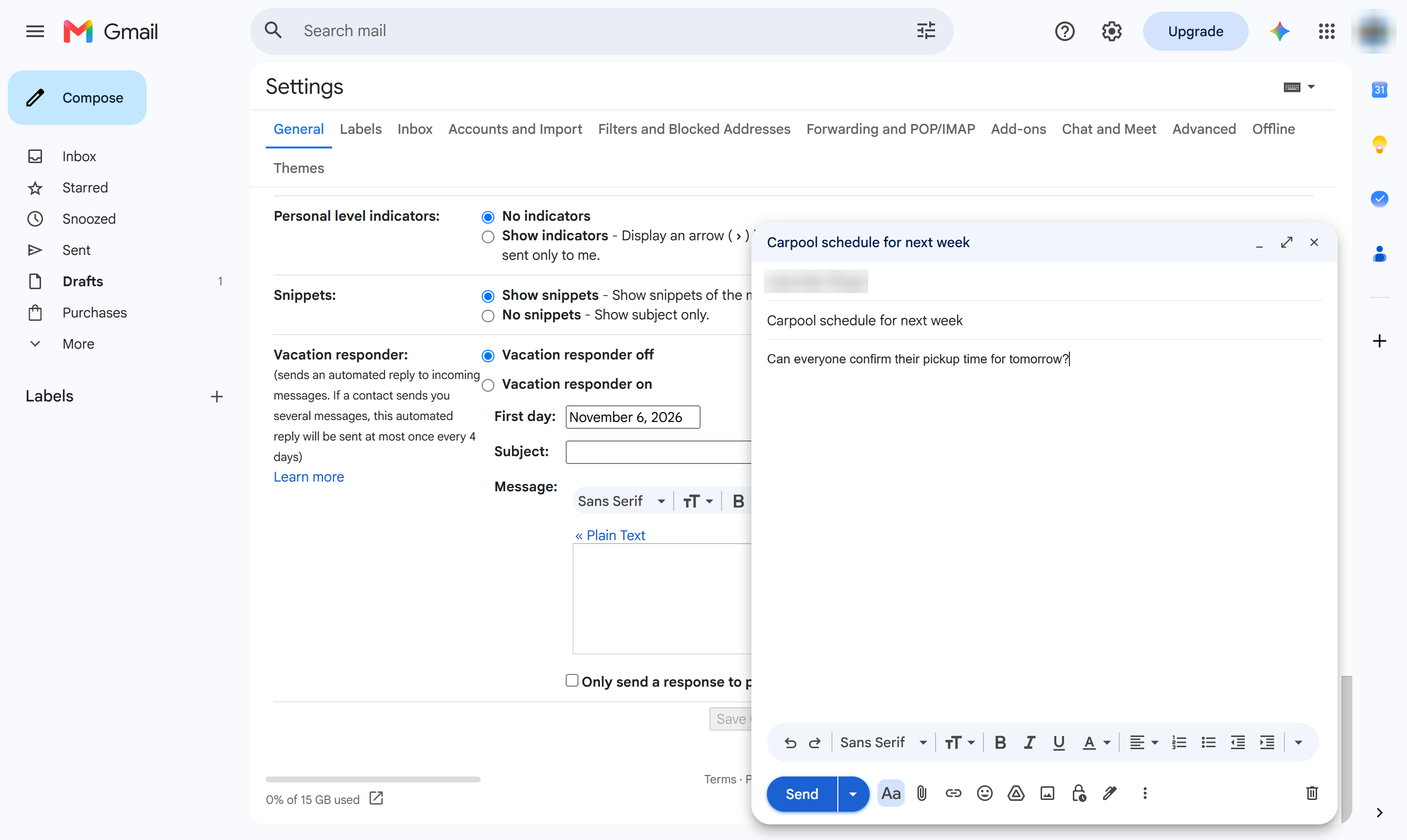
Type your message.
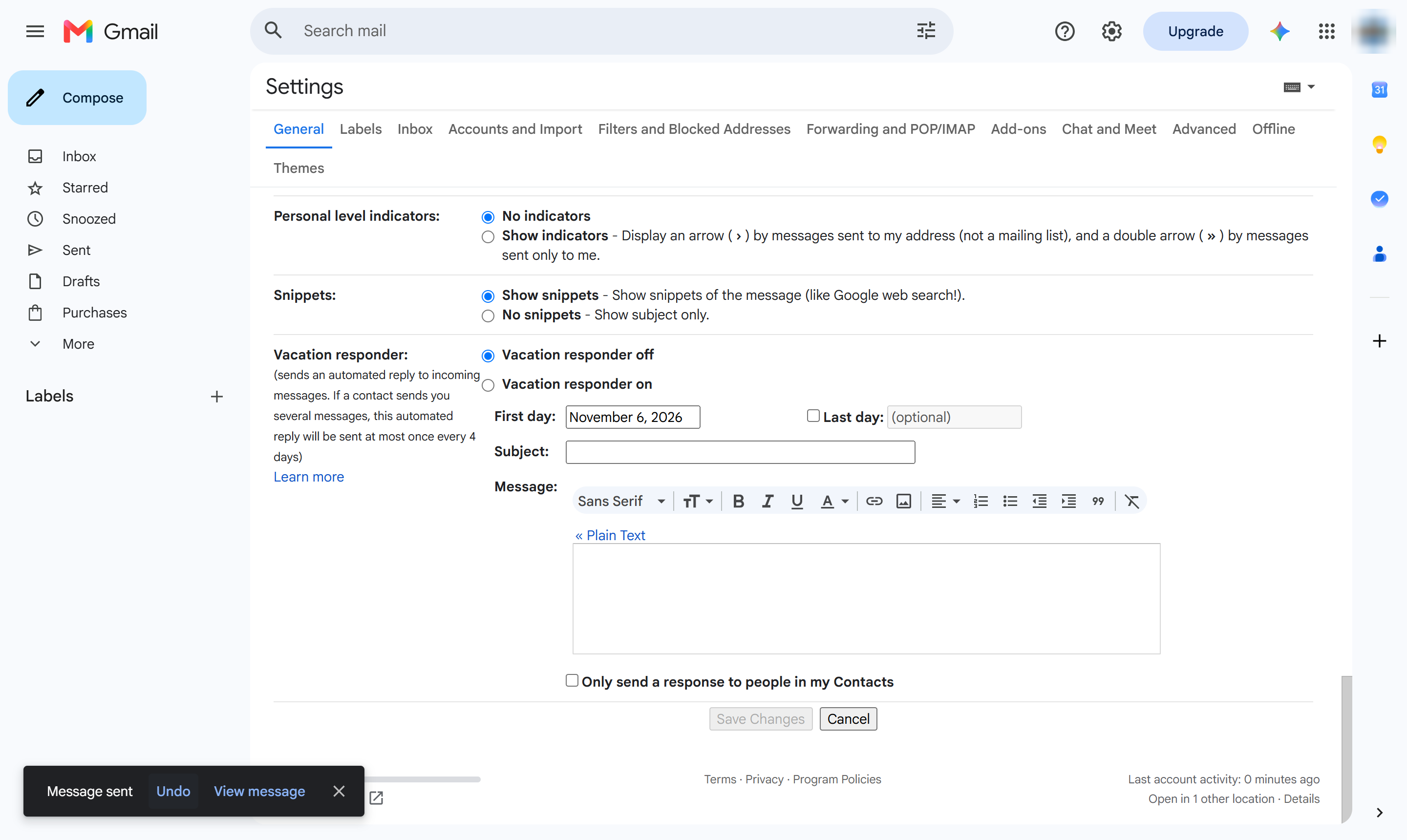
Click Send (or press Ctrl + Enter, Cmd + Enter on a Mac).
In the "Message sent" bar at the bottom left, click Undo right away - it only stays for a few seconds.
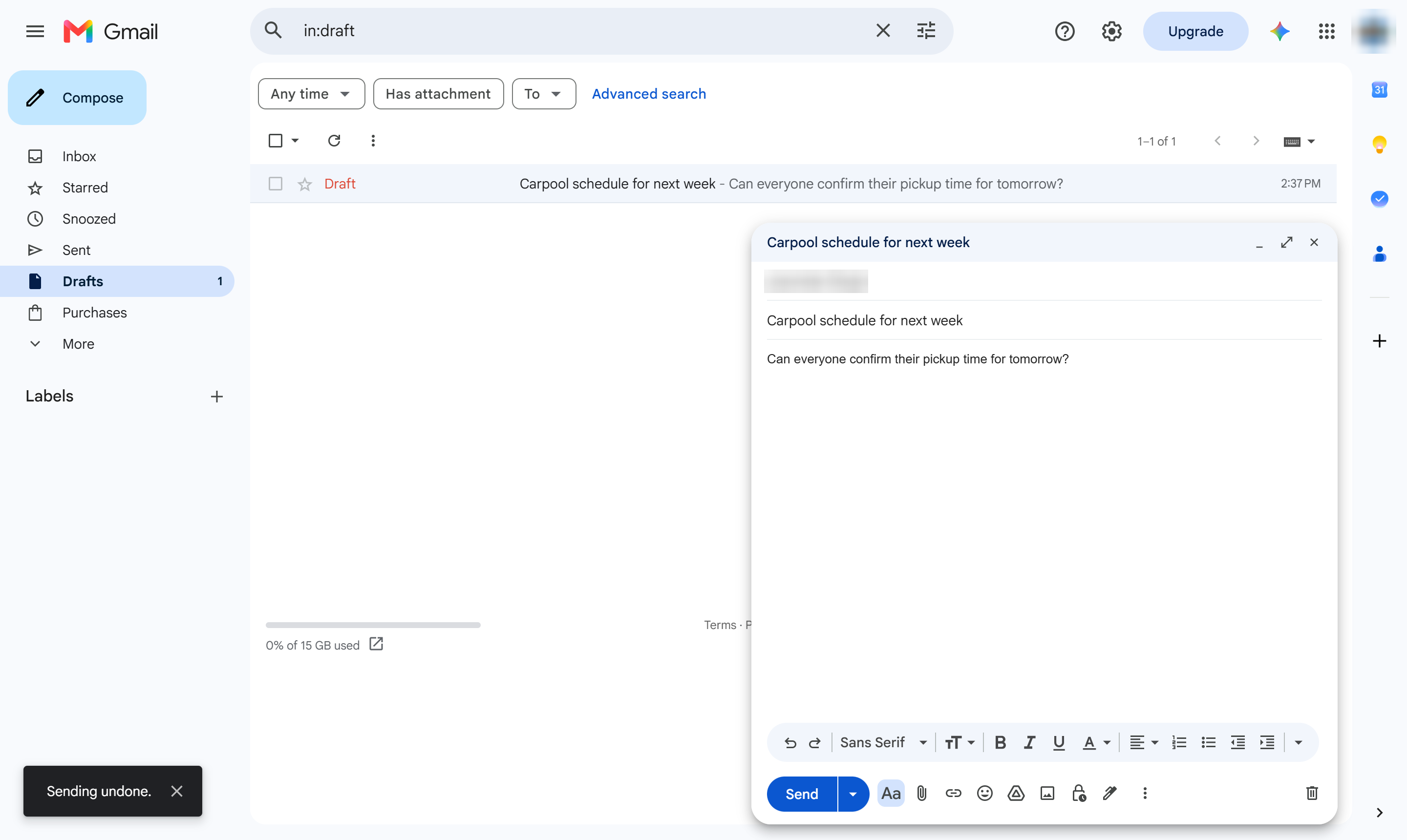
The email reopens as a draft instead of being sent. Edit it and send it again, or close the window to keep it as a draft.
Duplicate this template, swap in your own screens, and share it with your team. Free to start — no credit card.
Fill out the form and we'll get back to you as soon as possible.
Tell us about your team and we'll find the right plan together.