1
Click Compose
At the top left, click Compose.
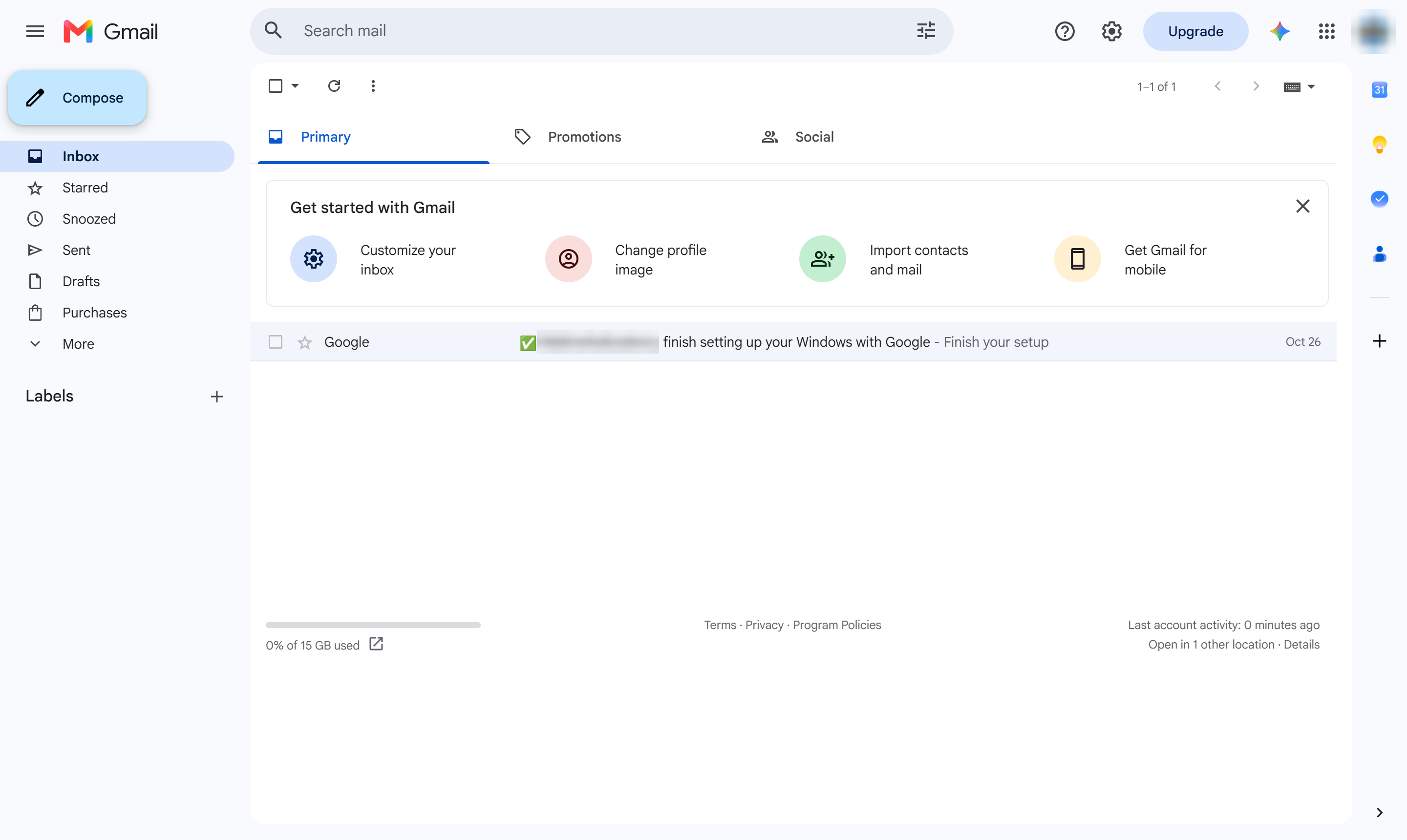

This guide walks you through how to send a secure, encrypted email using Gmail's confidential mode. You will learn how to compose a new message, fill in the recipient, subject, and body fields, and then enable the confidential mode settings before sending. By following these steps, you will successfully protect sensitive information and ensure your email is delivered securely.
At the top left, click Compose.
Click the To box.
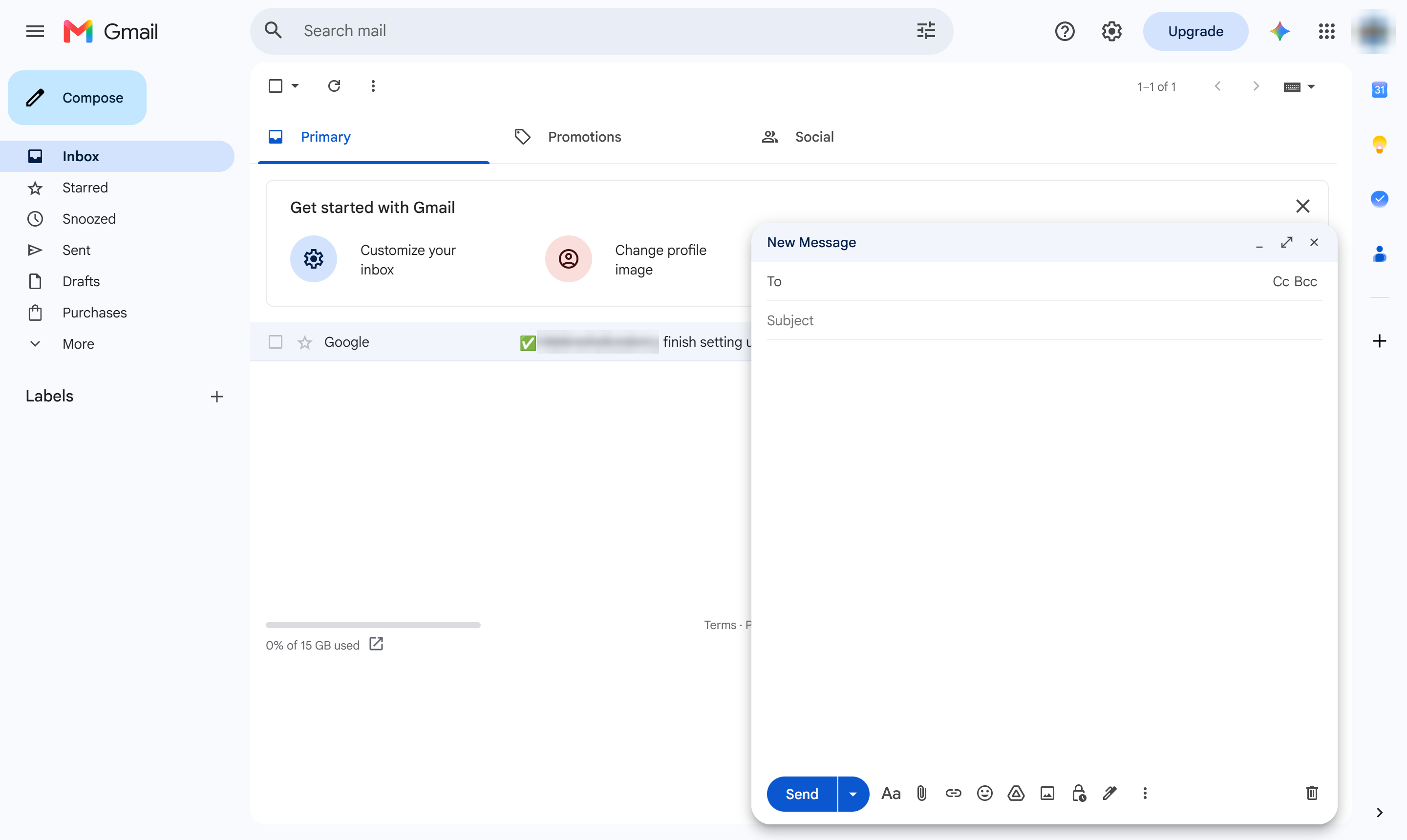
Type the recipient's email address.
Click the Subject line.
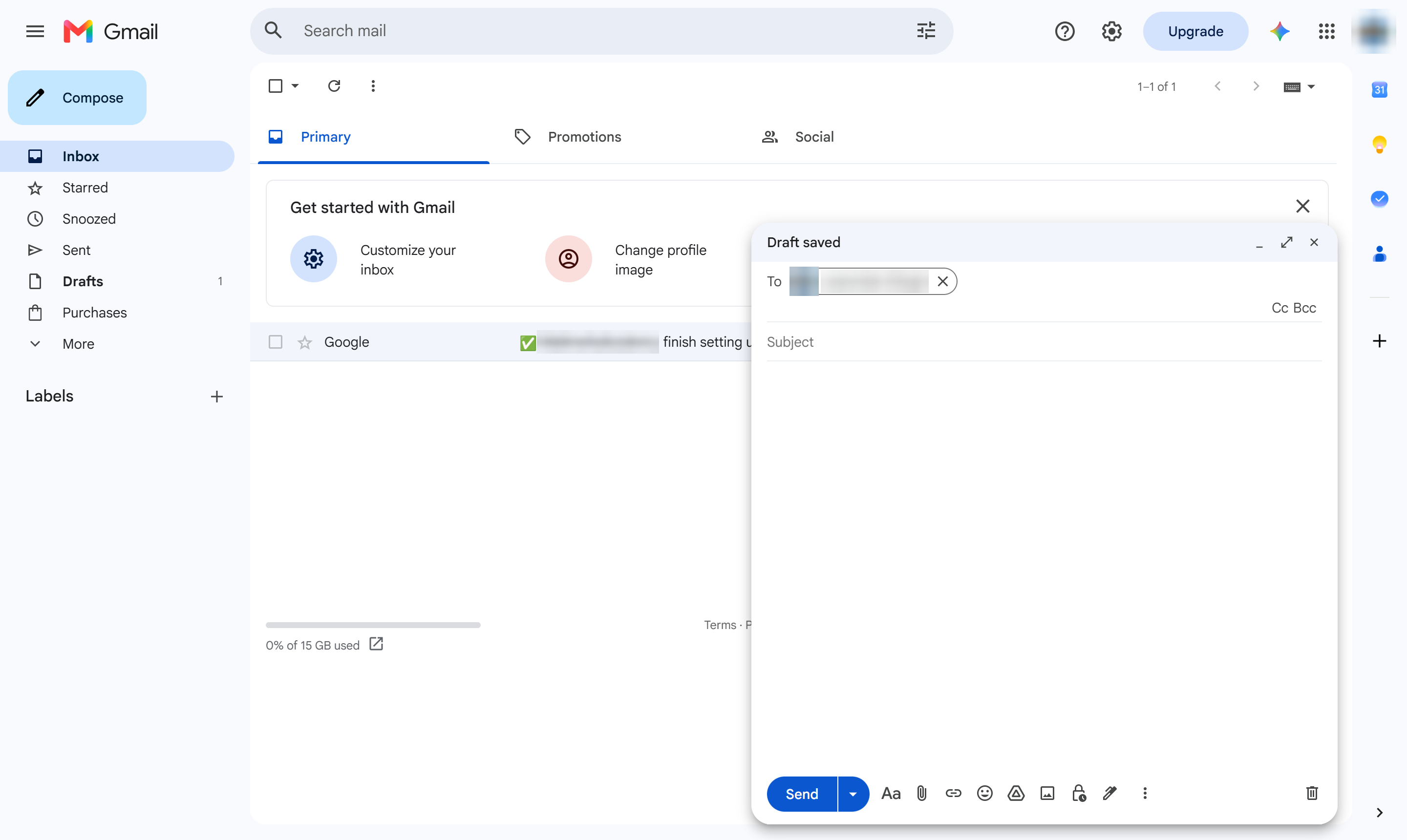
Type a subject line.
Click in the message body.
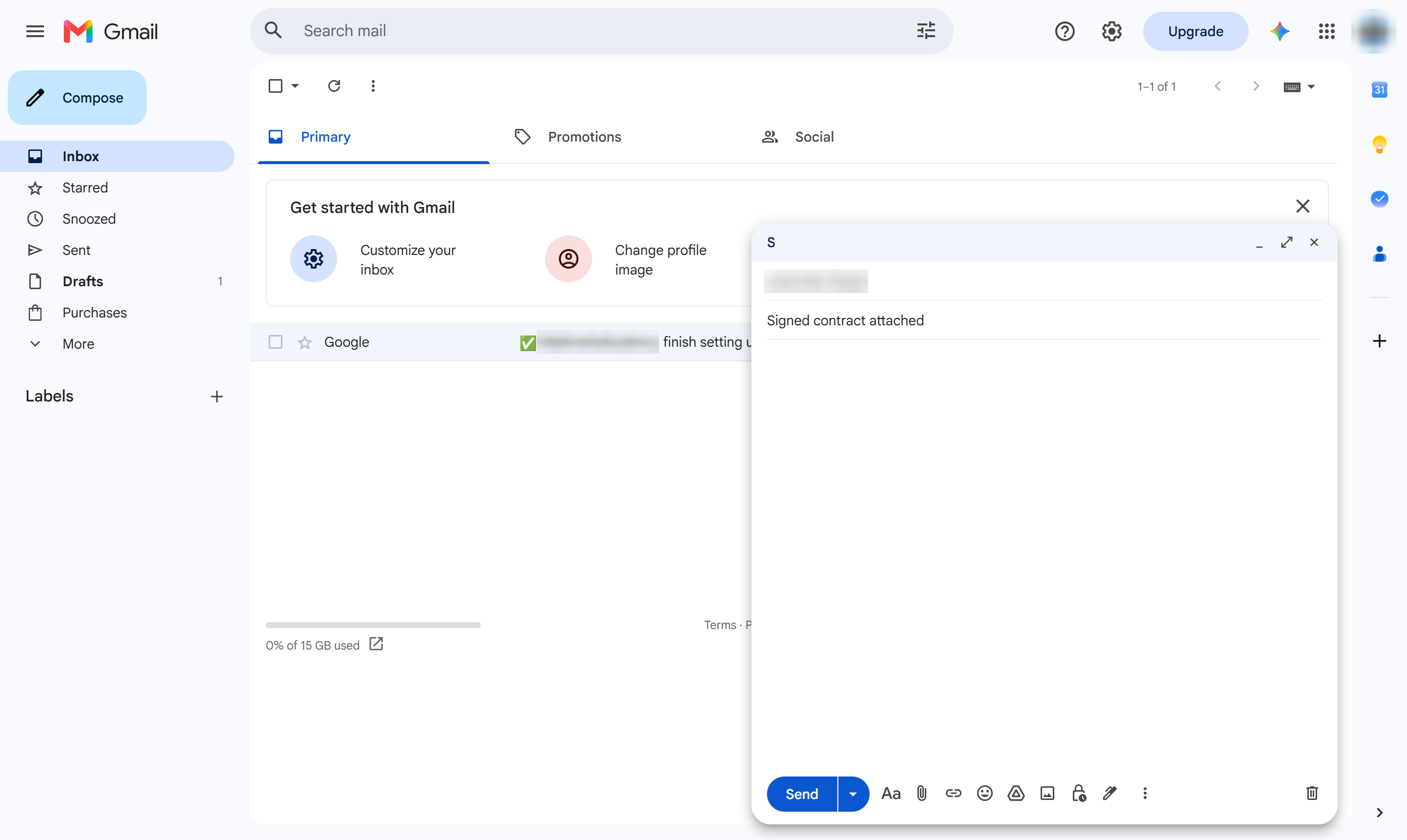
Type your message.
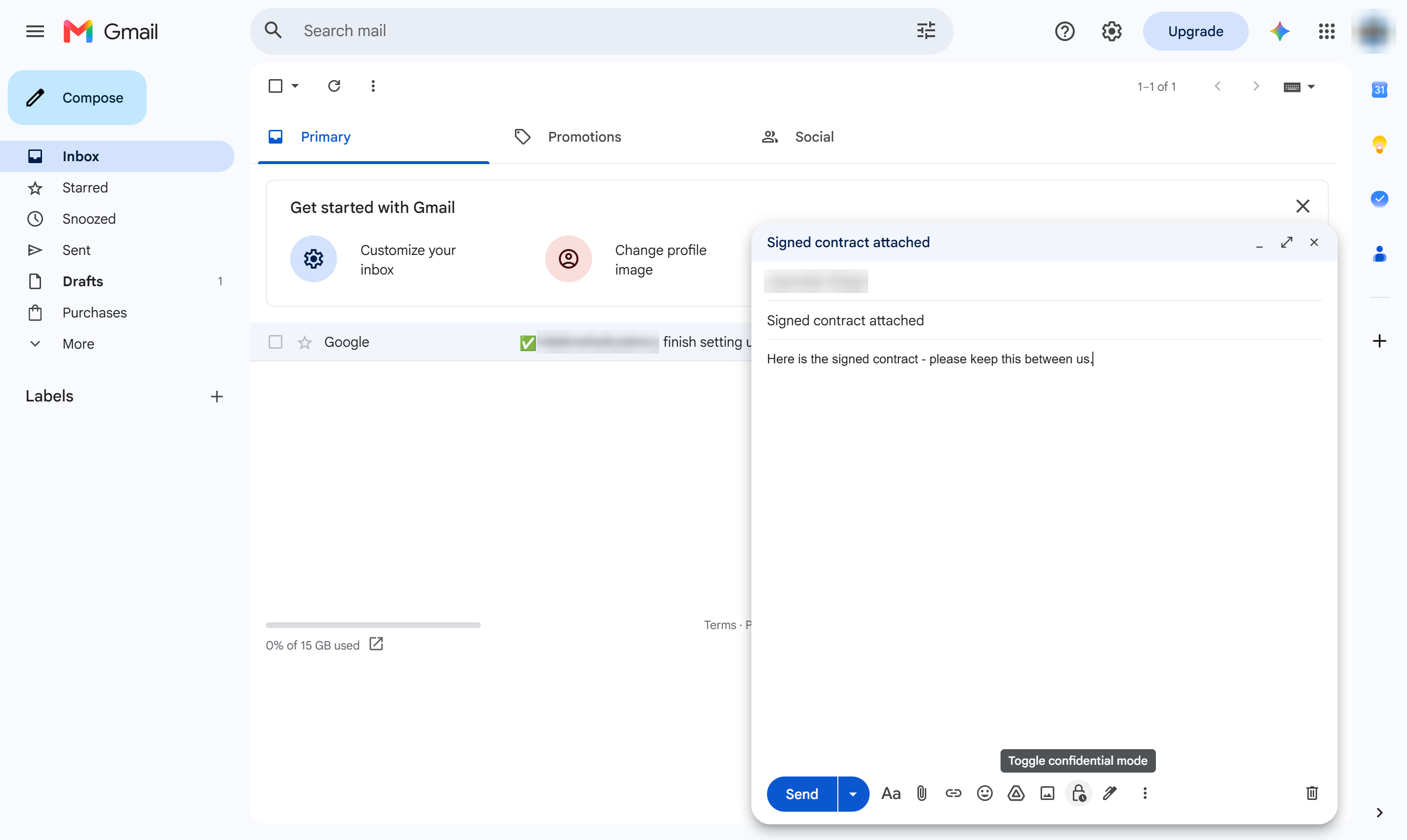
At the bottom of the window, click the lock-and-clock icon (Toggle confidential mode).
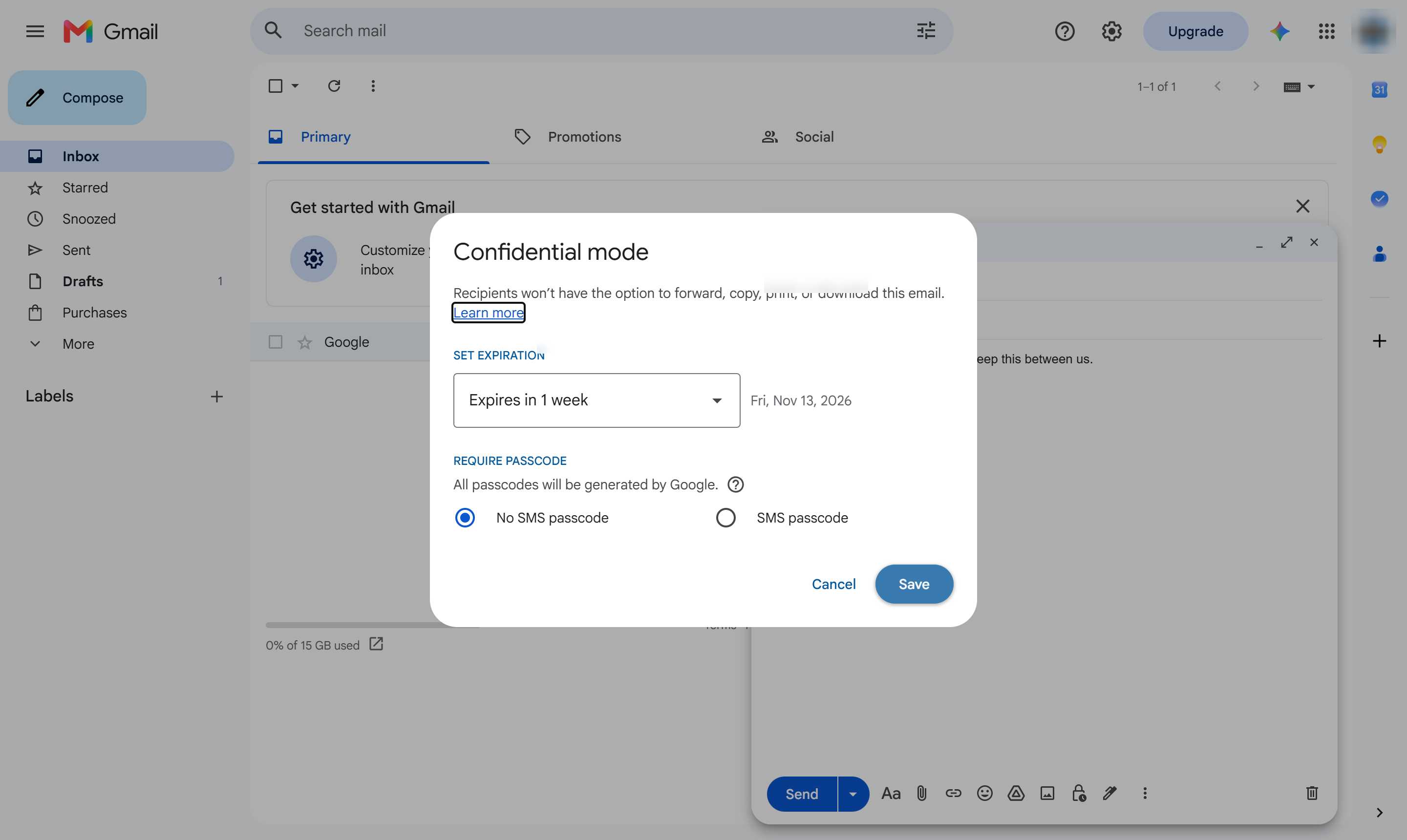
Set an expiry and passcode if you like, then click Save.
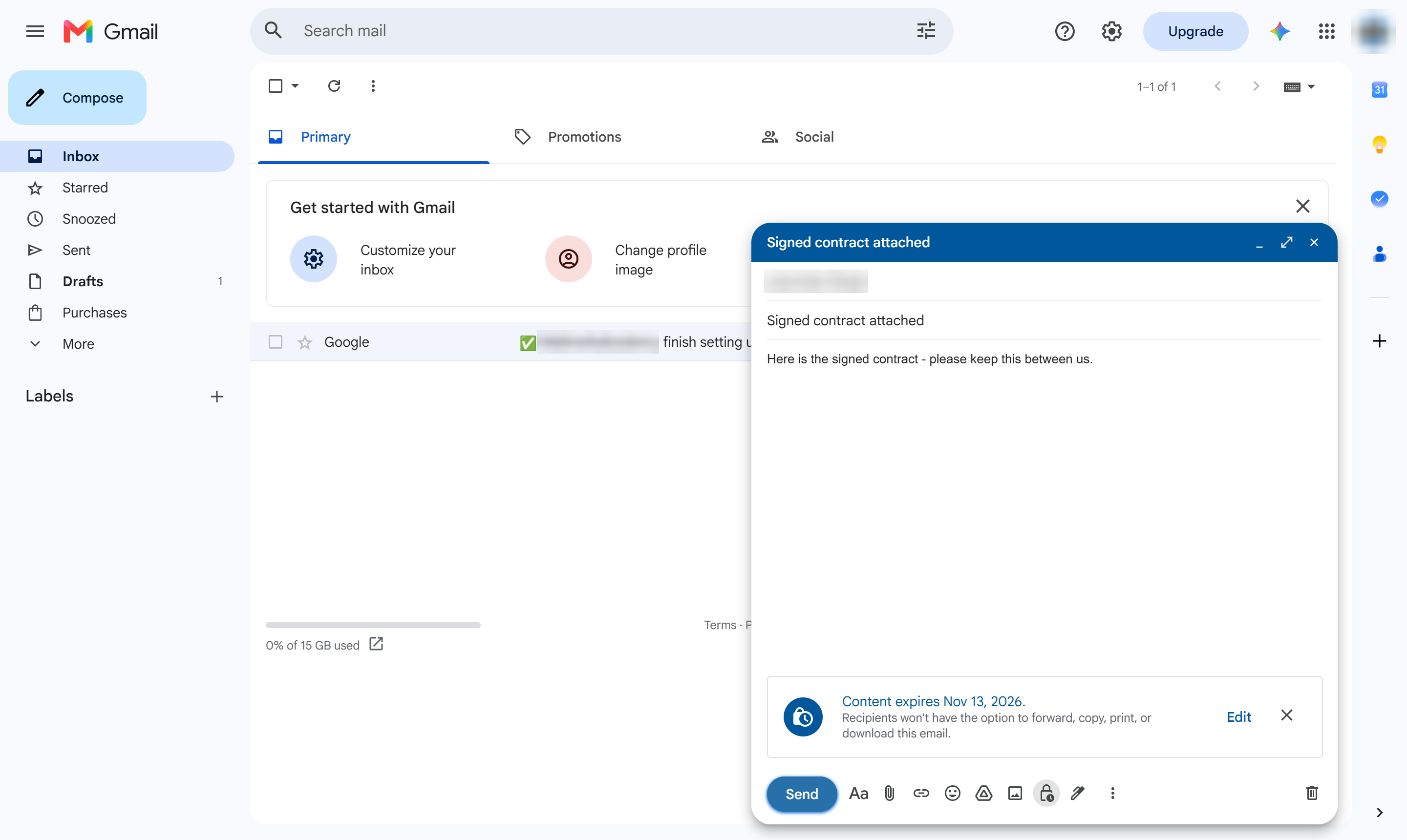
Click Send.
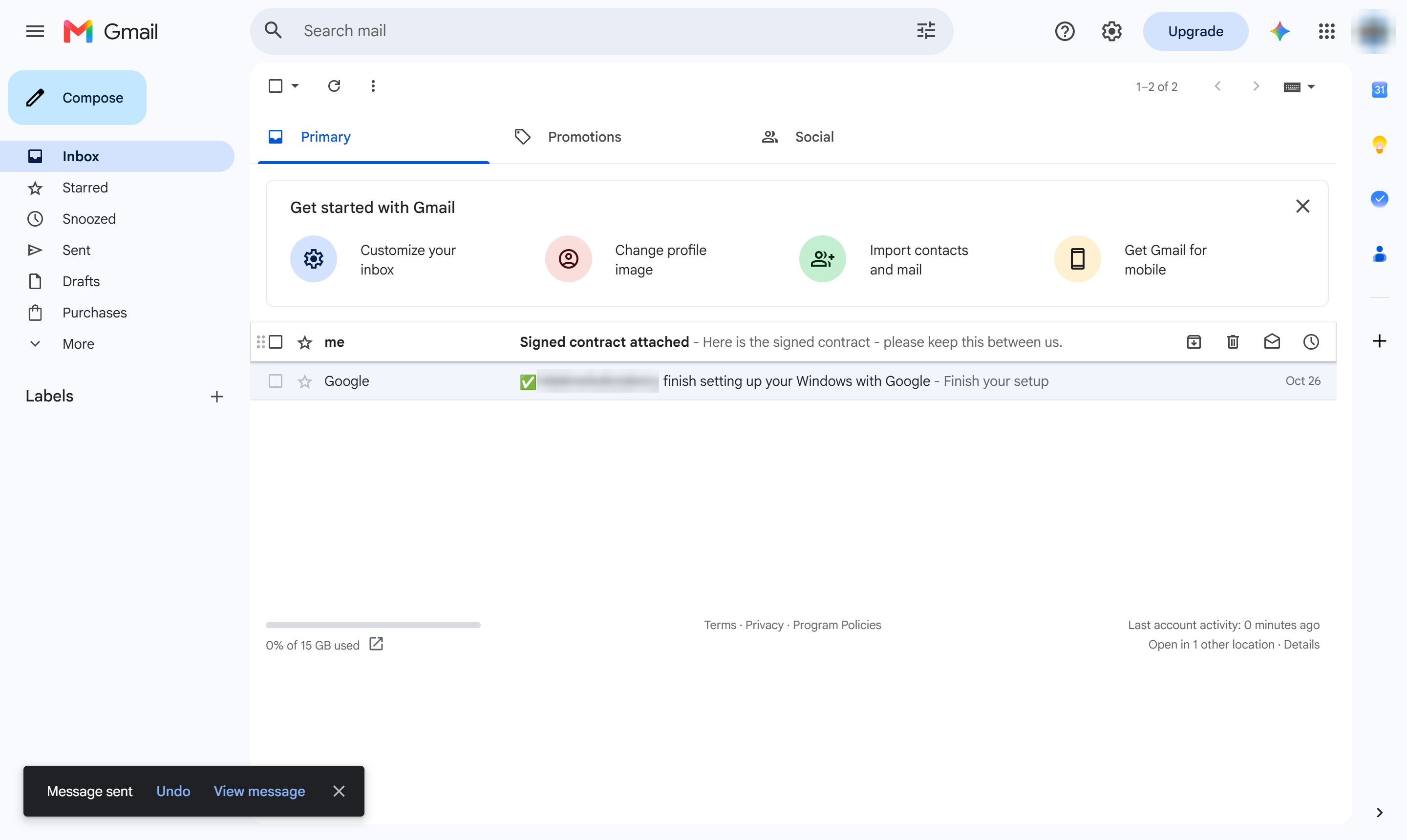
The recipient opens it with the restrictions you set - they cannot forward, copy, print or download it.
Duplicate this template, swap in your own screens, and share it with your team. Free to start — no credit card.
Fill out the form and we'll get back to you as soon as possible.
Tell us about your team and we'll find the right plan together.