1
Click View
Open the View menu.
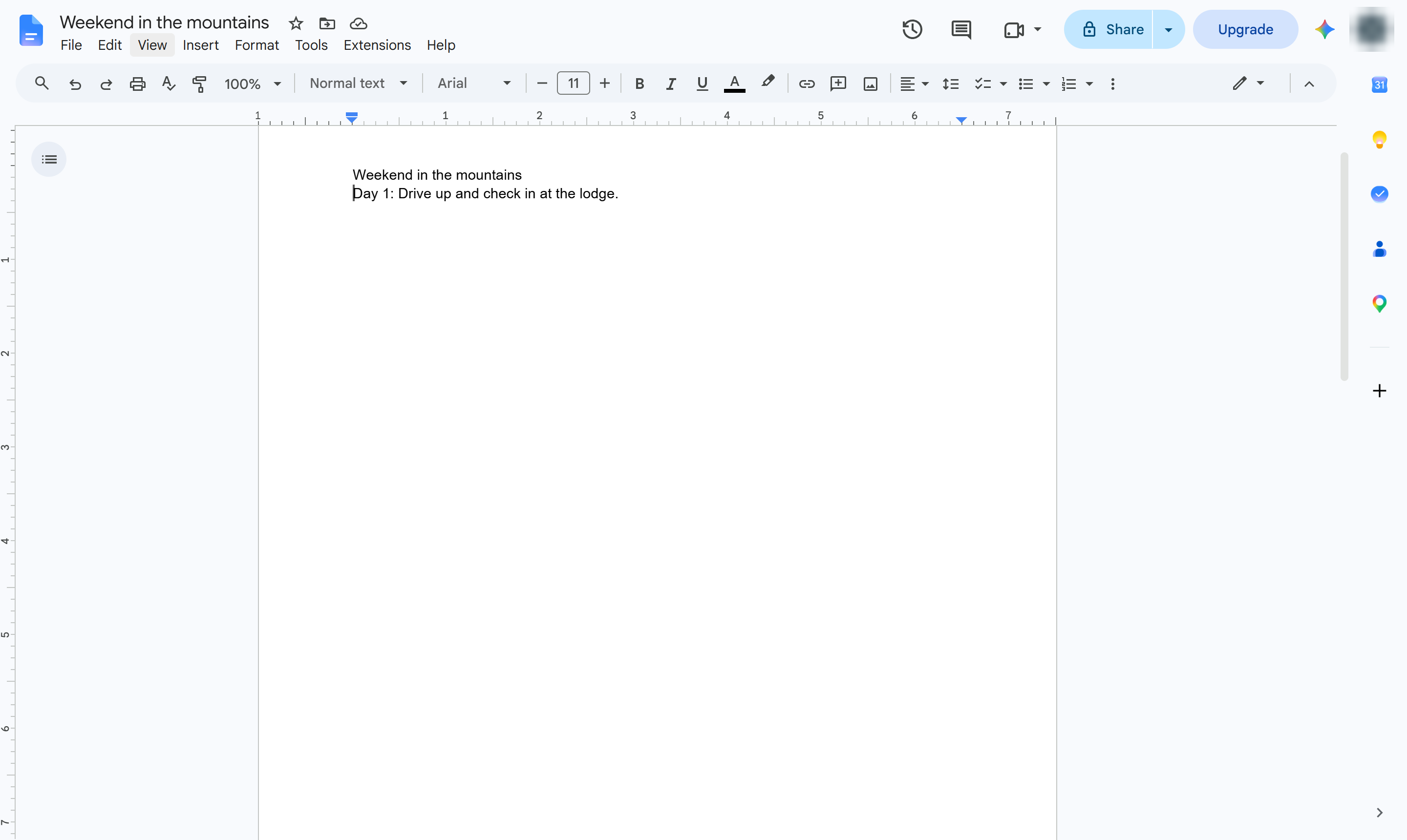

Show the hidden section breaks in your document and delete the ones you do not need.
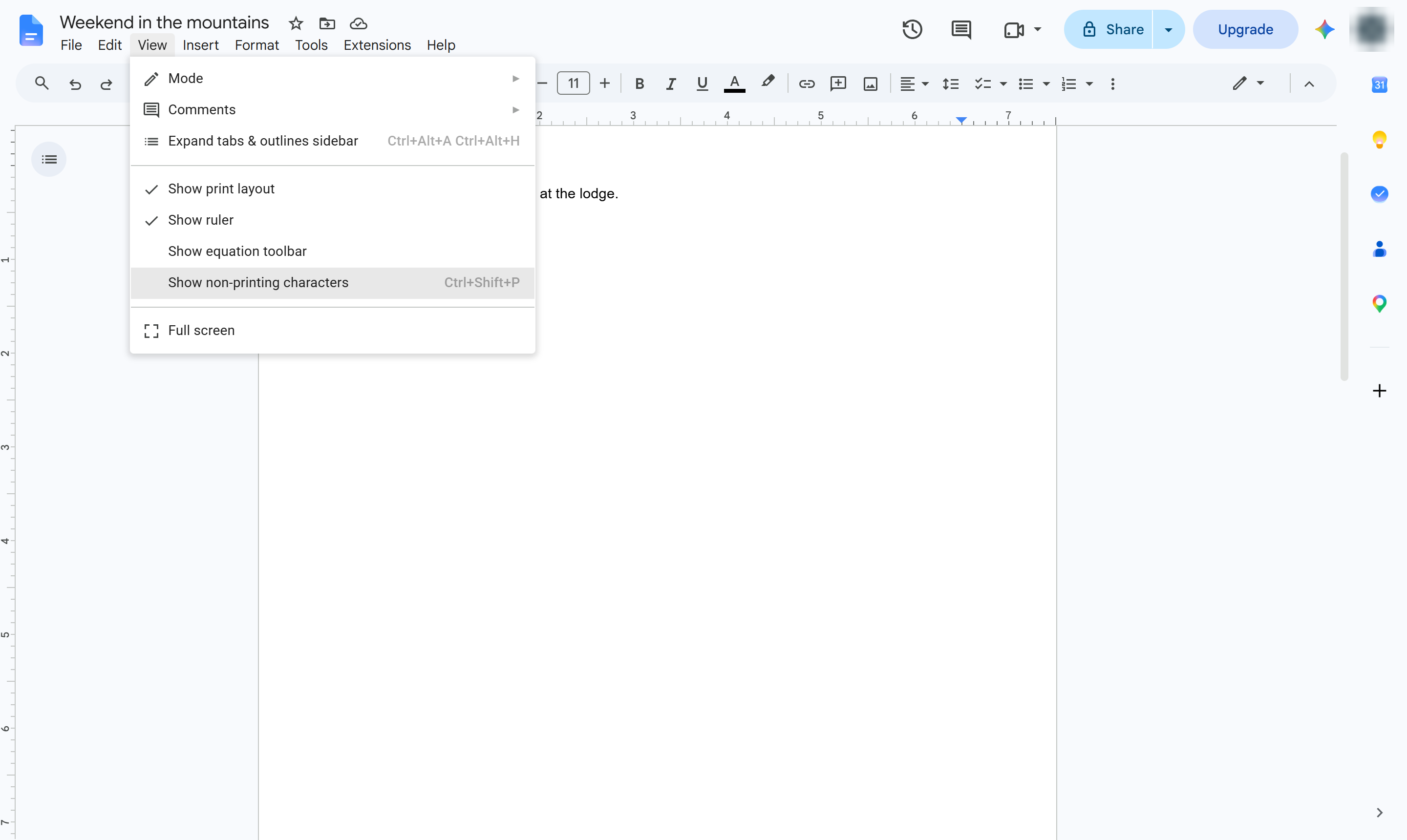
Open the View menu.
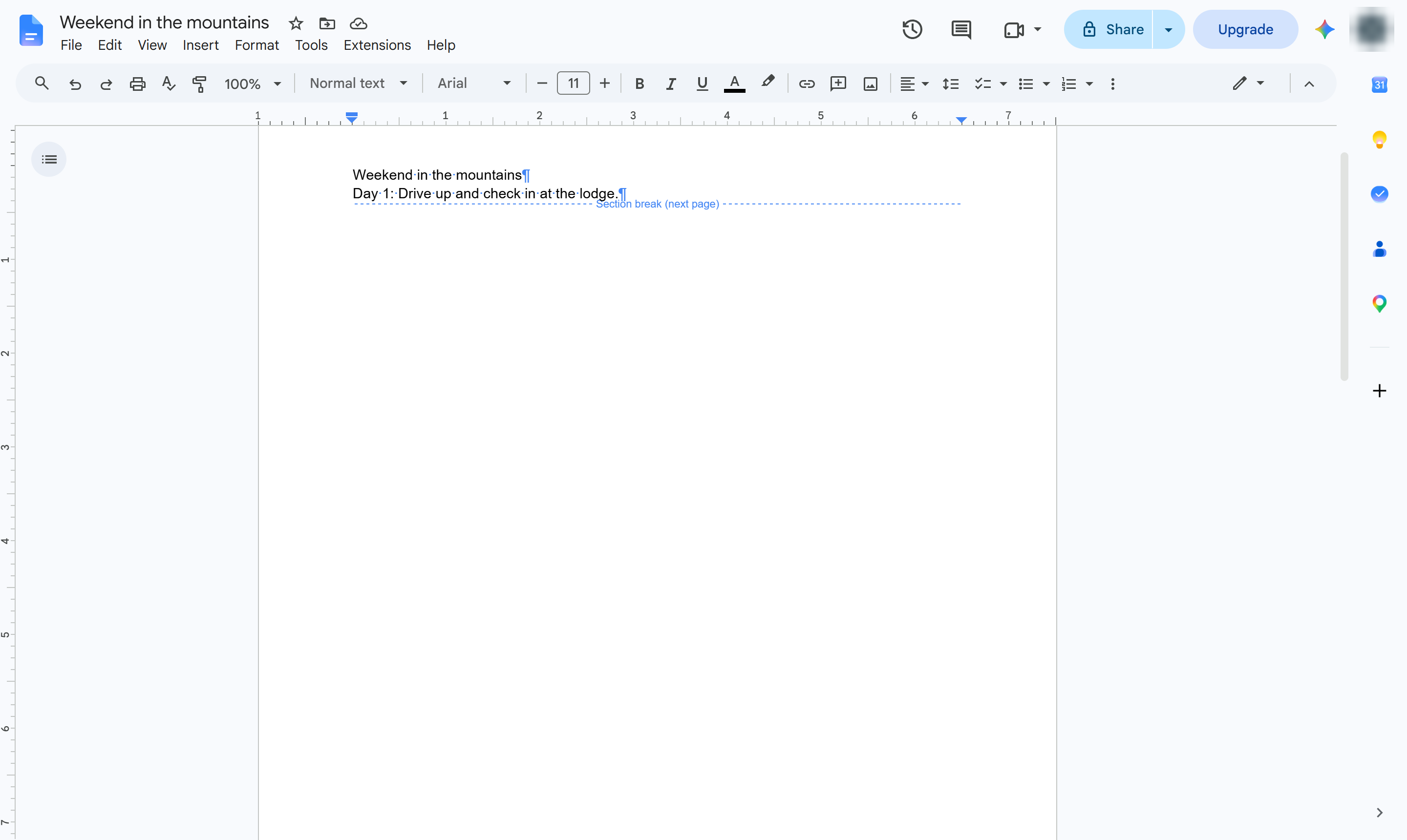
Turn on Show non-printing characters. A section break shows as a dotted line. Shortcut: Ctrl + Shift + P (Cmd + Shift + P on Mac).
Click at the end of the line just before the dotted section break line.
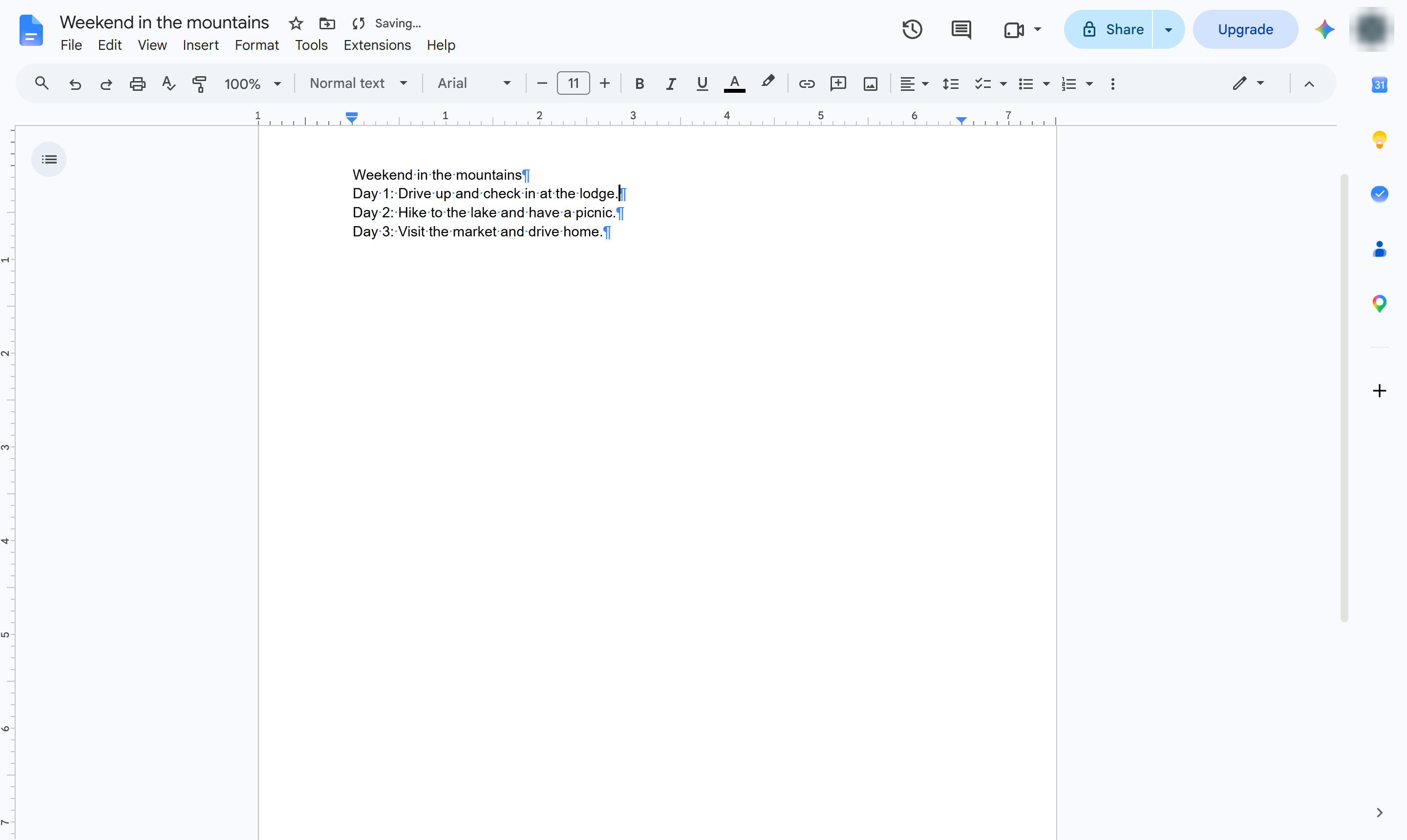
Press Delete (Fn + Delete on a Mac) to remove the break.
Day 2 now follows Day 1 on the same page. Turn non-printing characters off again from the View menu.
Duplicate this template, swap in your own screens, and share it with your team. Free to start — no credit card.
Fill out the form and we'll get back to you as soon as possible.
Tell us about your team and we'll find the right plan together.