1
Click Insert
Open the Insert menu.
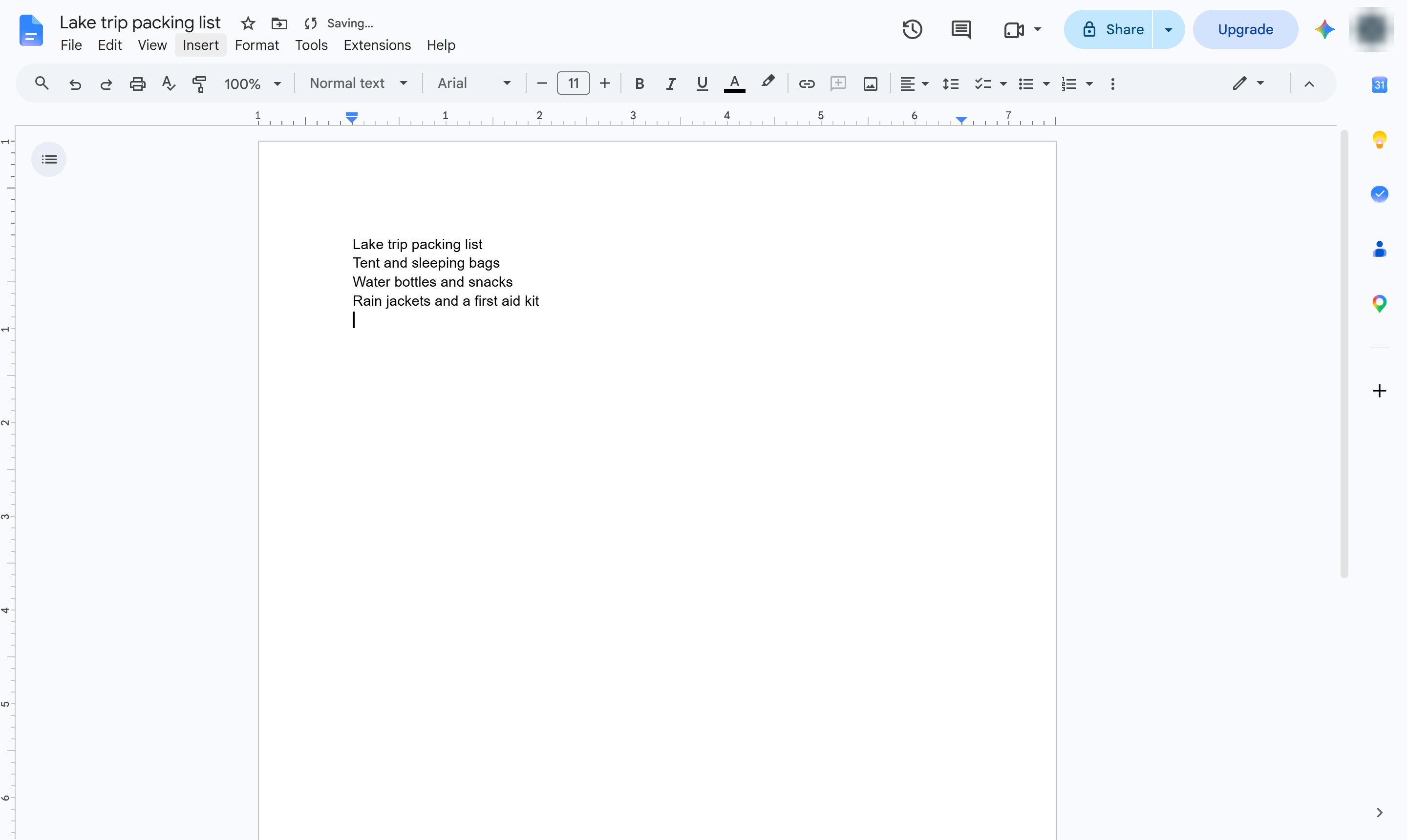

Add a text box you can place anywhere on the page, using Insert > Drawing.
Open the Insert menu.
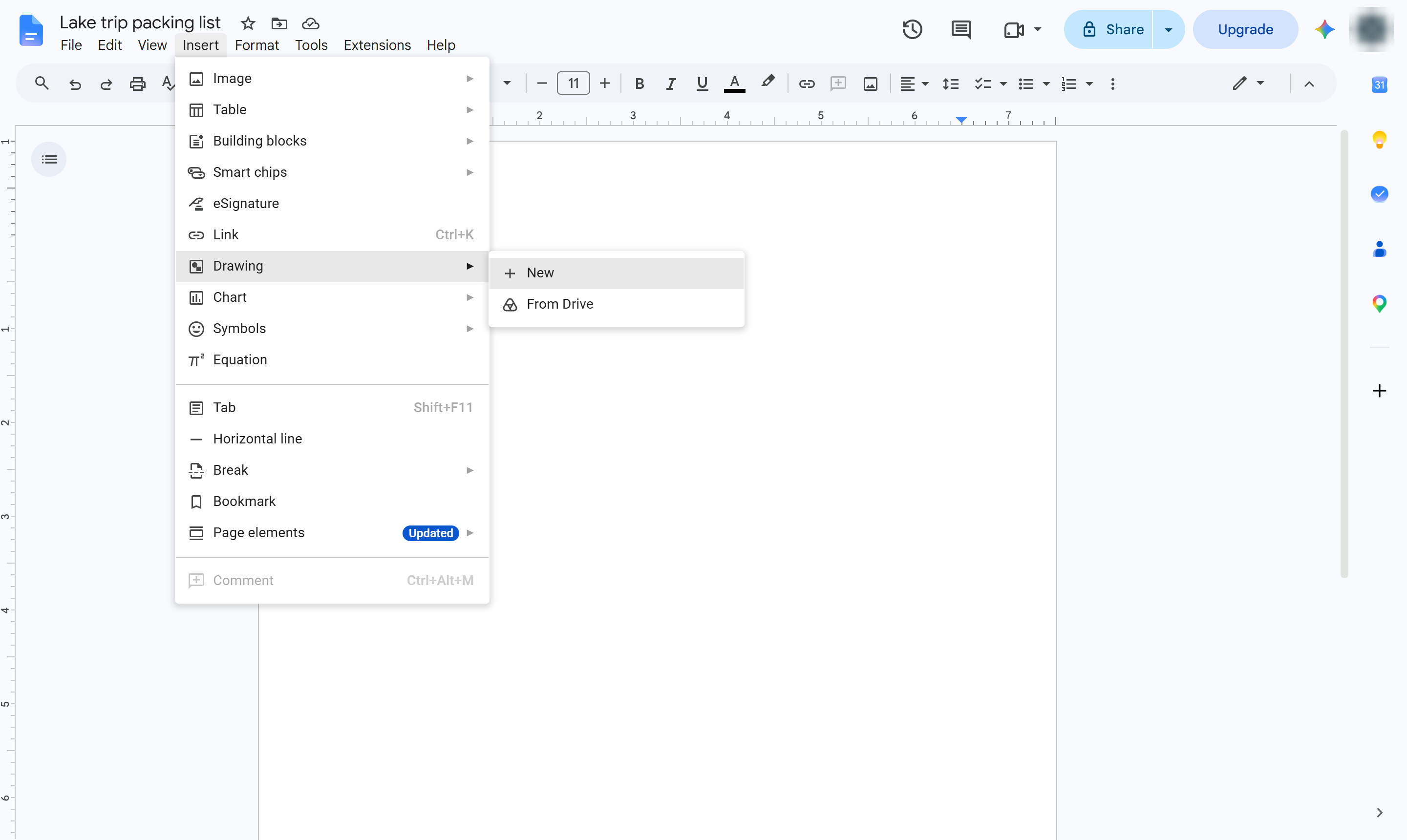
Hover over Drawing.
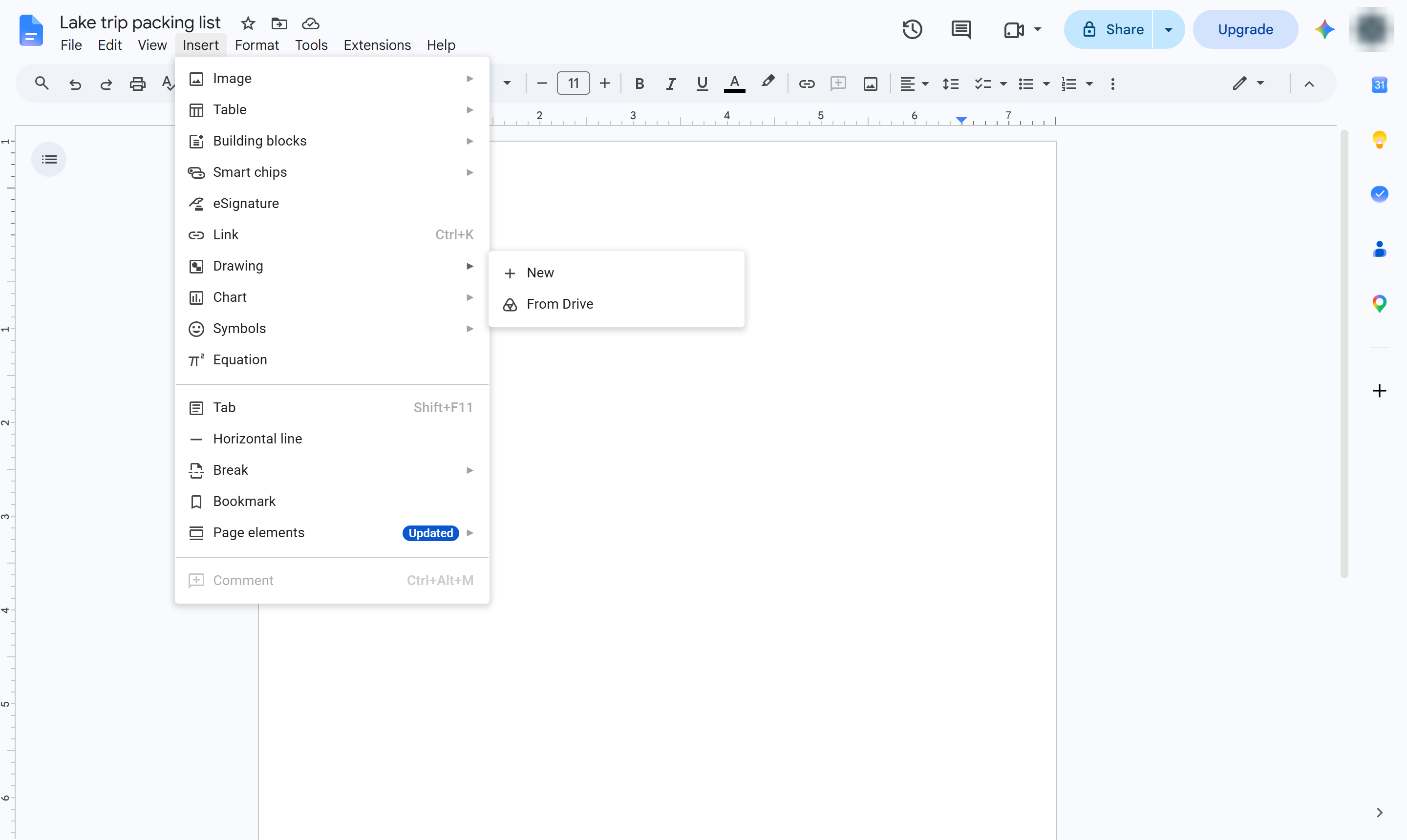
Choose New. A drawing canvas opens over your document.
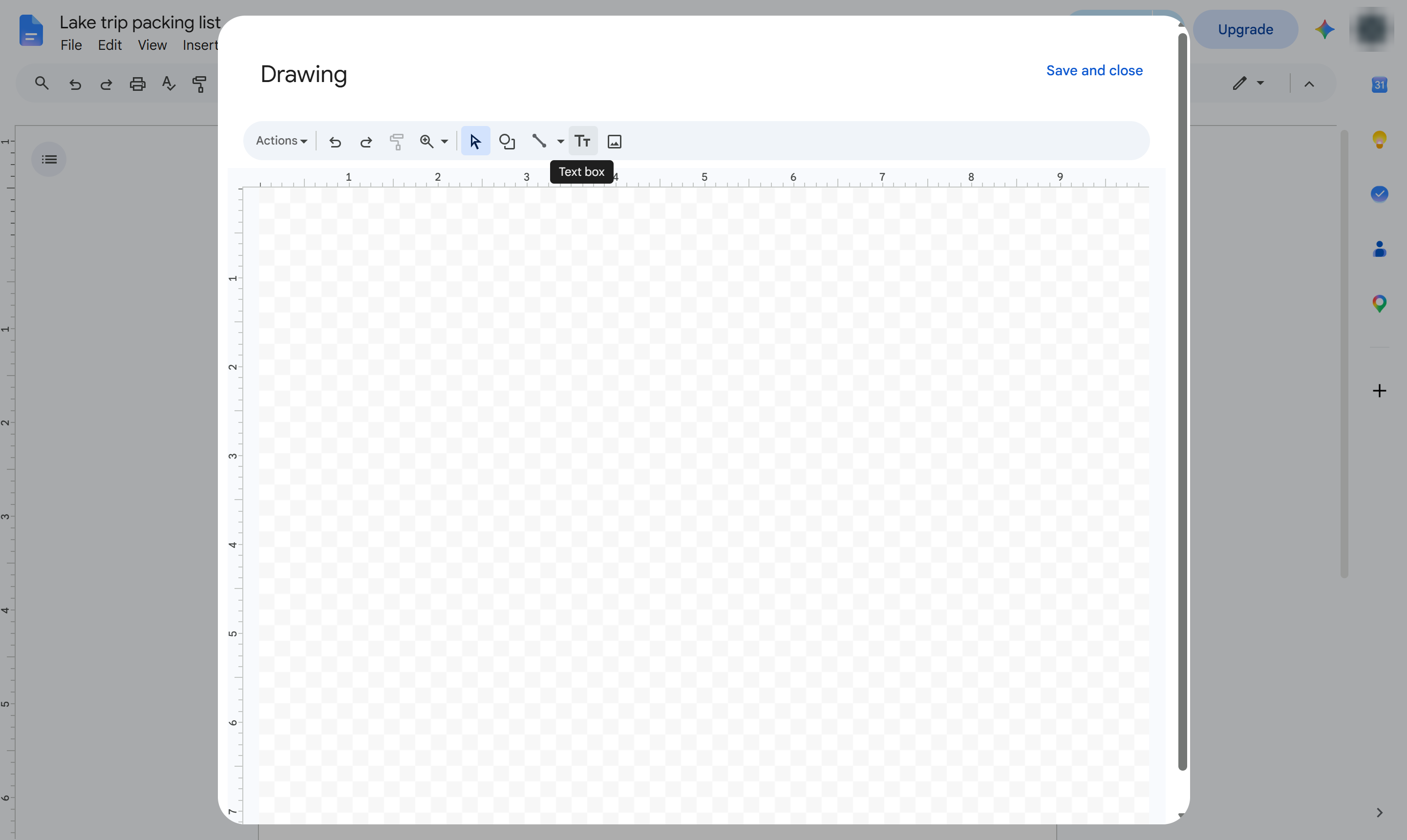
In the drawing toolbar, click the Text box button (the T in a box).
Drag on the canvas to draw the box where the text should go.
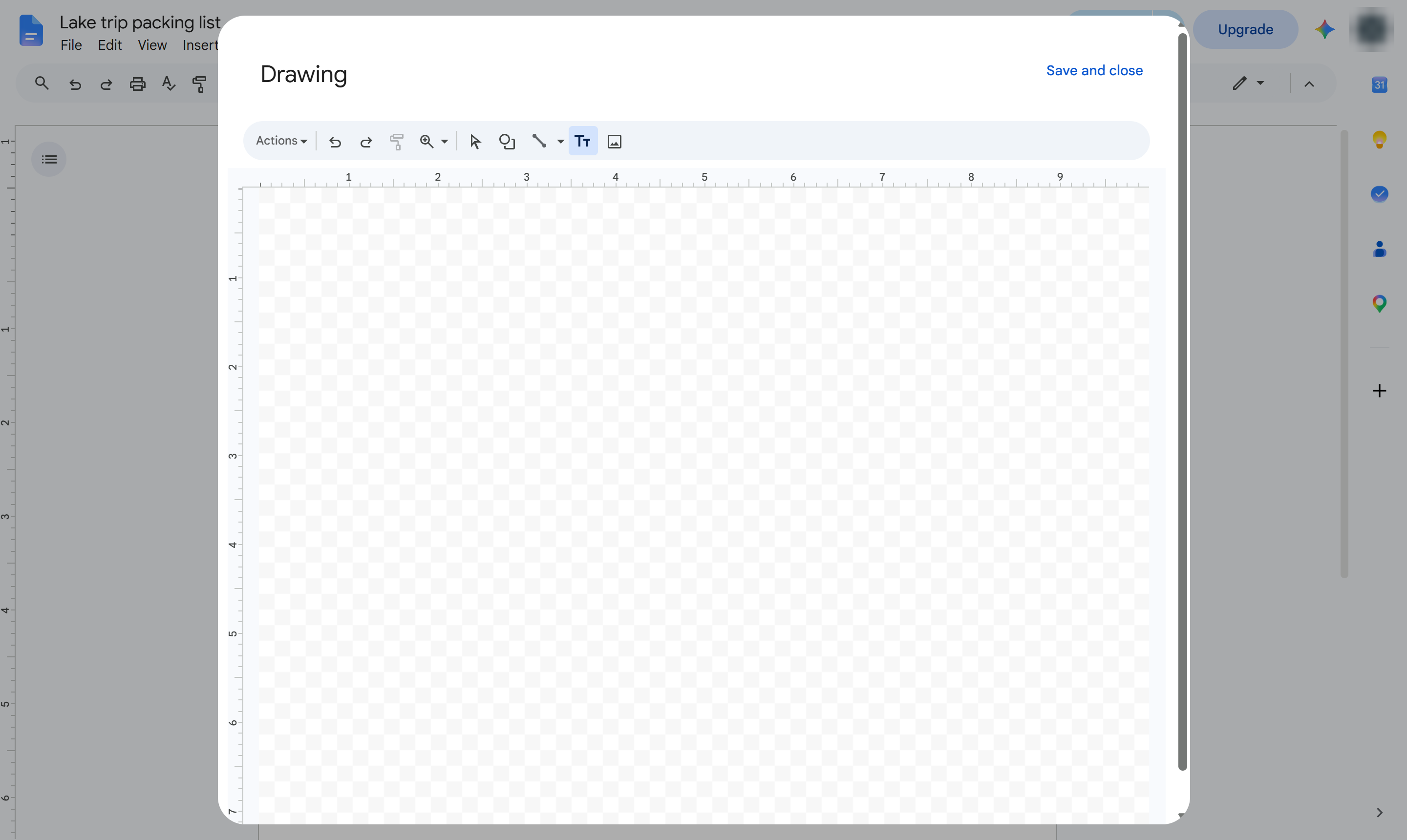
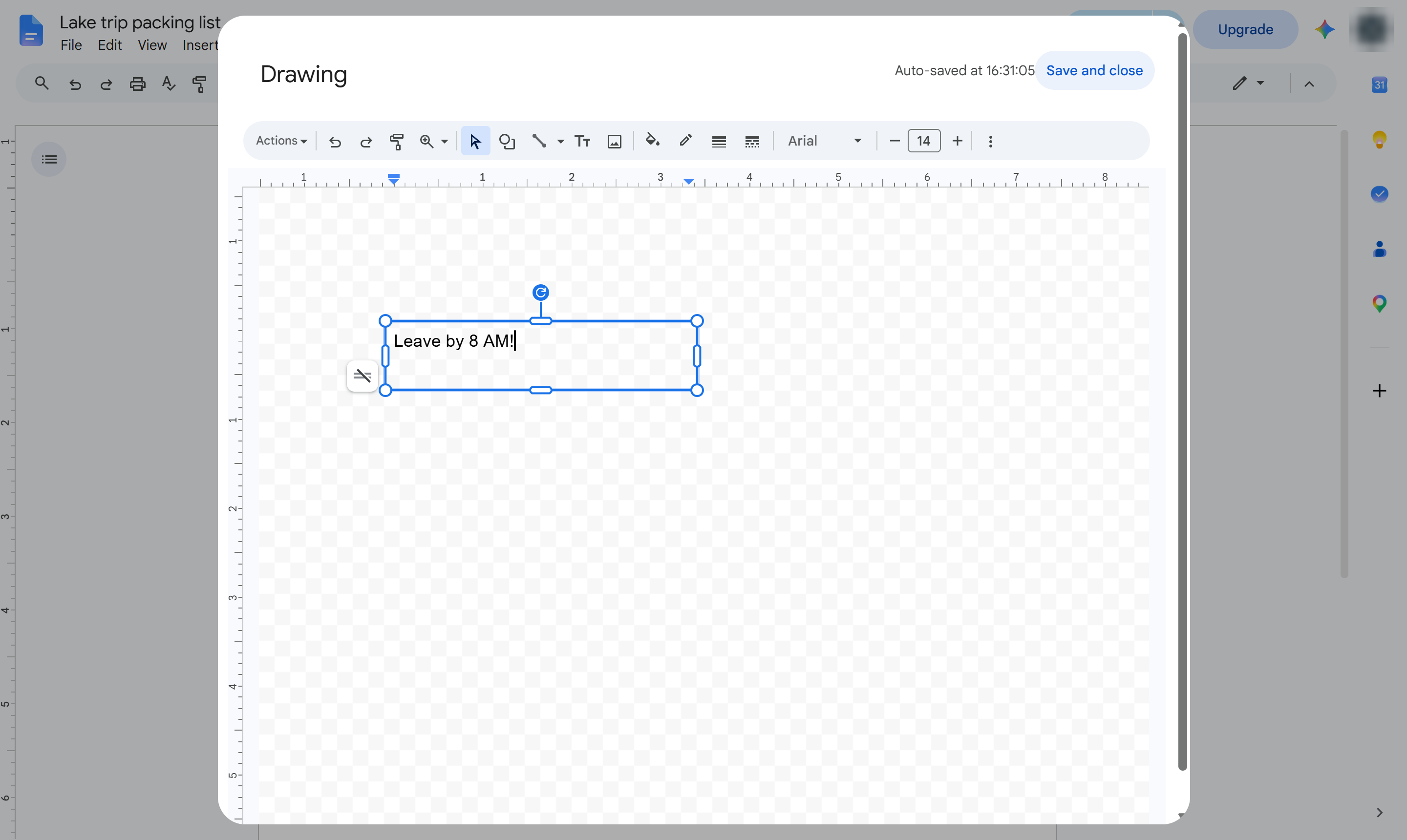
Type the text. Use the drawing toolbar to change its font, size, color and border.
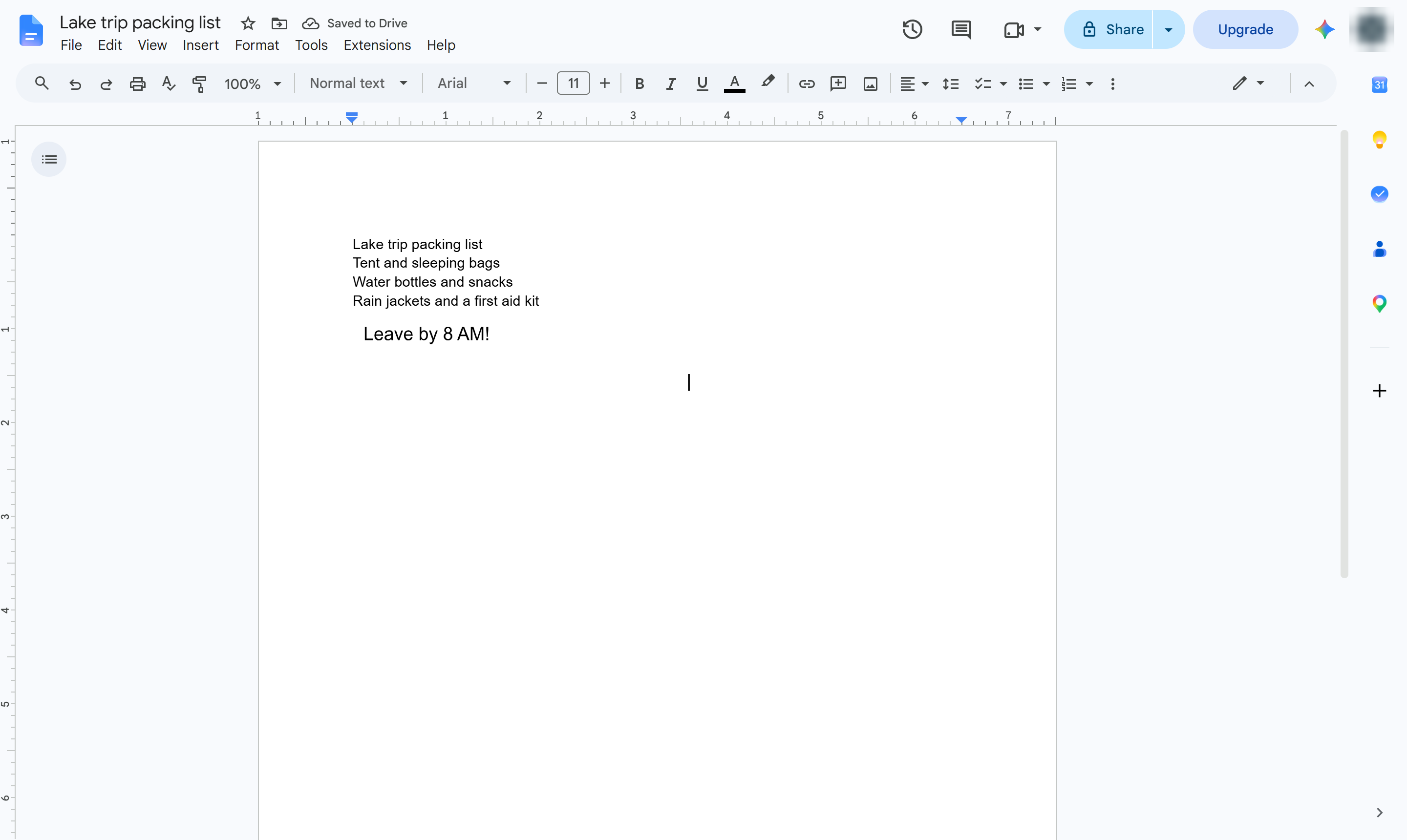
Click Save and close. The text box is added to your document.
The text box sits in your document. Click it and choose Edit to change it, or drag it to move it.
Duplicate this template, swap in your own screens, and share it with your team. Free to start — no credit card.
Fill out the form and we'll get back to you as soon as possible.
Tell us about your team and we'll find the right plan together.