1
Click Create contact
At the top left, click Create contact.
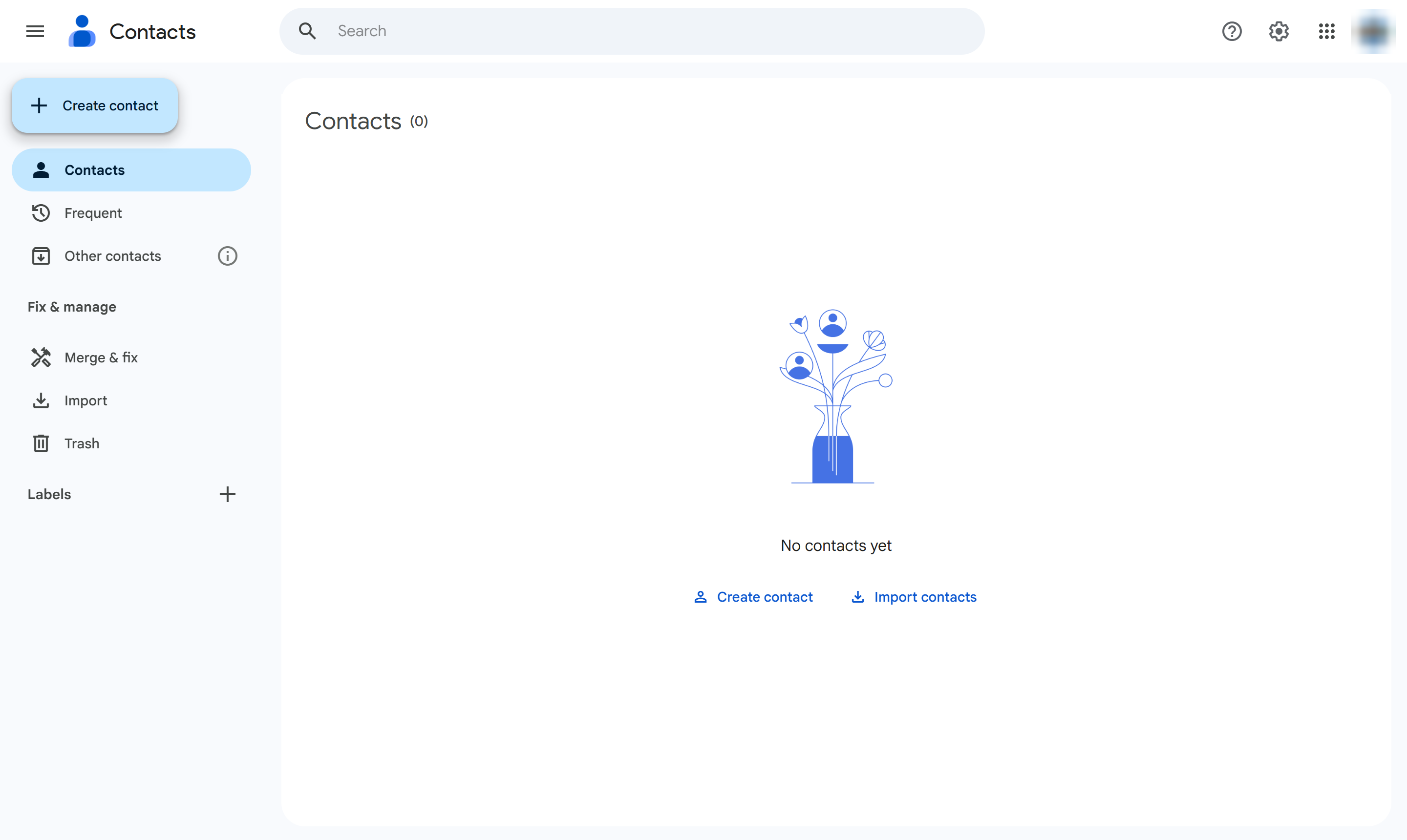

This guide walks you through the process of creating a contact group in Google Contacts to help organize your Gmail connections. You will fill out a new contact form by entering key details like the first and last name, and then save the information. Finally, you will create and apply a new label to group these contacts together for streamlined emailing.
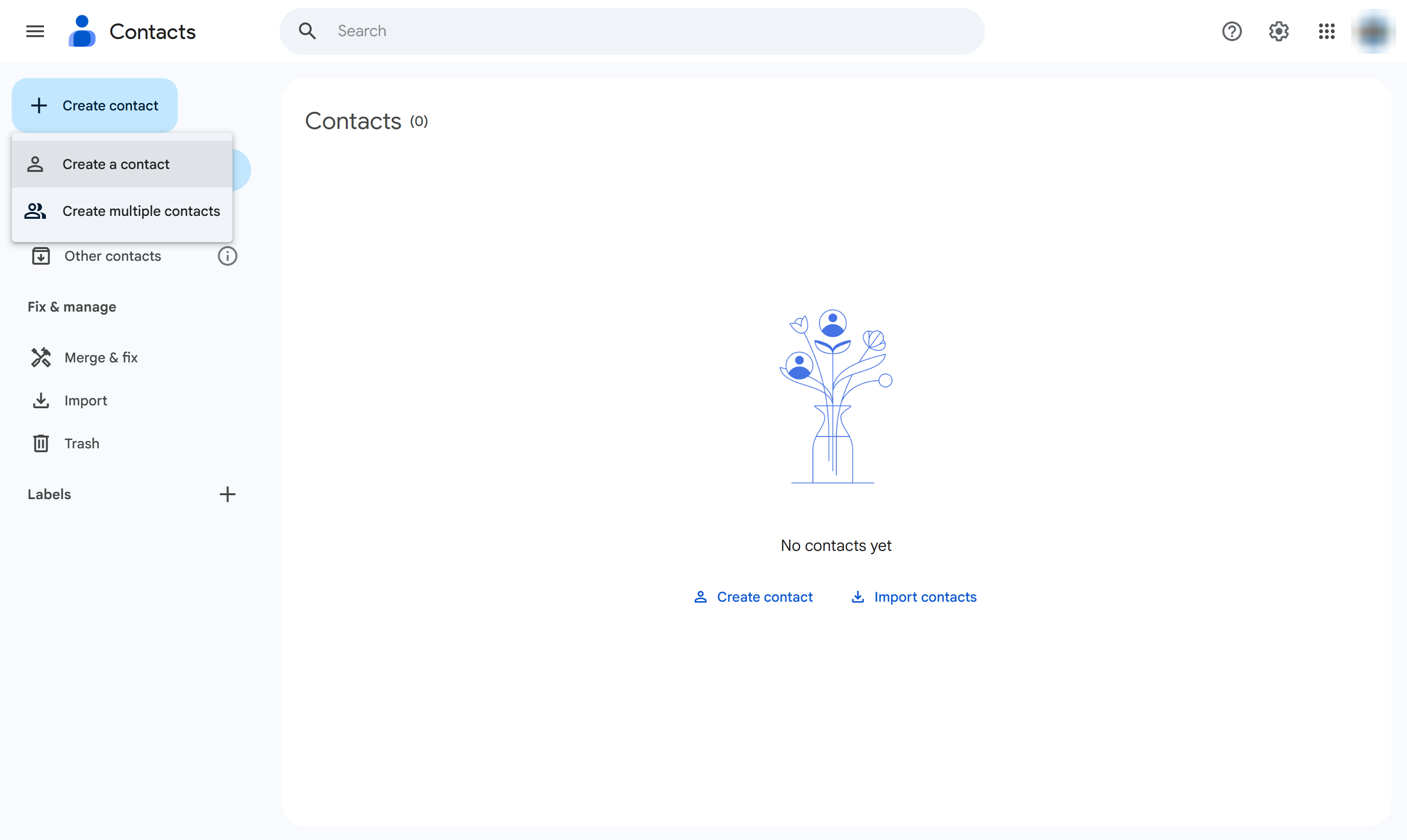
At the top left, click Create contact.
Choose Create a contact (not Create multiple contacts).
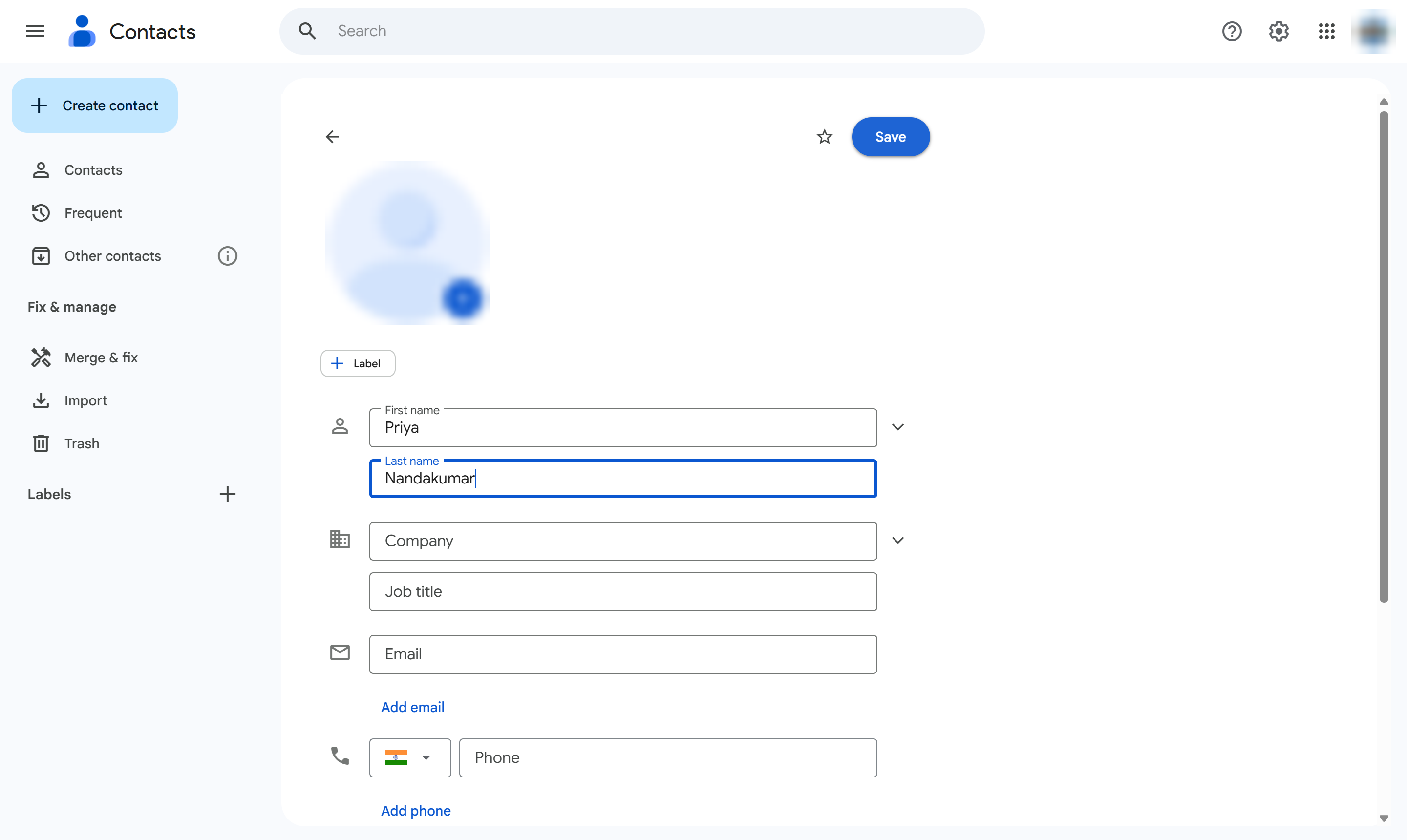
Click the First name box.
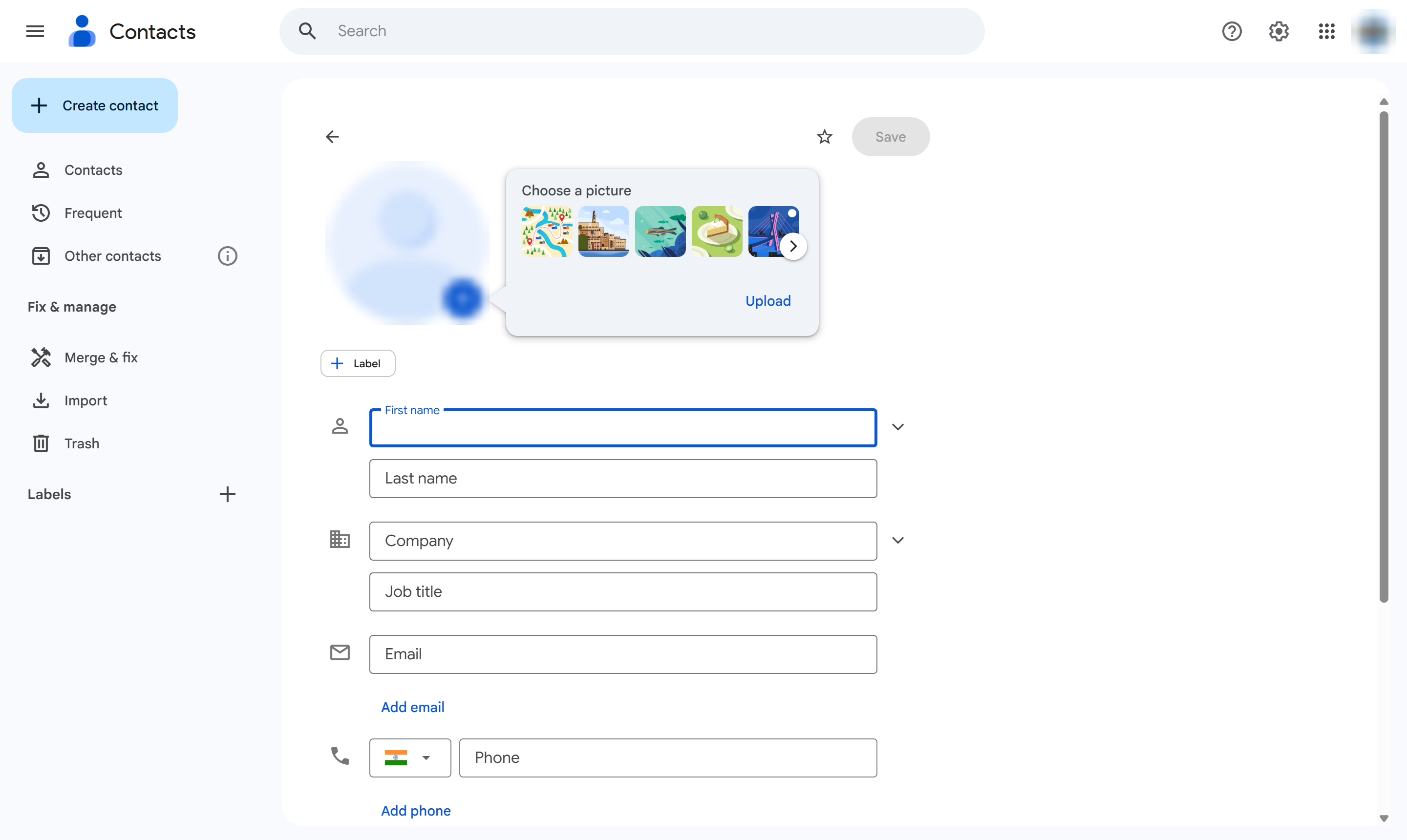
Type their first name.
Click the Last name box.
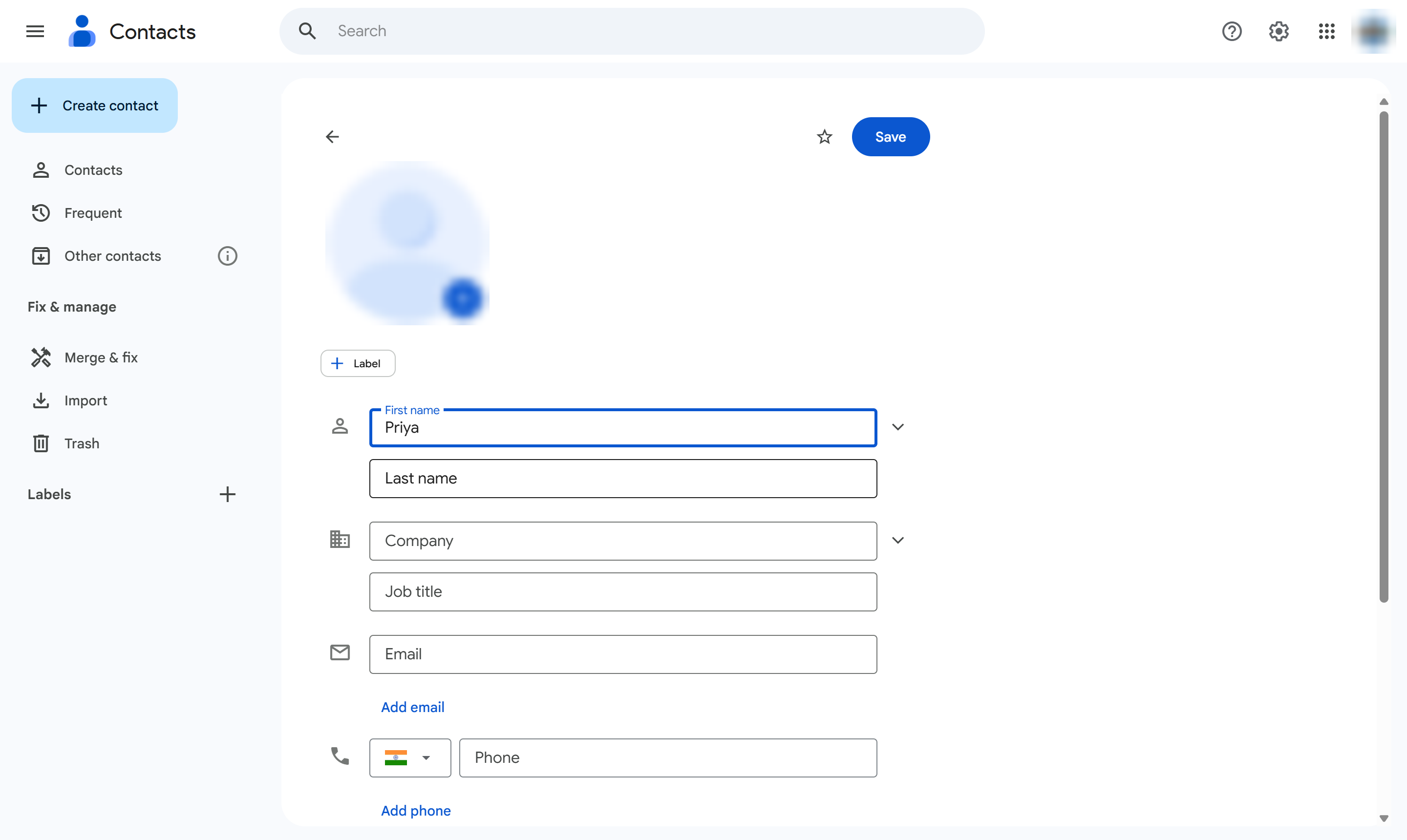
Type their last name.
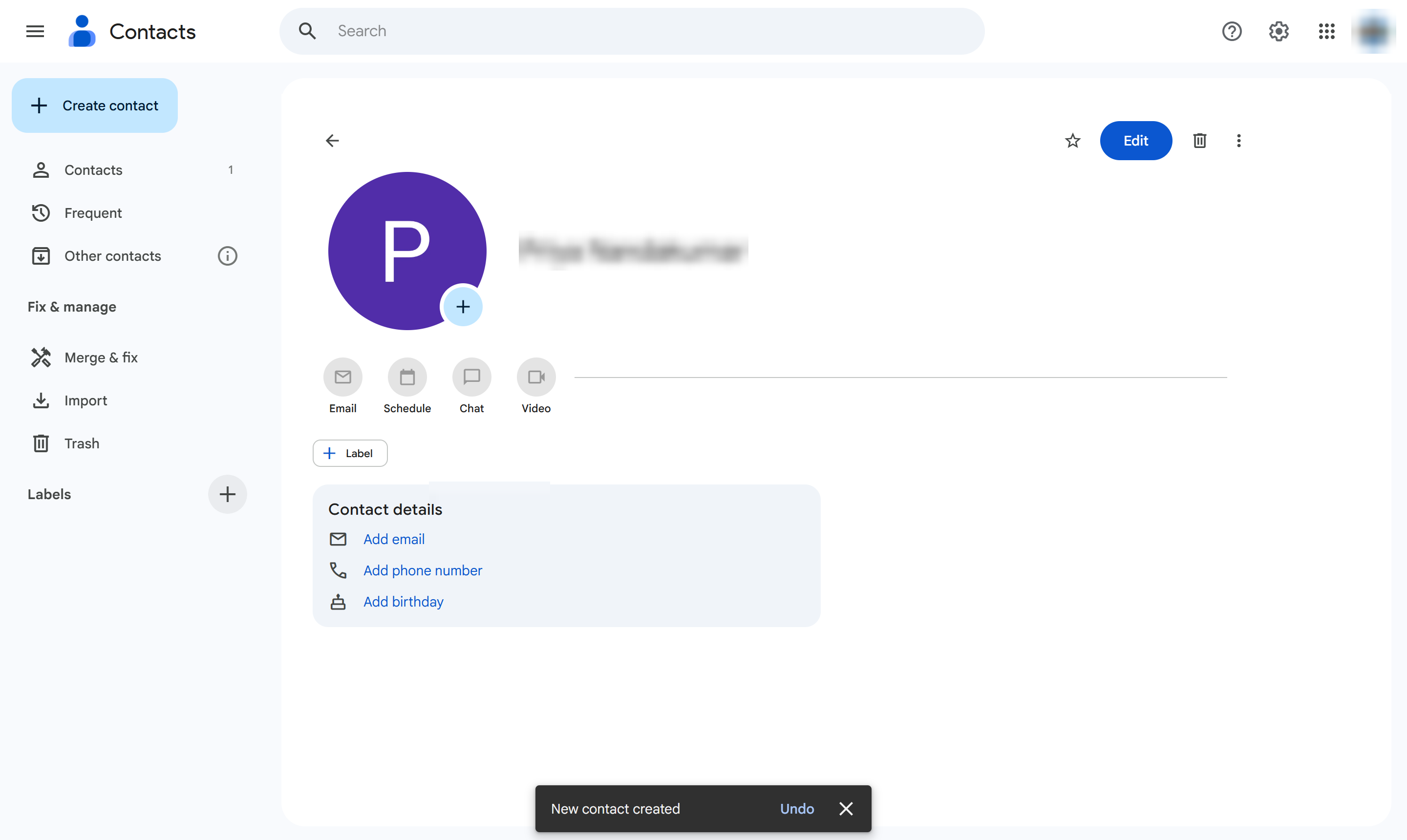
Click Save.
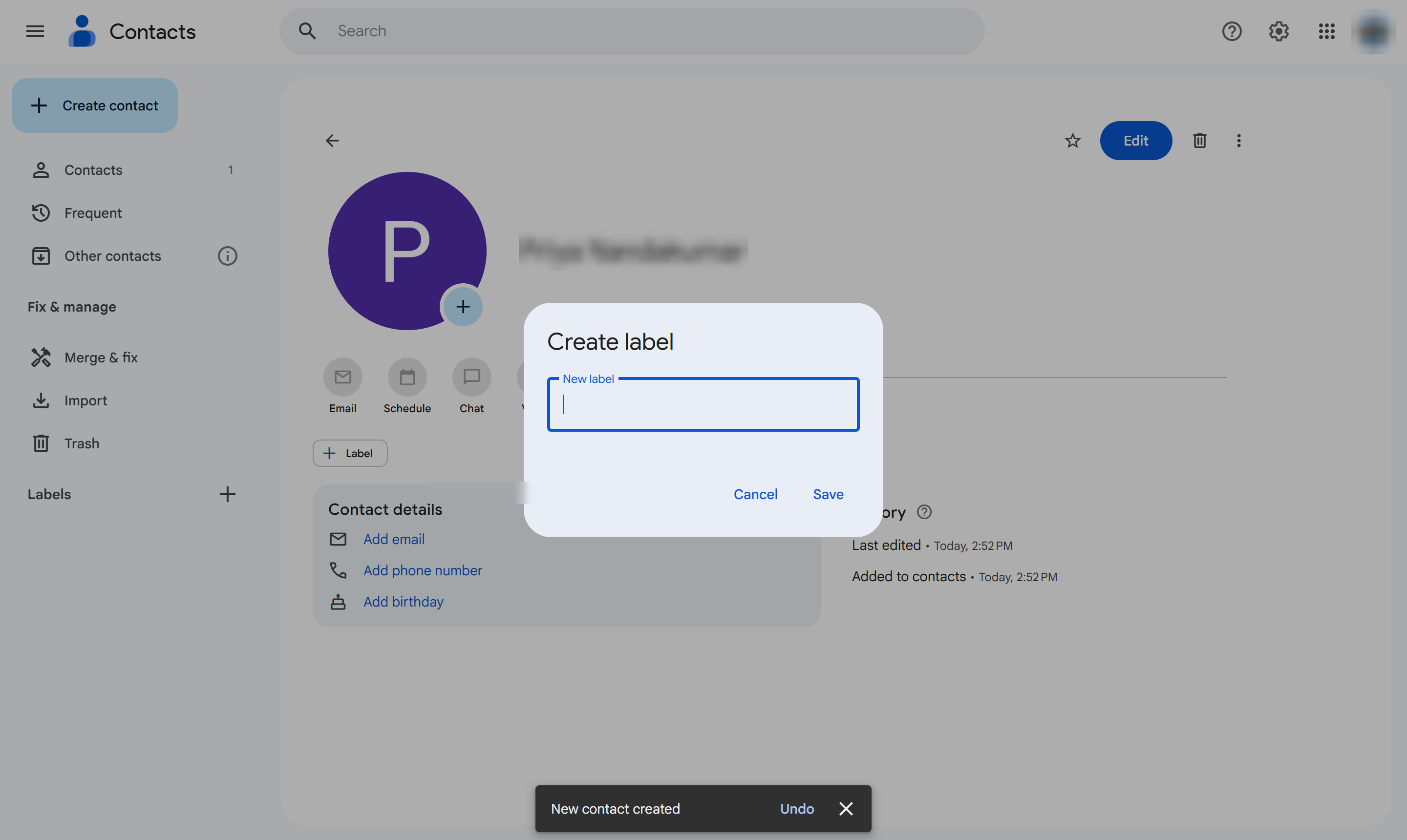
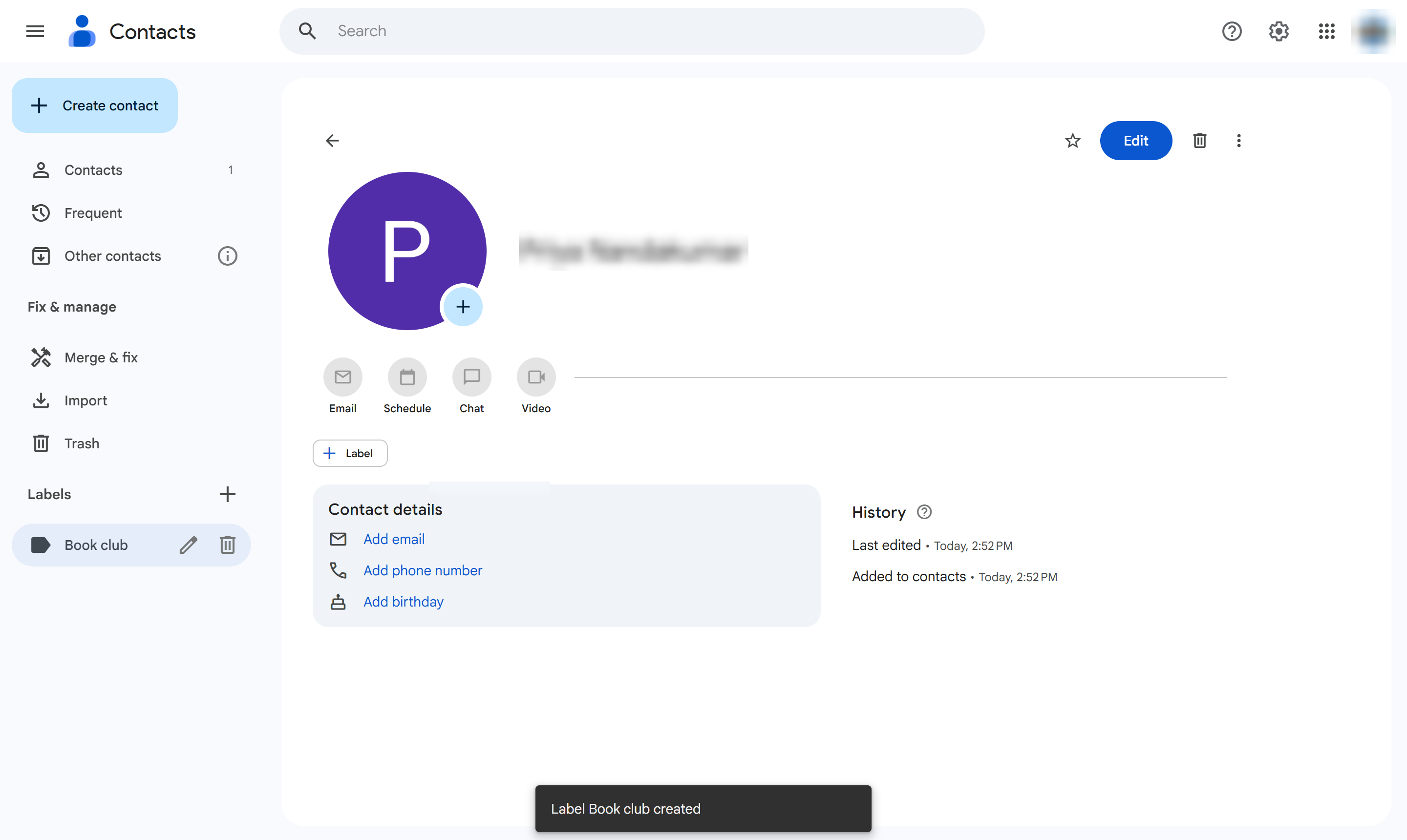
In the left menu, click the + next to Labels.
Click the New label box.
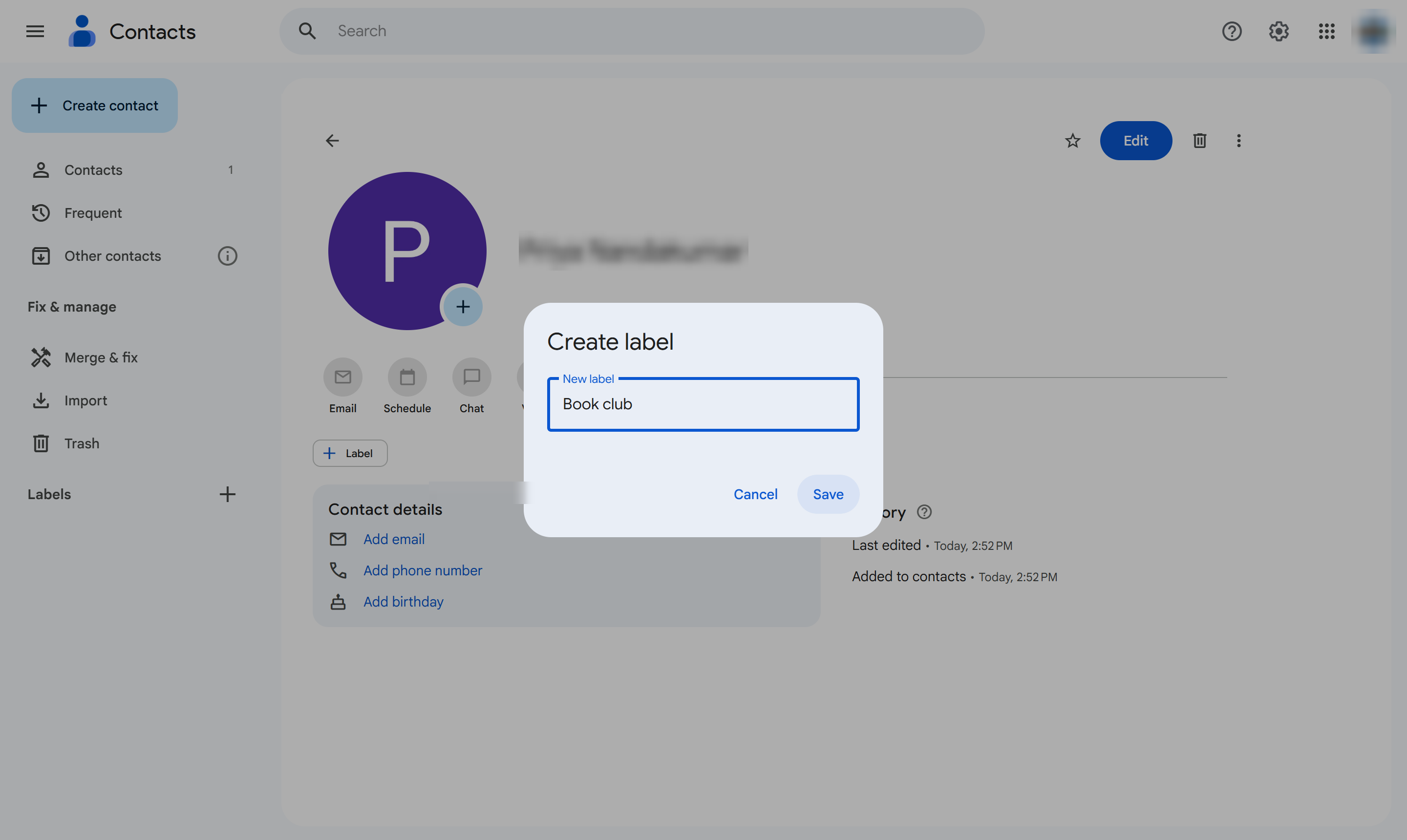
Type a name for the group.
Click Save. The label appears in the left menu.
The empty label is ready. Open a contact and click Manage labels to add them to it, or select several contacts and manage their labels at once.
Duplicate this template, swap in your own screens, and share it with your team. Free to start — no credit card.
Fill out the form and we'll get back to you as soon as possible.
Tell us about your team and we'll find the right plan together.