1
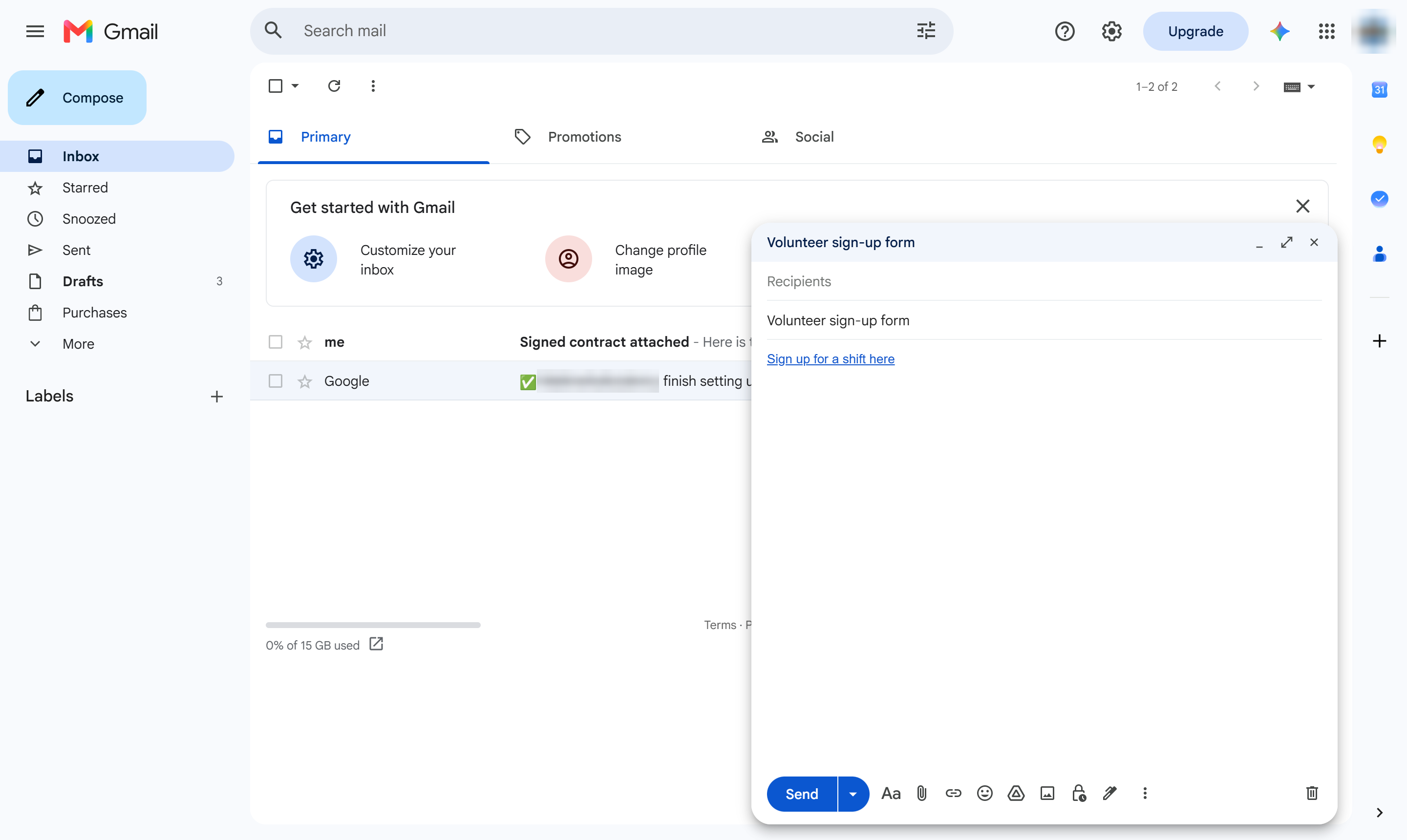
Click Compose
At the top left, click Compose.
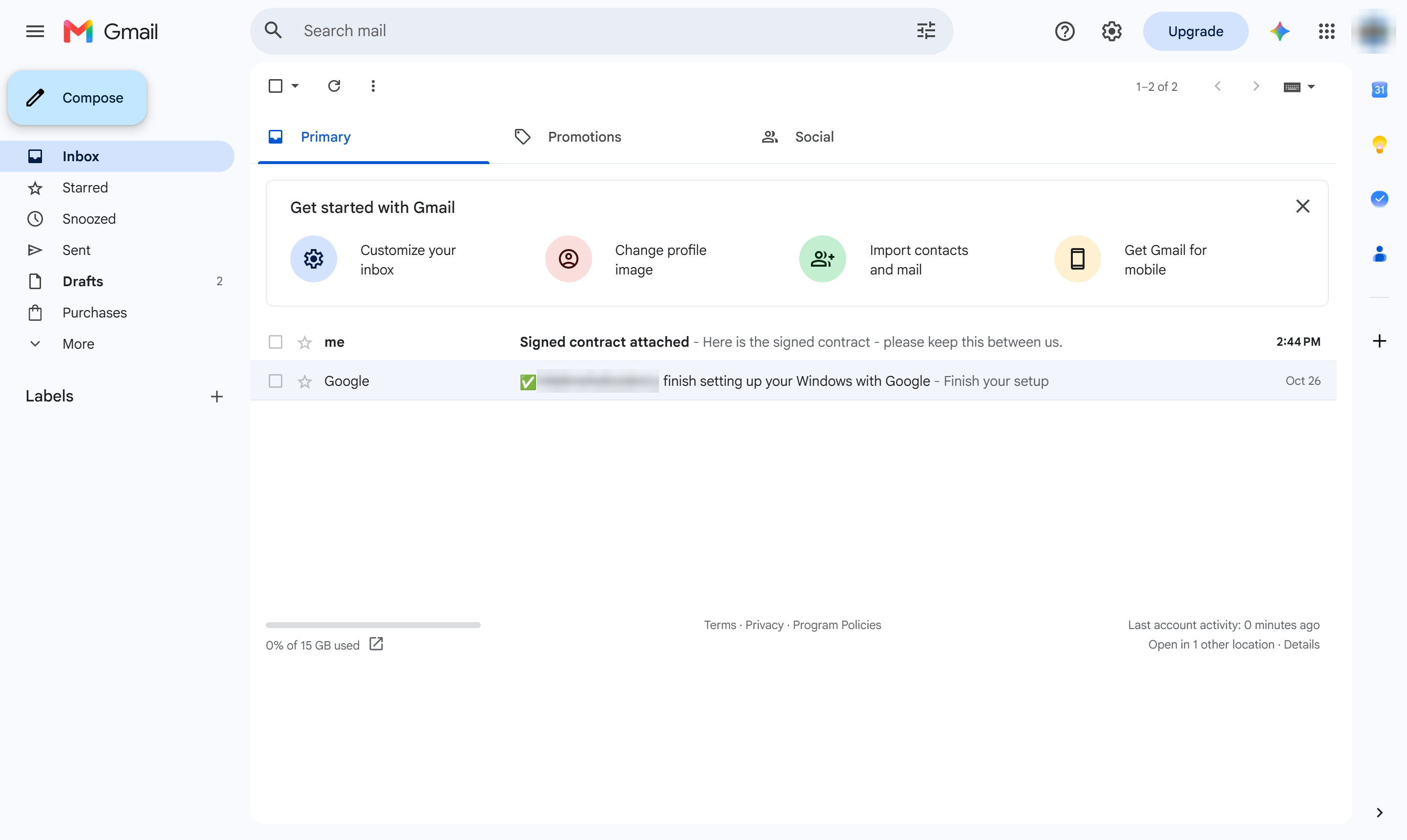

Learn how to insert clickable hyperlinks into your emails while composing messages in Gmail. This step-by-step guide shows you how to select text, apply the link shortcut, and paste your destination URL to create a clean, professional link.
At the top left, click Compose.
Click in the message body.
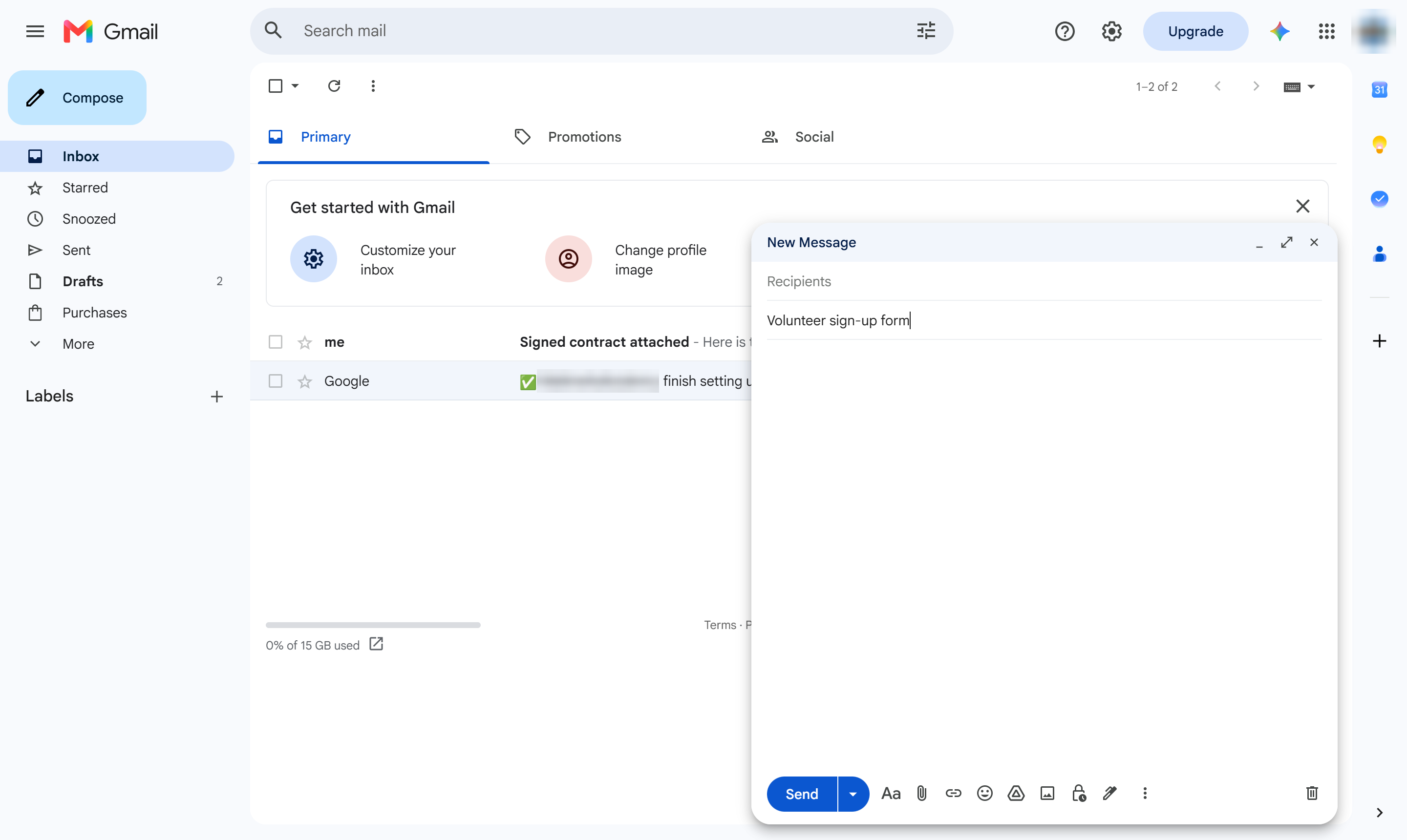
Type the words you want to link.
Highlight the text (Ctrl + A selects all of it, Cmd + A on a Mac).
Press Ctrl + K (Cmd + K on a Mac) to add a link. You can also click the link icon in the formatting bar (click Aa first if the bar is hidden).
Click the web address box.
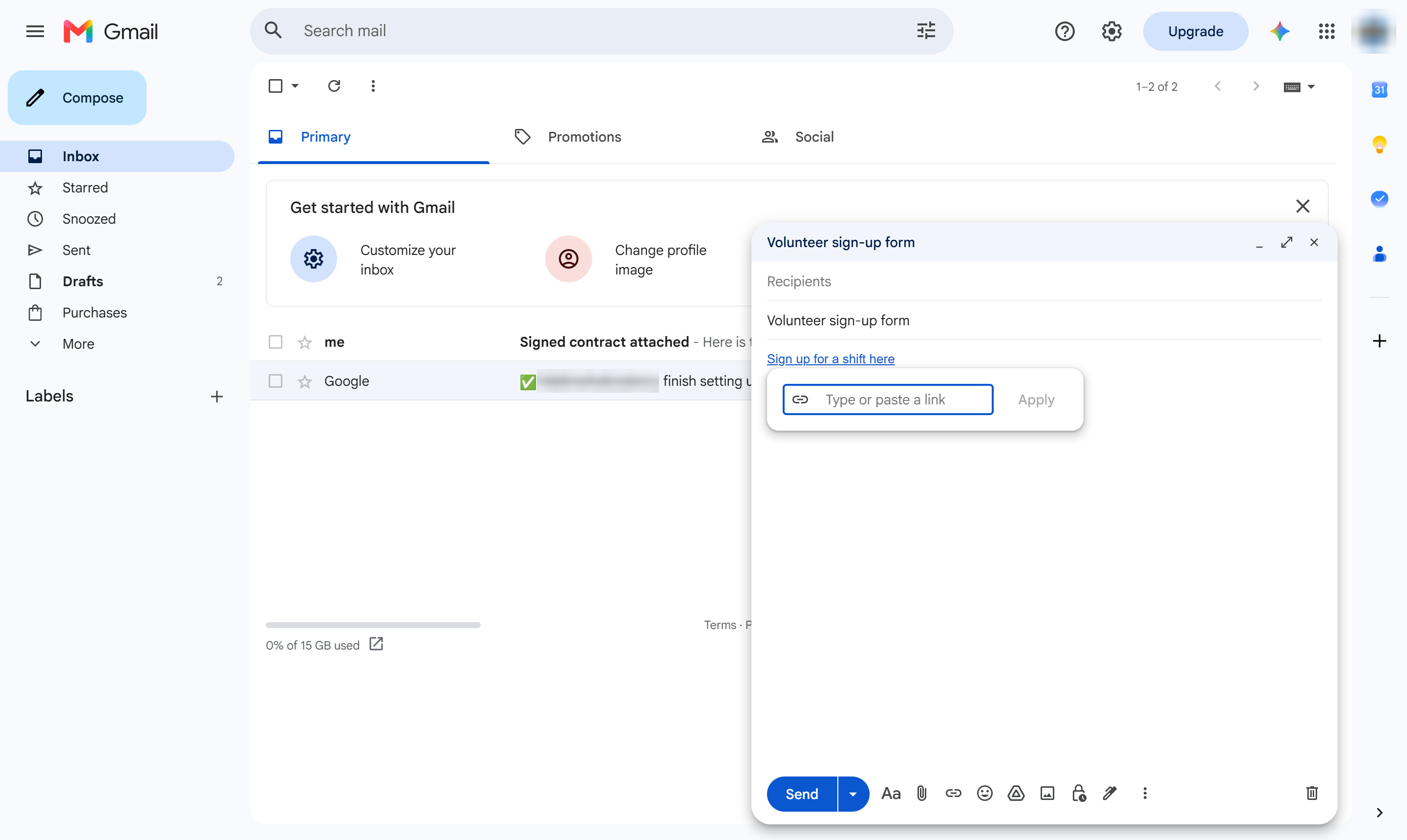
Paste or type the web address.
Click Apply. The text turns into a link.
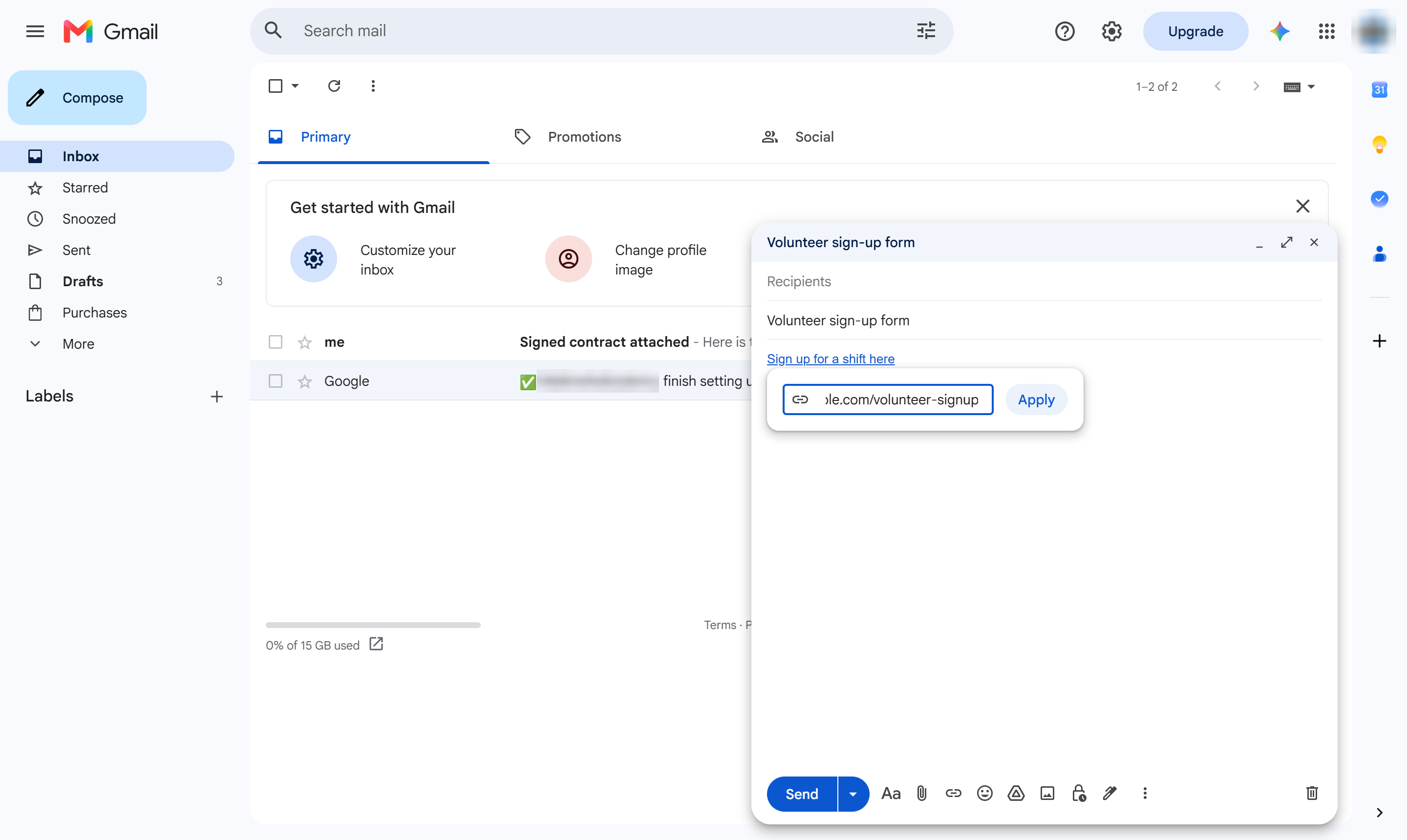
The selected words are now a clickable link. Click it again and choose Change or Remove to edit it.
Duplicate this template, swap in your own screens, and share it with your team. Free to start — no credit card.
Fill out the form and we'll get back to you as soon as possible.
Tell us about your team and we'll find the right plan together.