1
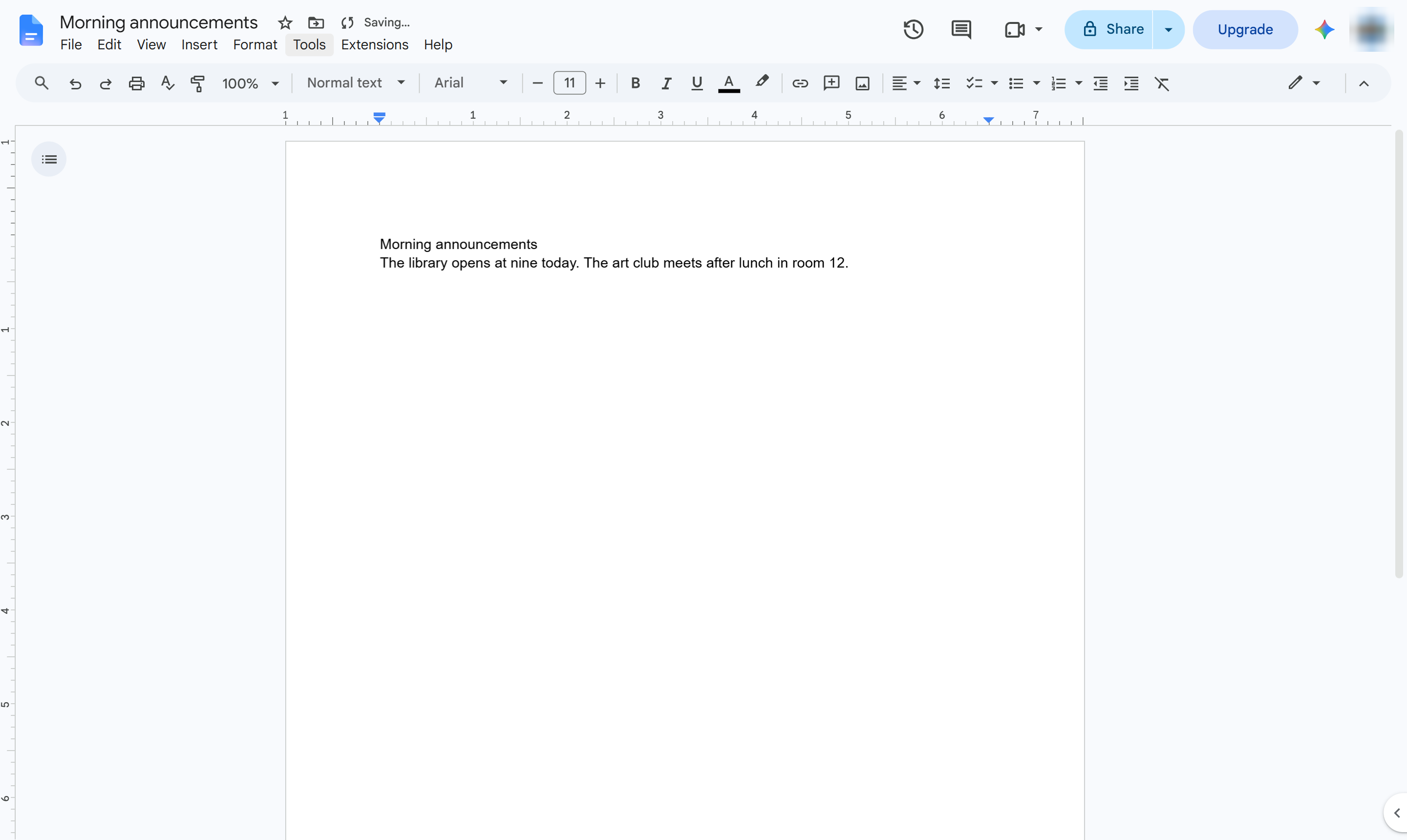
Click Tools
Open the Tools menu.

Have Docs read your text aloud: turn on screen reader support, then use Speak in the Accessibility menu.
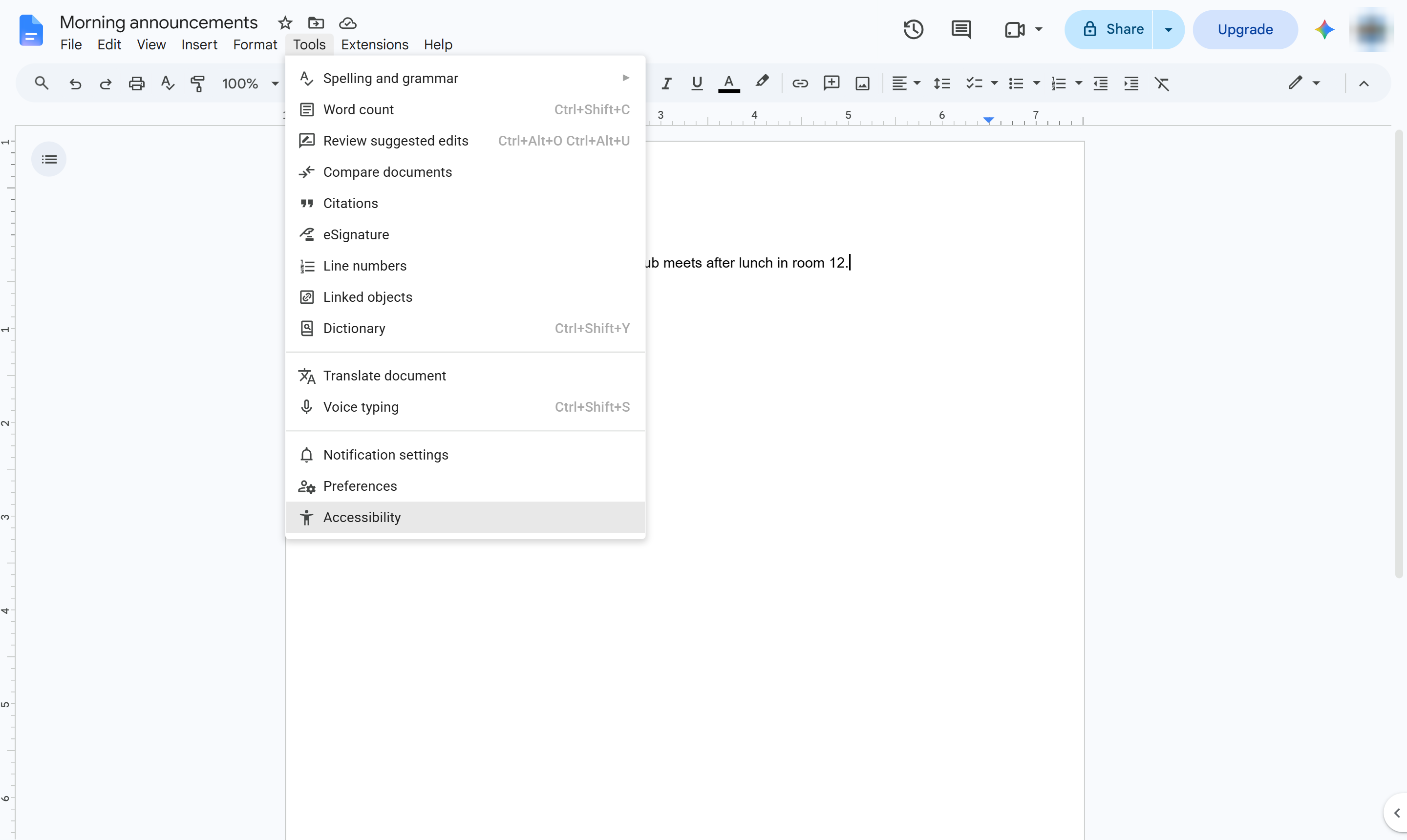
Open the Tools menu.
Choose Accessibility.
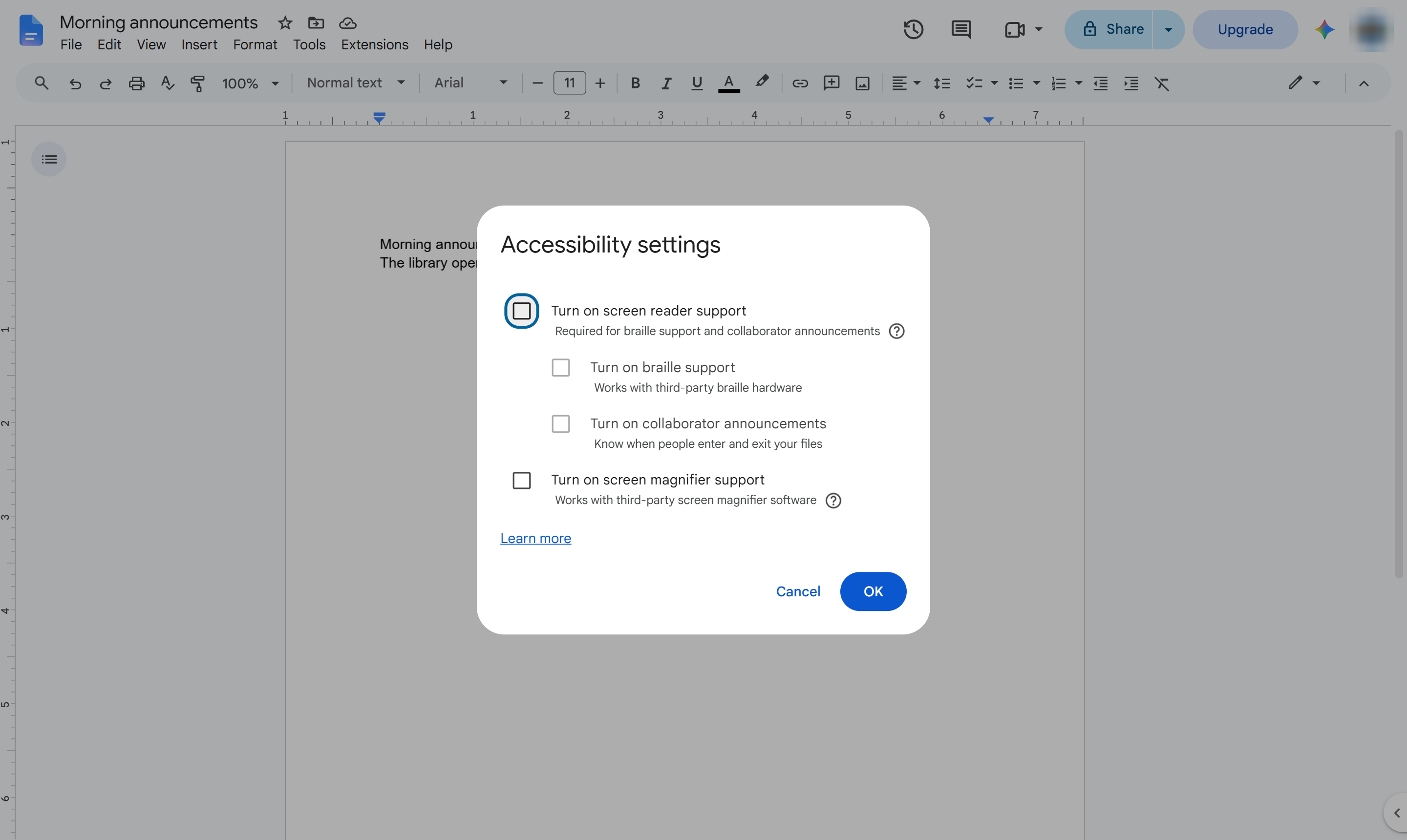
Check Turn on screen reader support. Shortcut: Ctrl + Alt + Z (Cmd + Option + Z on Mac).
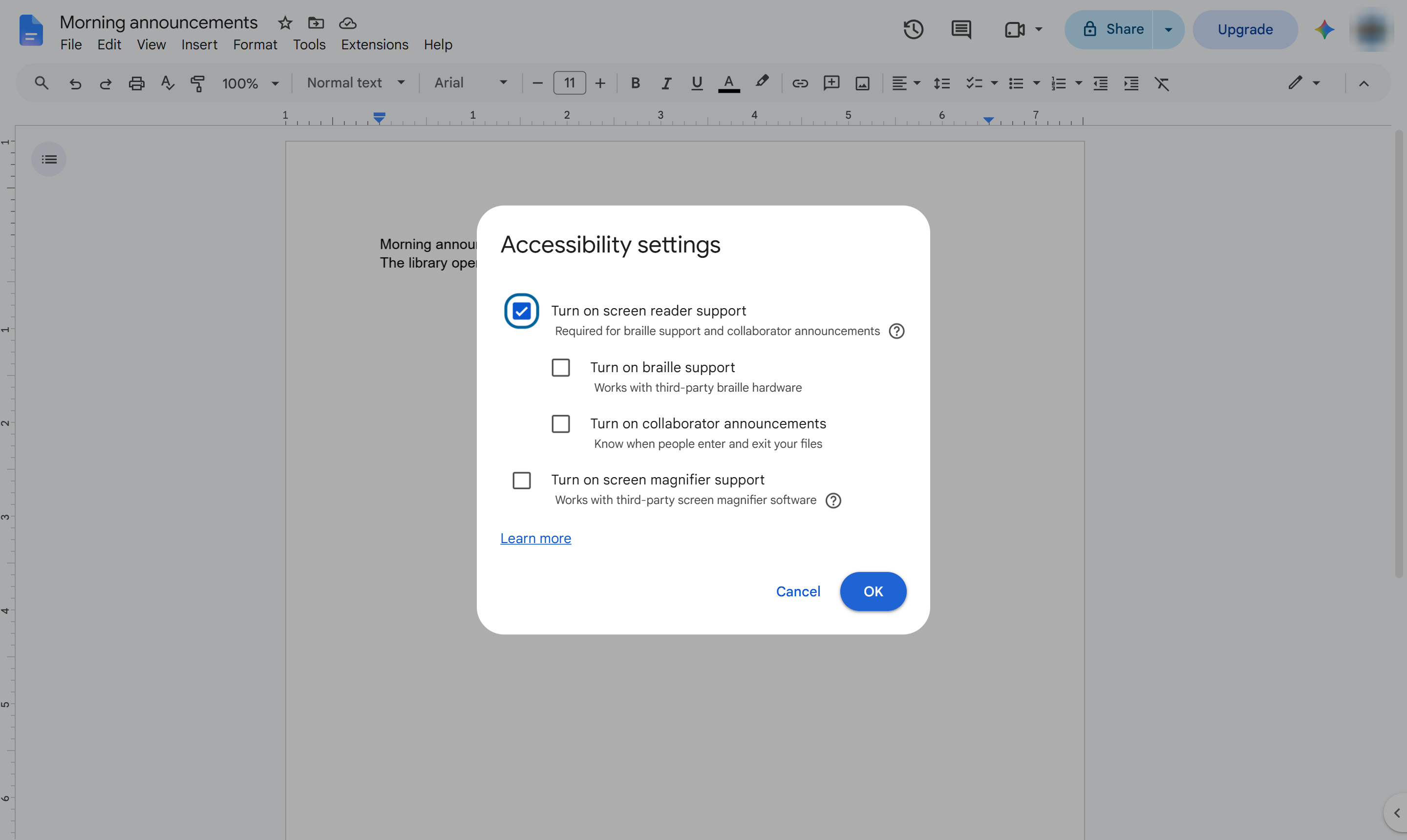
Save the setting. An Accessibility menu appears in the menu bar.
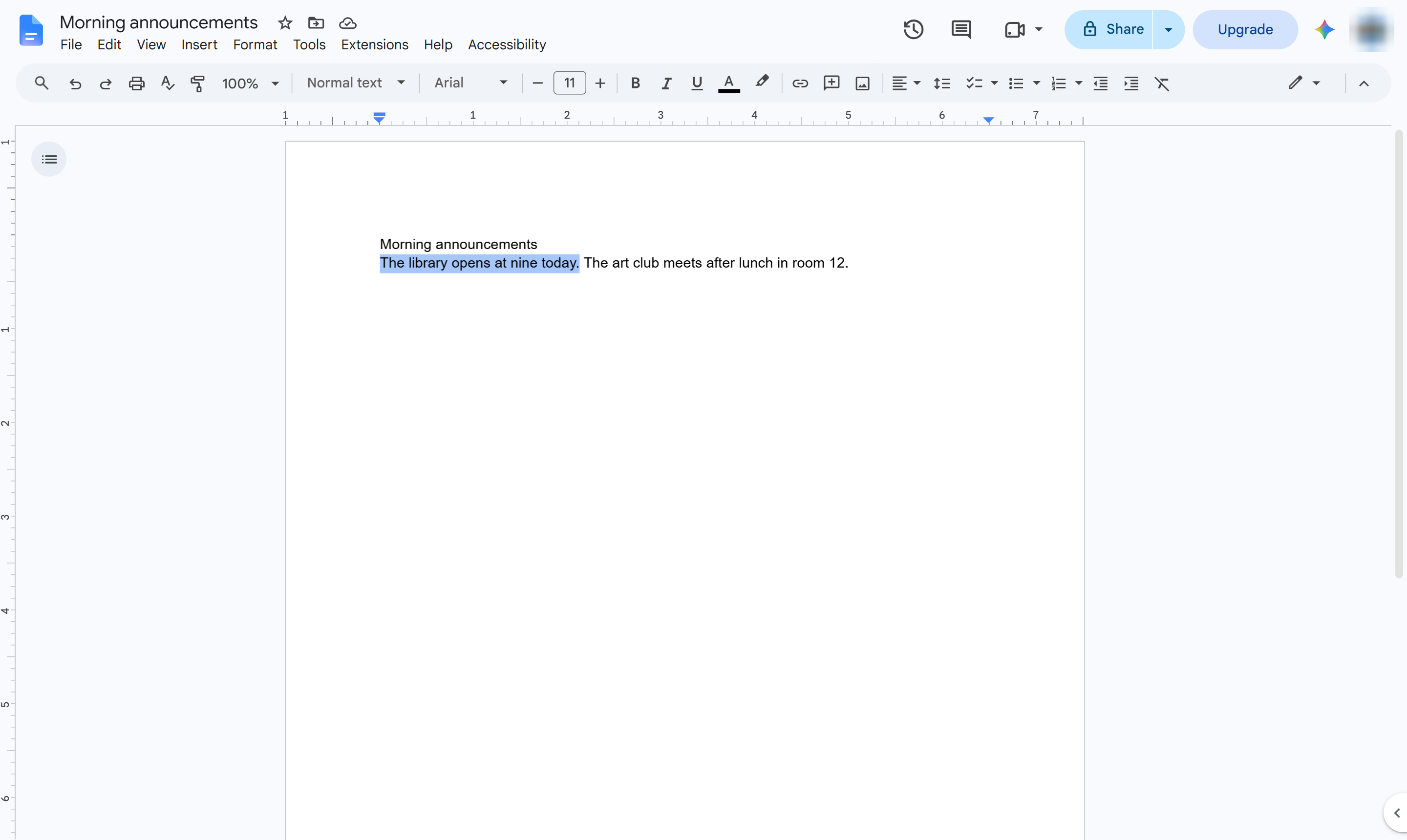
Highlight what Docs should read out.
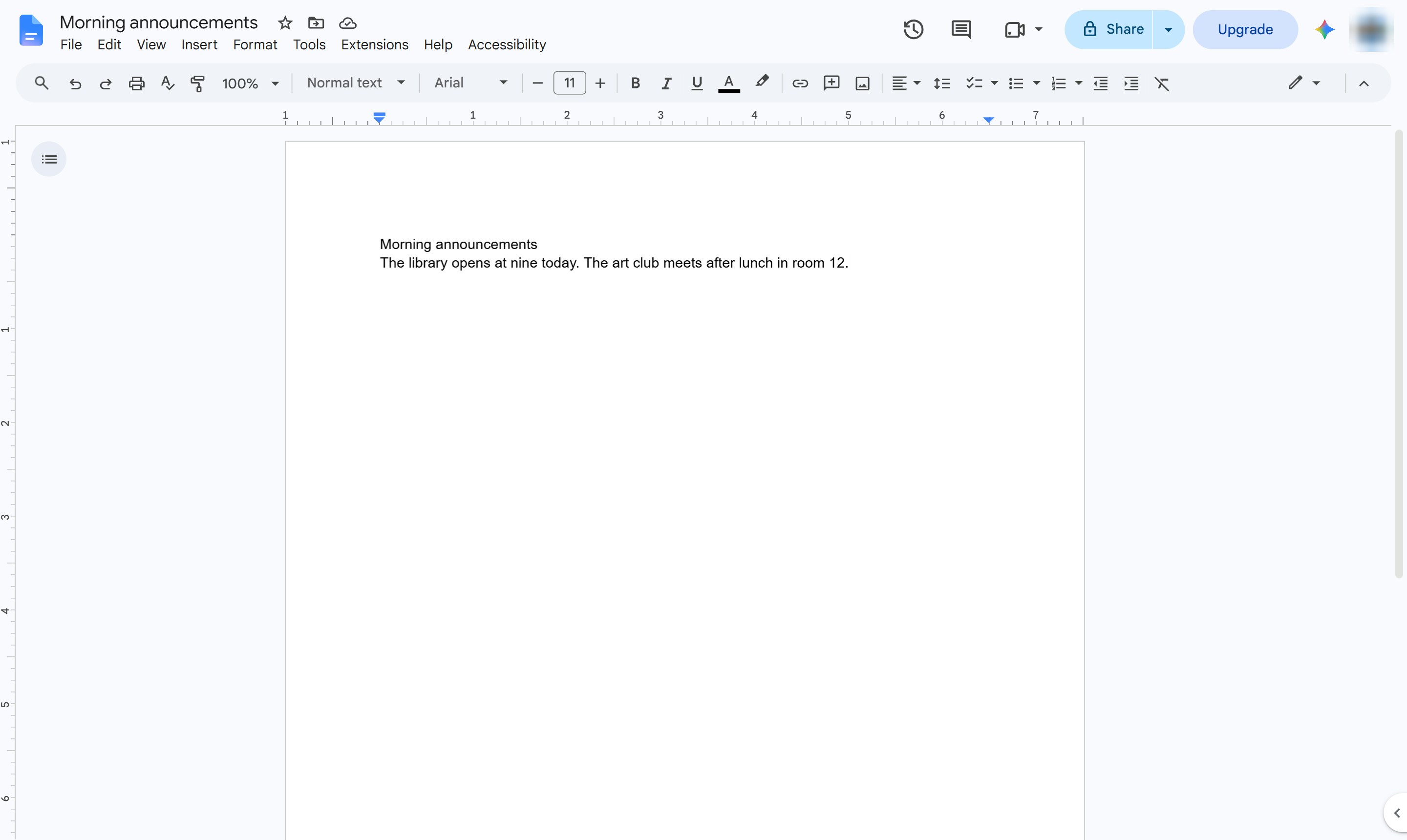
Open the new Accessibility menu.
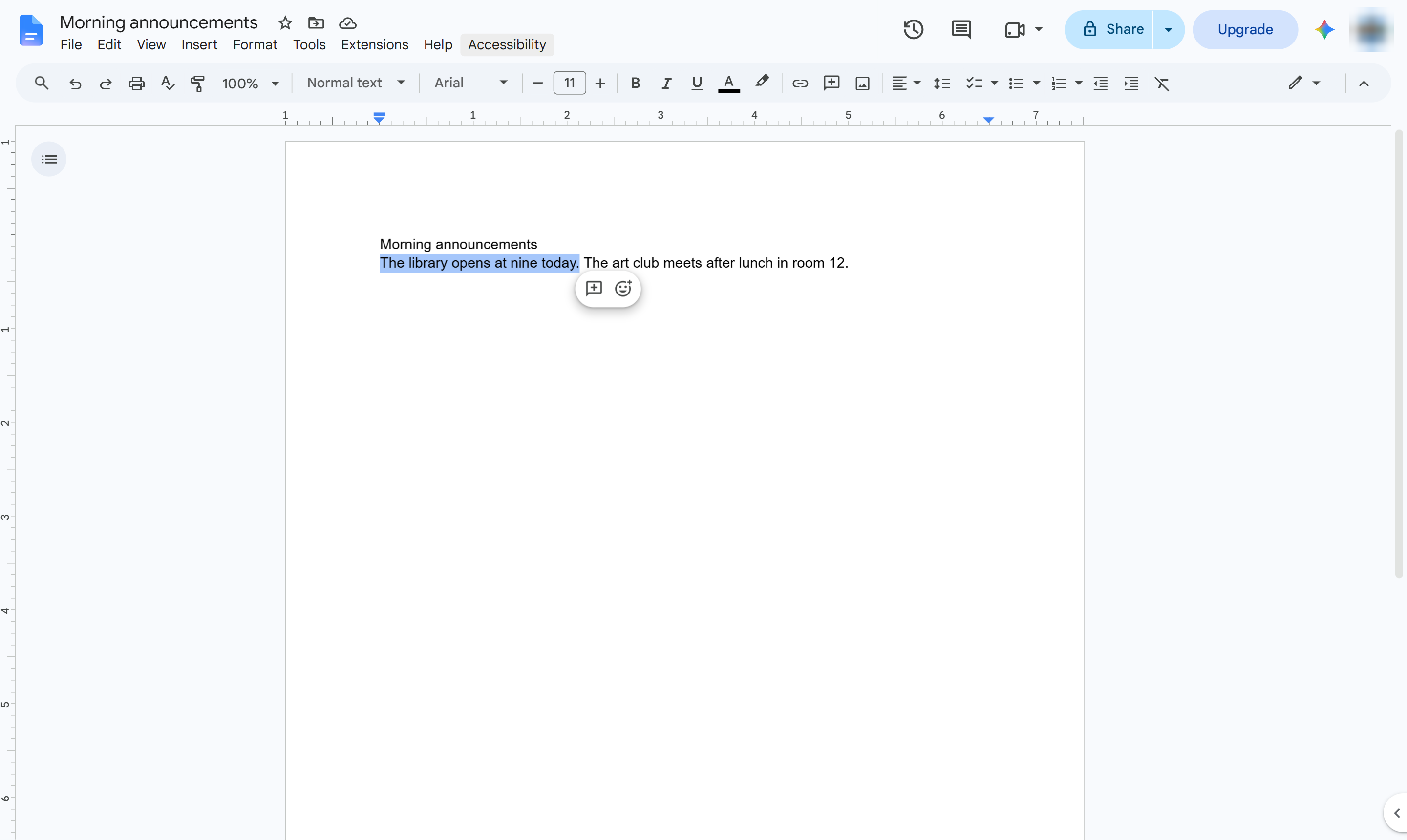
Hover over Verbalize to screen reader.
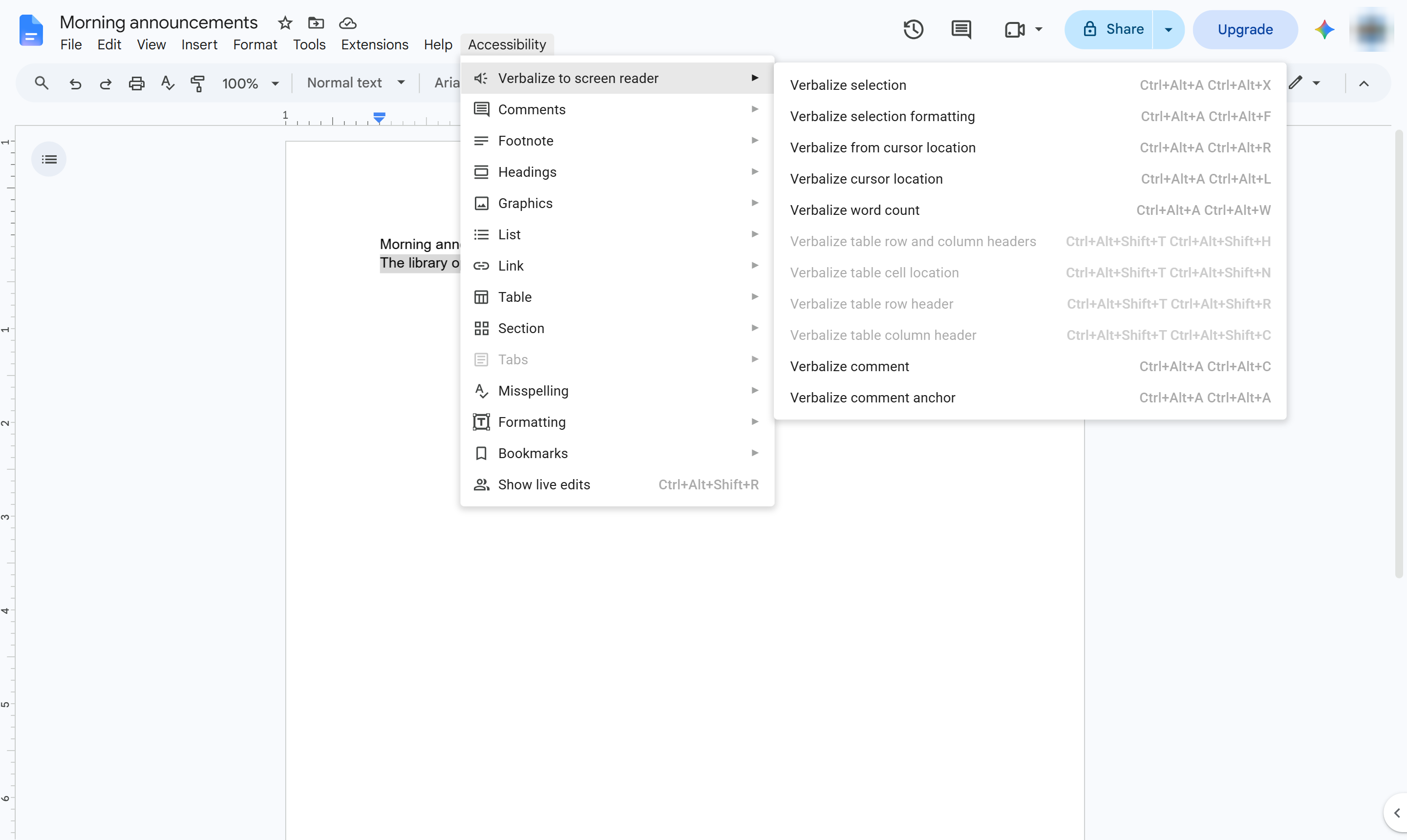
Choose Verbalize selection. Docs reads the text through your screen reader - ChromeVox, NVDA, JAWS or VoiceOver.
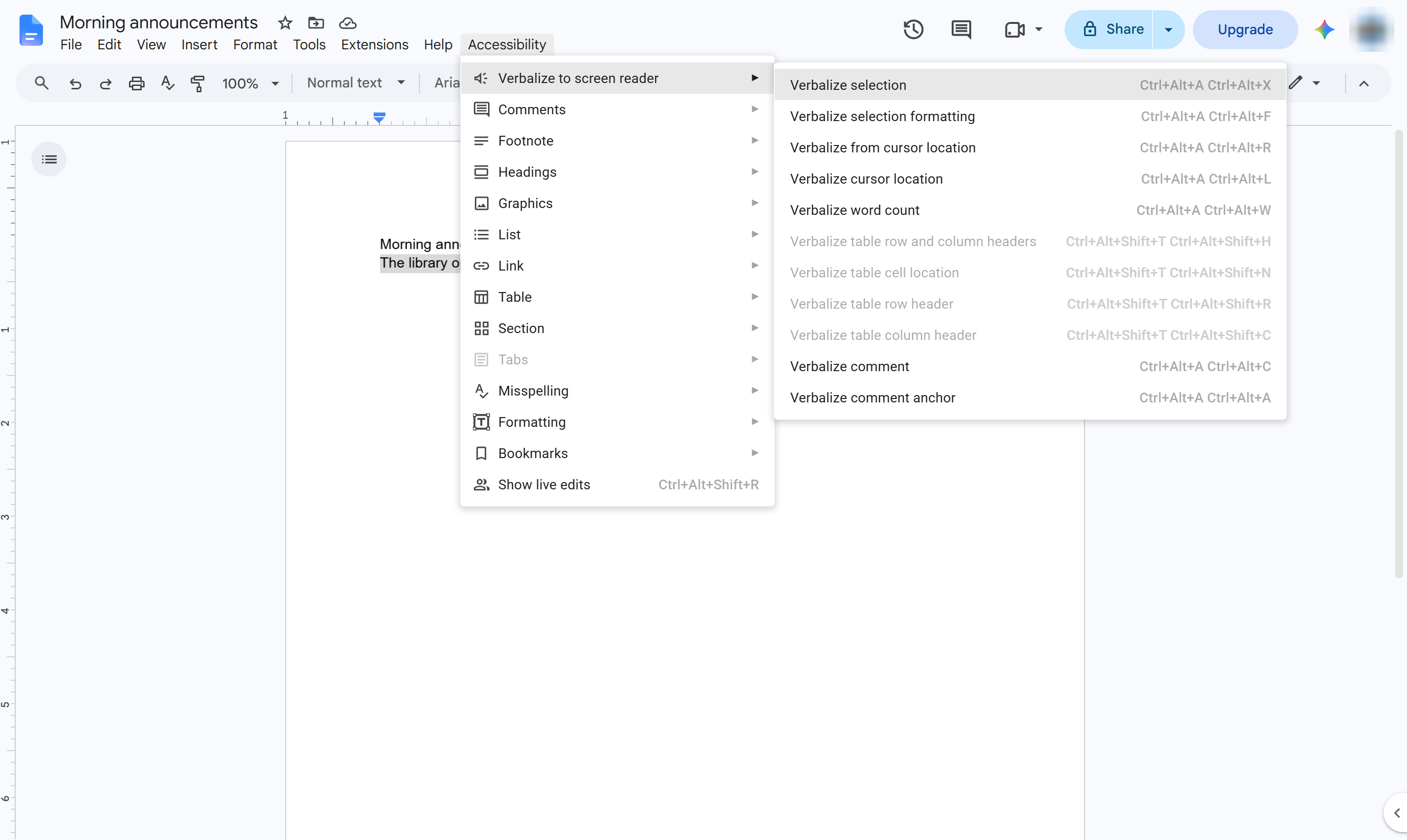
Your screen reader speaks the selected text. Turn screen reader support off again in Tools > Accessibility.
Duplicate this template, swap in your own screens, and share it with your team. Free to start — no credit card.
Fill out the form and we'll get back to you as soon as possible.
Tell us about your team and we'll find the right plan together.