1
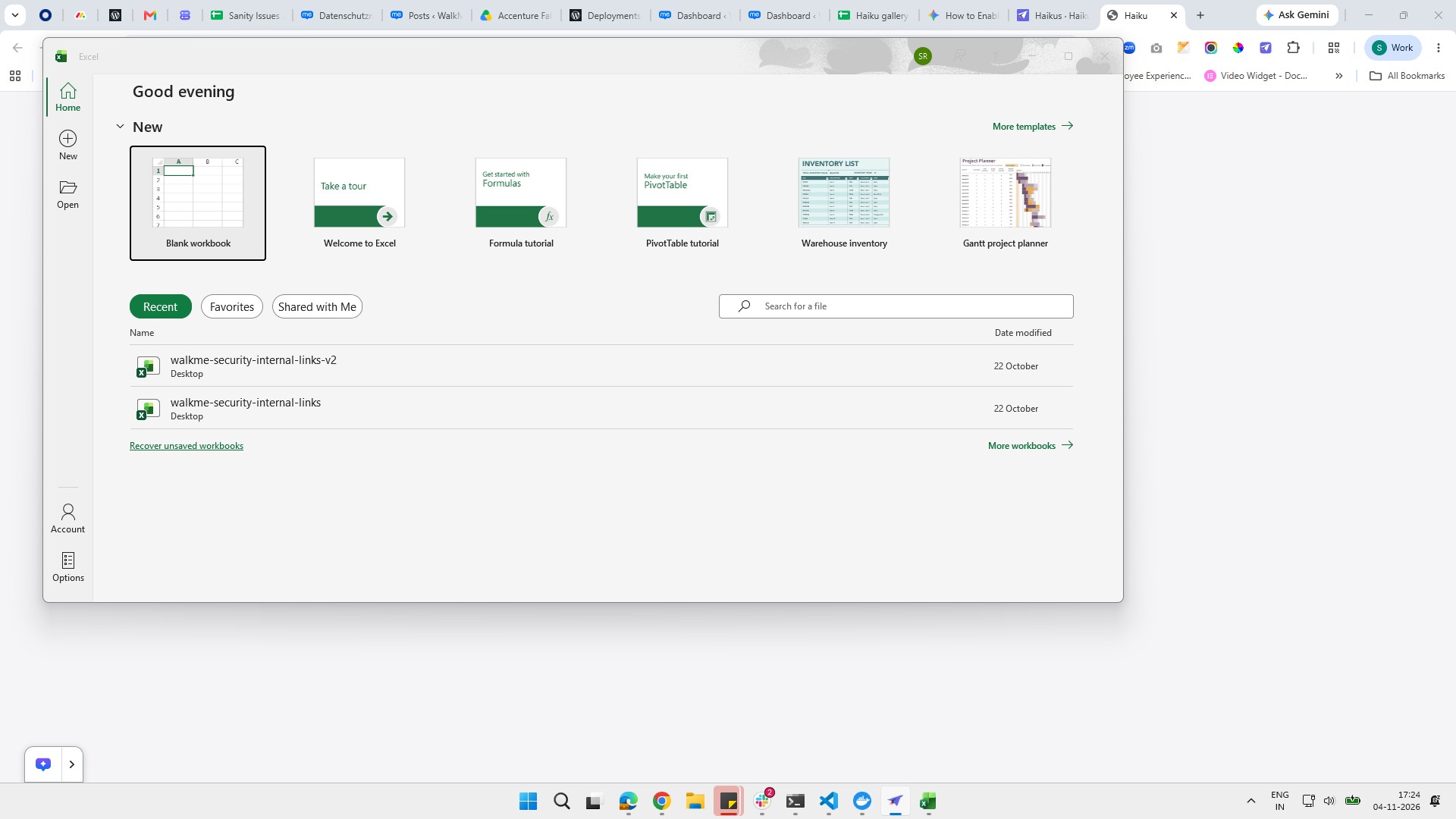
Click Blank workbook
Click the Blank workbook option under the New section to start a new spreadsheet.

This step-by-step guide shows you how to configure macro settings in Microsoft Excel to safely run automated tasks. You will navigate through Excel's Options menu to access the Trust Center and adjust your Macro Settings. By following these steps, you will enable VBA macros with notifications to ensure your workbooks function correctly while maintaining security.
Click the Blank workbook option under the New section to start a new spreadsheet.
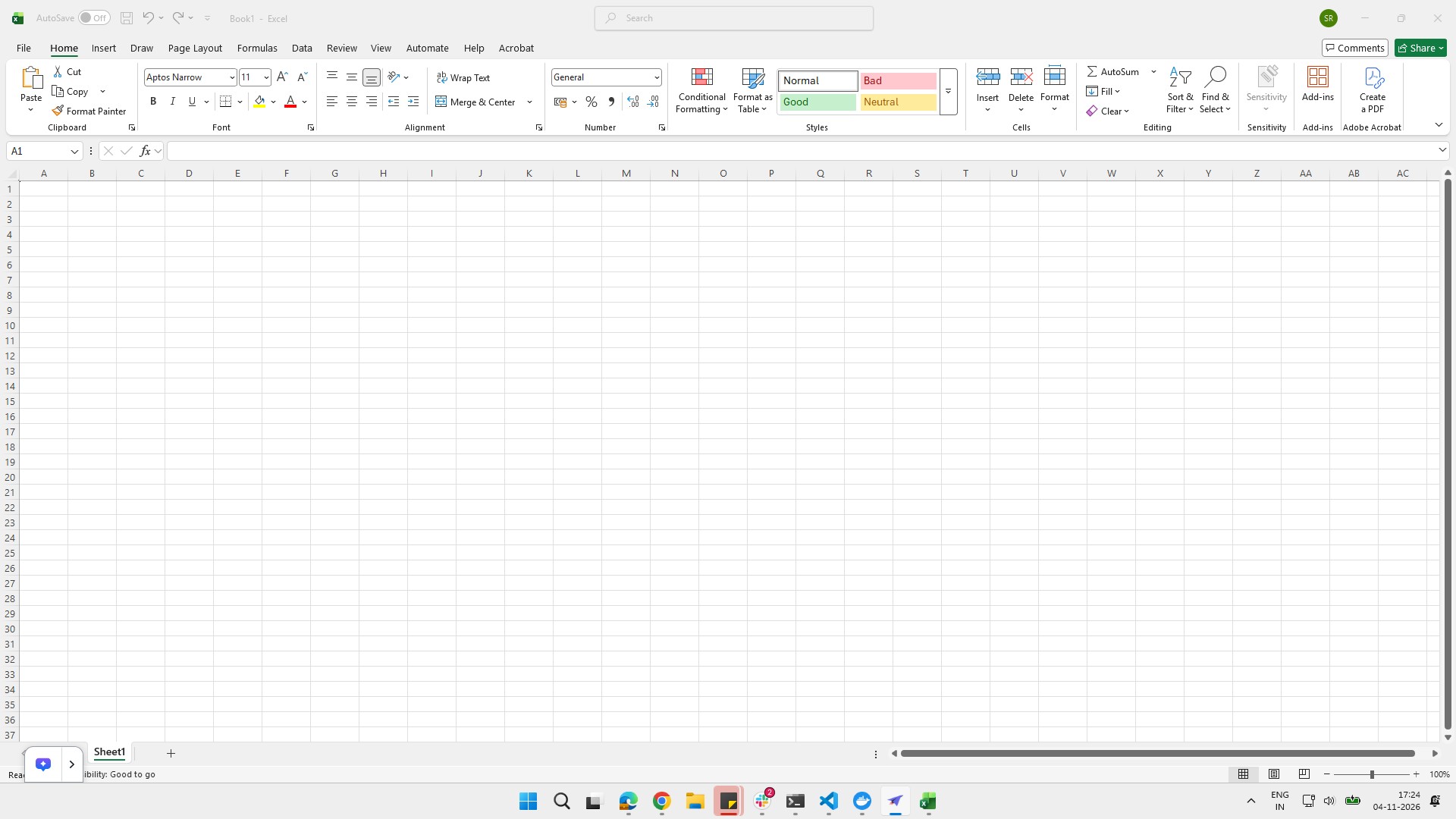
Click the File button in the top-left corner of the ribbon to open the file menu.
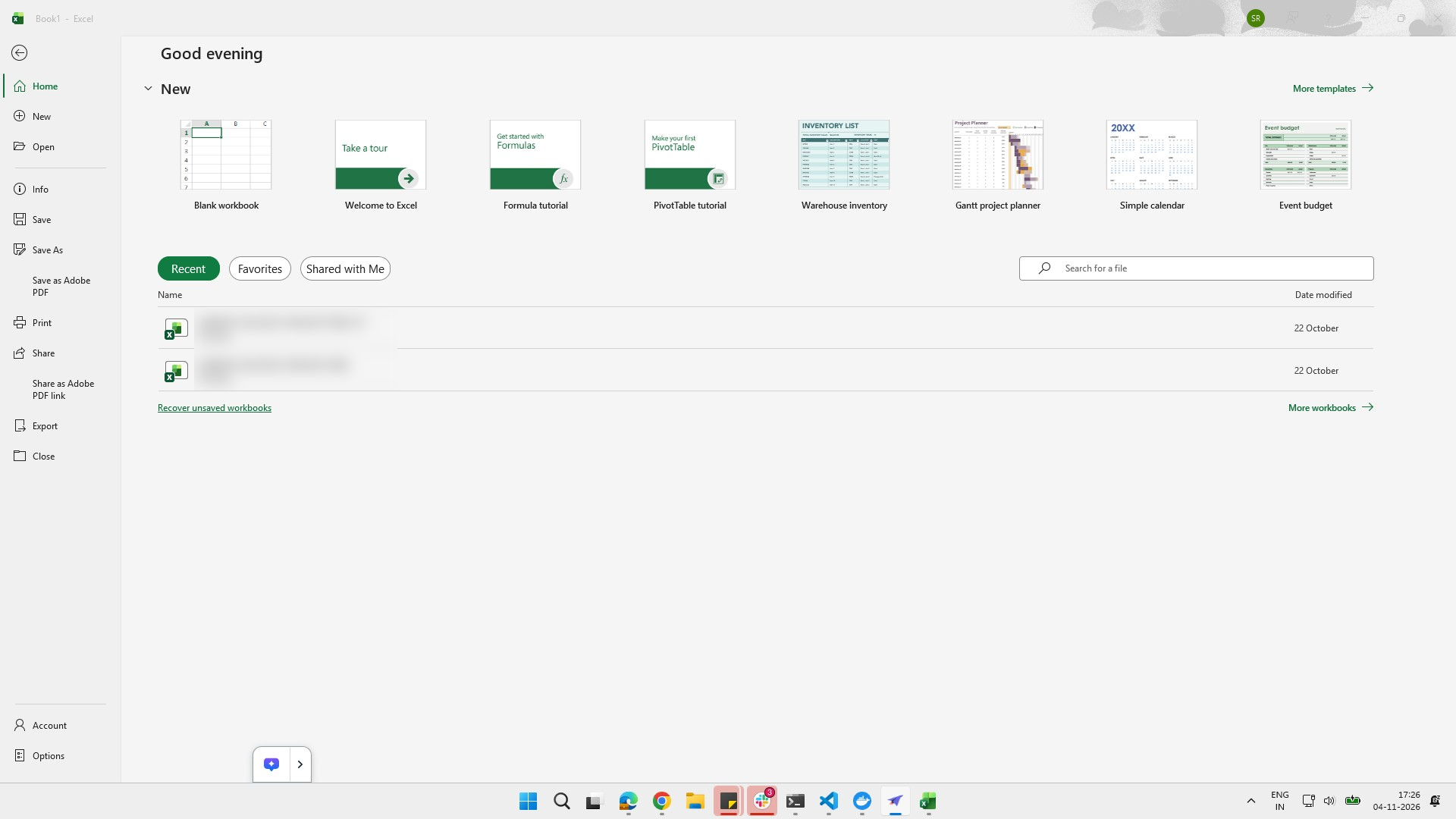
Click the Options menu item at the bottom of the left sidebar to open the settings panel.
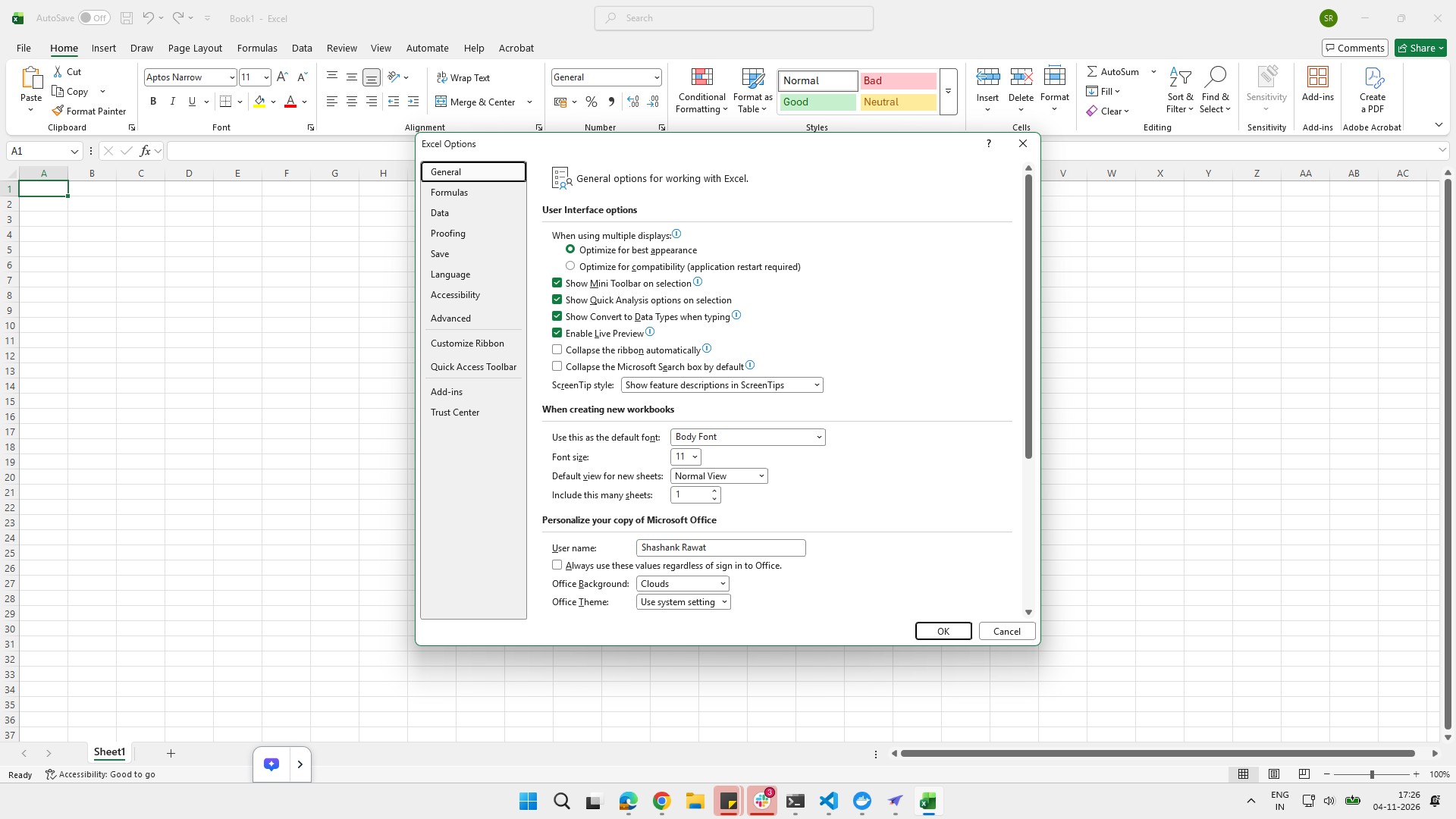
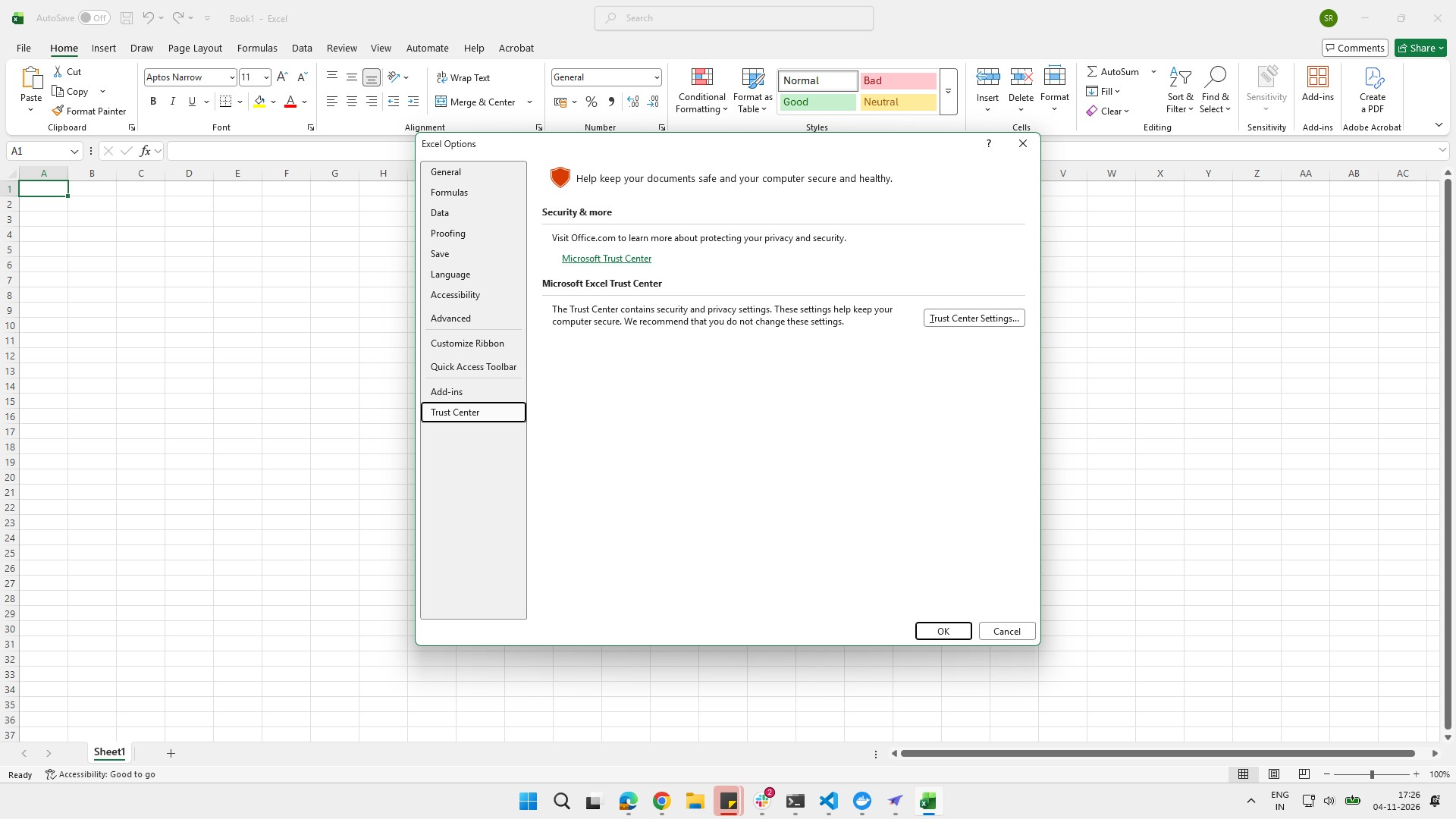
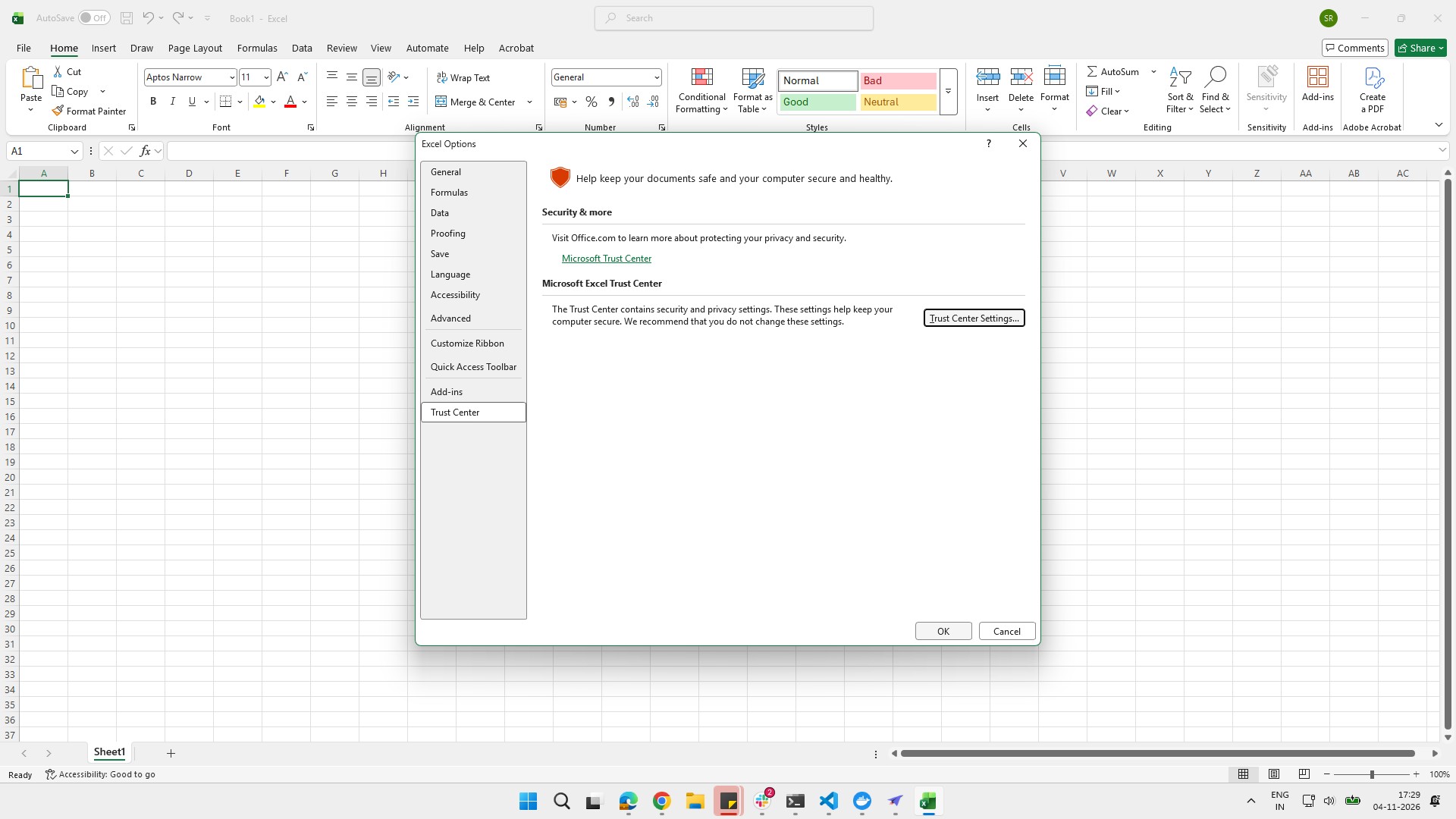
Click the Trust Center option in the left sidebar of the Excel Options dialog.
Click the "Trust Center Settings..." button in the Excel Options dialog to configure your security and privacy preferences.
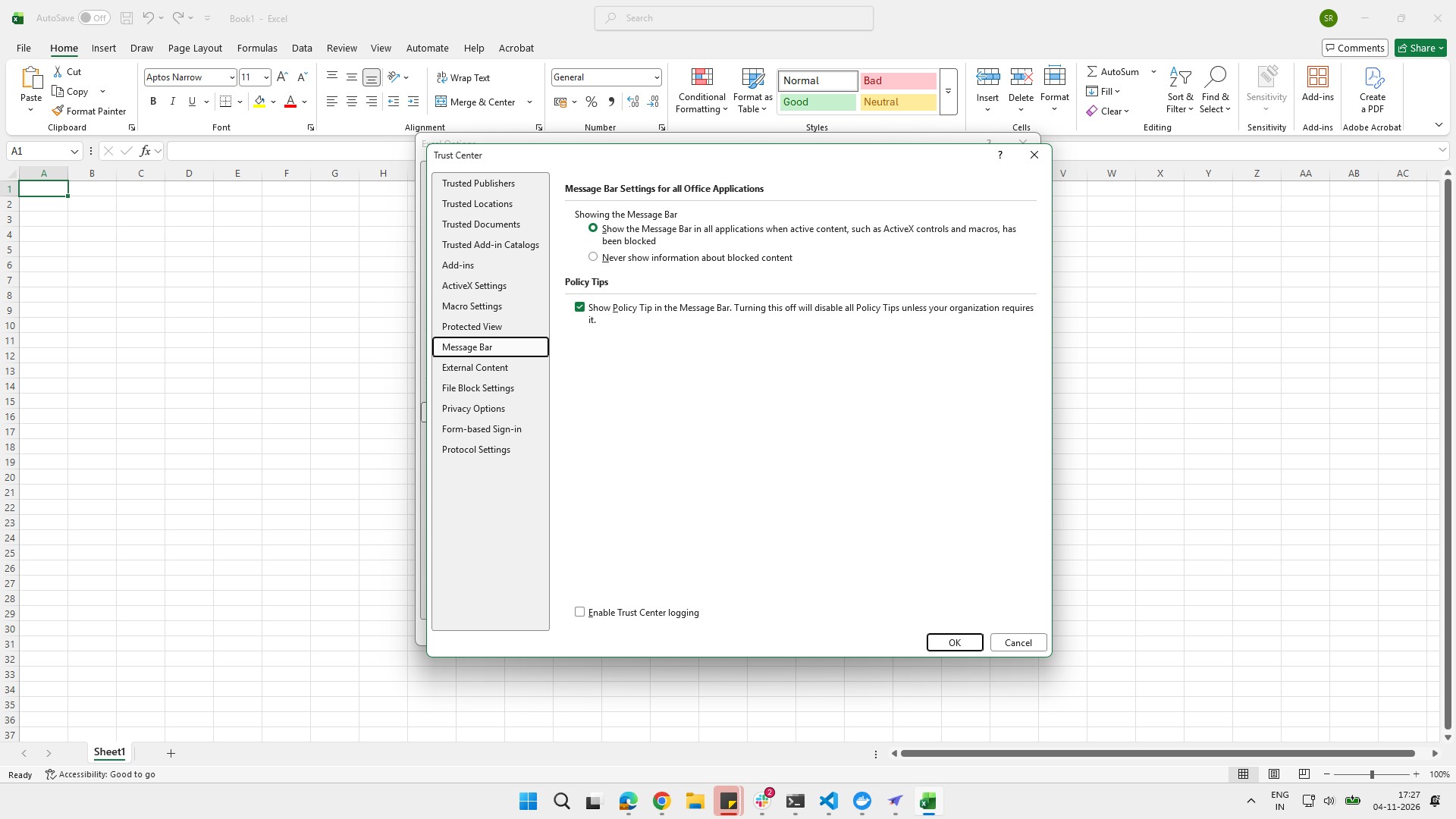
Click the "Macro Settings" option in the left sidebar of the Trust Center dialog box.
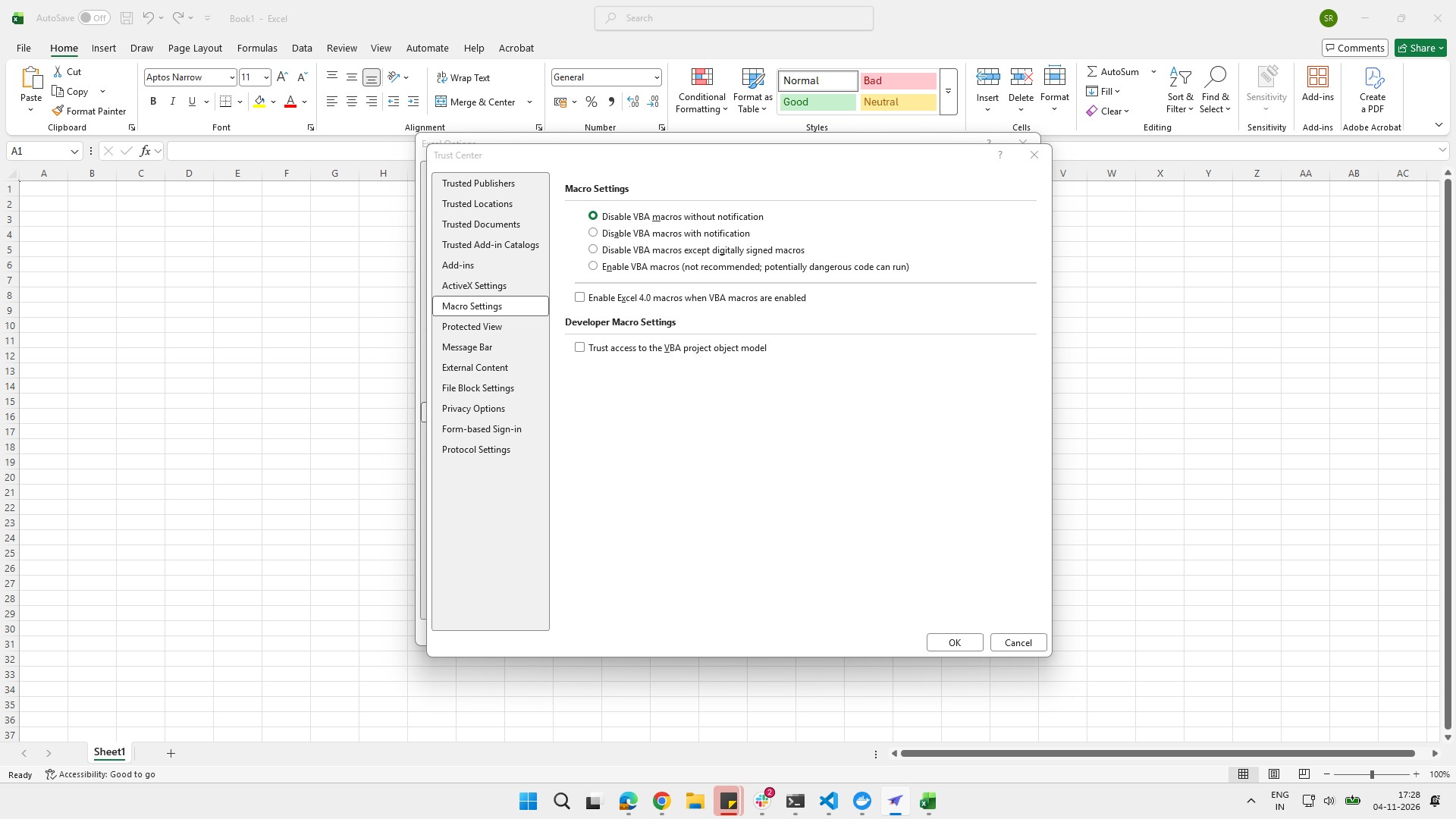
Click the "Disable VBA macros with notification" radio button in the Macro Settings section of the Trust Center.
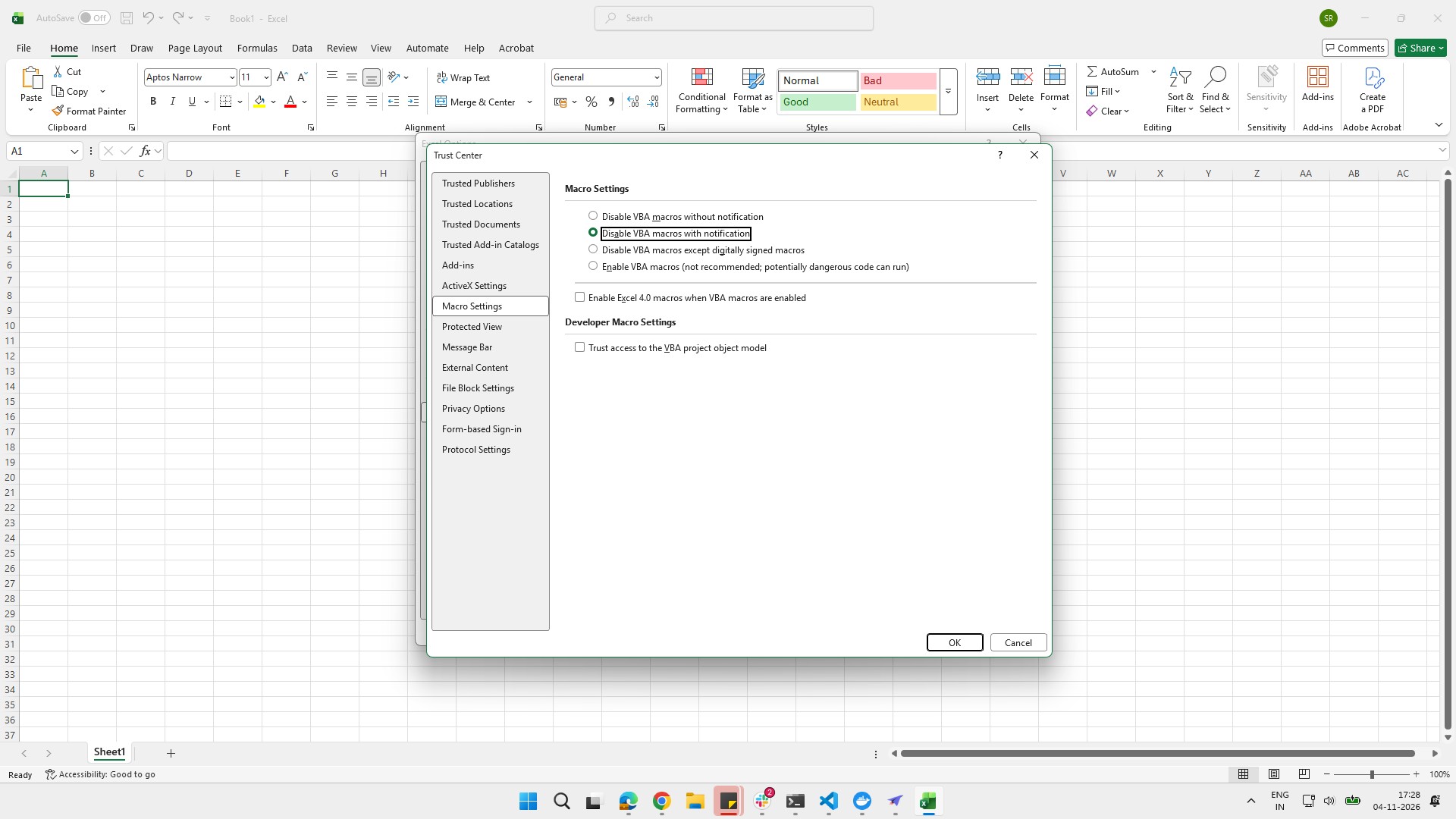
Click the OK button at the bottom of the Trust Center dialog to save your settings.
Click the OK button at the bottom of the Excel Options dialog box to apply your changes.
Duplicate this template, swap in your own screens, and share it with your team. Free to start — no credit card.
Fill out the form and we'll get back to you as soon as possible.
Tell us about your team and we'll find the right plan together.