1
Click Settings
At the top right, click the gear icon (Settings).
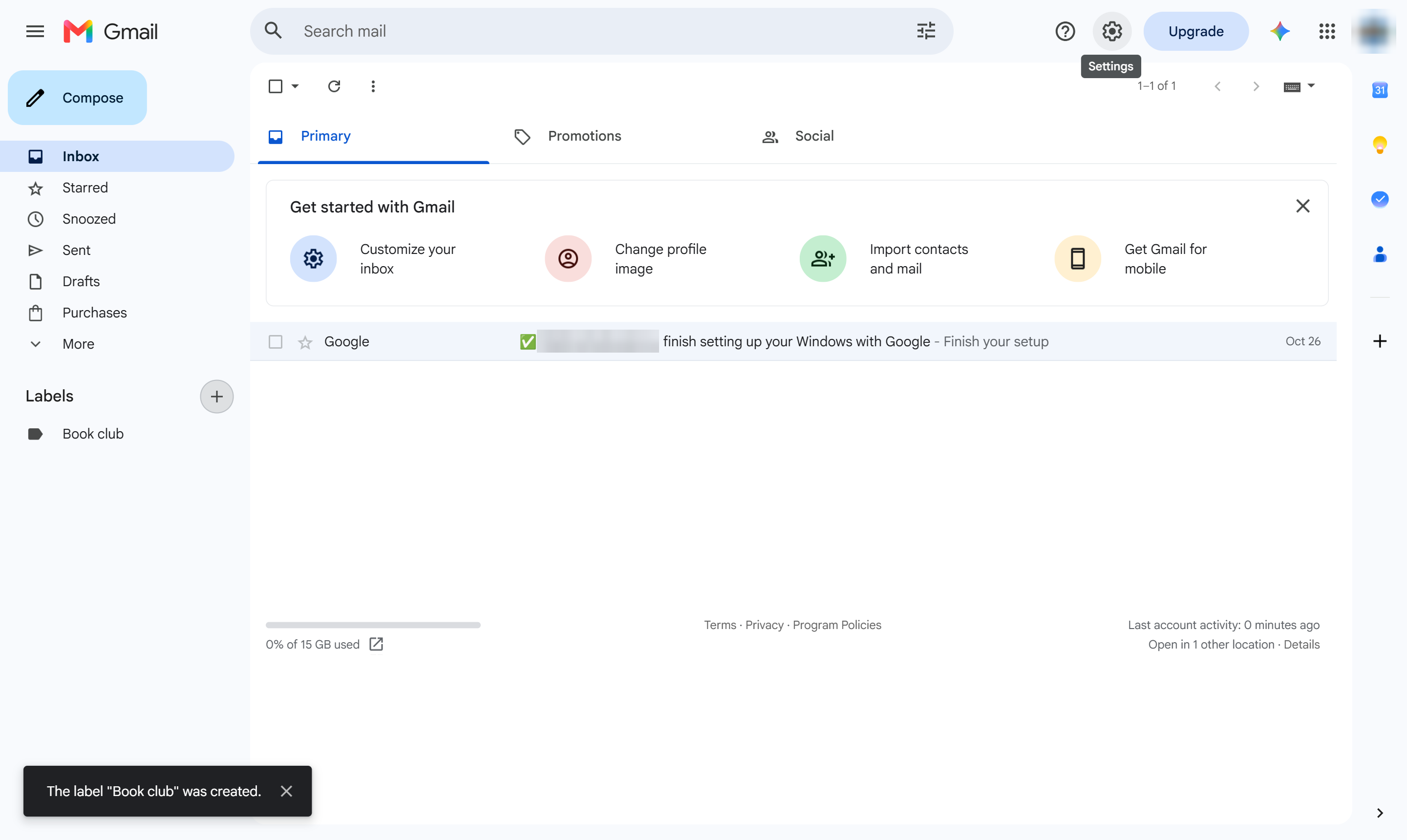

Remove a label you no longer need in Settings. The emails in it stay in your mailbox.
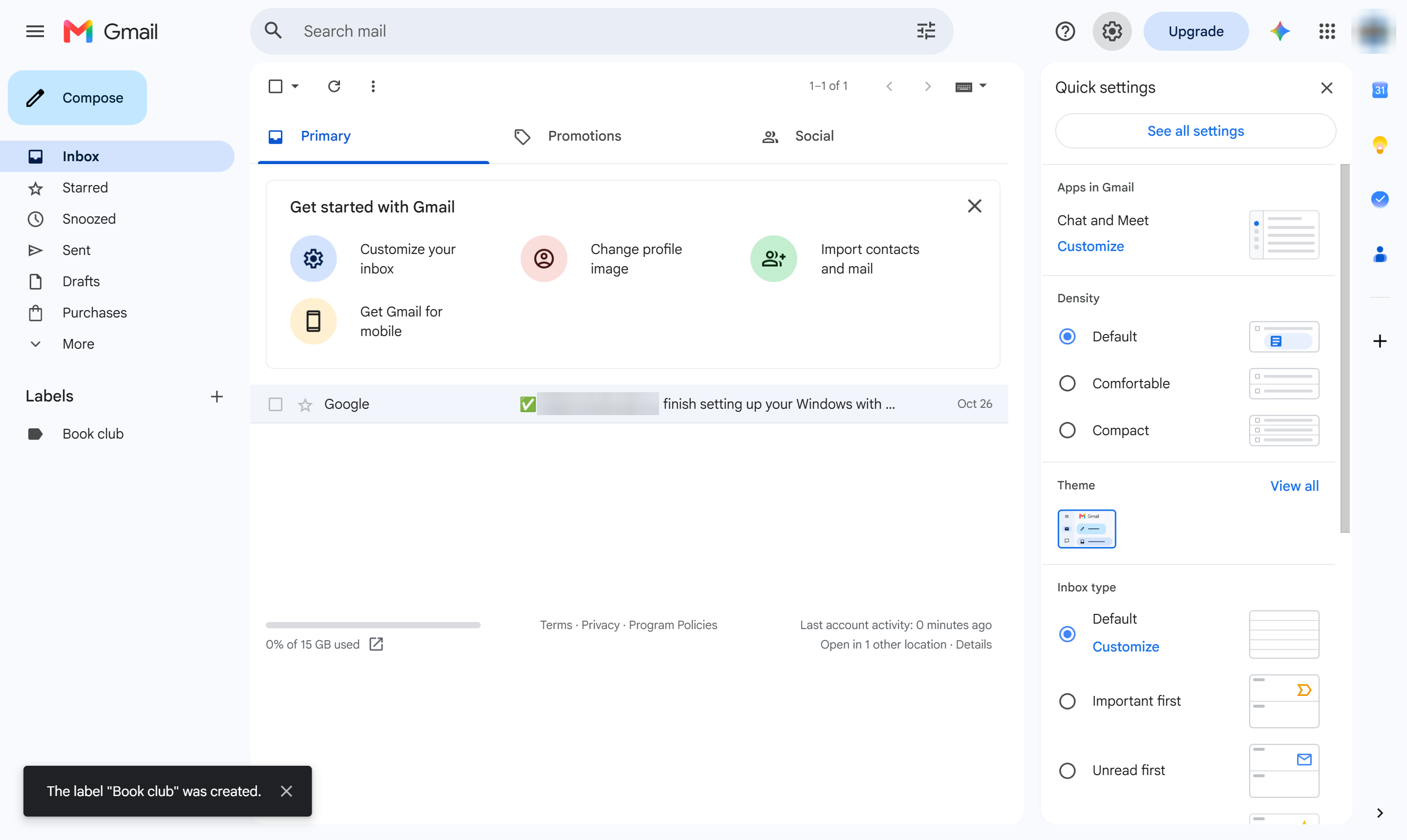
At the top right, click the gear icon (Settings).
Click See all settings.
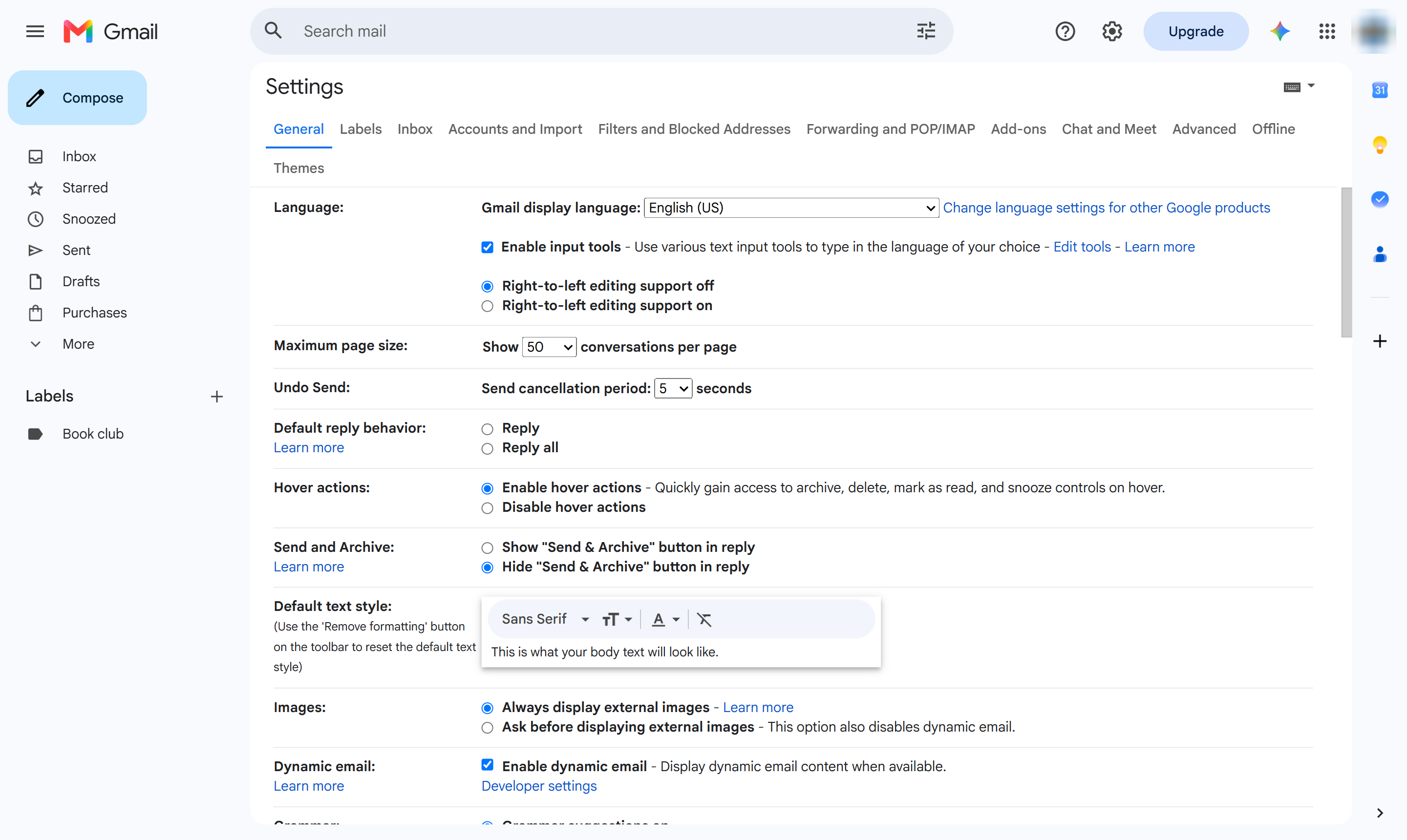
Open the Labels tab.
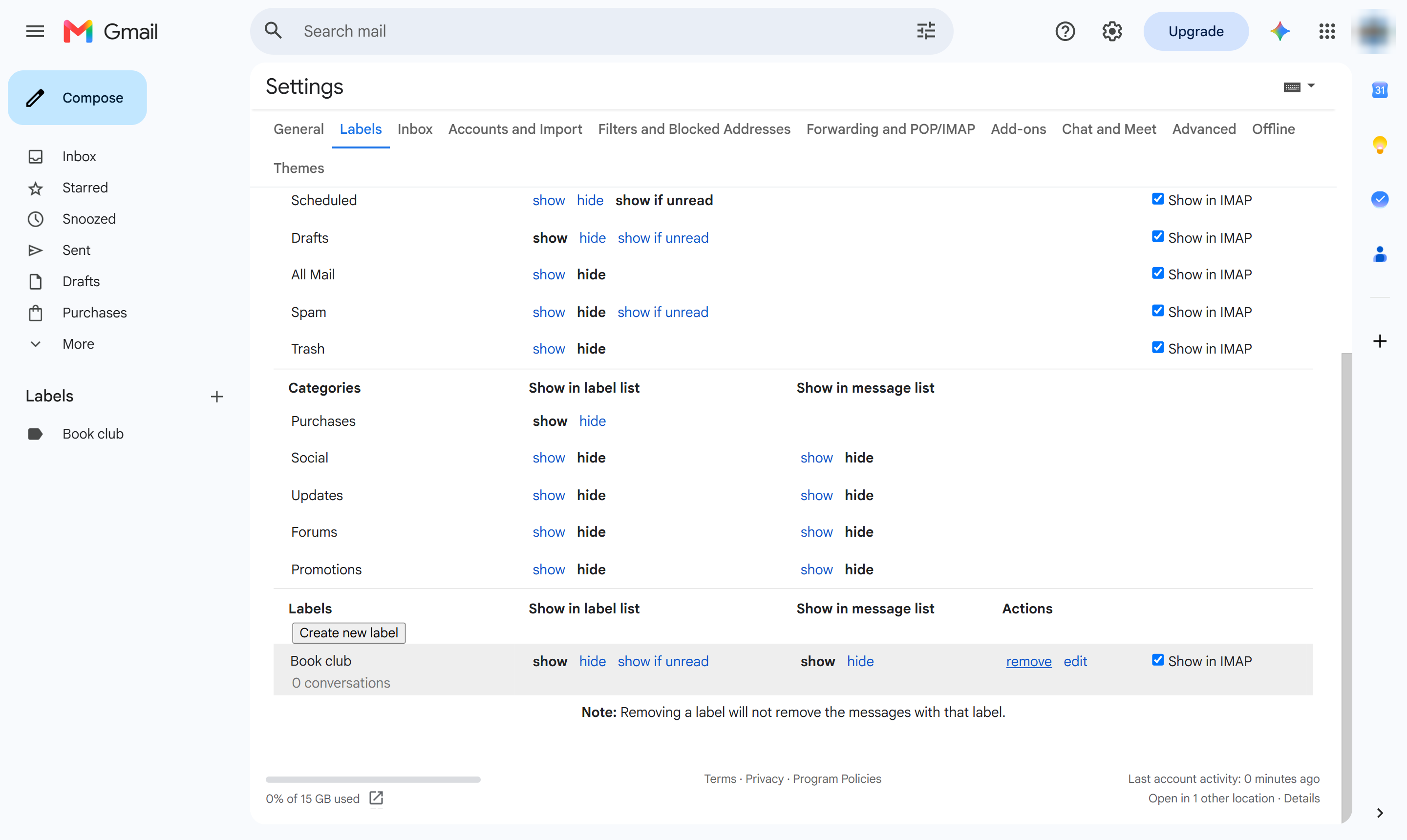
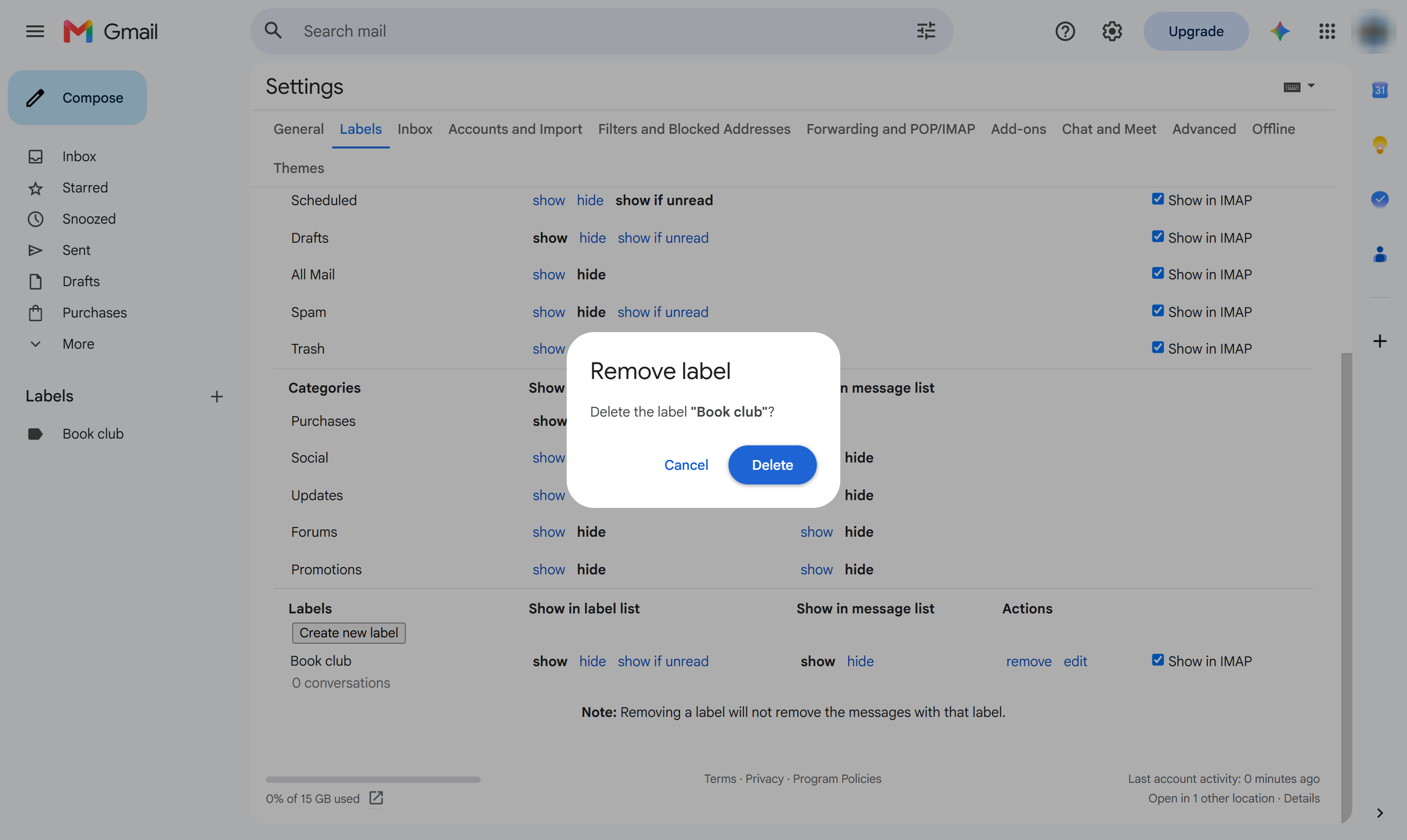
Find the label under Labels and click remove at the end of its row.
Confirm with Delete. The label goes; its emails stay.
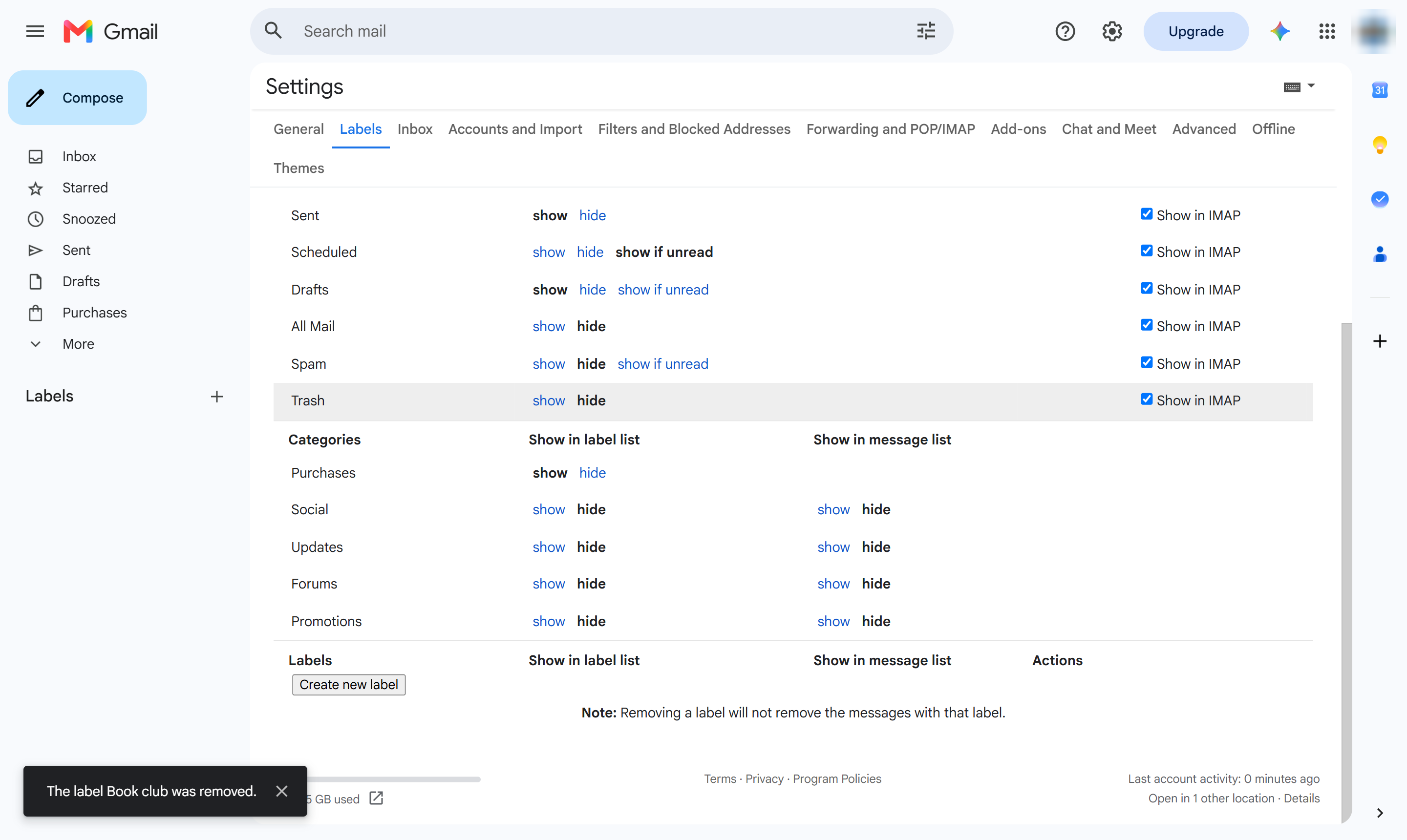
The label is gone from the list and from the left menu. Its emails are still in All Mail.
Duplicate this template, swap in your own screens, and share it with your team. Free to start — no credit card.
Fill out the form and we'll get back to you as soon as possible.
Tell us about your team and we'll find the right plan together.