1
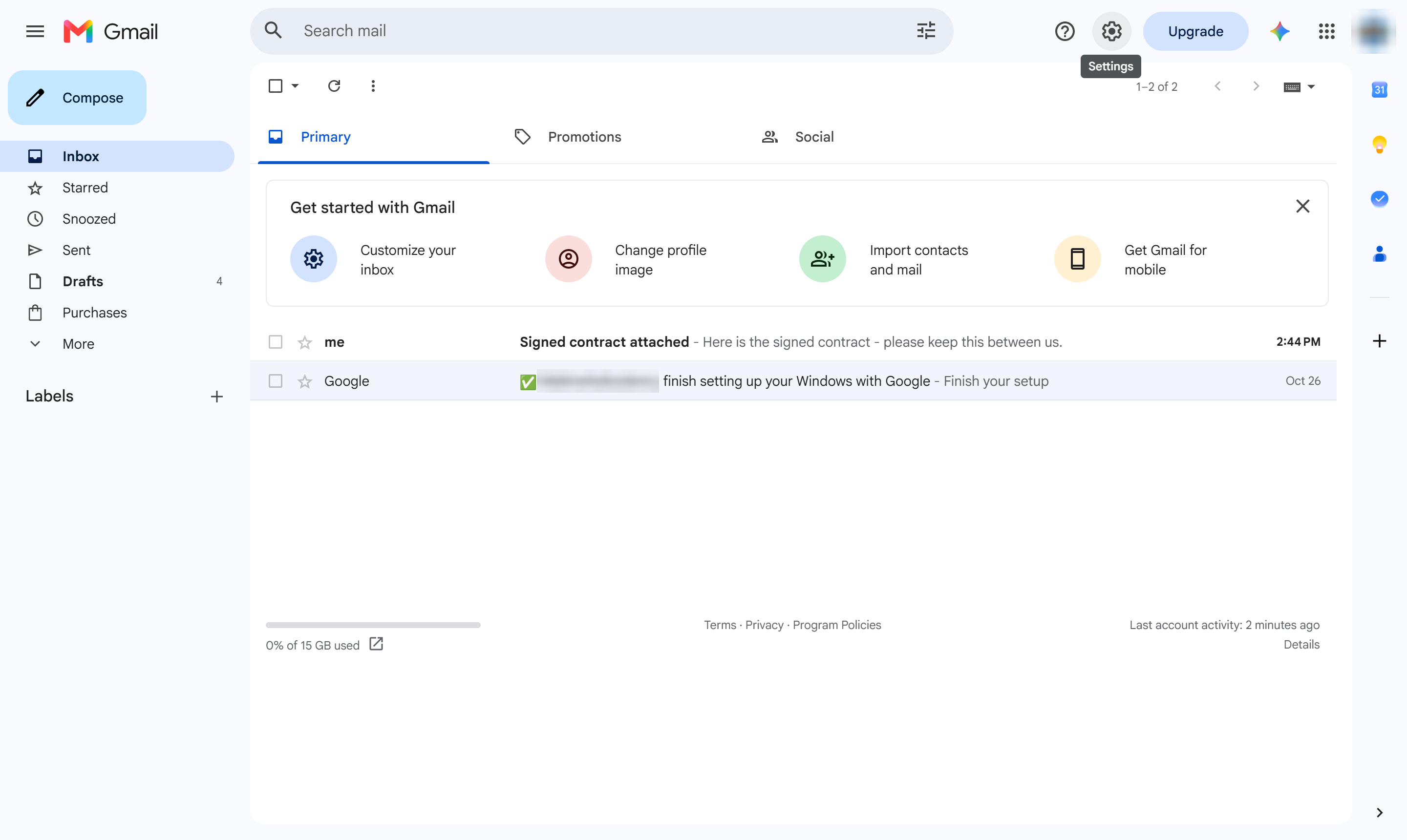
Click Settings
At the top right, click the gear icon (Settings).

Learn how to enable and create reusable email templates in Gmail to streamline your daily messaging. This step-by-step guide walks you through activating the templates feature in your advanced settings, composing your draft, and saving it for future use. Follow these quick actions to save time and standardize your email communication directly from your inbox.
At the top right, click the gear icon (Settings).
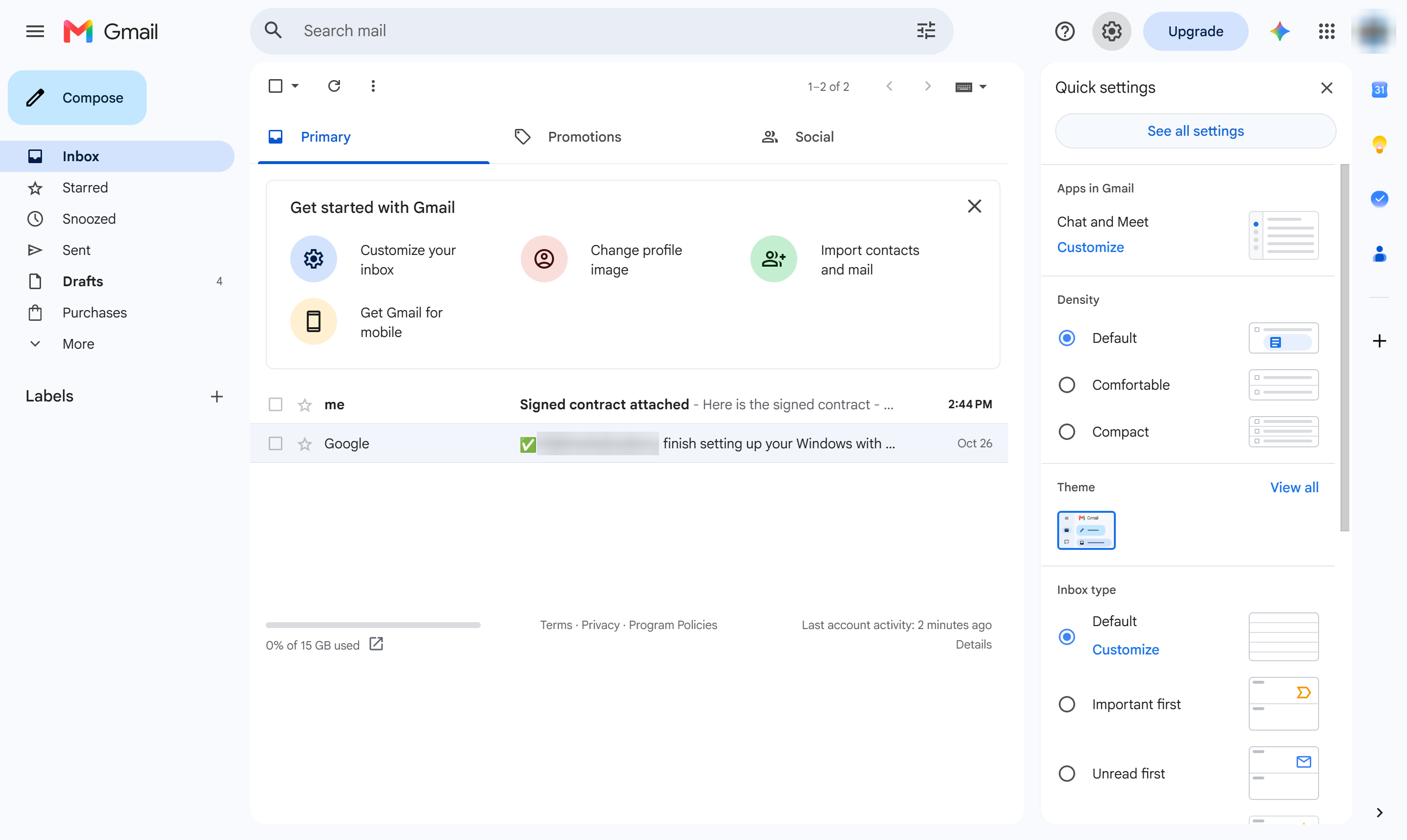
Click See all settings.
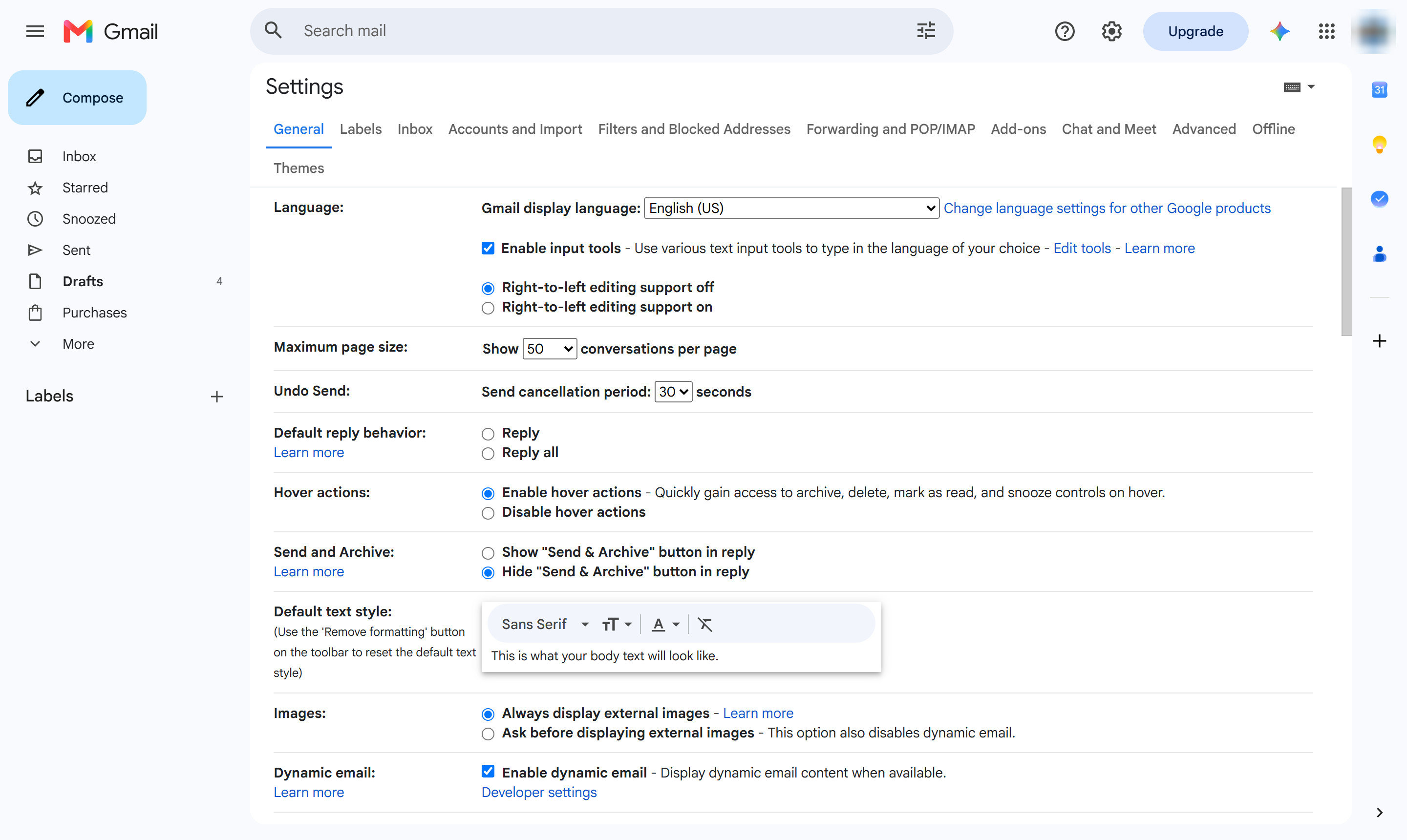
Open the Advanced tab.
Find Templates in the list and click Enable.
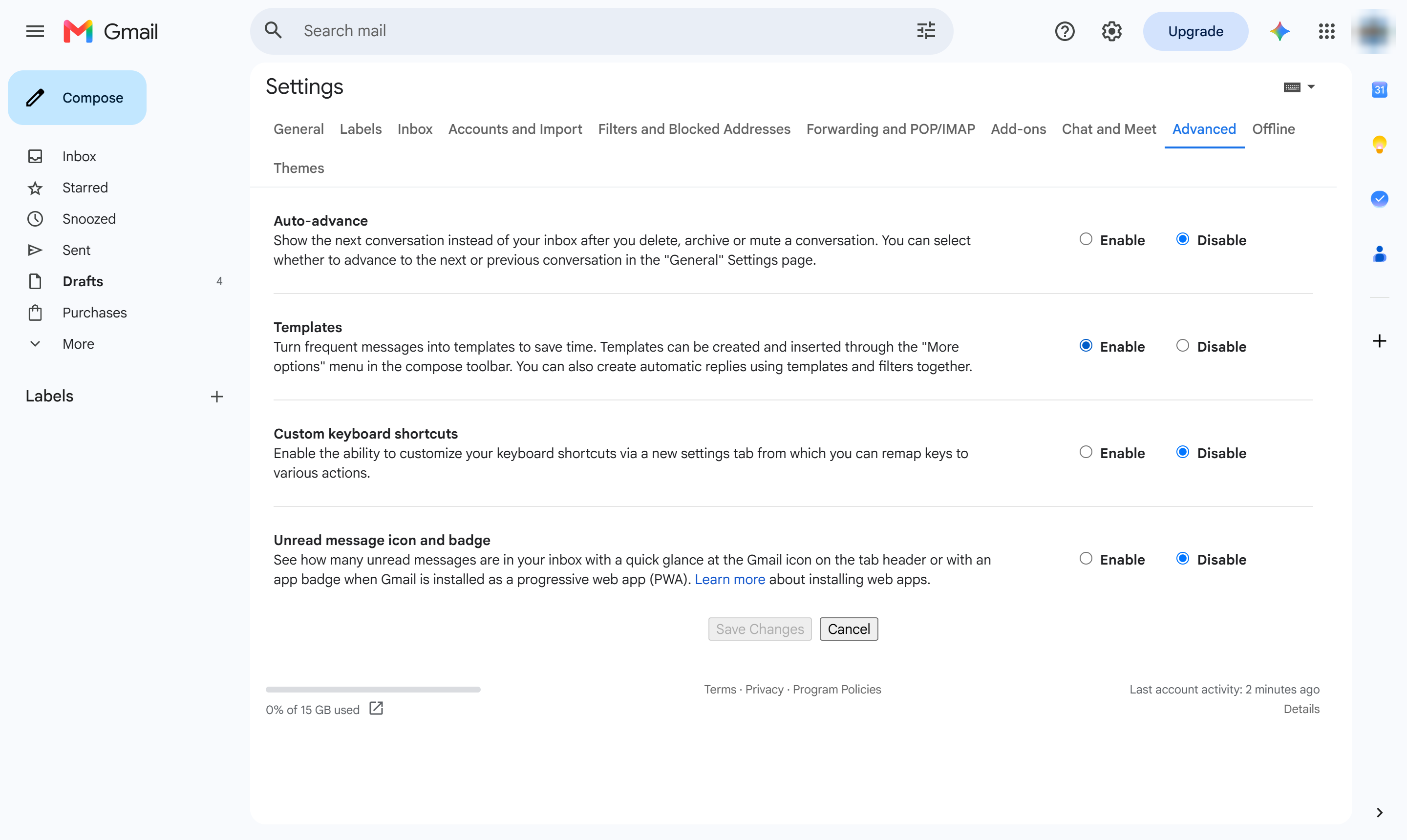
Click Save Changes at the bottom of the page.
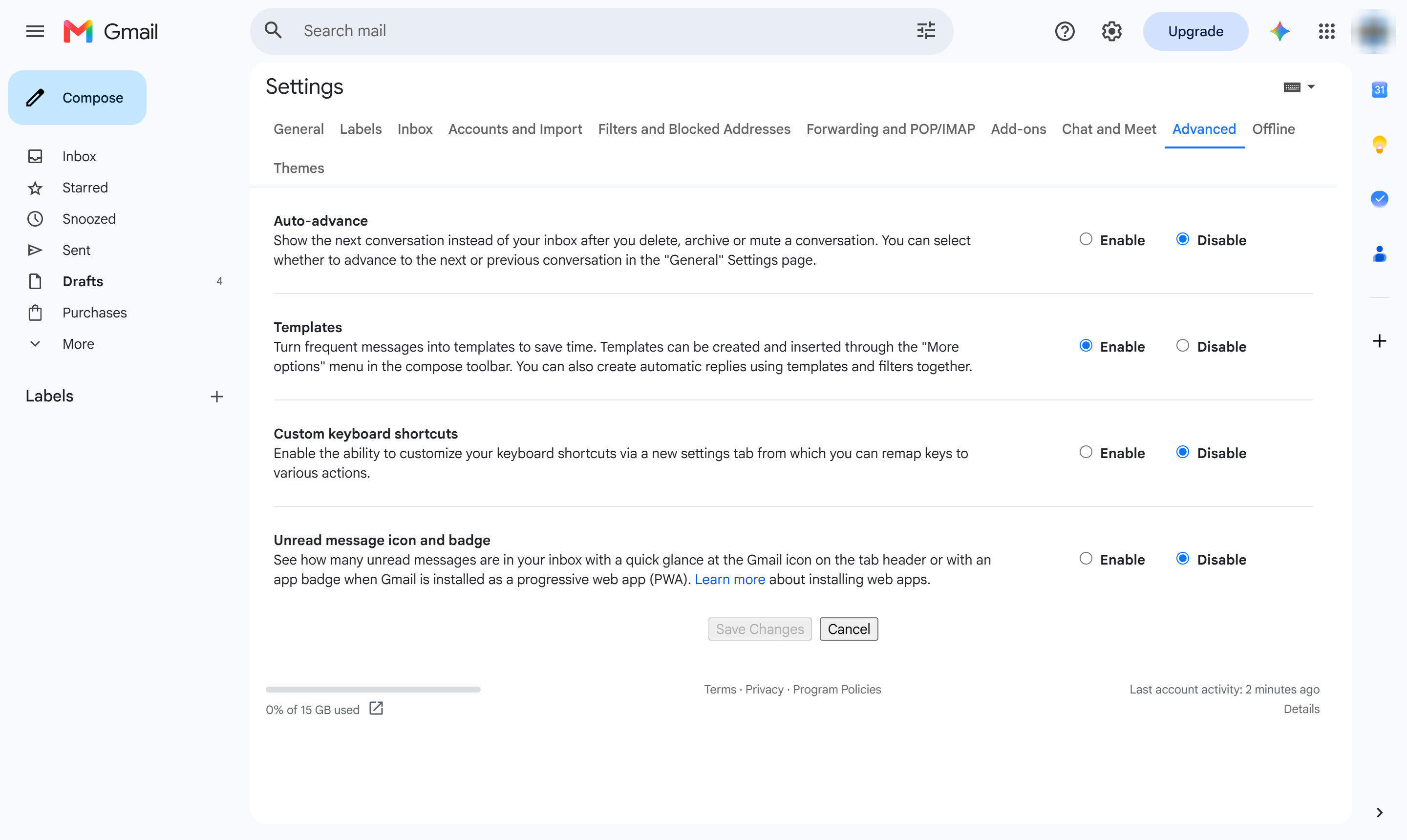
At the top left, click Compose.
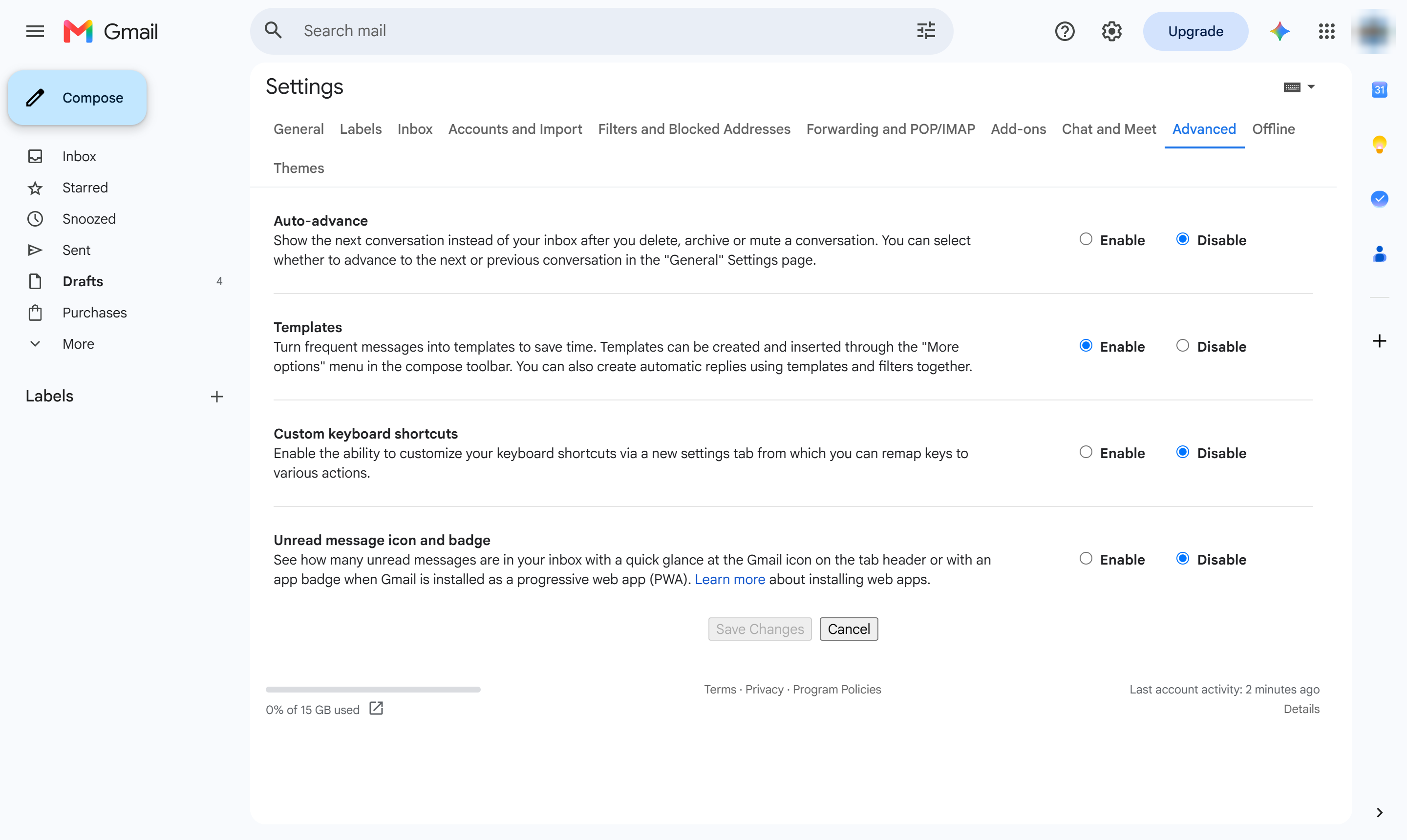
Click in the message body.
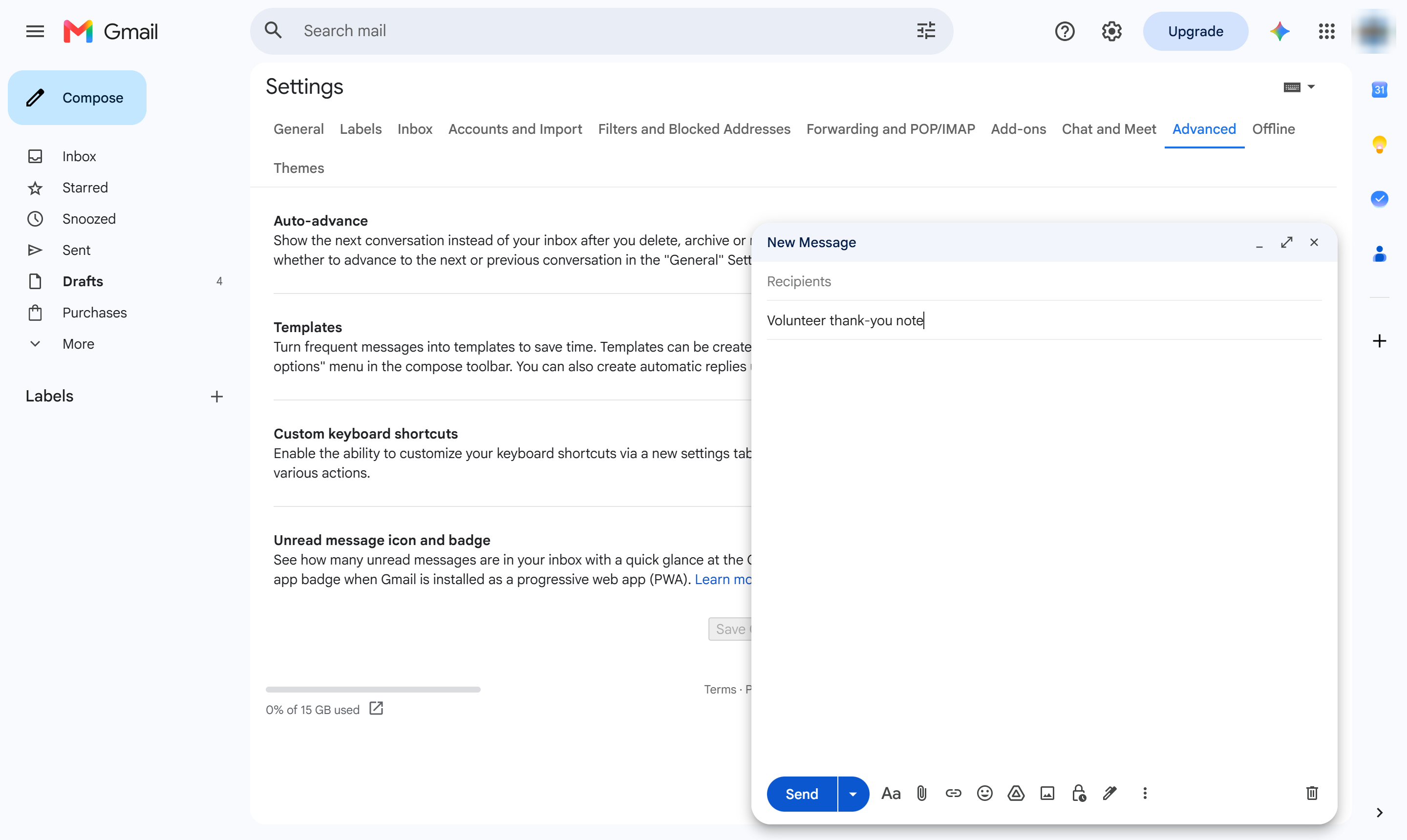
Type the message you want to reuse later.
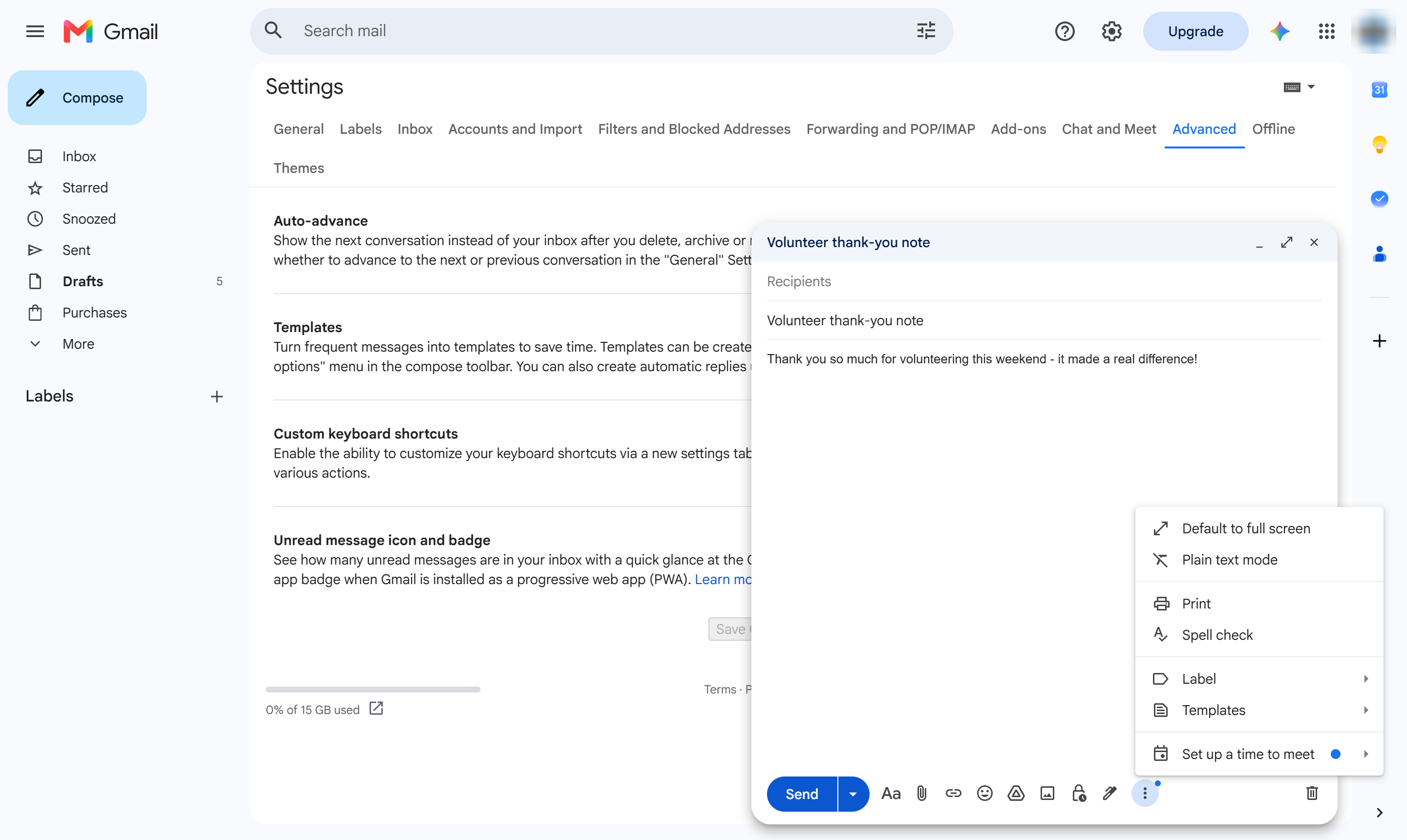
At the bottom right of the compose window, click the three dots (More options).
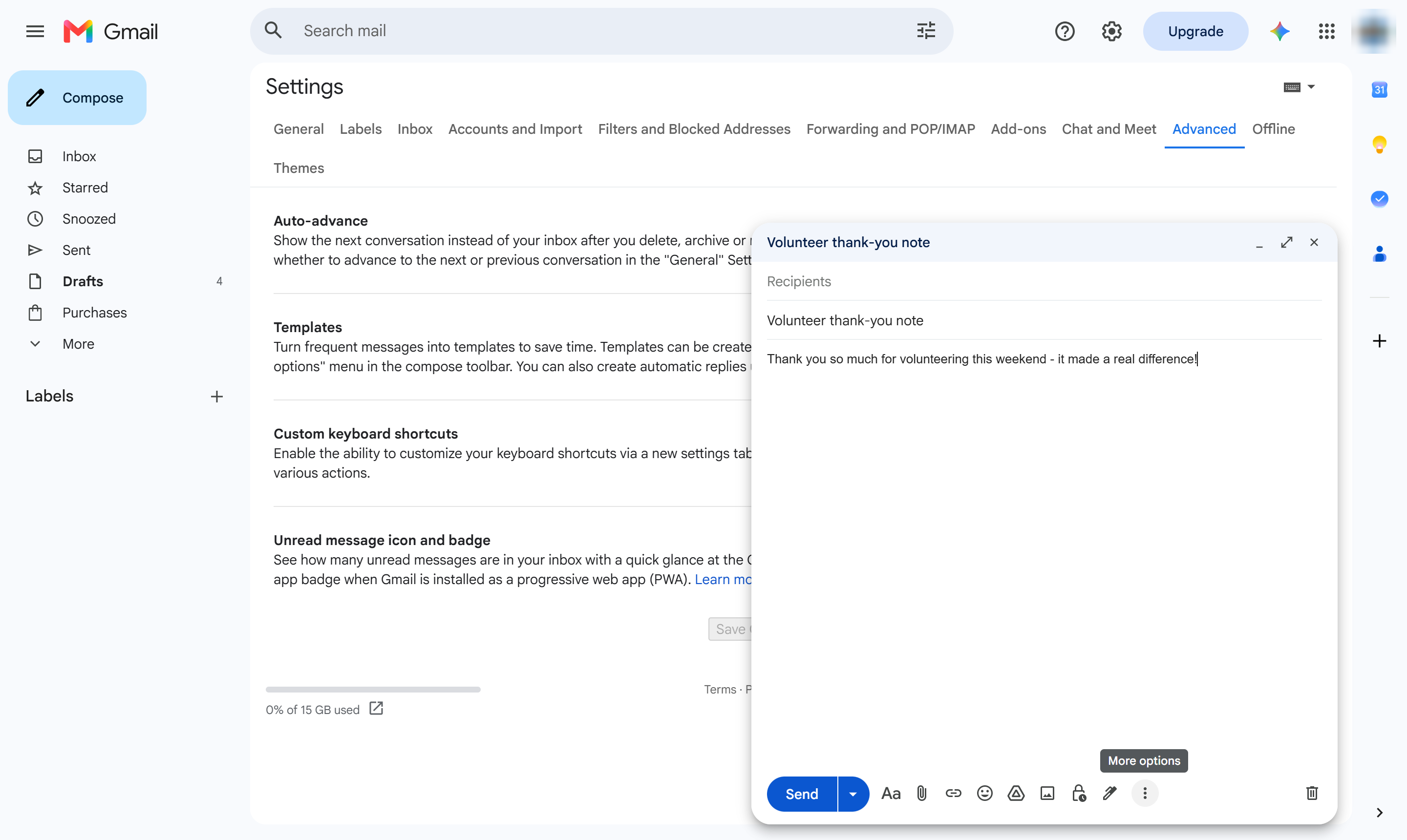
Choose Templates.
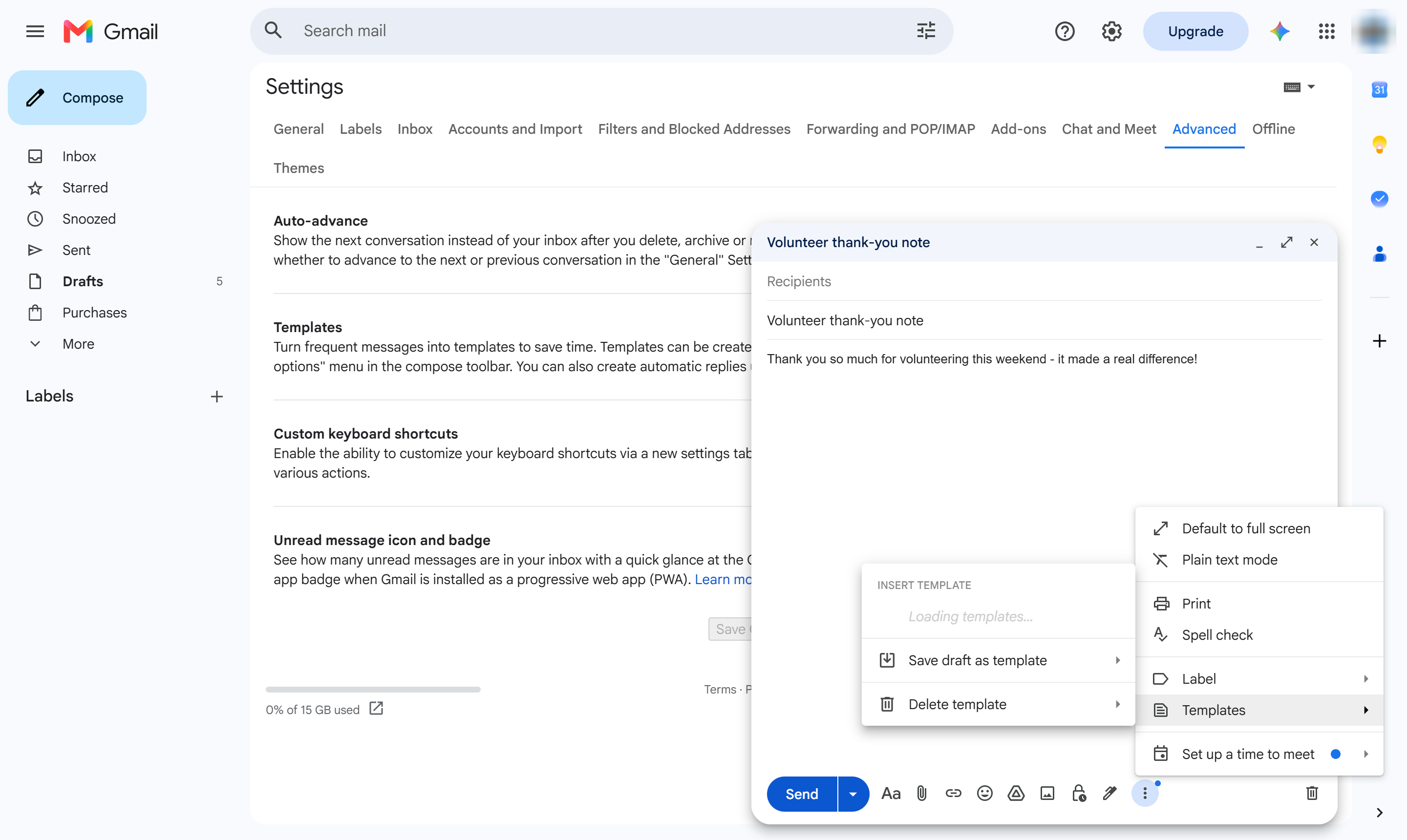
Click "Save draft as template", then "Save as new template" and give it a name. It then appears in this same menu on any draft.
Duplicate this template, swap in your own screens, and share it with your team. Free to start — no credit card.
Fill out the form and we'll get back to you as soon as possible.
Tell us about your team and we'll find the right plan together.