1
Click the Move icon
Next to the document name, click the folder icon (Move).
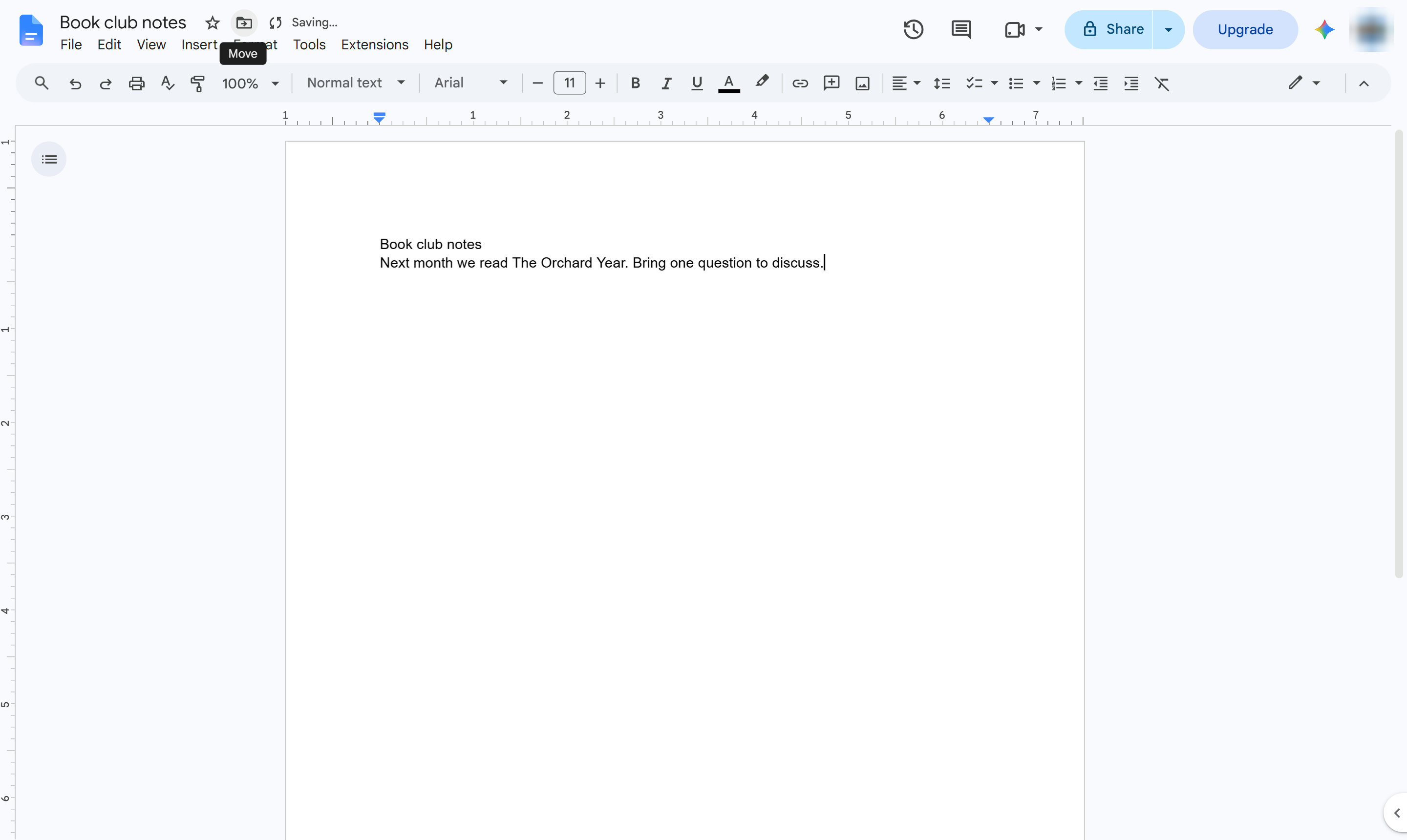

Make a new Drive folder from inside a document and move the document into it.
Next to the document name, click the folder icon (Move).
Open the All locations tab.
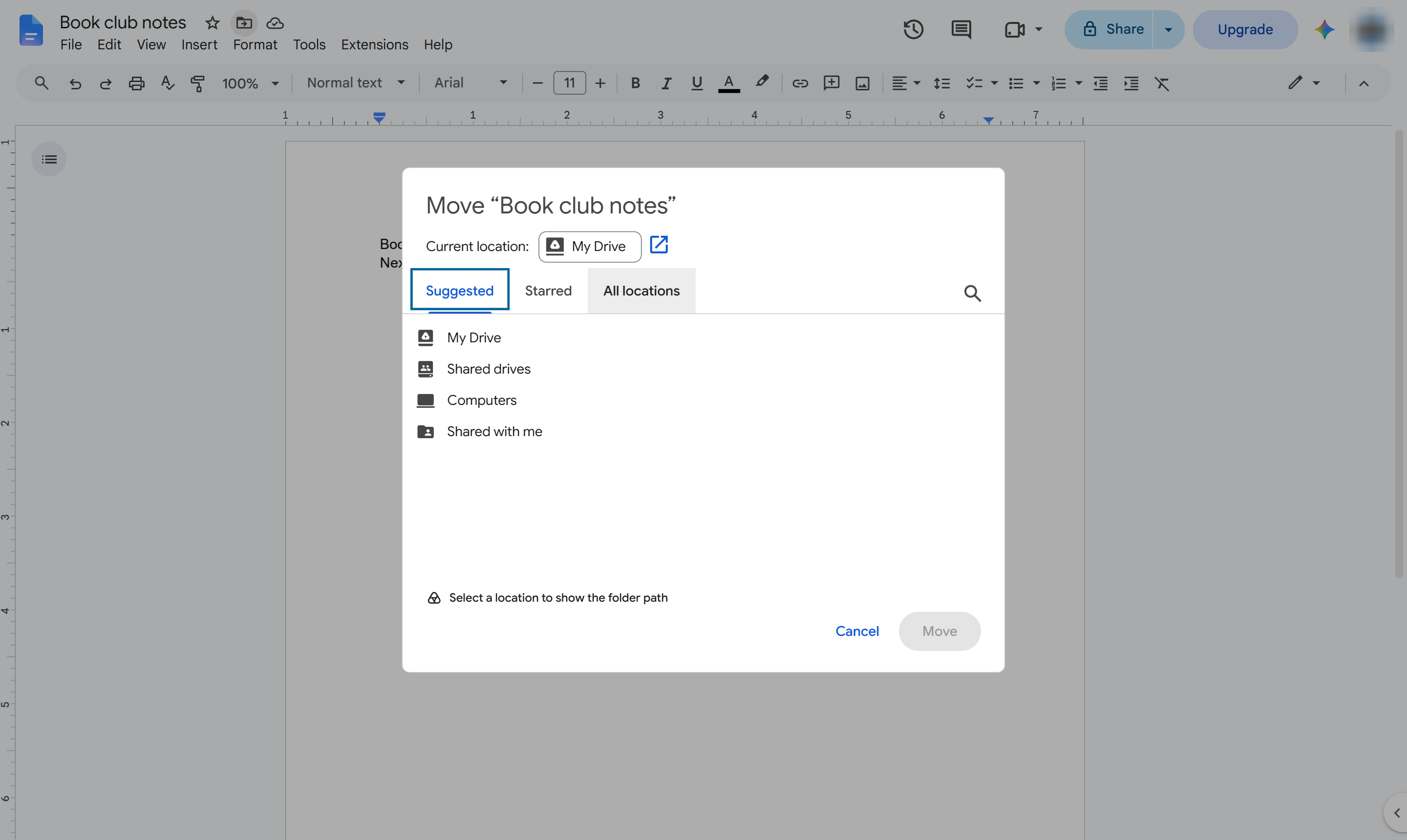
Double-click My Drive (or another folder) to open it - the new folder goes there.
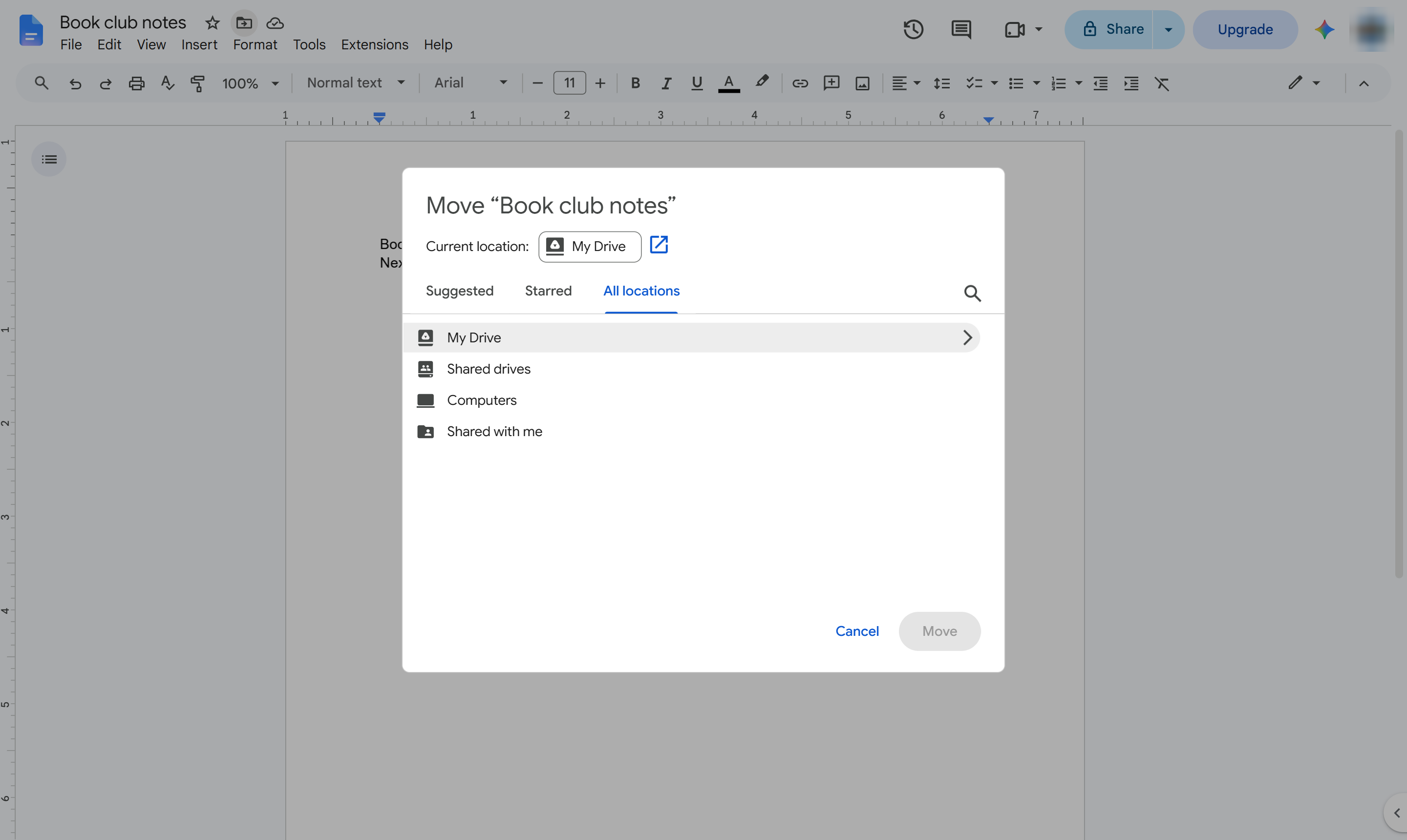
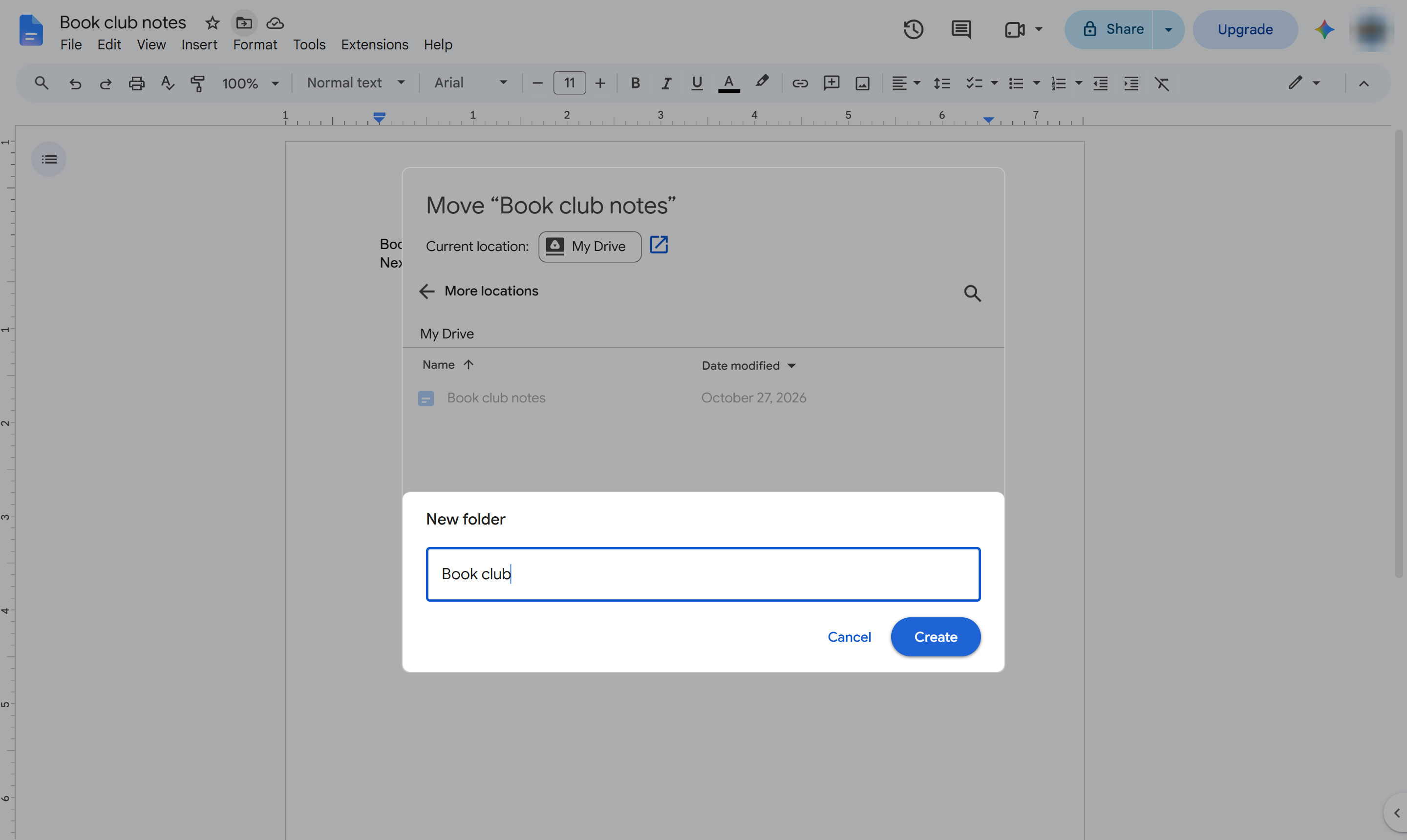
Click New folder at the bottom left.
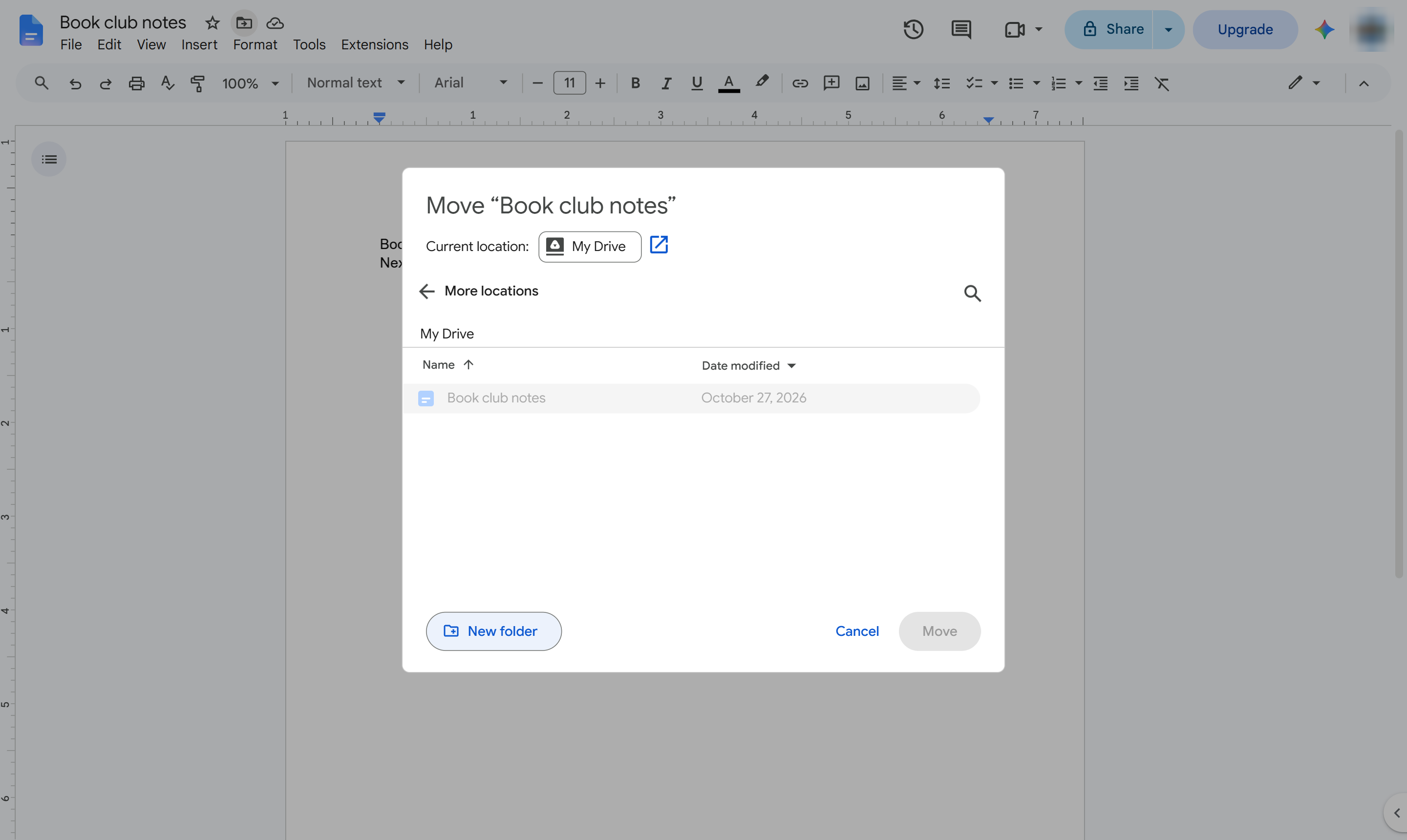
Type a name for the new folder.
Click Create. The new folder opens, ready to move the document into.
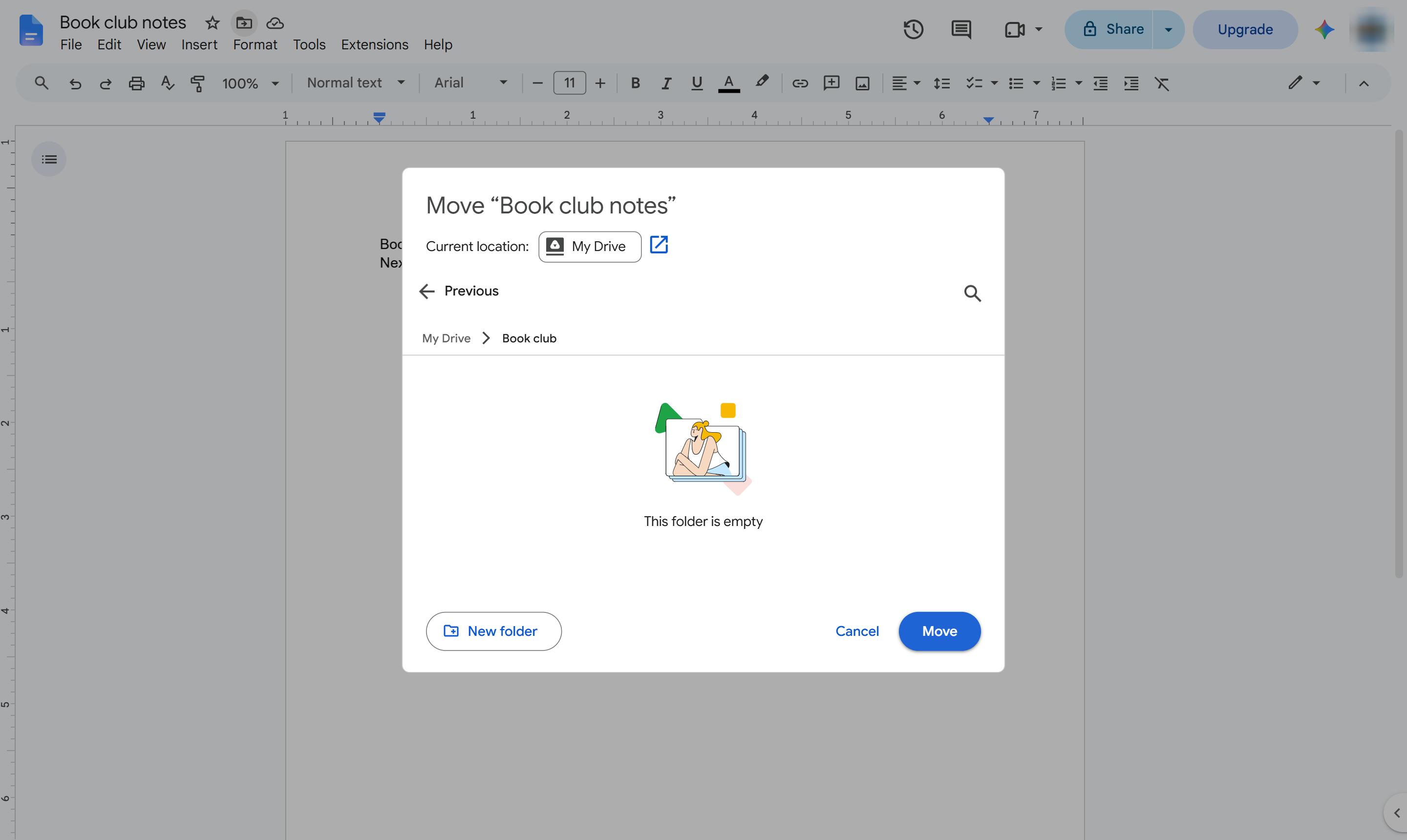
Click Move. The document is now inside the new folder.
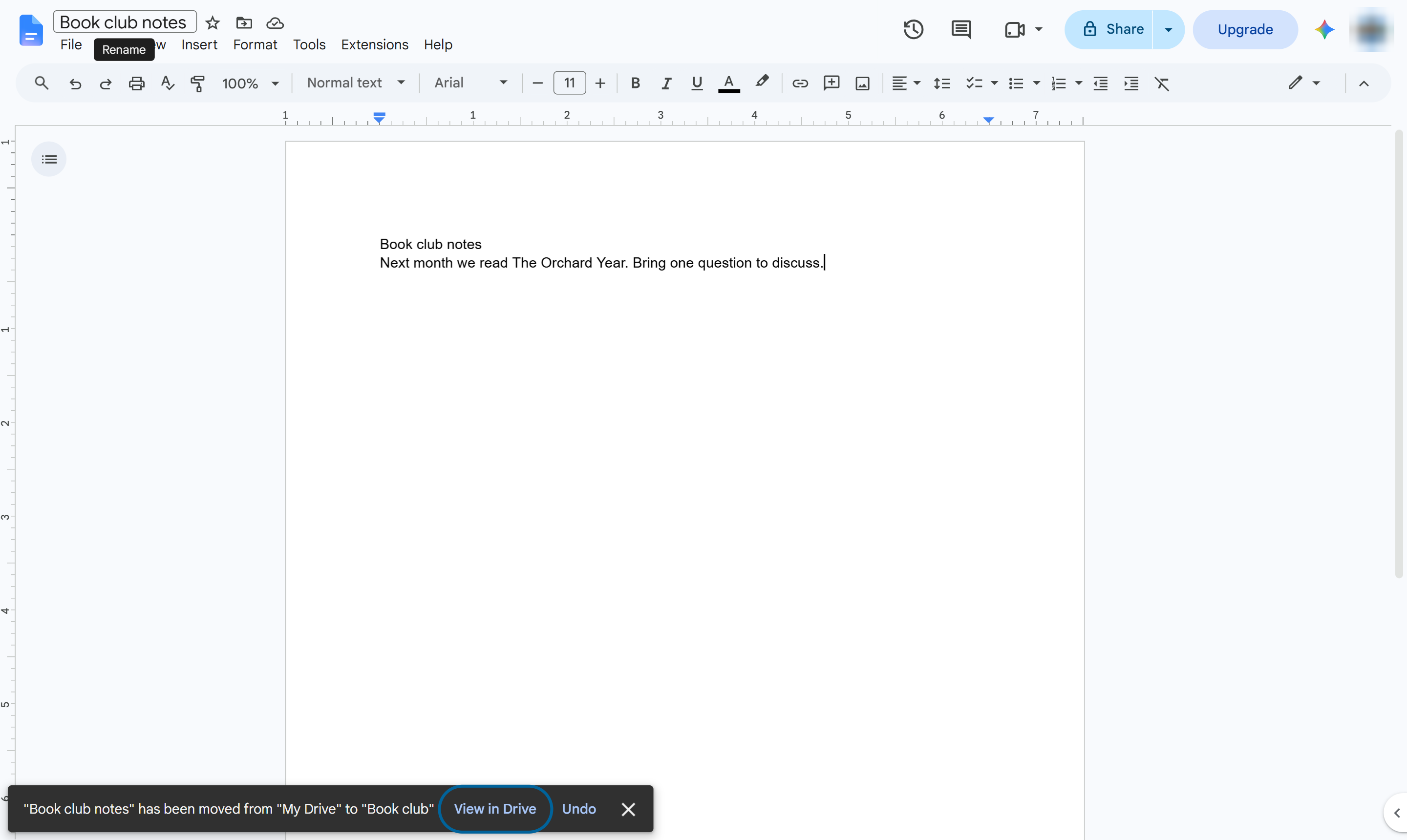
The new folder is in Drive with your document inside. Click the folder icon again to see where the document lives.
Duplicate this template, swap in your own screens, and share it with your team. Free to start — no credit card.
Fill out the form and we'll get back to you as soon as possible.
Tell us about your team and we'll find the right plan together.