1
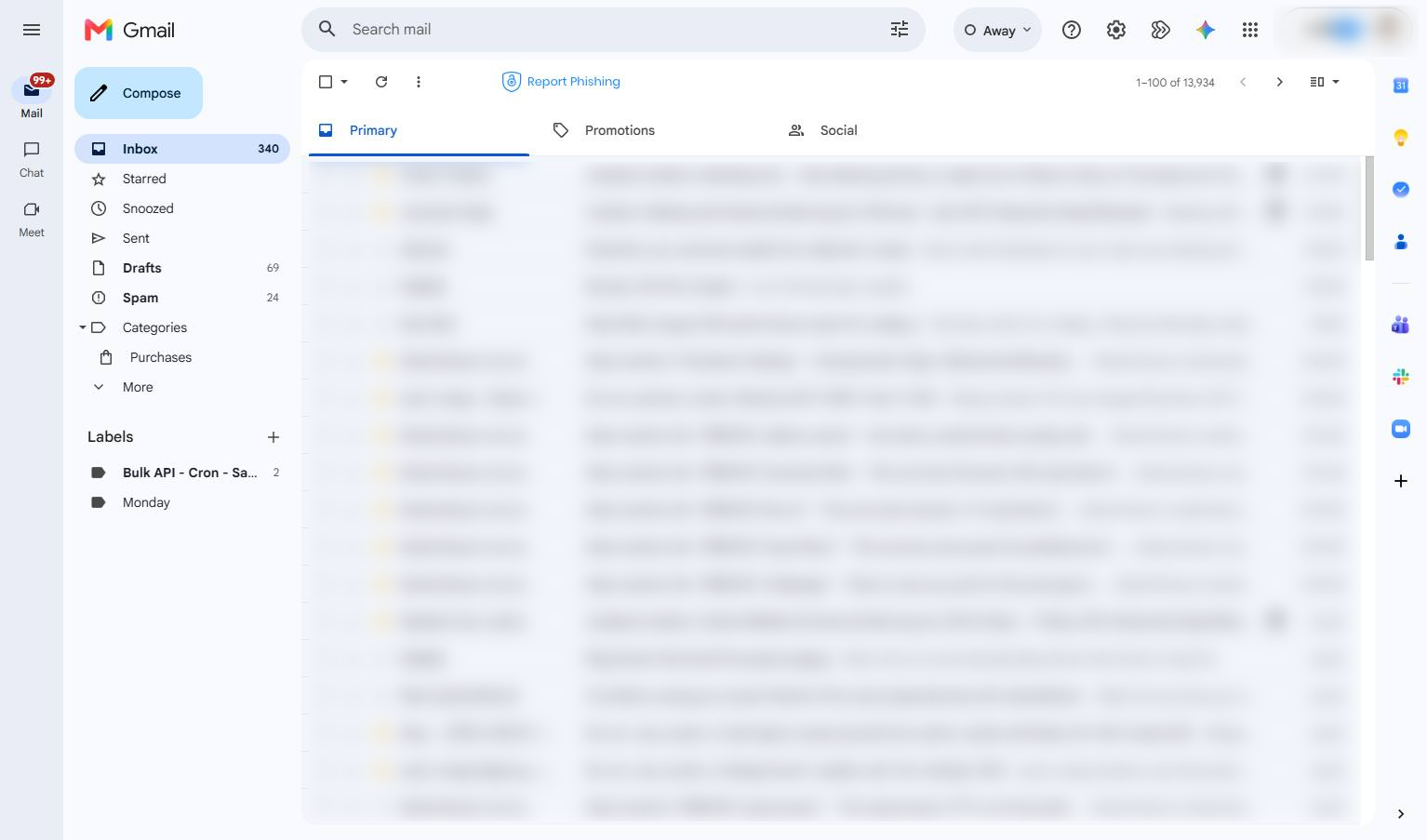
Open your Gmail inbox
Navigate to mail.google.com to access your inbox and begin updating your email signature settings.

Update your professional email signature in Gmail by accessing your account settings. This guide will walk you through entering your new signature text, configuring it for new emails, and saving your changes.
Navigate to mail.google.com to access your inbox and begin updating your email signature settings.
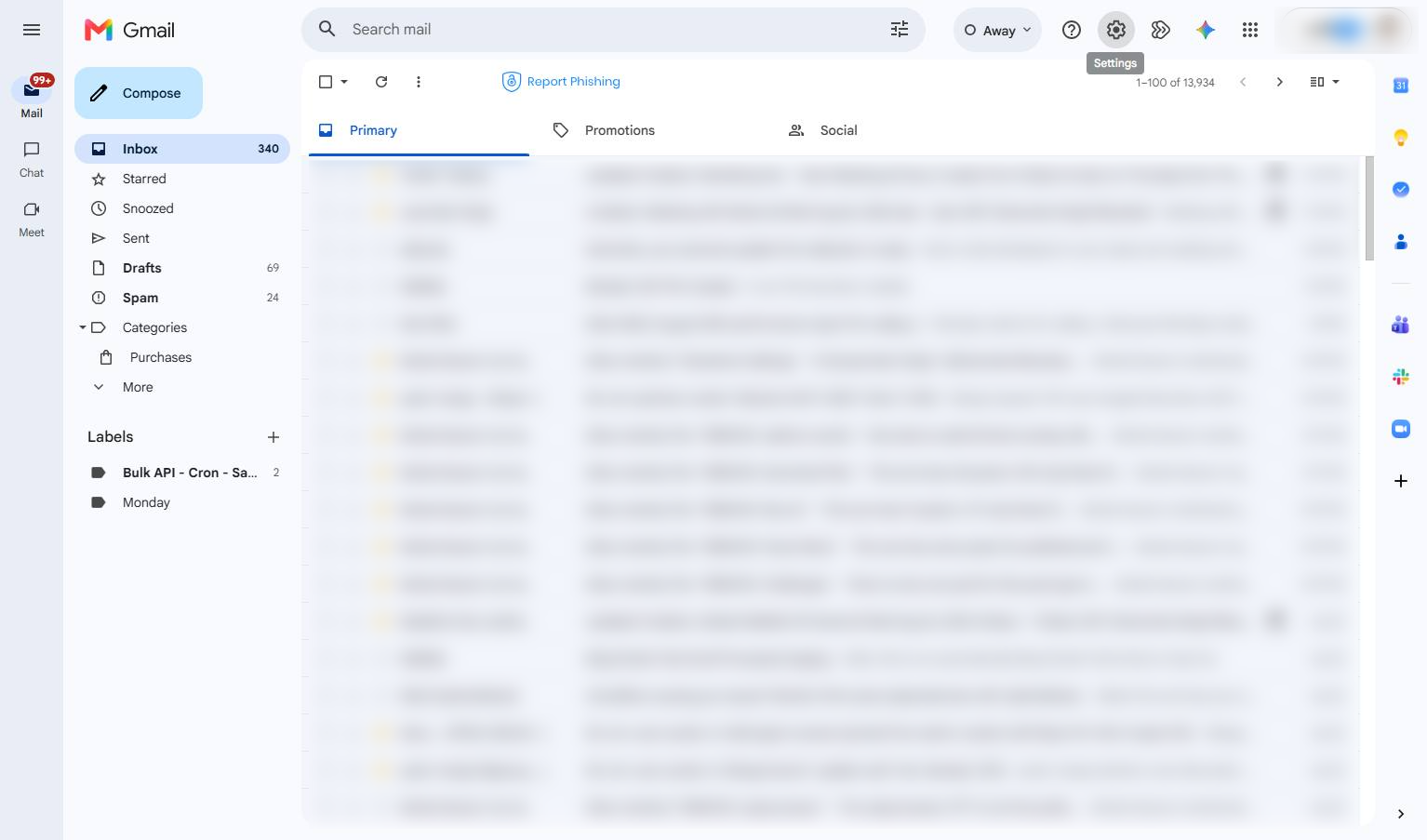
Click the gear icon in the top right corner of the page to open the settings menu.
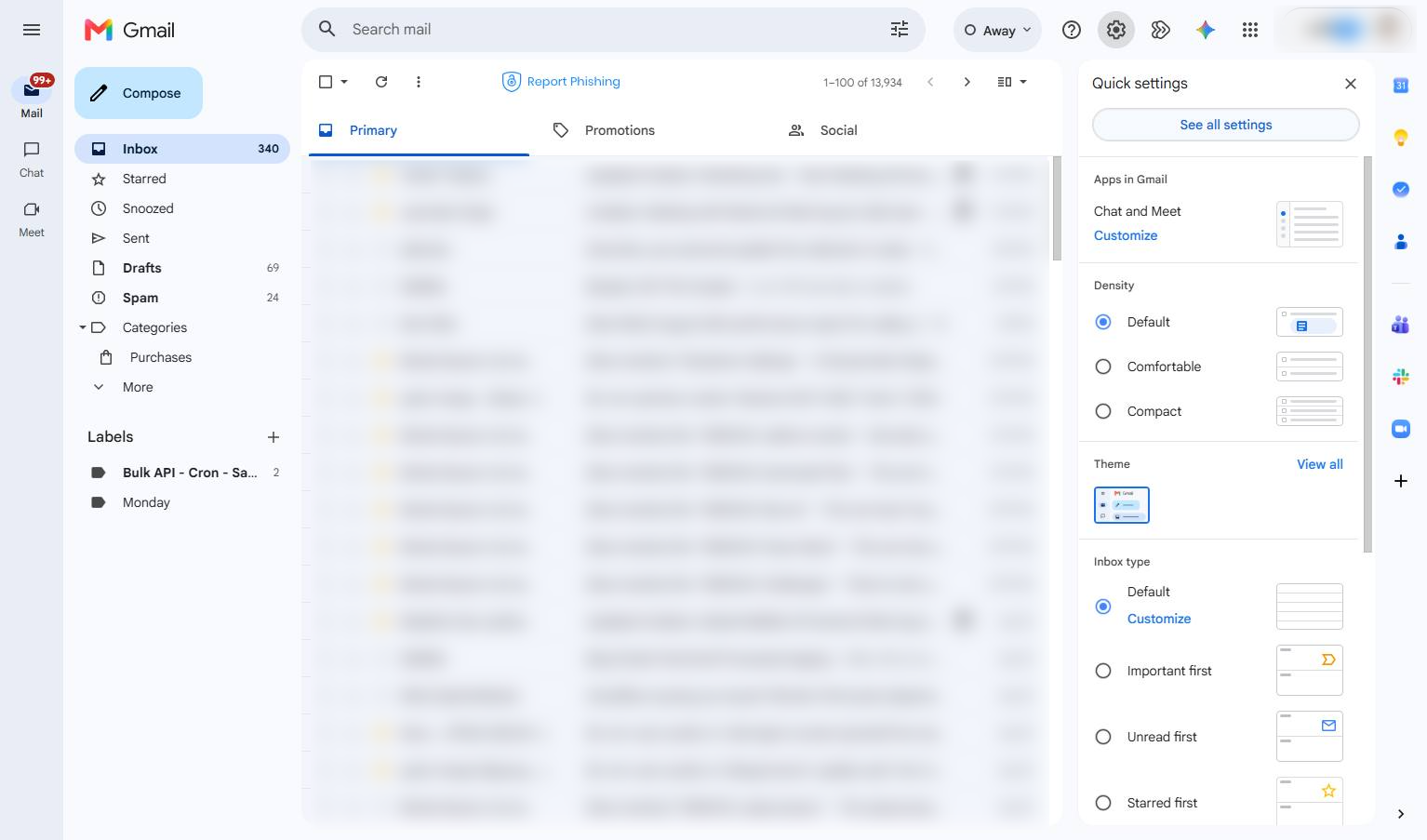
Click the See all settings button in the Quick settings panel to access the full configuration options.
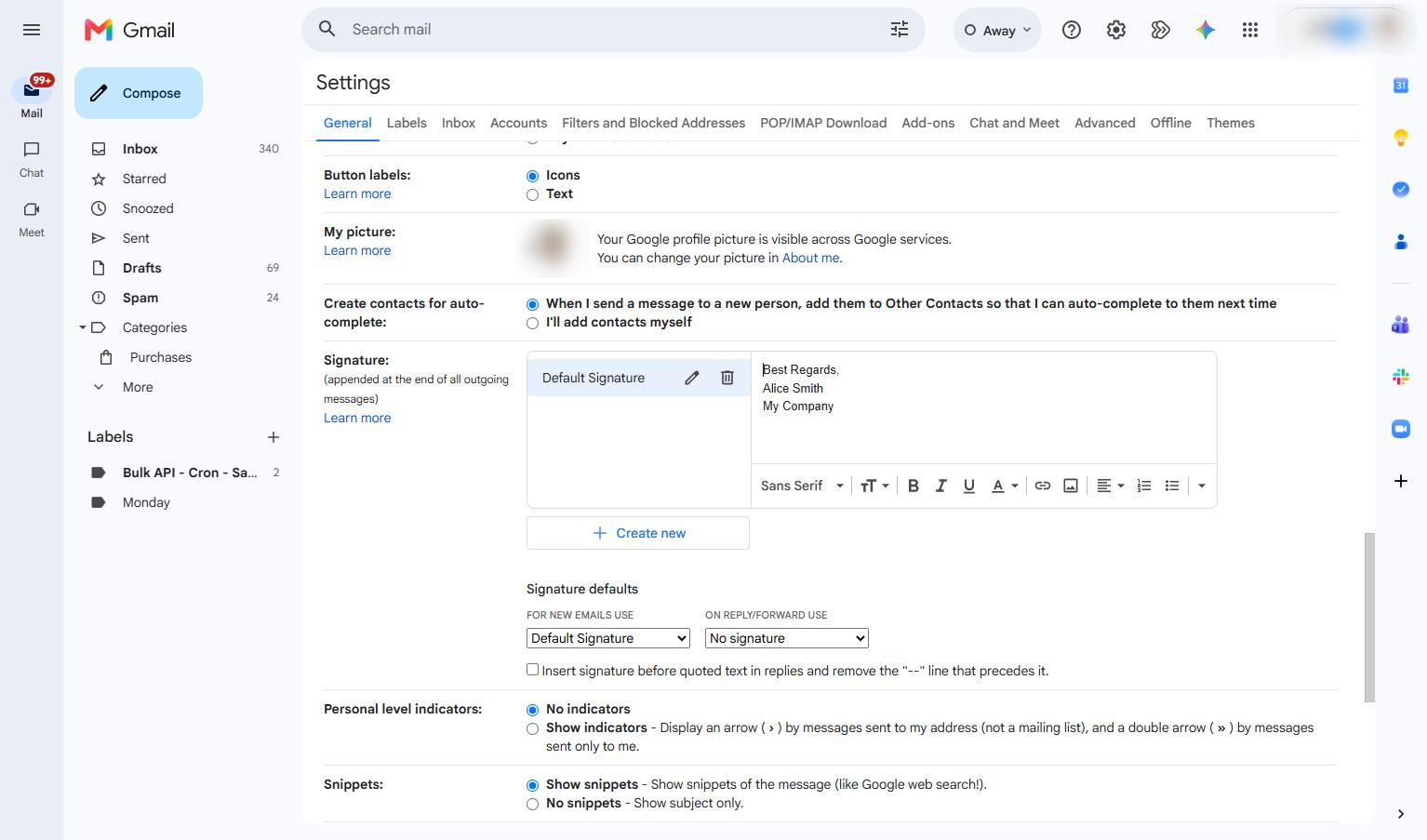
Click inside the signature text box to edit your email signature.
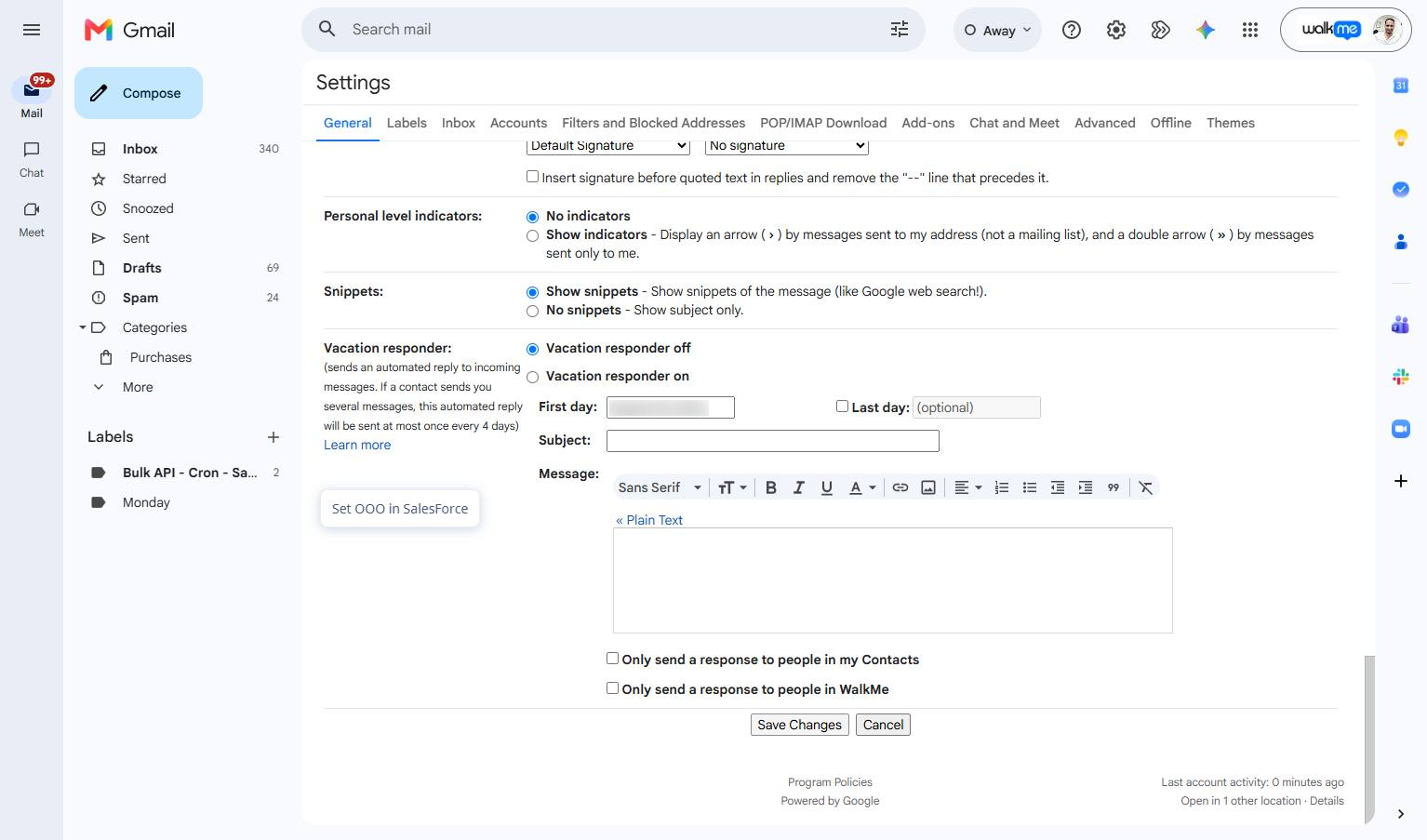
Click the Save Changes button at the bottom of the page to apply your new settings.
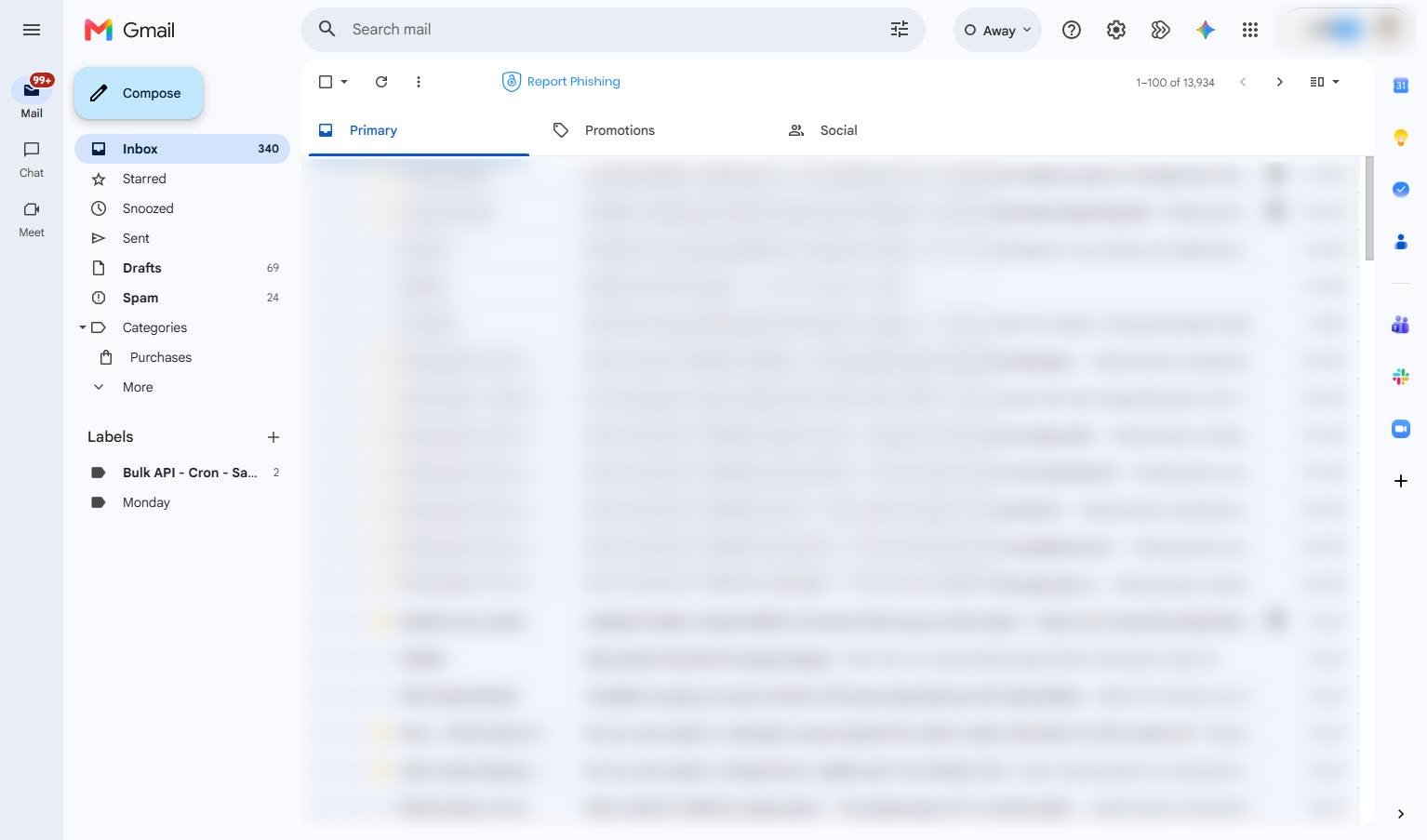
Click the Compose button in the left sidebar to start writing a new email.
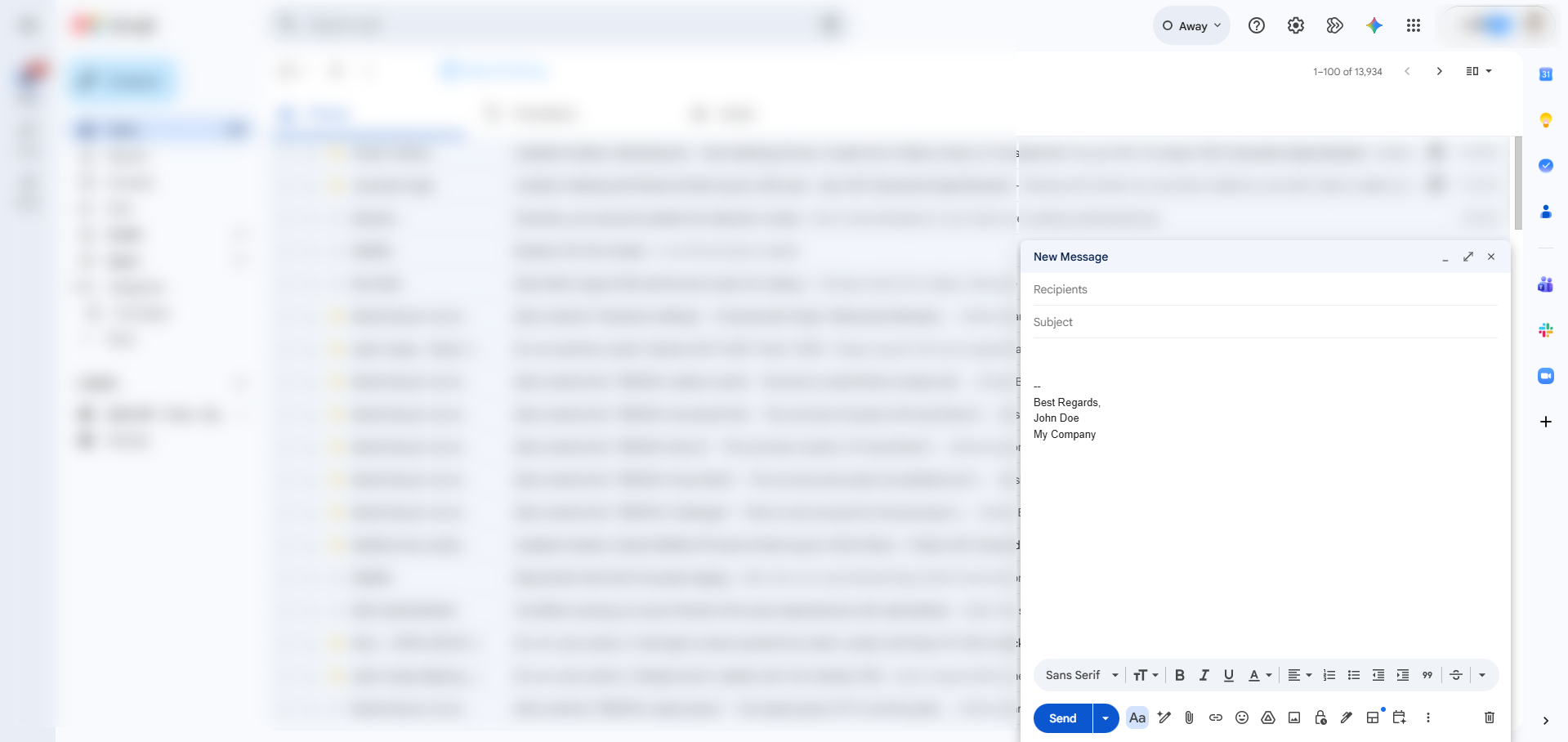
View the email signature.
Duplicate this template, swap in your own screens, and share it with your team. Free to start — no credit card.
Fill out the form and we'll get back to you as soon as possible.
Tell us about your team and we'll find the right plan together.