1
Click Compose
At the top left, click Compose.
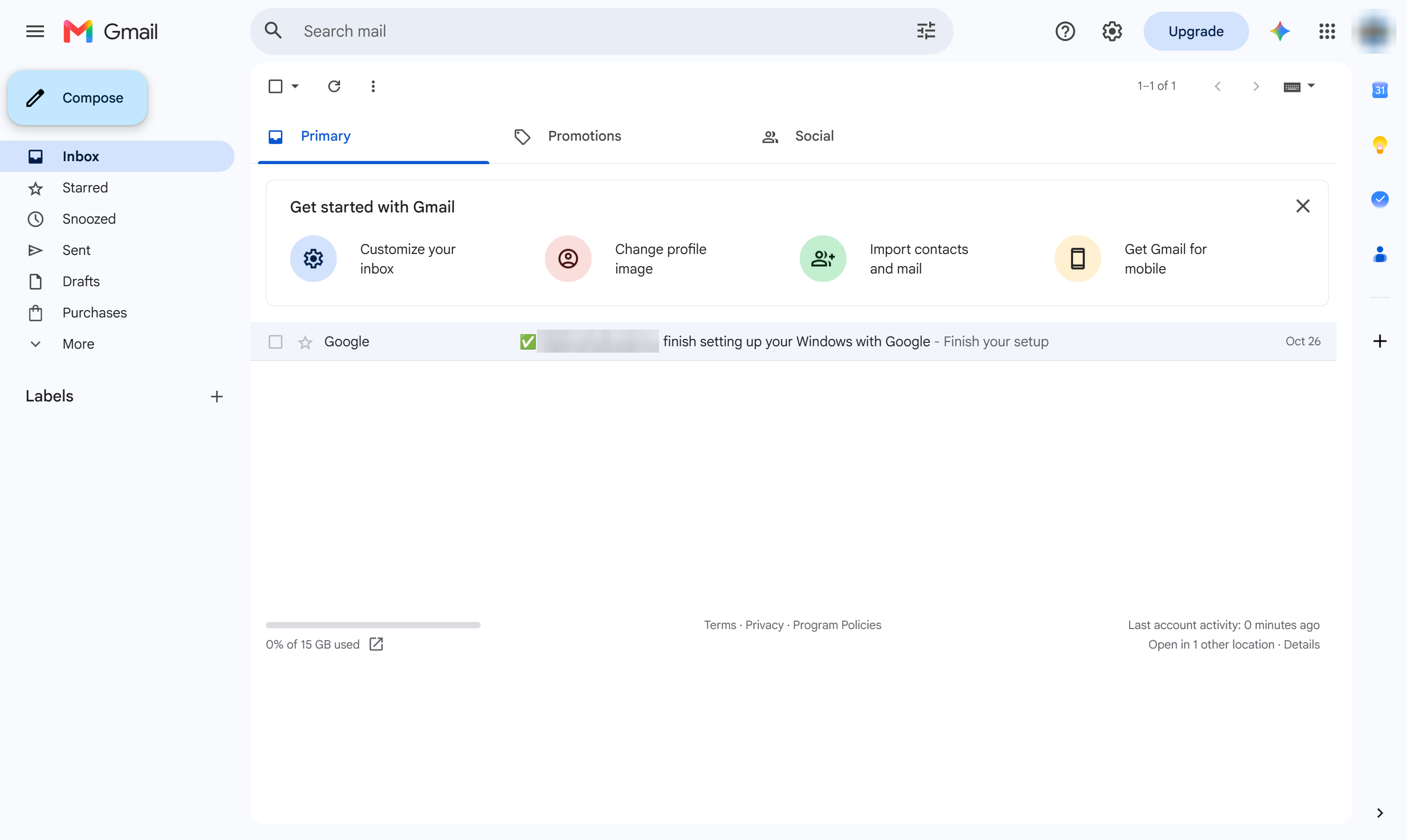

Make text in an email bigger or smaller with the Size option in the formatting bar.
At the top left, click Compose.
Click in the message body.
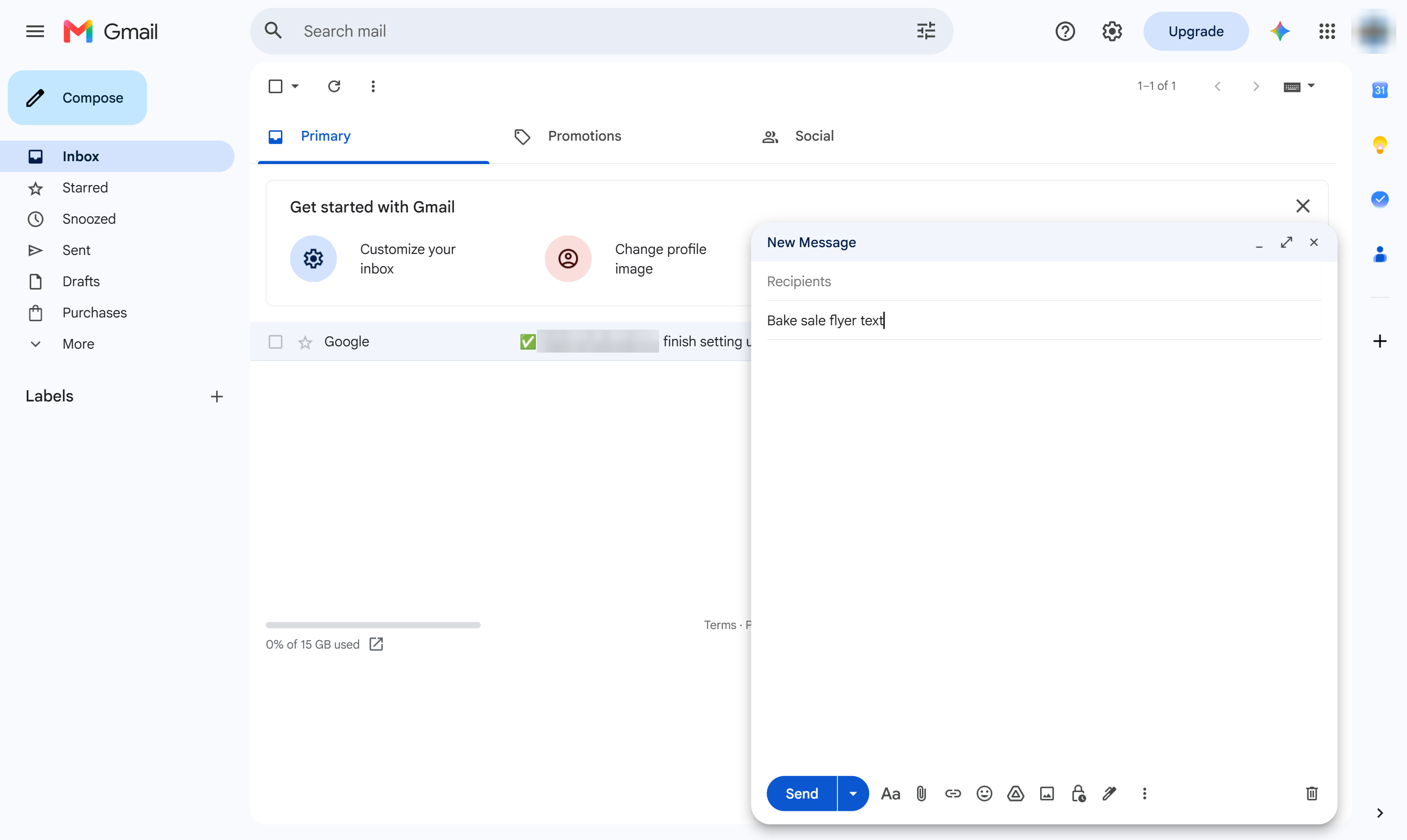
Type the words you want to resize.
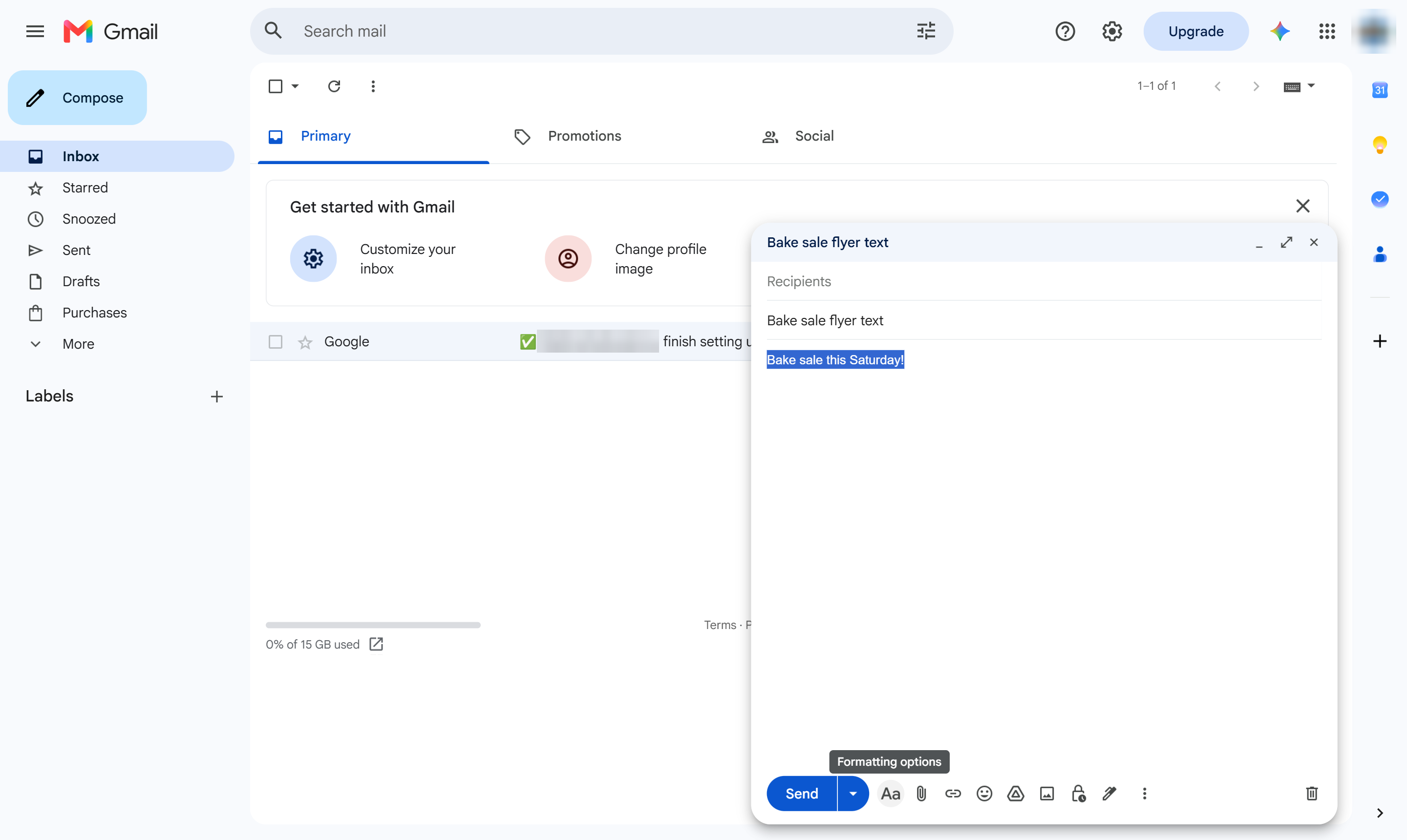
Highlight the text (Ctrl + A selects all of it, Cmd + A on Mac).
At the bottom of the window, click Aa to show the formatting bar.
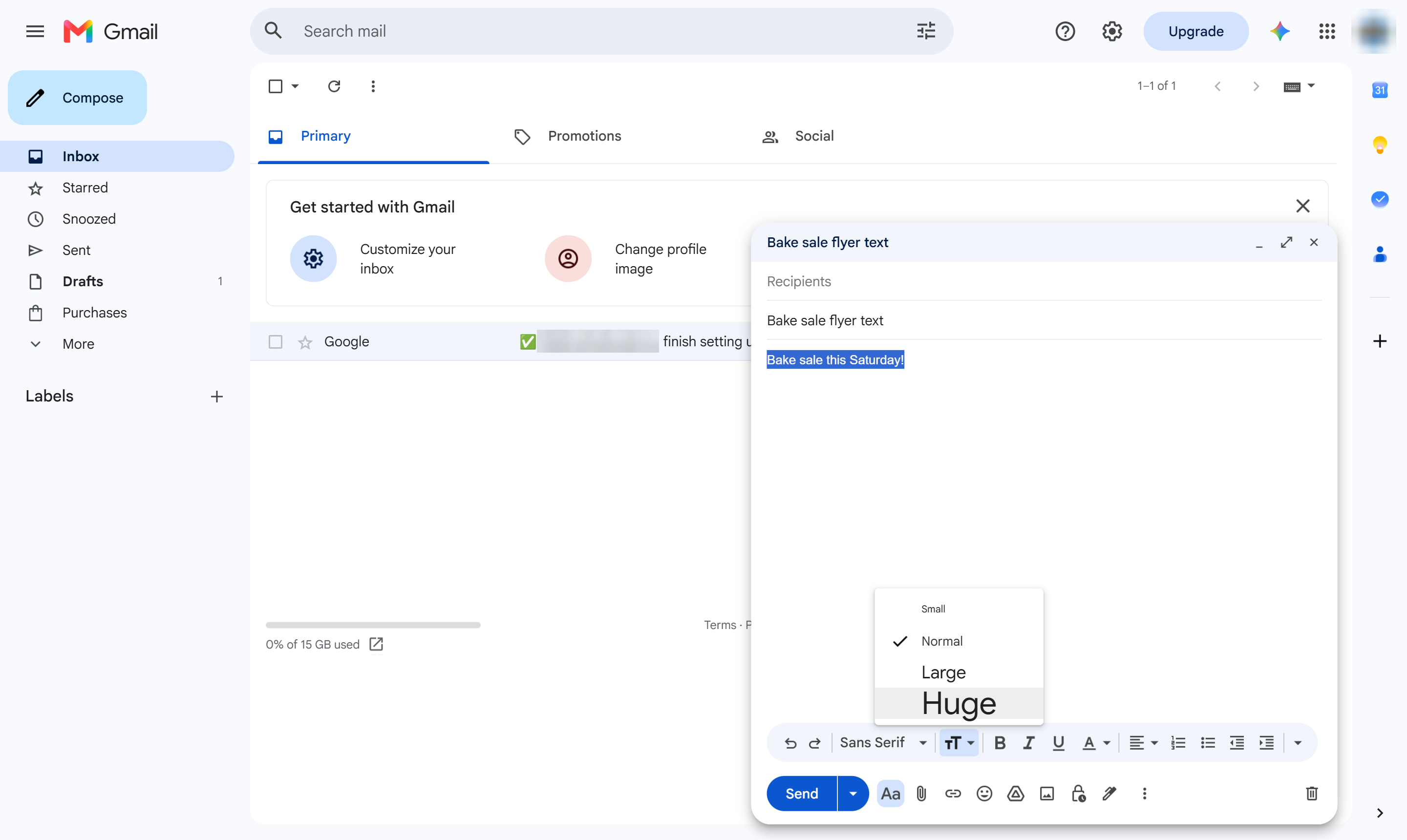
In the formatting bar, click the size button (the two T letters).
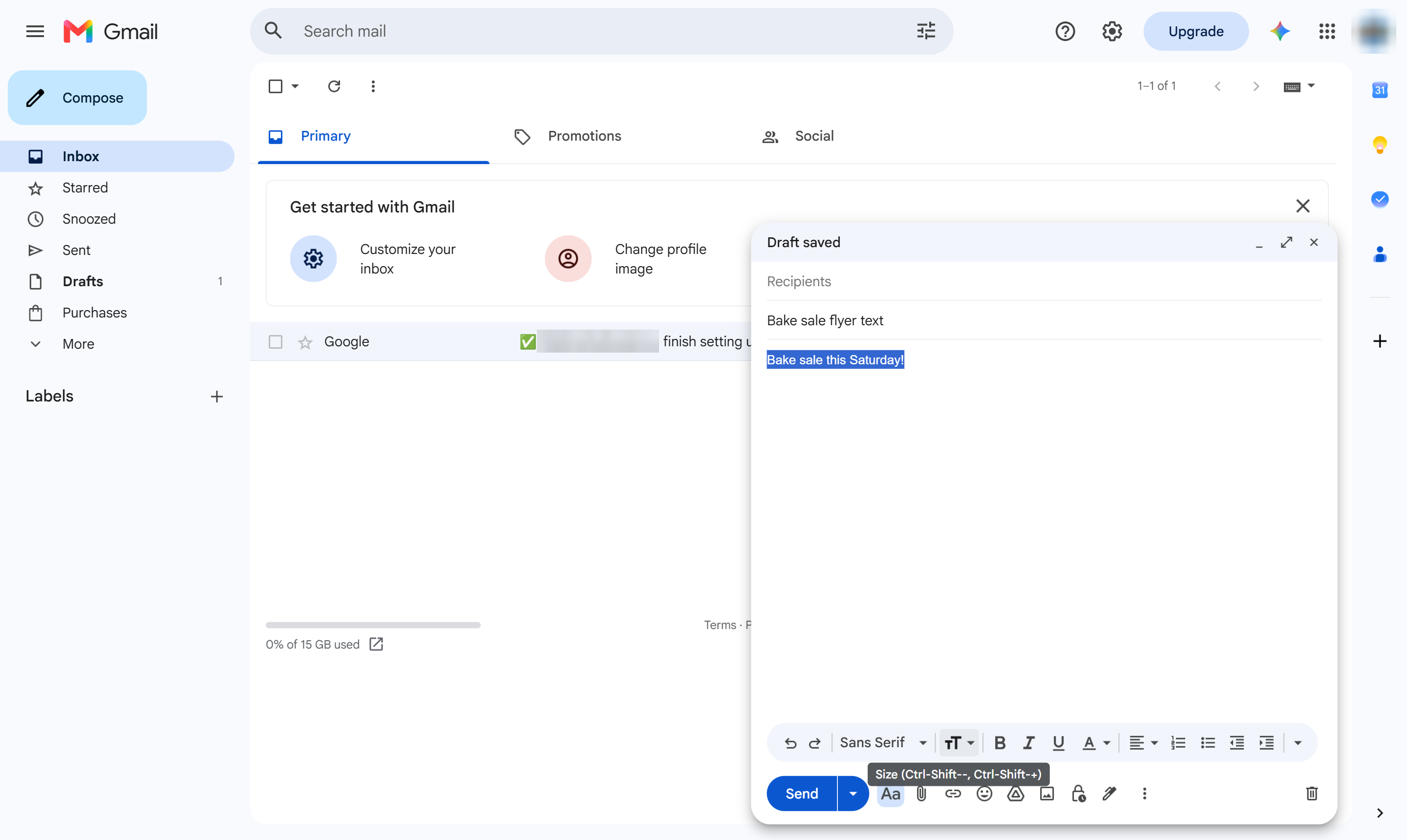
Pick Small, Normal, Large or Huge - here, Huge.
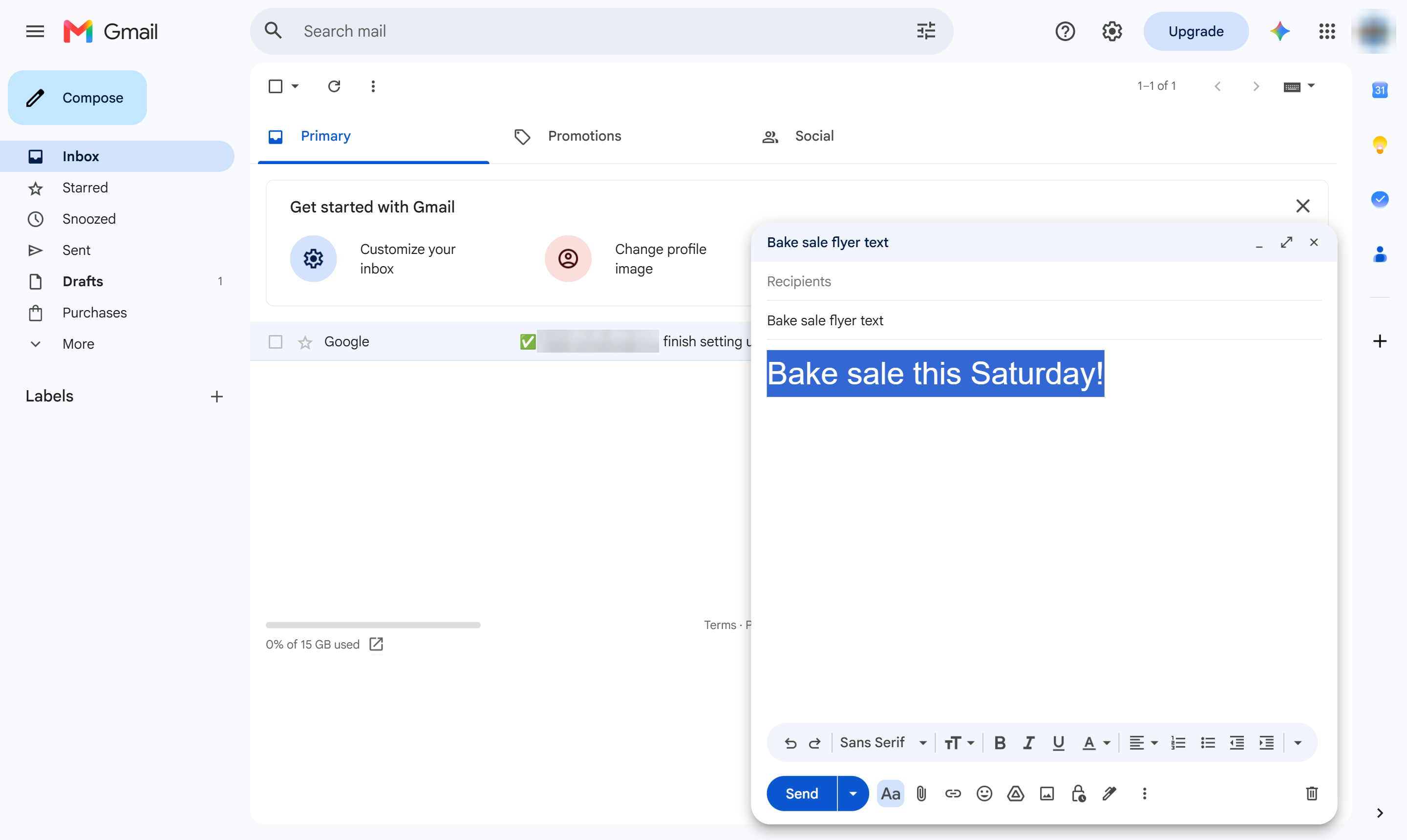
The text is now bigger. Select other text and pick another size to mix sizes.
Duplicate this template, swap in your own screens, and share it with your team. Free to start — no credit card.
Fill out the form and we'll get back to you as soon as possible.
Tell us about your team and we'll find the right plan together.