1
Click the event
Click the event you want to color.
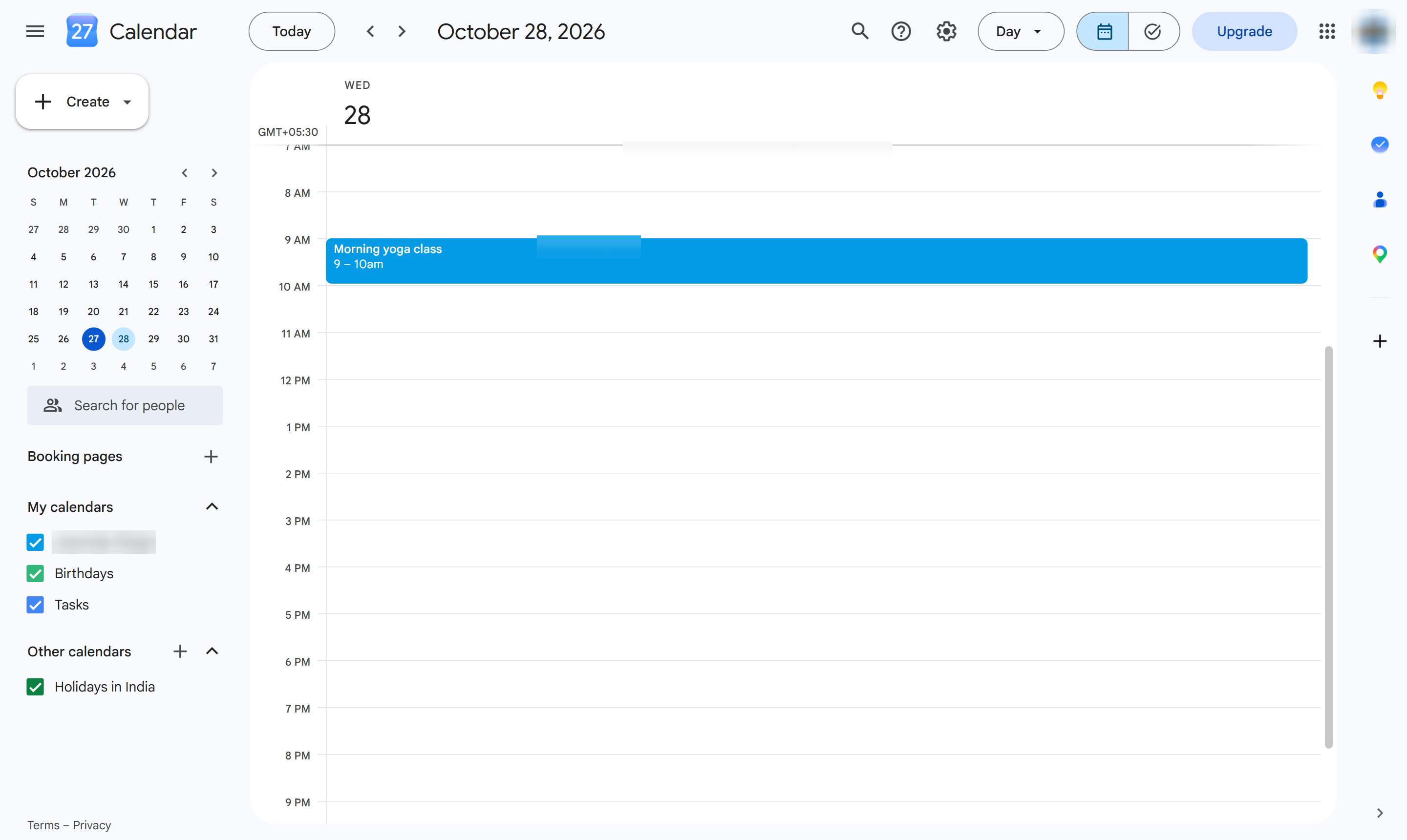

Give an event its own color so it stands out in your calendar.
Click the event you want to color.
In the event card, click the pencil (Edit event).
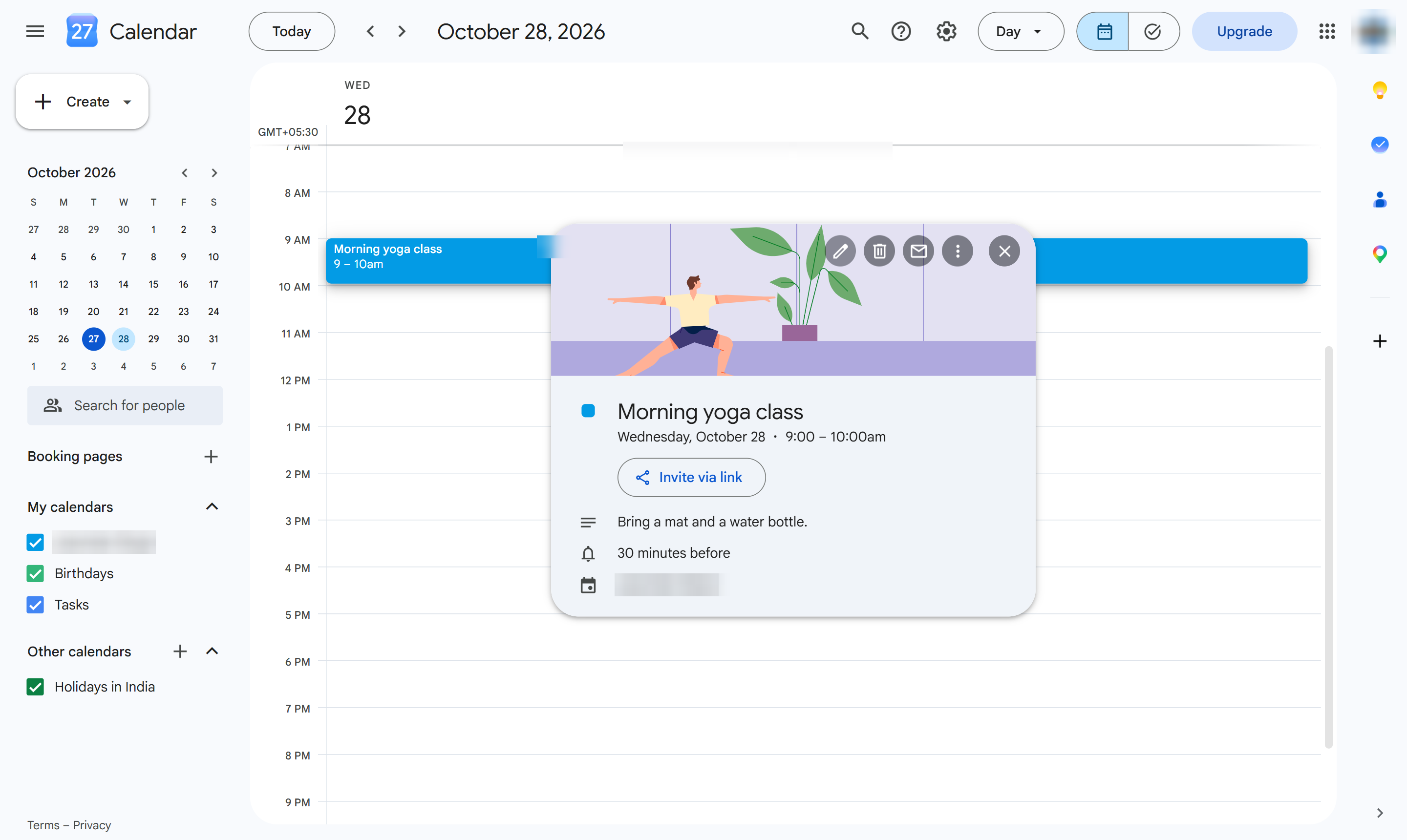
Next to the calendar name, click the colored circle to open the colors.

Click a color - here, Sage. To recolor every event on a calendar, point at the calendar under My calendars, click its three dots and pick a color there.

At the top, click Save.

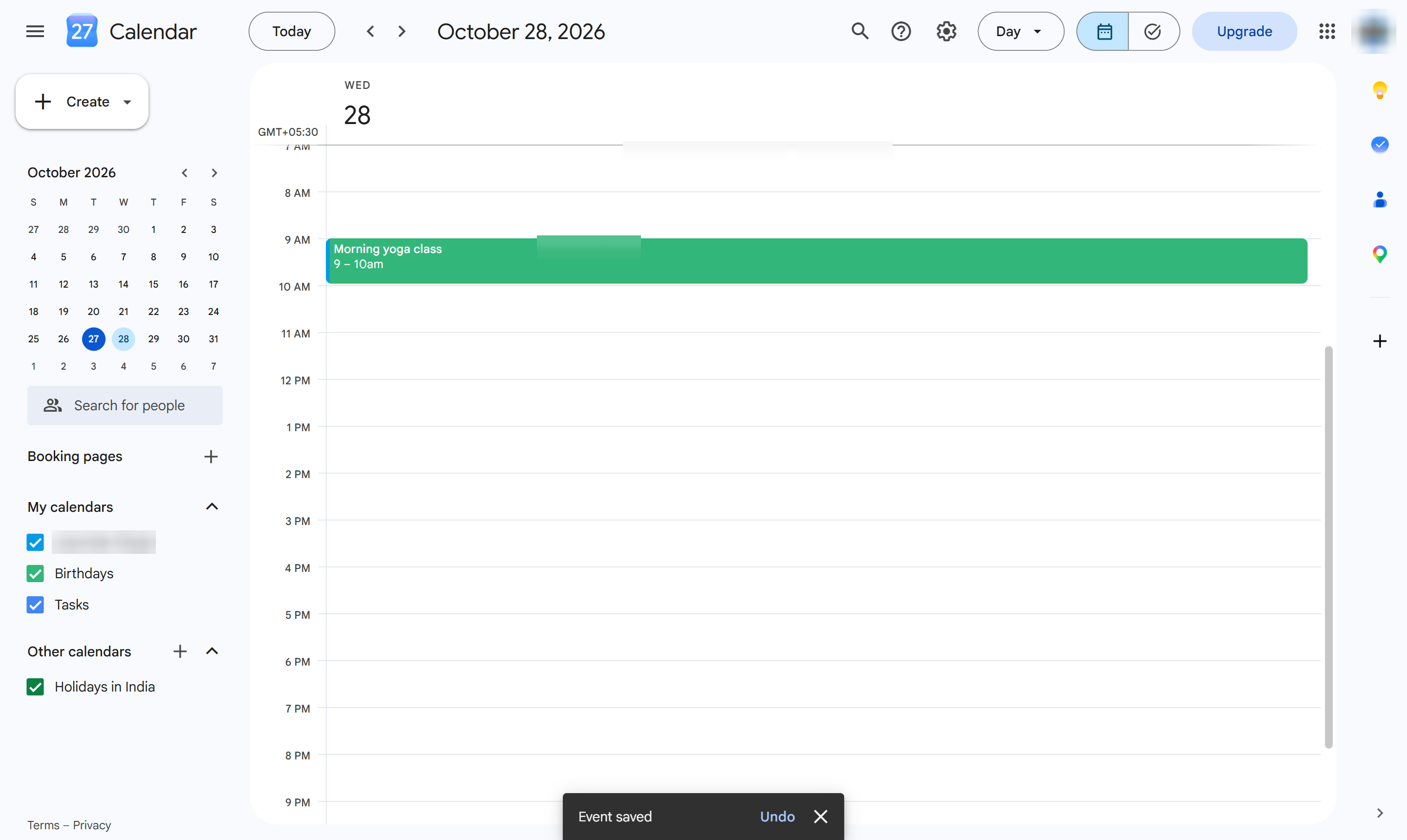
The event now shows in the color you picked. Only this event changes; the rest of the calendar keeps its color.
Duplicate this template, swap in your own screens, and share it with your team. Free to start — no credit card.
Fill out the form and we'll get back to you as soon as possible.
Tell us about your team and we'll find the right plan together.