1
Click File
Open the File menu.
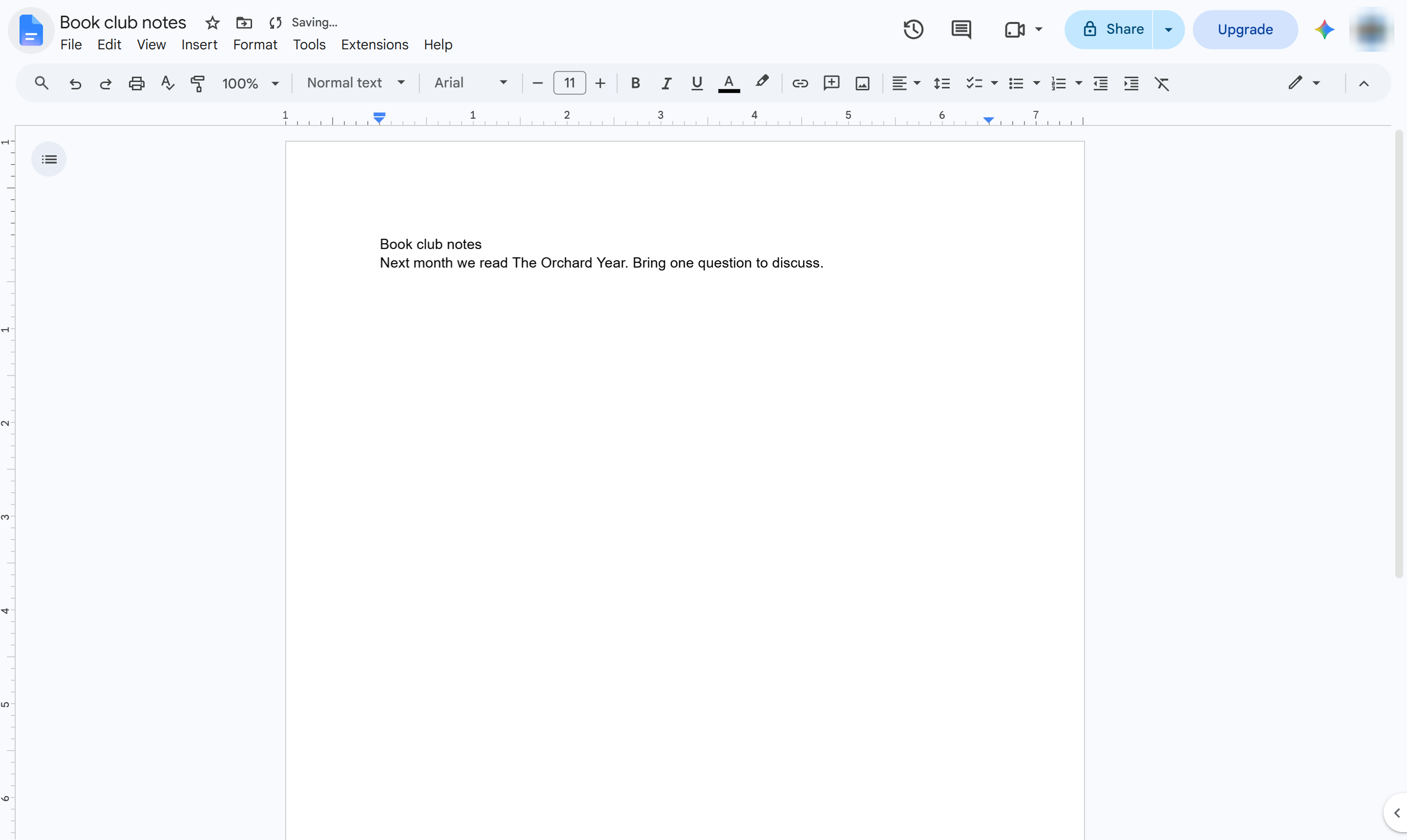

Send a document as an email attachment straight from Google Docs, without opening Gmail.
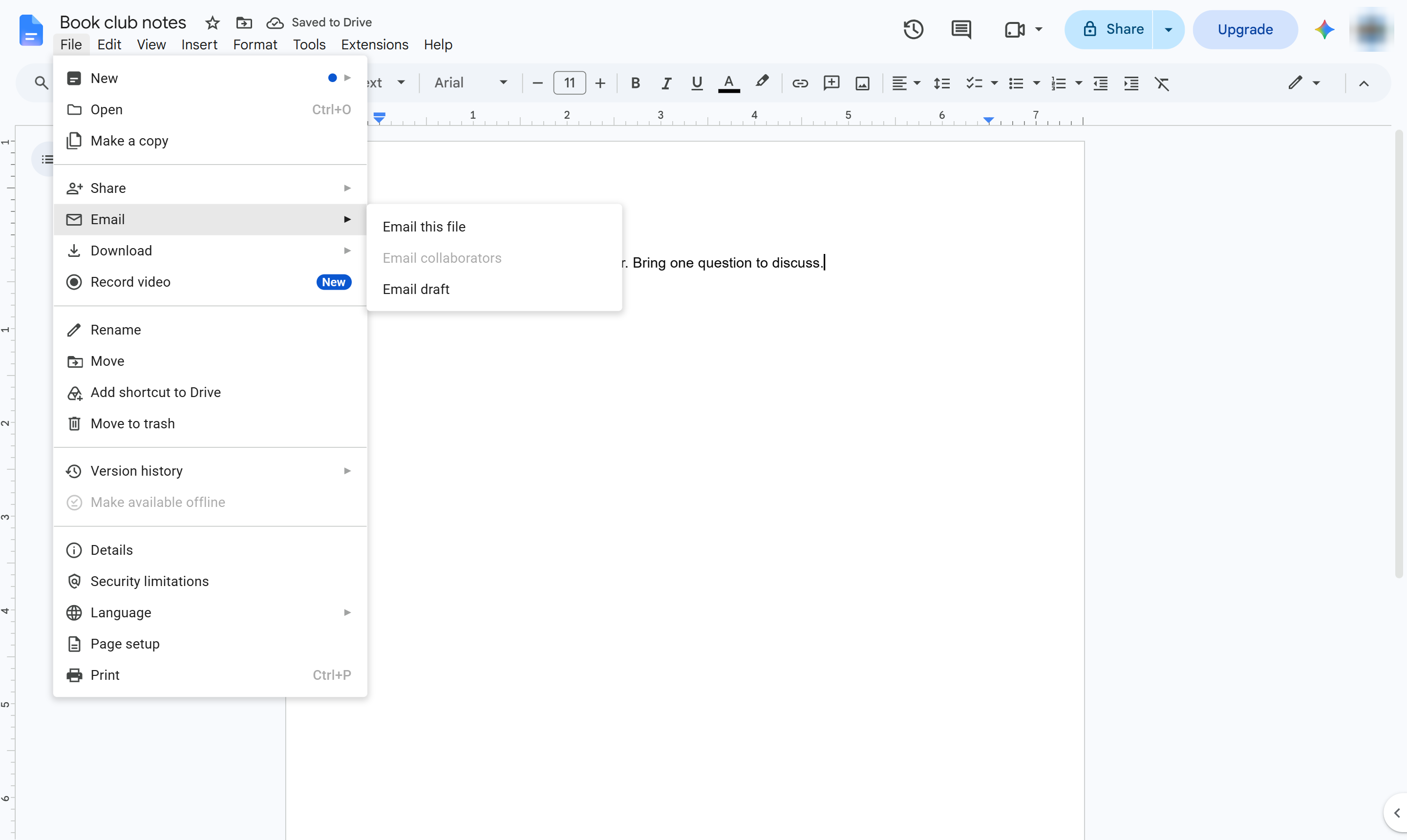
Open the File menu.
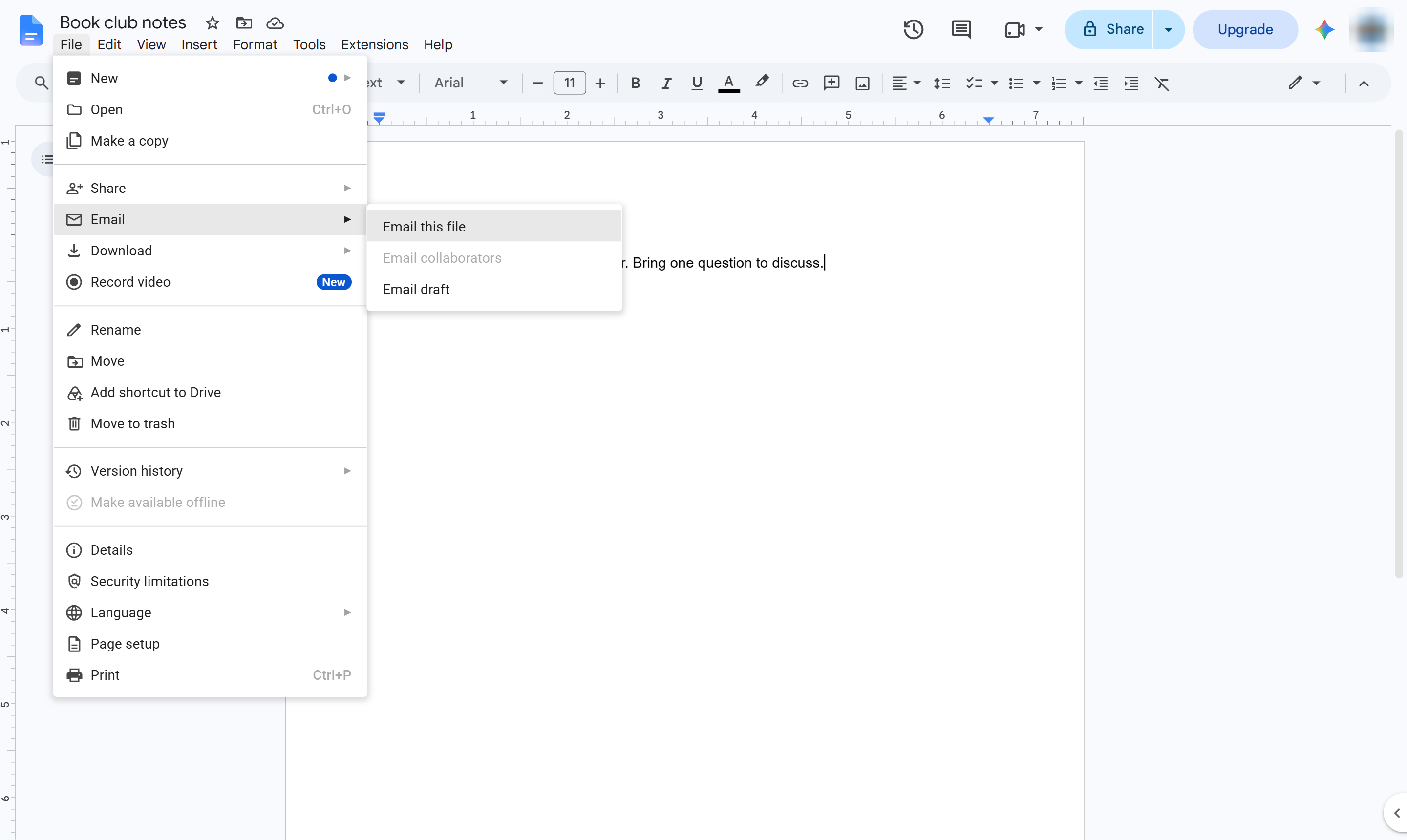
Hover over Email.
Choose Email this file.
Click the To box.
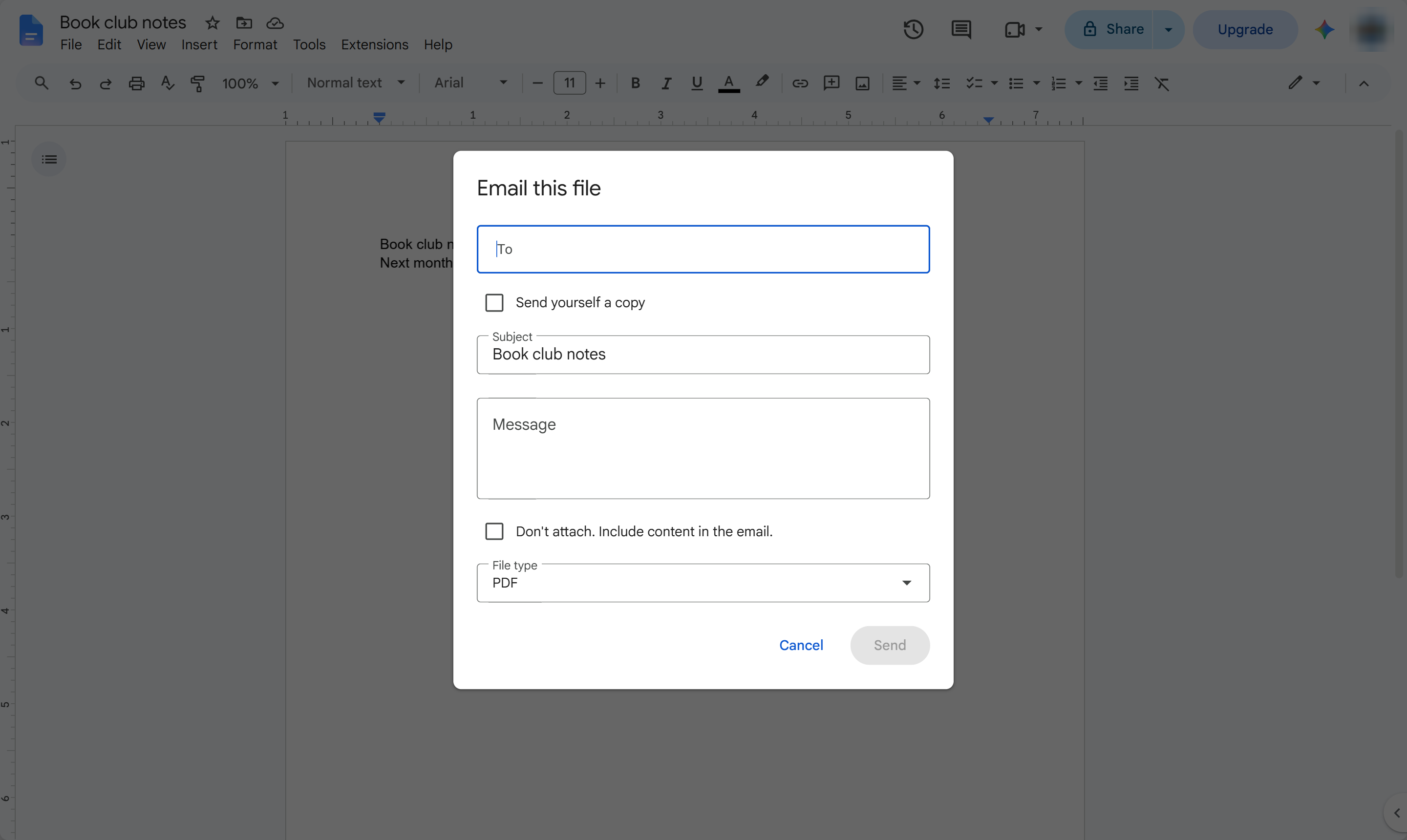
Type who should get the file.
The document is attached as a PDF. Open File type to send it as Word, OpenDocument, rich text or plain text instead.
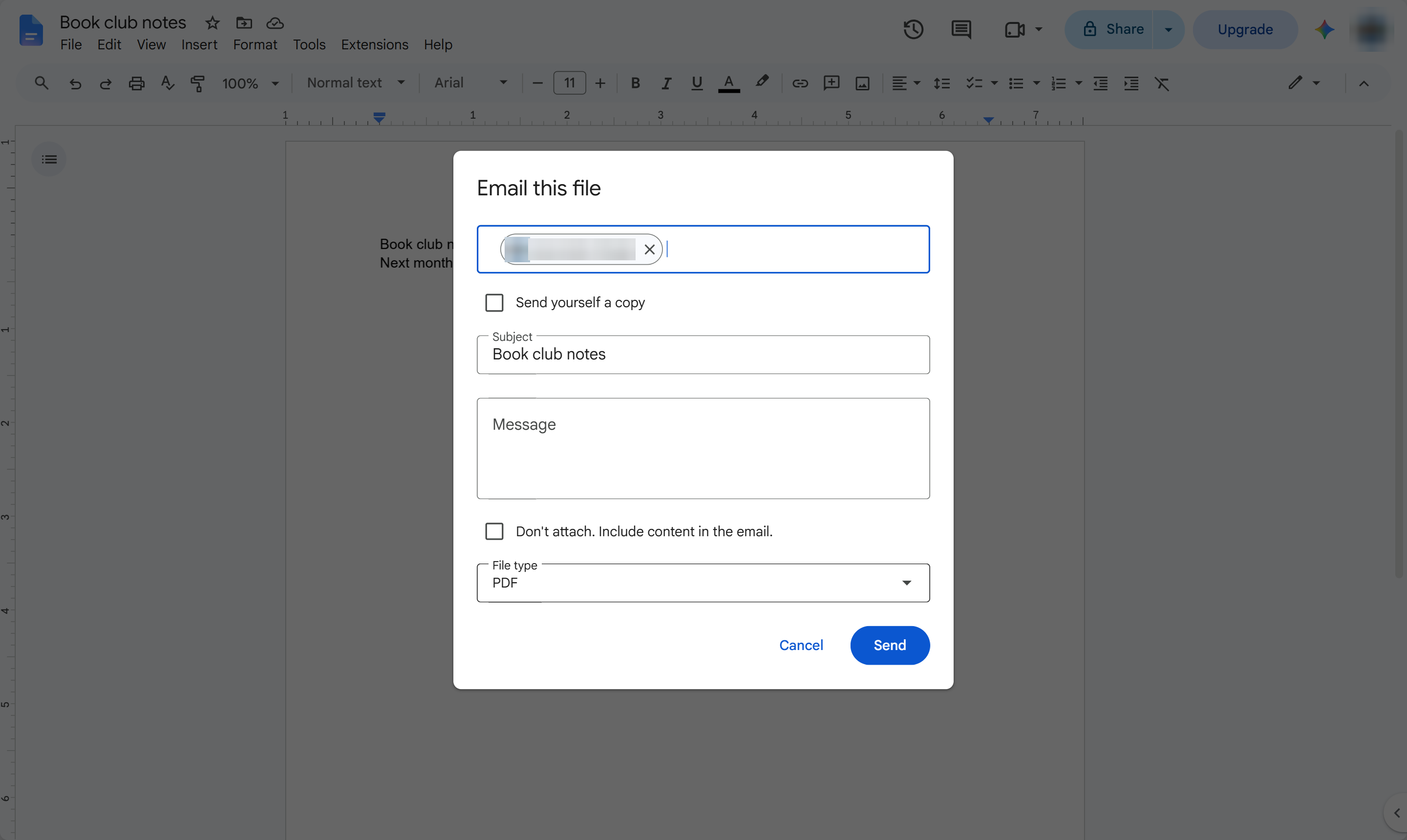
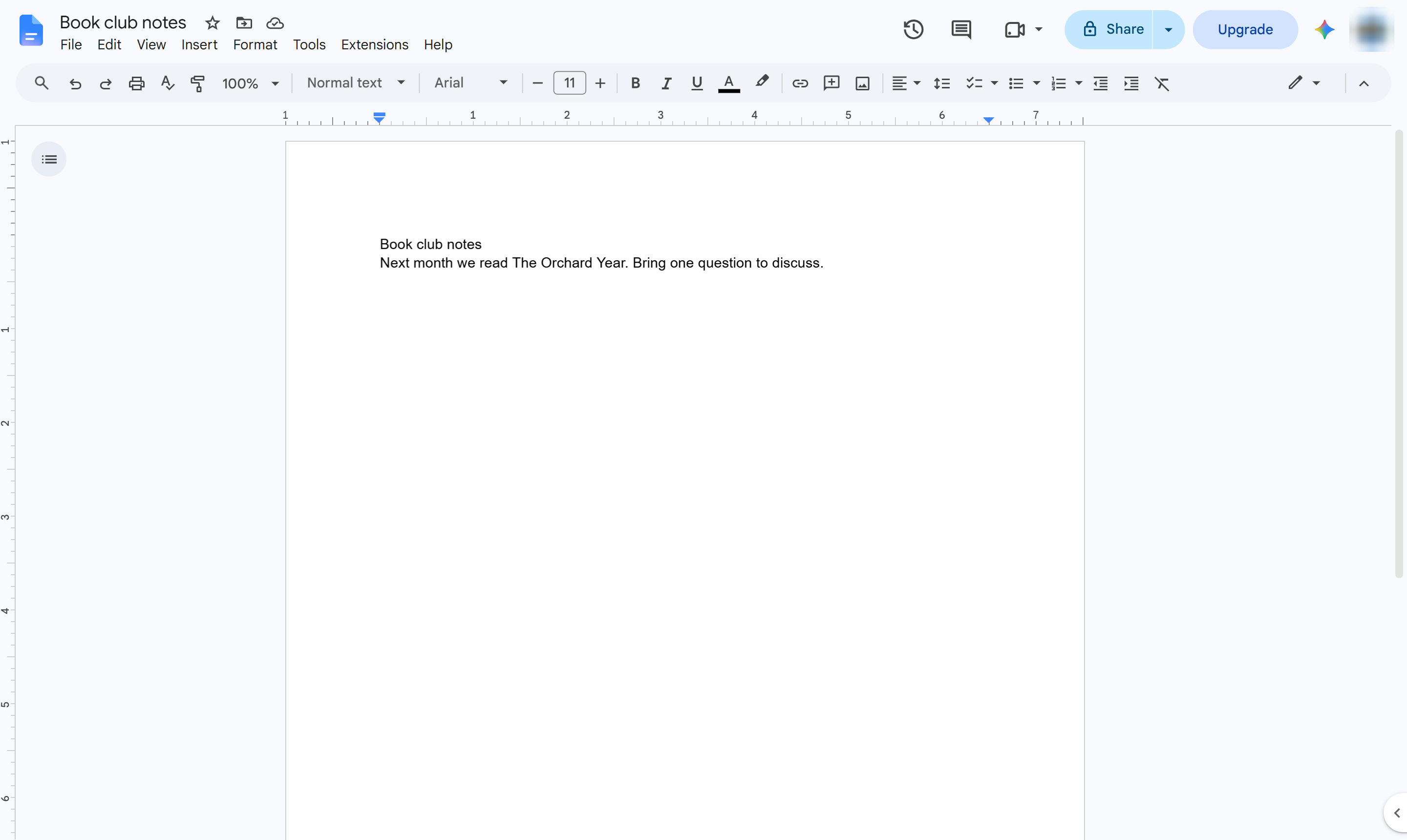
Click Send. The email goes out with the file attached.
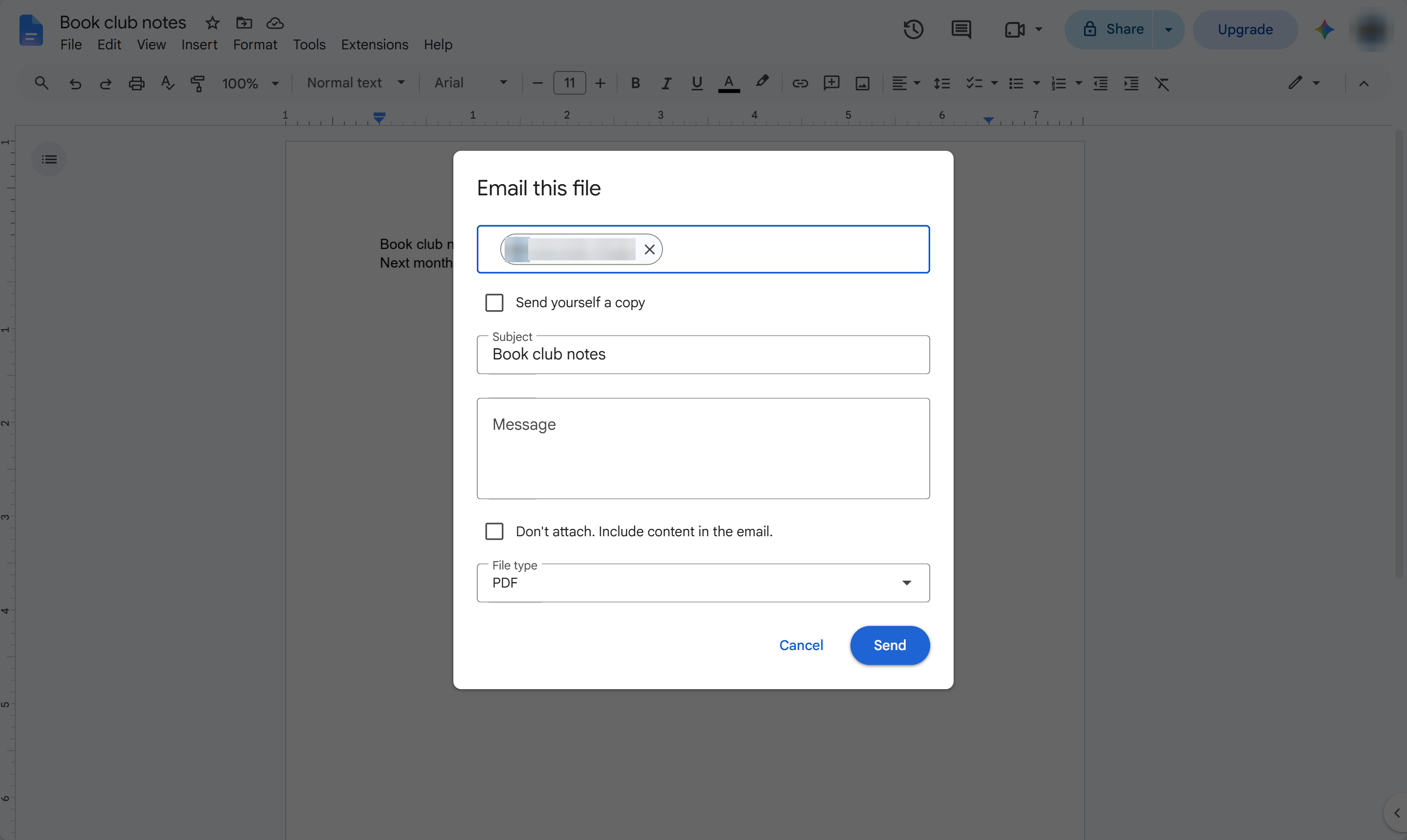
The recipient gets an email with your document attached. Tick "Send yourself a copy" next time to keep a copy in your own inbox.
Duplicate this template, swap in your own screens, and share it with your team. Free to start — no credit card.
Fill out the form and we'll get back to you as soon as possible.
Tell us about your team and we'll find the right plan together.