1
Click the gear
At the top right, click the gear icon (Settings menu).
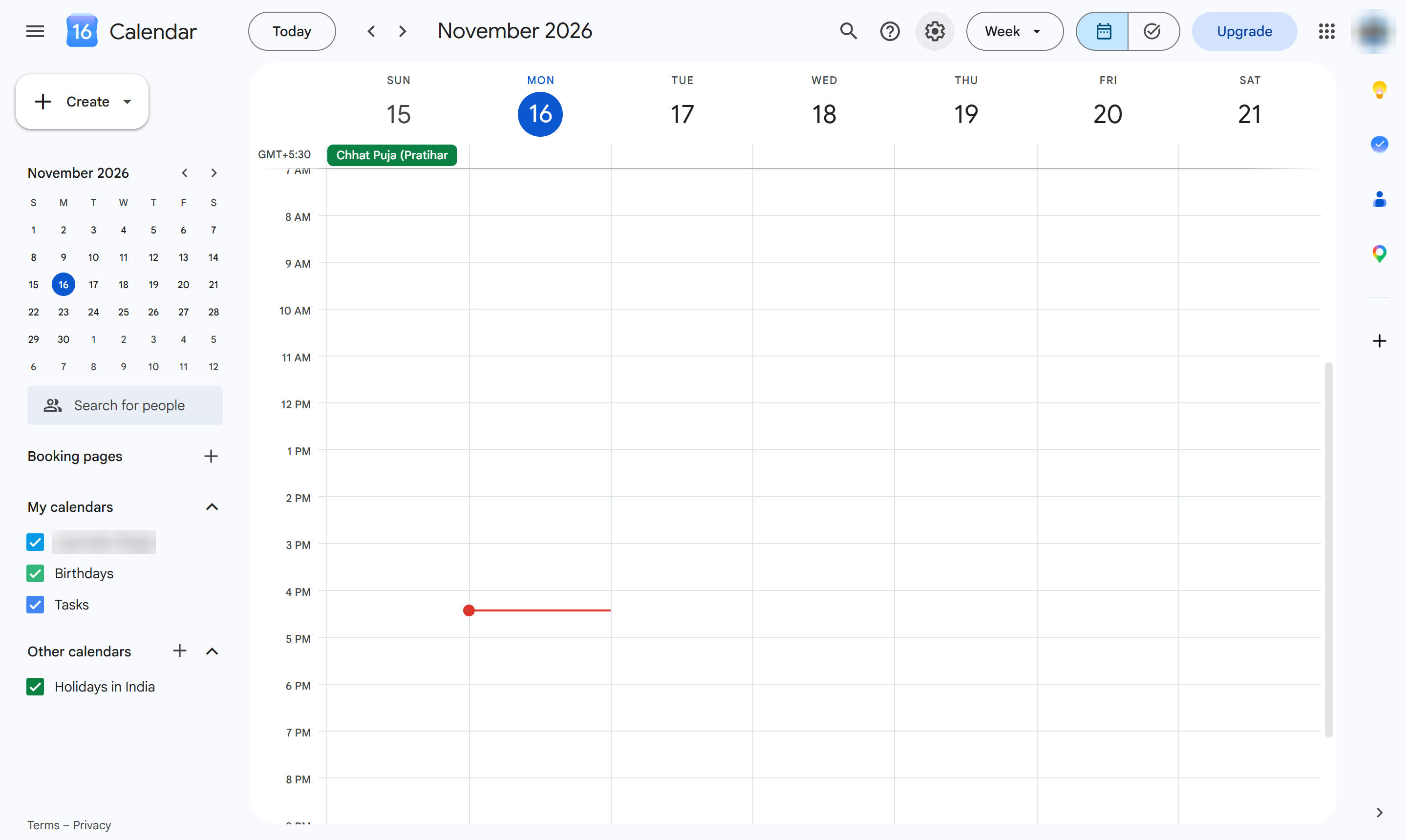

This guide shows you how to sync your Google Calendar with Outlook so you can manage all your schedules in one place. You will start by copying your calendar's integration link from your Google Calendar settings. Finally, you will navigate to Outlook Calendar to subscribe, paste the link, and import your Google events.
At the top right, click the gear icon (Settings menu).
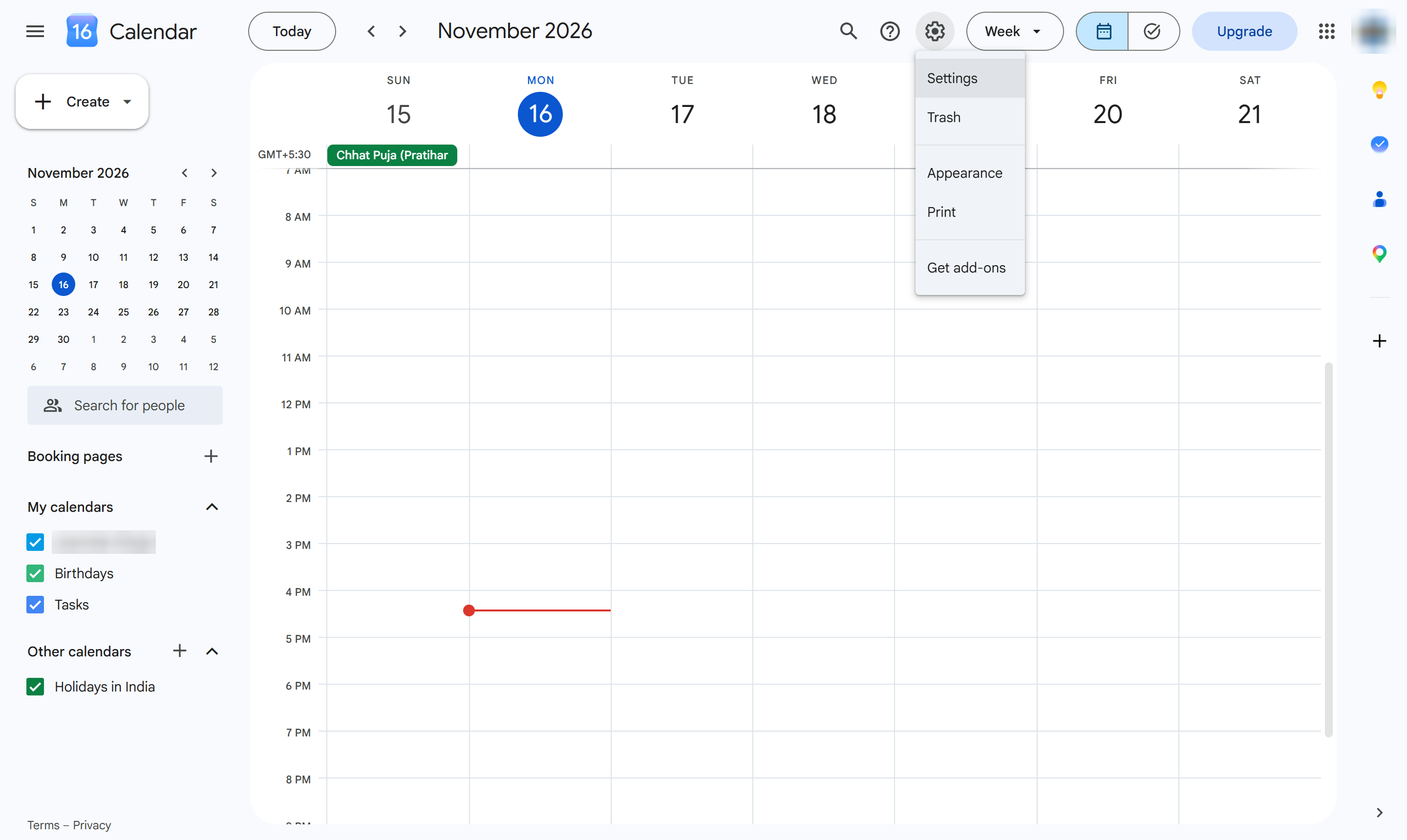
Choose Settings.
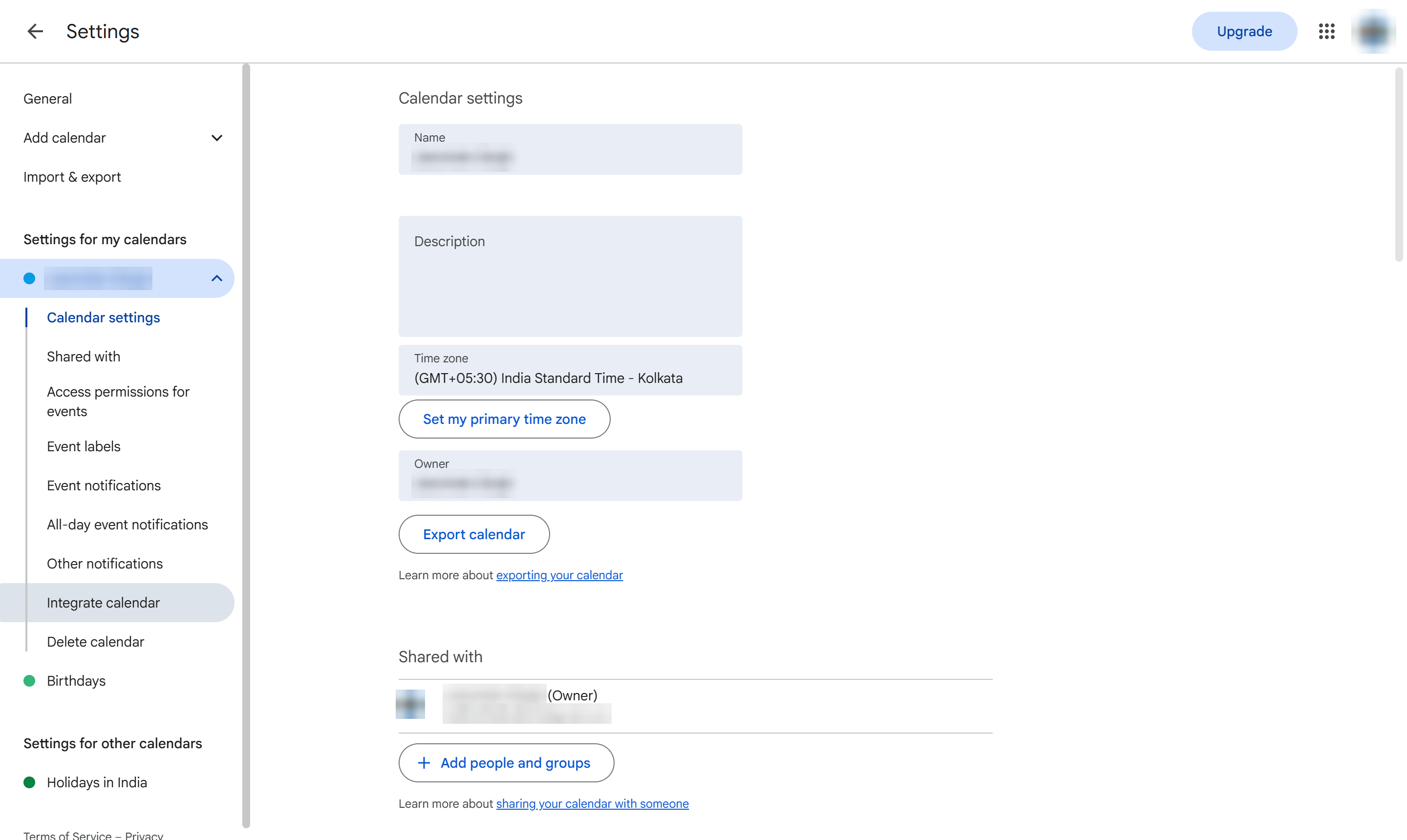
In the left menu of your calendar's own settings, click Integrate calendar.
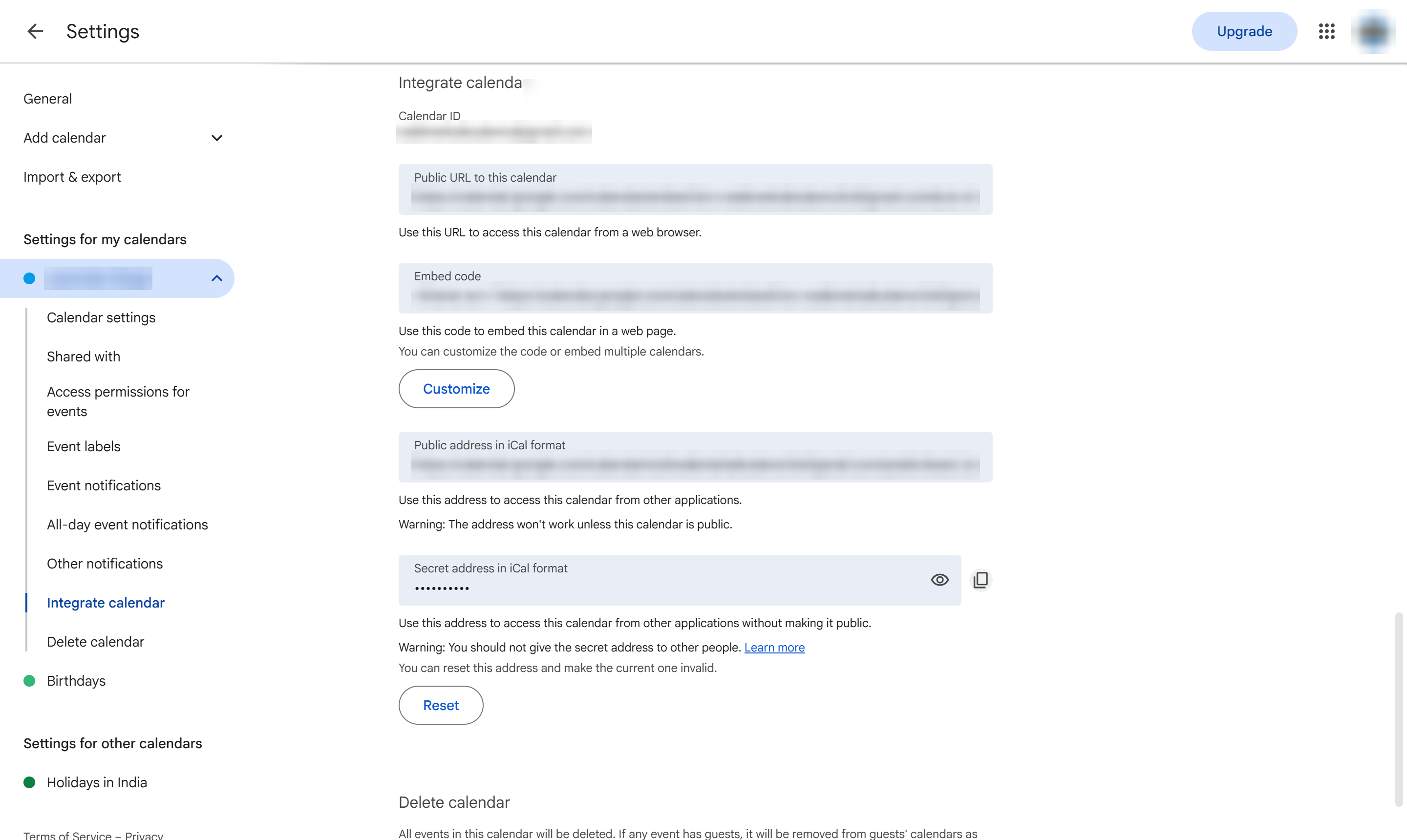
Next to "Secret address in iCal format", click the copy icon. Never click the eye icon first - that reveals the address on screen.
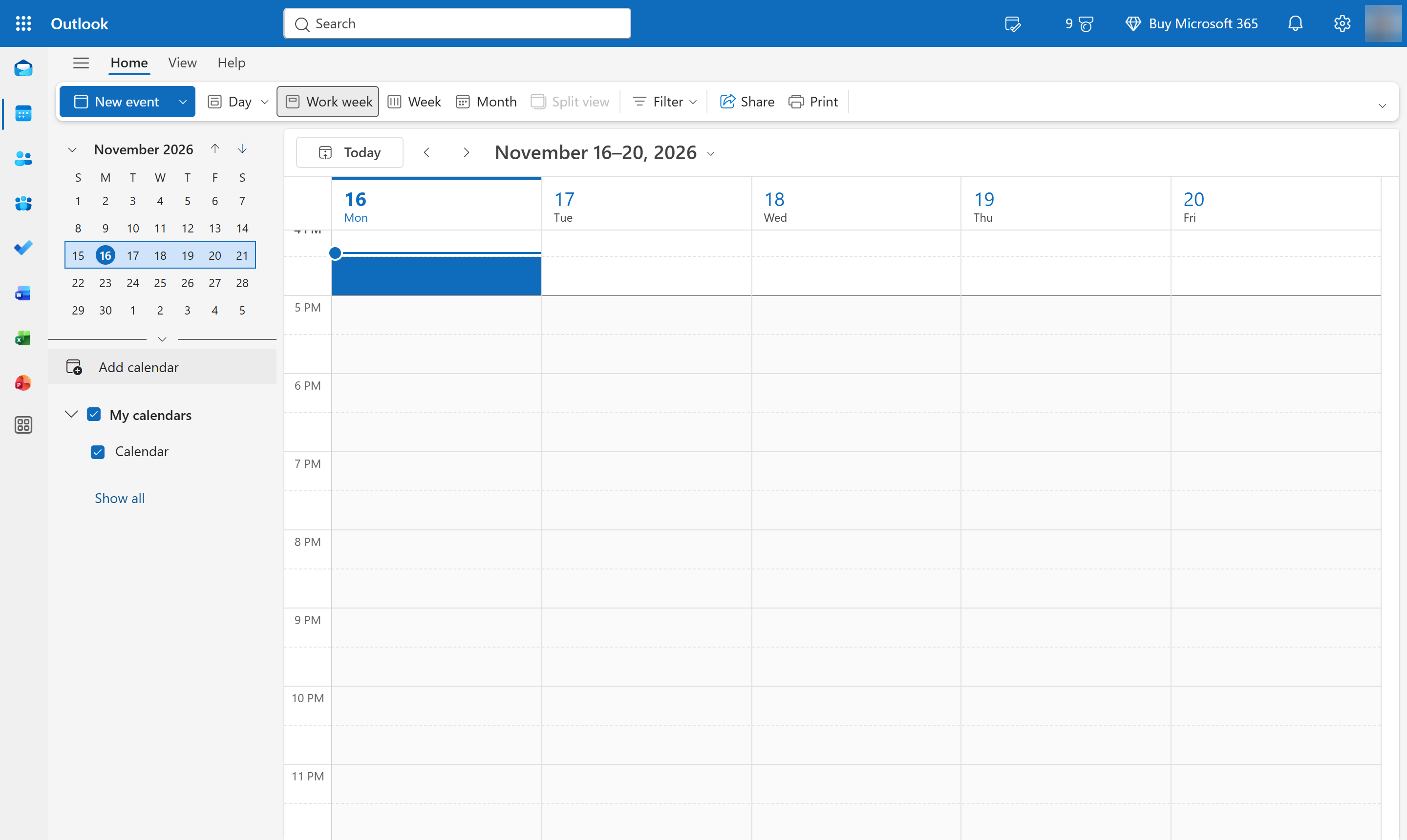
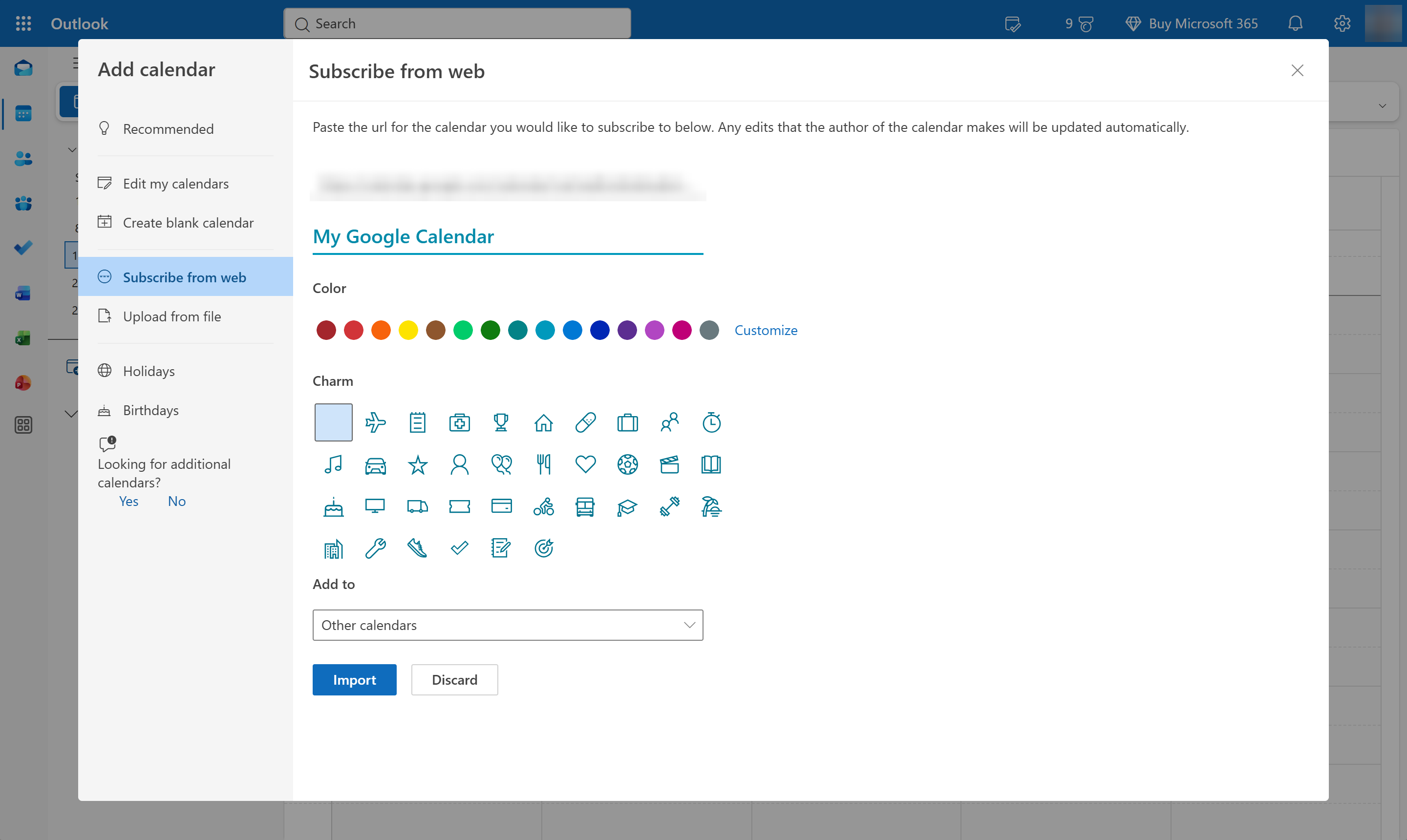
In Outlook, open the sidebar and click Add calendar.
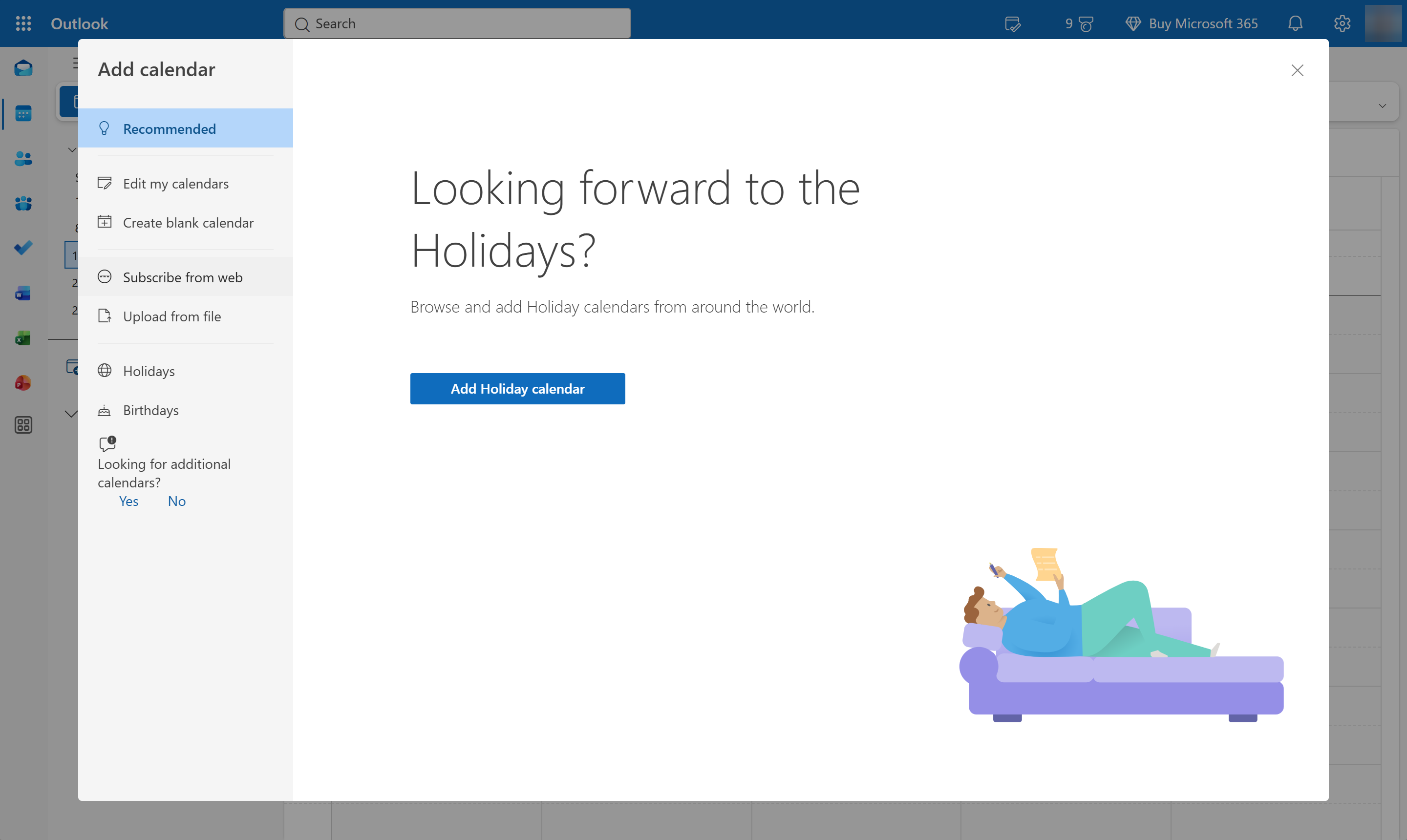
Choose Subscribe from web.
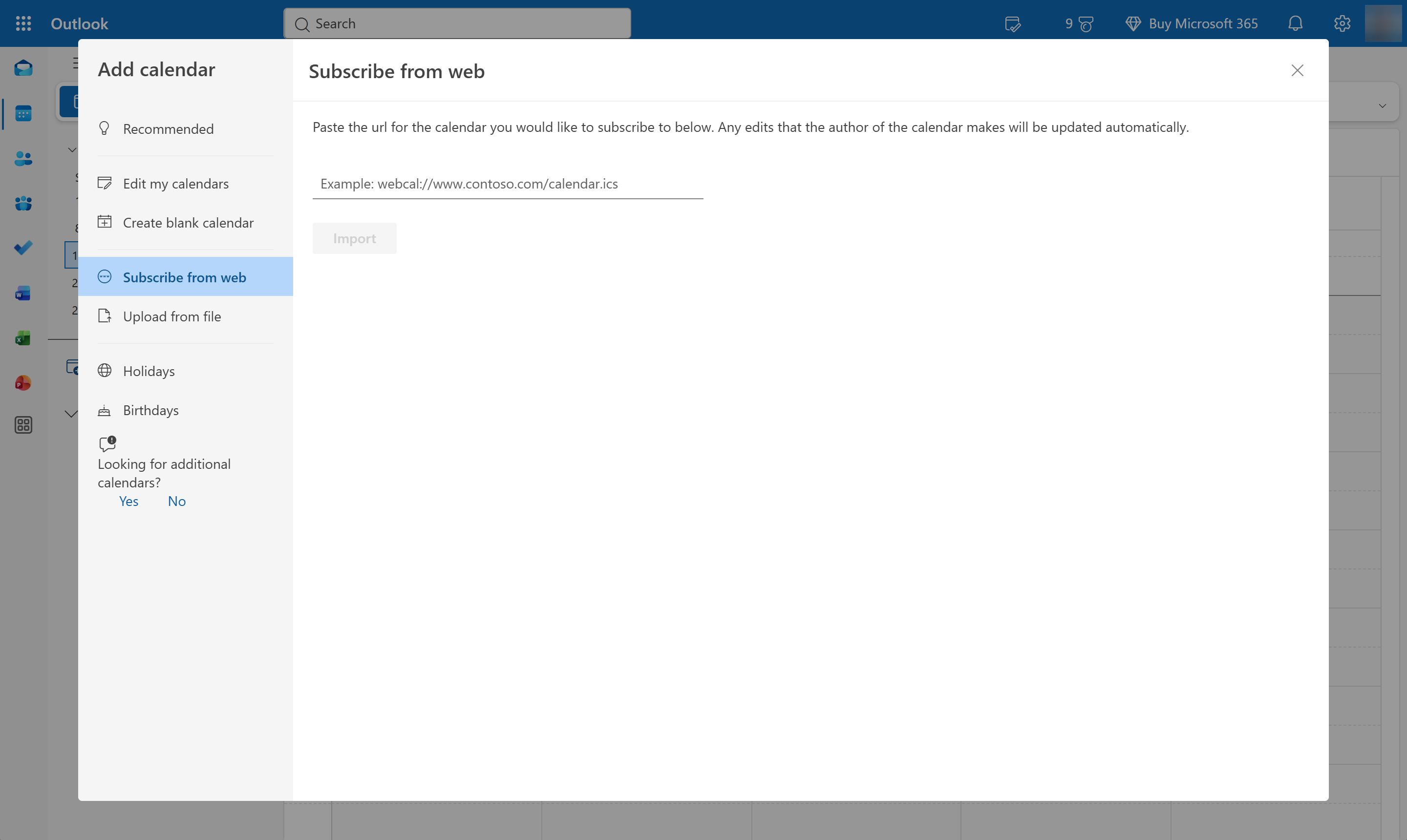
Click the empty address box.
Paste the address you just copied from Google Calendar (Ctrl+V, Cmd+V on a Mac).
Click the Calendar name box.
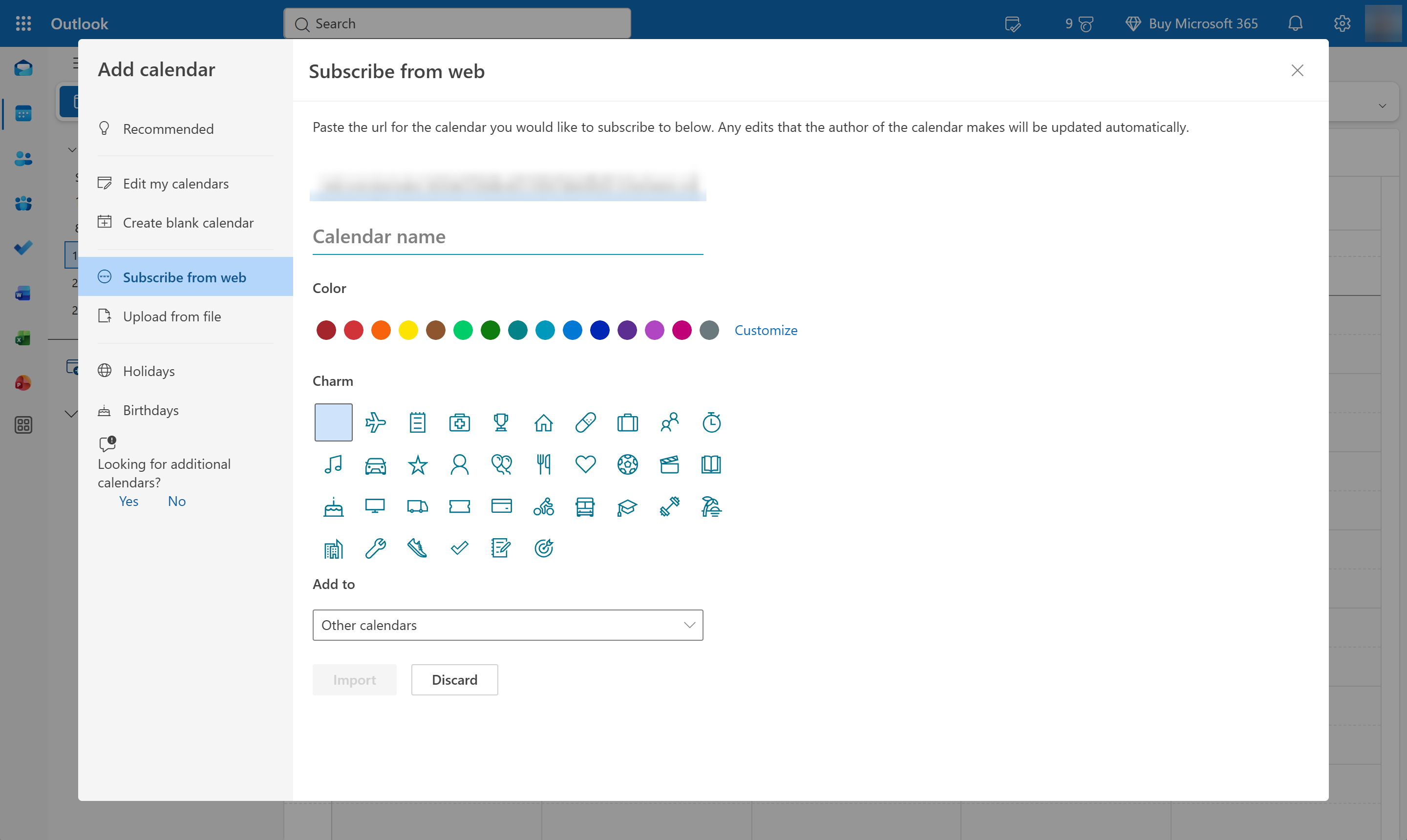
Type a name for the calendar.
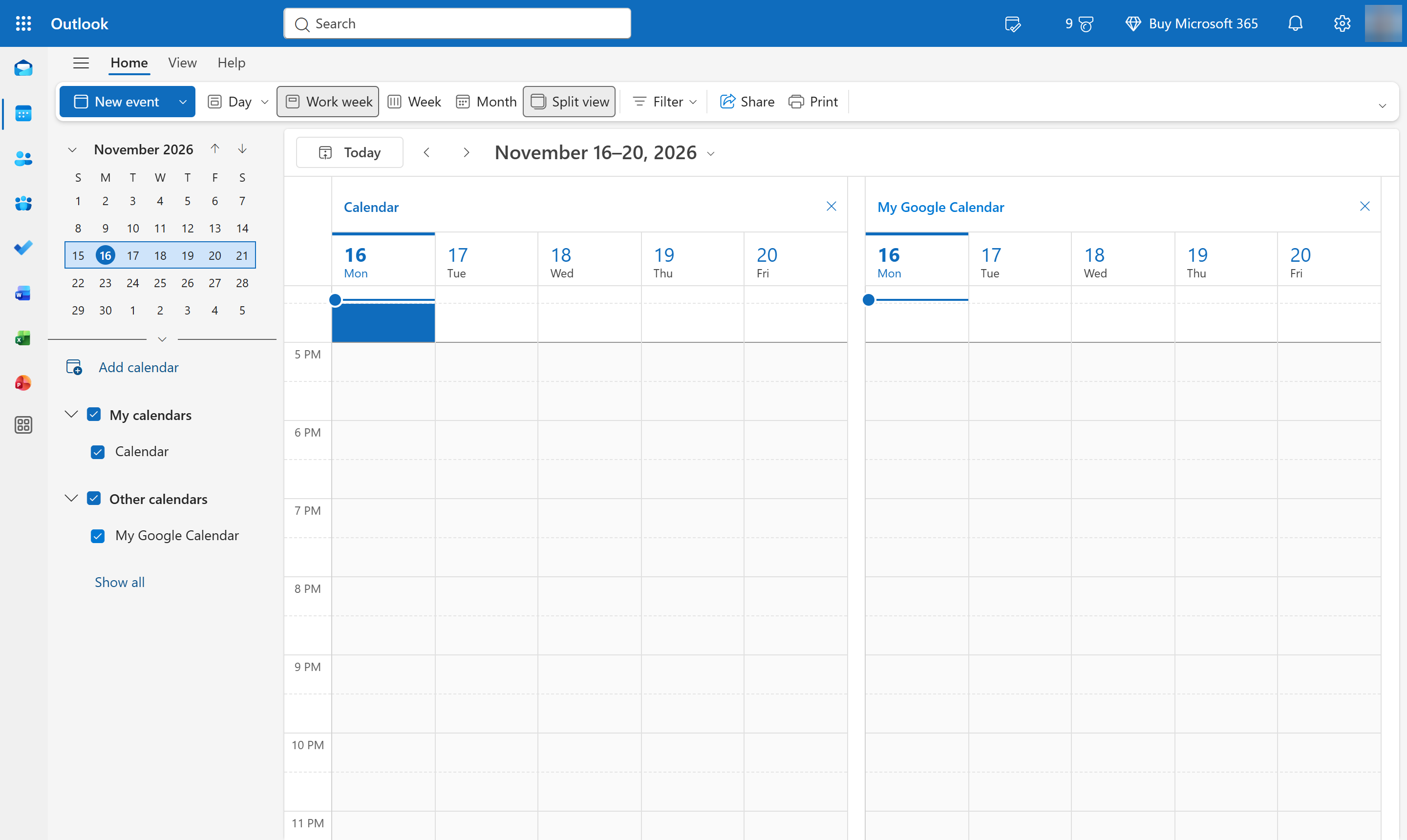
Click Import. Outlook adds the calendar under Other calendars.
The calendar appears under Other calendars in Outlook and its events show alongside your own. It refreshes on its own every few hours - there is no manual sync button.
Duplicate this template, swap in your own screens, and share it with your team. Free to start — no credit card.
Fill out the form and we'll get back to you as soon as possible.
Tell us about your team and we'll find the right plan together.