1
Open the contact
Click the contact you want to add to a group.
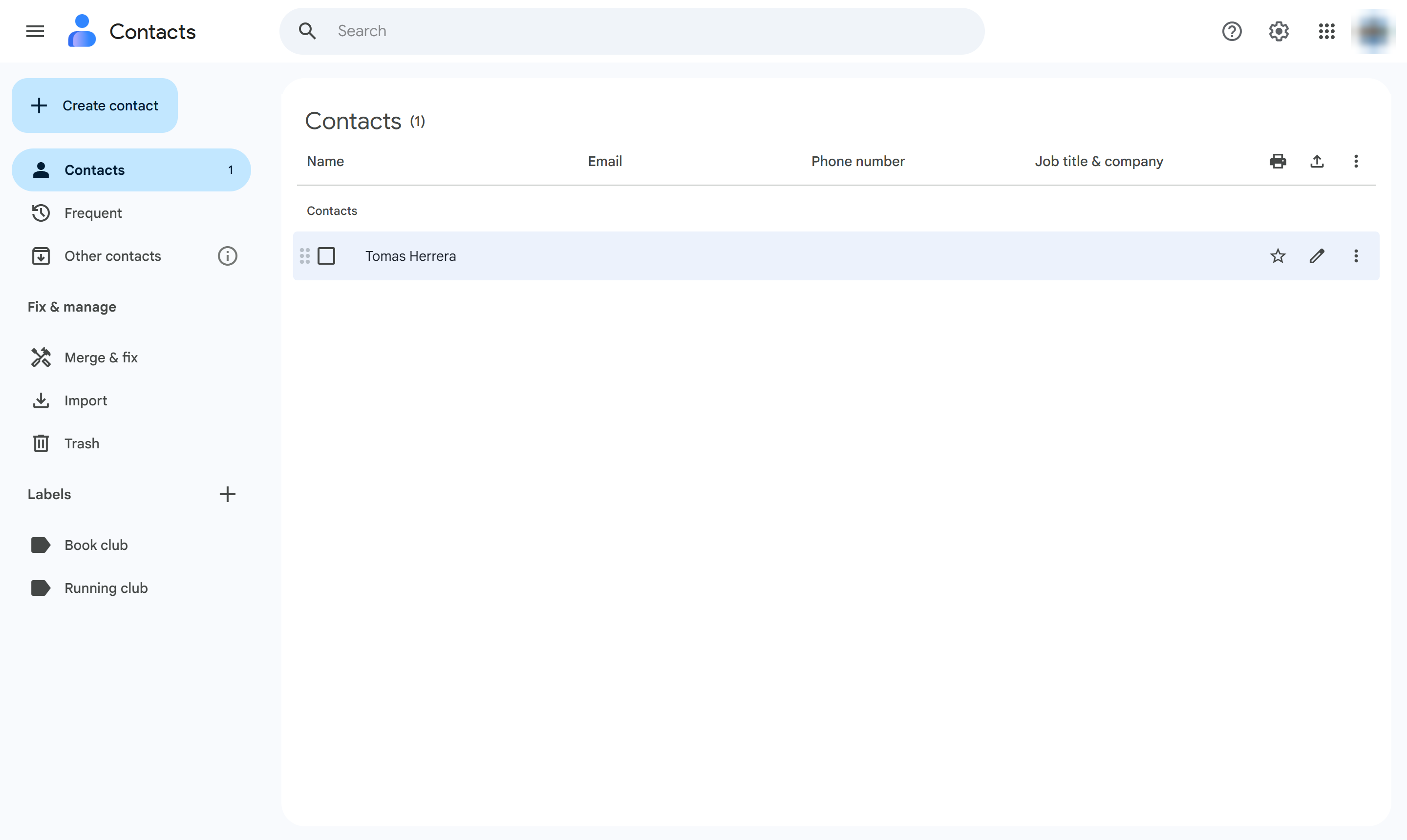

This step-by-step tutorial shows you how to organize your Gmail contacts by adding them to specific groups or labels. Follow these quick clicks to select a contact, assign a label, and apply the changes to keep your address book organized.
Click the contact you want to add to a group.
Click Manage labels (the label icon).
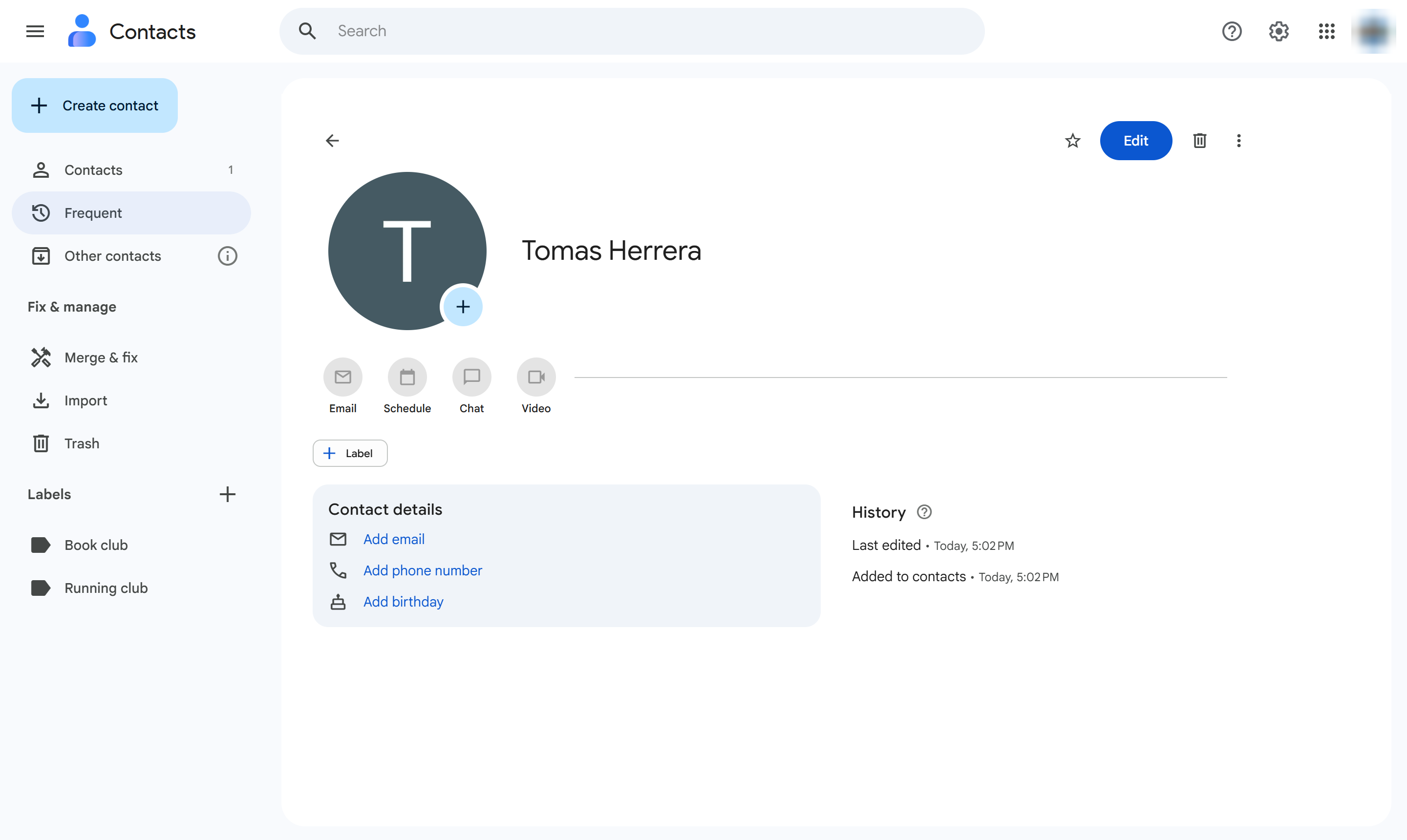
Tick the label you want - here, Running club.
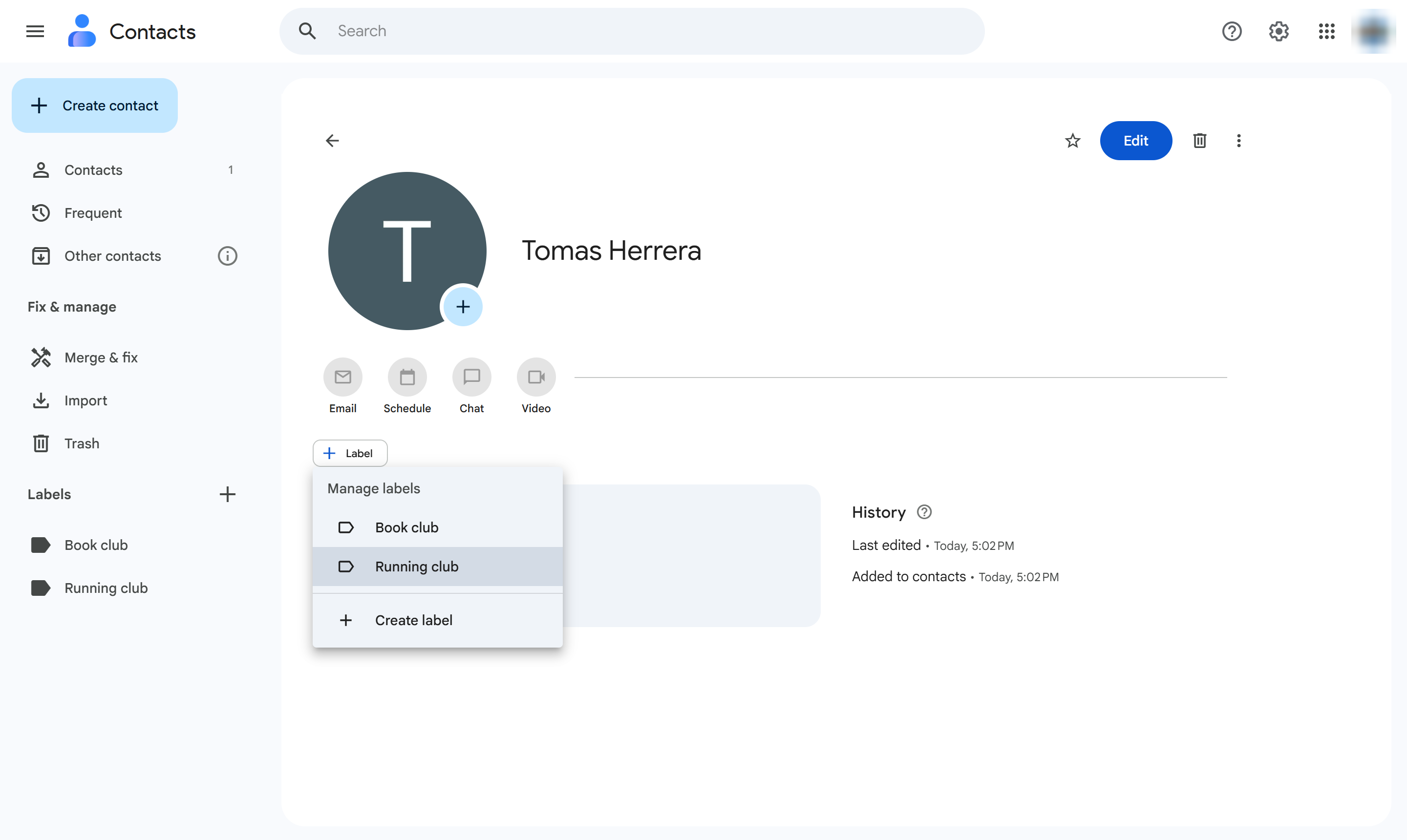
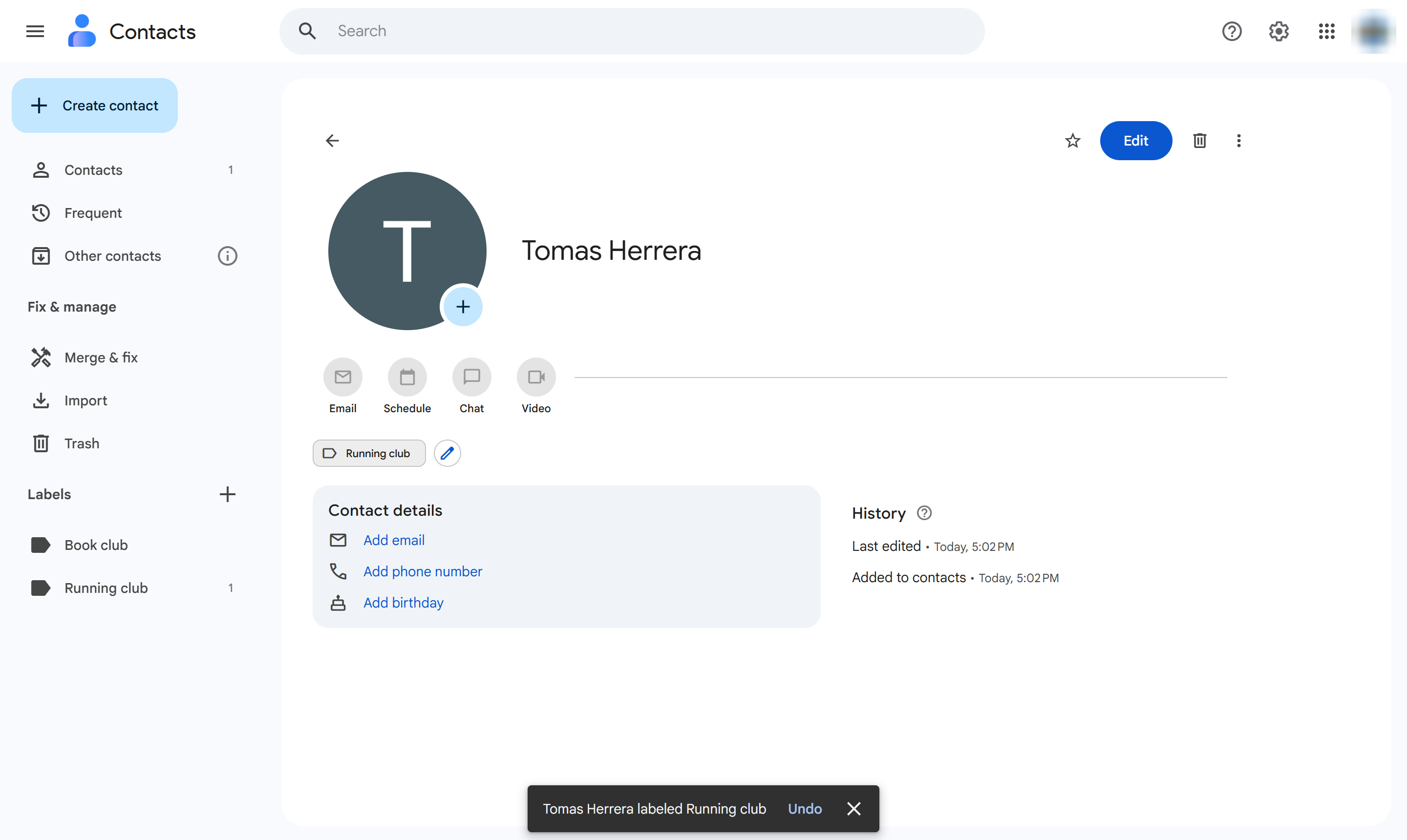
Click Apply to save the change.
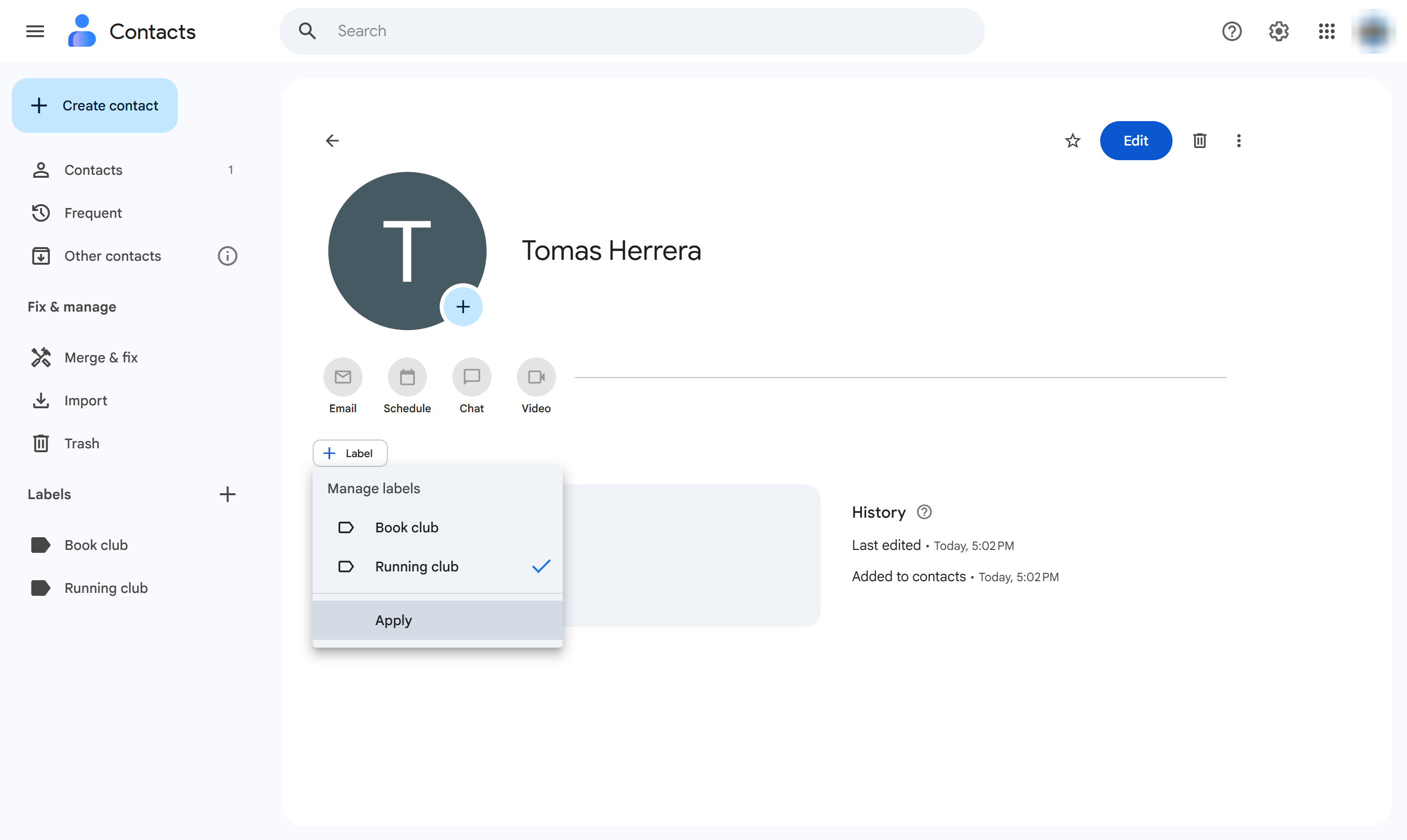
The contact now carries that label, and the label's contact count goes up by one.
Duplicate this template, swap in your own screens, and share it with your team. Free to start — no credit card.
Fill out the form and we'll get back to you as soon as possible.
Tell us about your team and we'll find the right plan together.