1
Click where the box goes
Click at the spot in your document where you want the box.
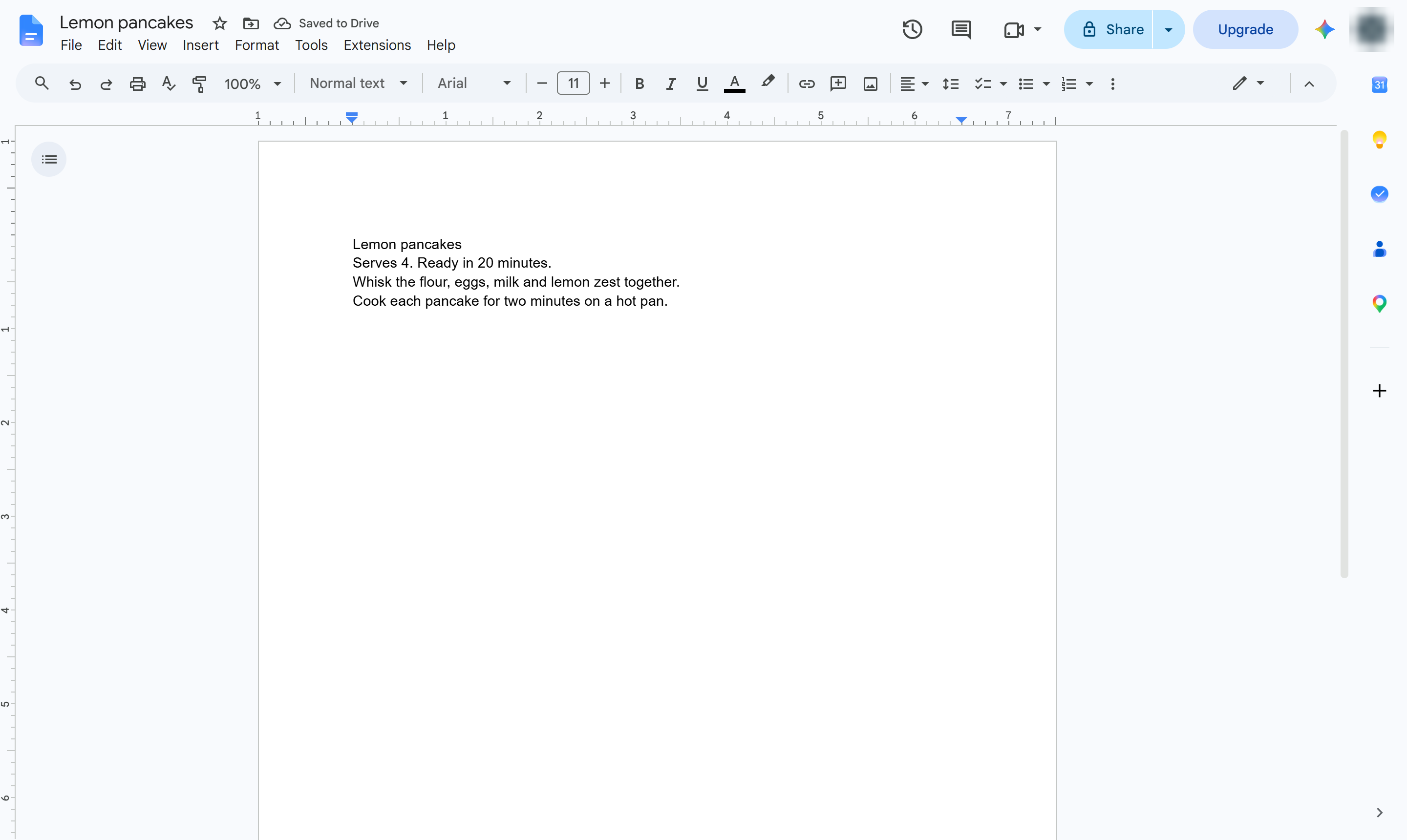

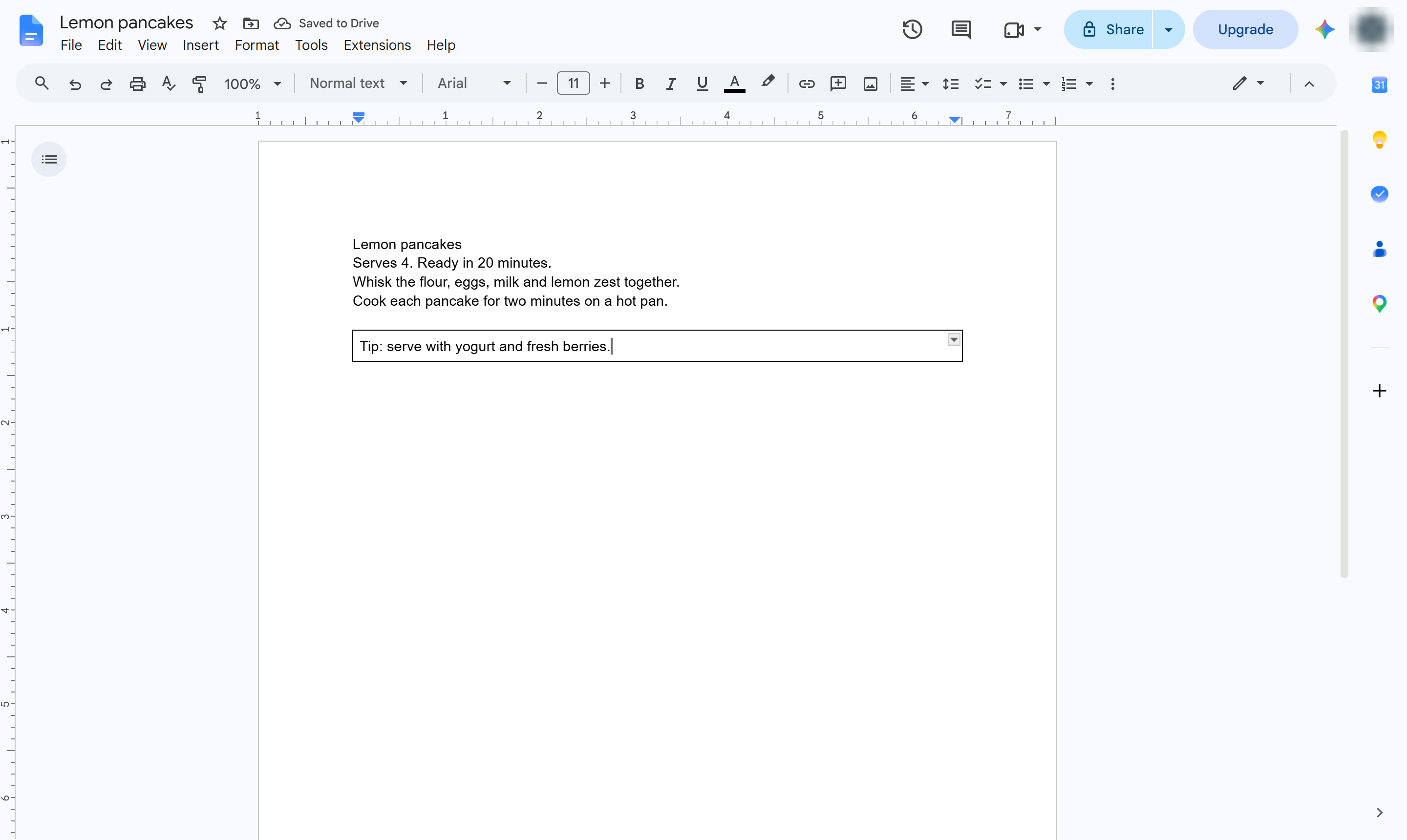
Put text inside a box by inserting a one-cell table.
Click at the spot in your document where you want the box.
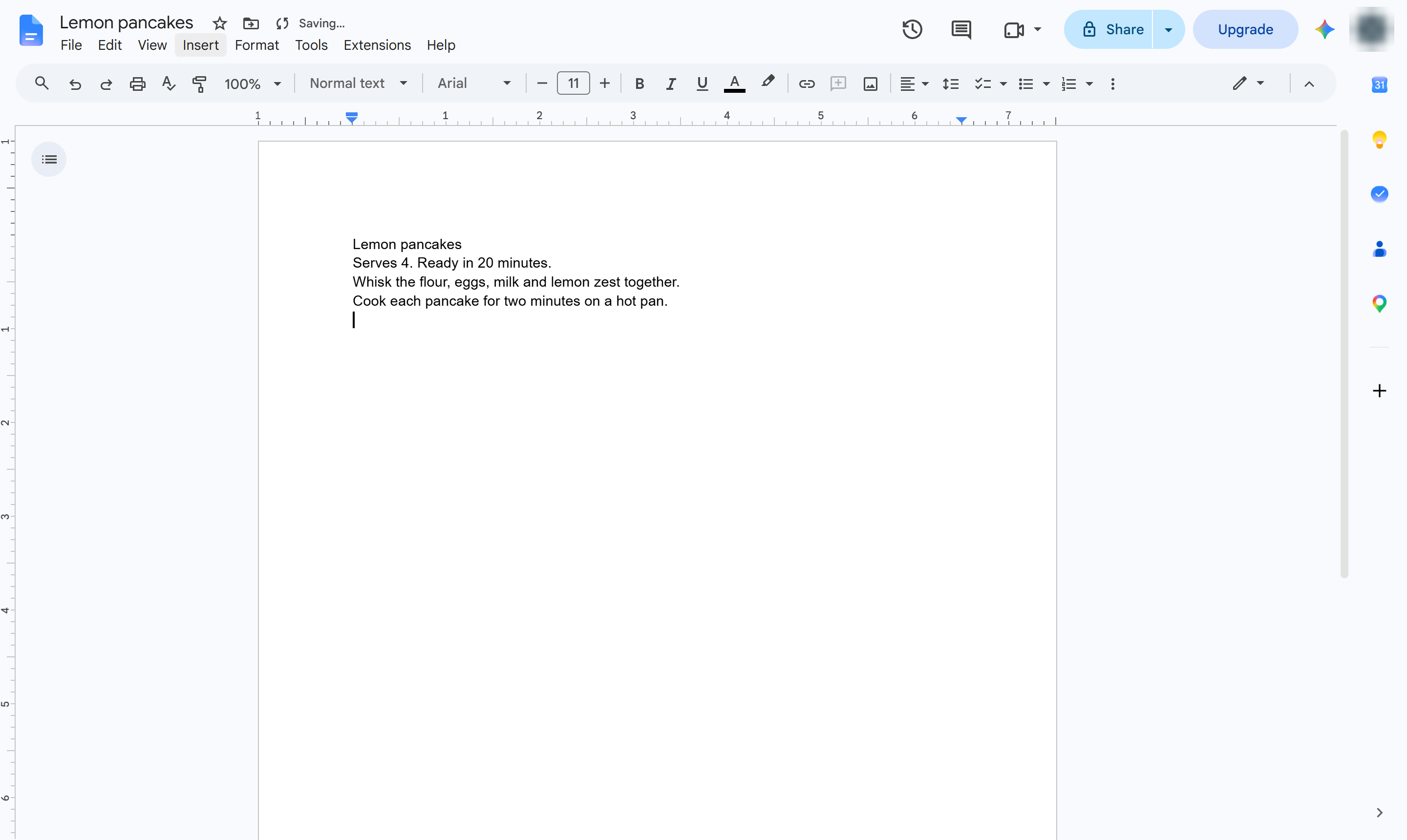
Start a new line for the box.
Open the Insert menu.
Hover over Table to open the size grid.
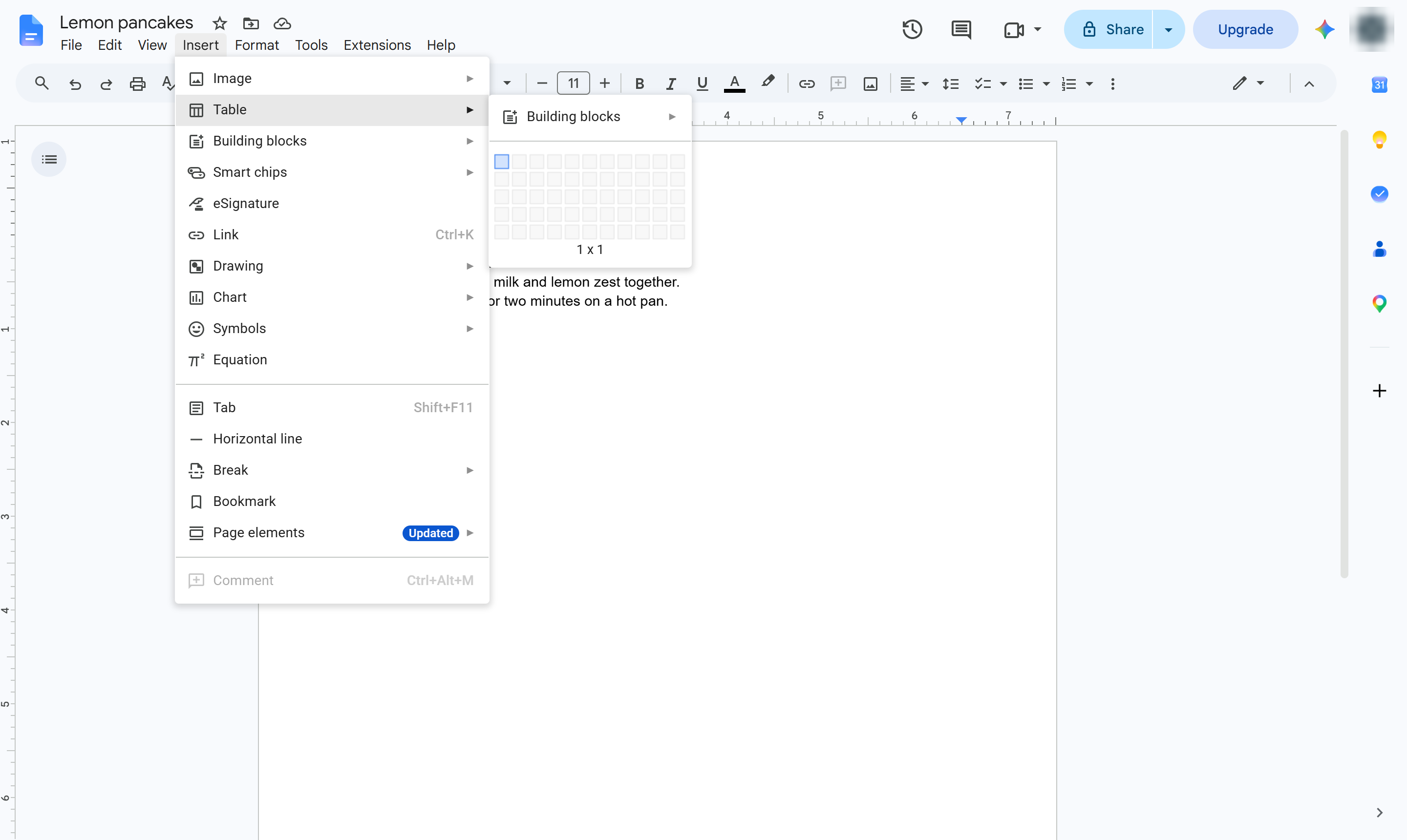
Click the first square of the grid. A one-cell table works as a box.
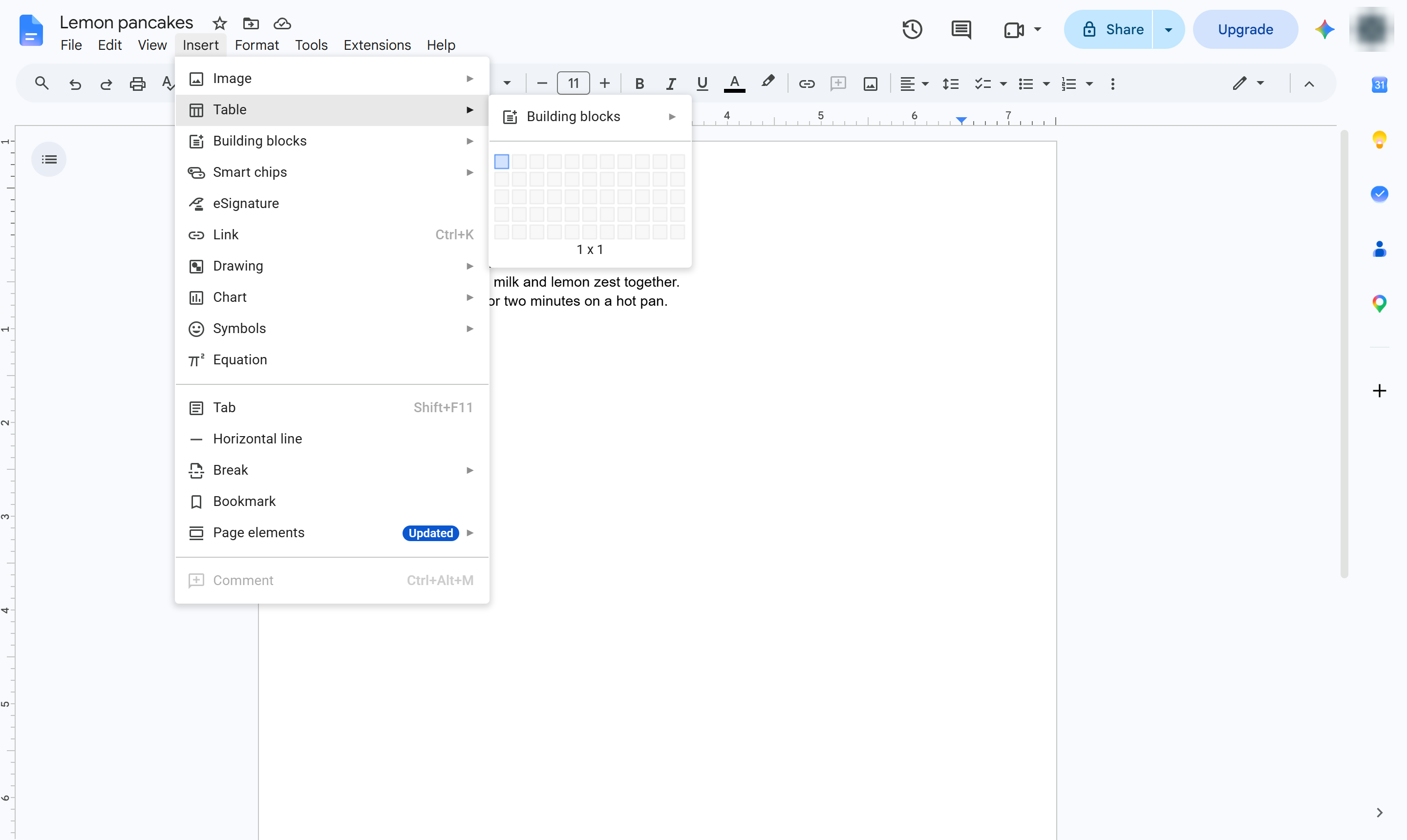
Type the text that should sit in the box. Change the border color or width from the table toolbar.
Your text now sits inside a box that stretches across the page.
Duplicate this template, swap in your own screens, and share it with your team. Free to start — no credit card.
Fill out the form and we'll get back to you as soon as possible.
Tell us about your team and we'll find the right plan together.