1
Click Settings
At the top right, click the gear icon (Settings).
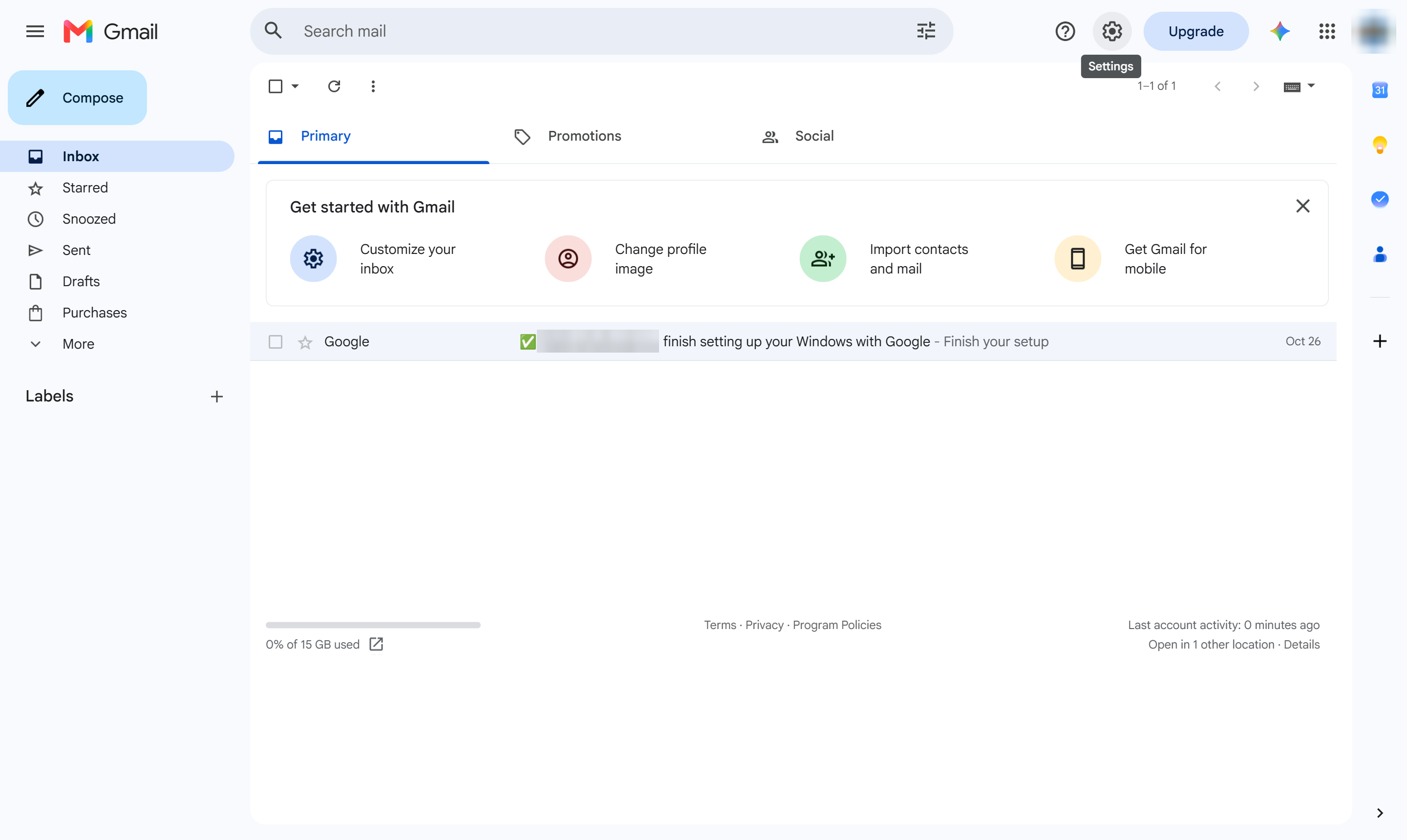

Set up a rule (a filter) in Settings so matching emails are labeled, archived or marked as read automatically.
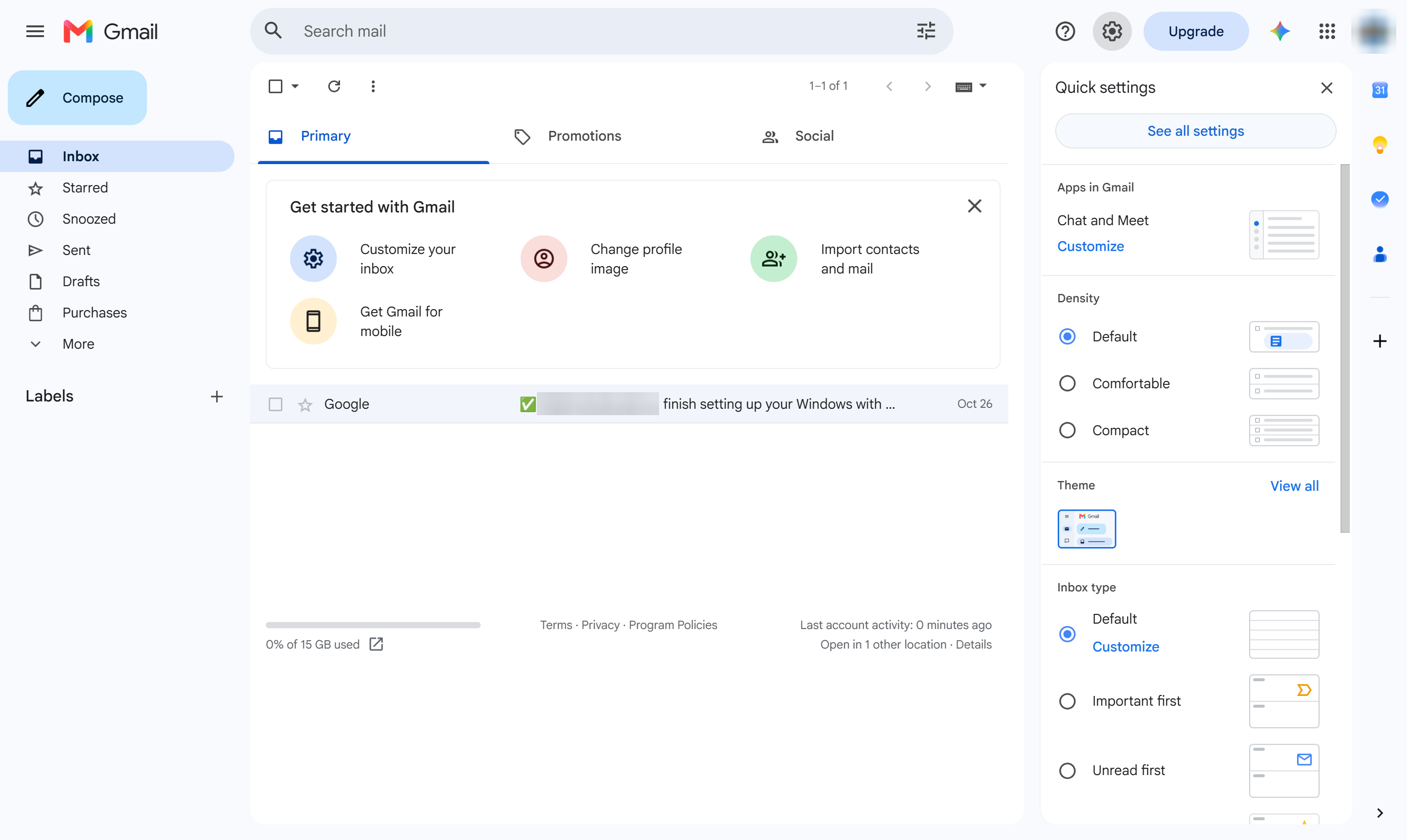
At the top right, click the gear icon (Settings).
Click See all settings.
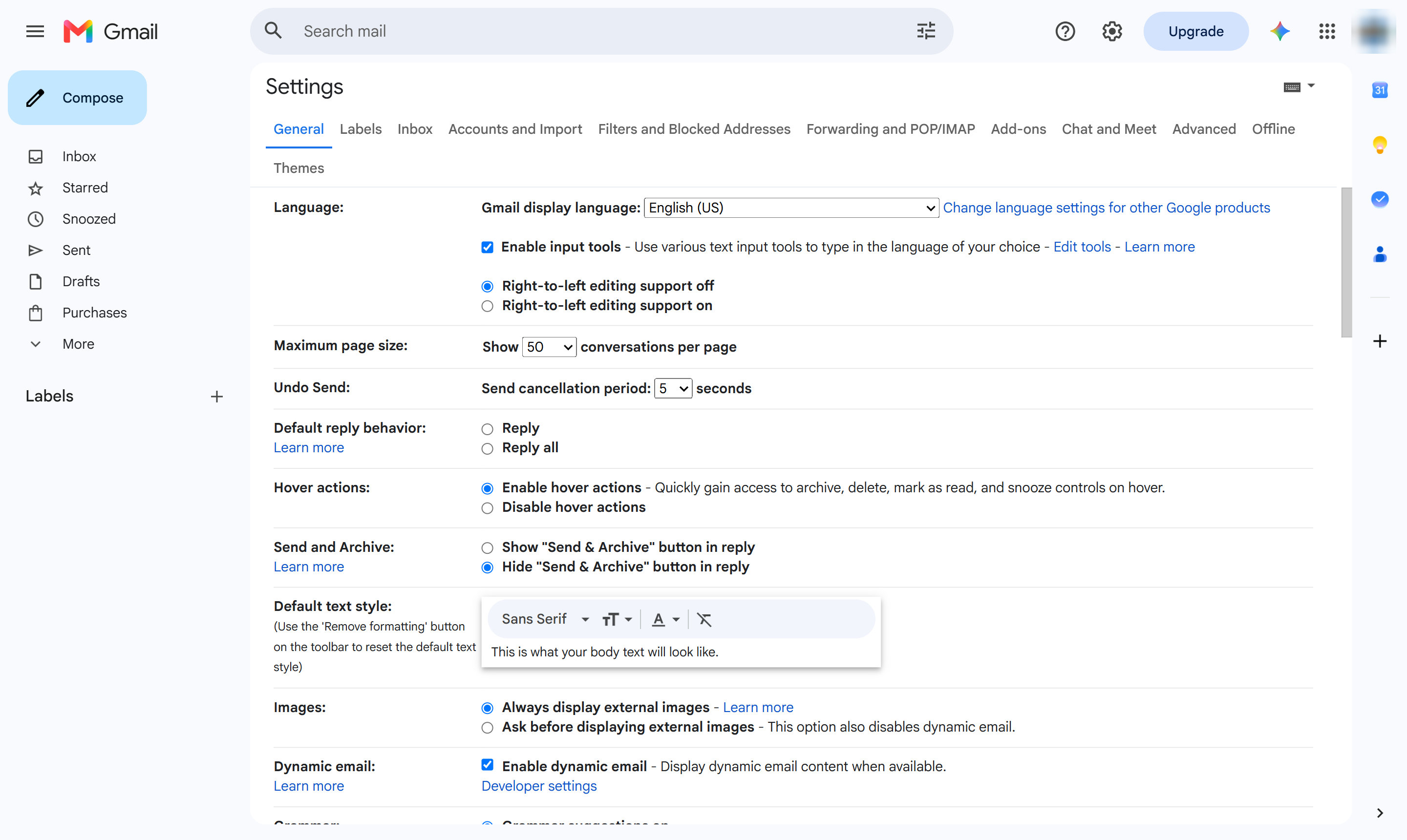
Open the Filters and Blocked Addresses tab.
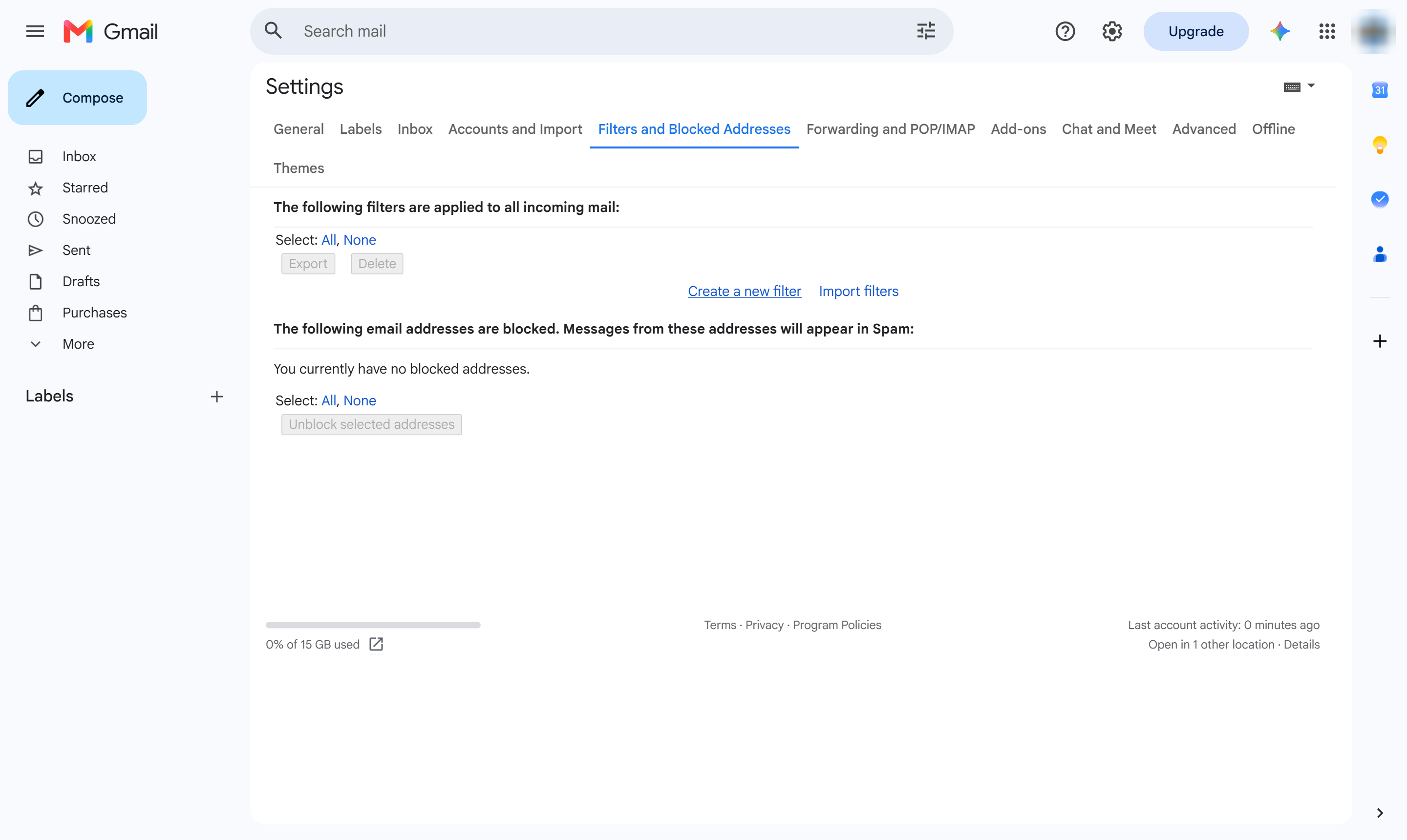
Click Create a new filter.
Click the Subject box.
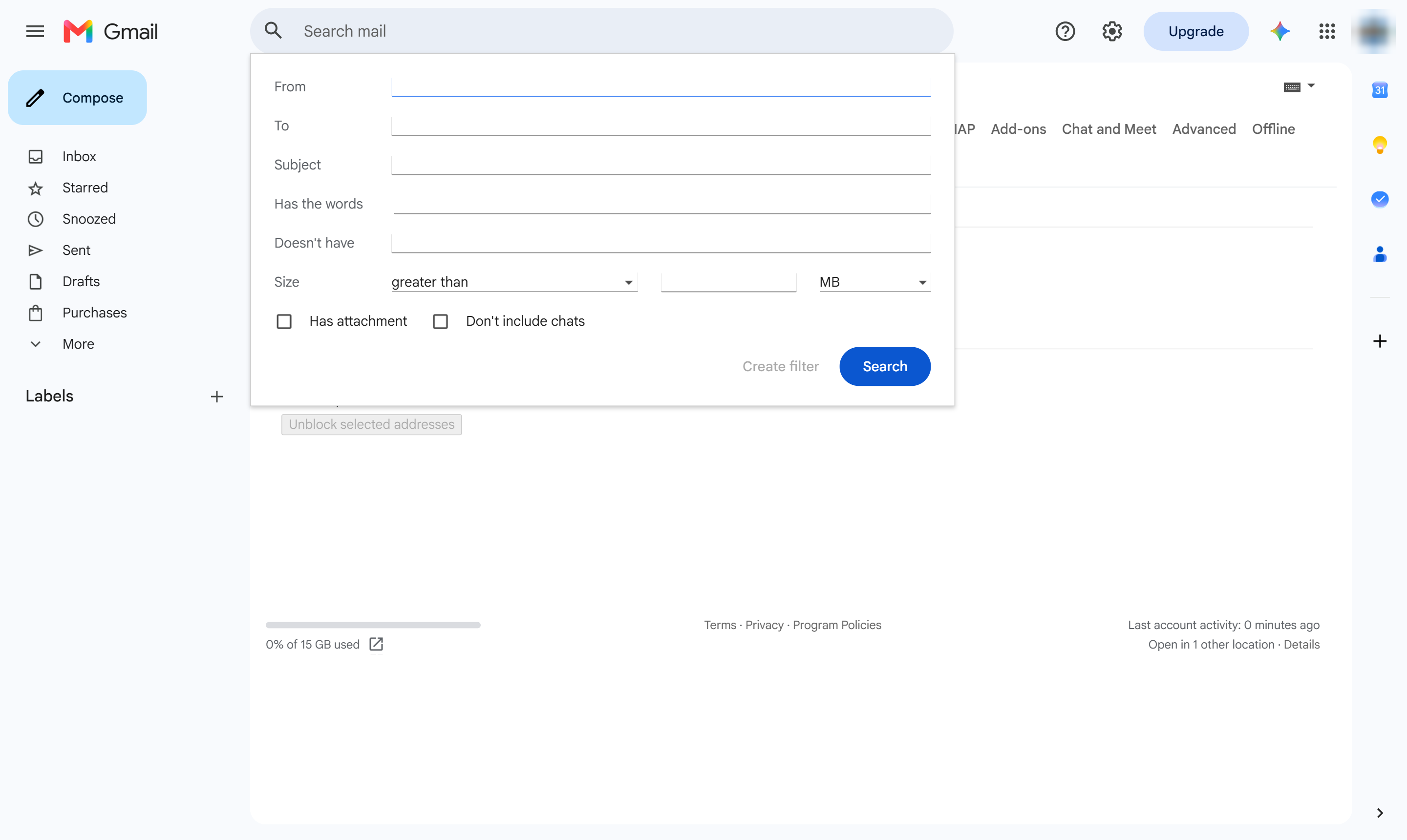
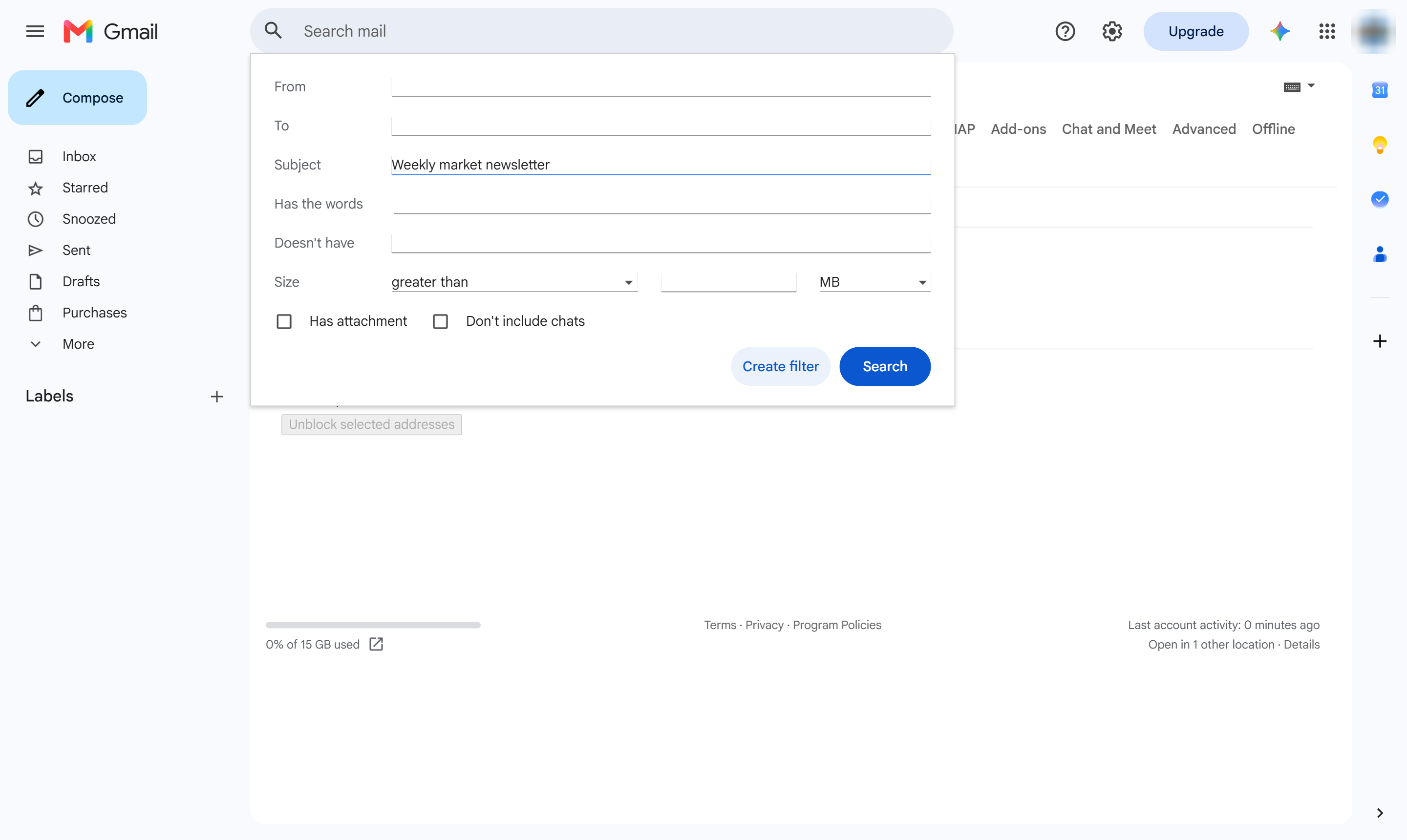
Type words the emails' subject contains.
Click Create filter to choose what happens to these emails.
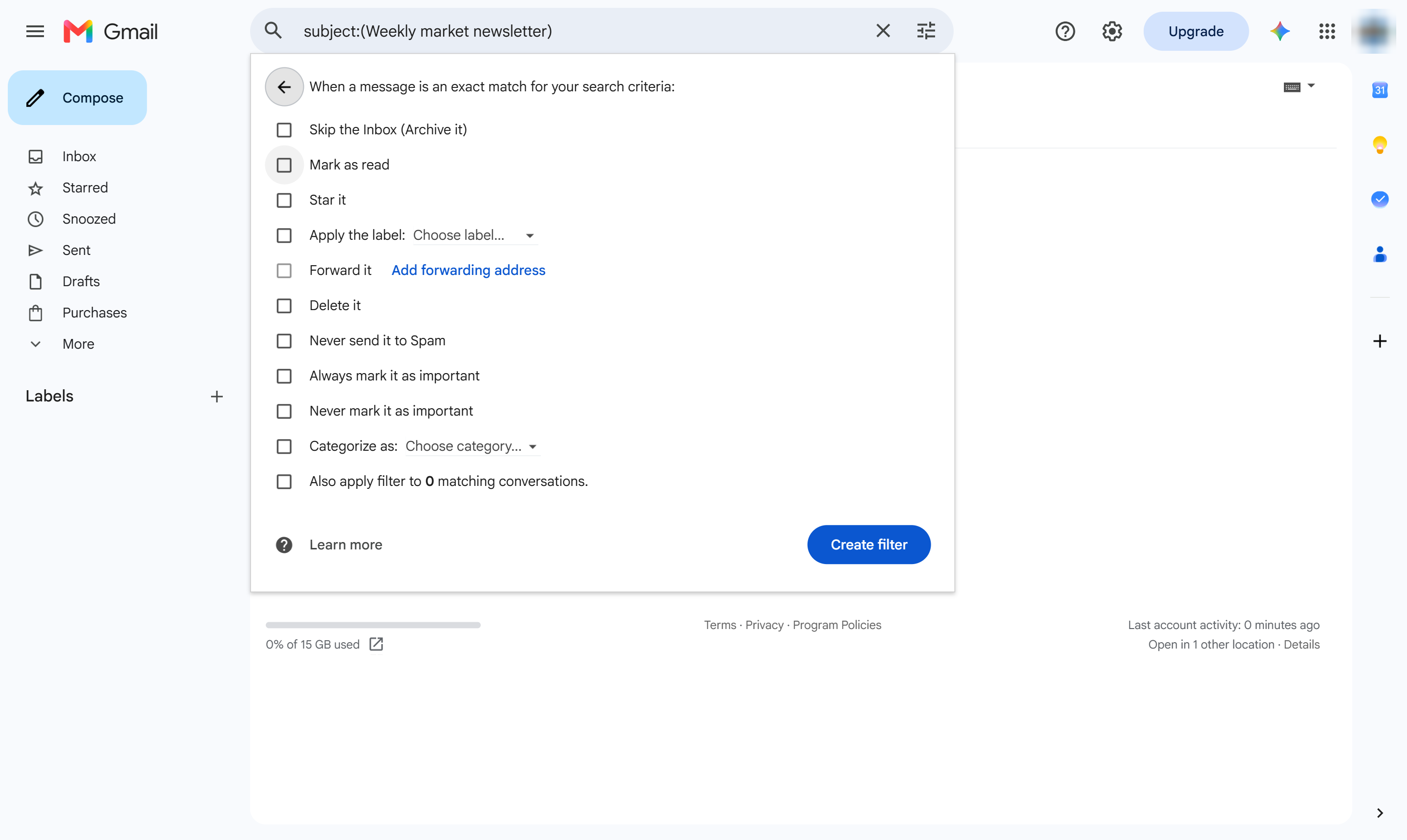
Pick the actions - here, Mark as read. You can also skip the inbox, star or label them.
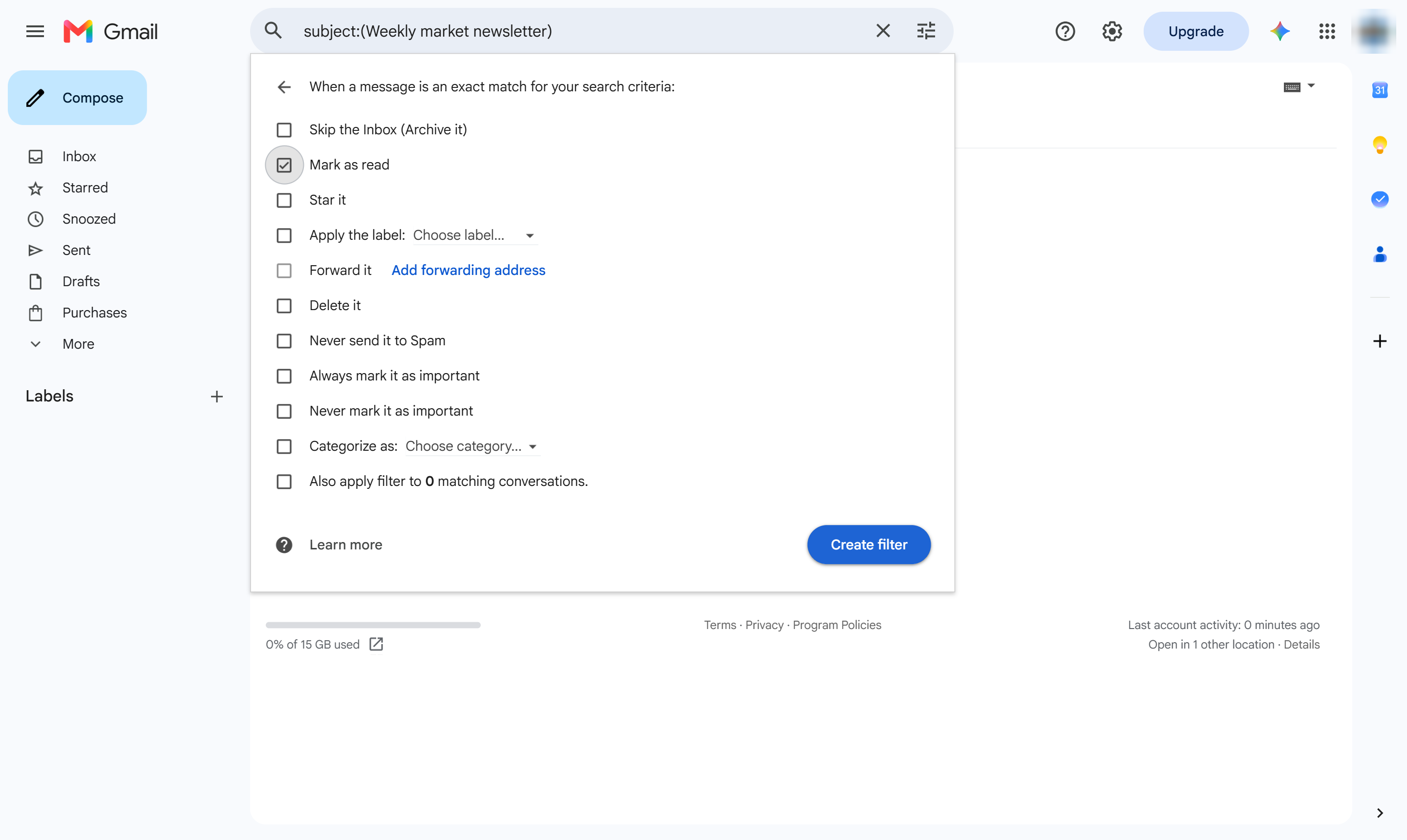
Click Create filter to save the rule.
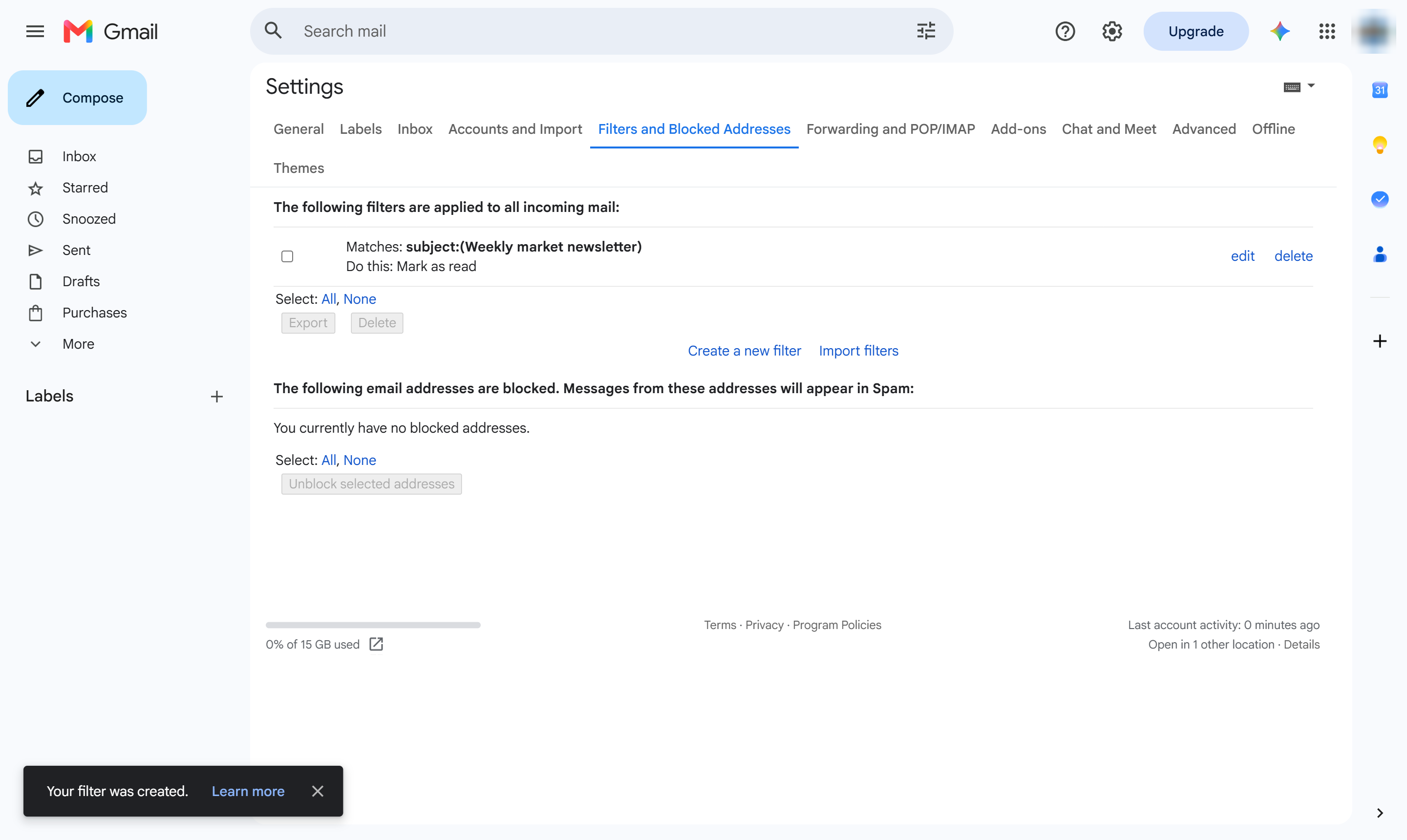
The rule is listed under Filters and works on every new email that matches. Click edit or delete next to it to change it.
Duplicate this template, swap in your own screens, and share it with your team. Free to start — no credit card.
Fill out the form and we'll get back to you as soon as possible.
Tell us about your team and we'll find the right plan together.