1
Navigate to the Gmail Inbox
Open your Gmail Inbox to view, manage, and respond to your incoming email messages.
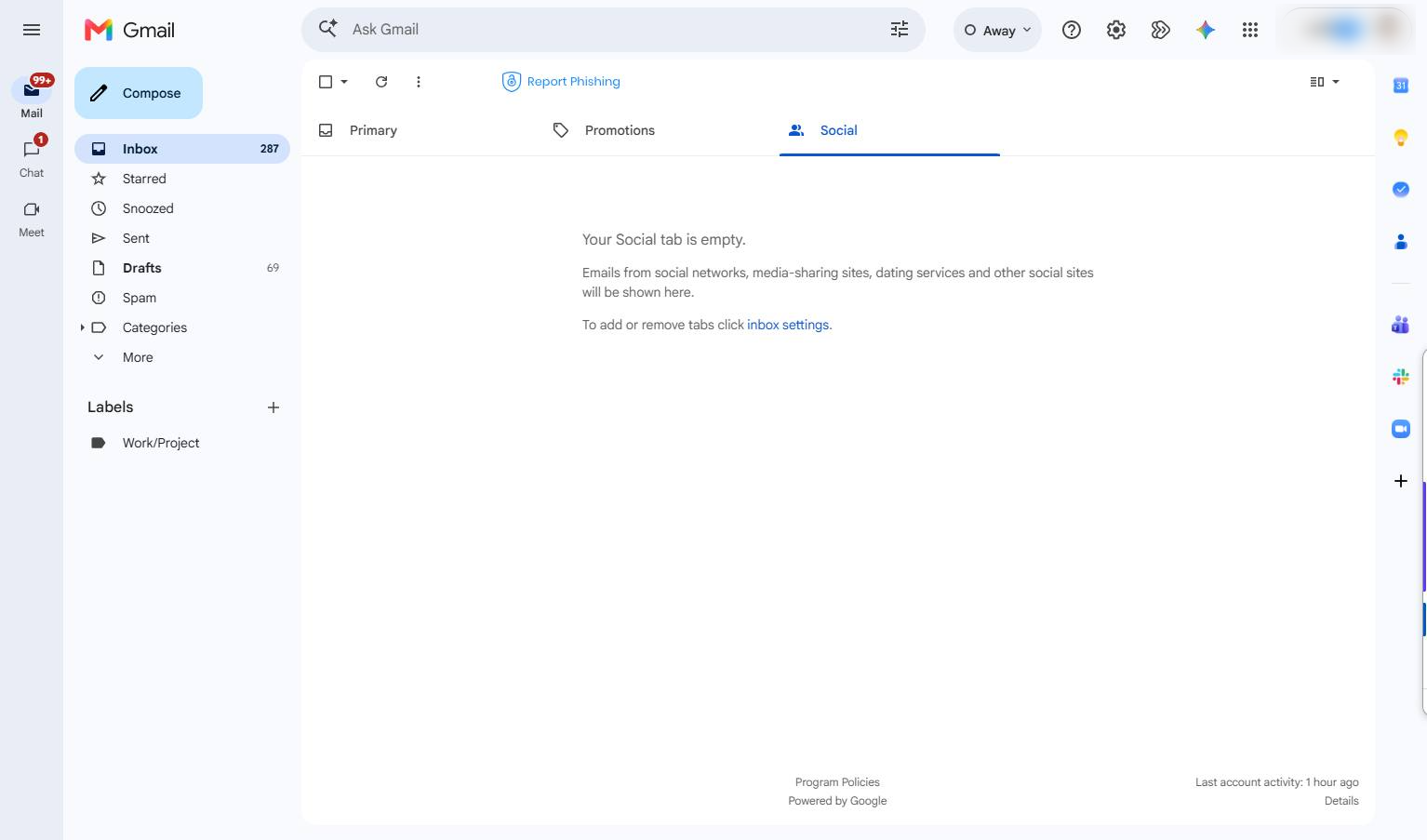

This guide walks you through how to request a read receipt when sending an email in Gmail. You will learn how to compose a new message, fill in the Subject field, enable the read receipt option from the more options menu, and send your email. This feature is only available to Google Workspace users.
Open your Gmail Inbox to view, manage, and respond to your incoming email messages.
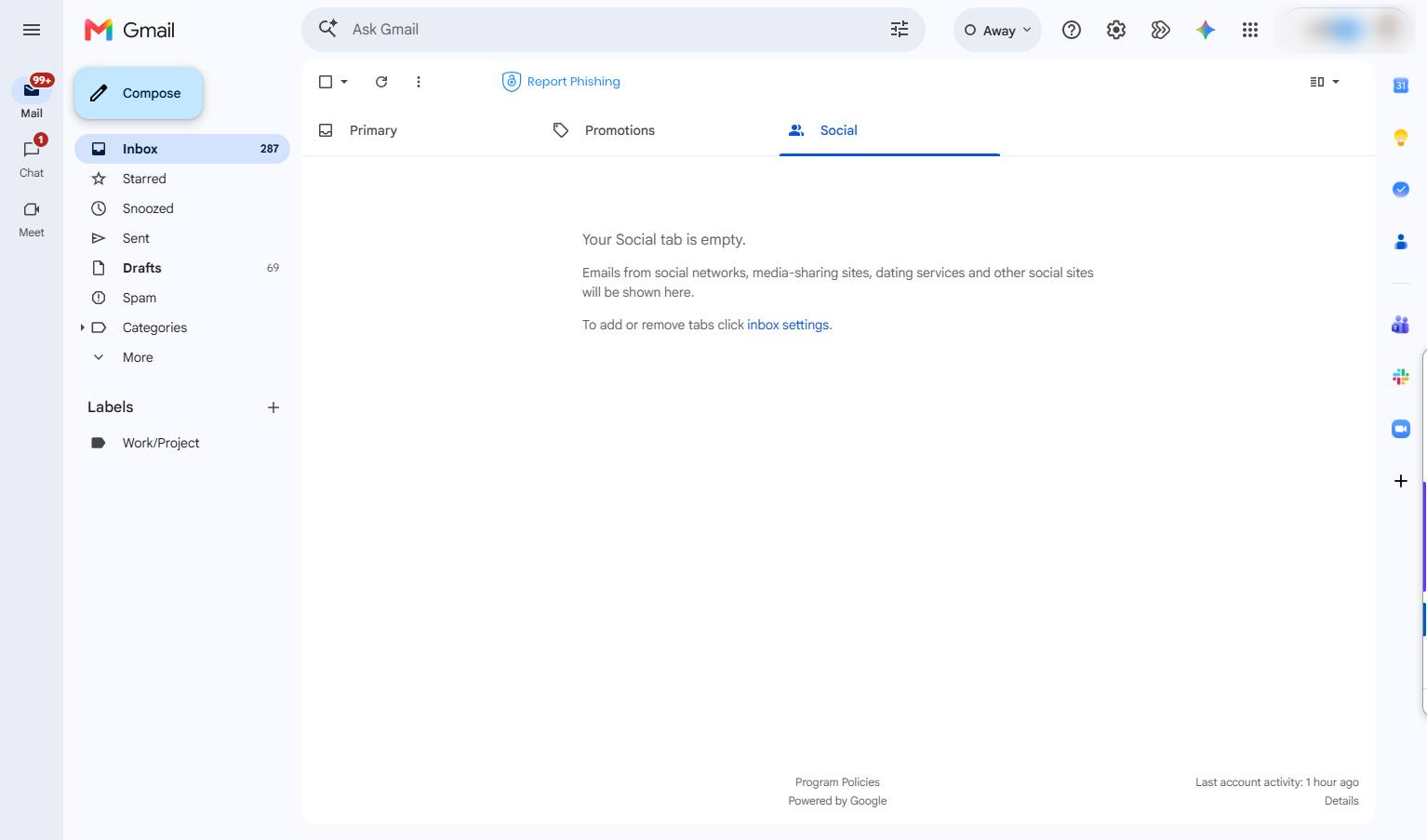
Click the Compose button in the left sidebar to start writing a new email.
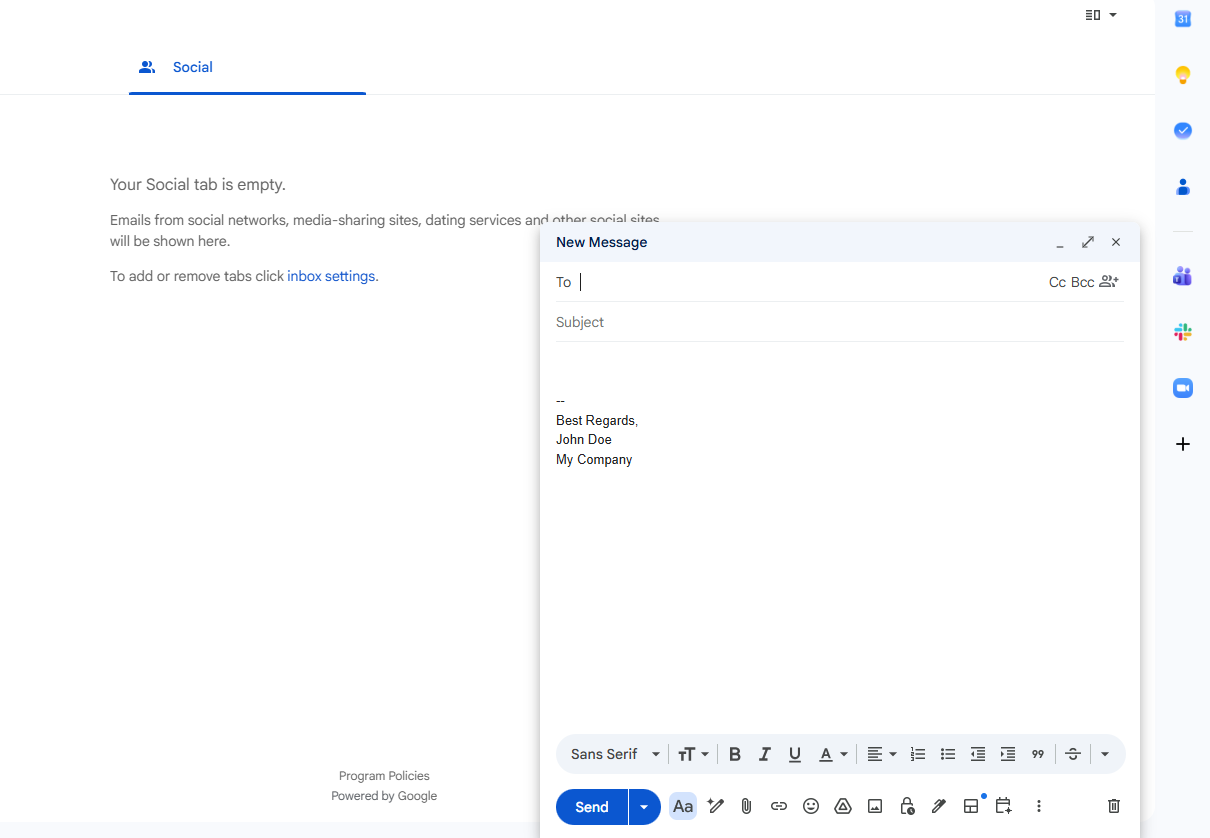
Click the "To" field in the New Message window to enter the recipient's email address.
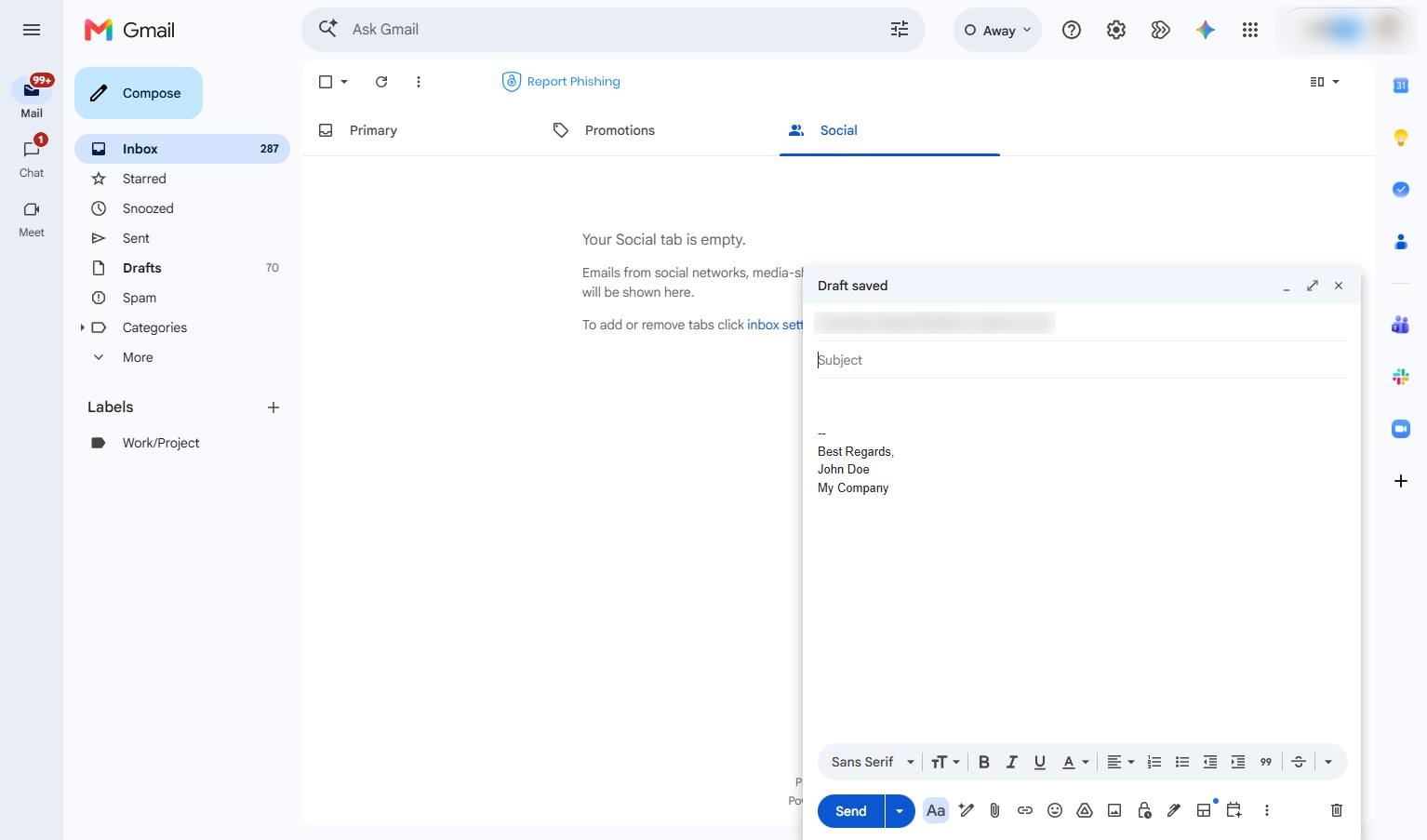
Click the Subject input field in the compose window to enter the subject of your email.
Click the three vertical dots icon in the bottom toolbar of the compose window to open the options menu.
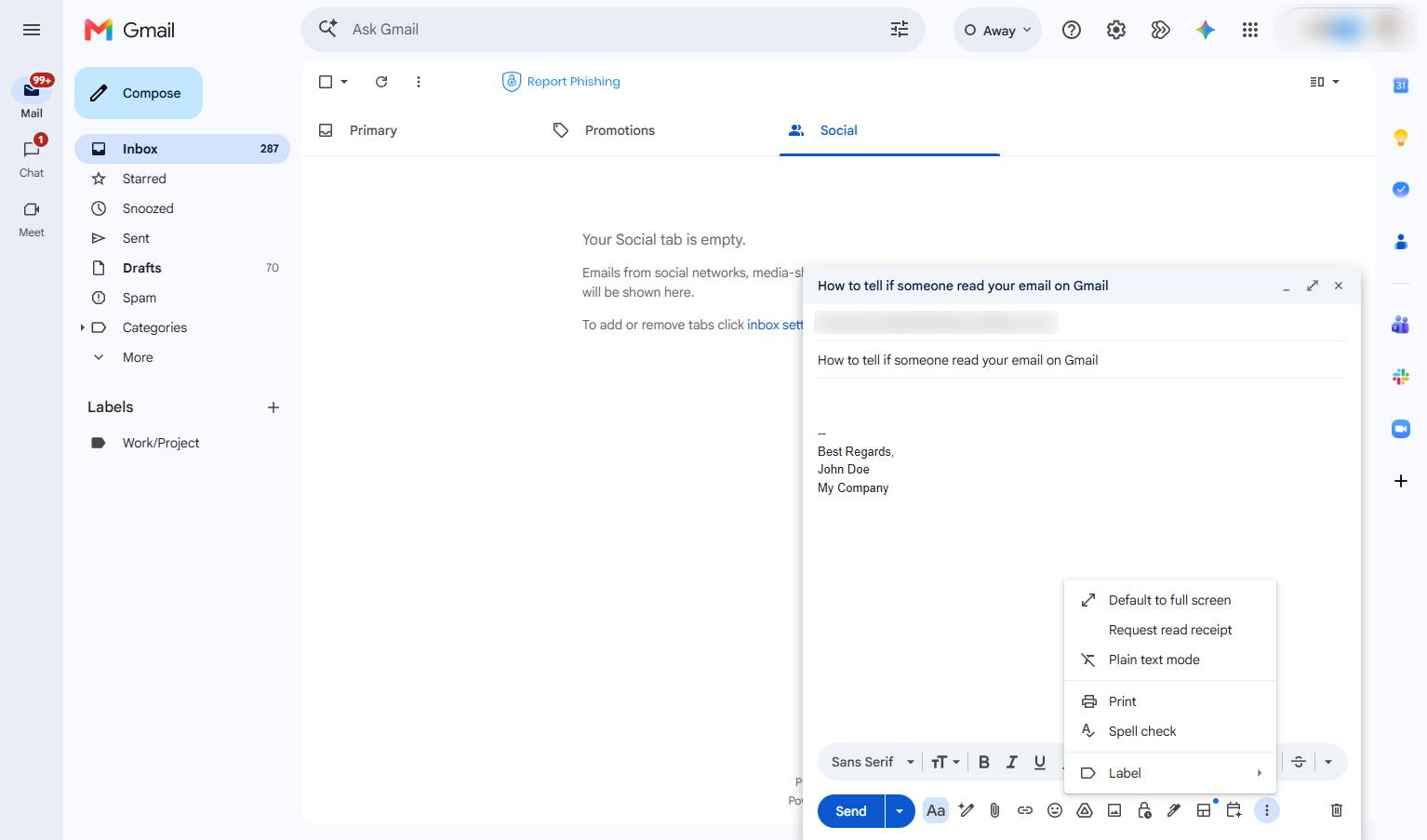
Click the "Request read receipt" option in the dropdown menu to track when your email is opened.
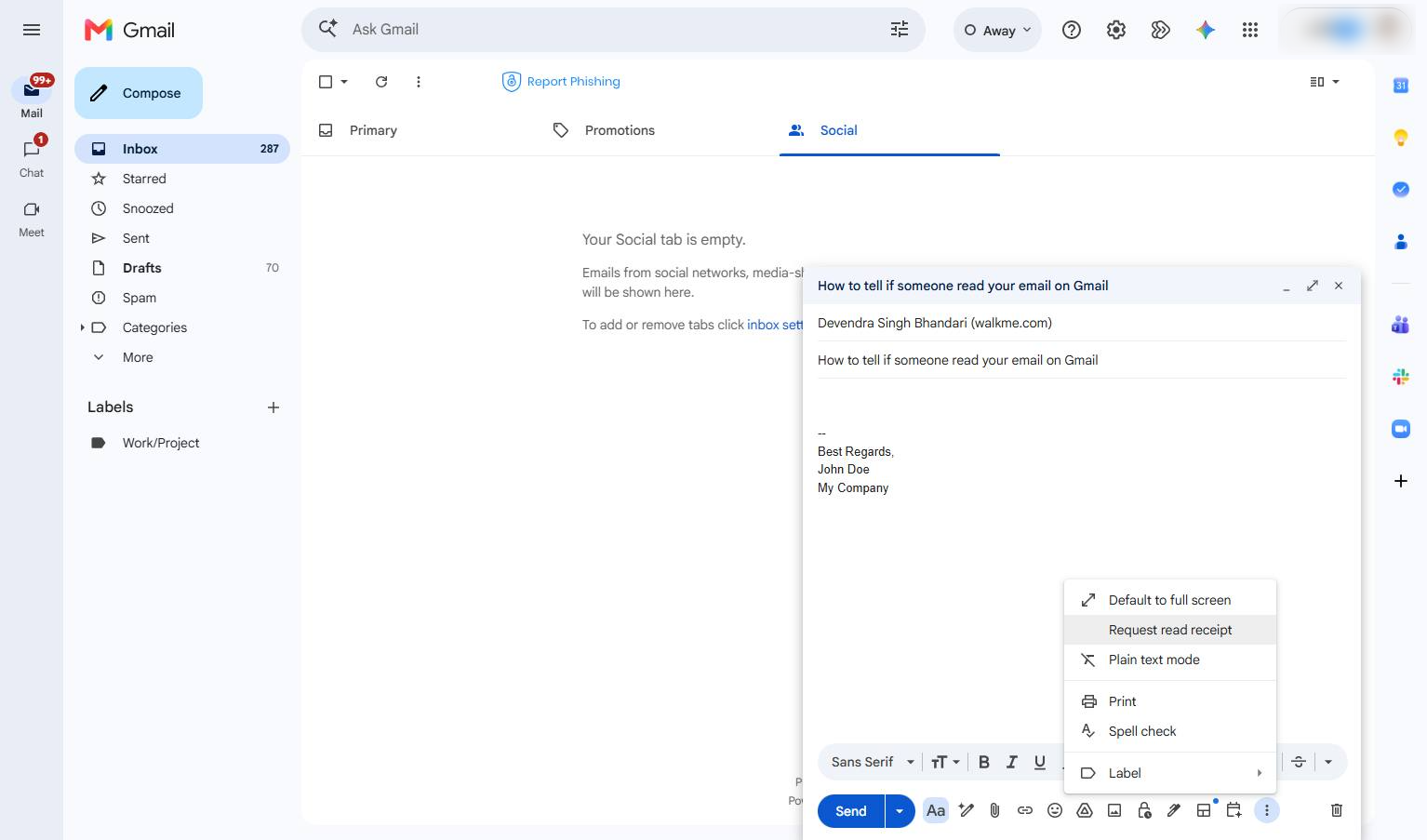
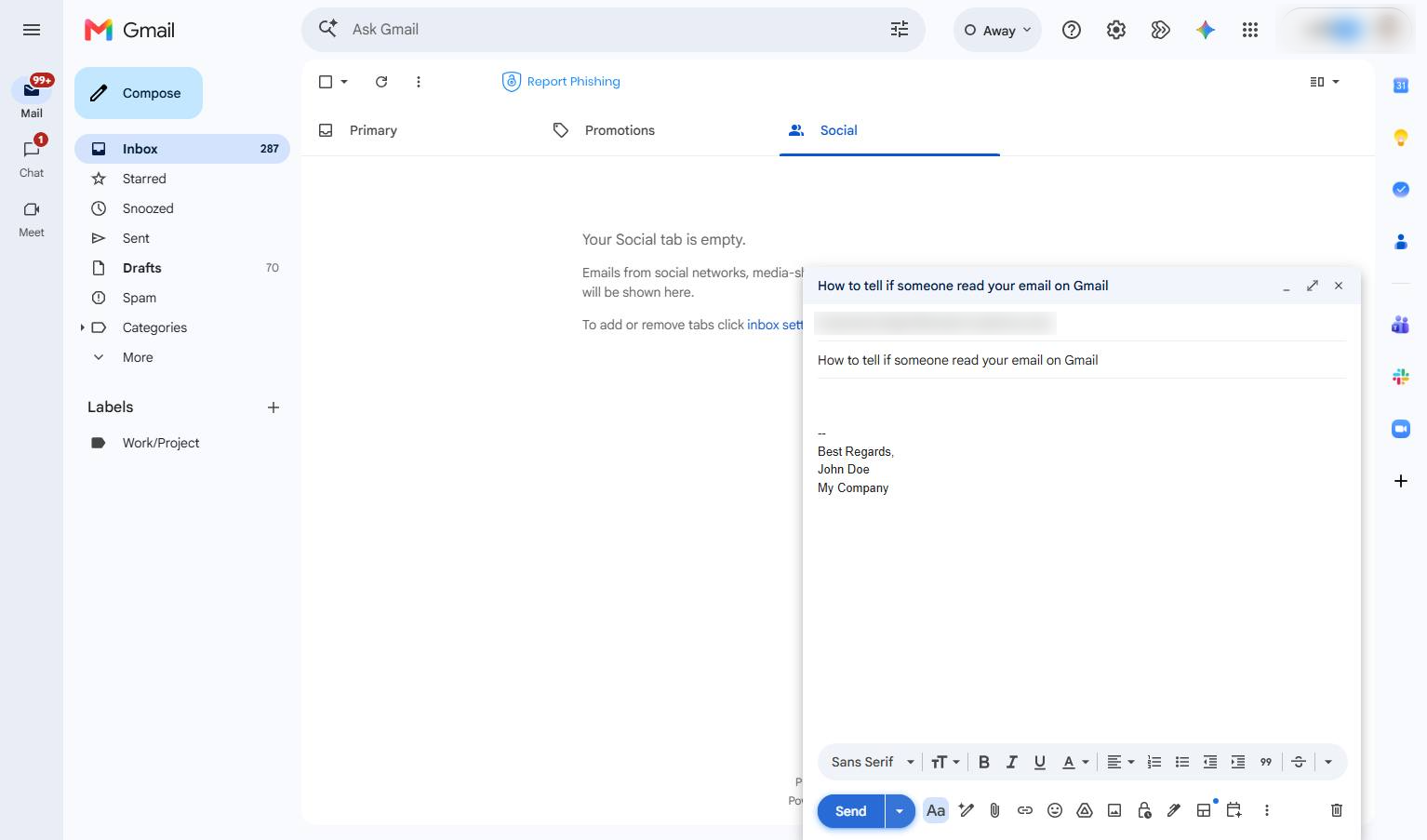
Click the Send button at the bottom of the compose window to send your email.
Duplicate this template, swap in your own screens, and share it with your team. Free to start — no credit card.
Fill out the form and we'll get back to you as soon as possible.
Tell us about your team and we'll find the right plan together.