1
Click the cell for the result.
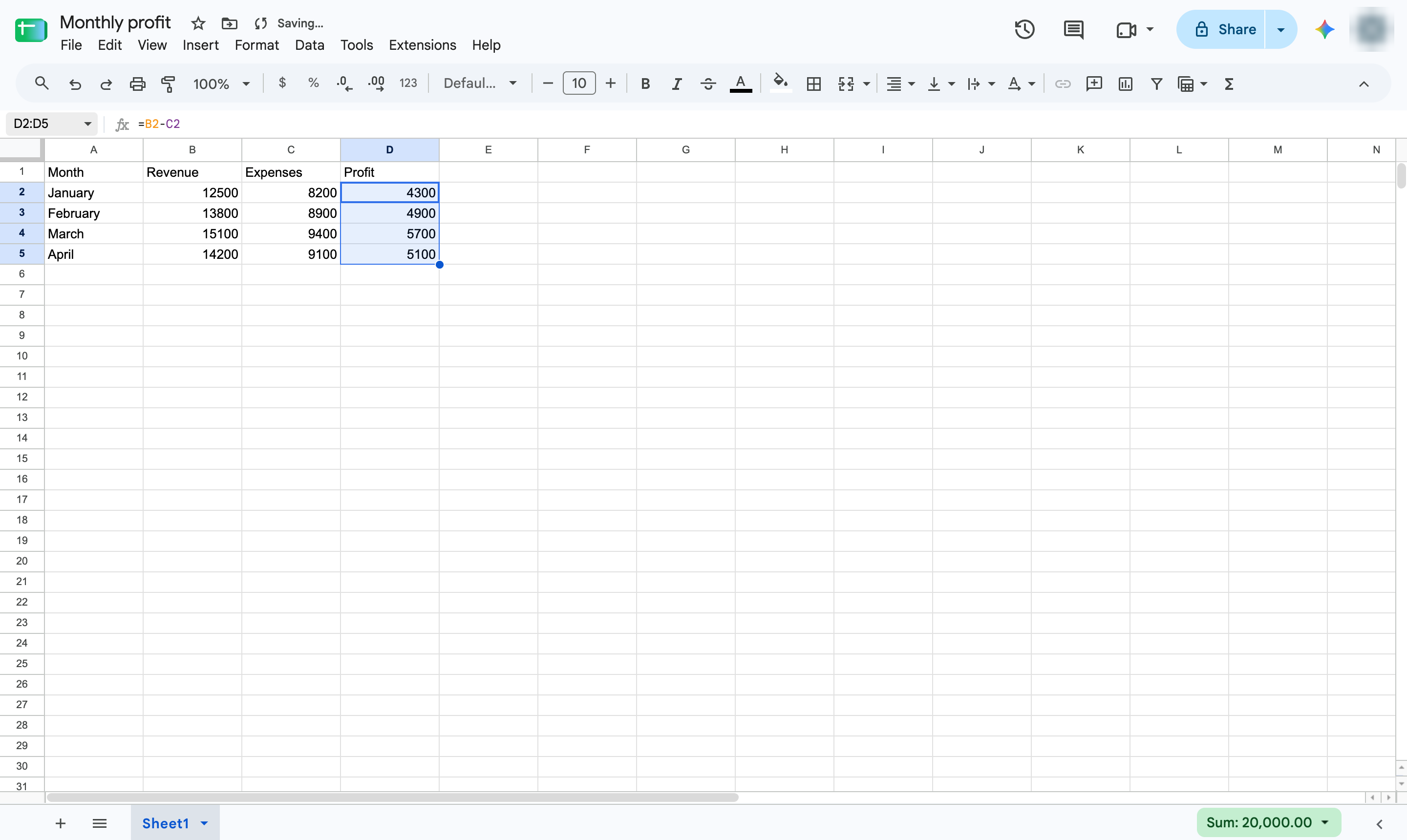
Select the empty cell where the difference should appear - here, D2.
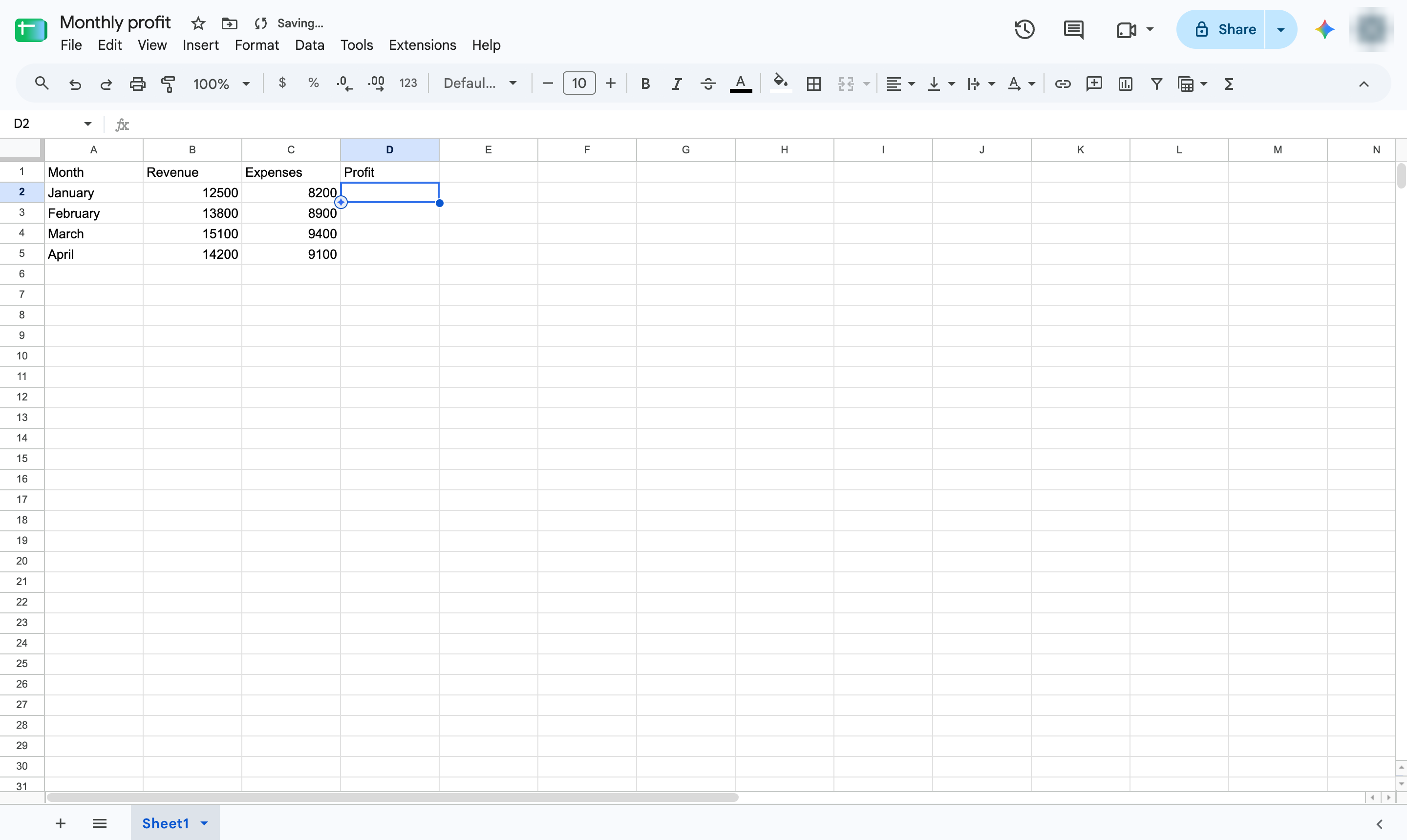

Subtract one cell from another with a simple formula, then copy it down the column to get the difference for every row.
Select the empty cell where the difference should appear - here, D2.
Type =B2-C2: an equals sign, the cell to subtract from, a minus sign, and the cell to subtract.
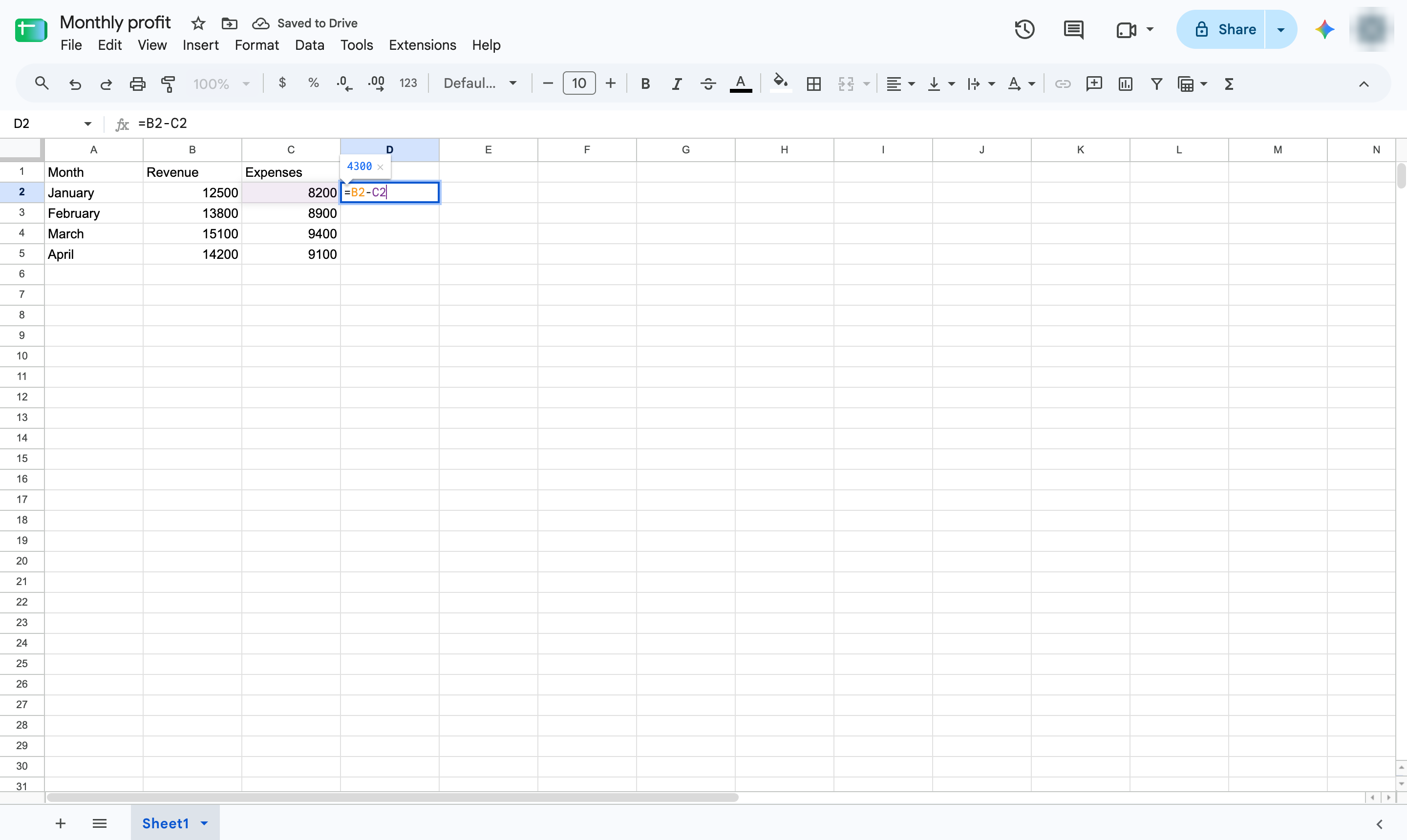
Press Enter to calculate. The cell now shows the difference between the two values.
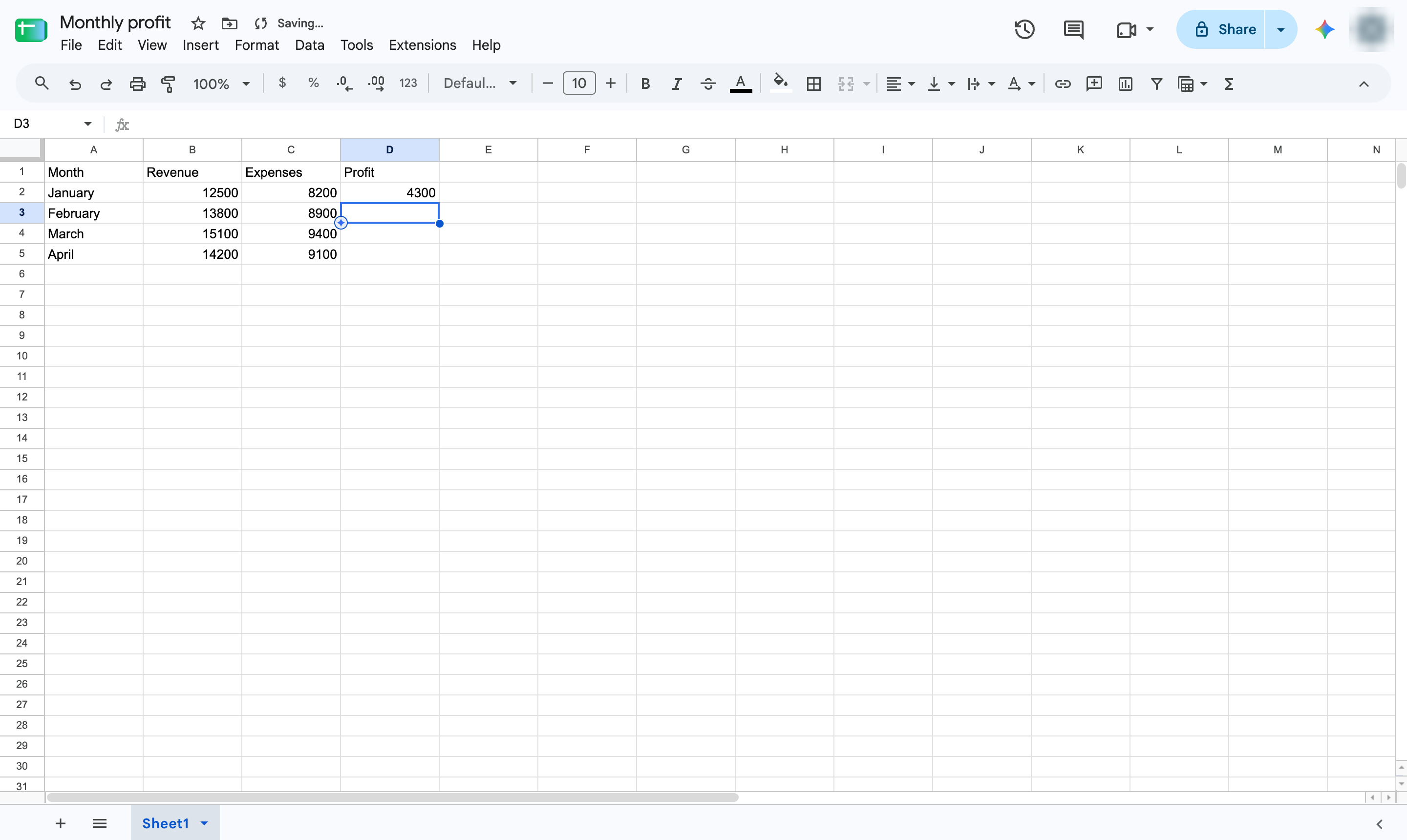
Drag from D2 down to D5 to select the formula and the cells that should get it.
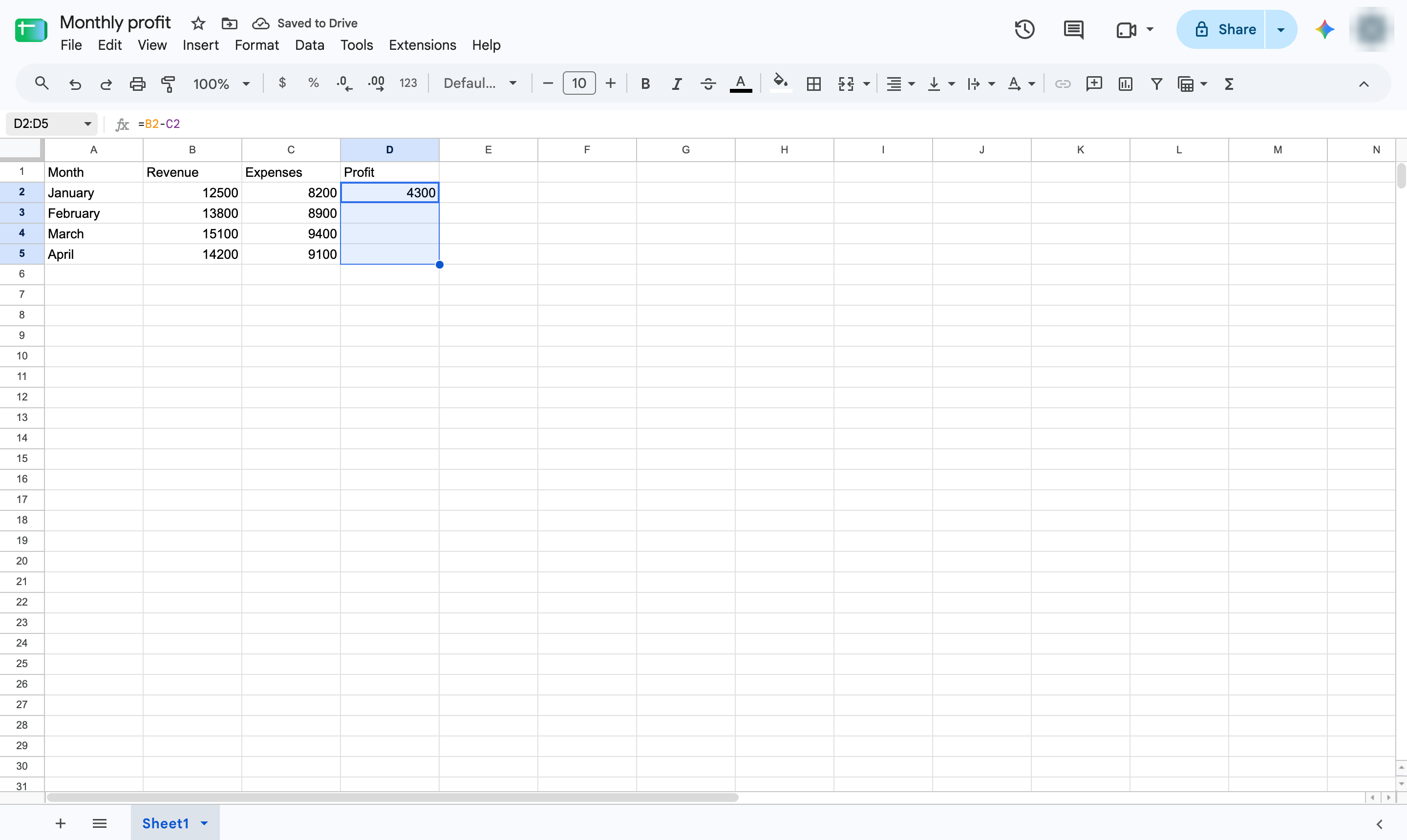
Press Ctrl + D (Cmd + D on Mac). Every row now shows its own profit.
Duplicate this template, swap in your own screens, and share it with your team. Free to start — no credit card.
Fill out the form and we'll get back to you as soon as possible.
Tell us about your team and we'll find the right plan together.