1
Open or Navigate to Excel window
Open Microsoft Word or switch to the active Excel window on your taskbar to begin editing your worksheet.
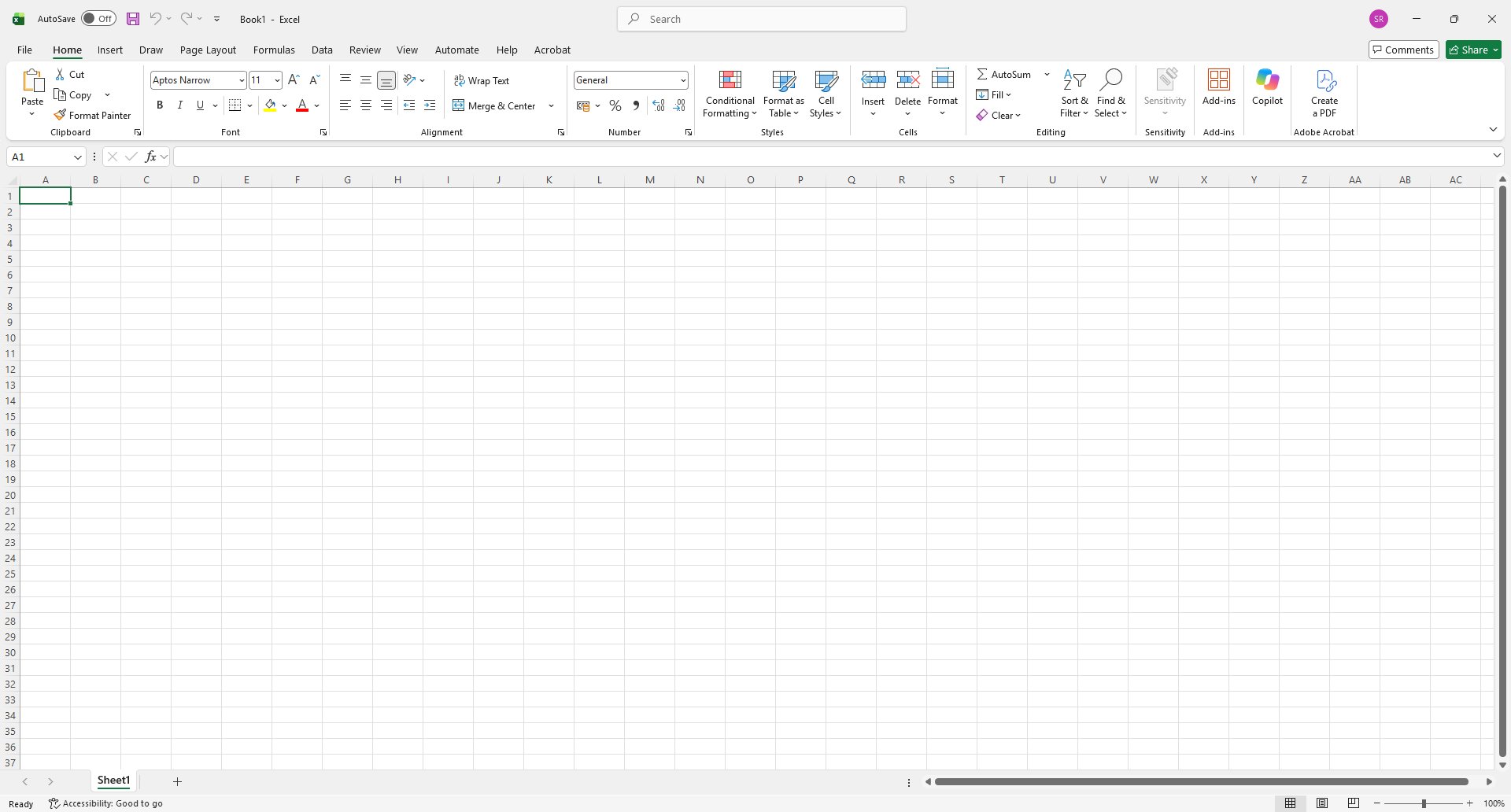

Learn how to subtract cell values in Microsoft Excel by entering data and creating a basic subtraction formula. This step-by-step tutorial guides you through inputting numerical values into cells and writing a formula to calculate the difference. By following these steps, you will be able to perform basic subtraction operations to manage your spreadsheet data efficiently.
Open Microsoft Word or switch to the active Excel window on your taskbar to begin editing your worksheet.
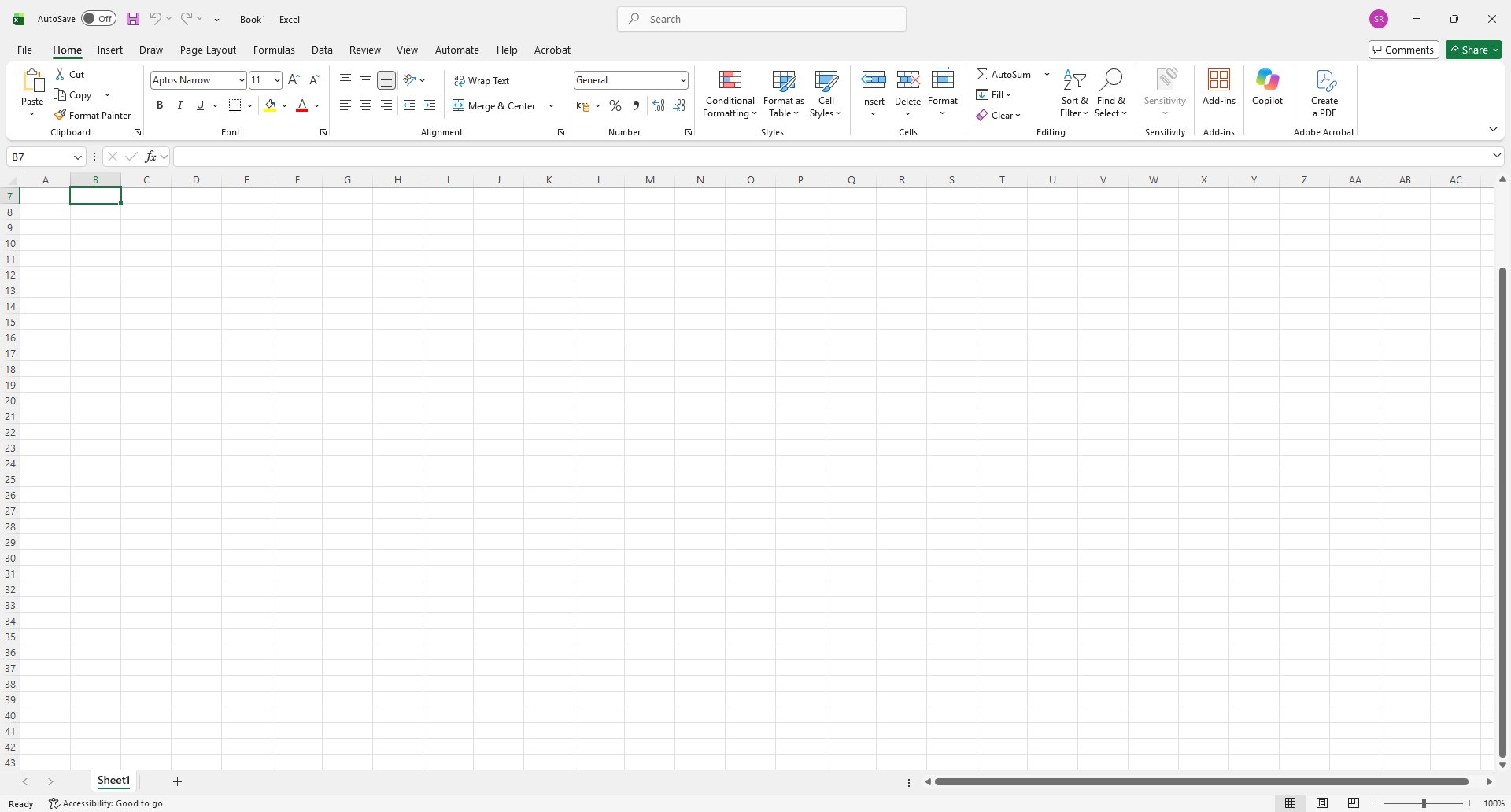
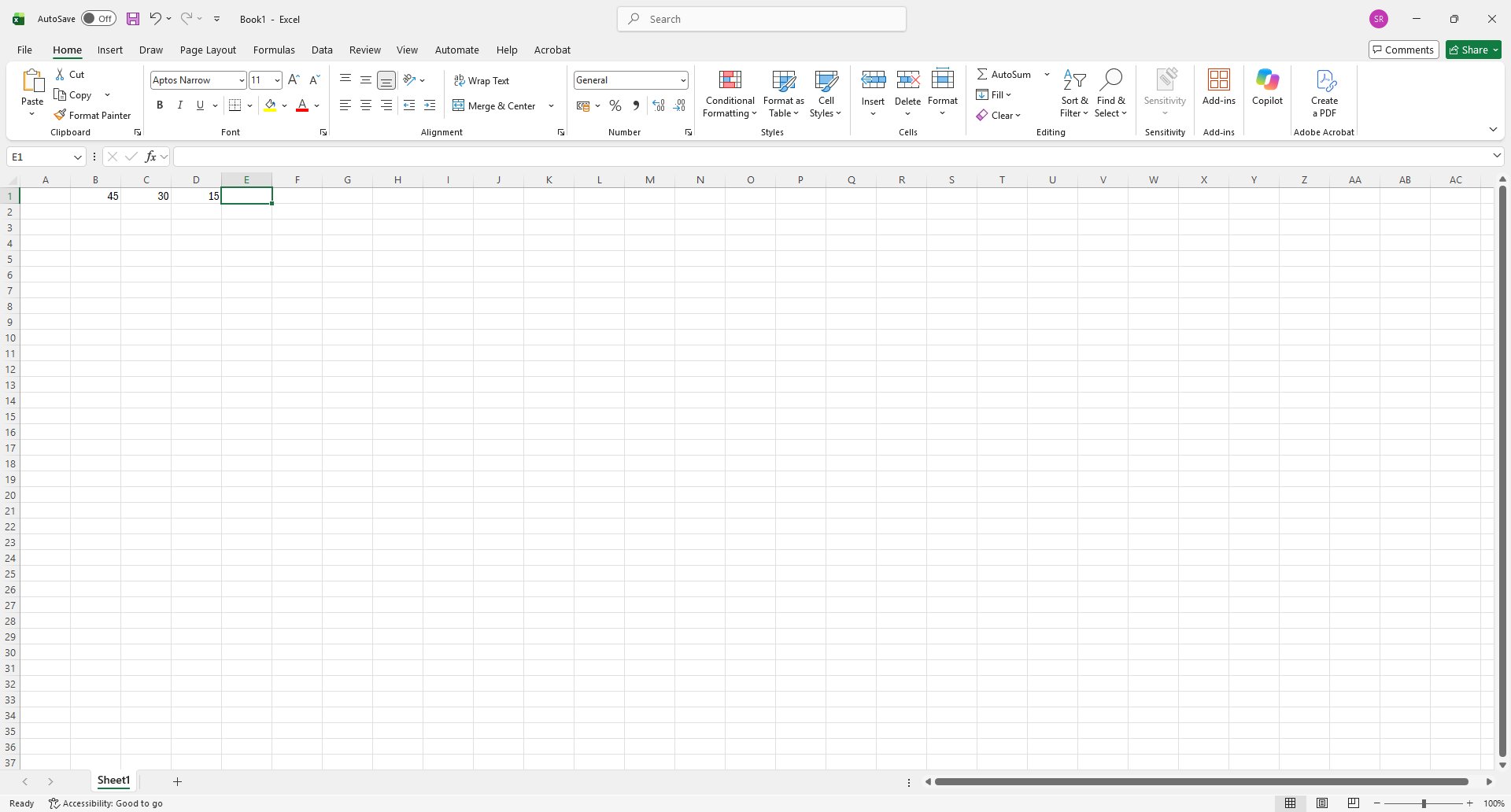
Click on cell in the spreadsheet grid to select it, then type any number. For example I enter 45
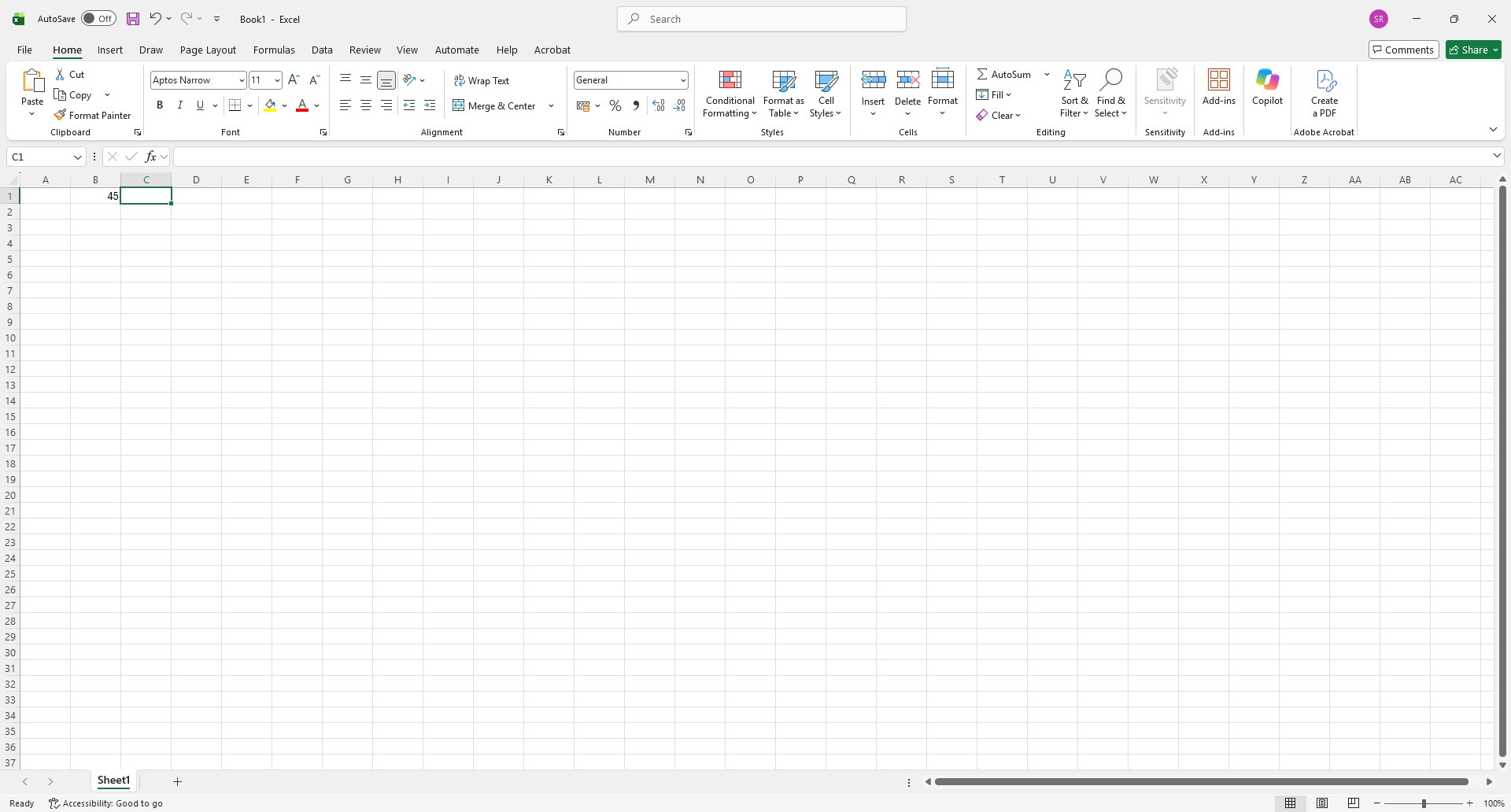
Click on another cell to select it, then type the value you want to subtract from your first number. For example I enter 30
Click on cell D1 where you want the result to appear, then type =B1-C1 and press Enter.
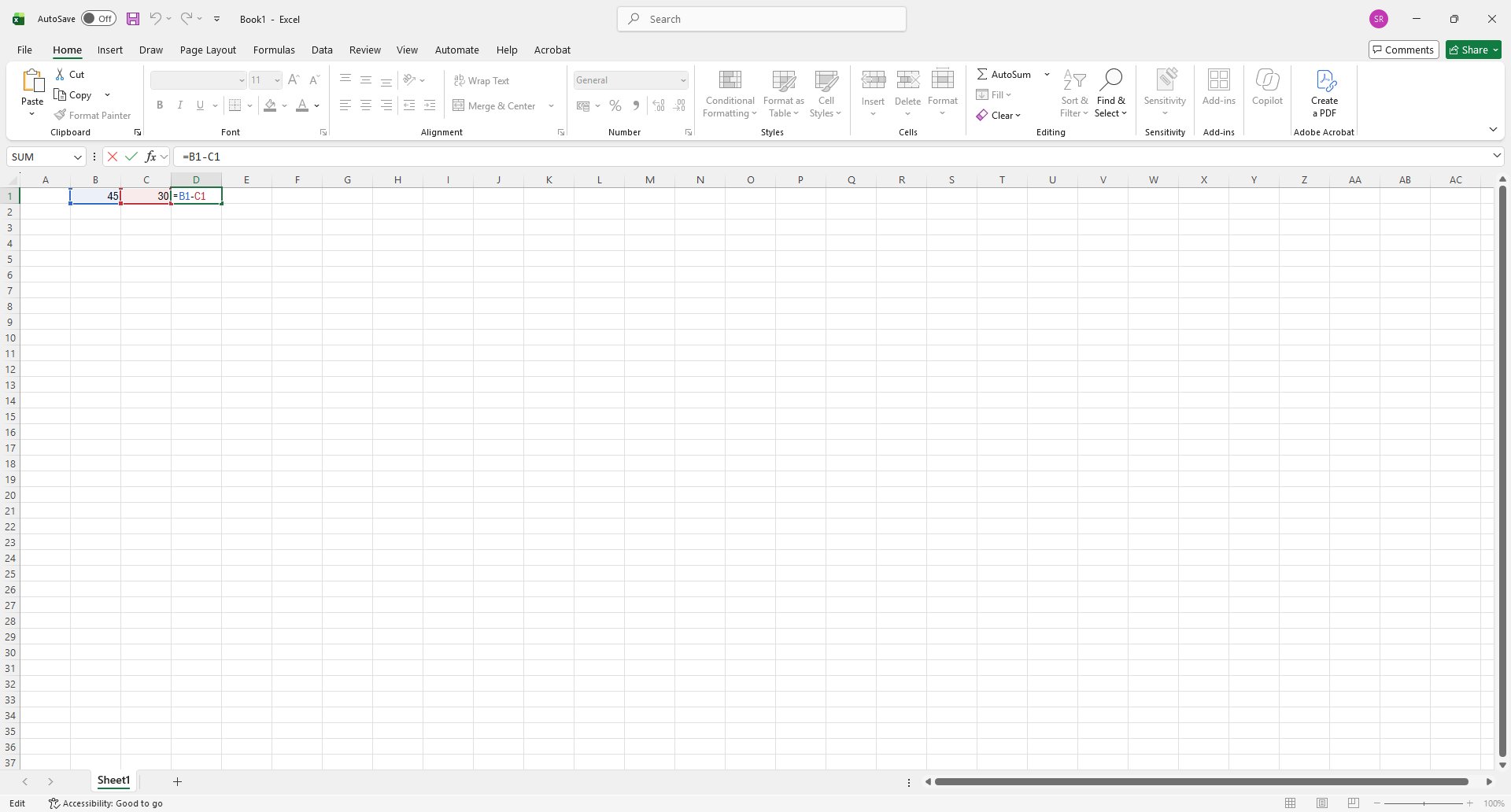
Press Enter to calculate the formula and display the calculated difference in cell D1.
Duplicate this template, swap in your own screens, and share it with your team. Free to start — no credit card.
Fill out the form and we'll get back to you as soon as possible.
Tell us about your team and we'll find the right plan together.