1
There are two ways to "strikethrough" text in Google Docs
There are two ways to "strikethrough" text in Google Docs

This guide provides quick and efficient methods for adding strikethrough text in Google Docs. It explains both the menu option and keyboard shortcut, making it easy for users to cross out content in their documents.
There are two ways to "strikethrough" text in Google Docs
First open your document.
Then highlight the text you'd like to strikethrough.
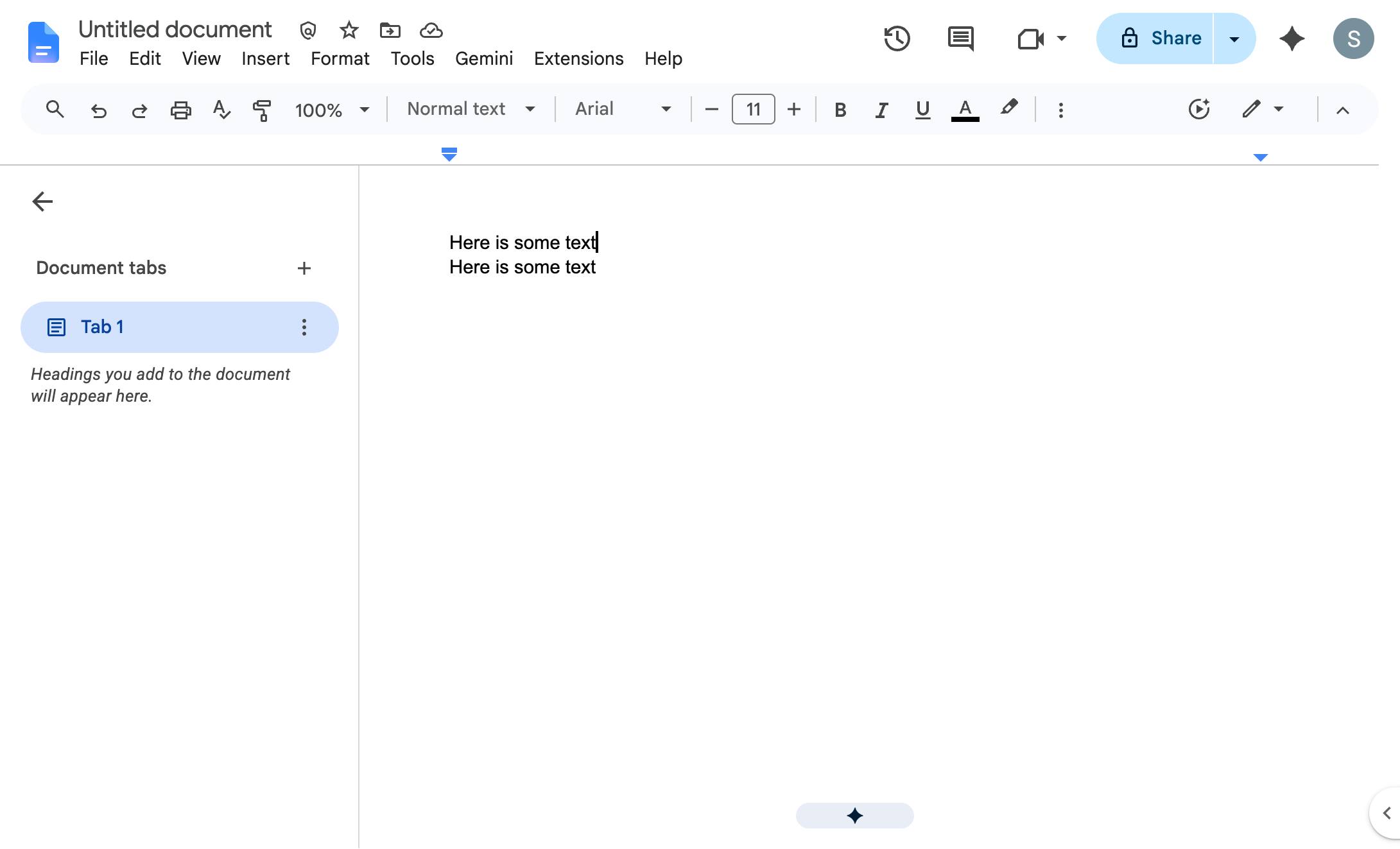
Click the Format menu in the top menu bar to view formatting options.
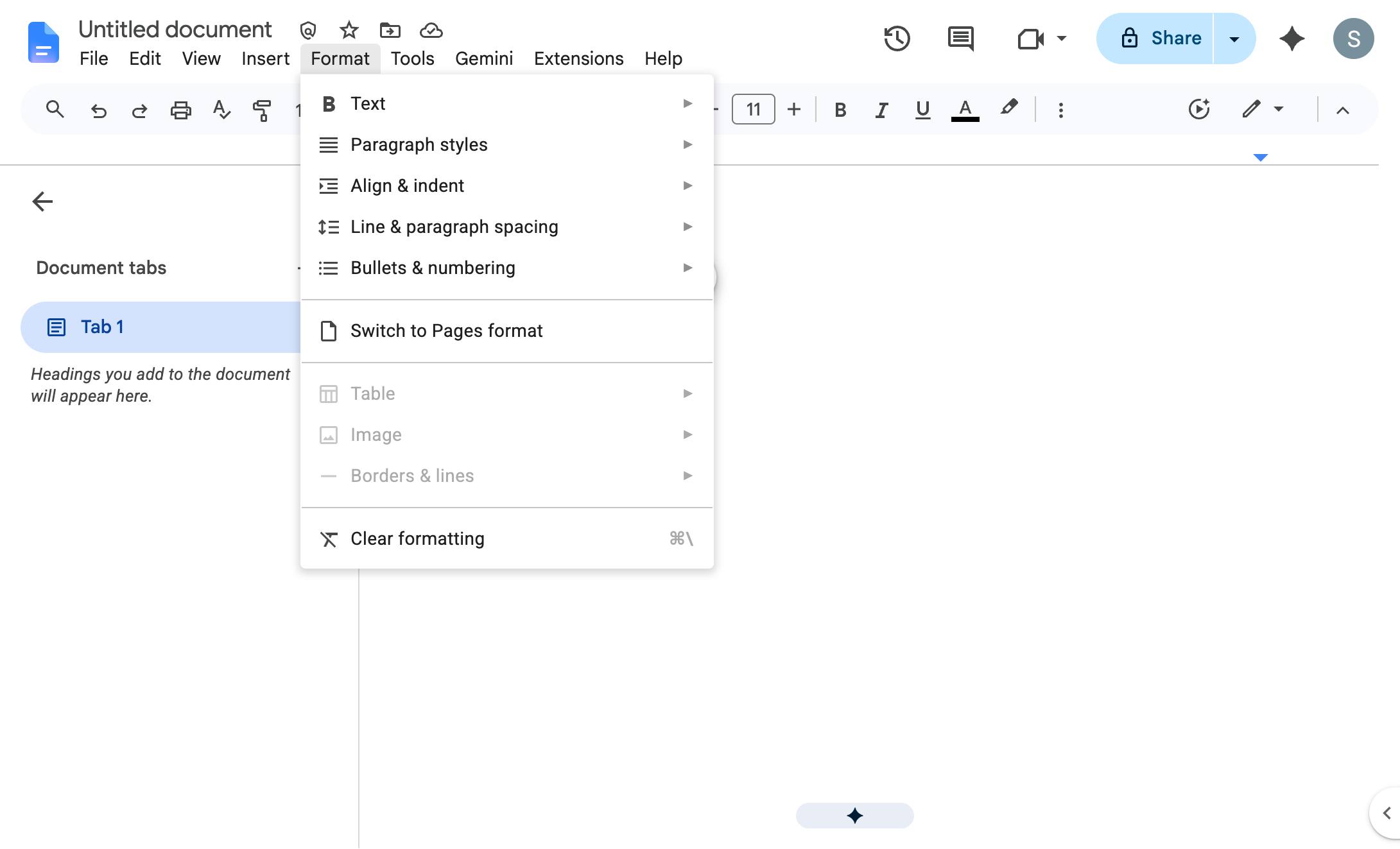
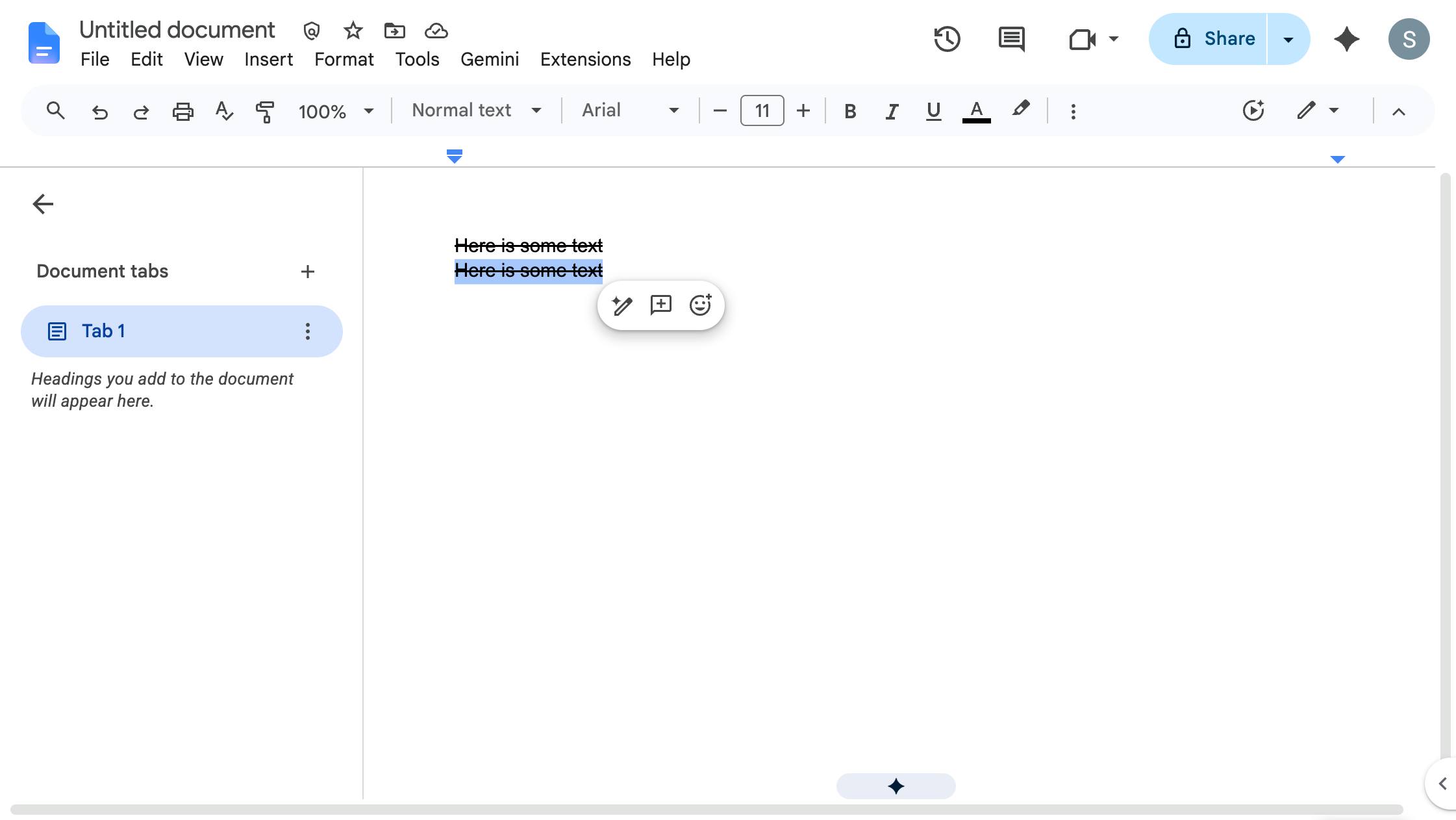
Choose the Strikethrough option from the Text submenu to apply this formatting to your selected text.
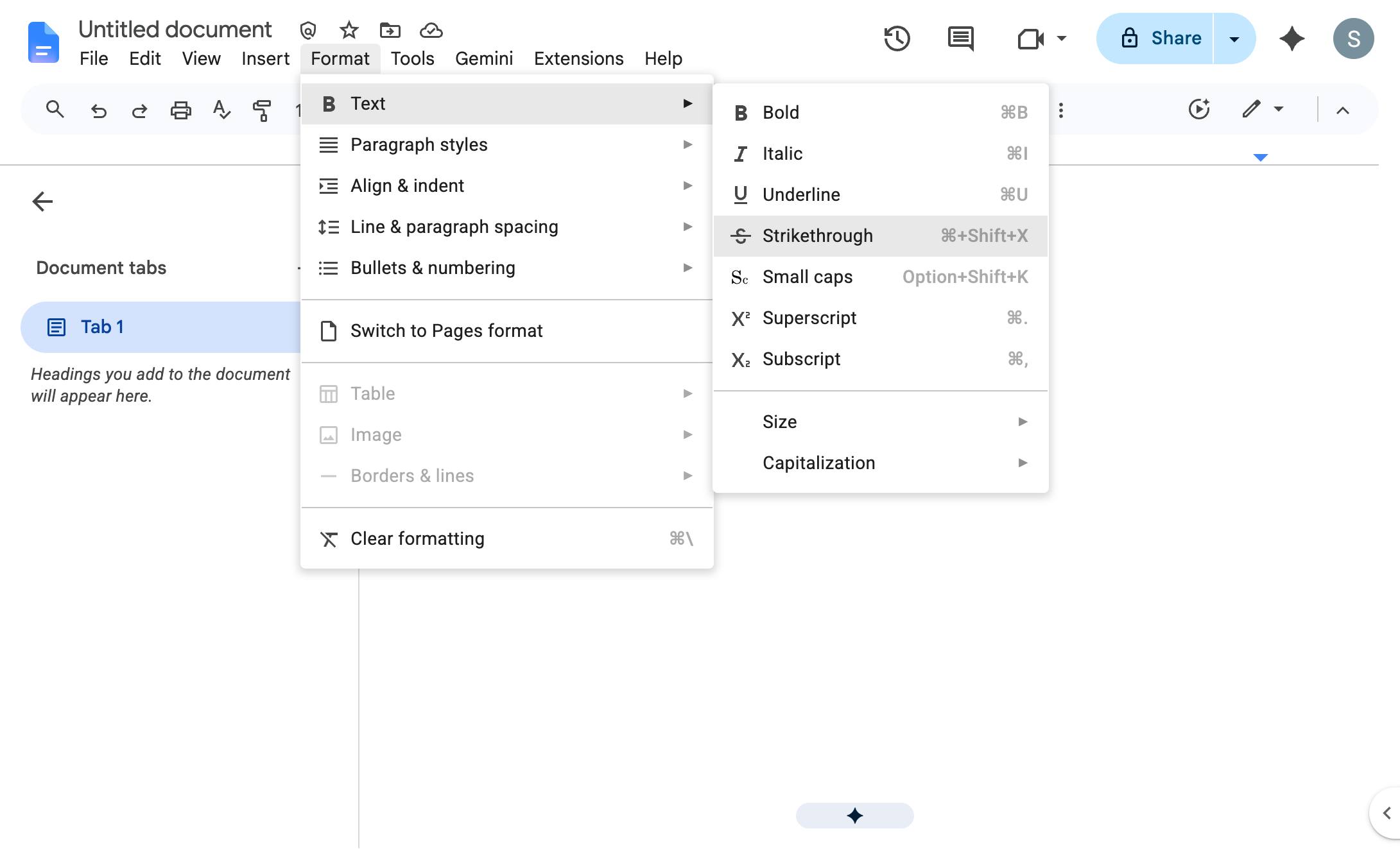
Even easier, just highlight the text and... press cmd + shift + X (or ctrl + shift + X on Windows)
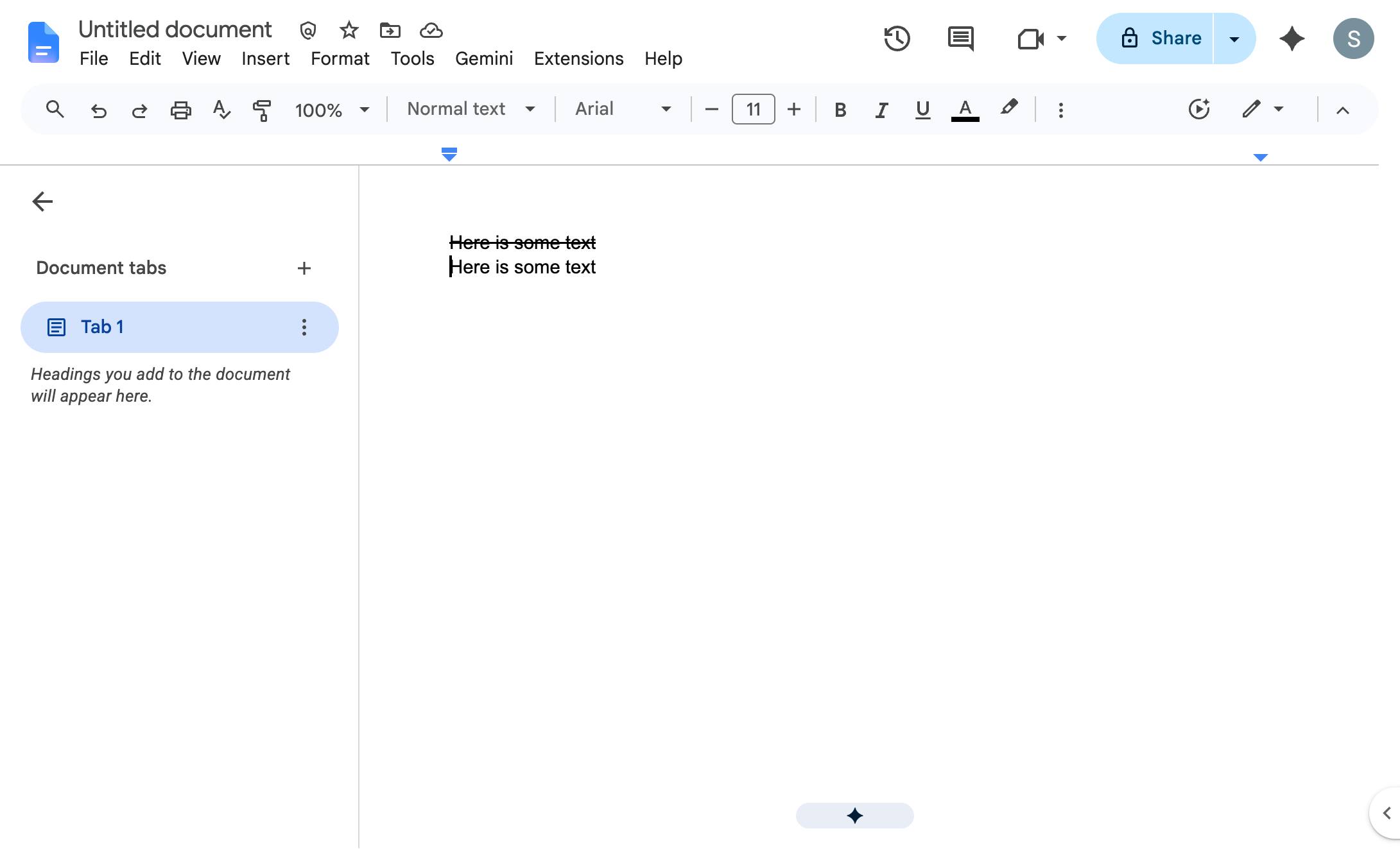
Done
Duplicate this template, swap in your own screens, and share it with your team. Free to start — no credit card.
Fill out the form and we'll get back to you as soon as possible.
Tell us about your team and we'll find the right plan together.