1
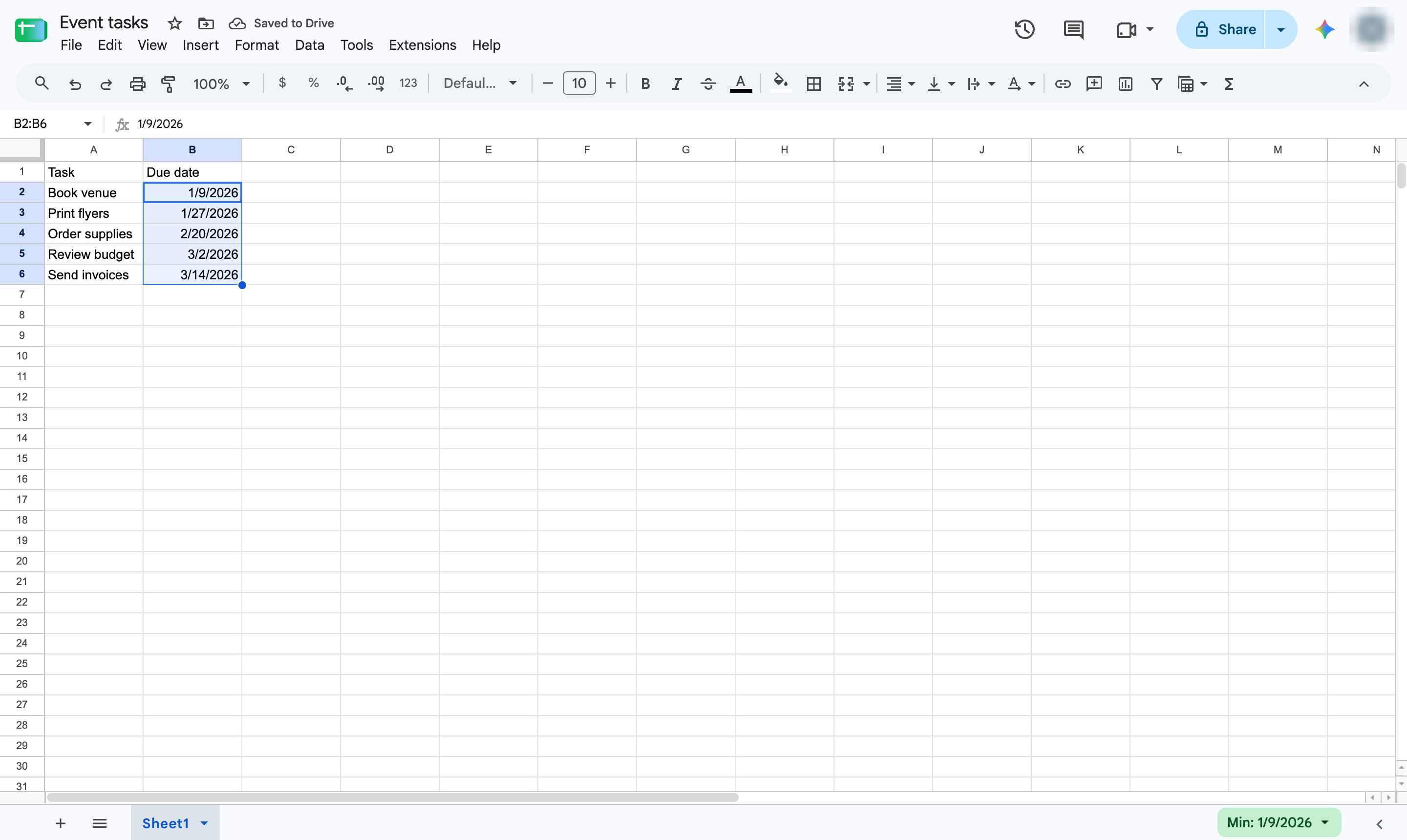
Select the table
Highlight the whole table, including the header row, so every row moves together.
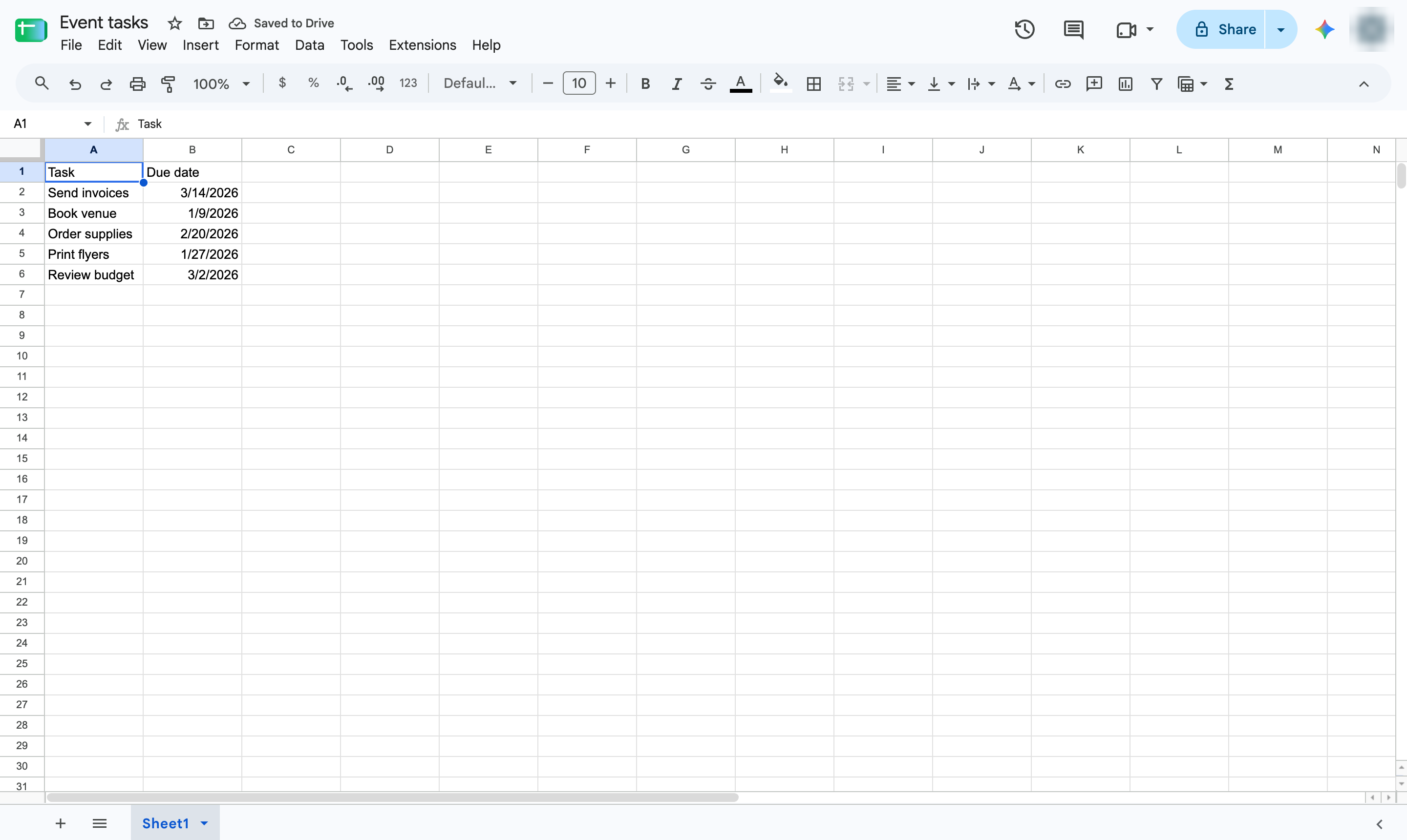

Put rows in date order with Data > Sort range, keeping the header row in place.
Highlight the whole table, including the header row, so every row moves together.
Open the Data menu.
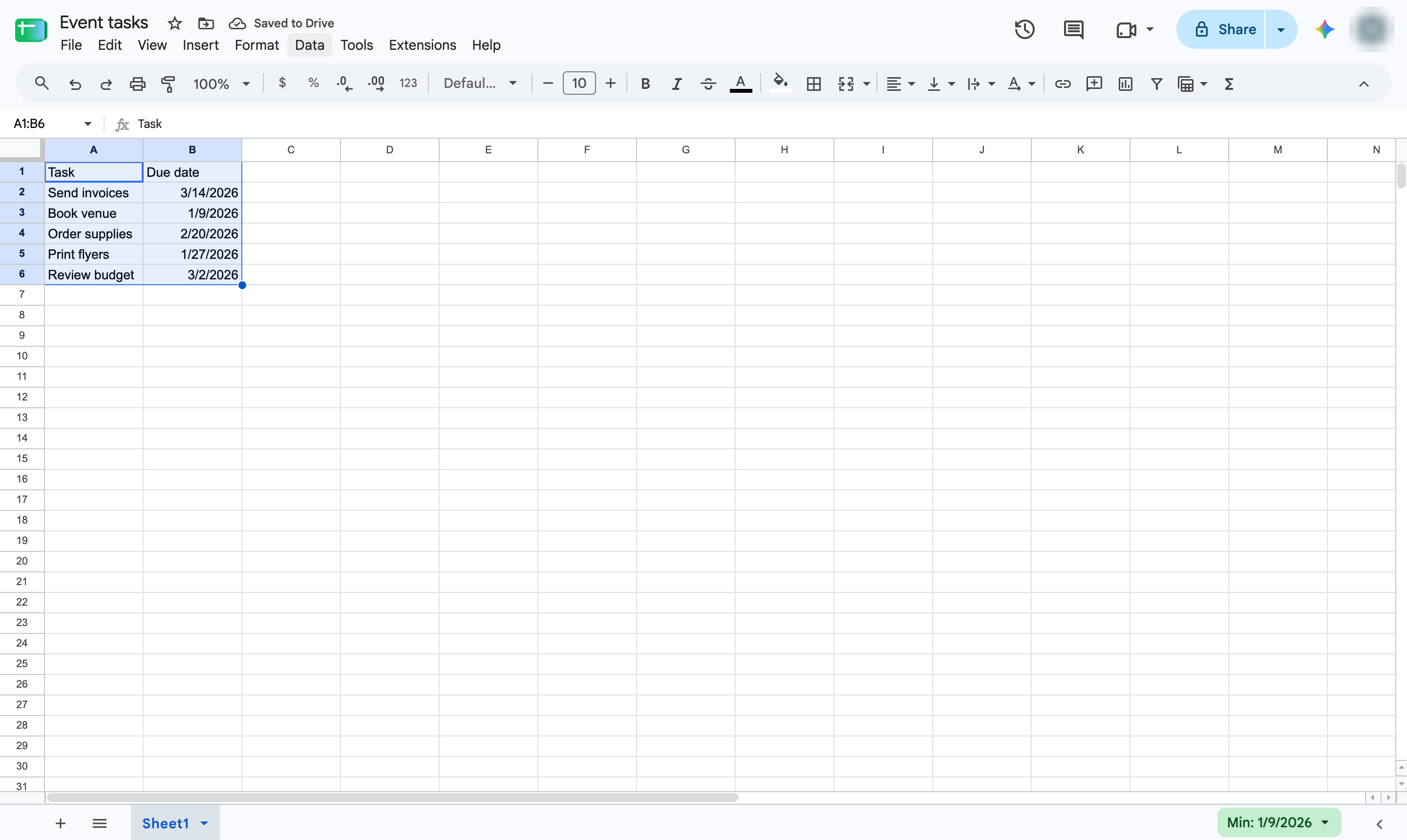
Hover over Sort range.
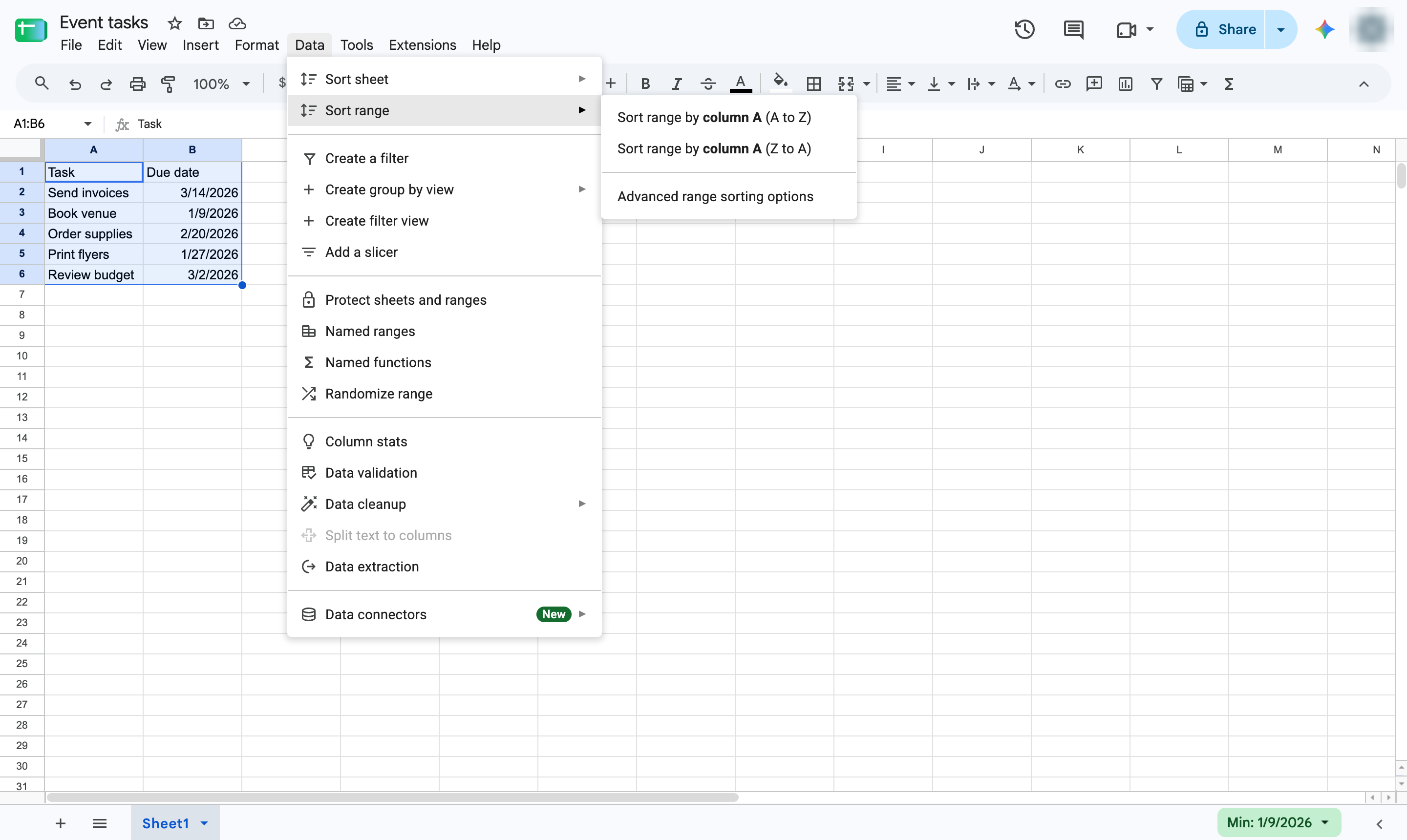
Choose Advanced range sorting options.
Tick Data has header row so the headers stay at the top.

Open the Sort by list.

Choose the column that holds the dates.

A to Z puts the oldest date first; Z to A puts the newest first.

Click Sort.

The rows are now in date order, earliest first.
Duplicate this template, swap in your own screens, and share it with your team. Free to start — no credit card.
Fill out the form and we'll get back to you as soon as possible.
Tell us about your team and we'll find the right plan together.