1
Launch Outlook Application
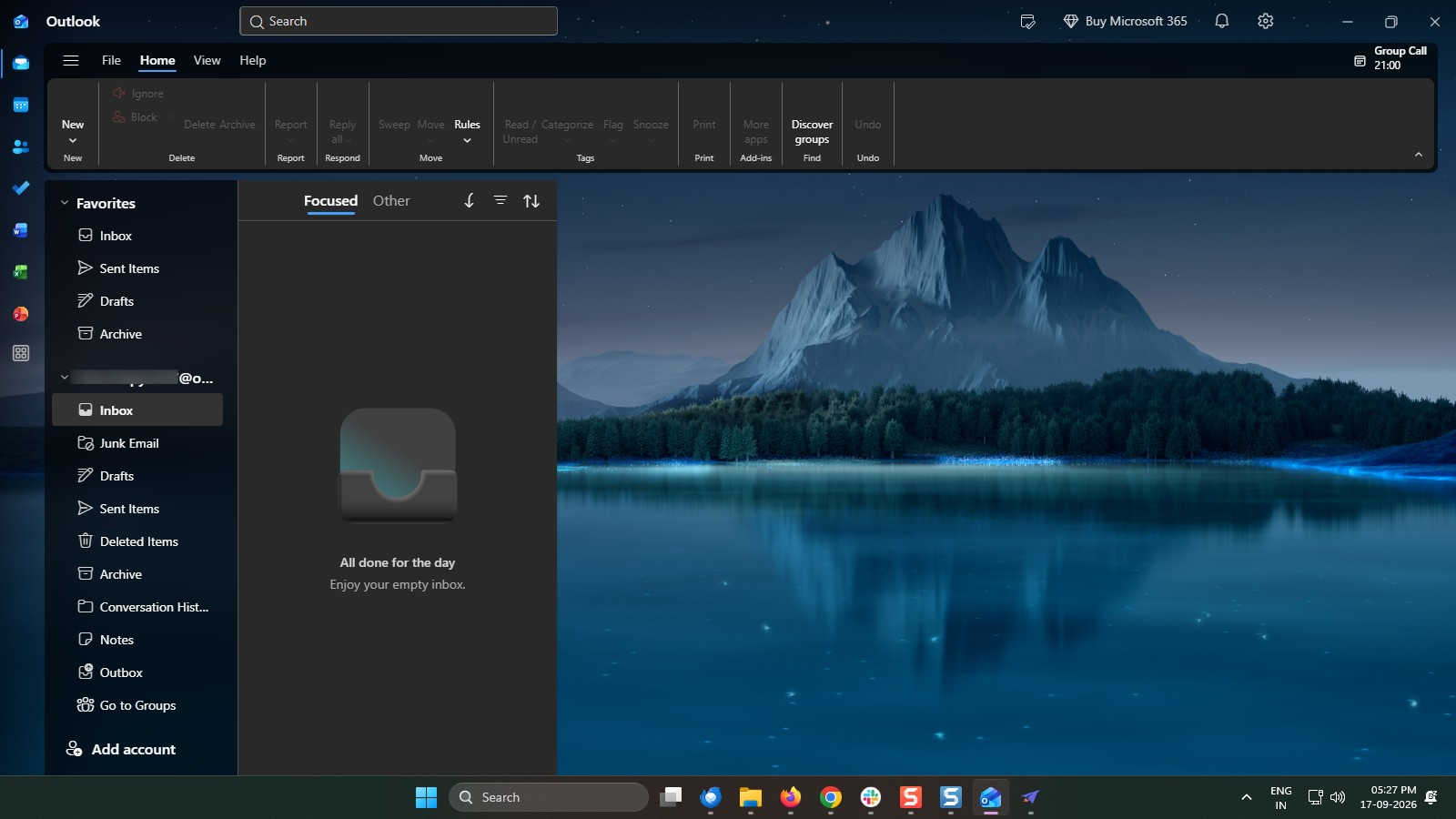
Open the Outlook app.
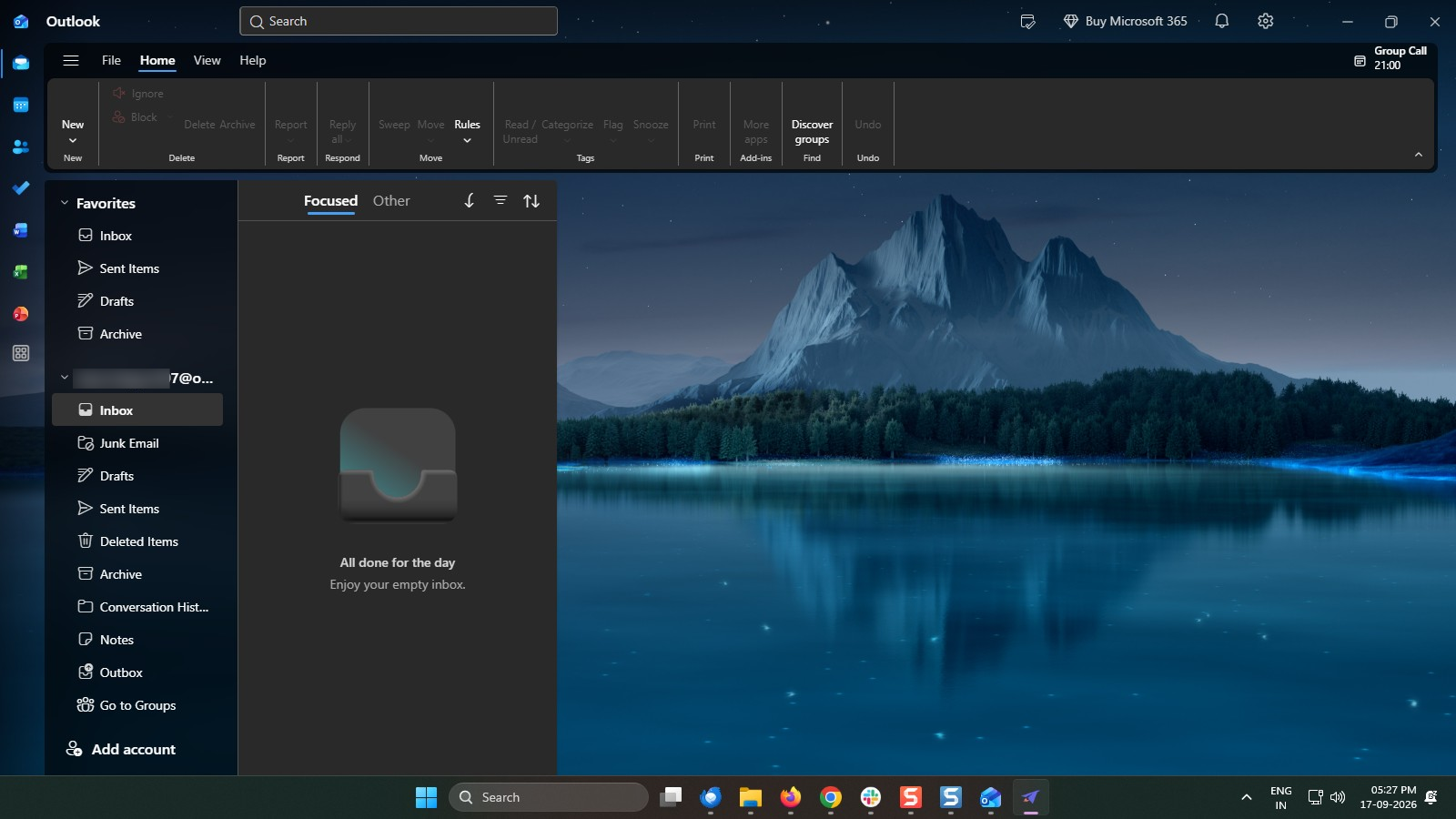

Learn how to share your Outlook calendar with colleagues and external contacts to streamline meeting coordination, prevent scheduling conflicts, and improve team visibility.
Open the Outlook app.
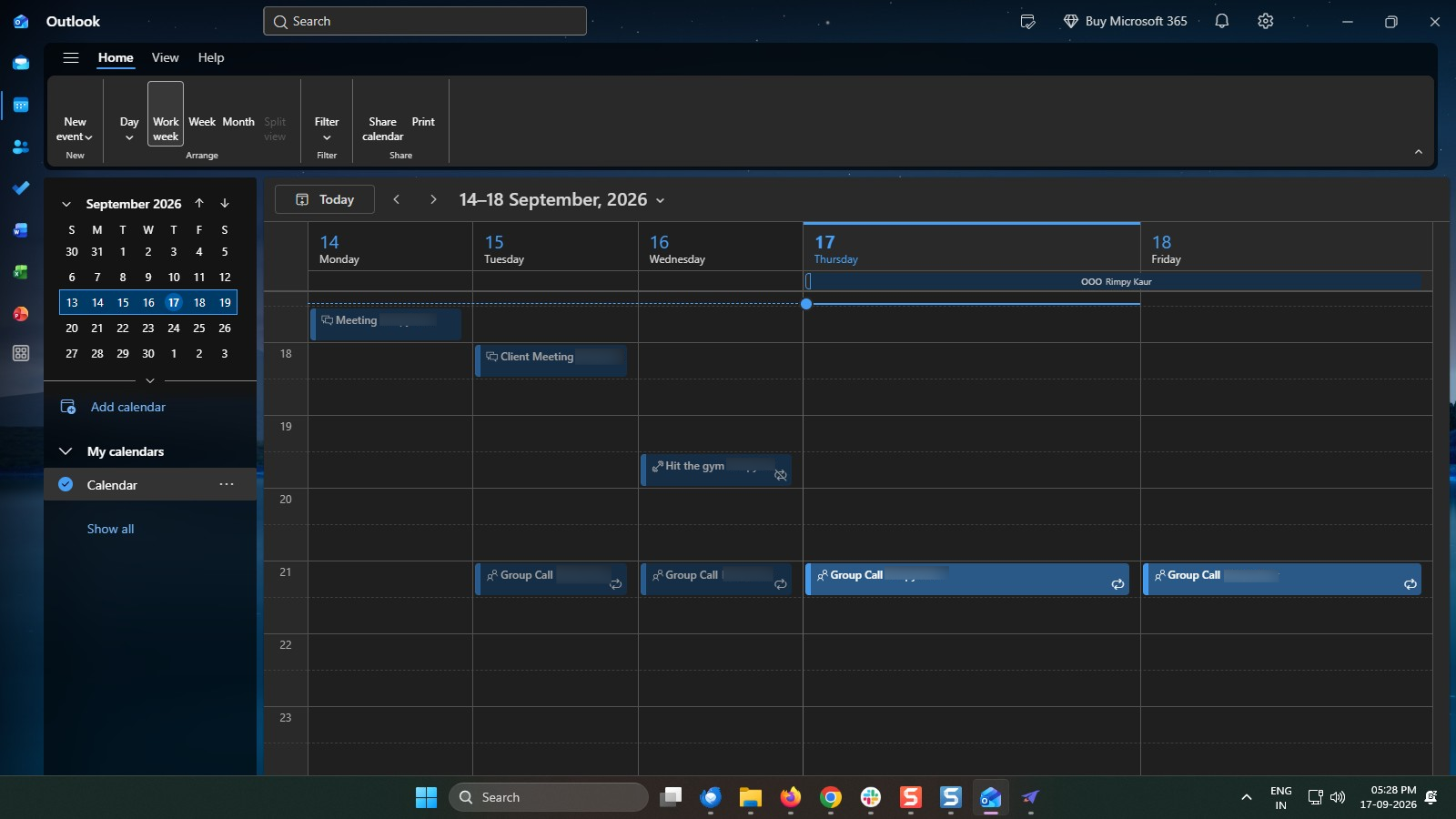
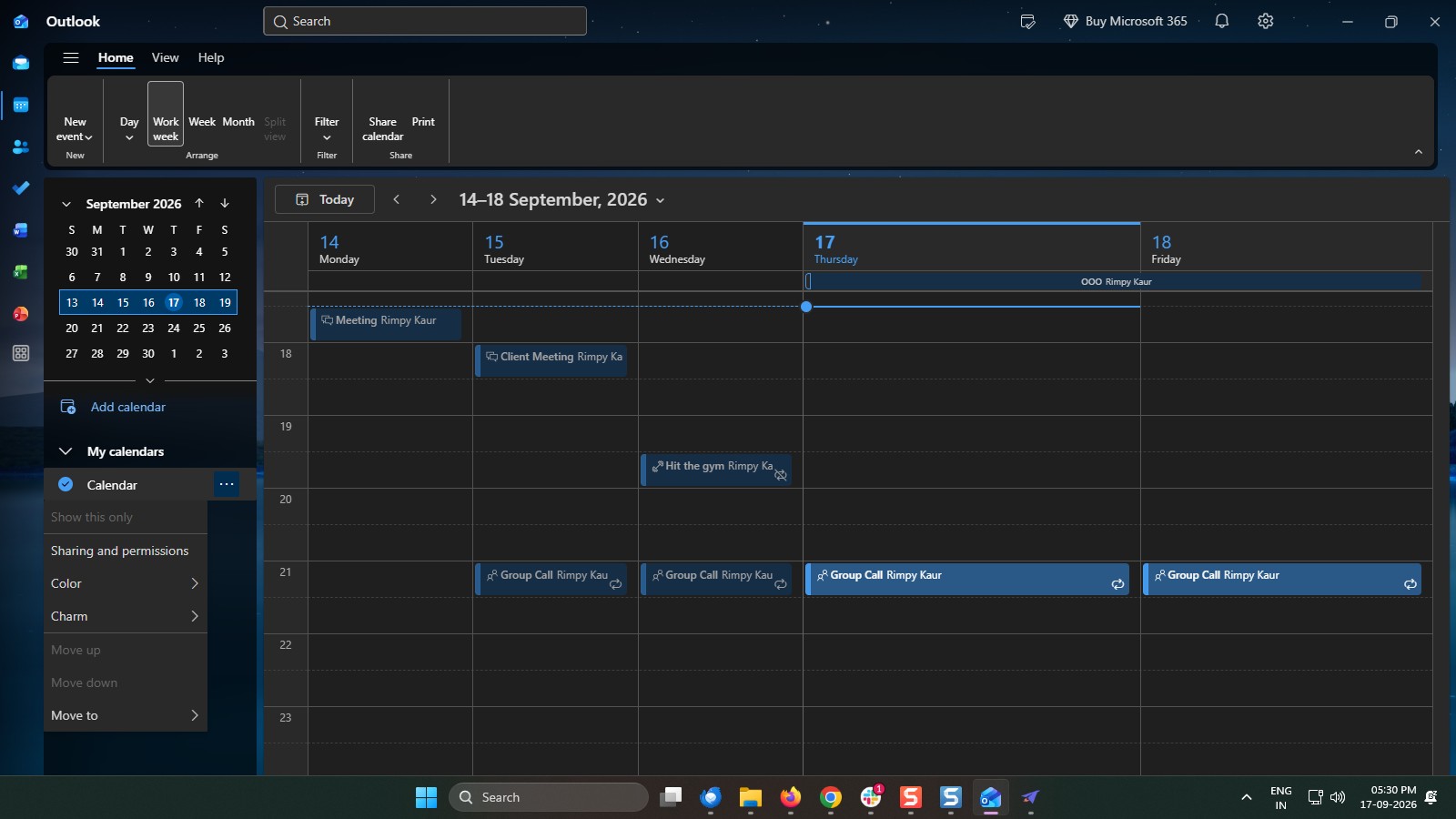
Click the Calendar icon in the left sidebar to open your calendar view.
Locate My Calendars in the left panel and select your specific calendar.
Go to the Home tab on the top ribbon and click the Share Calendar button
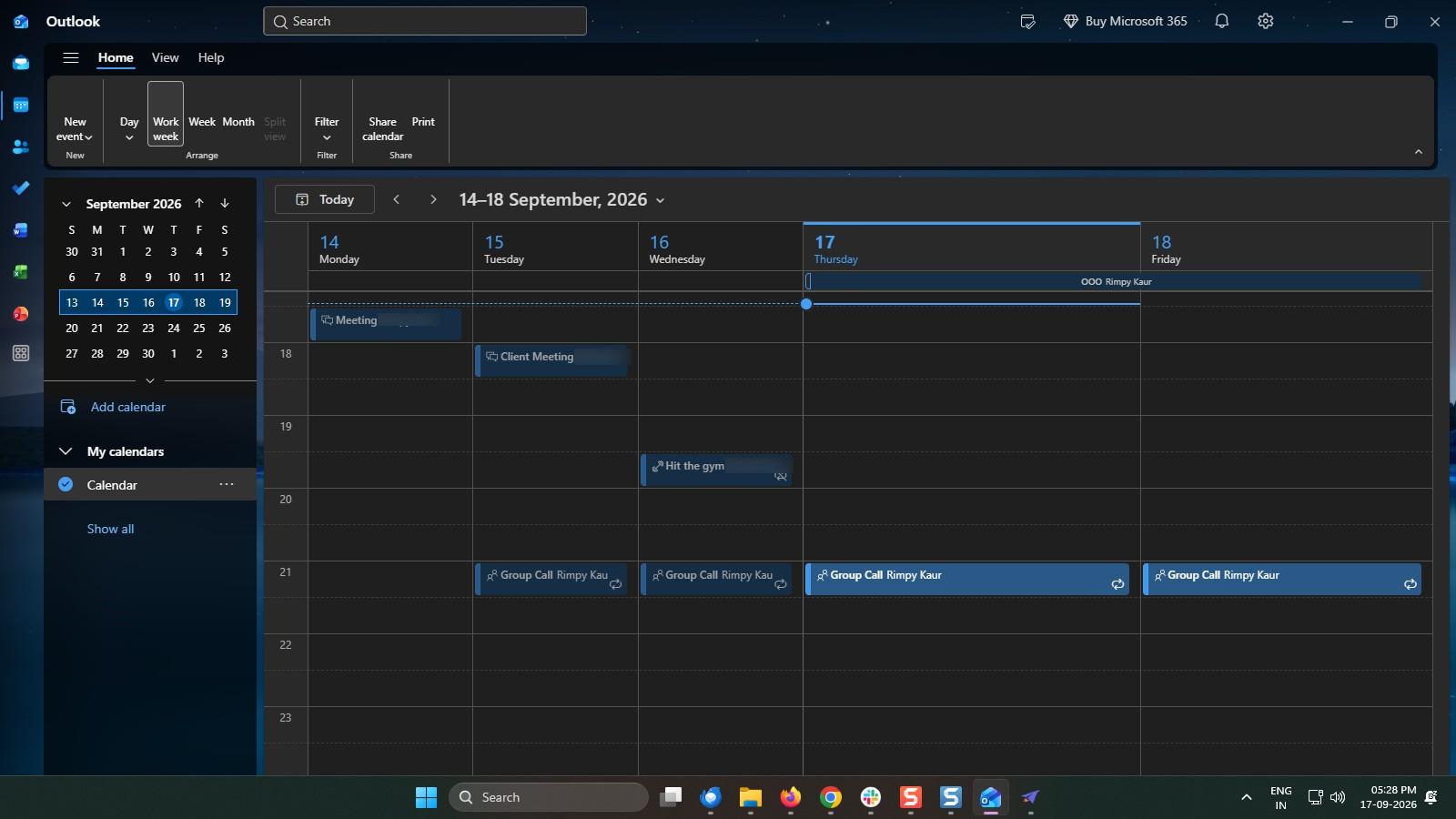
OR - Right-click your calendar name, hover over Sharing Permissions, and select Calendar Properties.
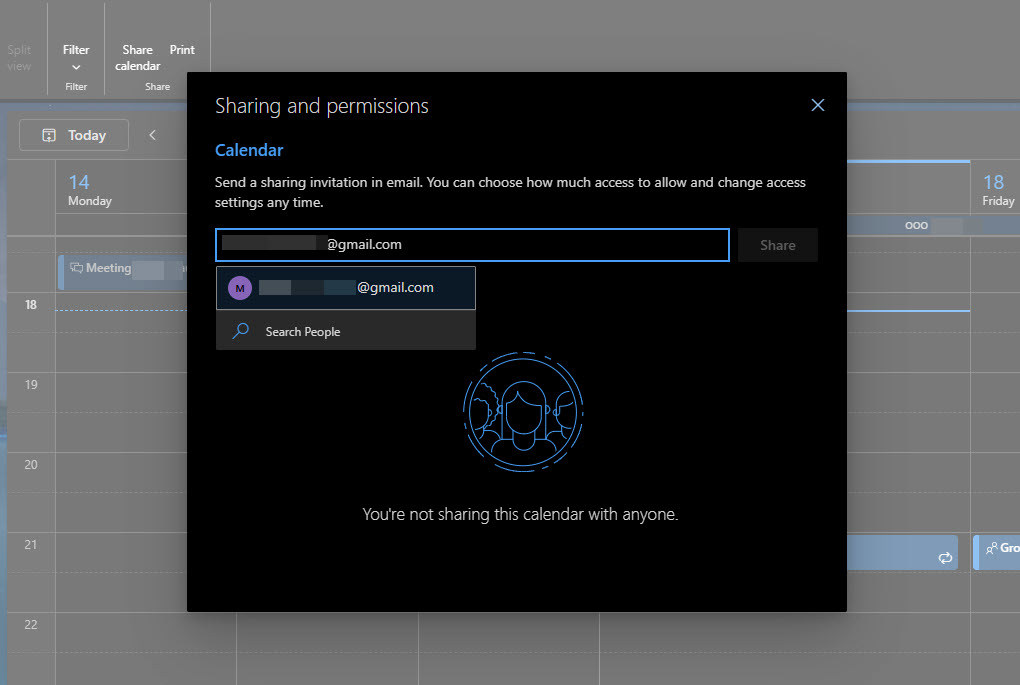
Type the email address or name of the person you wish to share your calendar with.
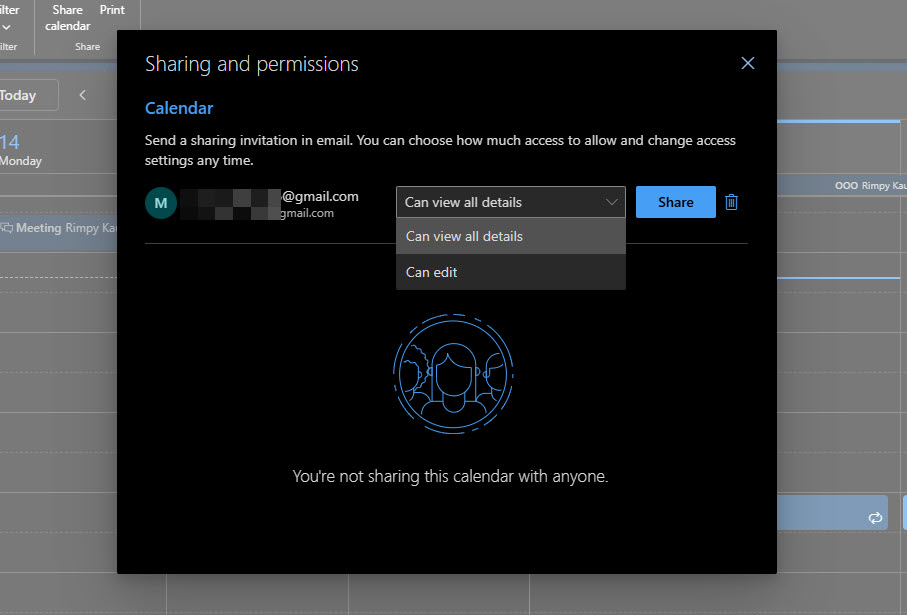
Choose what information you want them to see from the permissions dropdown (e.g., Can view all details, or Can edit).
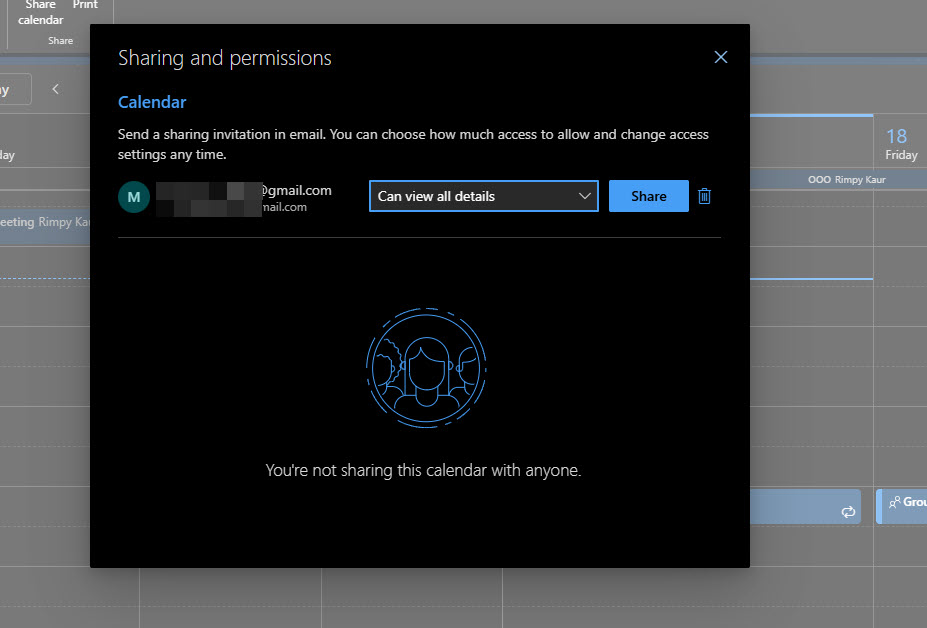
Click the Share button to send an email invitation to the recipient so they can accept and view or edit your calendar.
Duplicate this template, swap in your own screens, and share it with your team. Free to start — no credit card.
Fill out the form and we'll get back to you as soon as possible.
Tell us about your team and we'll find the right plan together.