1
Navigate to Google Drive
Open your Google Drive account to access your files or folders and begin managing sharing permissions.
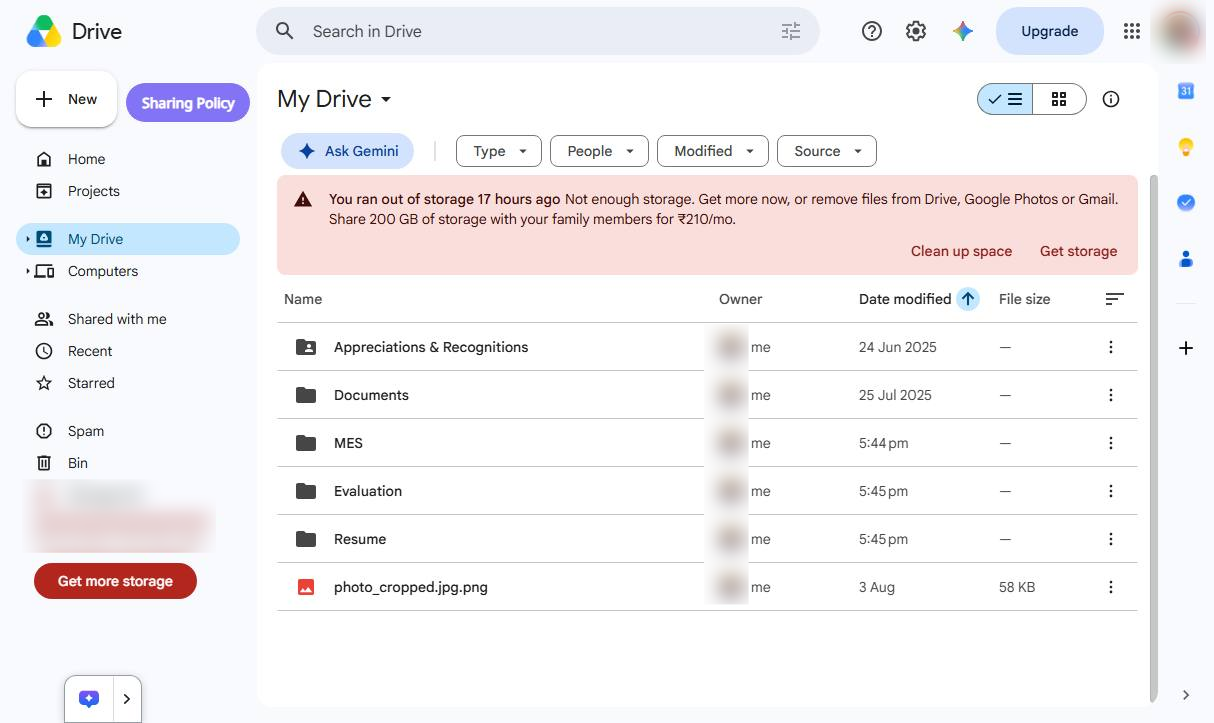

A step-by-step guide to managing folder permissions in Google Drive, adjusting access levels, and sharing links securely.
Open your Google Drive account to access your files or folders and begin managing sharing permissions.
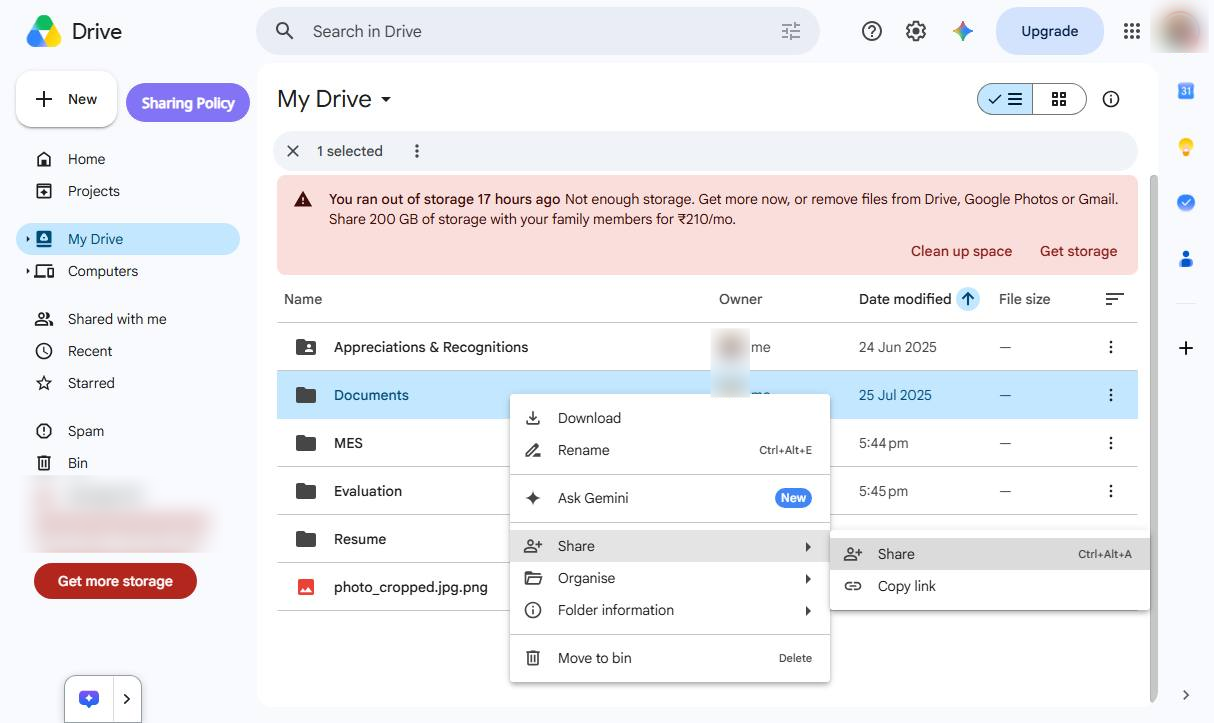
Right-click the respective folder and select Share → Share.
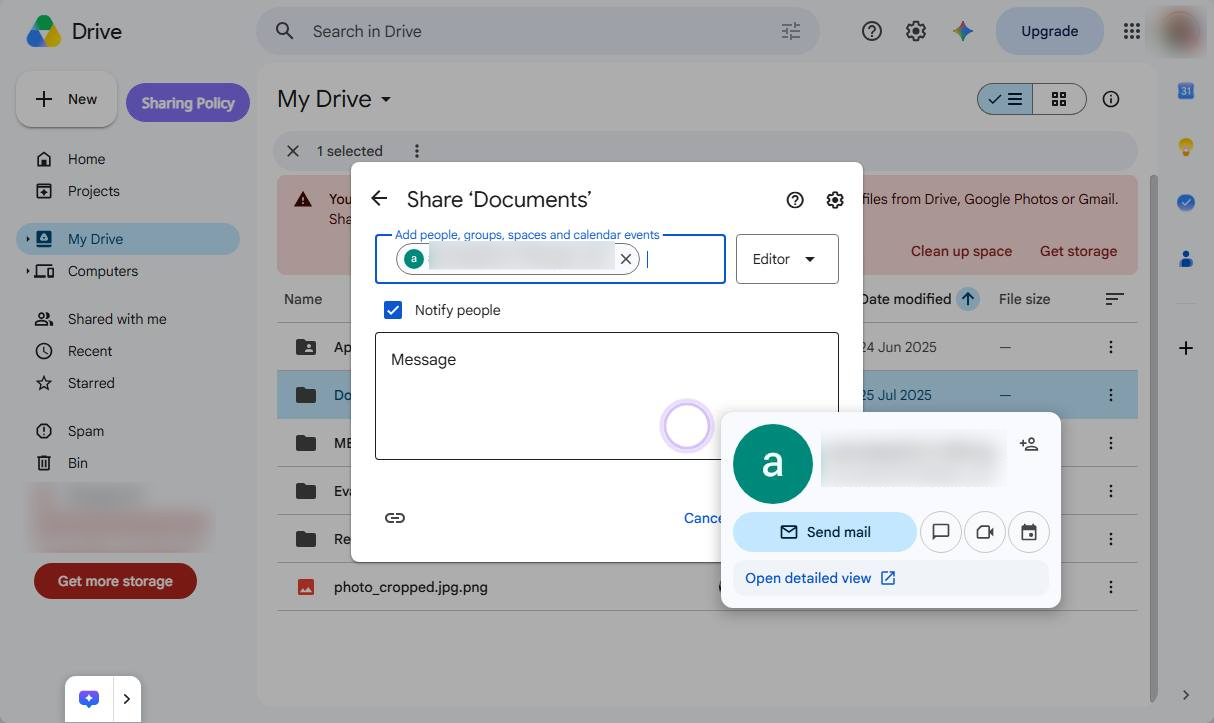
Enter the email address of the person or group you want to share the folder with.
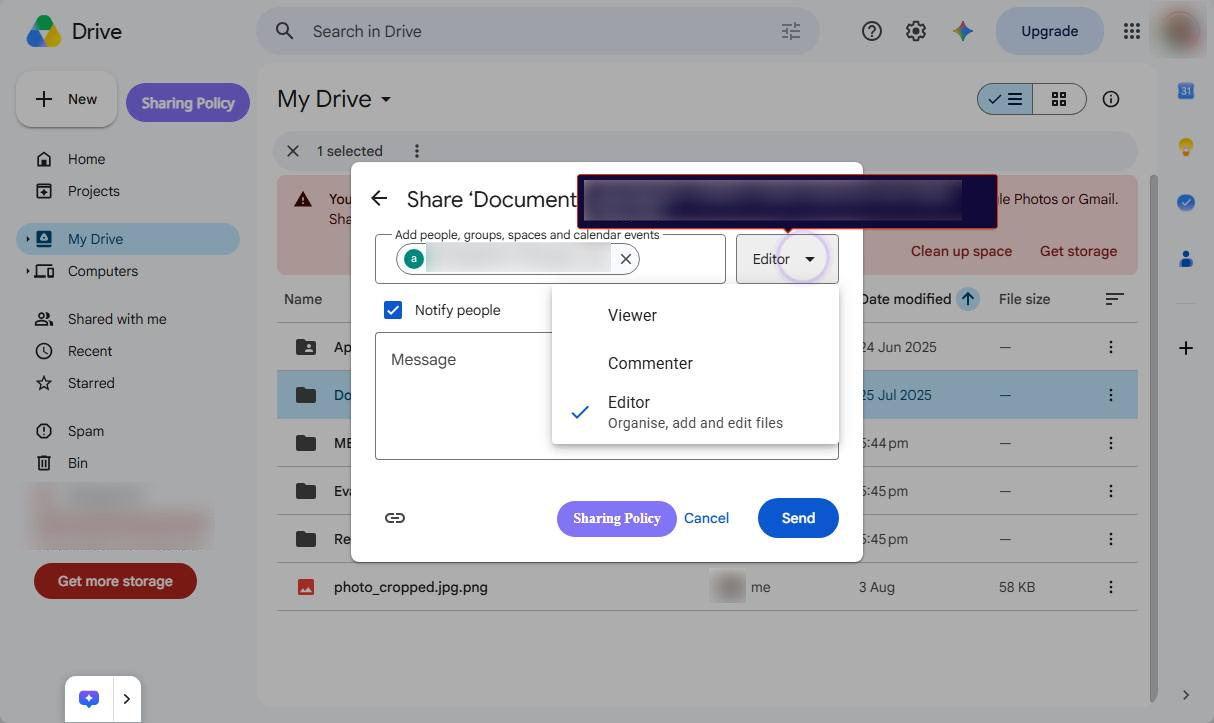
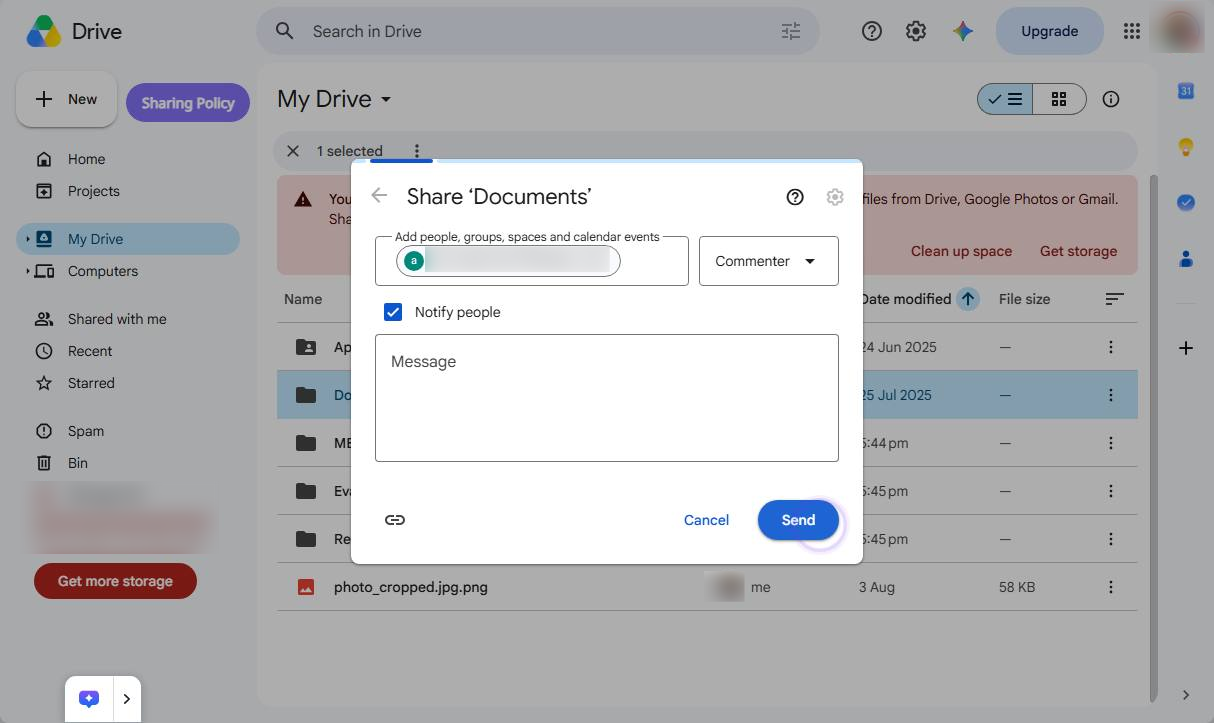
Click the dropdown arrow next to "Editor" in the sharing modal to change the permission level.
Optionally, add a short message to provide context about the shared folder.
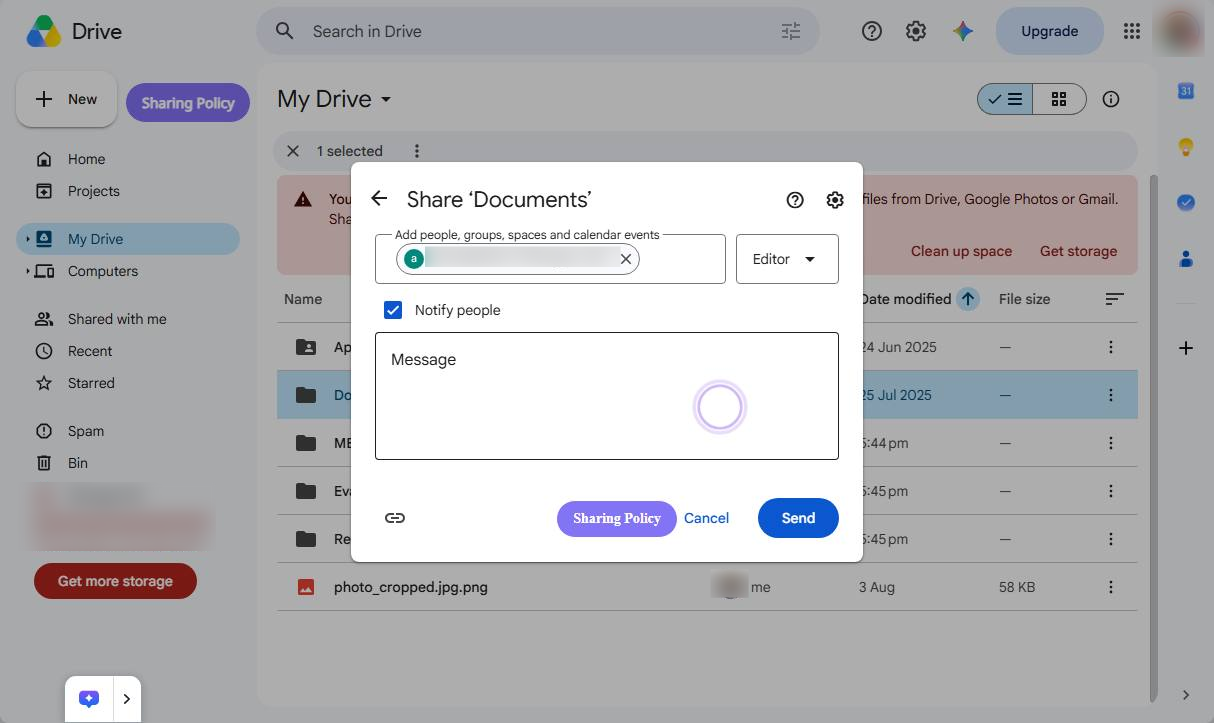
Click Send to share the folder with the selected people.
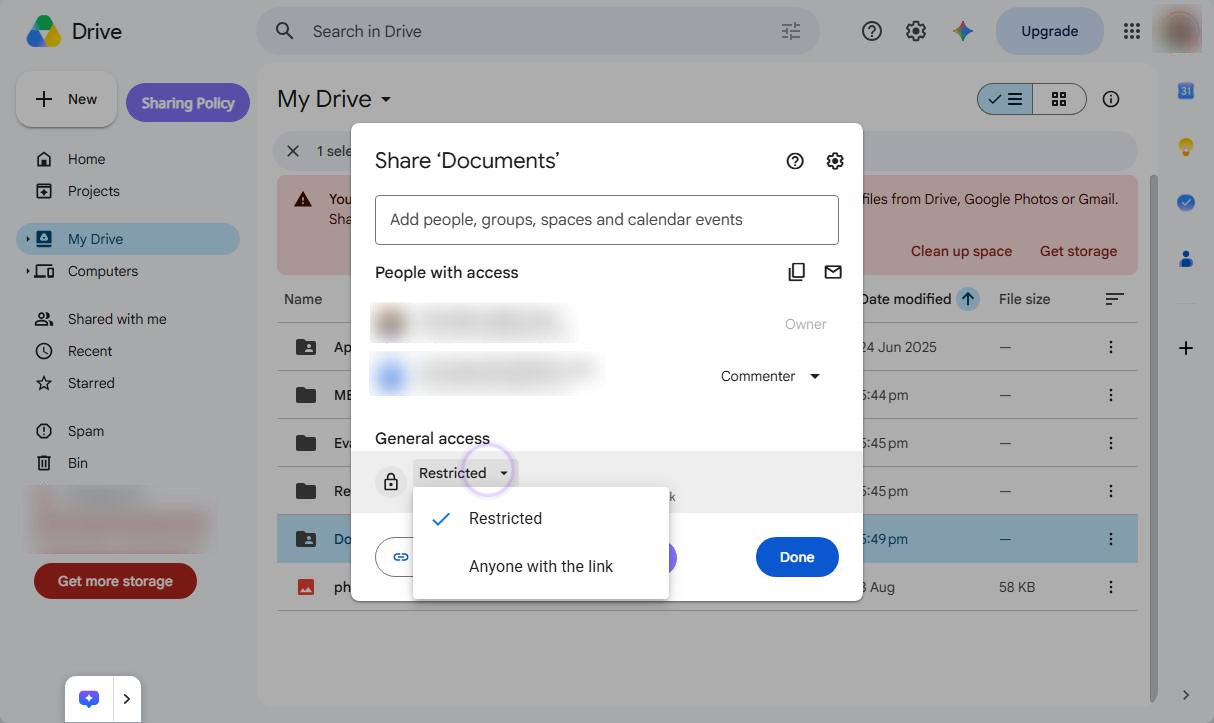
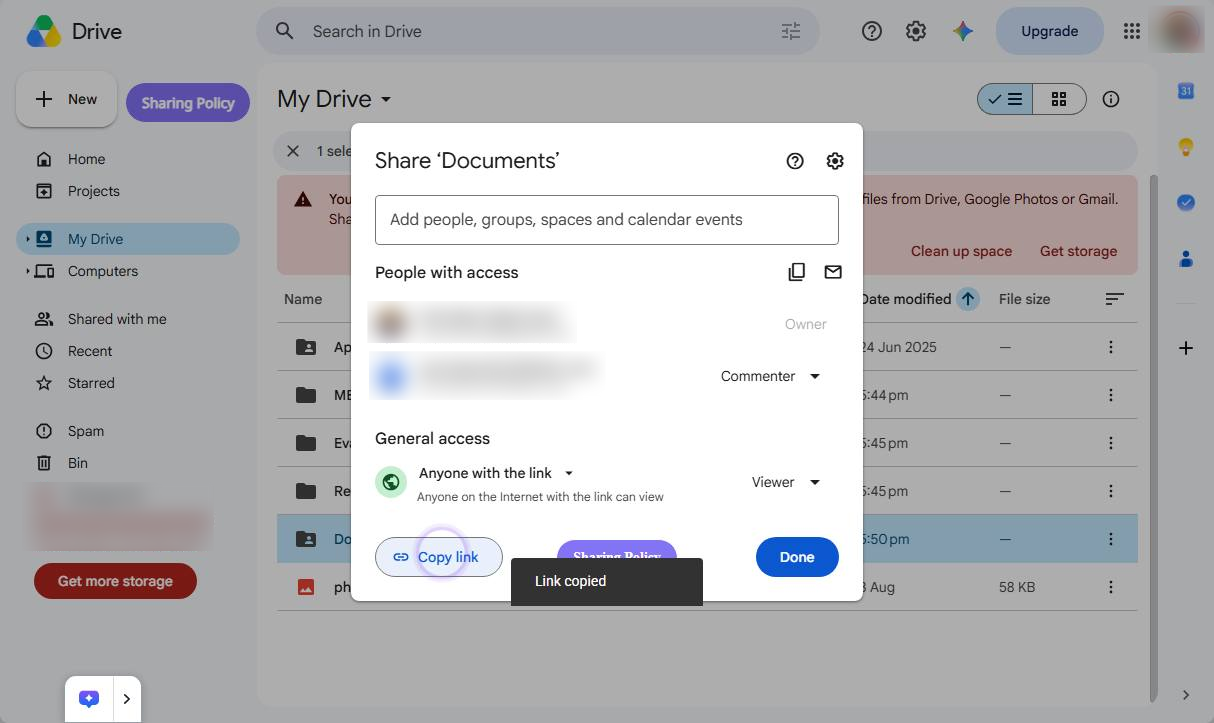
Click Restricted and select Anyone with the link if you want anyone with the link to access the folder.
Click the dropdown arrow next to "Viewer" in the General access section to change the permission level.
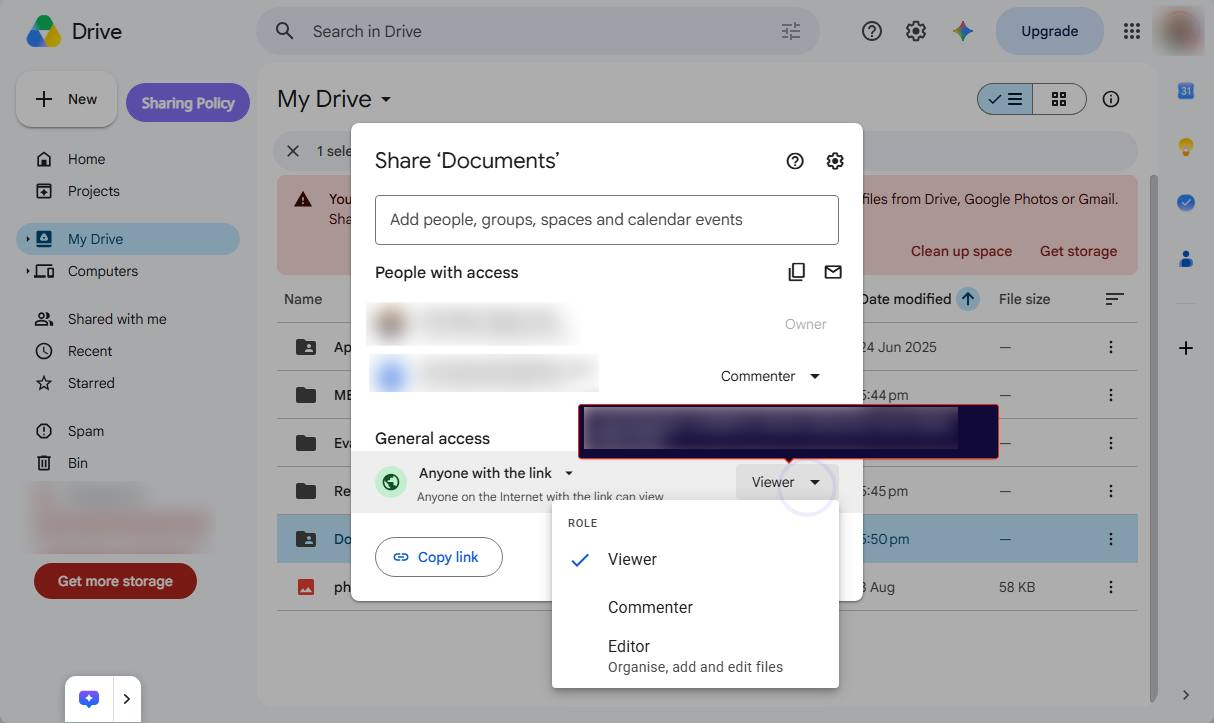
Click the Copy link button in the bottom left of the share modal to copy the folder's link to your clipboard.
Duplicate this template, swap in your own screens, and share it with your team. Free to start — no credit card.
Fill out the form and we'll get back to you as soon as possible.
Tell us about your team and we'll find the right plan together.