1
Navigate to the Gmail Inbox
Open your Gmail Inbox to start the process of configuring a vacation responder for your WalkMe Mail account.
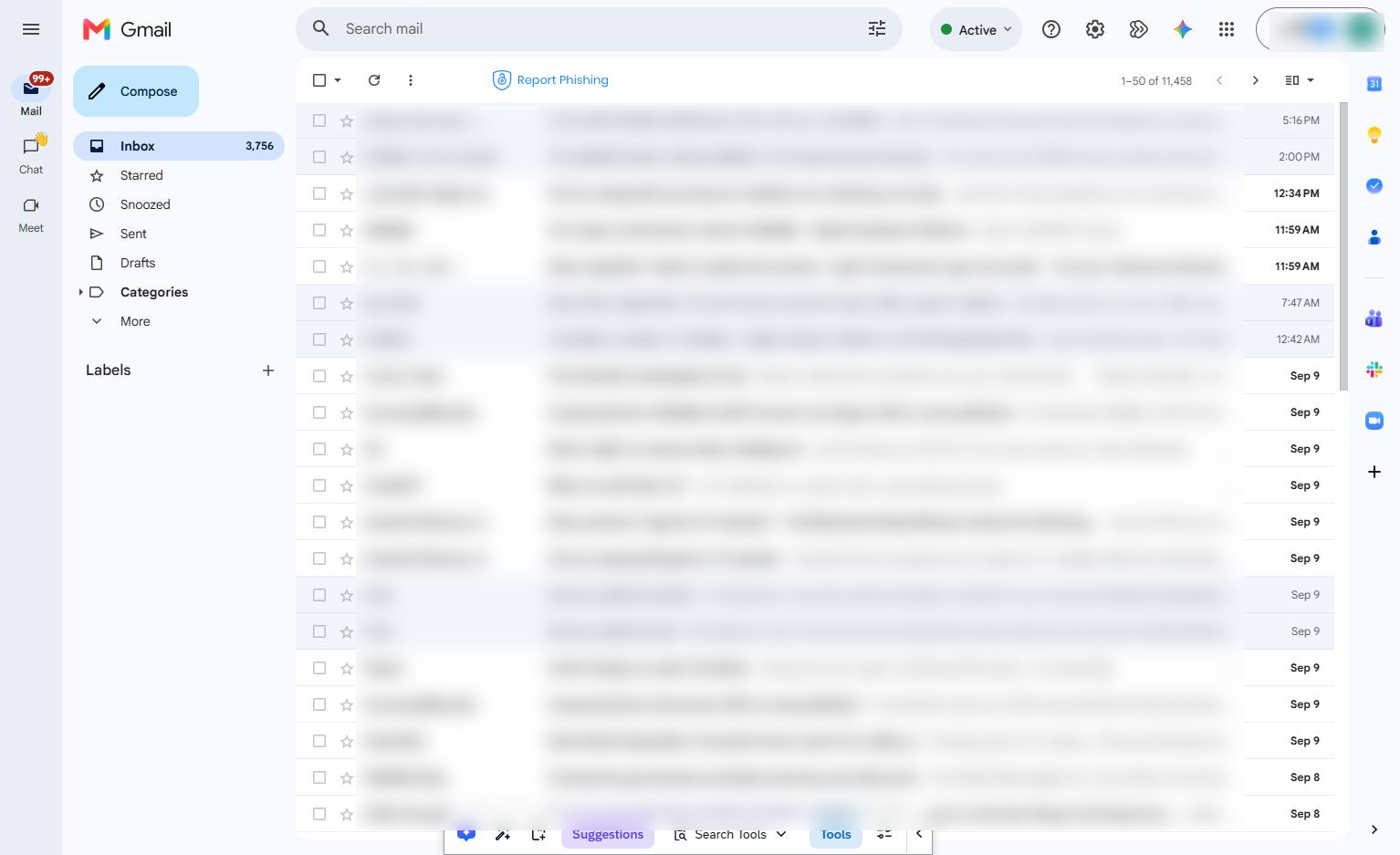

This guide walks you through how to set up an automatic out-of-office reply in WalkMe Mail by navigating to the General tab within your account Settings. You will learn how to enable the vacation responder, select the start and end dates, and compose your custom subject line and message body. Finally, you will configure recipient restrictions to limit who receives the auto-reply and save your changes to activate the responder.
Open your Gmail Inbox to start the process of configuring a vacation responder for your WalkMe Mail account.
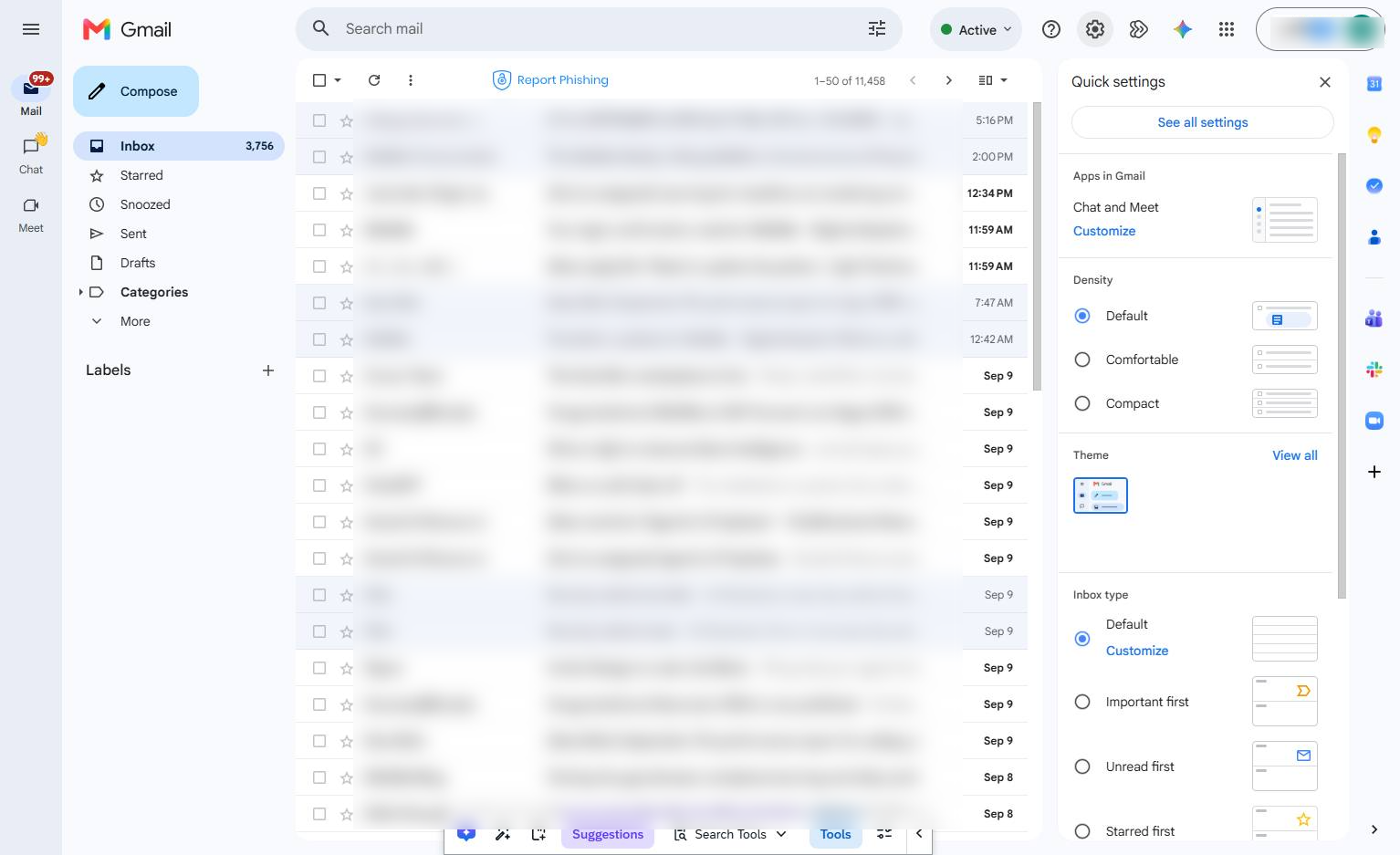
Click the Settings gear icon in the top right toolbar to open the Quick settings panel.
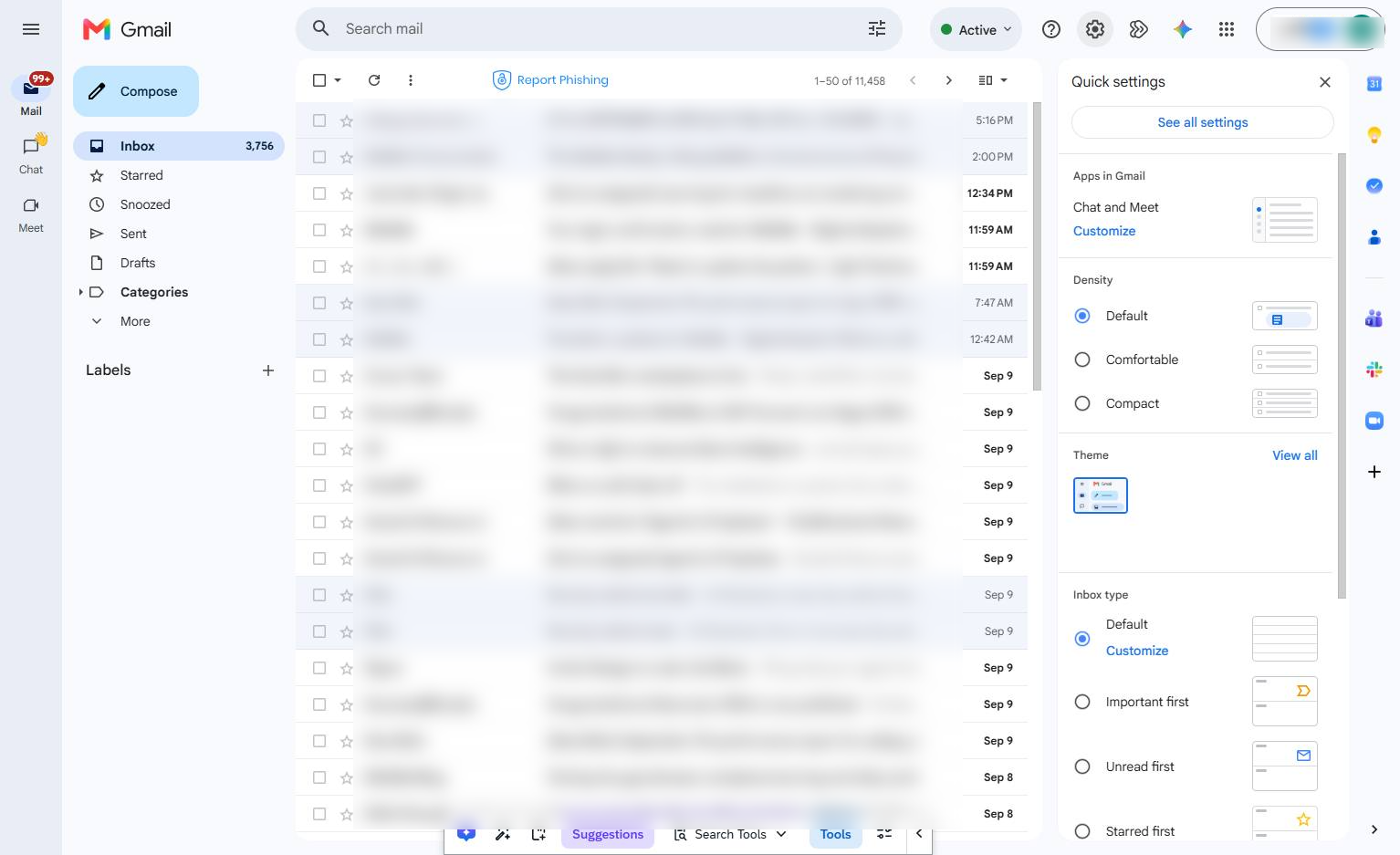
Click the See all settings button at the top of the Quick settings panel to view more options.
Stay on the General tab and scroll down to vacation responder option
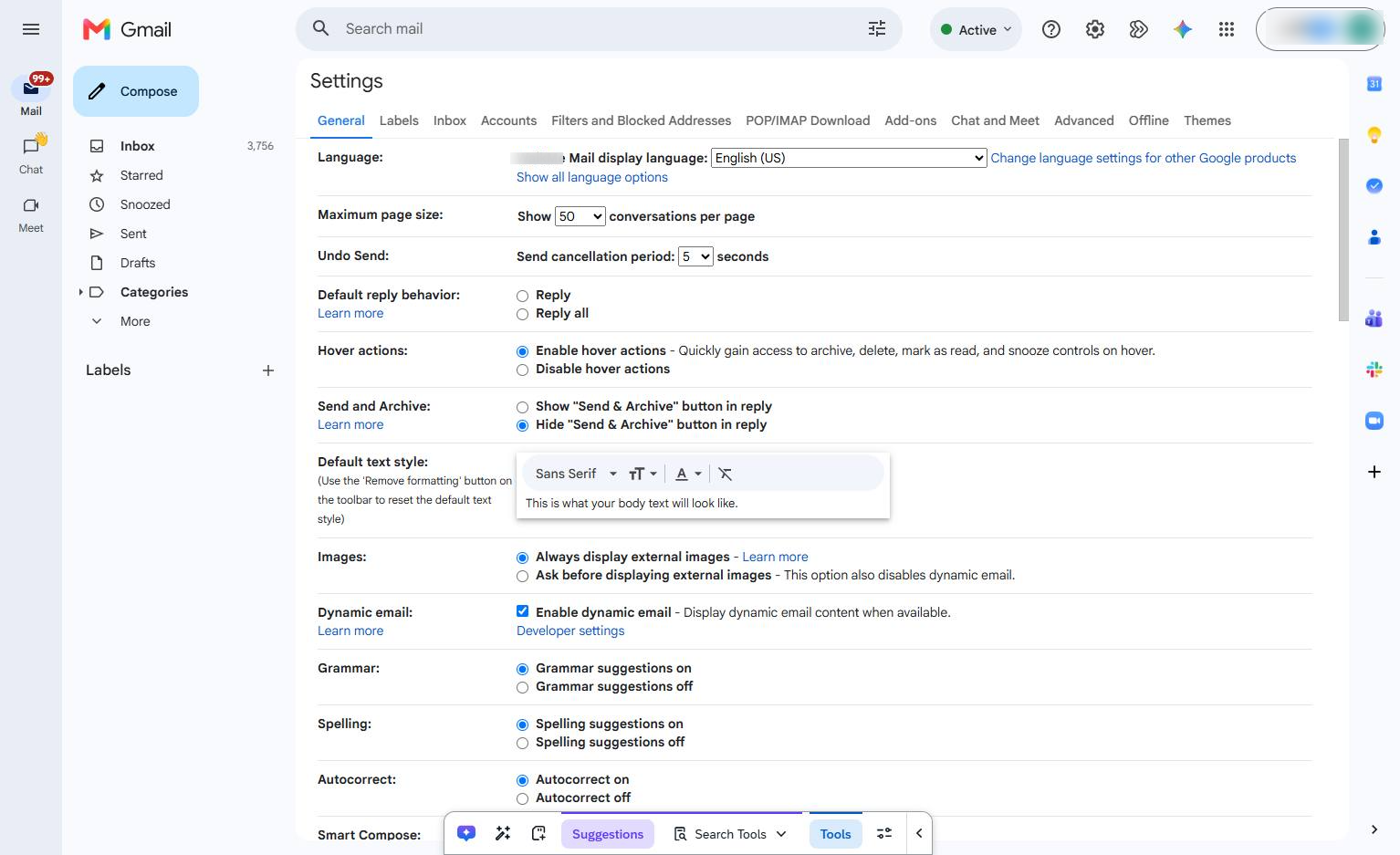
Click the radio button next to "Vacation responder on" in the settings menu to enable automatic replies.
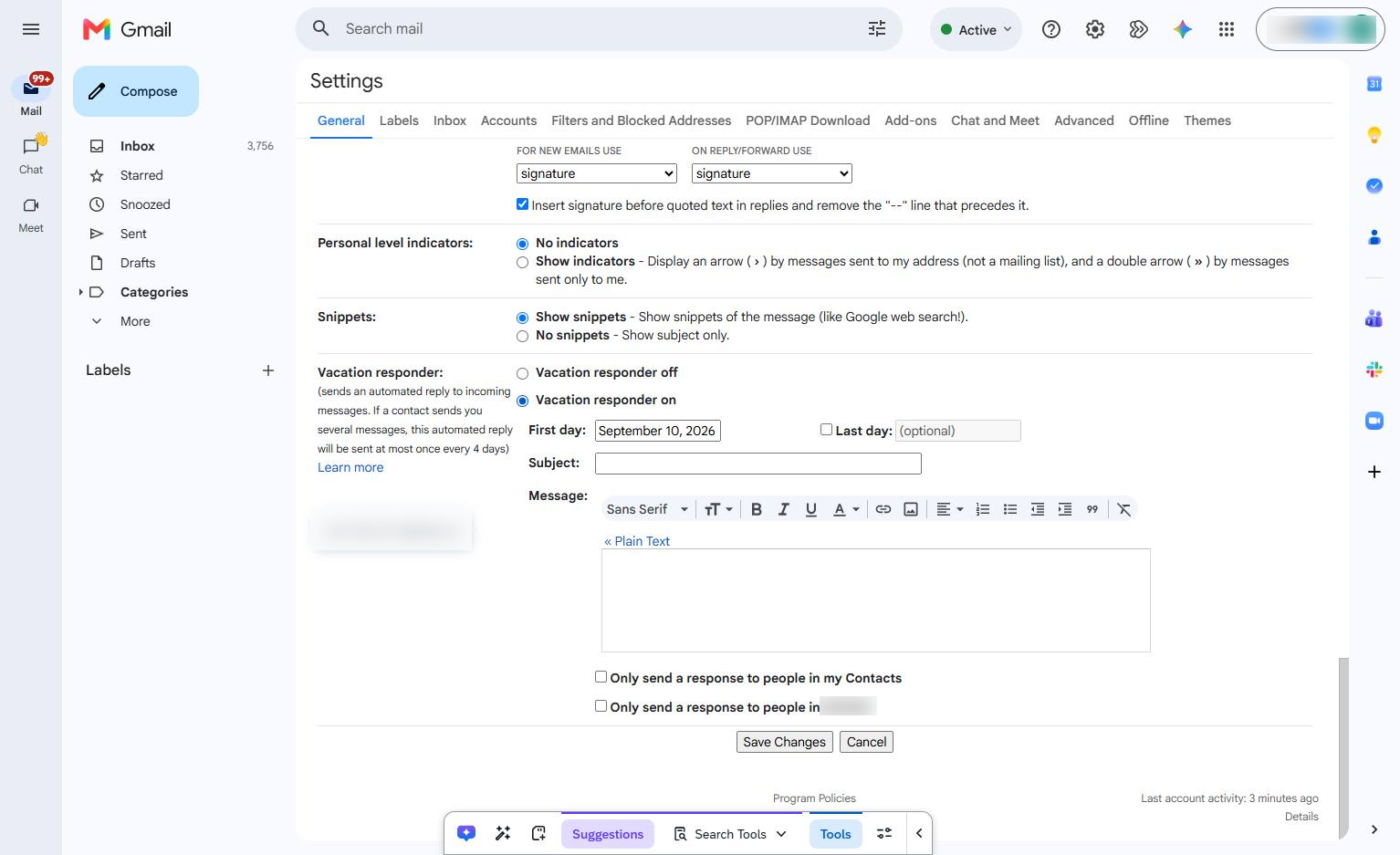
Click the First day input field in the Vacation responder section to set the start date.
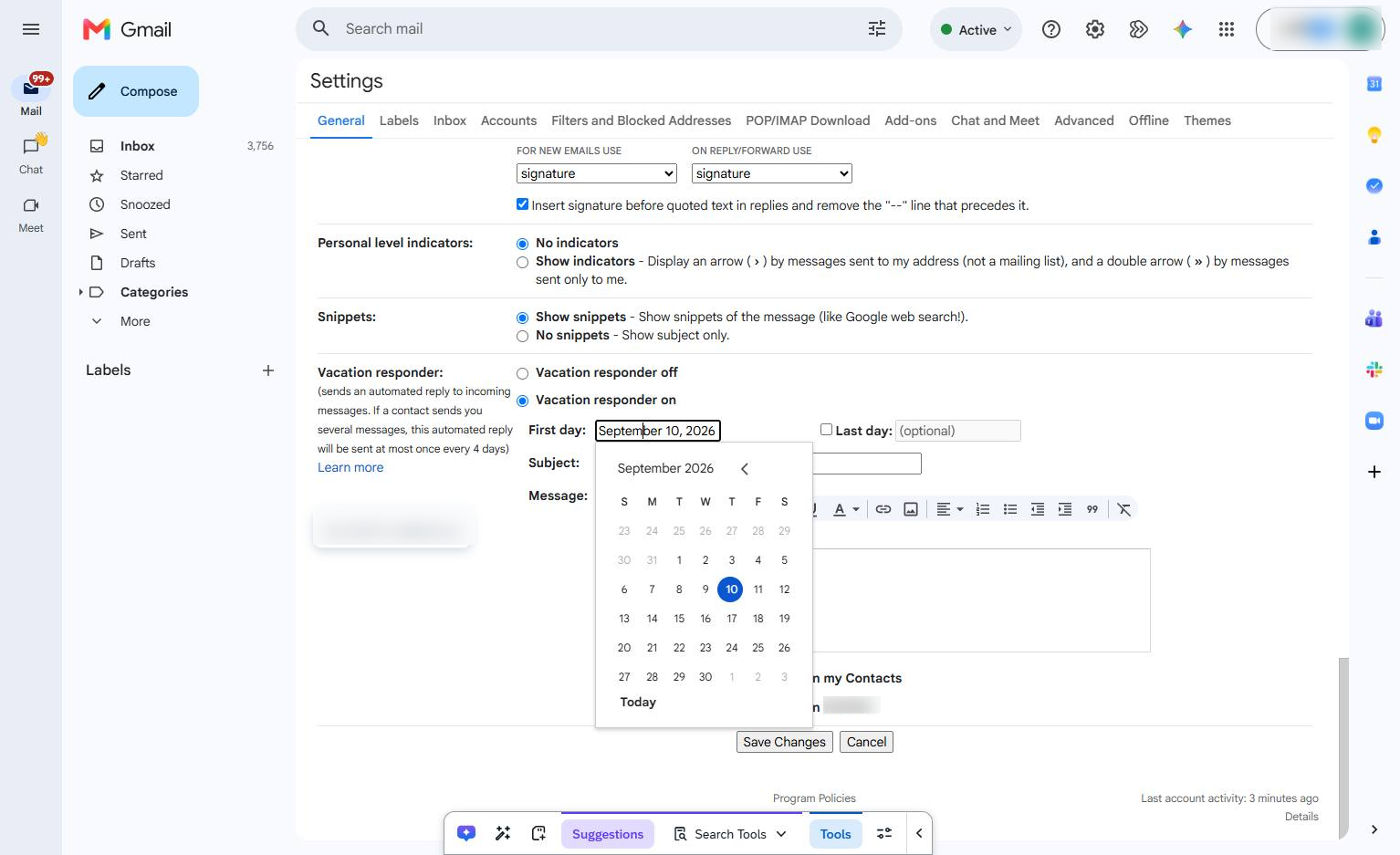
Click the checkbox next to "Last day:" in the Vacation responder section to enable setting an end date.
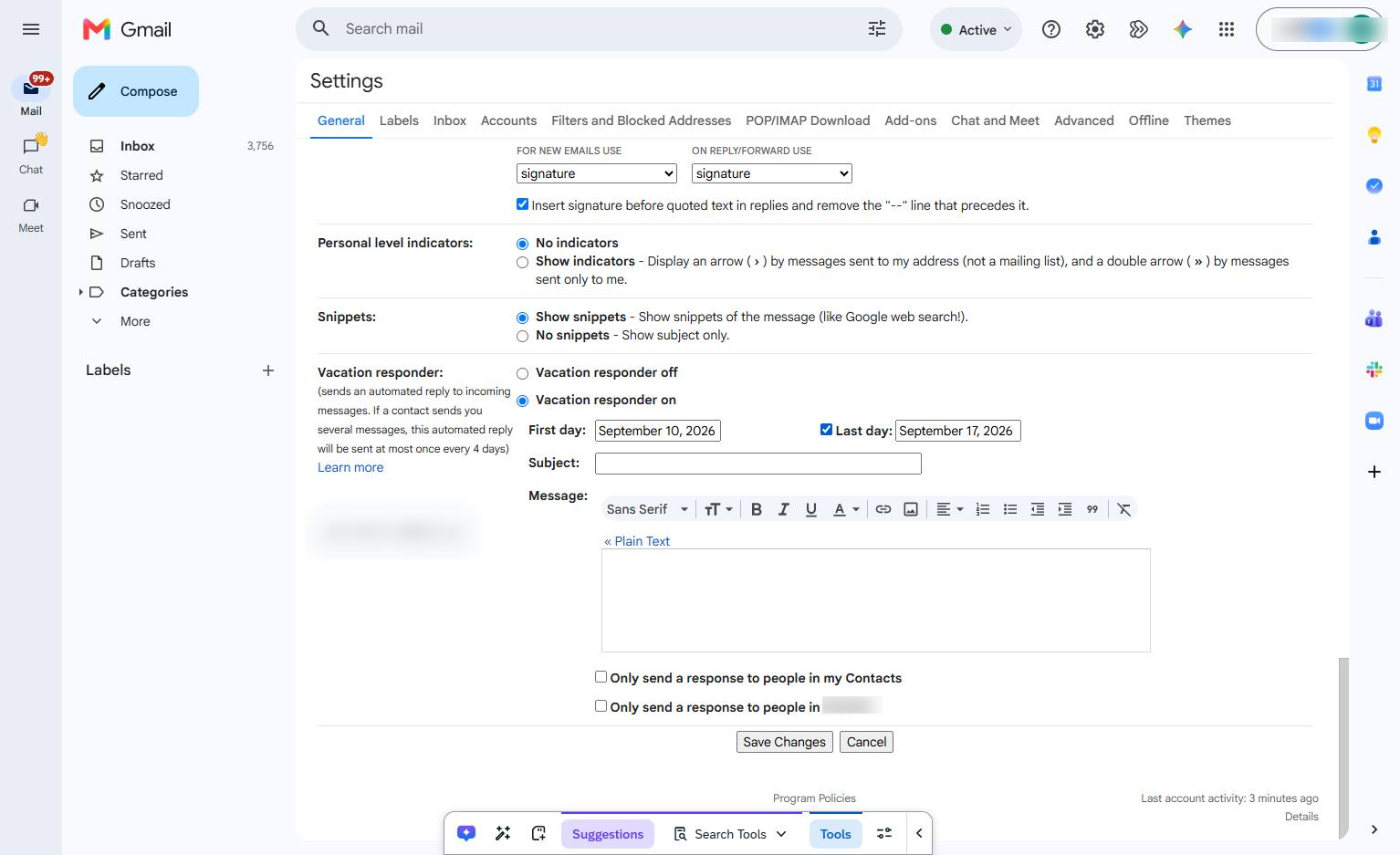
Click the Subject input field in the Vacation responder section to enter the subject line for your automated reply.
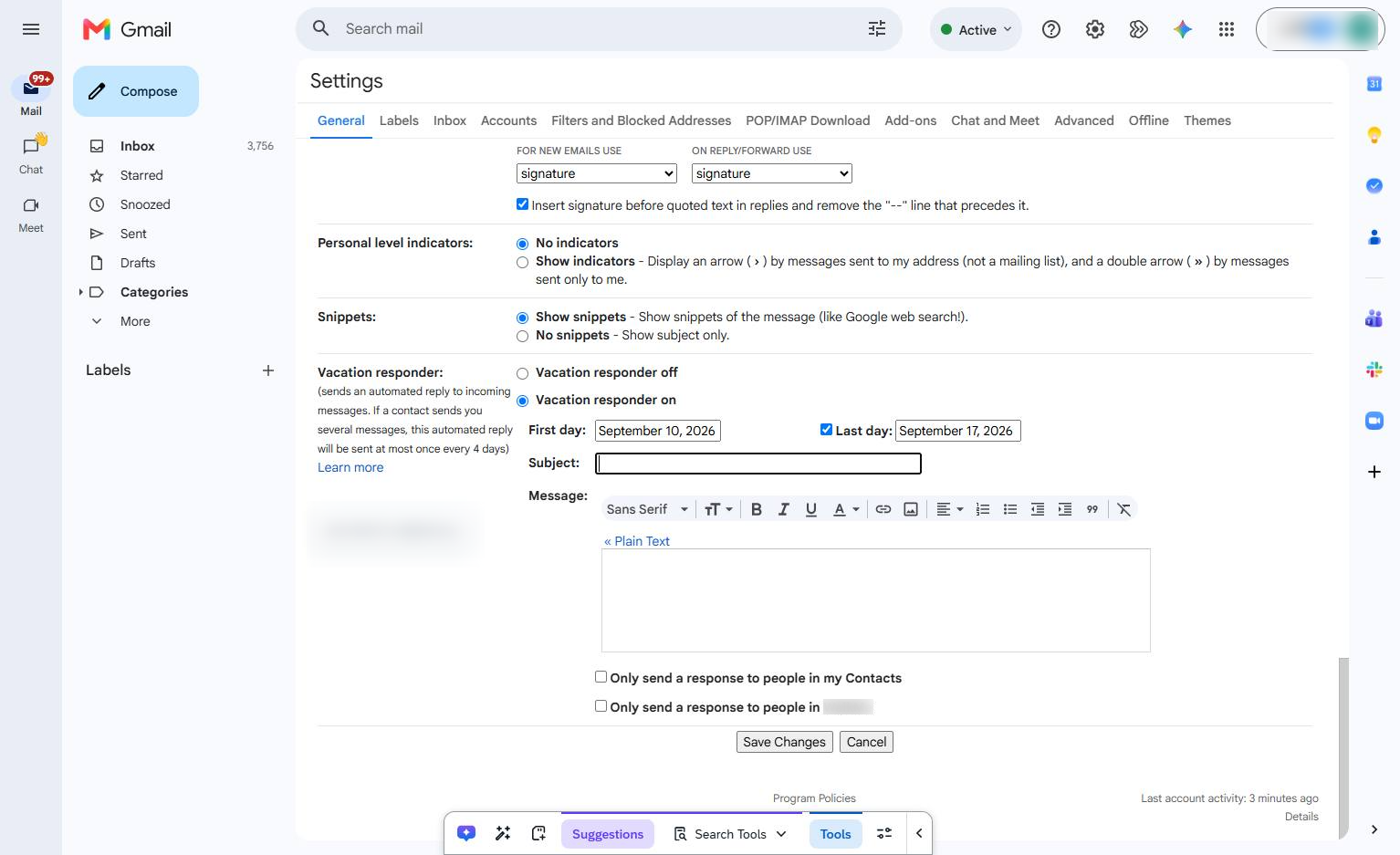
Click the Message textbox in the Vacation responder section to compose your automated reply.
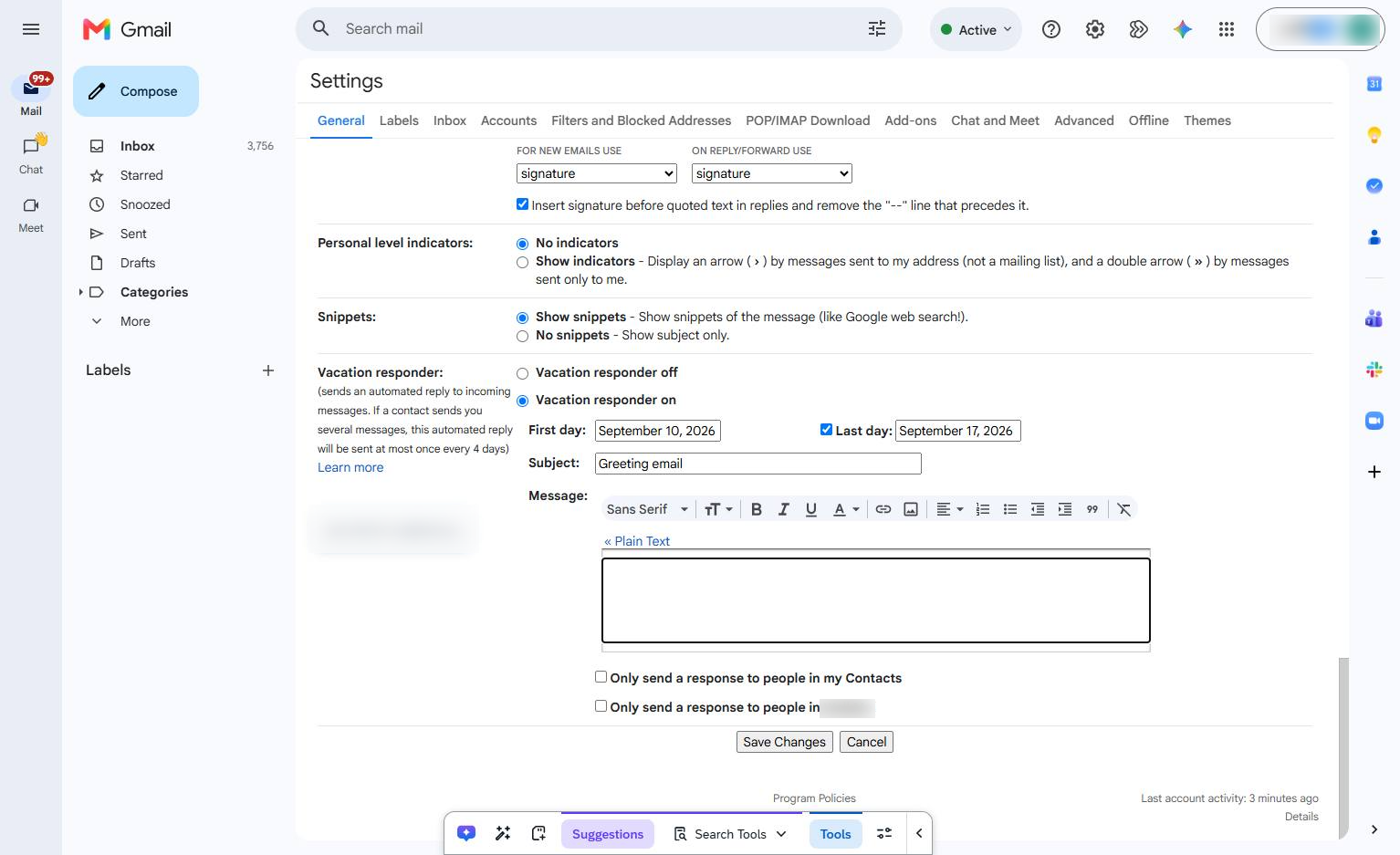
Click the "Only send a response to people in my Contacts" checkbox below the vacation responder message area.
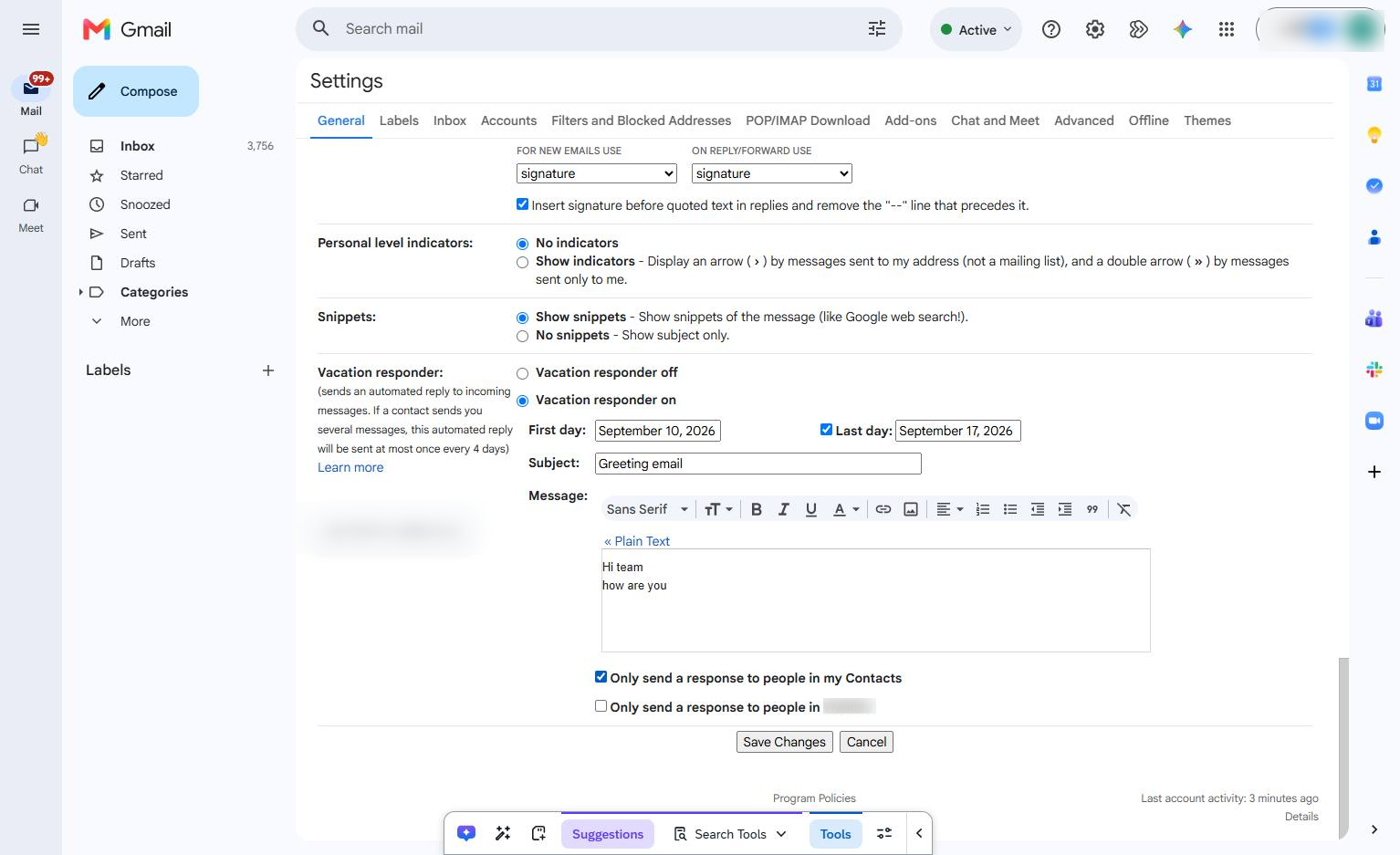
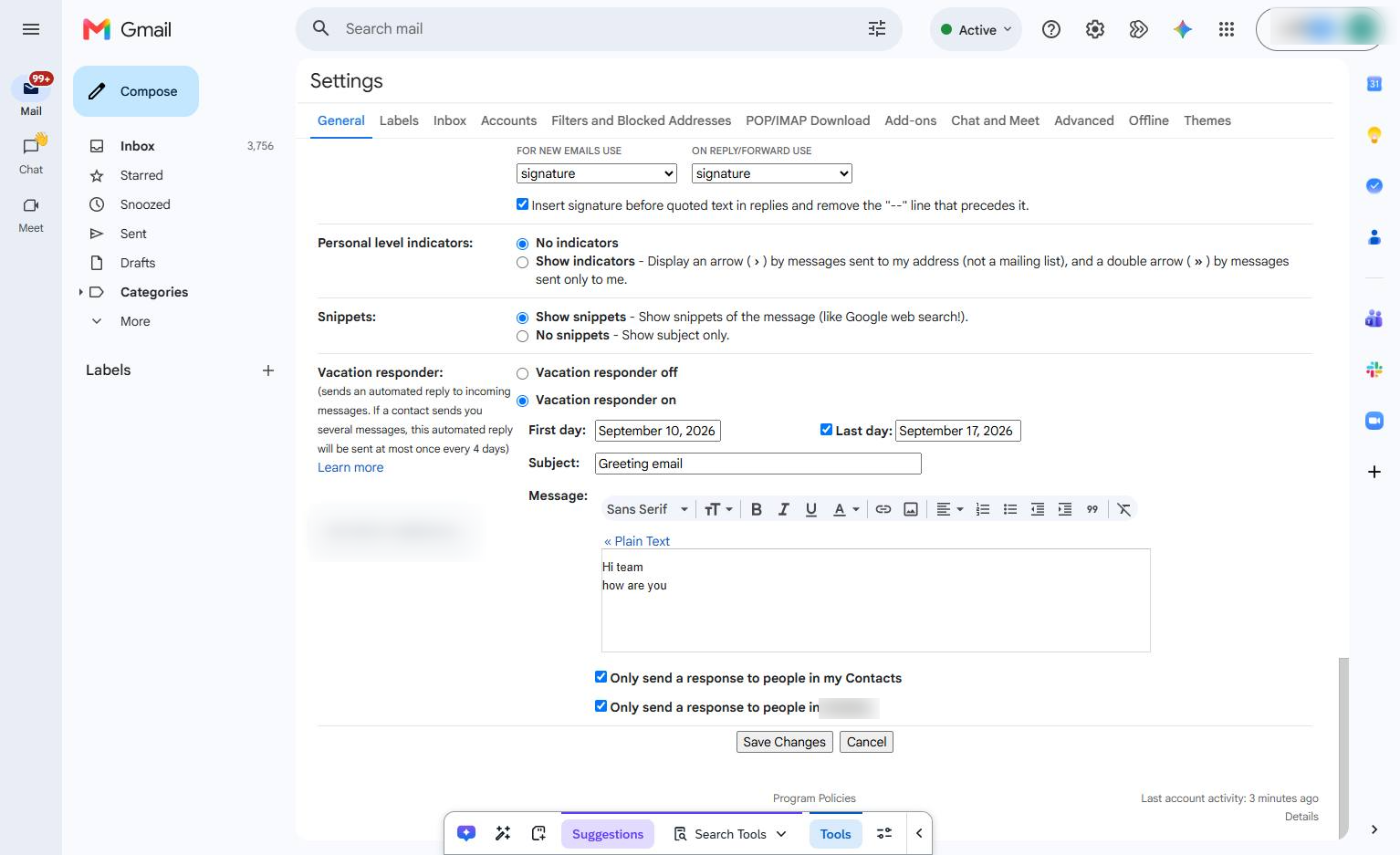
Click the Save Changes button at the bottom of the settings page to apply your updates.
Duplicate this template, swap in your own screens, and share it with your team. Free to start — no credit card.
Fill out the form and we'll get back to you as soon as possible.
Tell us about your team and we'll find the right plan together.