1
Select the cells to print
Highlight only the cells you want on the page.
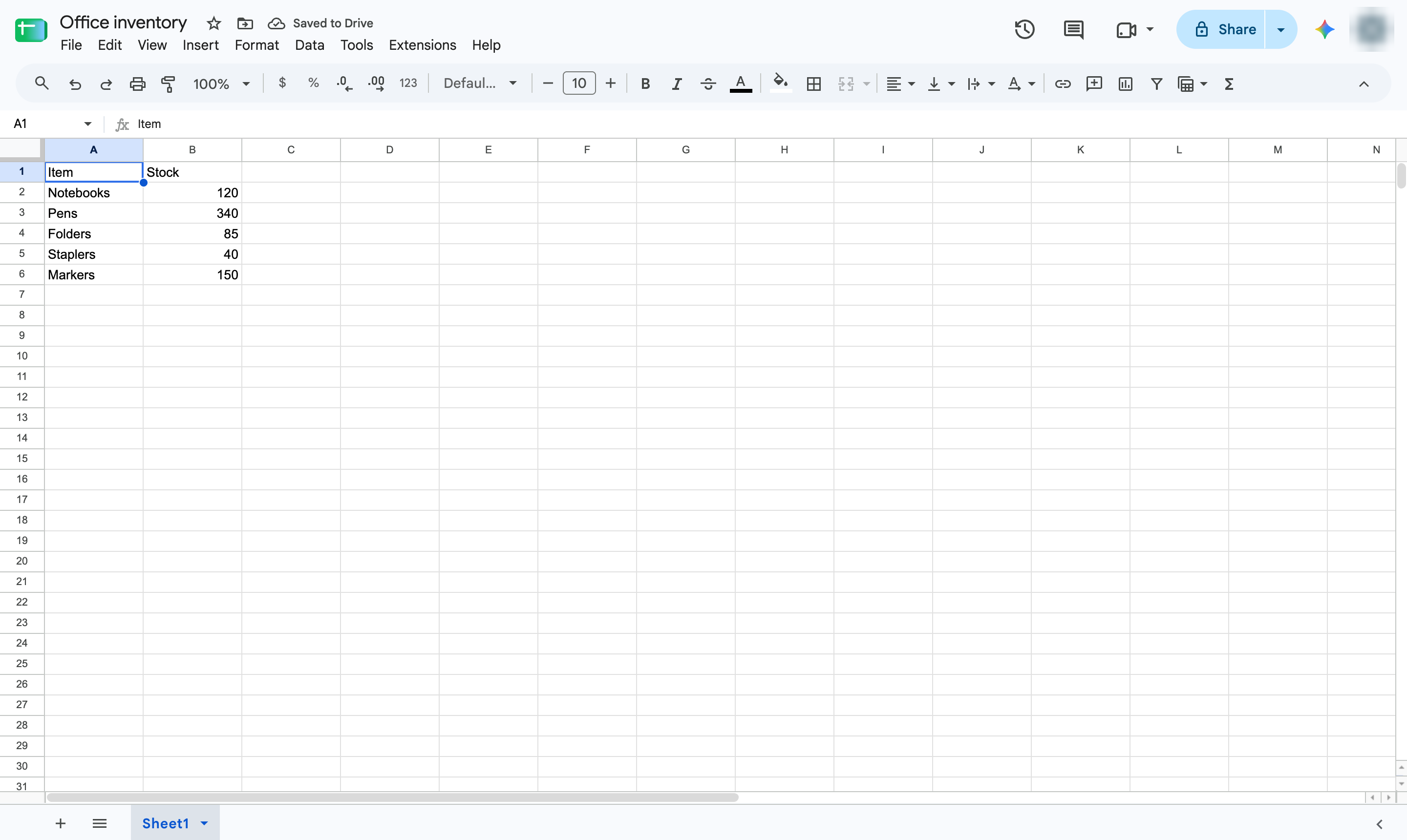

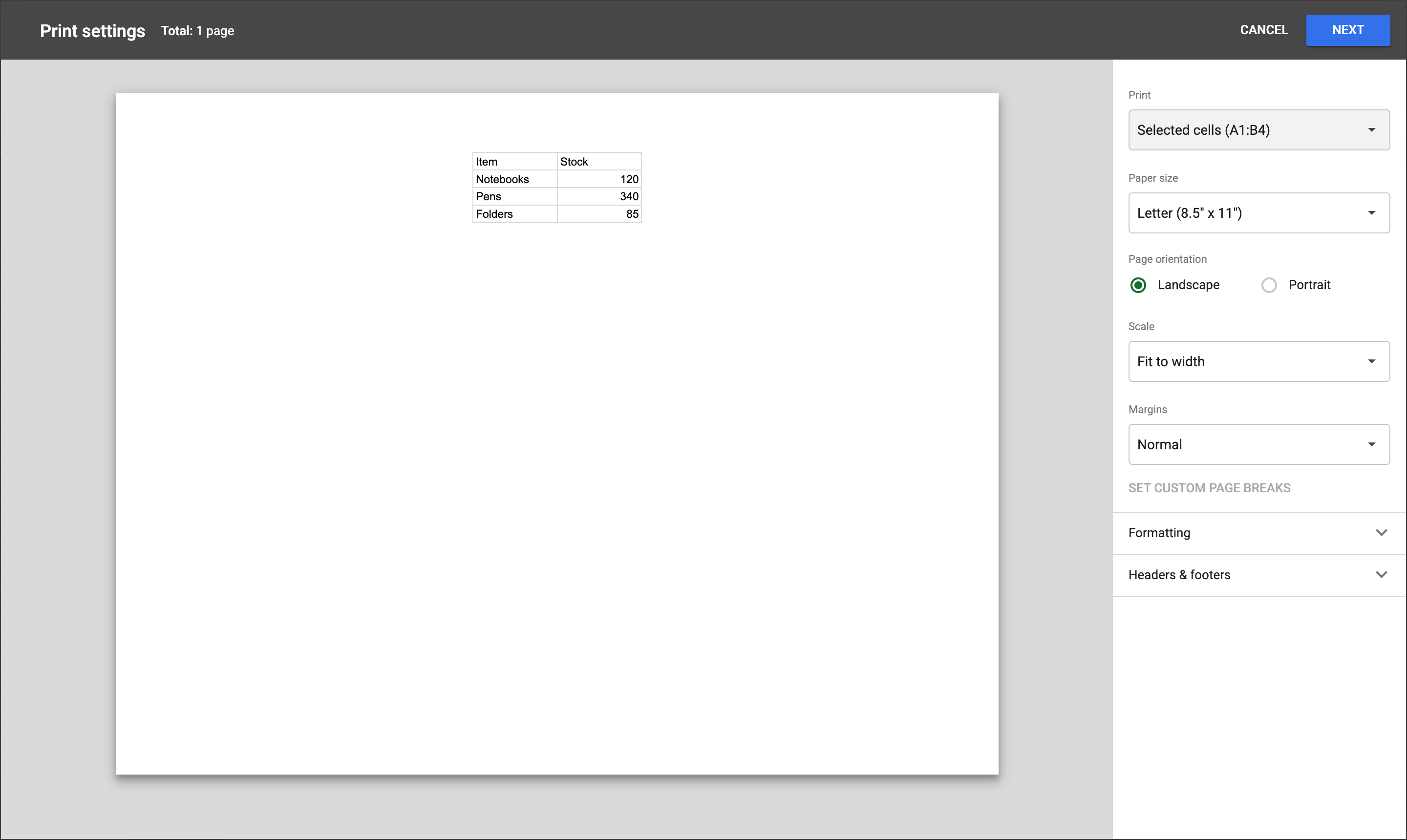
Print just part of a sheet: select the cells, open Print and choose Selected cells.
Highlight only the cells you want on the page.
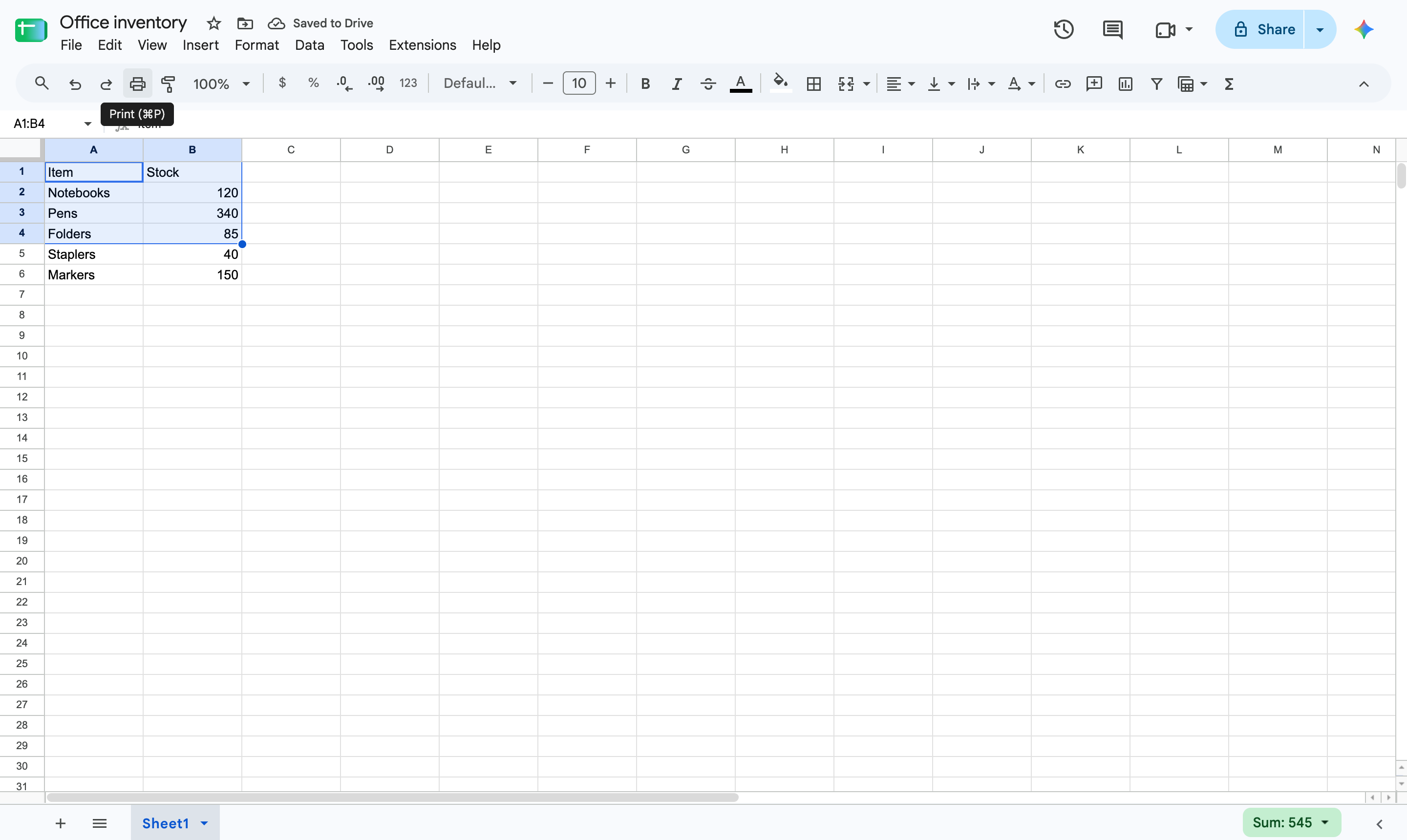
Click the printer icon in the toolbar. Shortcut: Ctrl + P (Cmd + P on Mac).
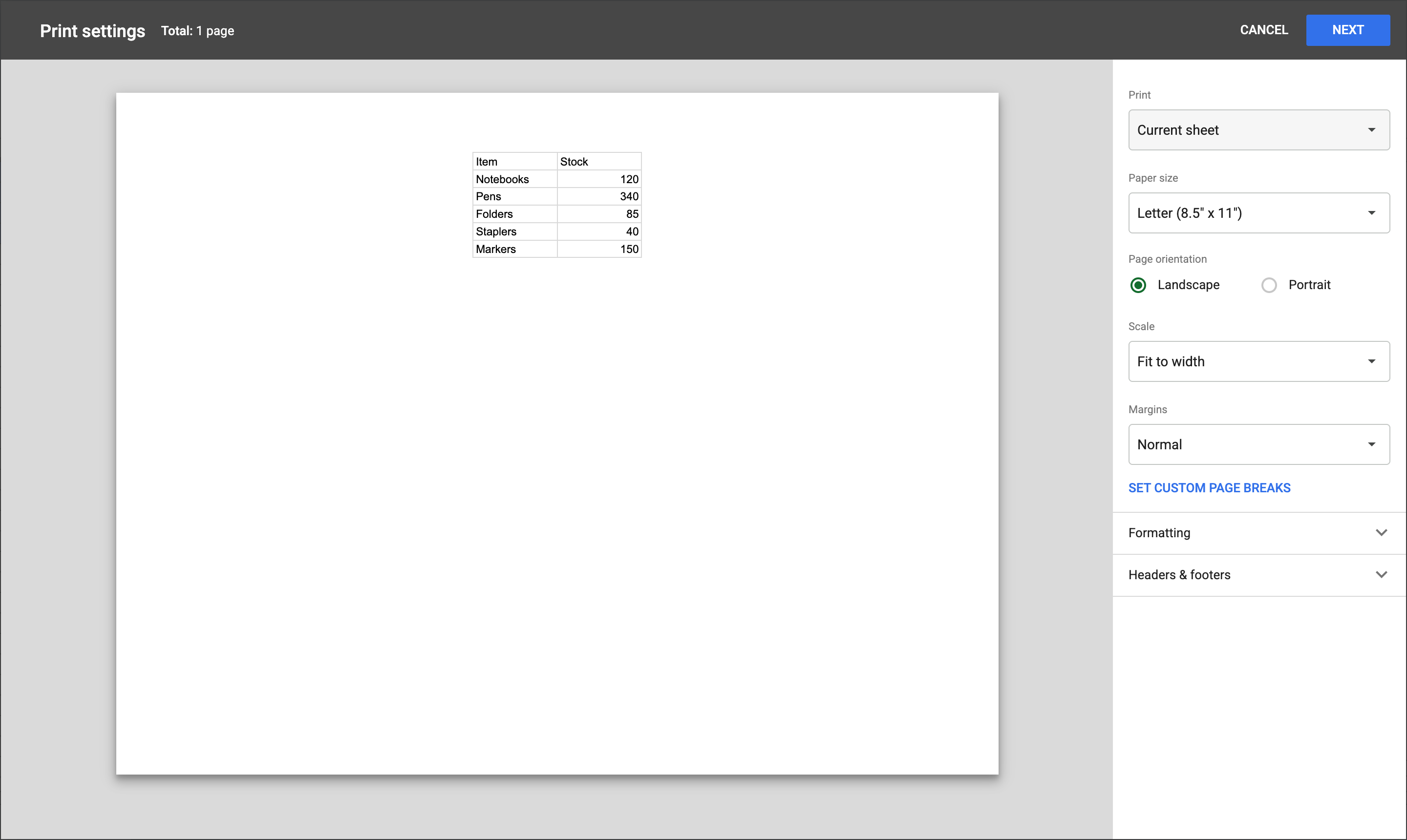
Under Print, open the list that says Current sheet.
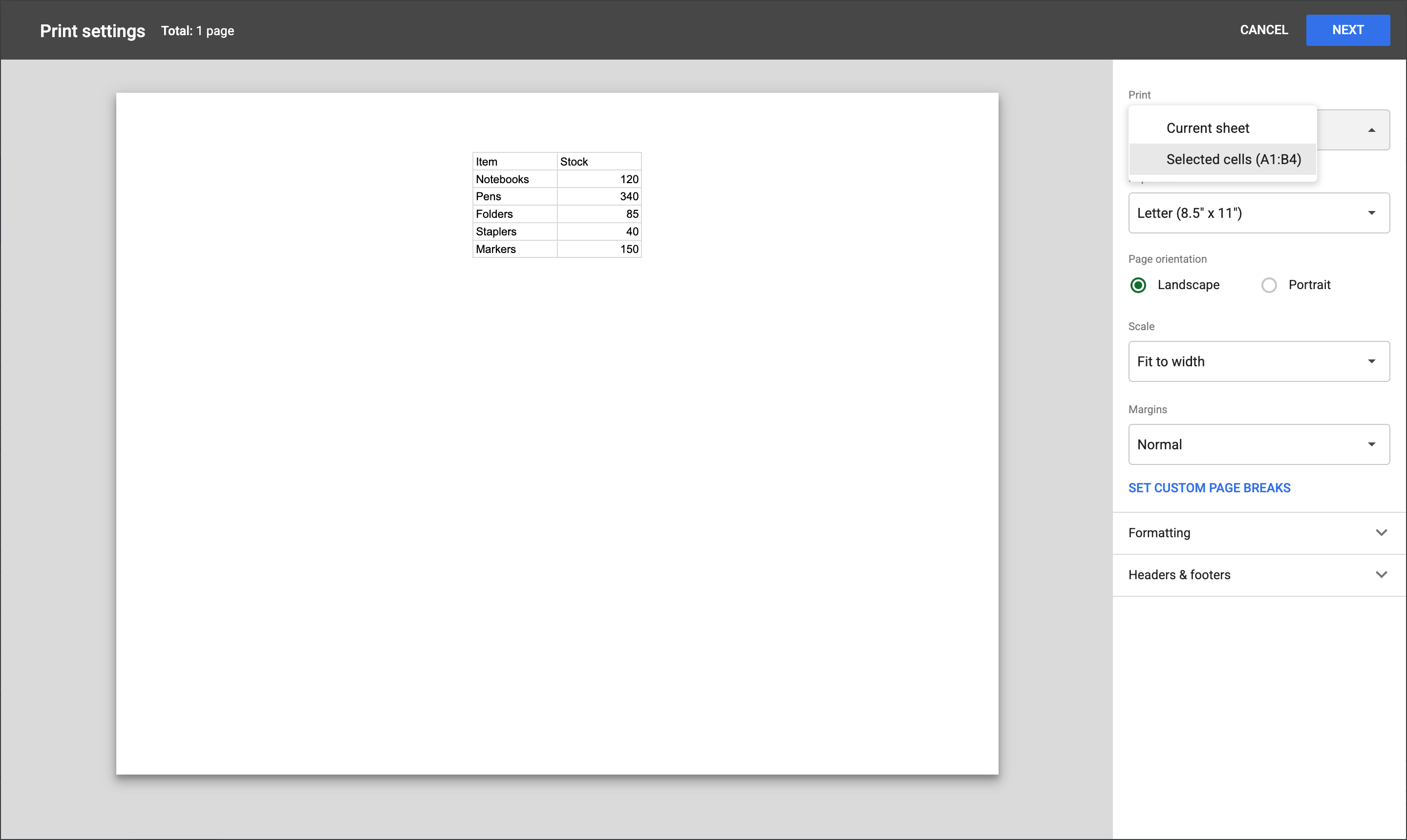
Choose Selected cells. The preview now shows only your selection.
Click Next to send the selected area to your printer.
Duplicate this template, swap in your own screens, and share it with your team. Free to start — no credit card.
Fill out the form and we'll get back to you as soon as possible.
Tell us about your team and we'll find the right plan together.