1
Open Outlook Settings
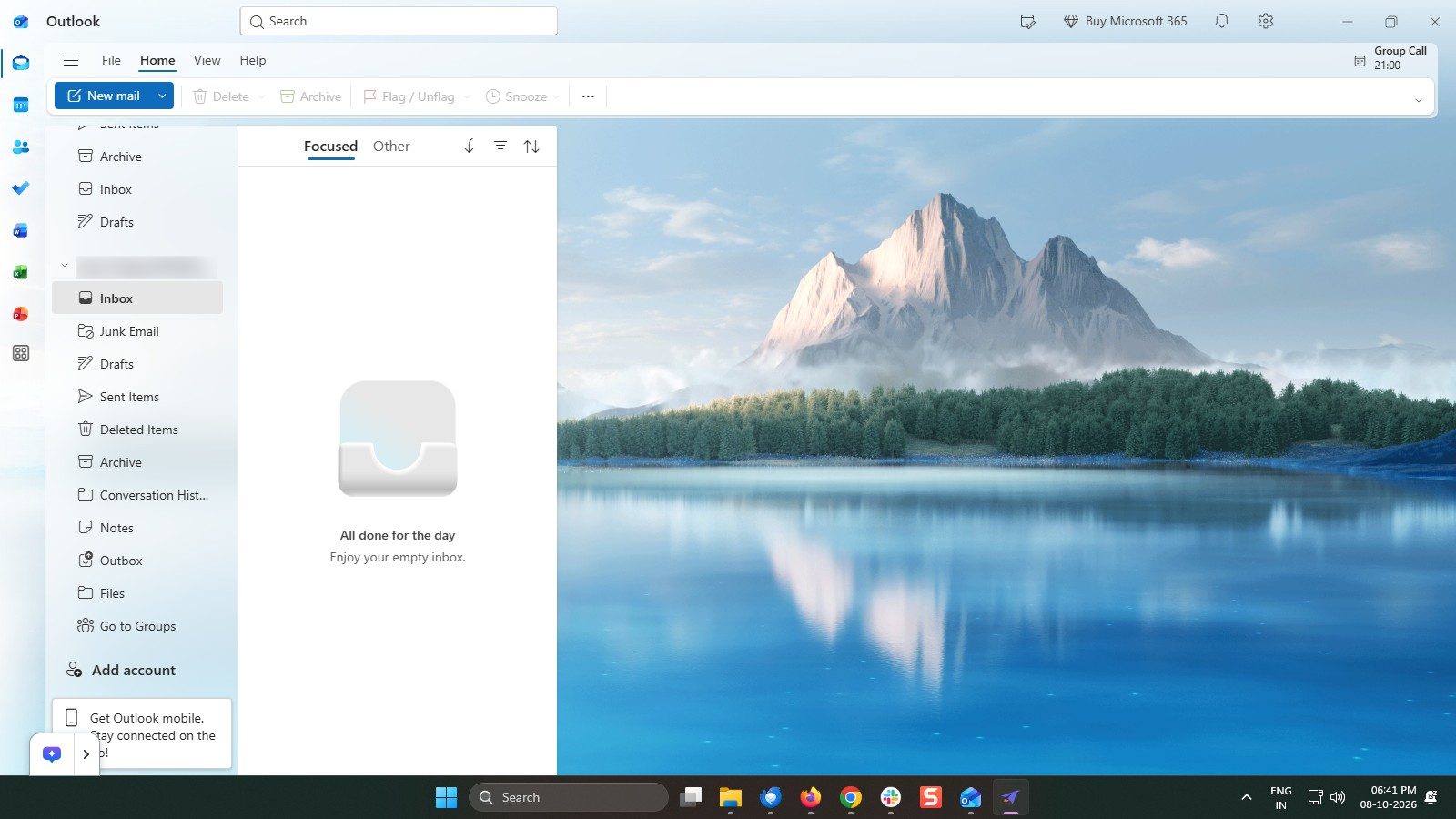
Launch the Microsoft Outlook application on your desktop. In the top-left corner of the interface, click on the File tab located on the primary ribbon to navigate to the Account Information dashboard.

This guide explains how to configure automatic out-of-office (OOF) status and email replies in Microsoft Outlook. Setting up auto-responders ensures colleagues, clients, and external contacts are promptly informed of your absence, expected return date, and alternative points of contact while you are away from work.
Launch the Microsoft Outlook application on your desktop. In the top-left corner of the interface, click on the File tab located on the primary ribbon to navigate to the Account Information dashboard.
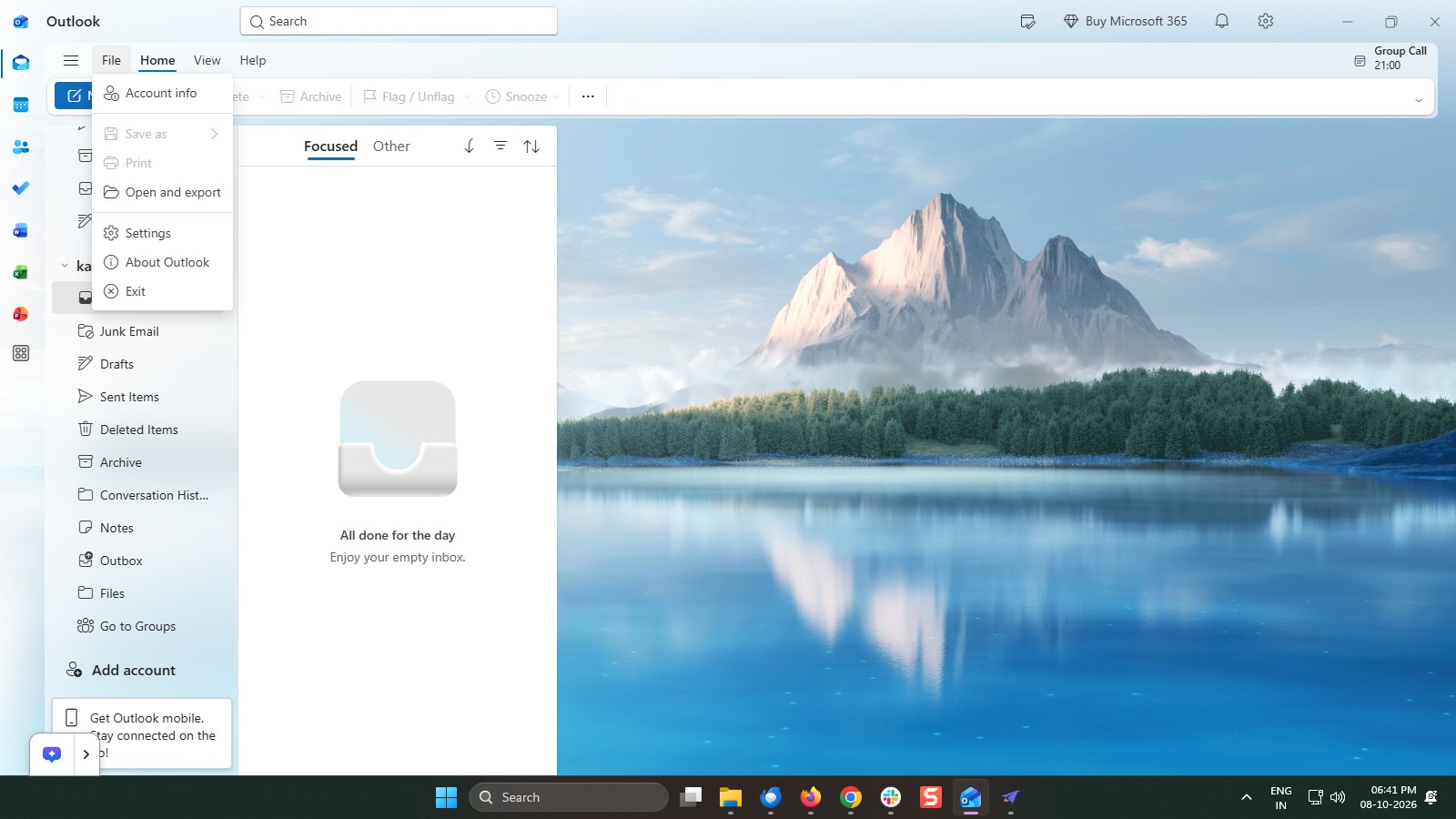
Click the "Account Info" option in the File dropdown menu to view your account details.
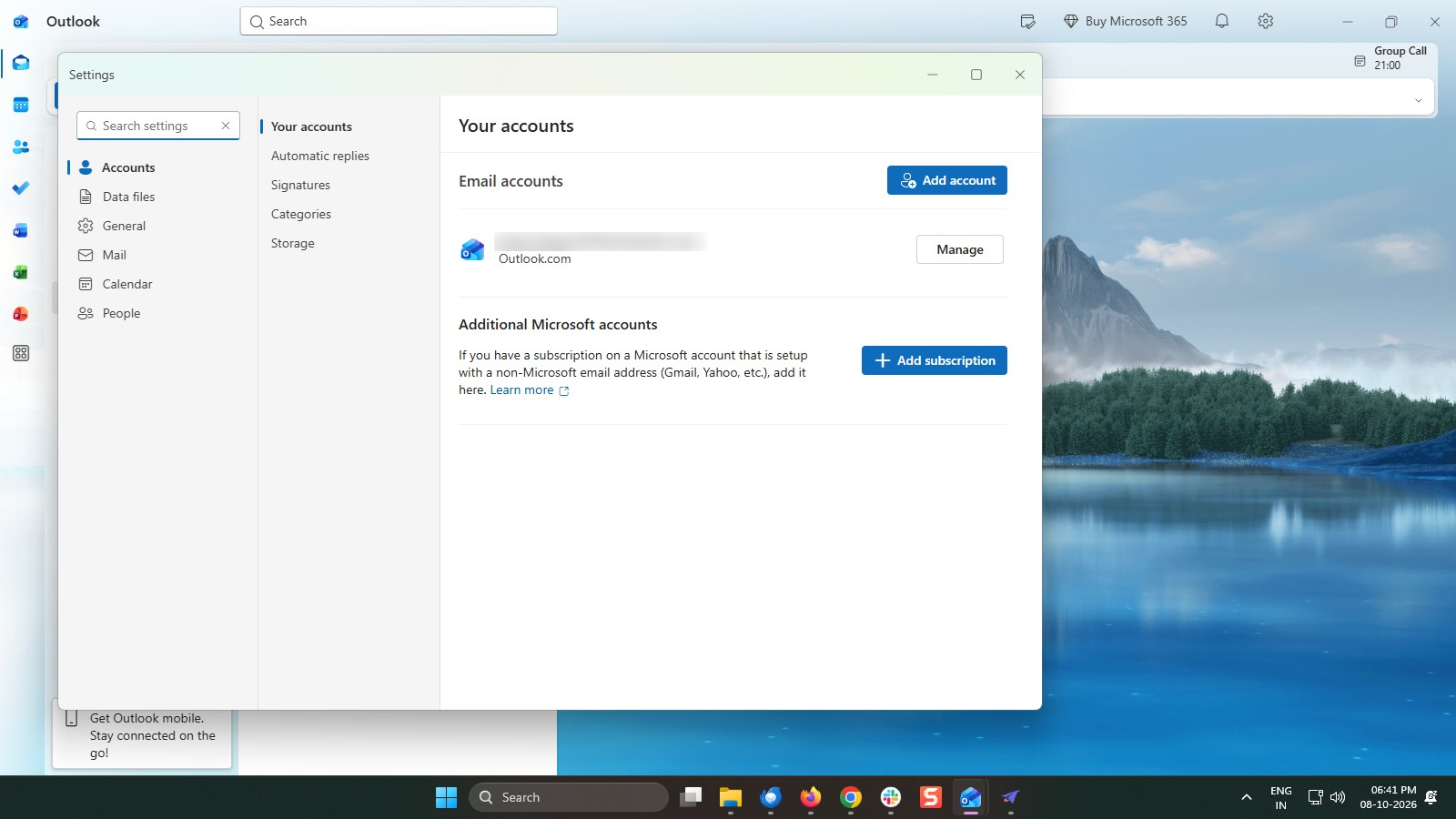
Click the Manage button next to your email address in the Email accounts section.
Within the Account Information screen, locate and click the Automatic Replies (Out of Office) button. This will open the configuration dialog box for your automated email preferences.
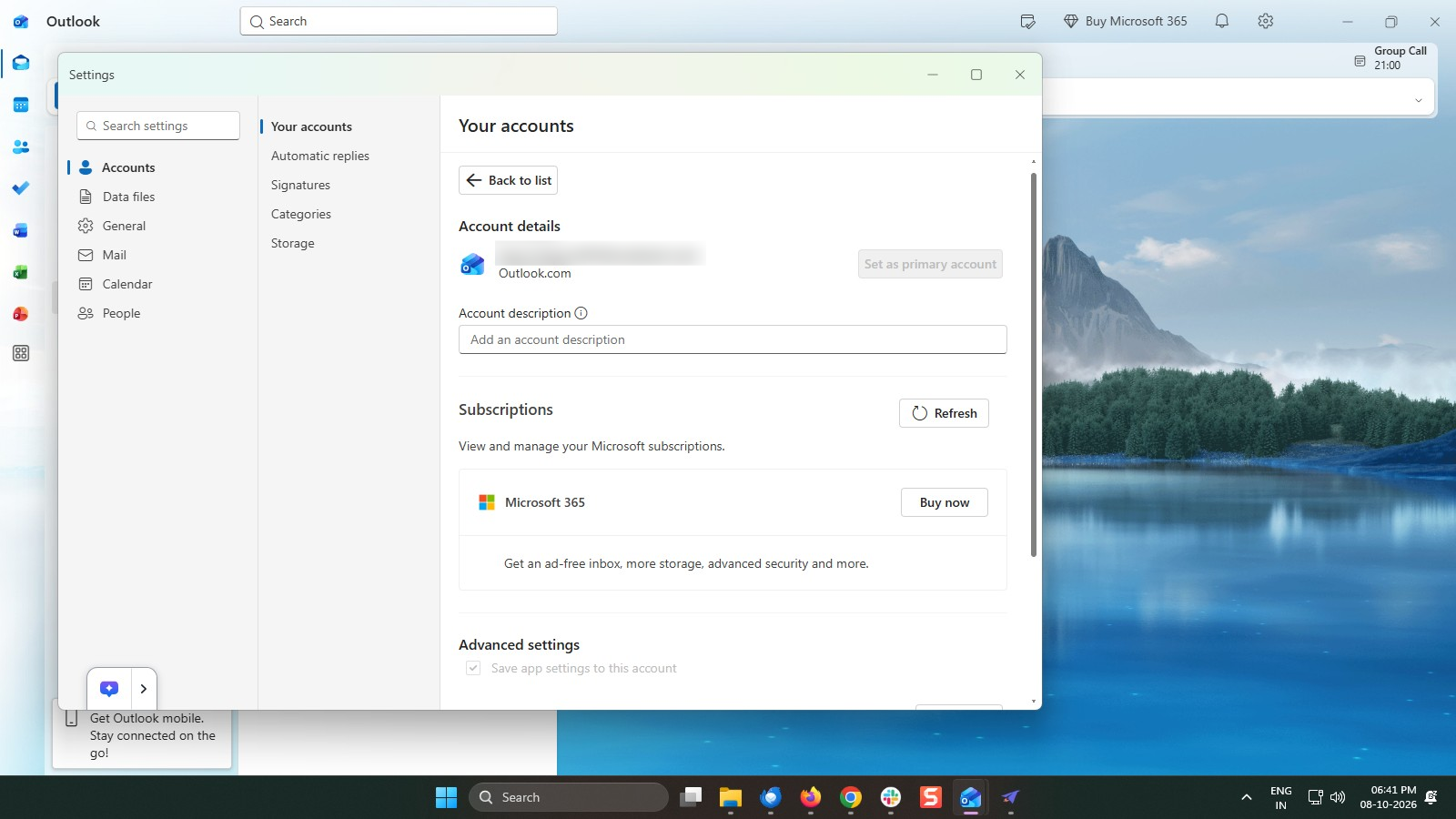
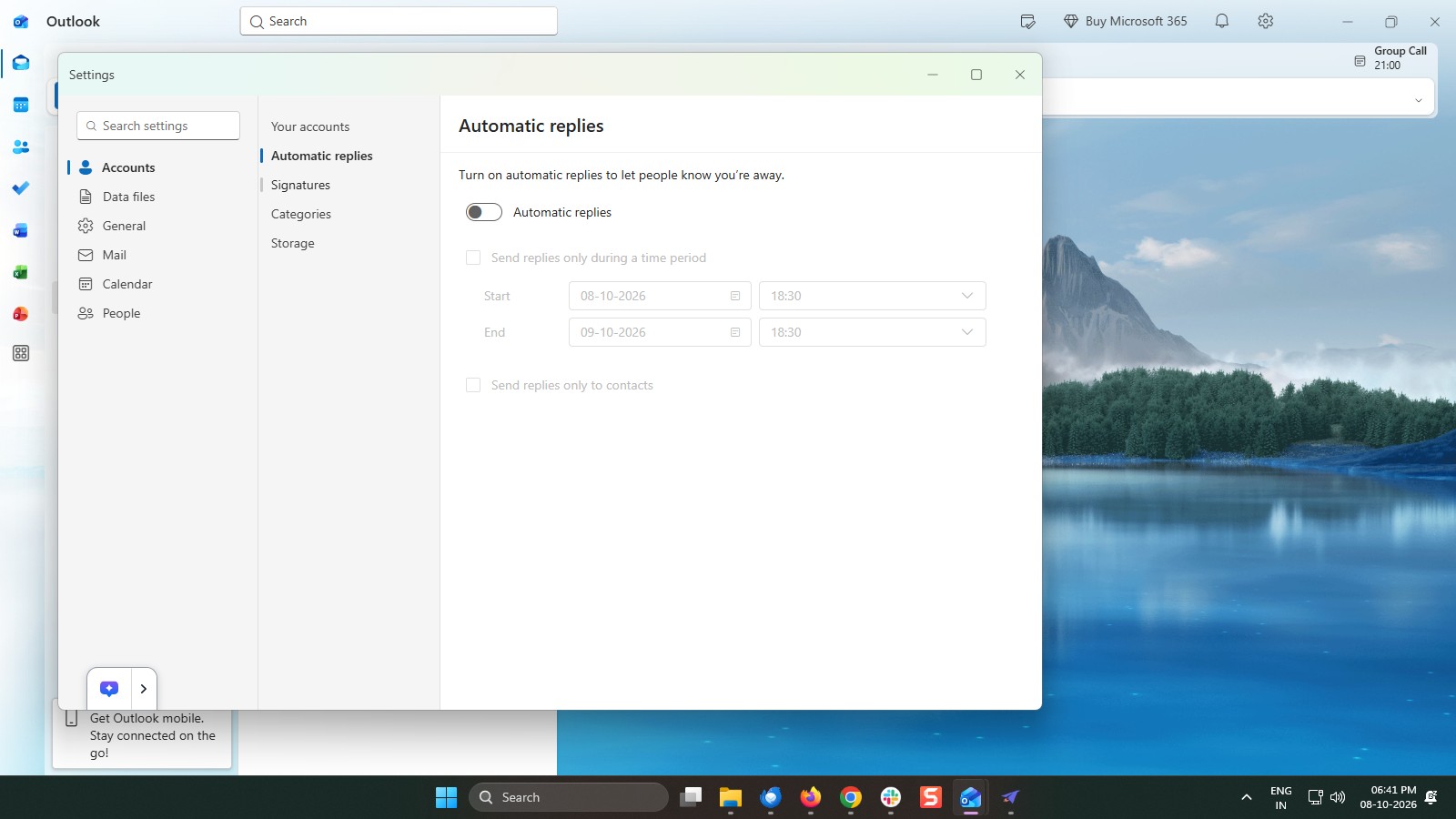
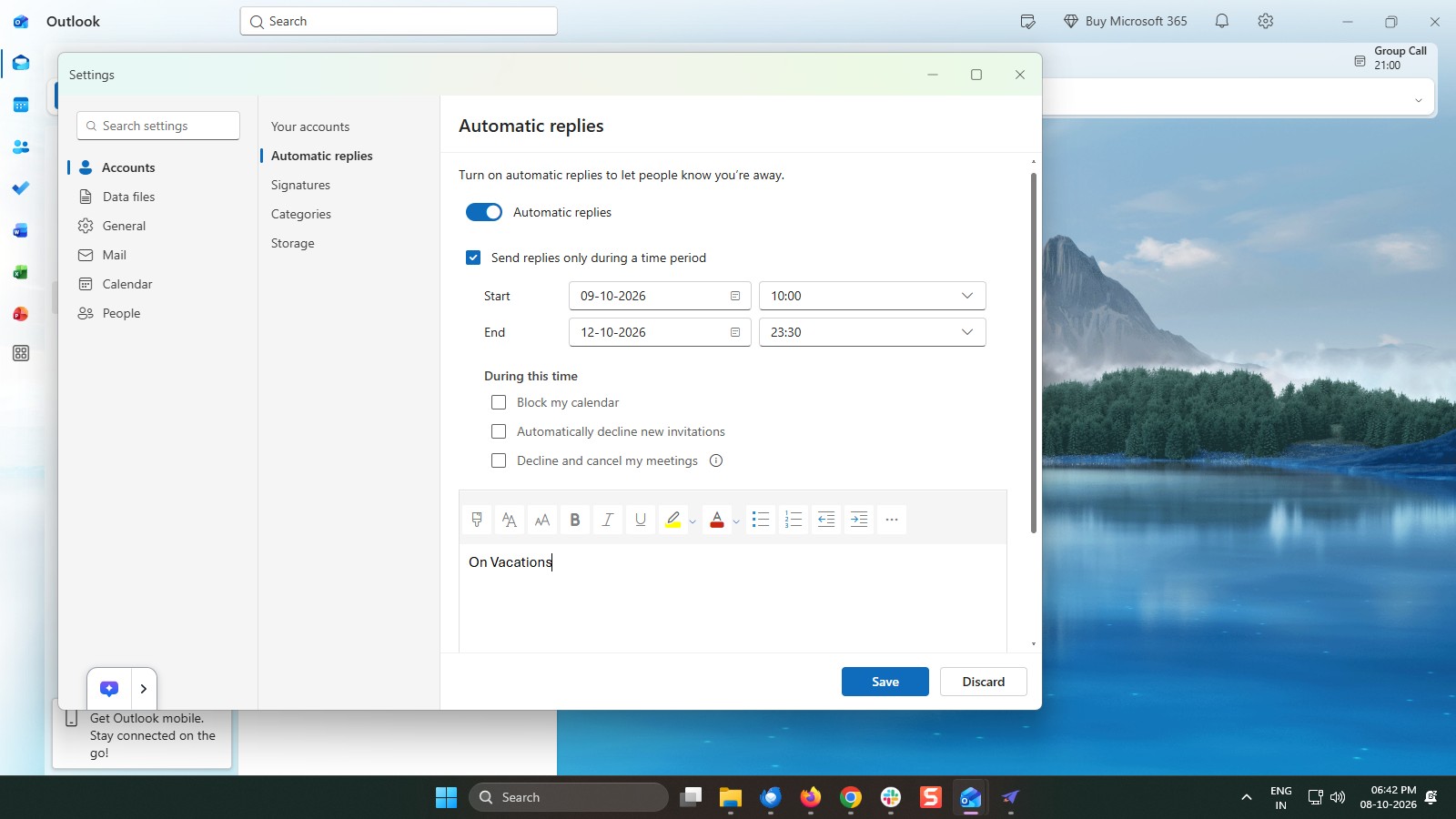
Click the toggle switch next to "Automatic replies" in the settings panel to enable the feature.
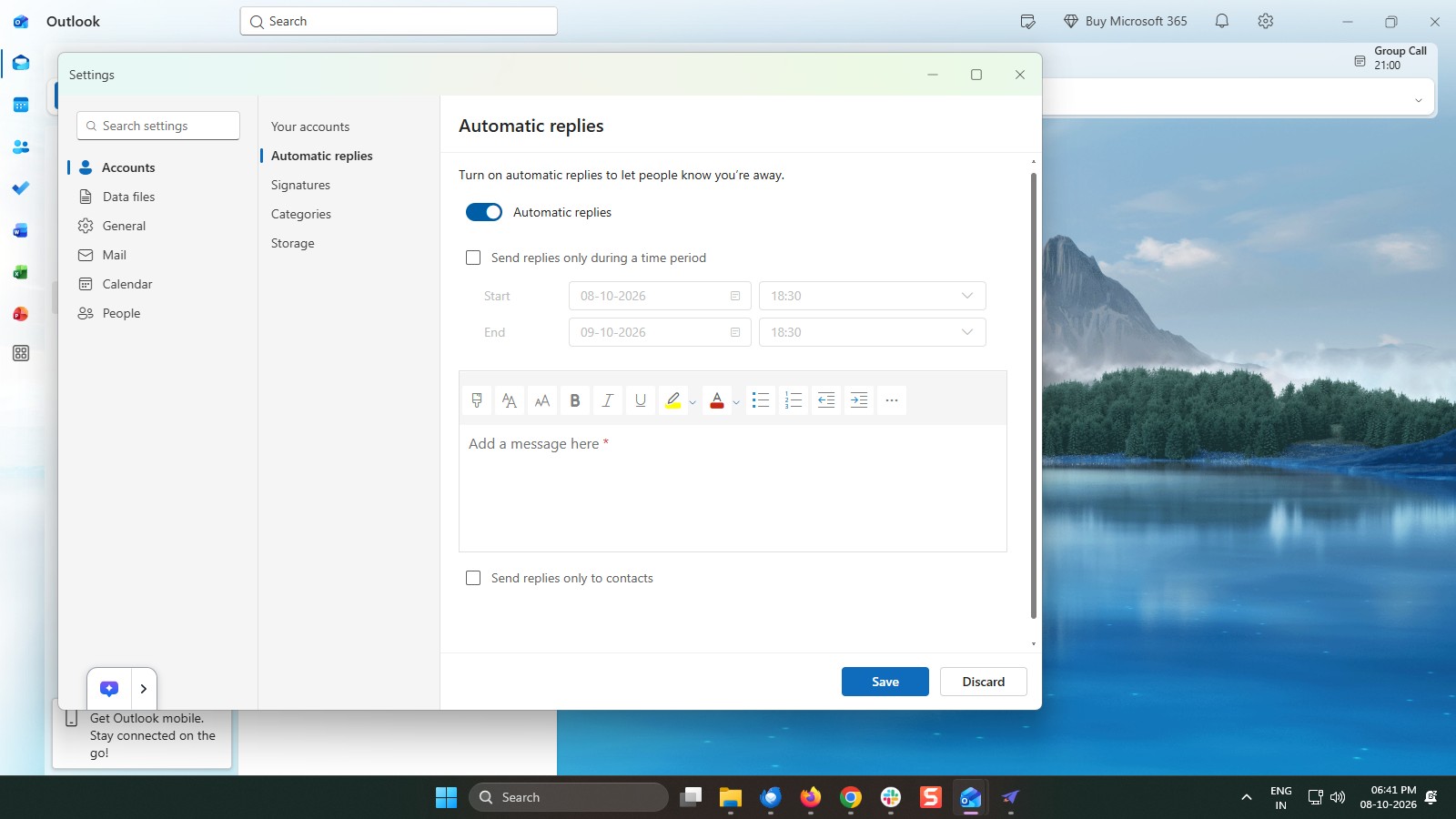
Click the checkbox next to "Send replies only during a time period" to specify a date range for your automatic replies.
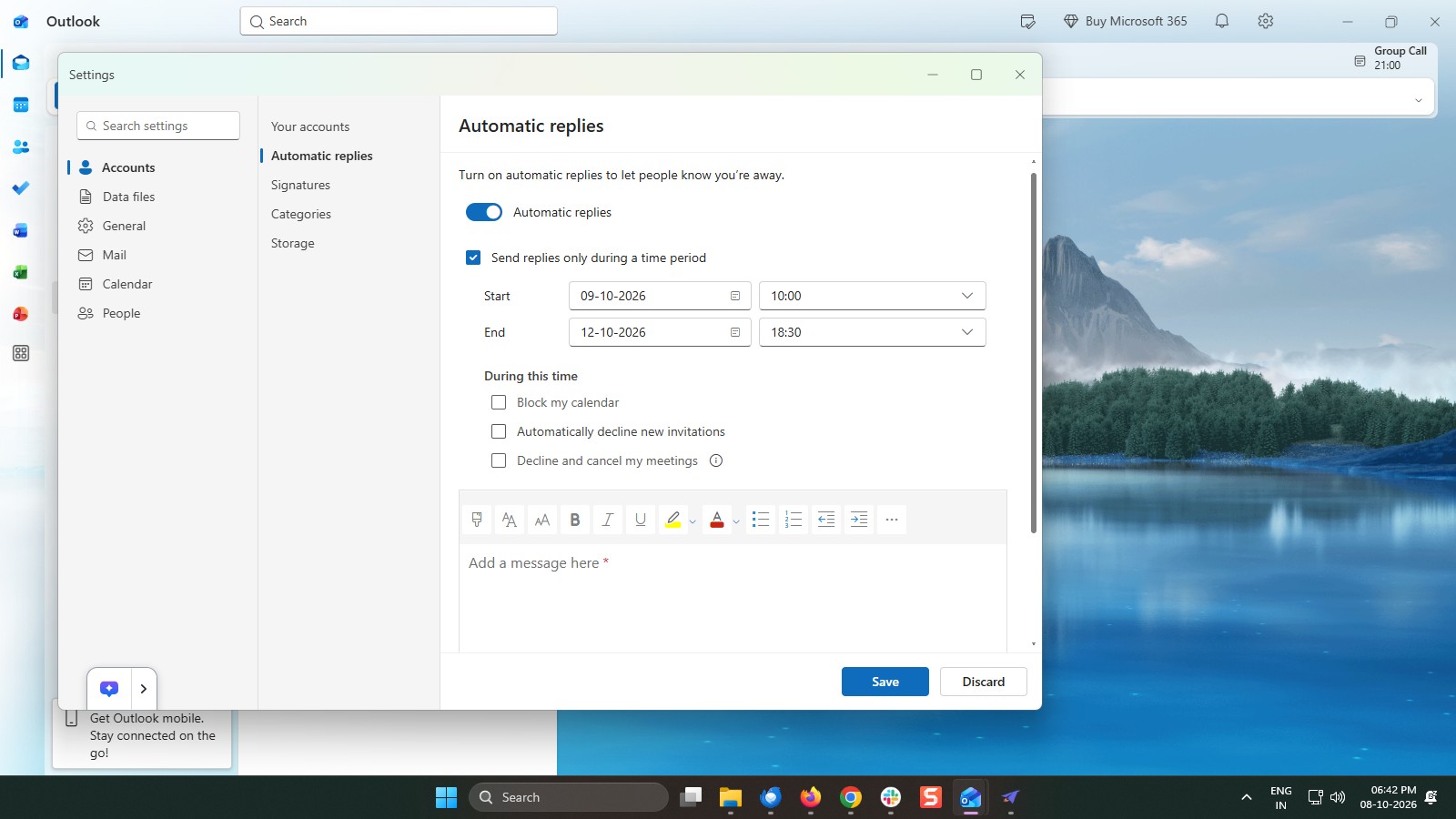
Select your preferred Start date/time and End date/time to schedule your automatic replies.
Click inside the text area to edit your automatic reply message.
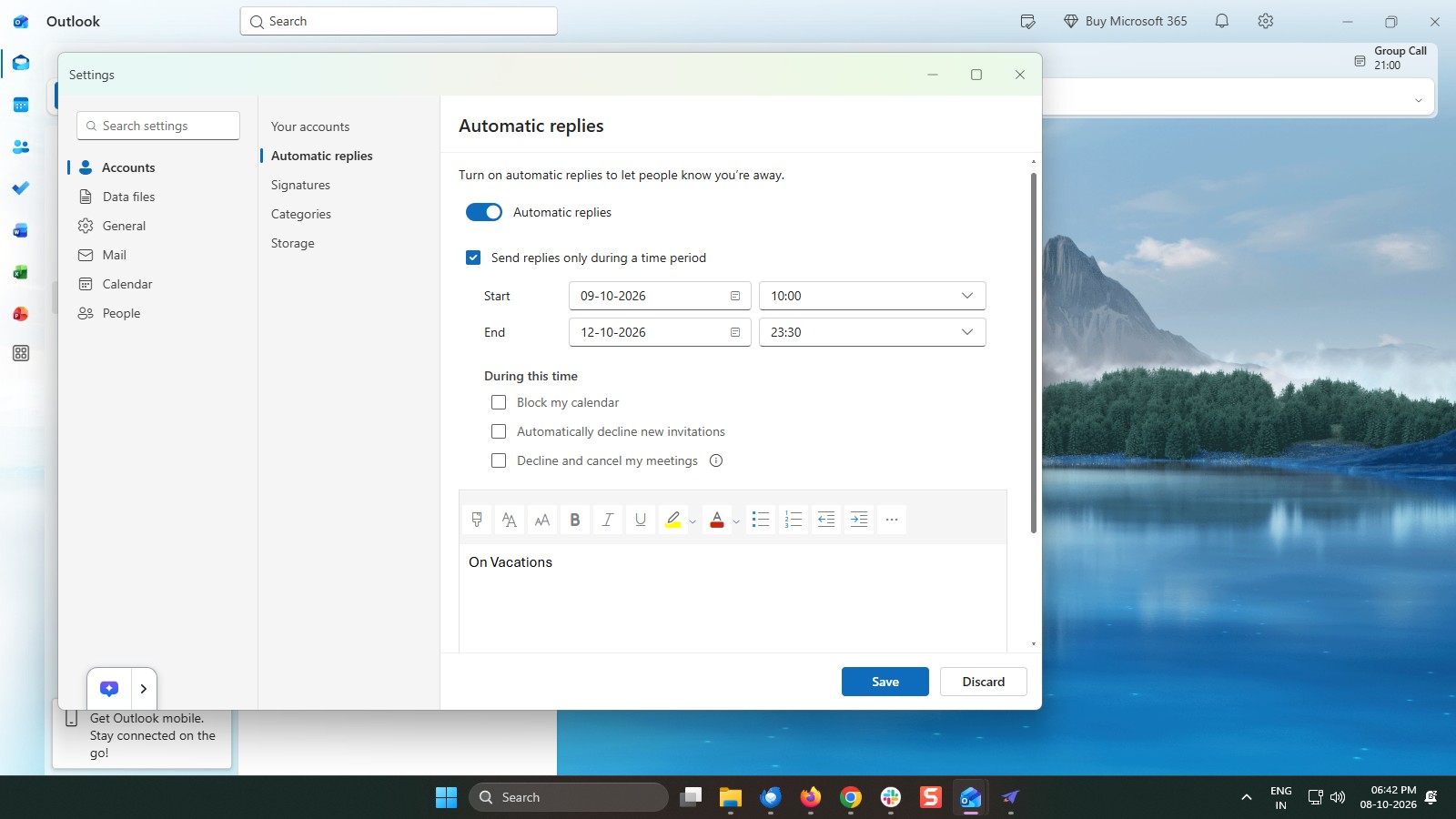
Click the Save button at the bottom of the Settings window to apply your automatic replies configuration.
Duplicate this template, swap in your own screens, and share it with your team. Free to start — no credit card.
Fill out the form and we'll get back to you as soon as possible.
Tell us about your team and we'll find the right plan together.