1
Open Gmail
Sign in to your Gmail account.
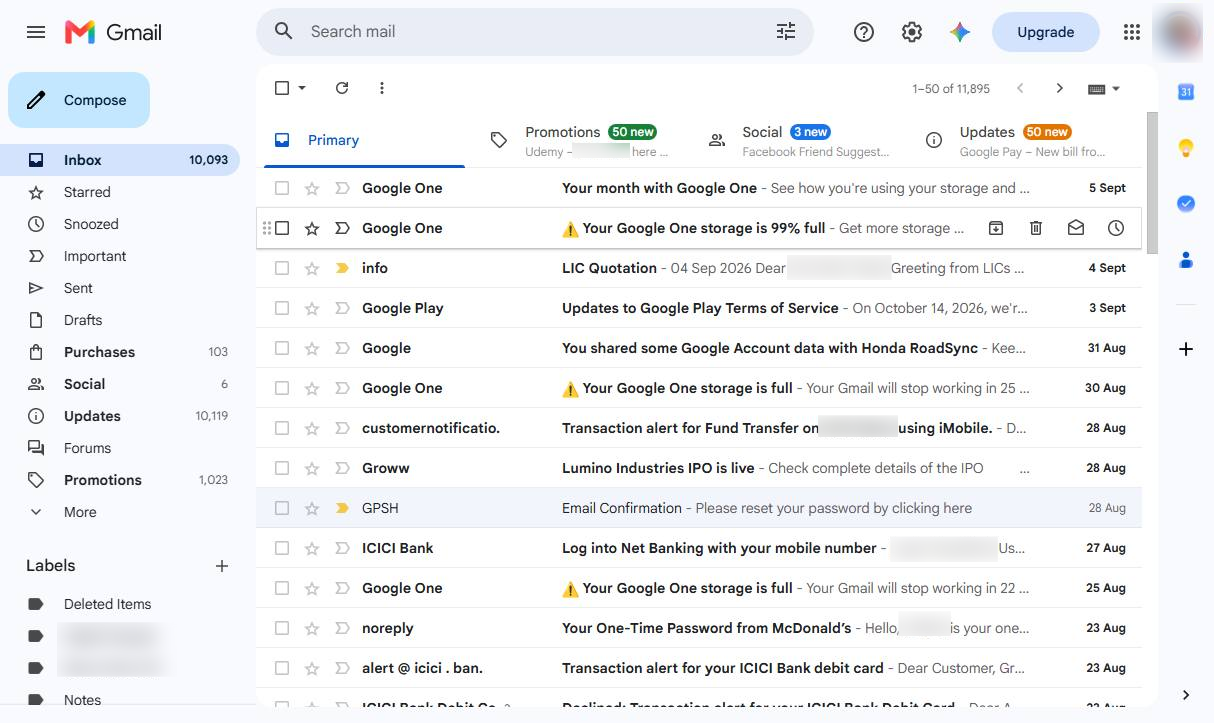

Learn how to create and send a calendar invite using Gmail and Google Calendar, including how to add guests, meeting details, and a Zoom meeting link.
Sign in to your Gmail account.
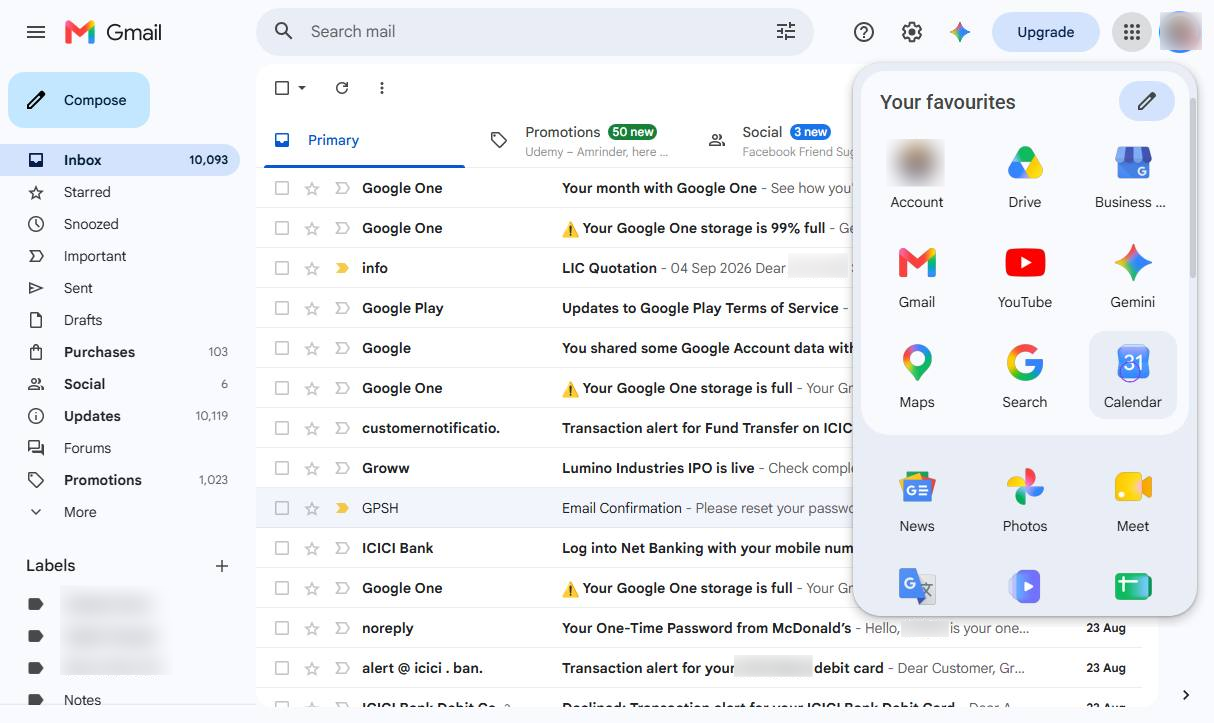
Click the Google Calendar icon from the Google apps menu or the side panel.
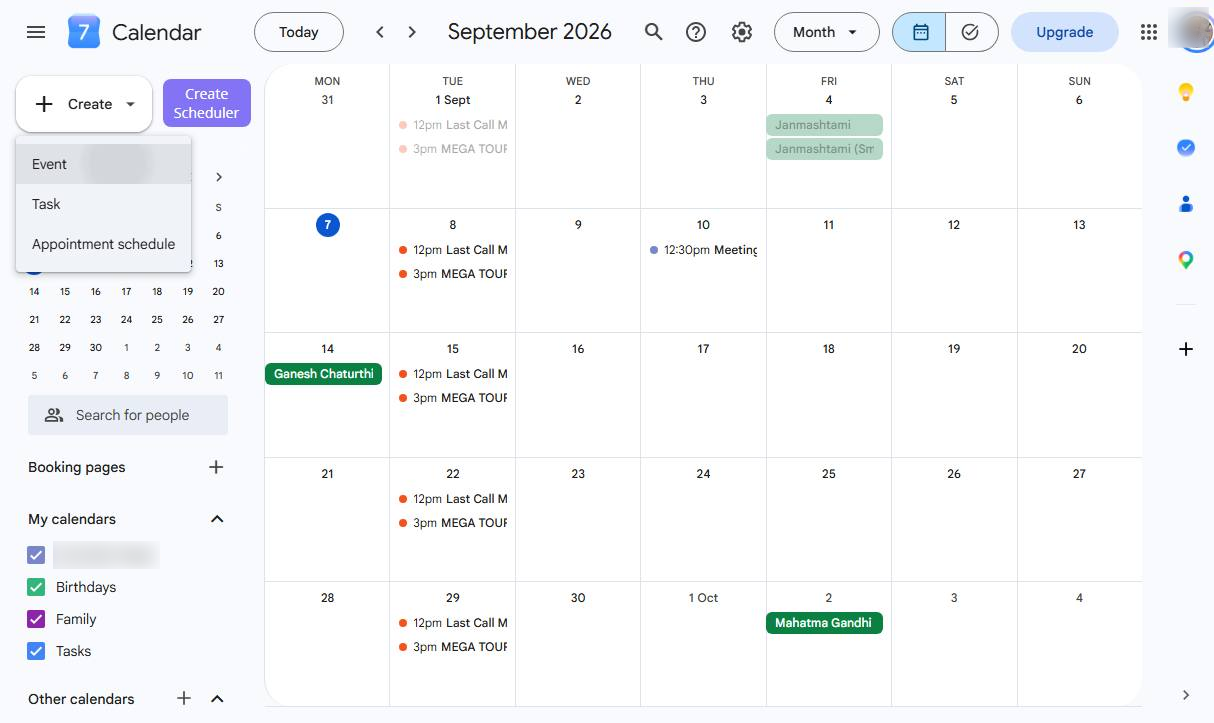
Click Create to start setting up a new calendar event.
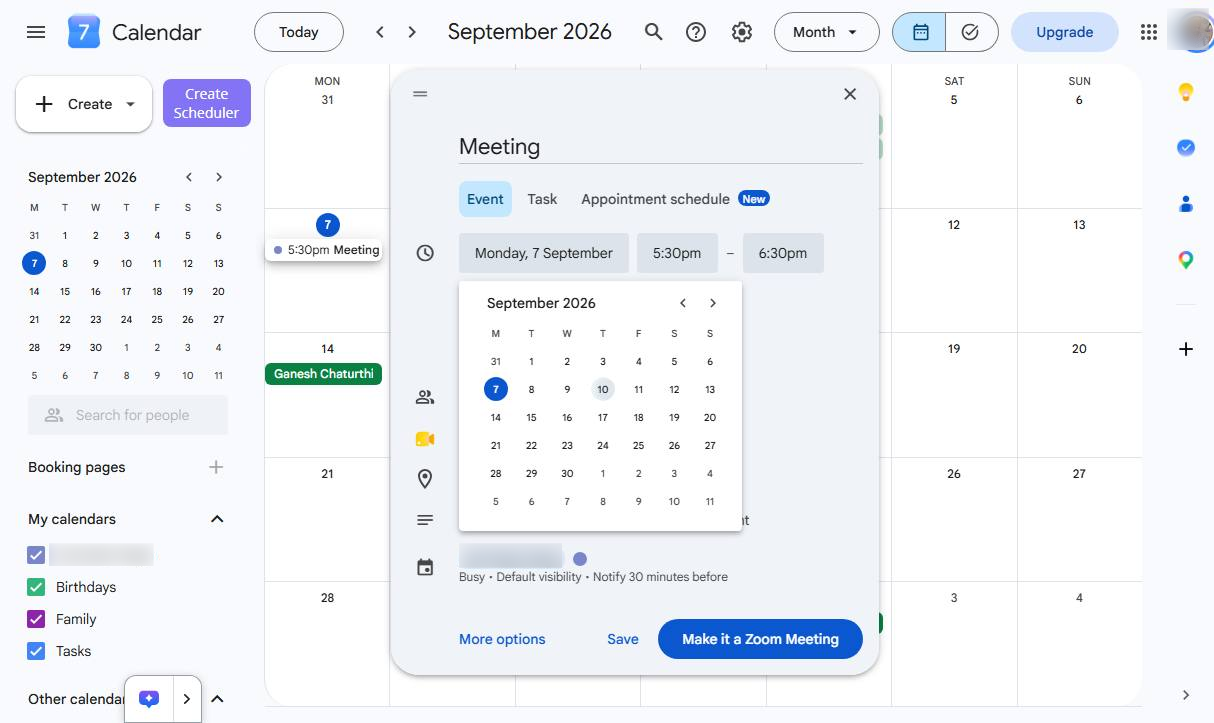
Add a clear name for your meeting or event.
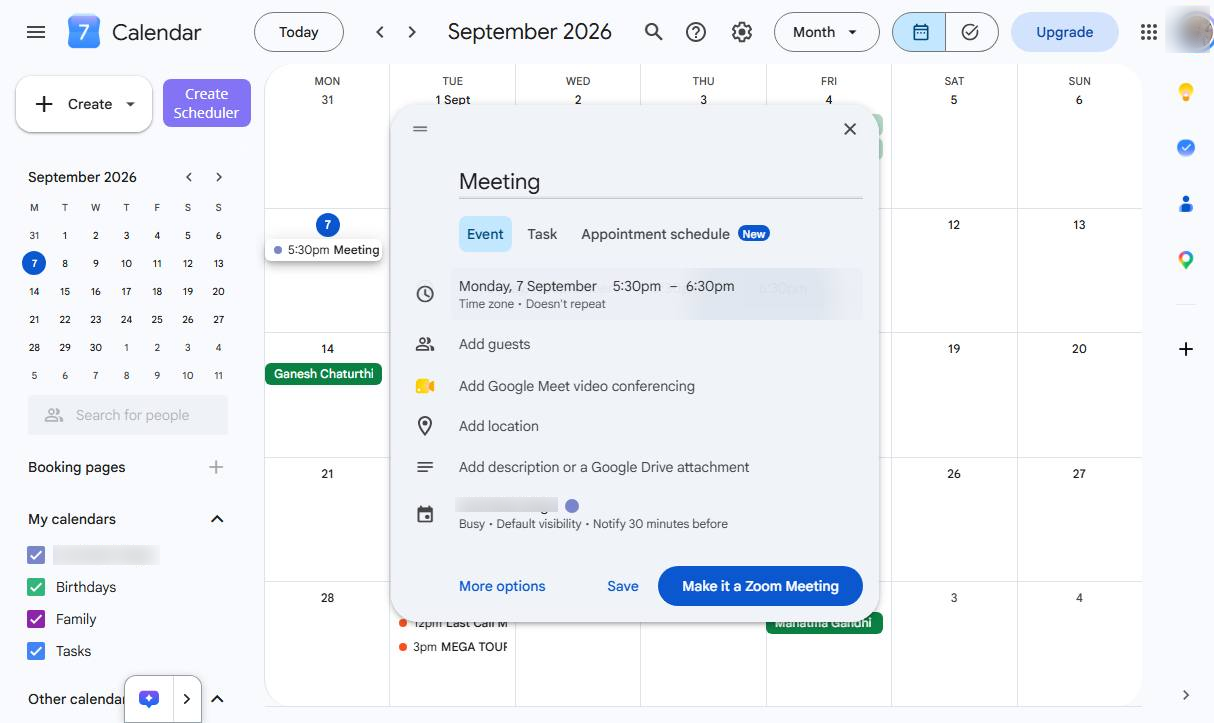
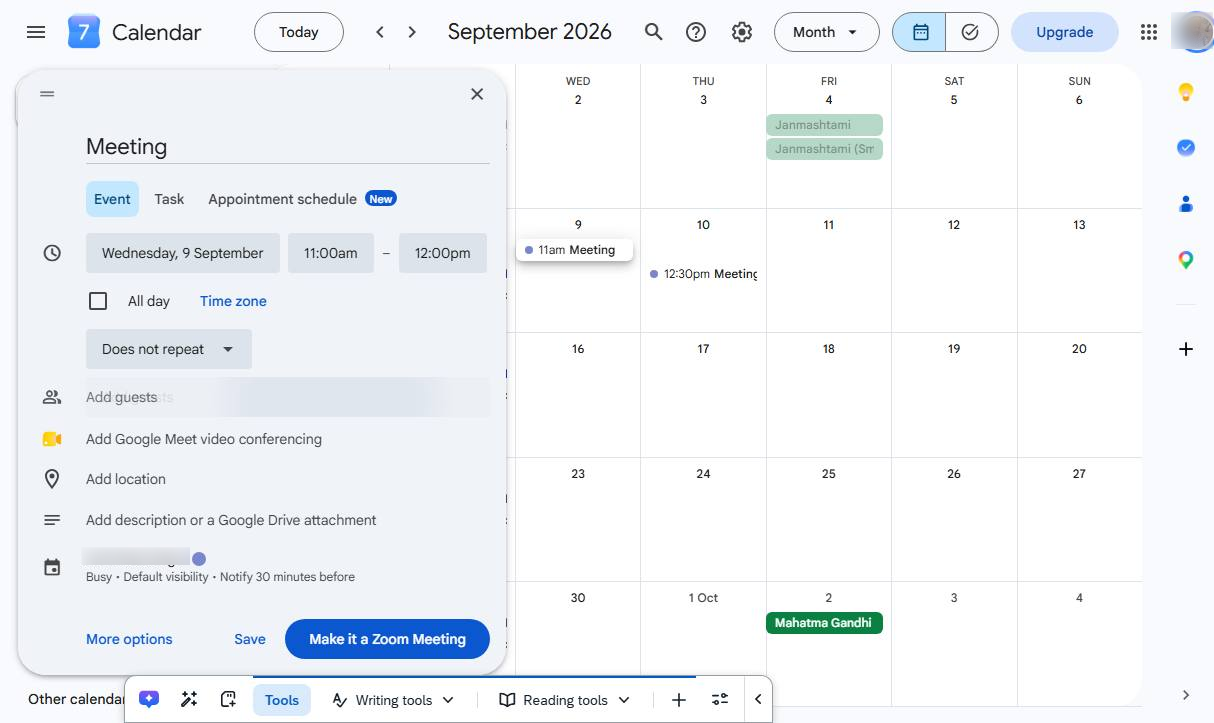
Select the date on which the event will take place.
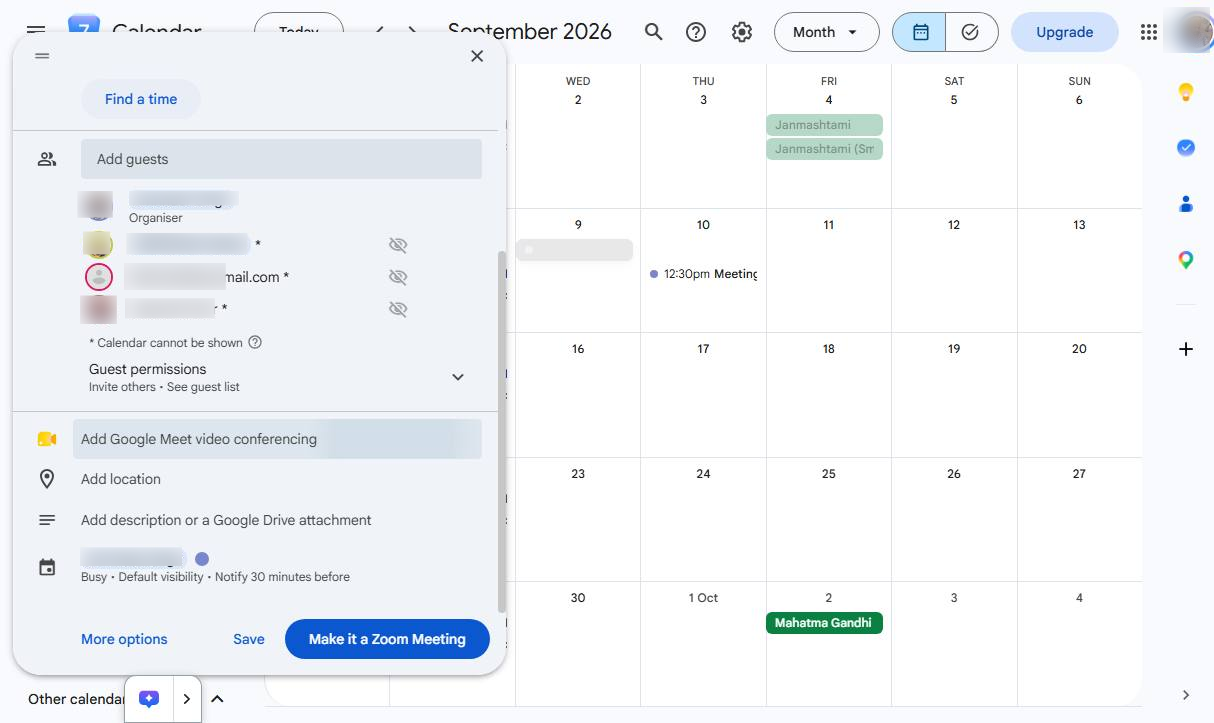
Enter the email addresses of the people you want to invite.
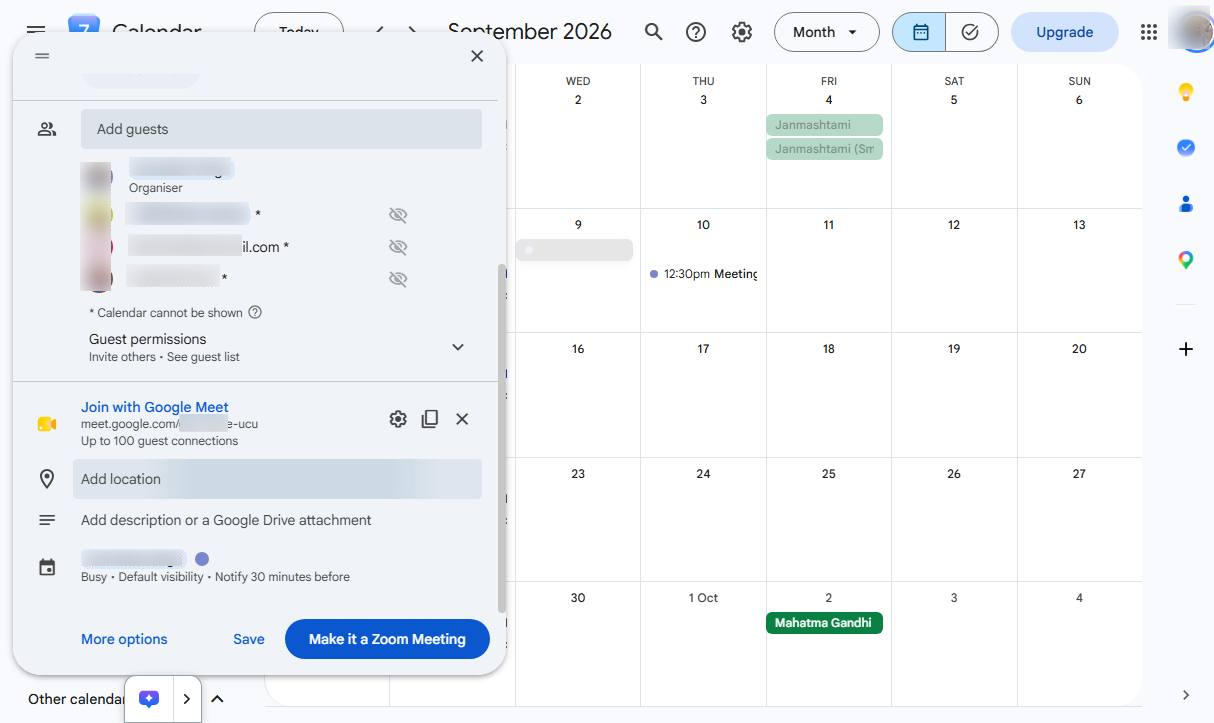
Click Add Google Meet video conferencing if you want to host the meeting on Google Meet.
Enter a physical location if the meeting will take place in person.
Include additional information, instructions, or an agenda in the Description field.
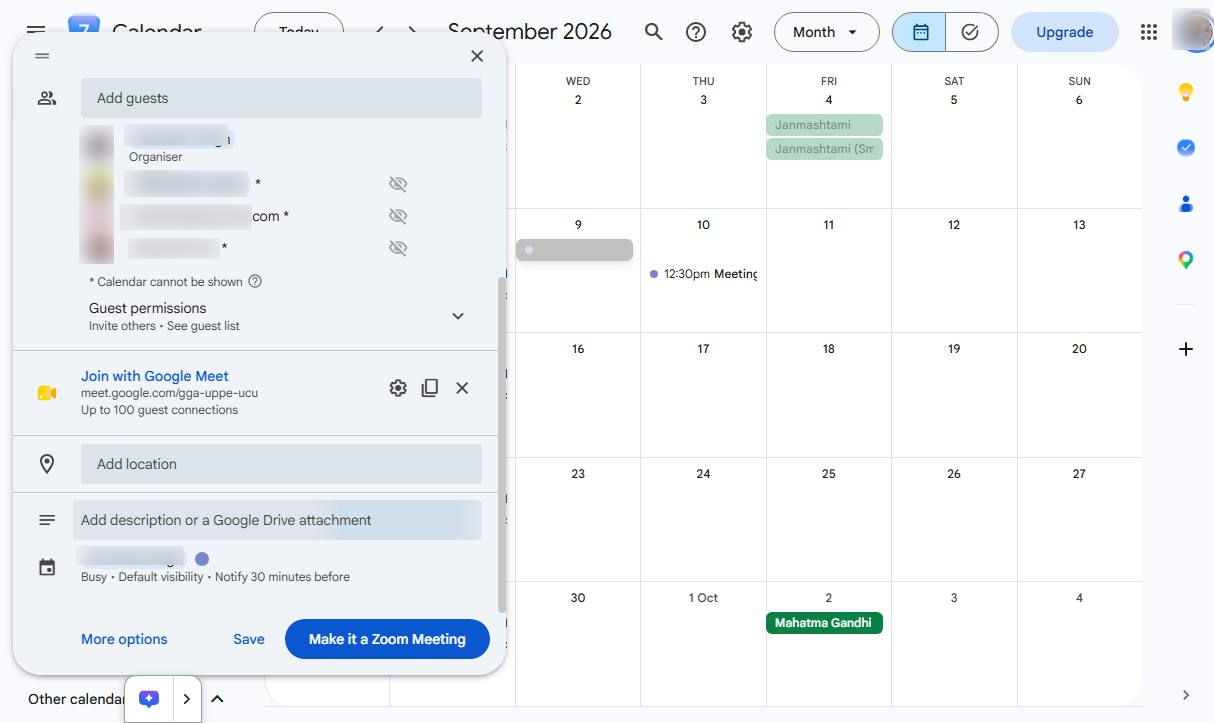
Use the Zoom for Google Workspace add-on to sign in to your Zoom account and add a Zoom meeting link to the calendar event.
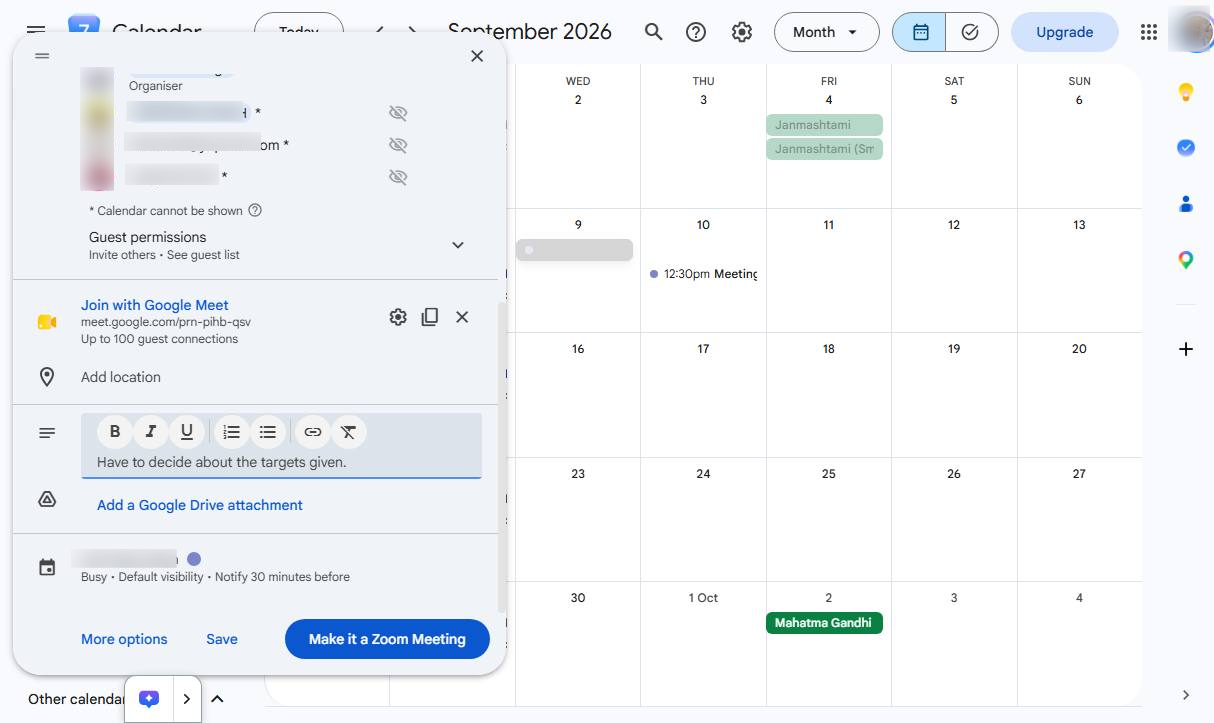
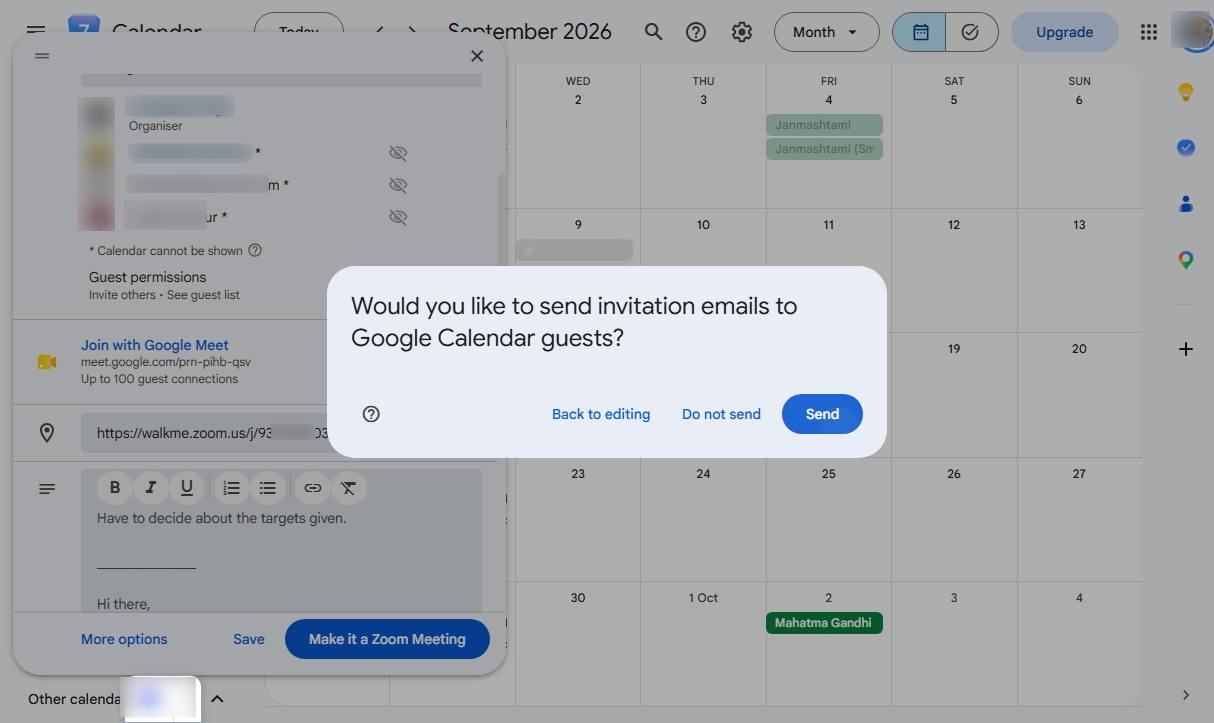
When prompted, click Send to email the invitation to all added guests.
Duplicate this template, swap in your own screens, and share it with your team. Free to start — no credit card.
Fill out the form and we'll get back to you as soon as possible.
Tell us about your team and we'll find the right plan together.