1
Navigate to the Trello Boards page
Open the Trello Boards page to view your workspaces and select the board you want to permanently delete.
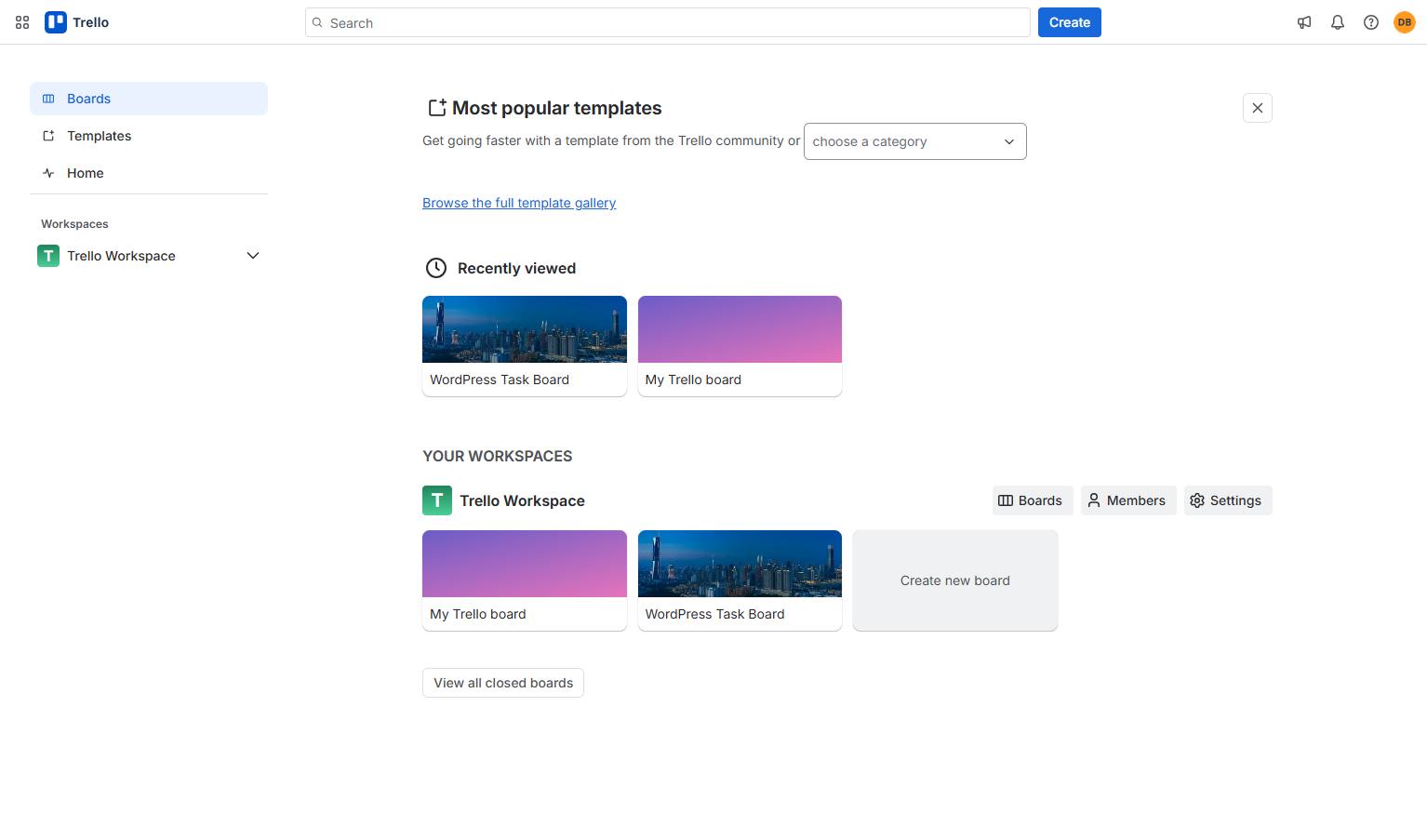

This guide shows you how to permanently delete a board in Trello. You will learn how to navigate to your Board, close the board, and complete the final deletion process to remove it from your account.
Open the Trello Boards page to view your workspaces and select the board you want to permanently delete.
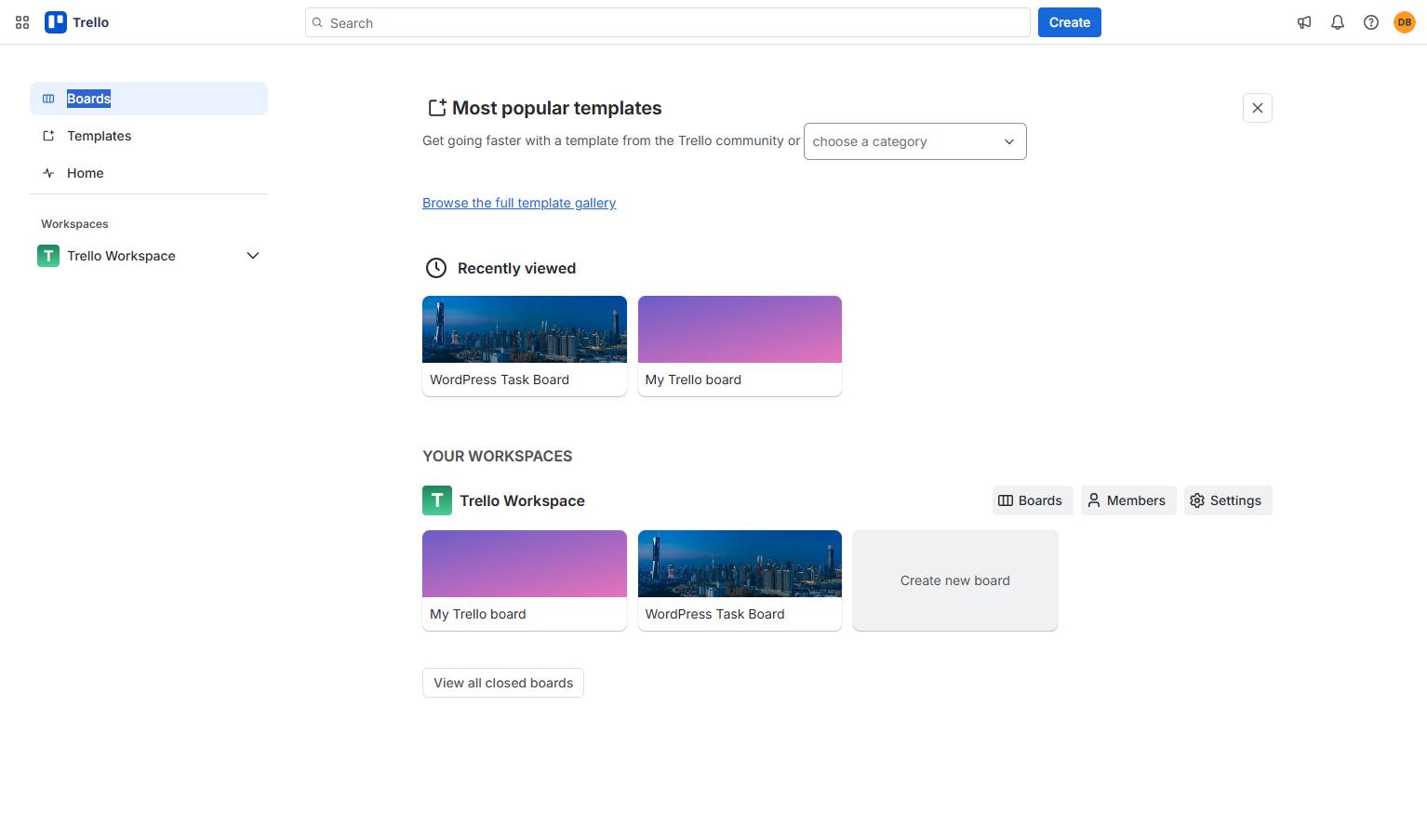
Click the Boards link in the left sidebar to view all your Trello boards.
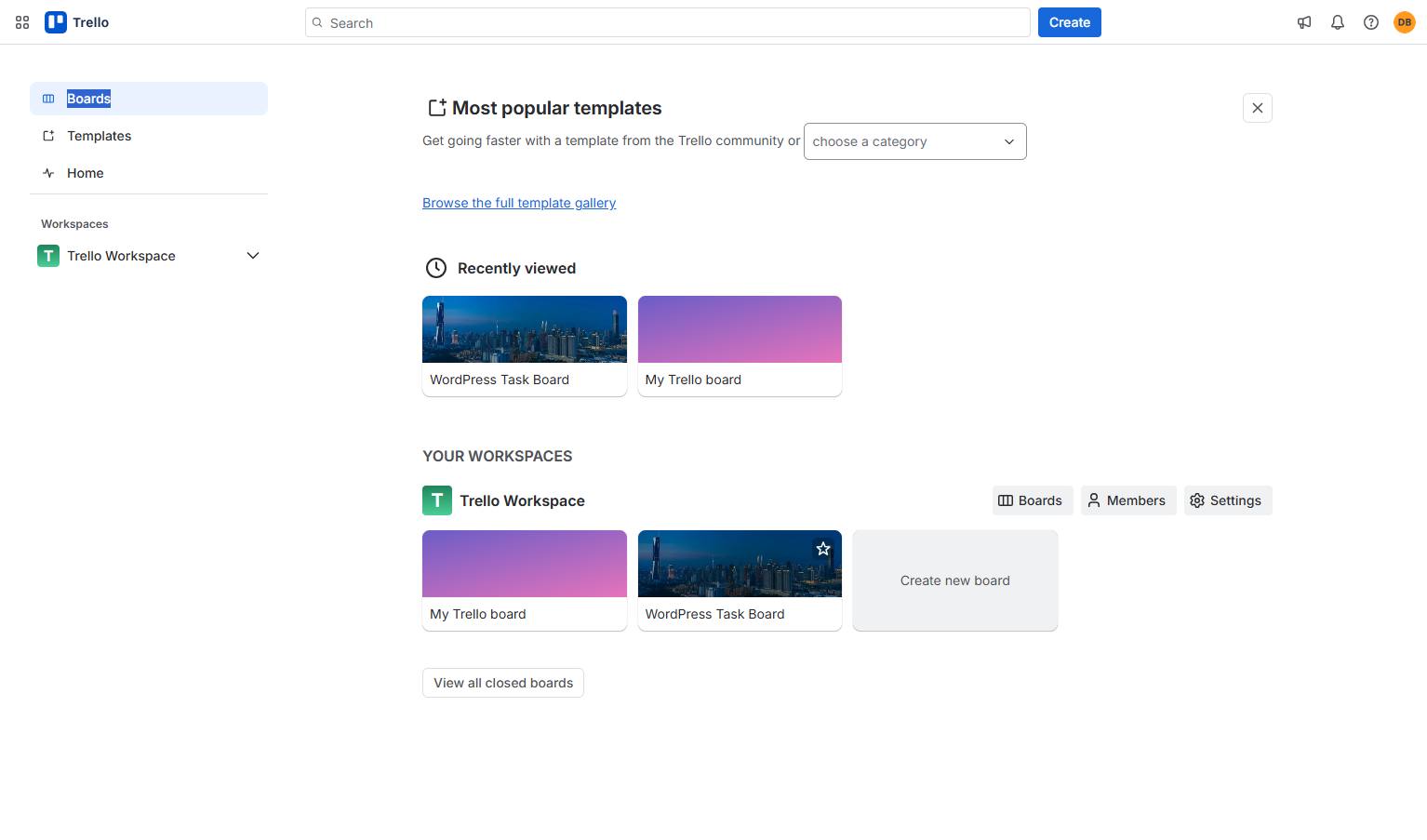
Click the board tile under the "YOUR WORKSPACES" section to open it.
Click the three dots icon in the top right corner of the board header to access more options.

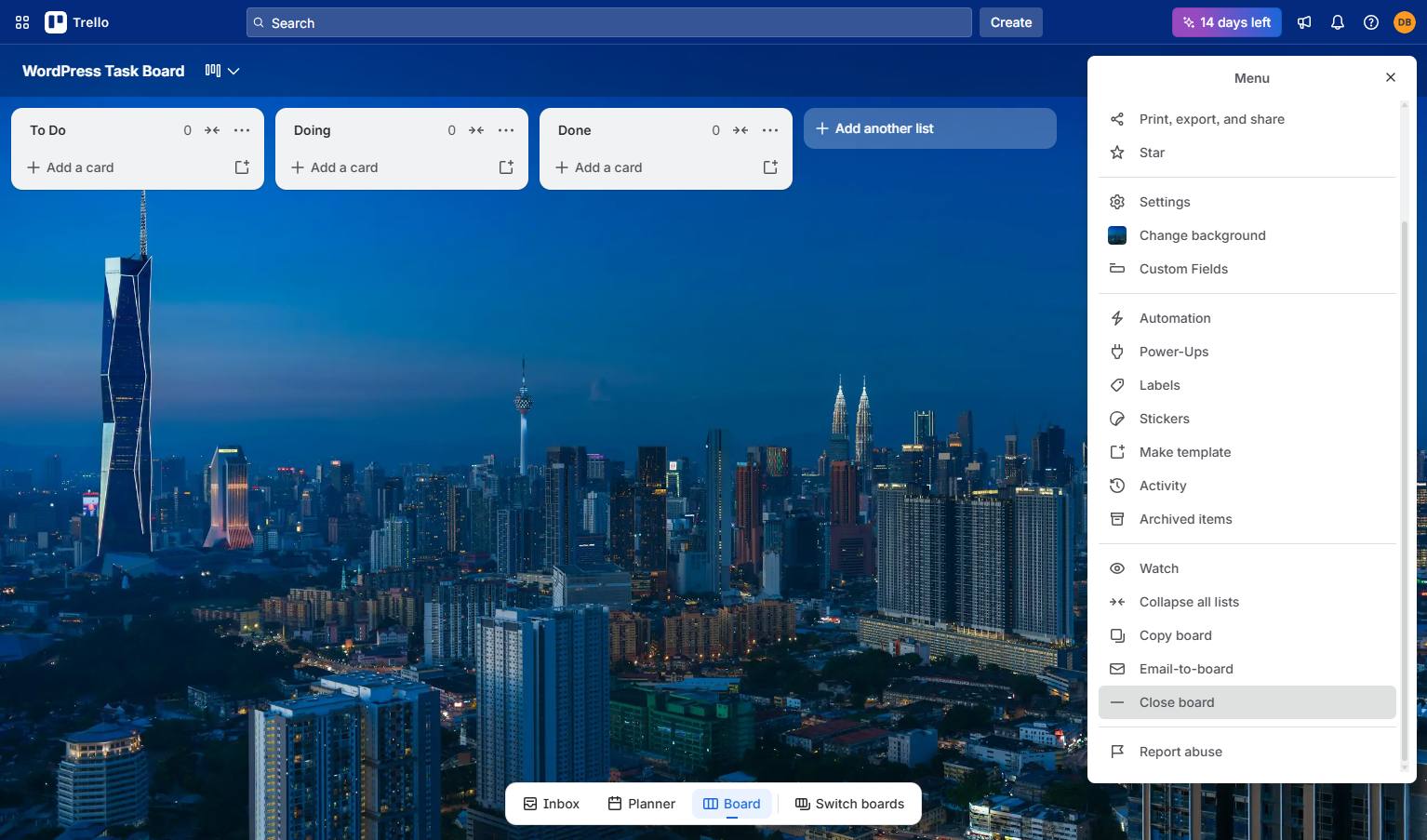
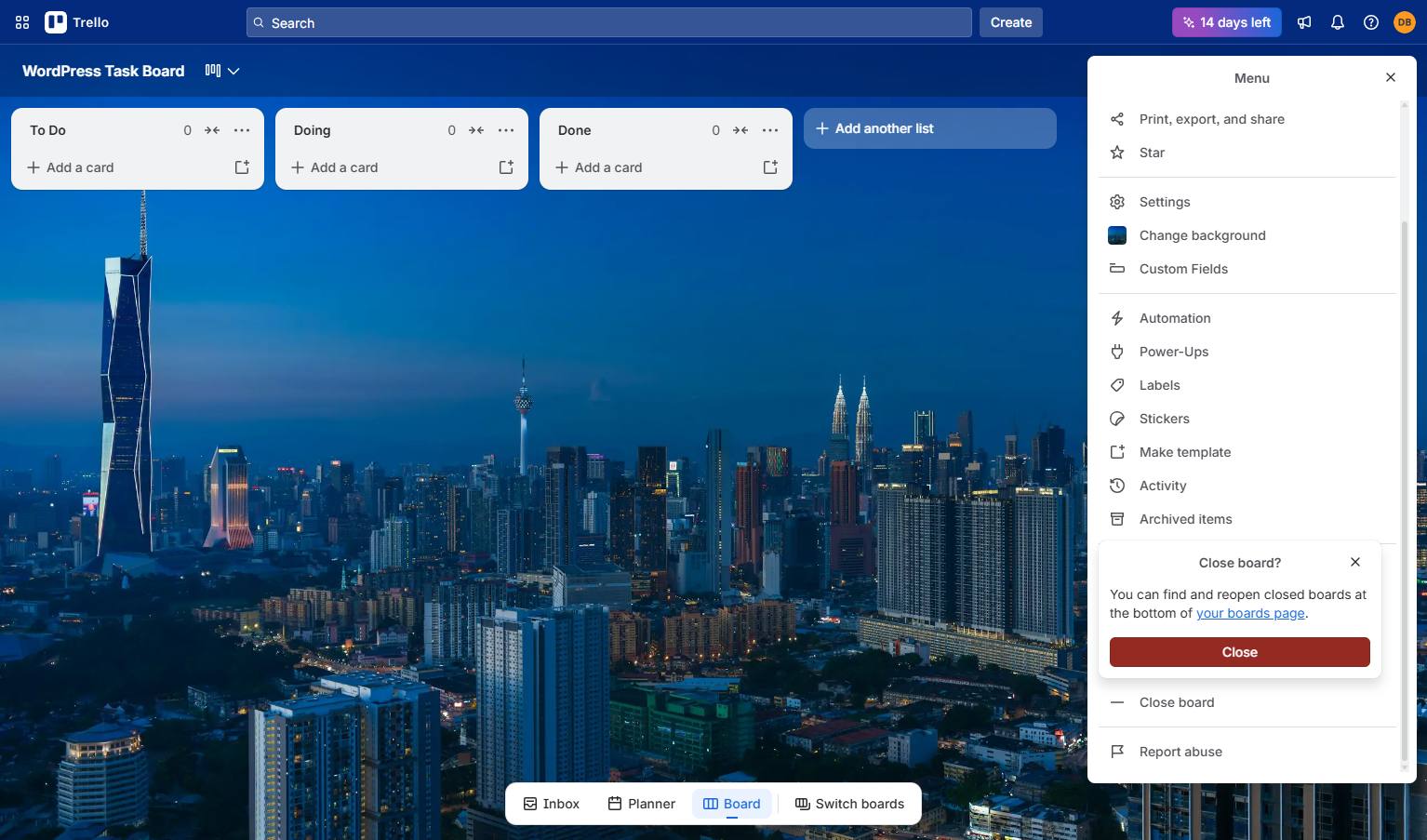
Click the "Close board" option near the bottom of the menu panel on the right.
Click the red Close button in the confirmation popover to proceed with closing the board.
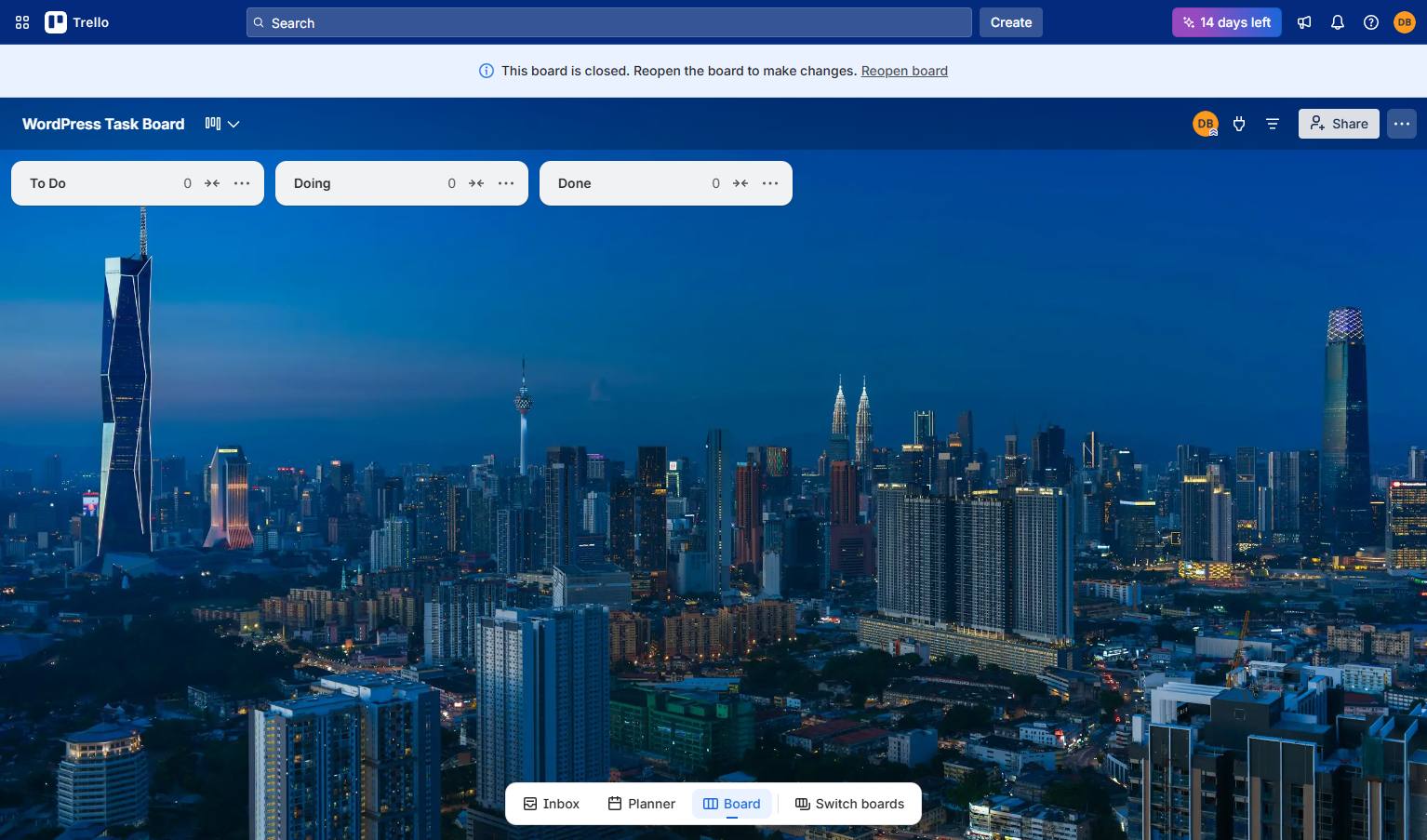
Click the three dots icon in the top right corner of the board header to open the menu.
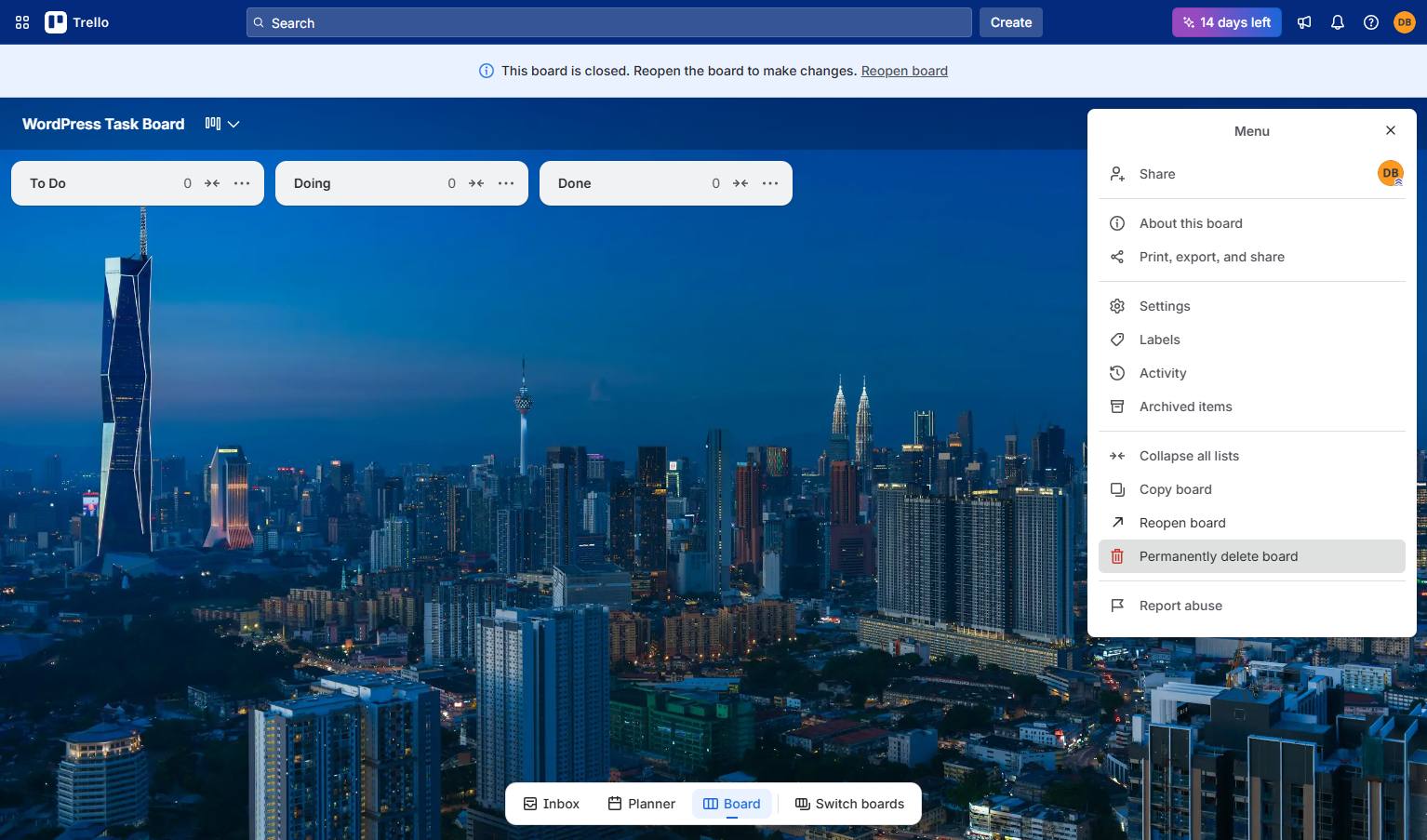
Click the "Permanently delete board" option in the right-side menu panel to initiate the deletion process.
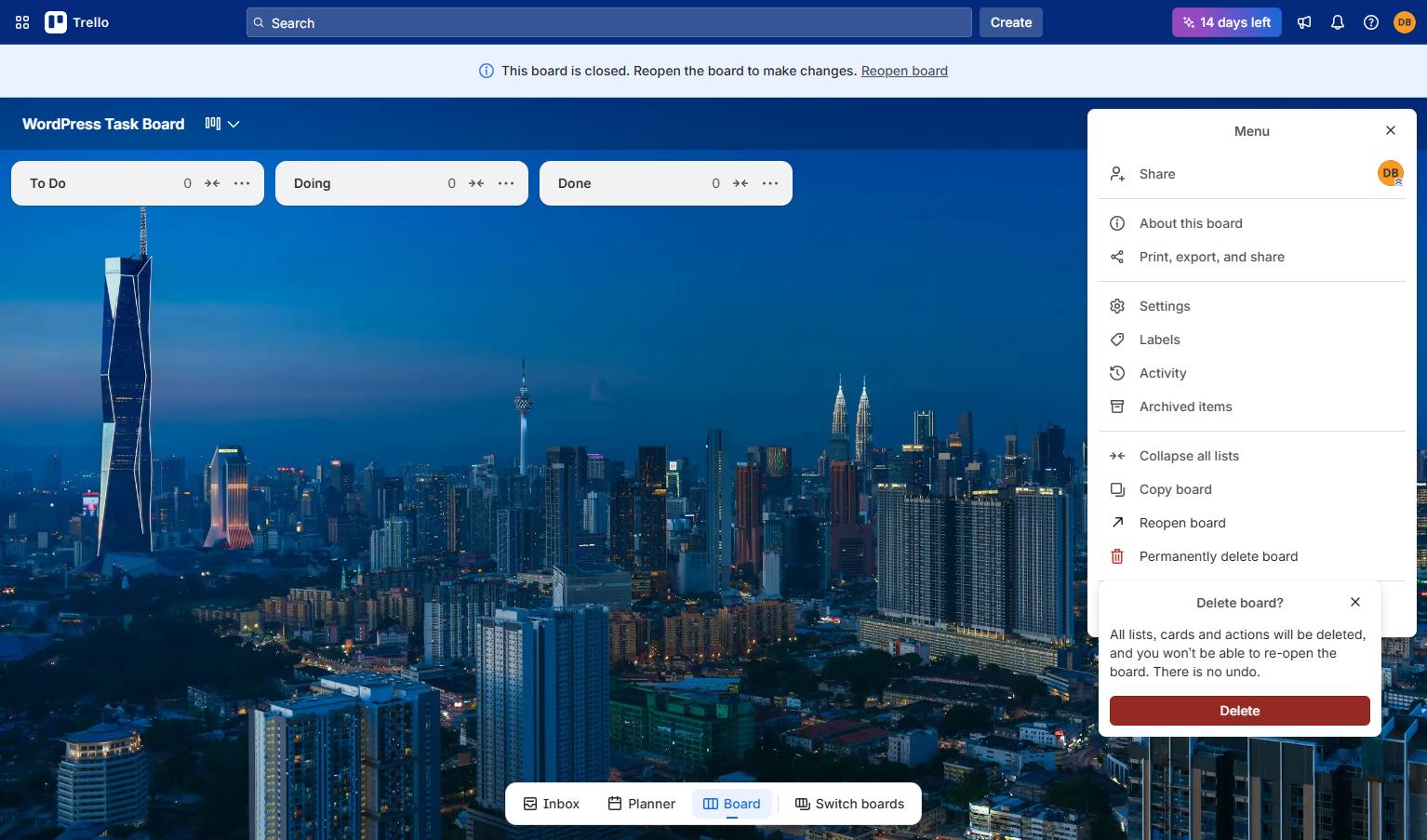
Click the red "Delete" button in the confirmation popover to permanently remove the board.
Duplicate this template, swap in your own screens, and share it with your team. Free to start — no credit card.
Fill out the form and we'll get back to you as soon as possible.
Tell us about your team and we'll find the right plan together.