1
Open the excel sheet
Select the range of the cells where duplicates needs to be removed.
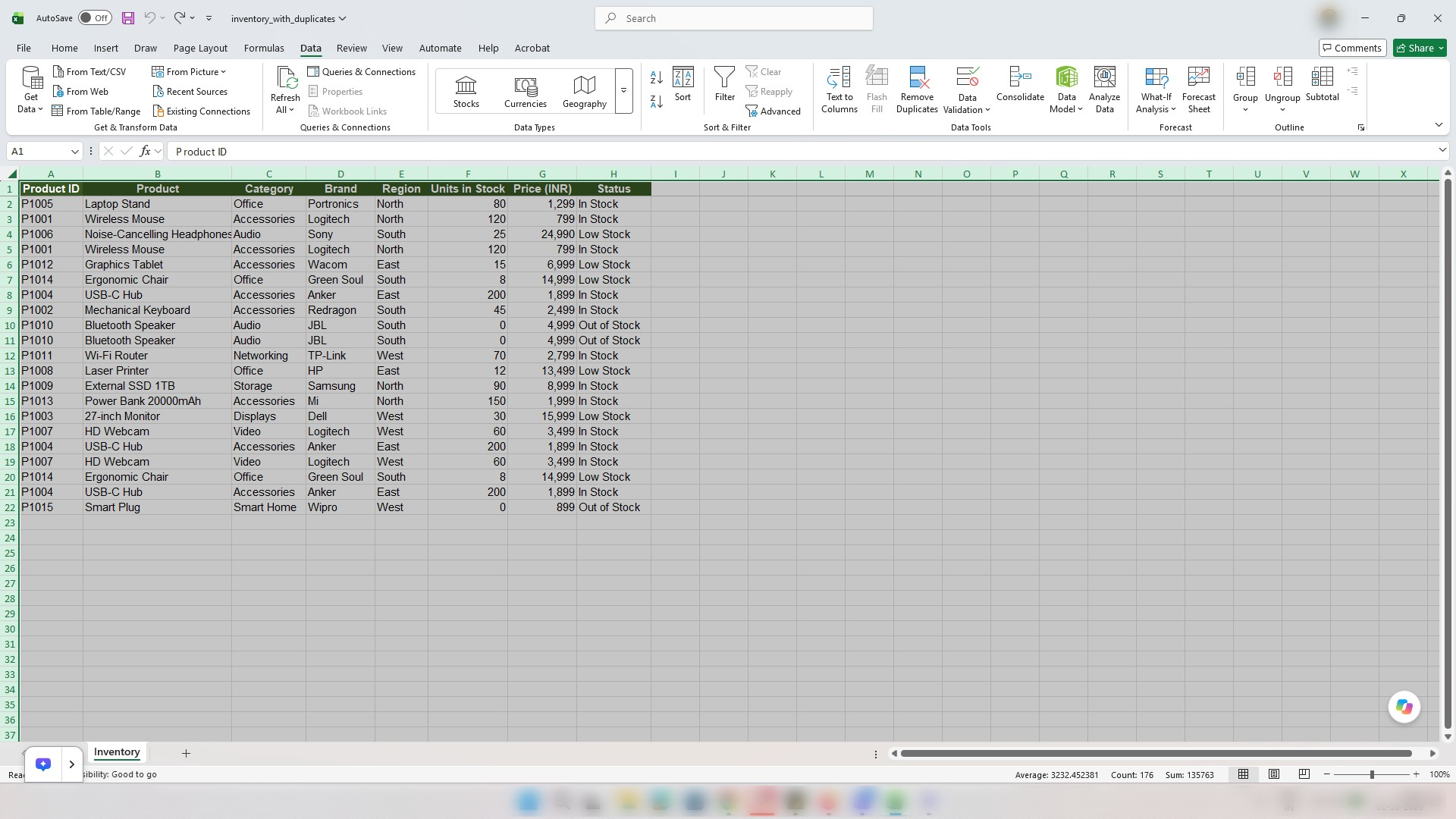

In this tutorial, you will learn how to clean up your spreadsheet data by removing duplicate entries in Microsoft Excel.
Select the range of the cells where duplicates needs to be removed.
Click the Data tab in the top ribbon to access data management and analysis tools.
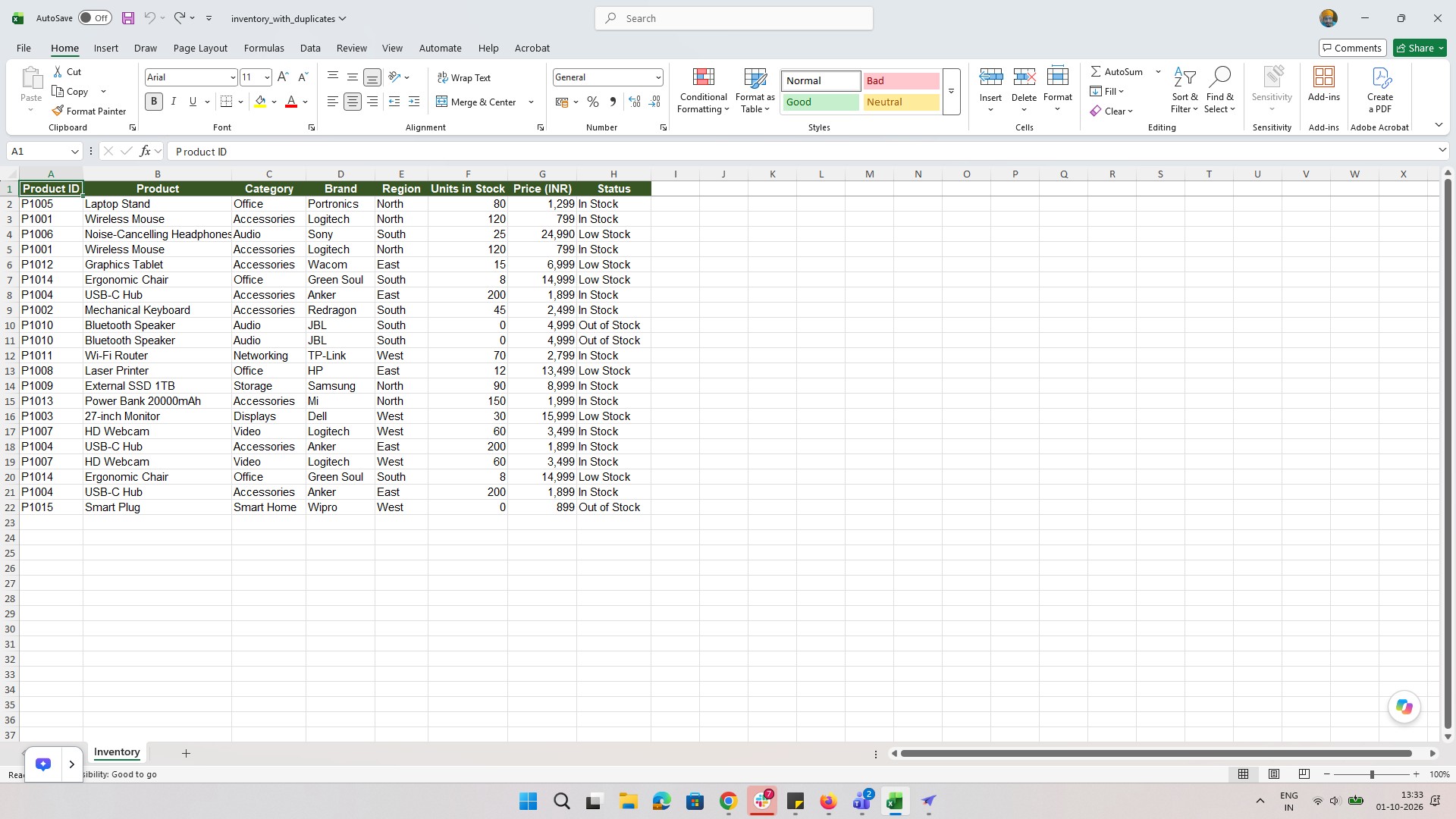
Click the "Remove Duplicates" button in the Data Tools group on the ribbon to clean up your dataset.
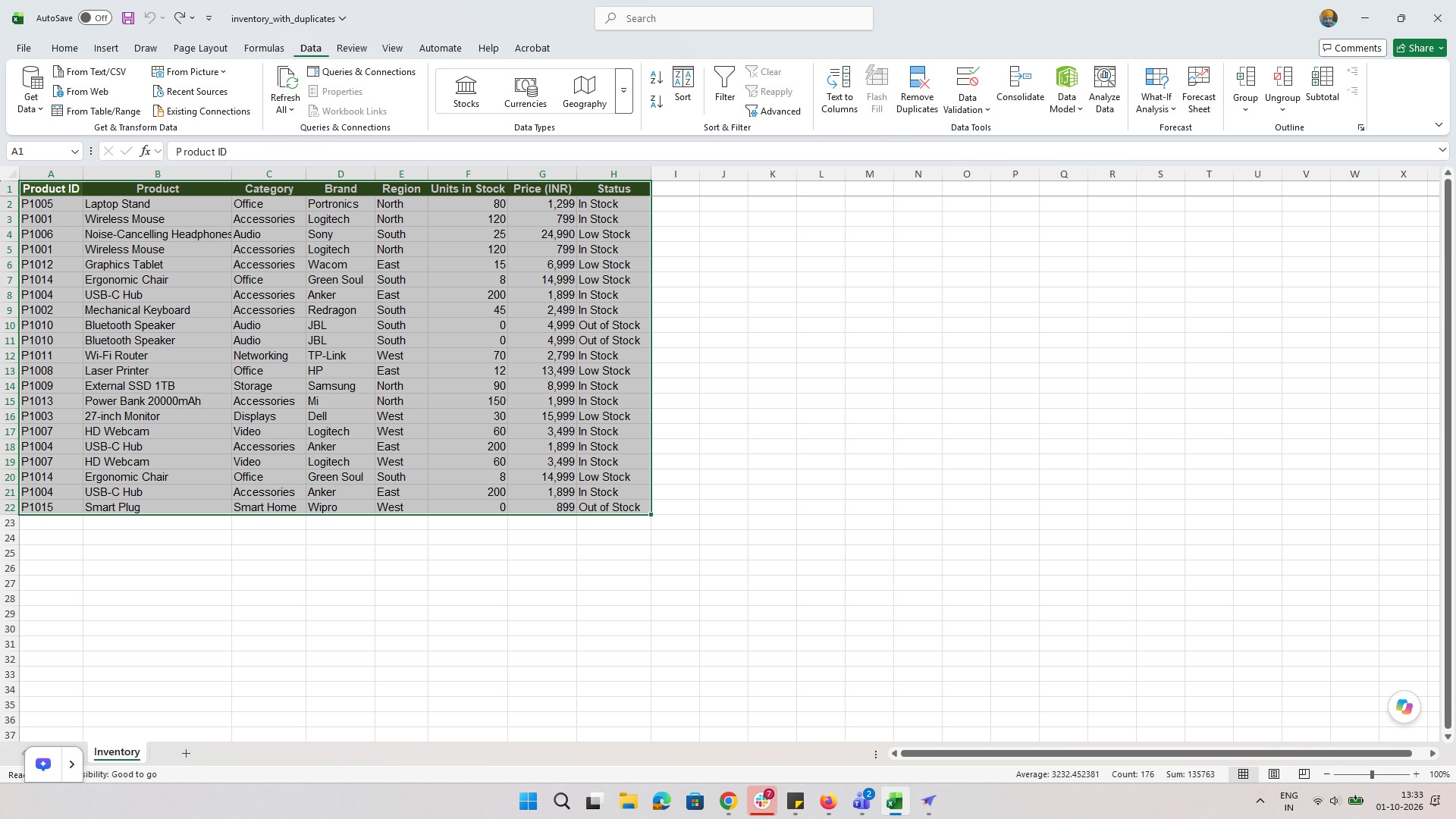
Click the OK button in the Remove Duplicates dialog box to confirm your selection.
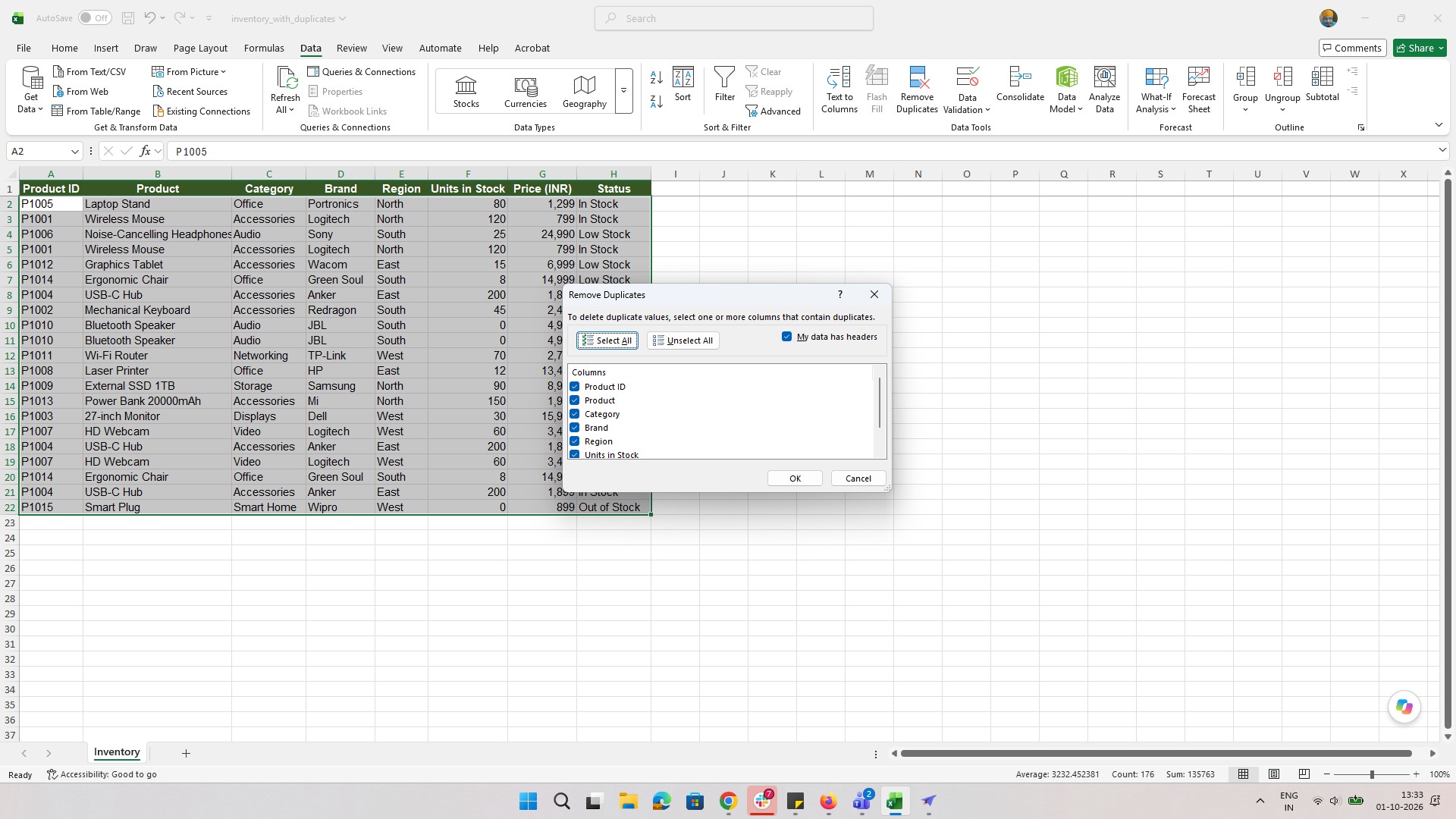
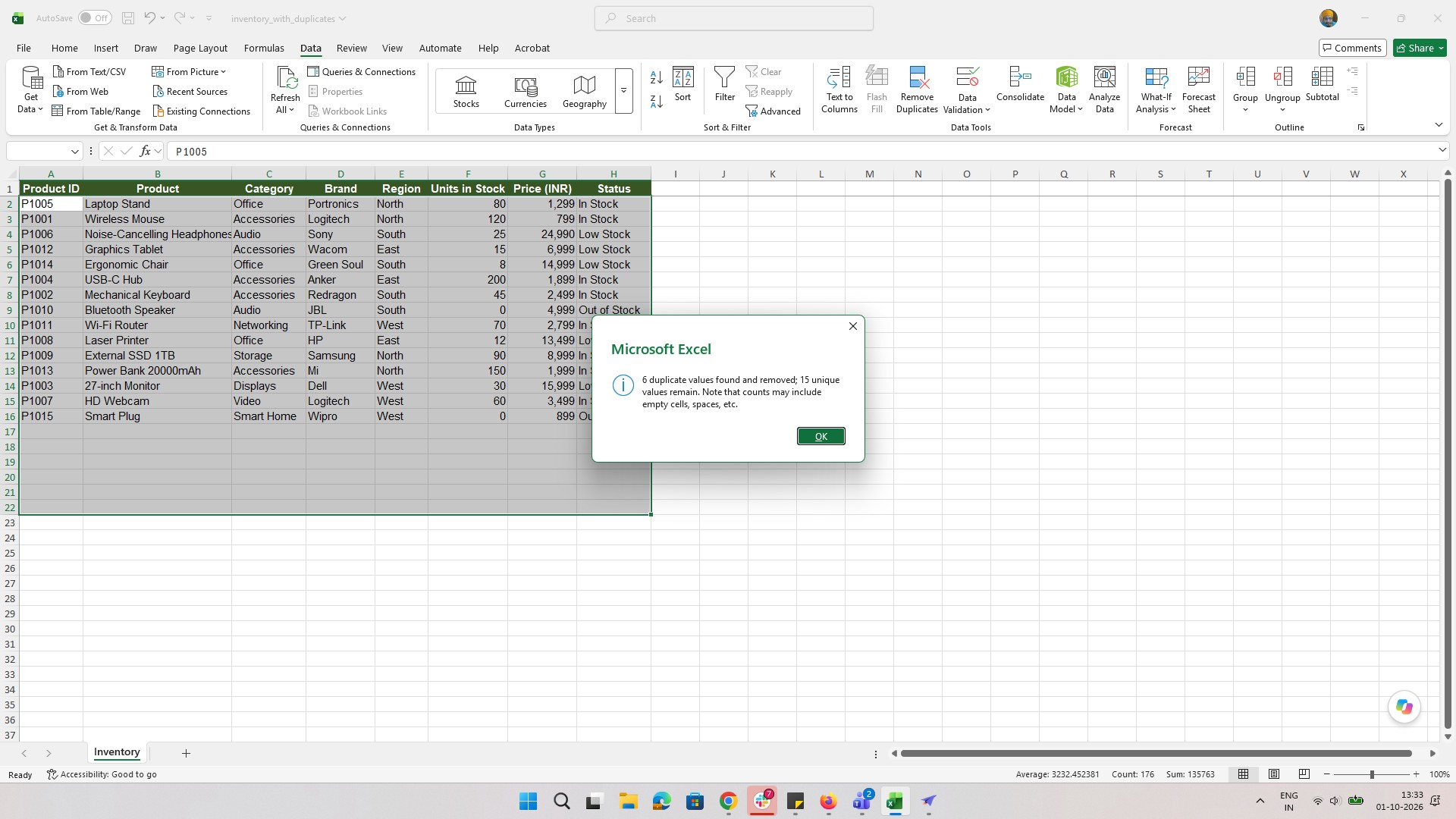
Click the OK button in the dialog box to acknowledge the message and close the window. The duplicates are removed.
Duplicate this template, swap in your own screens, and share it with your team. Free to start — no credit card.
Fill out the form and we'll get back to you as soon as possible.
Tell us about your team and we'll find the right plan together.