1
Click the Join button
Click the Join button on the home screen to enter an existing meeting.
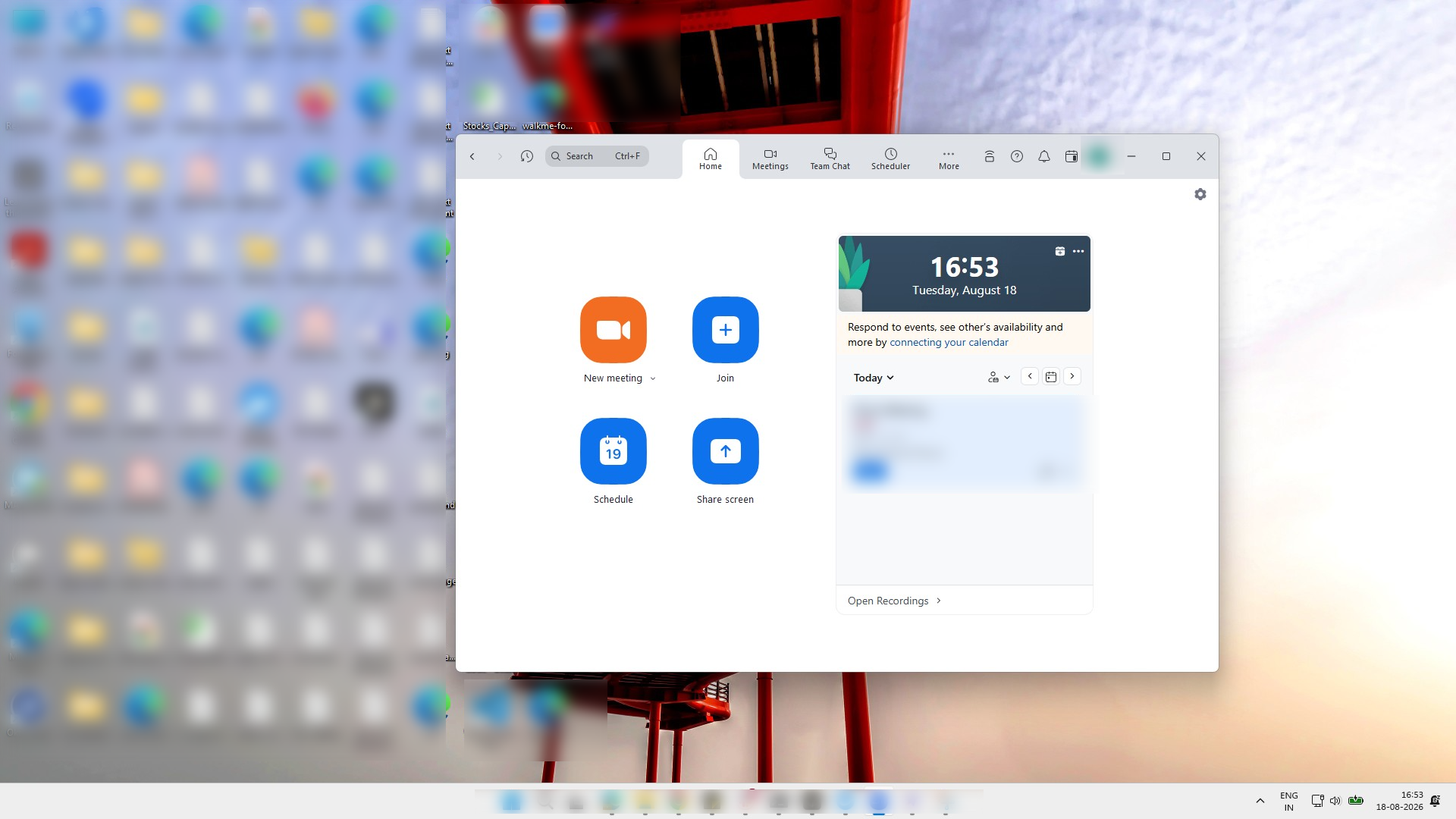

Learn how to raise your hand within Zoom Workplace. This step-by-step tutorial will guide you through launching a session and using the reaction tools to raise your hand.
Click the Join button on the home screen to enter an existing meeting.
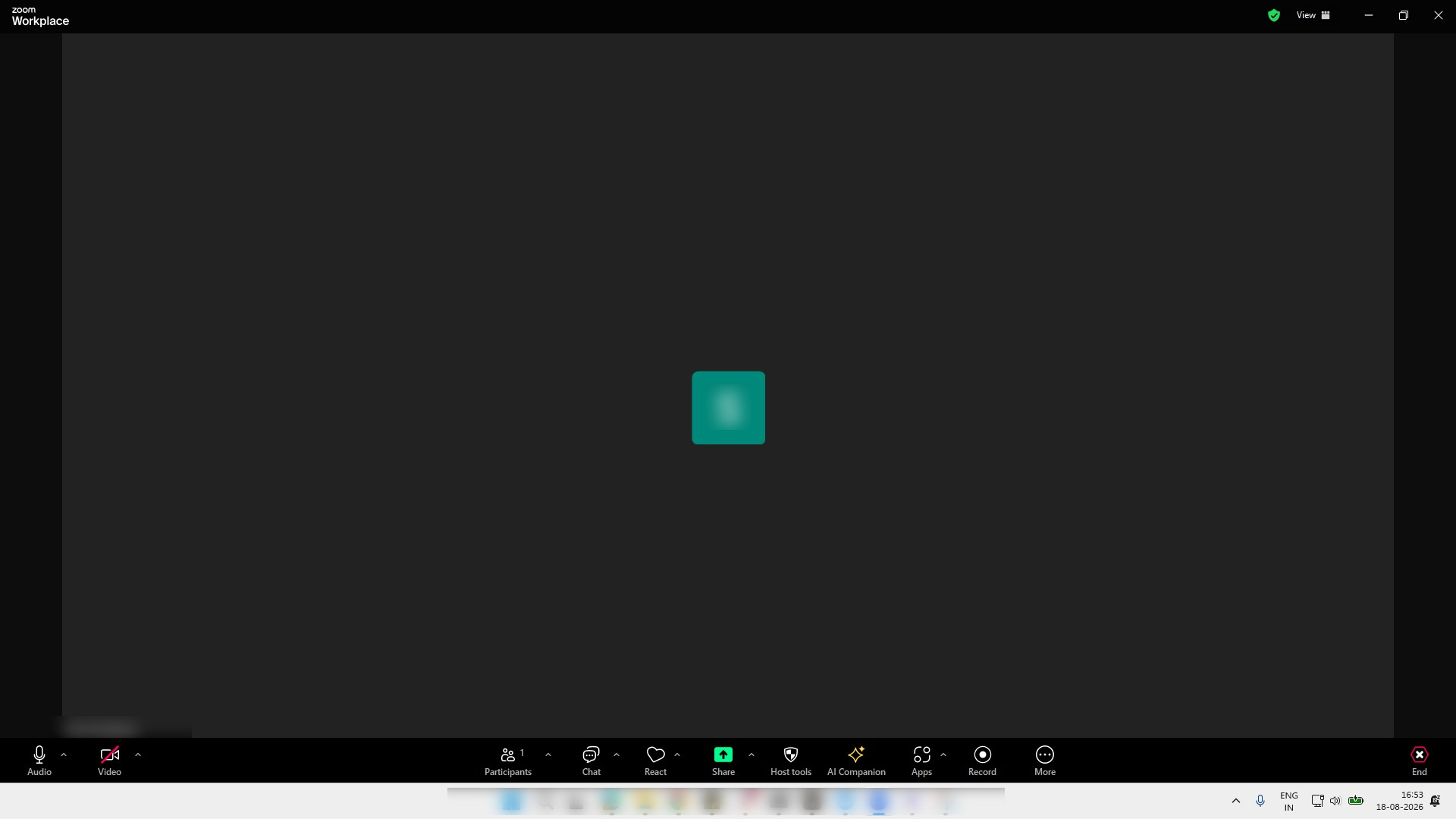
Click the React button in the bottom toolbar to open the reactions menu.
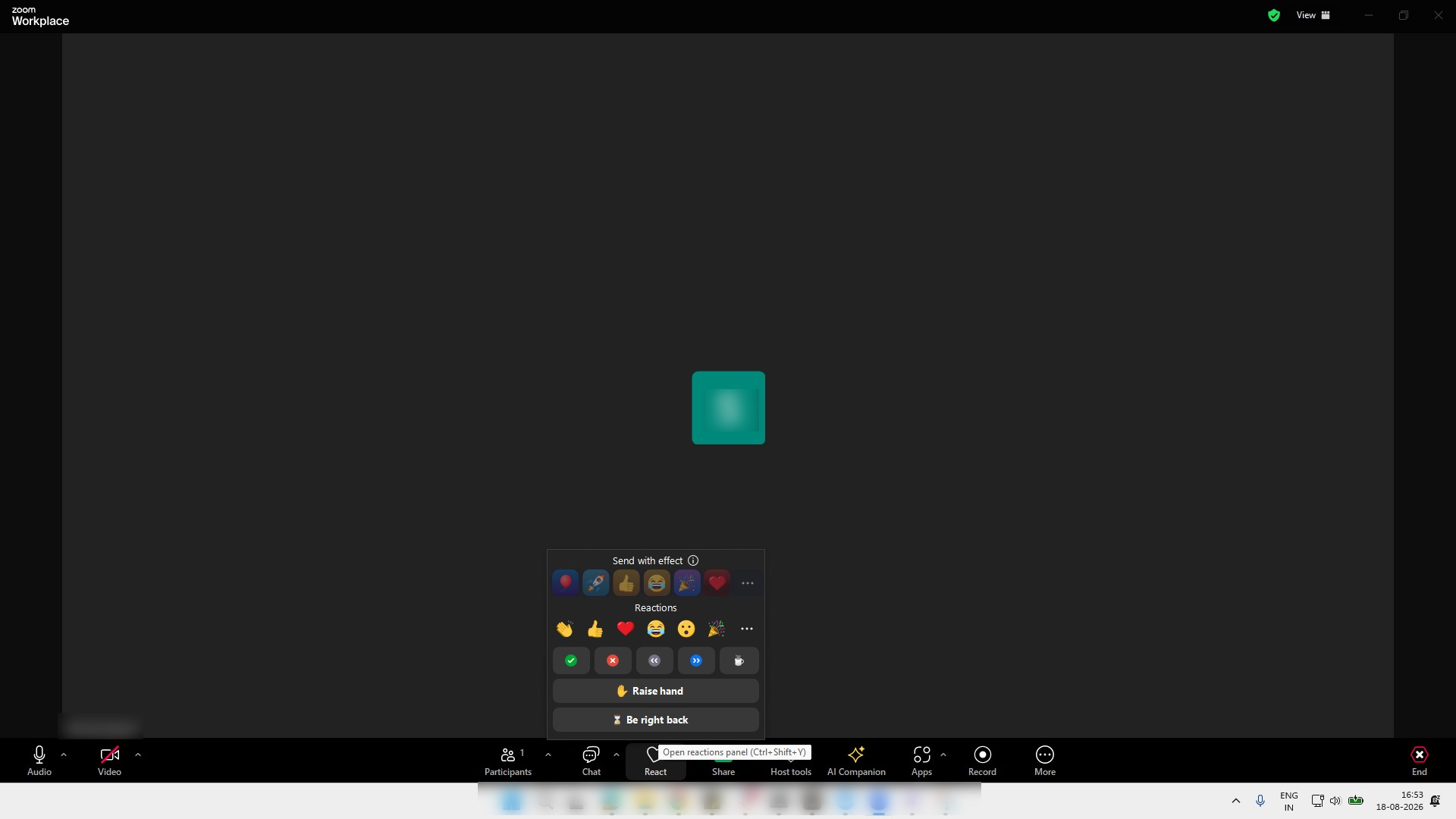
Click the "Raise hand" button in the Reactions menu to signal that you would like to speak.
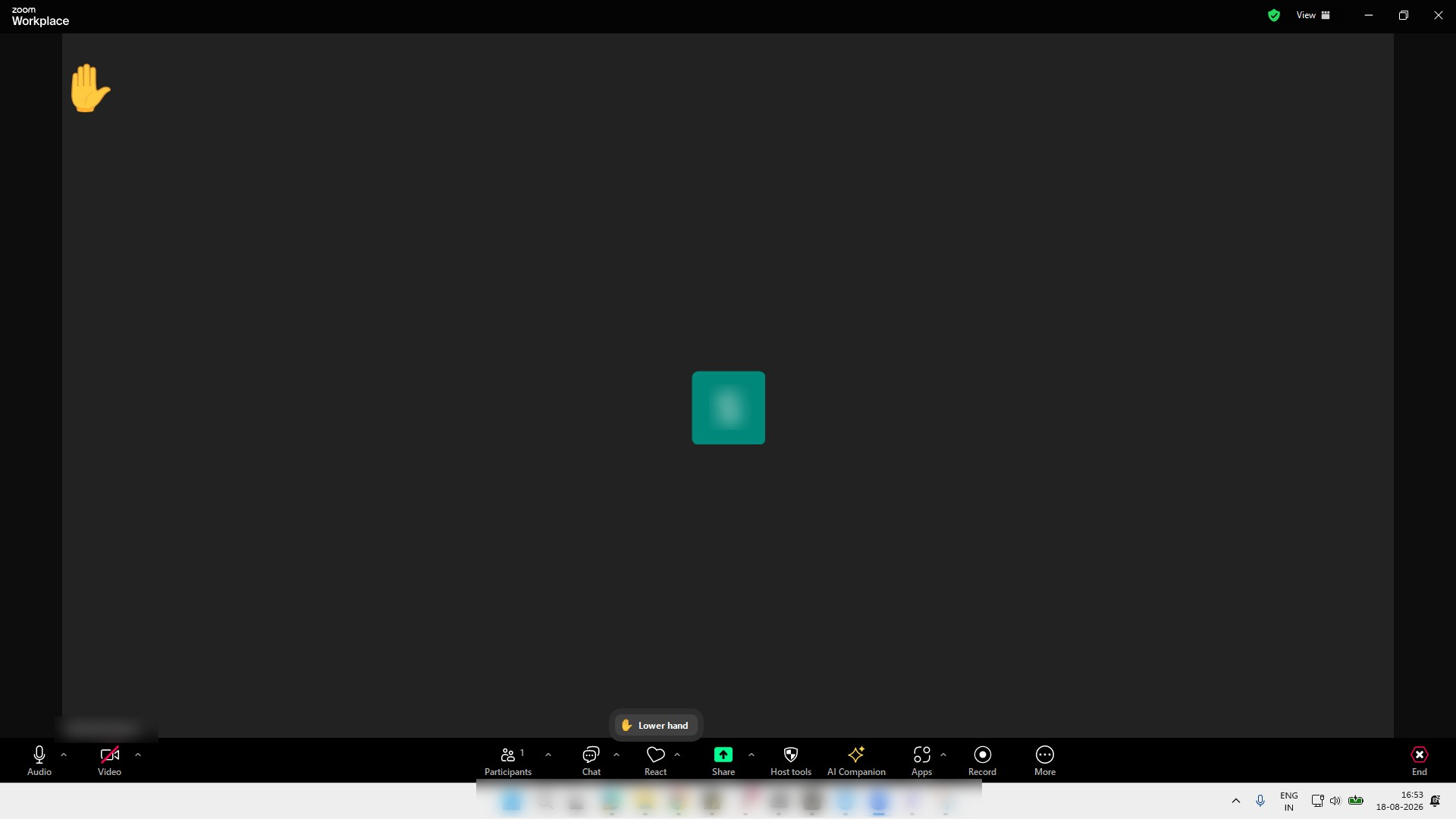
Hand icon visible on screen
Duplicate this template, swap in your own screens, and share it with your team. Free to start — no credit card.
Fill out the form and we'll get back to you as soon as possible.
Tell us about your team and we'll find the right plan together.