1
Navigate to Google Drive
Open your Google Drive homepage to locate the document you want to print.
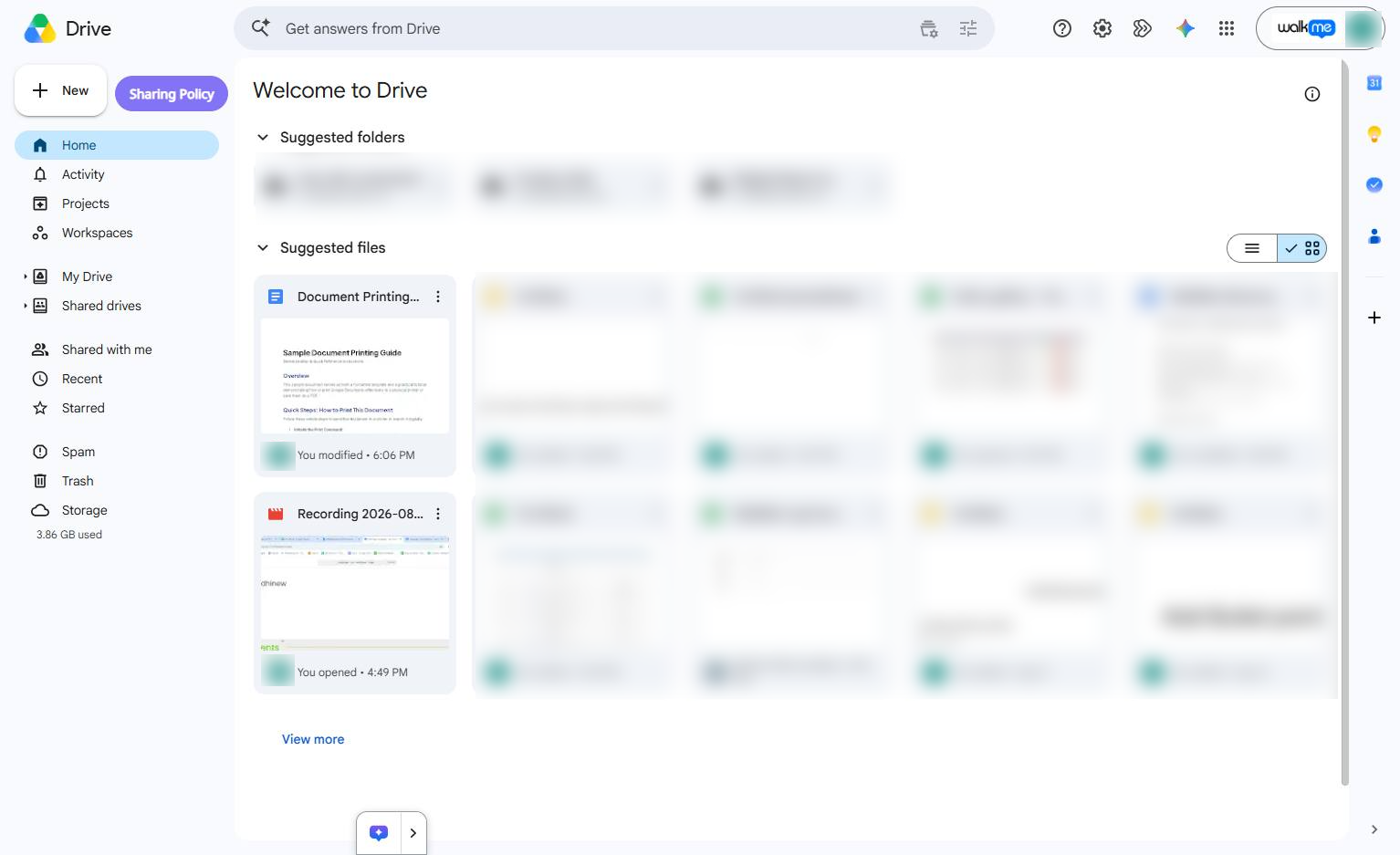

Learn how to locate and print a specific document in Google Docs starting from your Google Drive. This step-by-step guide will walk you through opening the file and accessing the print command from the File menu.
Open your Google Drive homepage to locate the document you want to print.
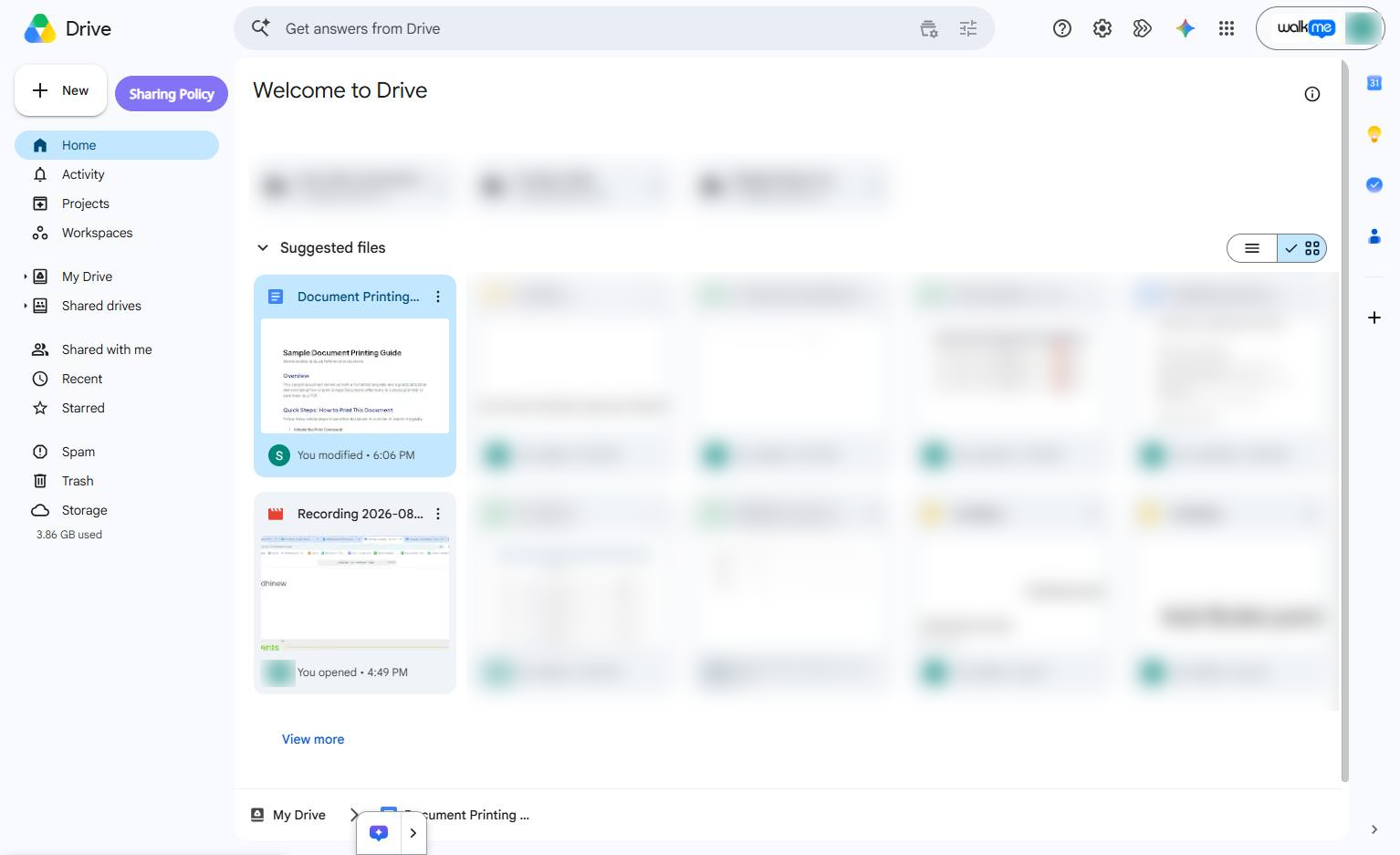
Click the "Document Printing..." file card in the Suggested files section to open the document.
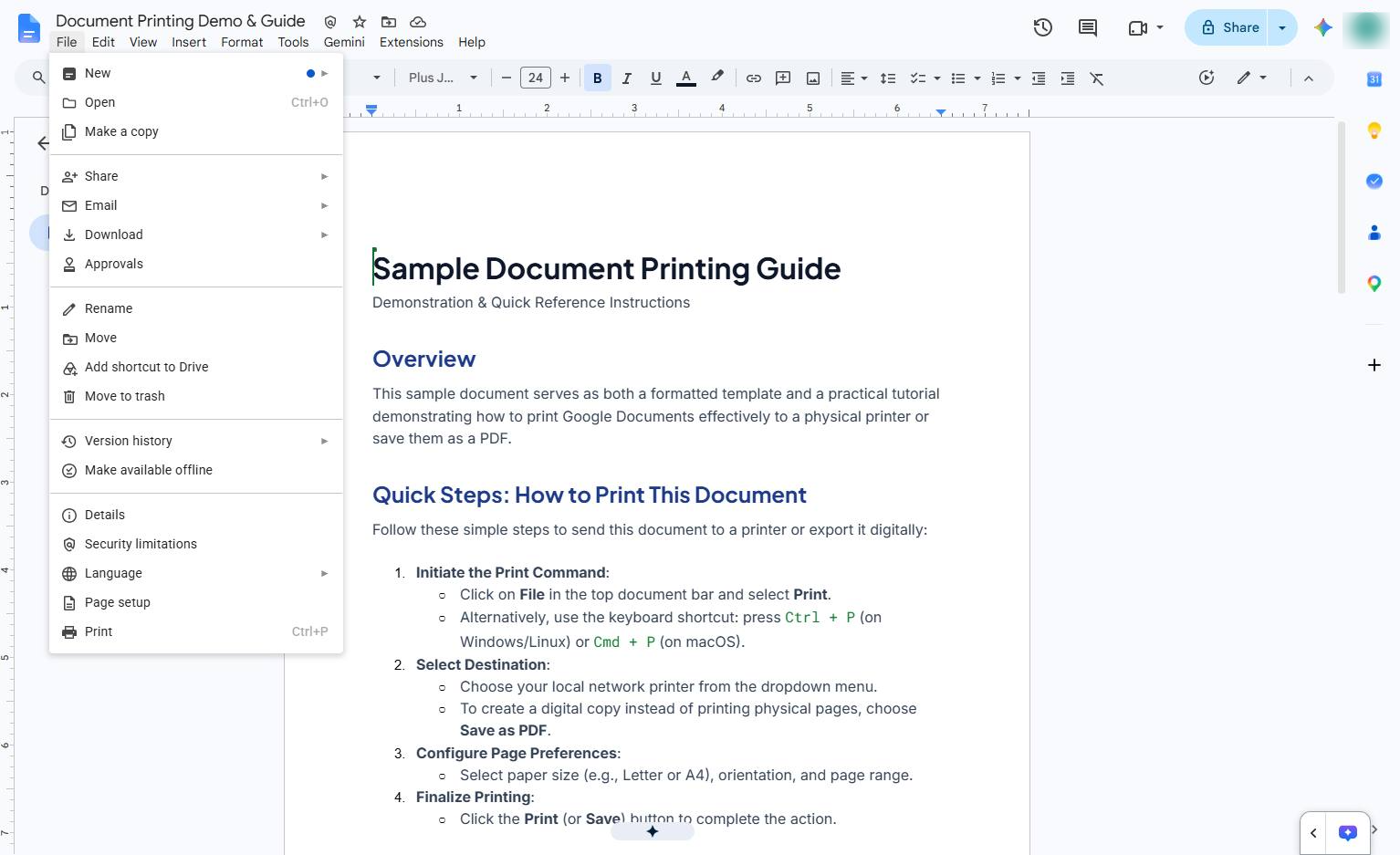
Click the "File" menu in the top toolbar to open the file options dropdown.
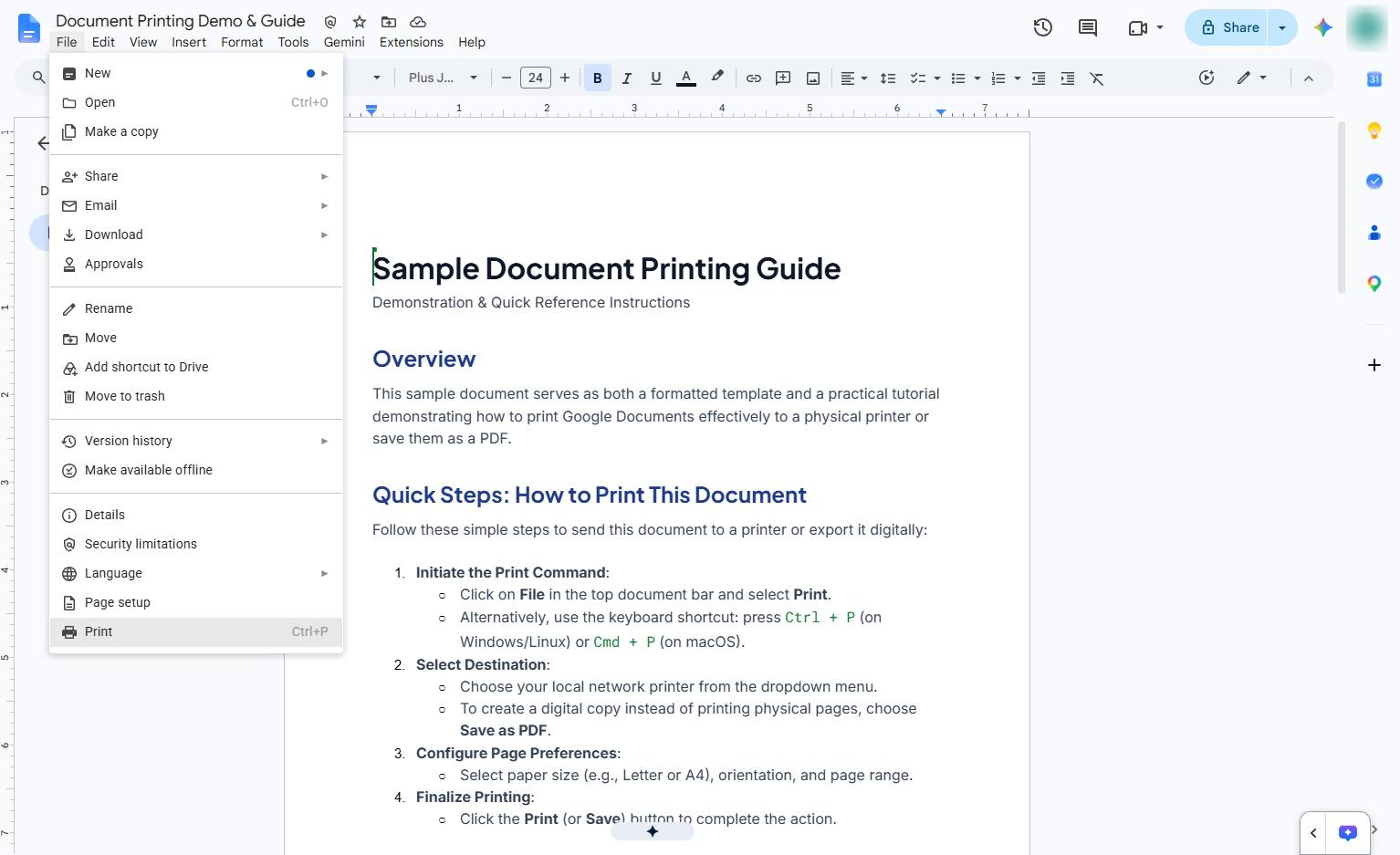
Click the Print option at the bottom of the File menu to open the print dialog.
Click the Destination dropdown in the print settings panel to select a different printer or save as PDF.
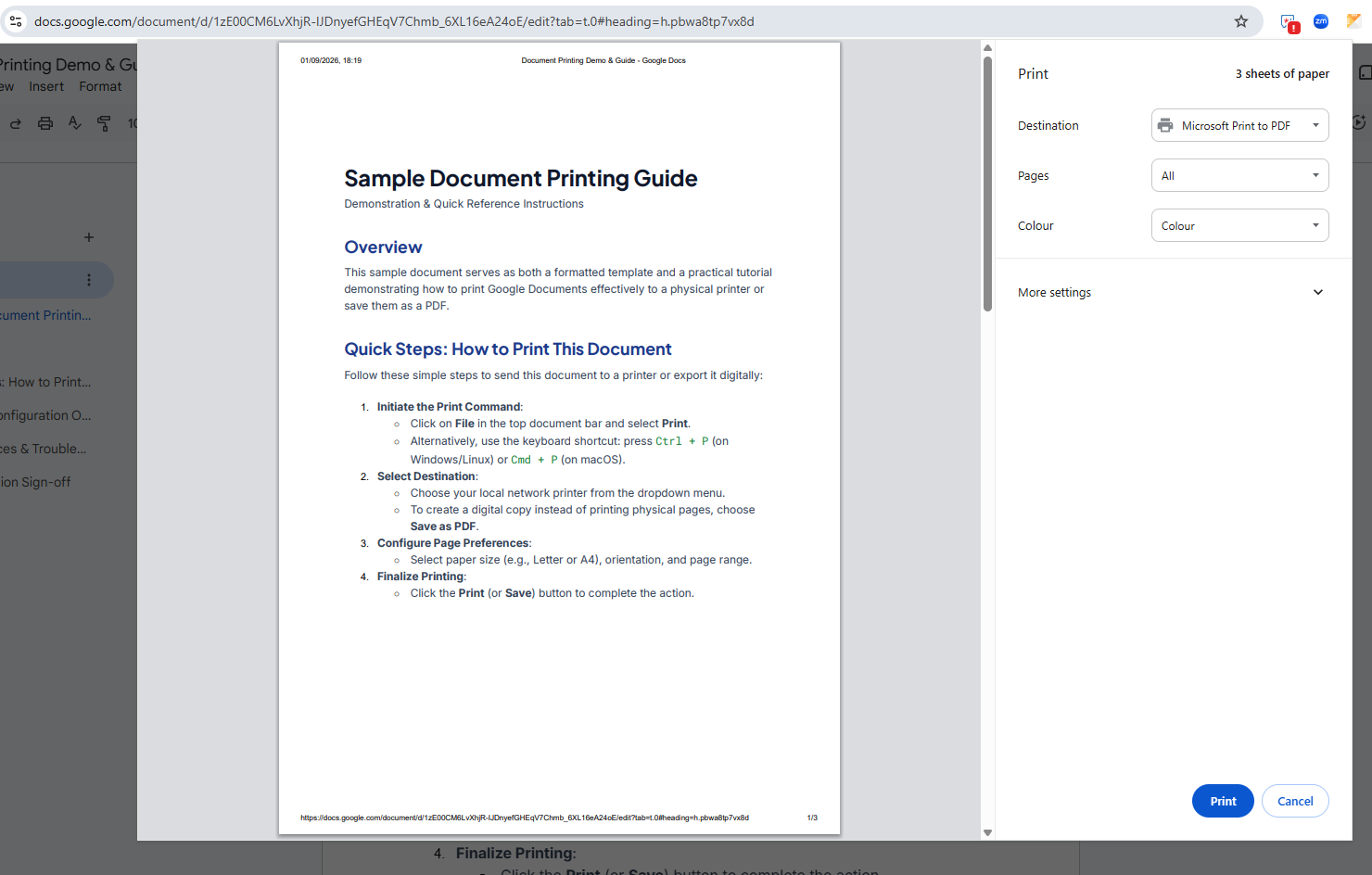
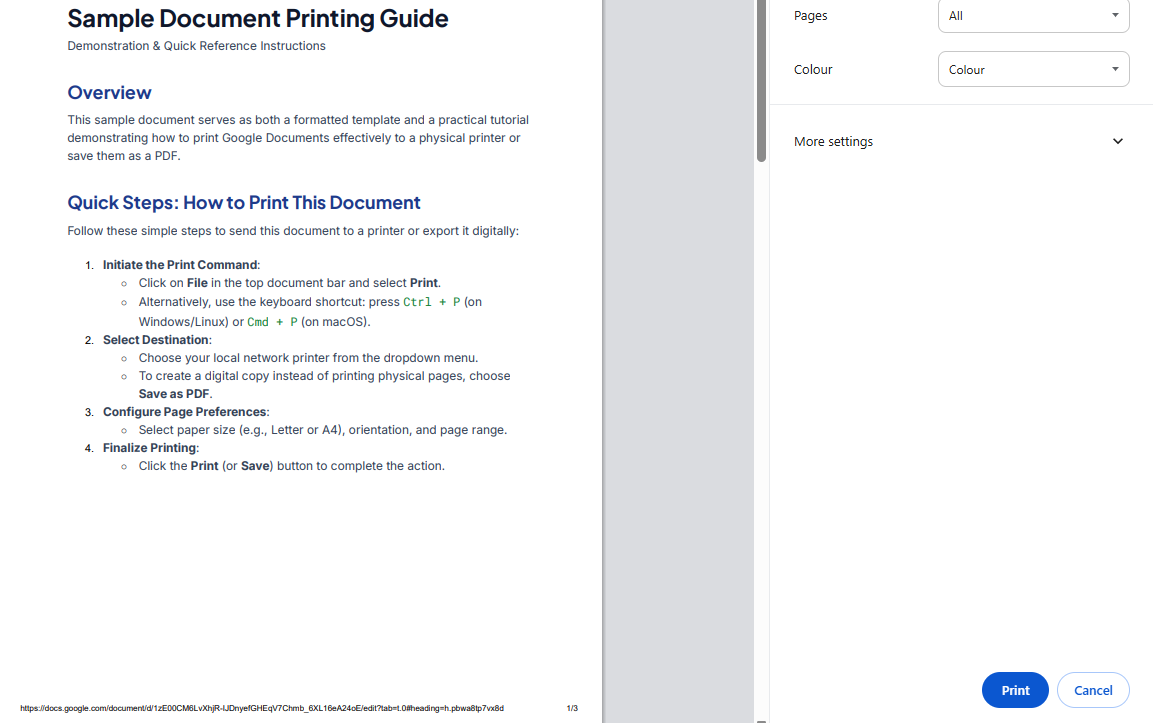
Click the Print button at the bottom of the sidebar to send your document to the printer.
Duplicate this template, swap in your own screens, and share it with your team. Free to start — no credit card.
Fill out the form and we'll get back to you as soon as possible.
Tell us about your team and we'll find the right plan together.