1
Shift and Drag Method
Shift and Drag Method

This guide will show you how to quickly rearrange your data by moving columns in Excel. You will learn how to select a column, cut it, and insert it into a new position on your excel.
Shift and Drag Method
Navigate to the Excel to begin the process of moving columns.
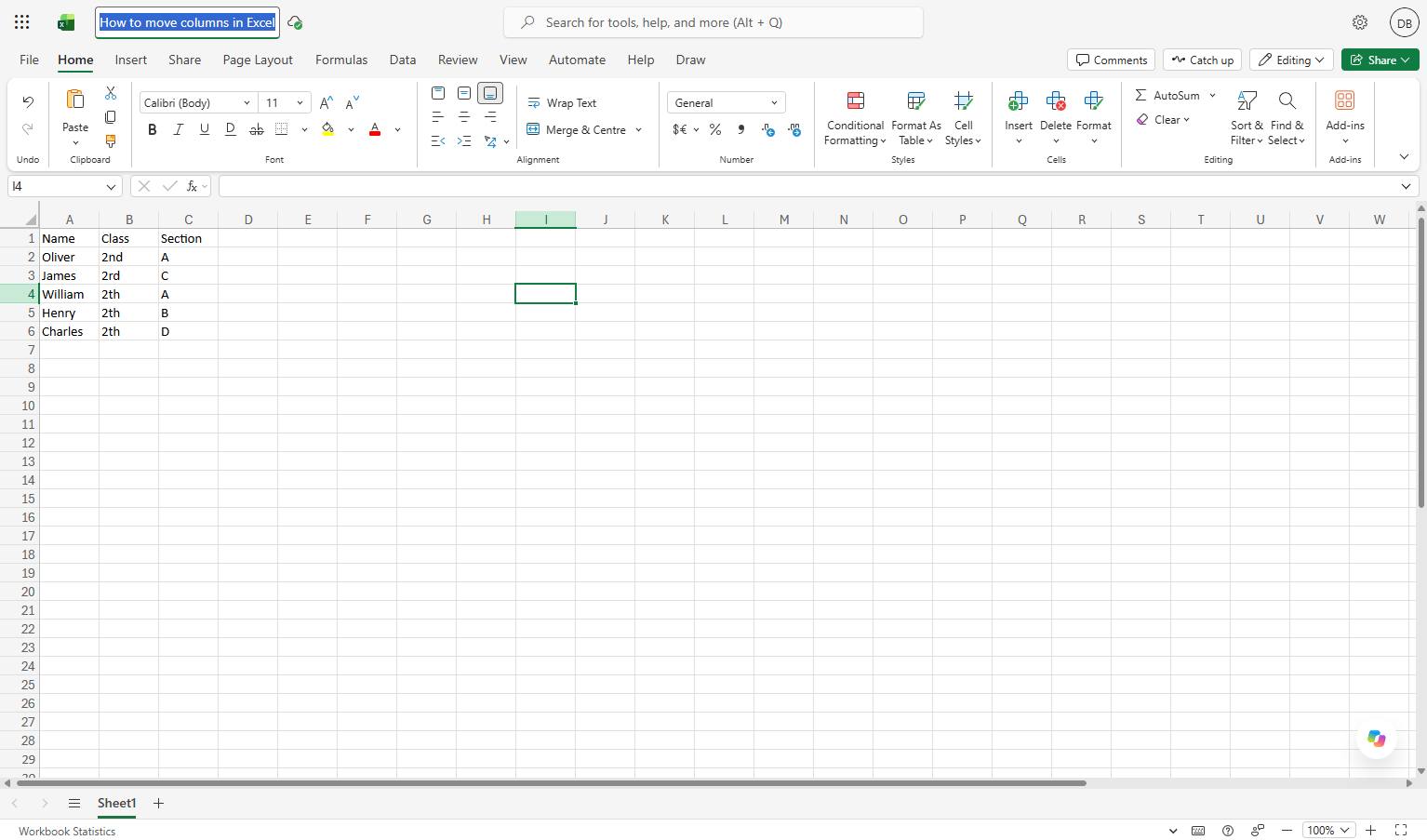
Click the "B" column header at the top of the column to select the entire column.
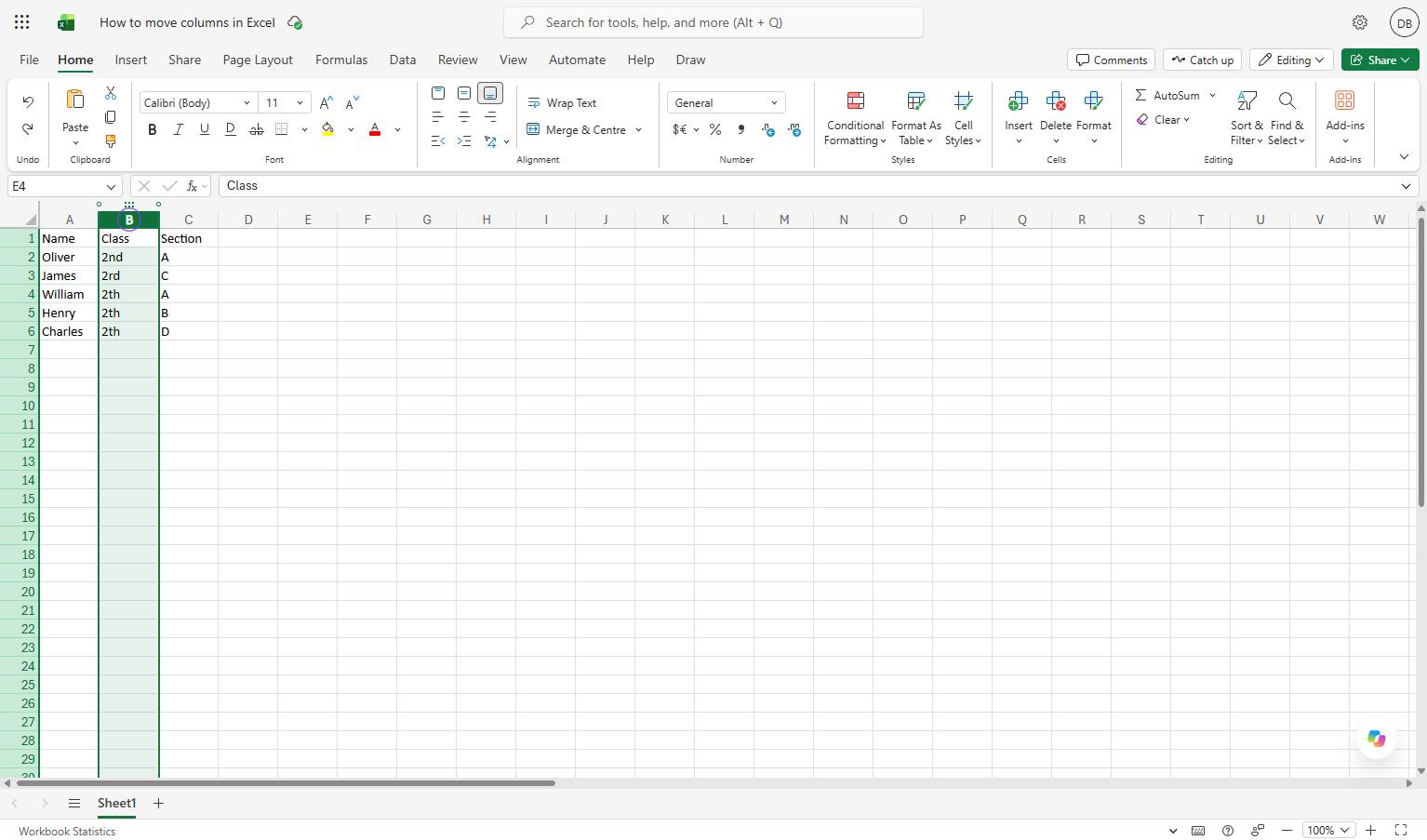
Move your mouse cursor to C column until it changes into a four-sided arrow and release the mouse button.
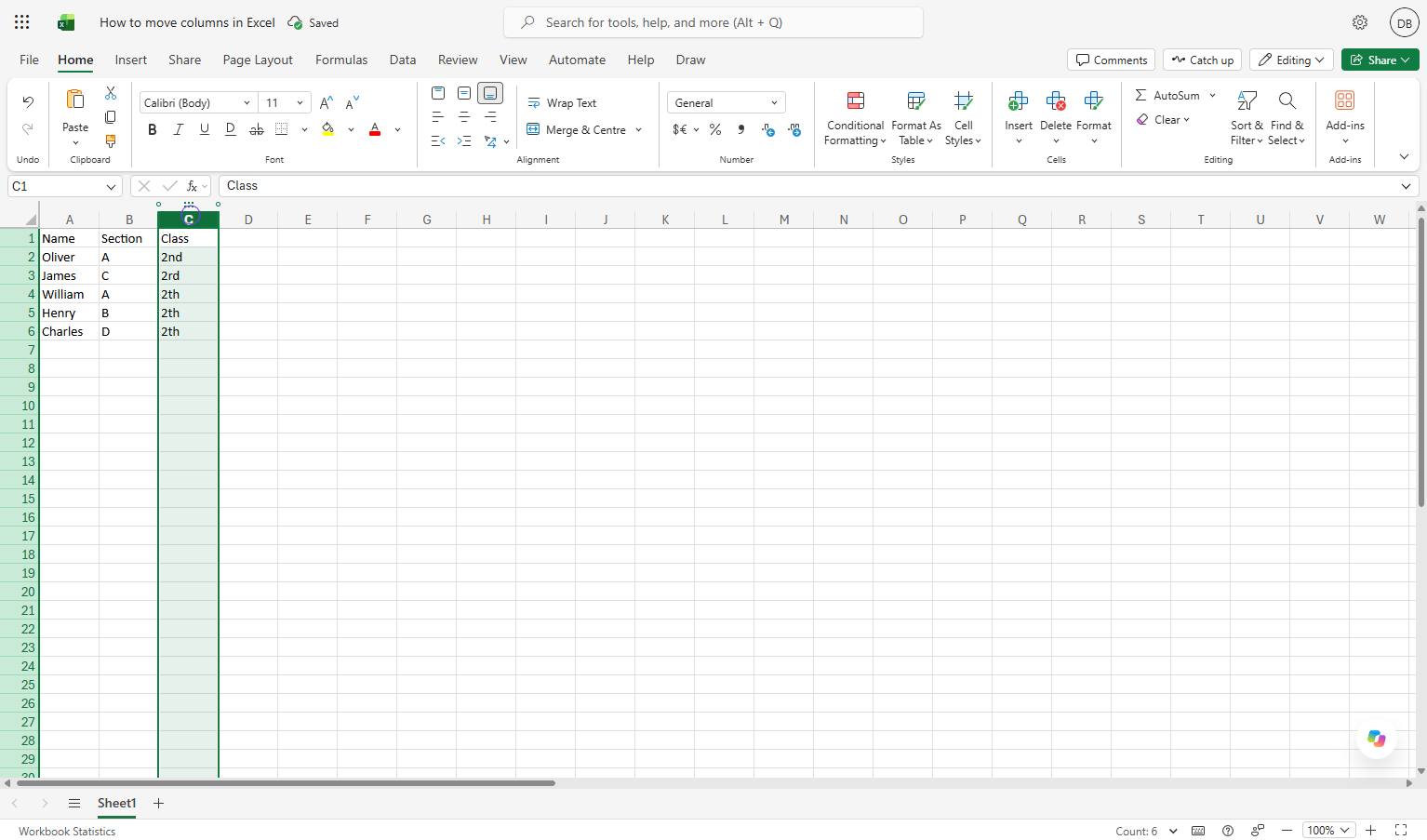
Cut and Insert Method
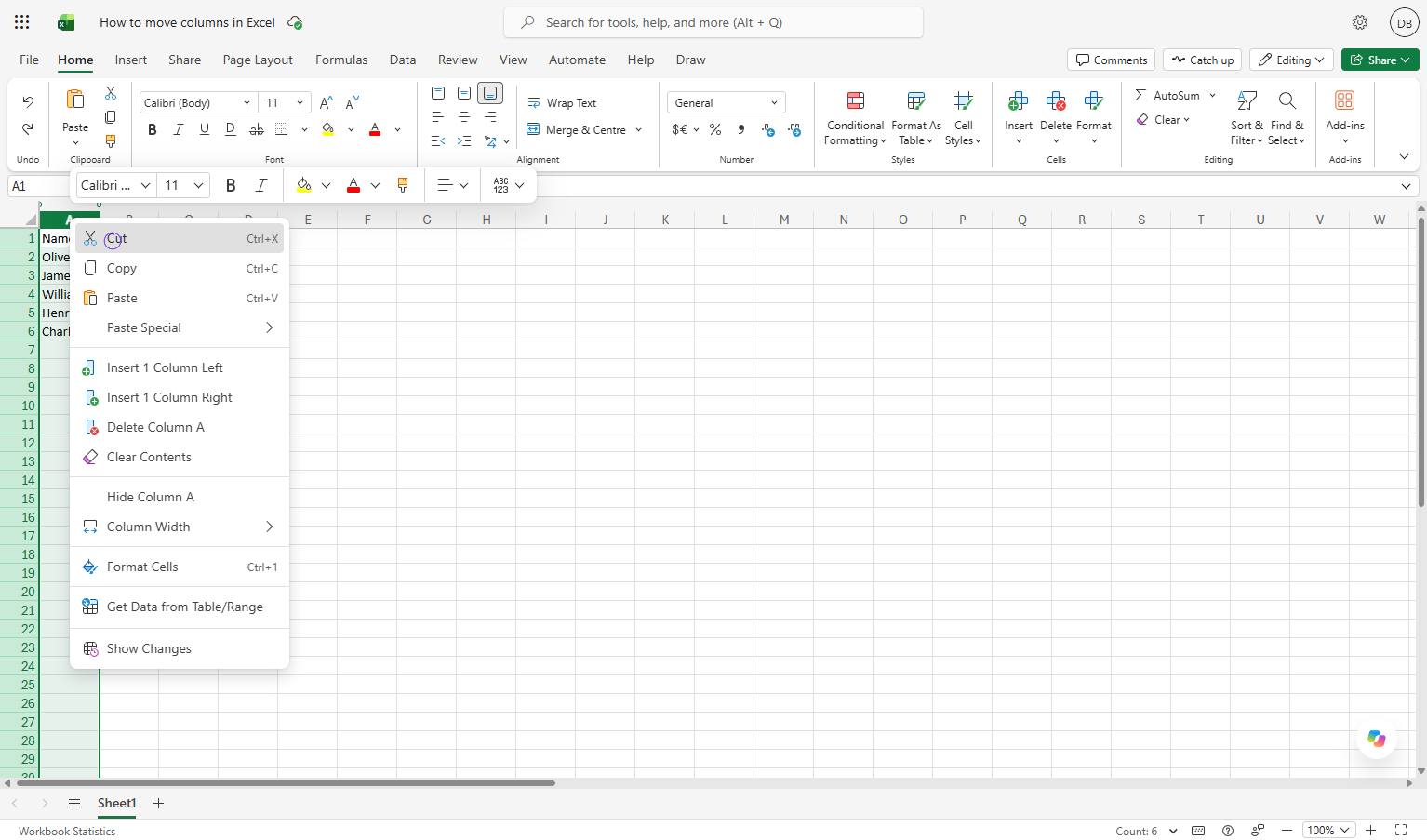
Click the column header "A" at the top of the spreadsheet grid to select the entire column.
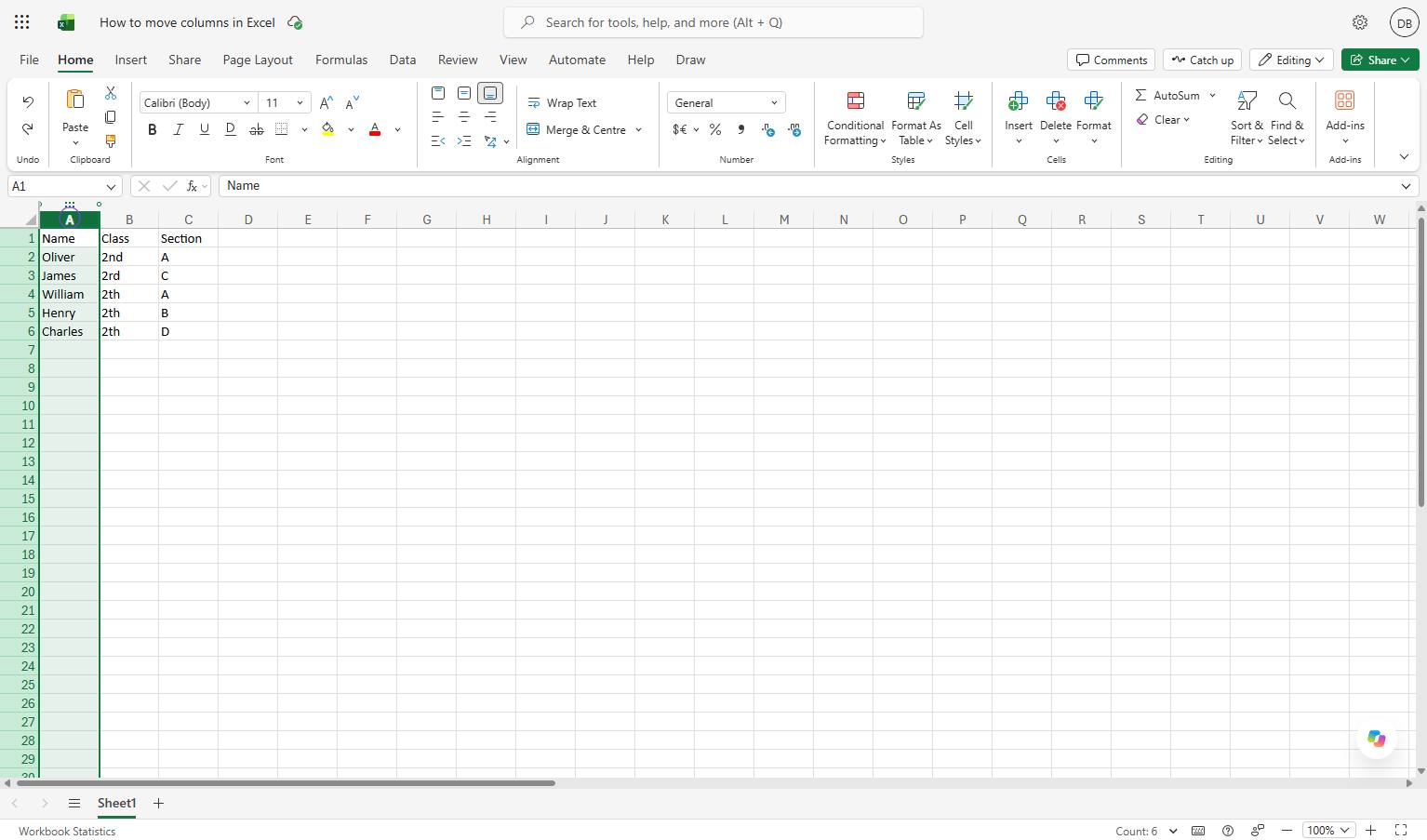
Click the Cut option in the context menu to remove the selected column and copy it to your clipboard. Press Ctrl + X (or right-click and select Cut)
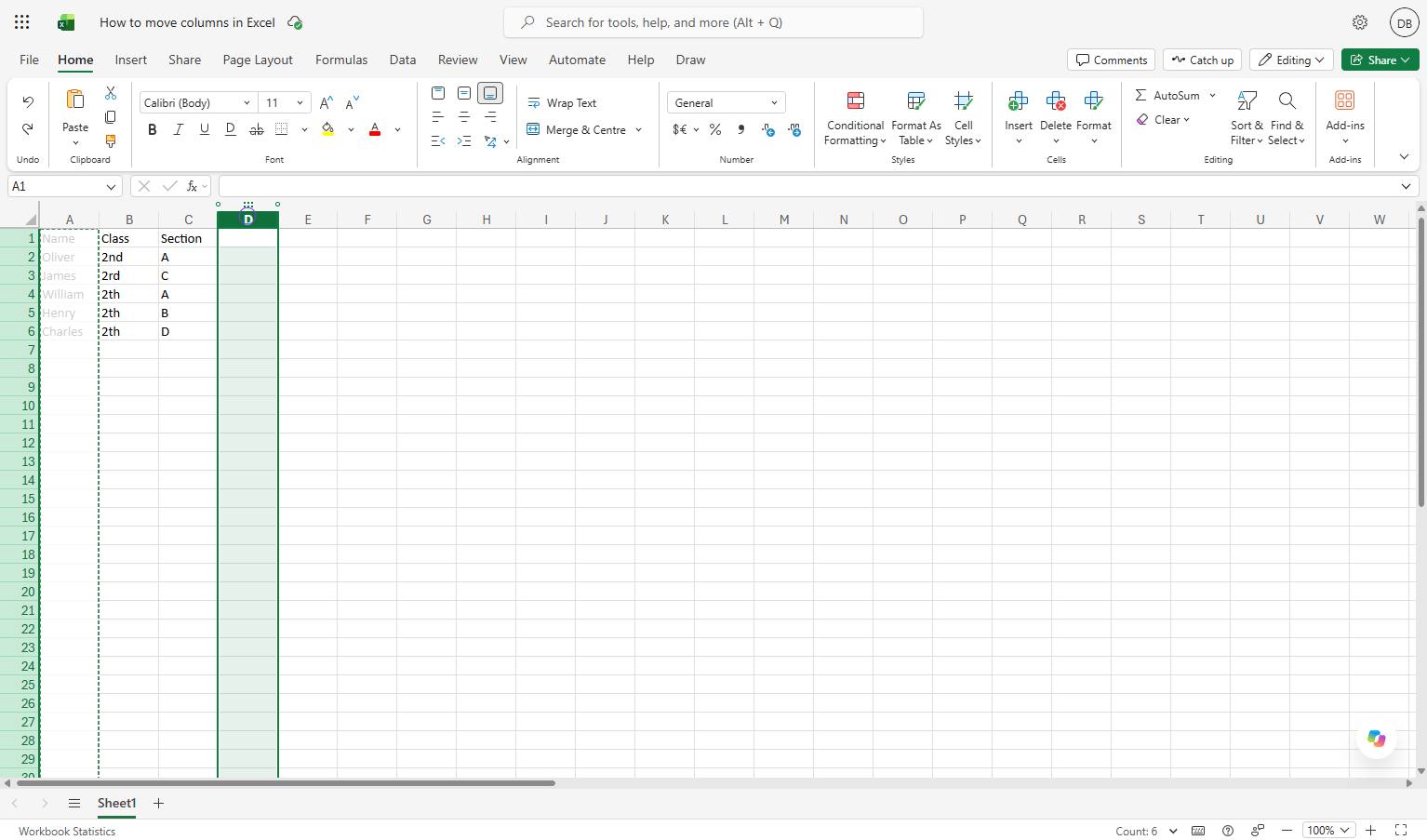
Click the column D header in the spreadsheet to select the entire column or right-click the header of the destination column where you want your cut column to go.
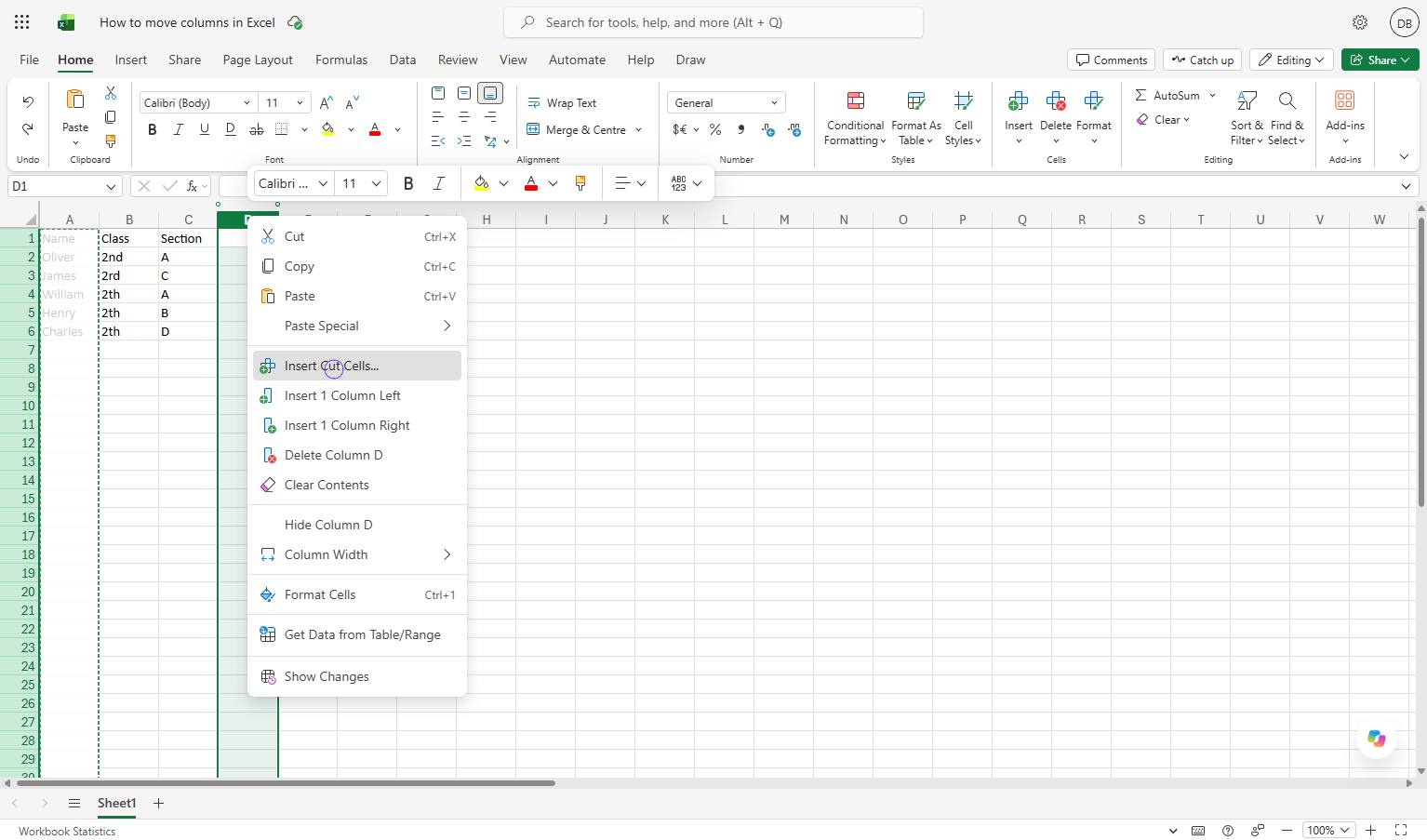
Select the column where you want the cut column to be placed. Right-click the selected column, and then click “Insert Cut Cells…” from the context menu to place the cut column in the selected location.
Duplicate this template, swap in your own screens, and share it with your team. Free to start — no credit card.
Fill out the form and we'll get back to you as soon as possible.
Tell us about your team and we'll find the right plan together.