1
Click the line to turn into a heading
Click anywhere in the line you want as a heading.
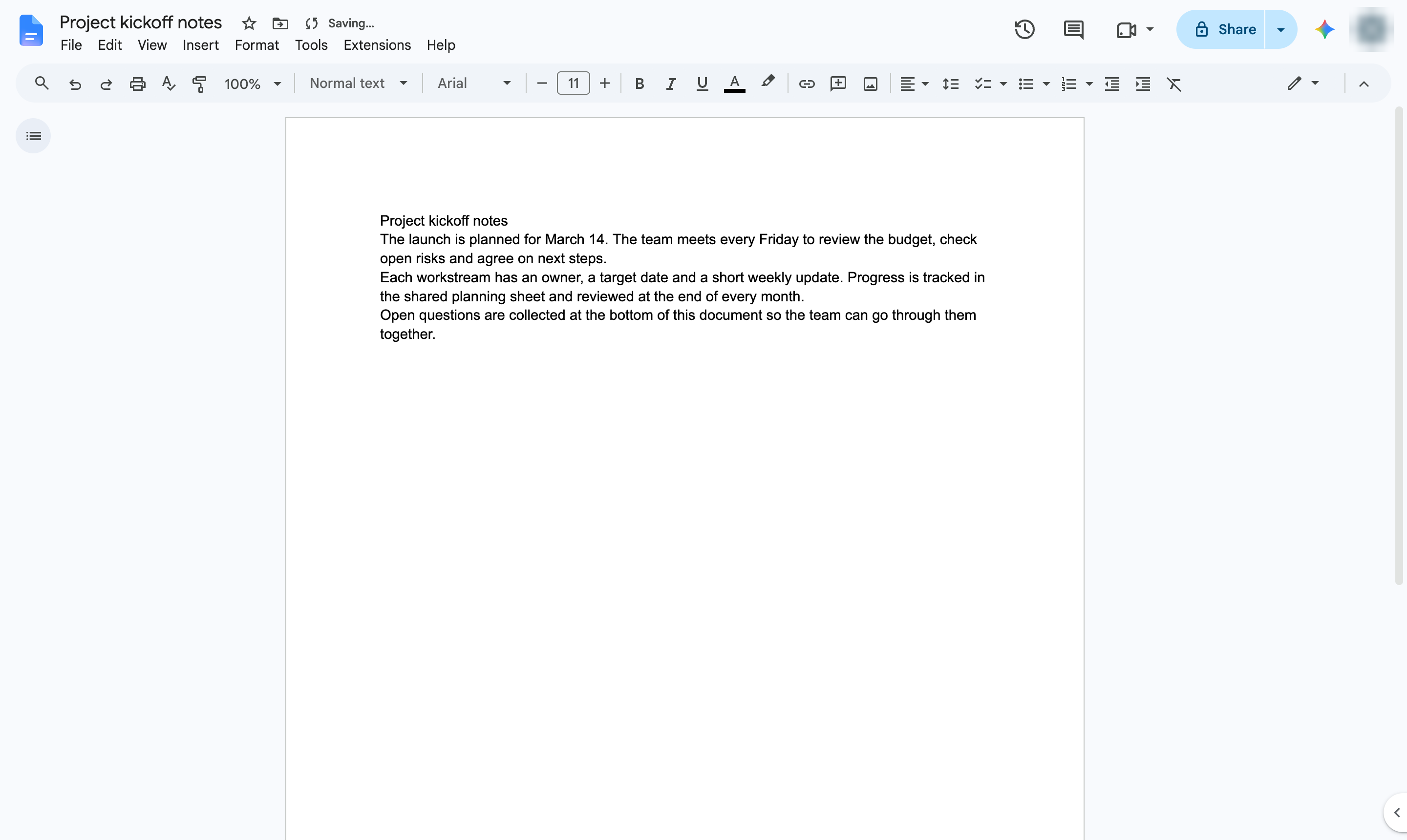

Turn a line into a heading with the Styles menu, so it stands out and shows in the document outline.
Click anywhere in the line you want as a heading.
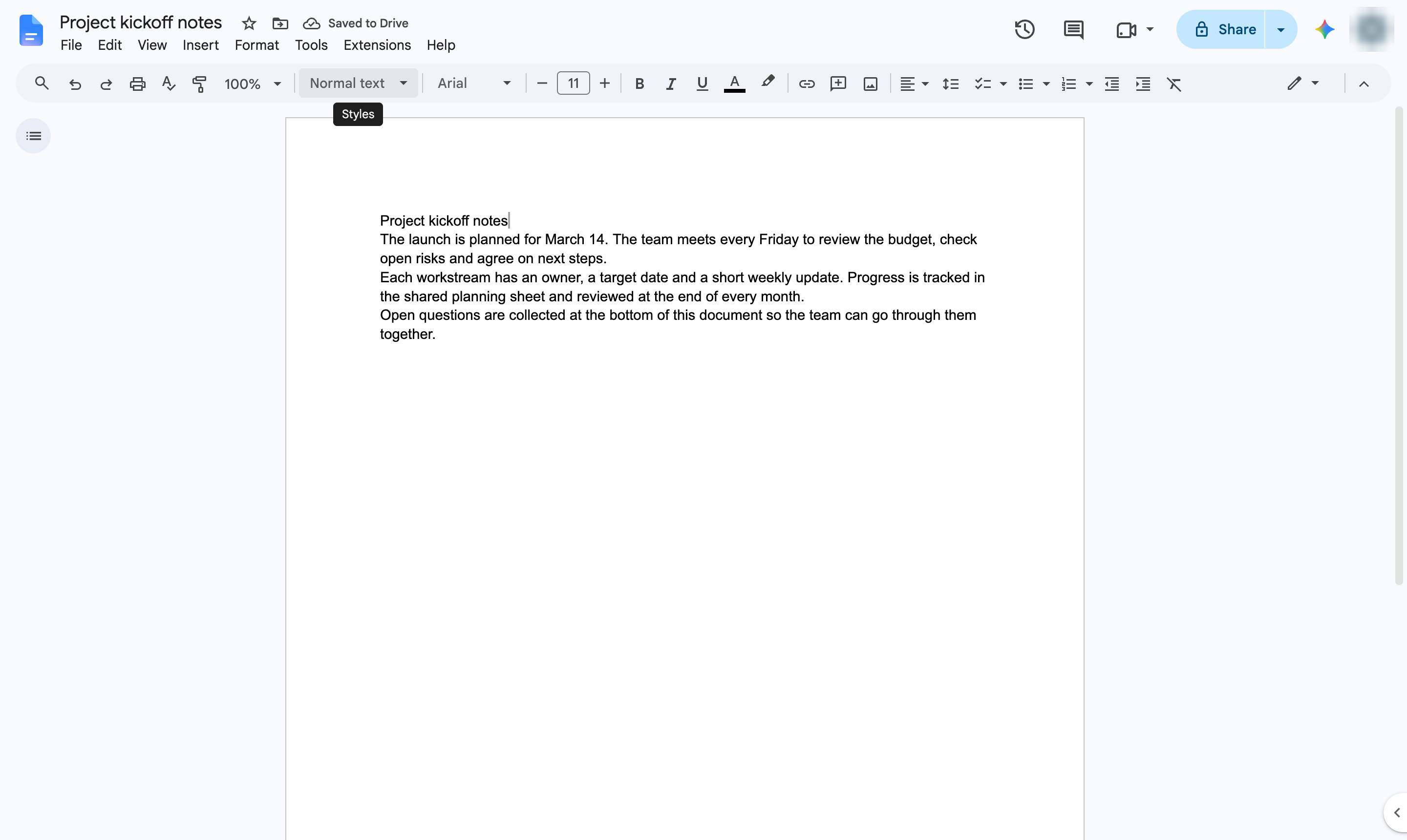
In the toolbar, click the Styles box - it shows Normal text.
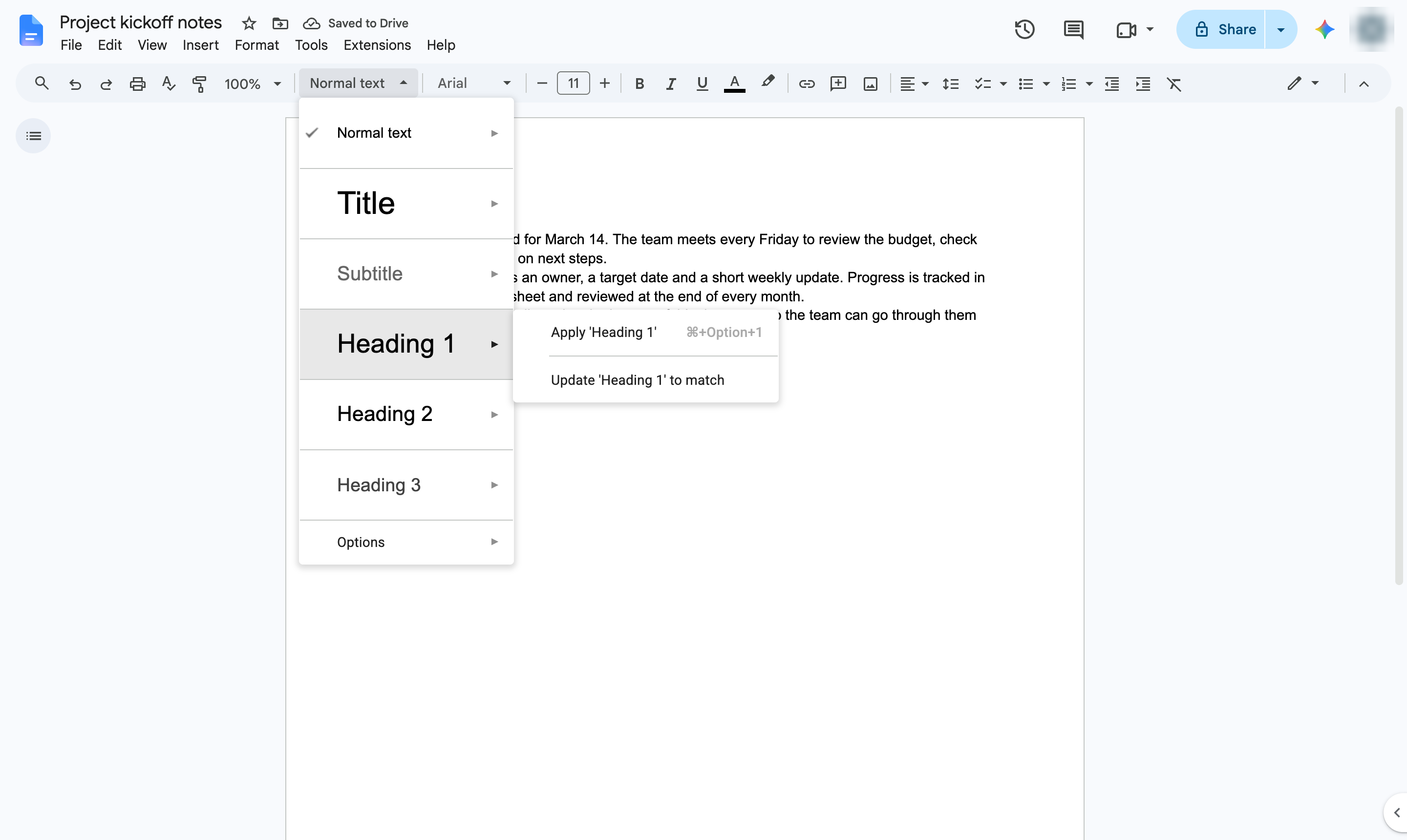
Choose a heading level. Heading 1 is the largest; use Heading 2 and 3 for subsections. Shortcut: Ctrl + Alt + 1 (Cmd + Option + 1 on Mac).
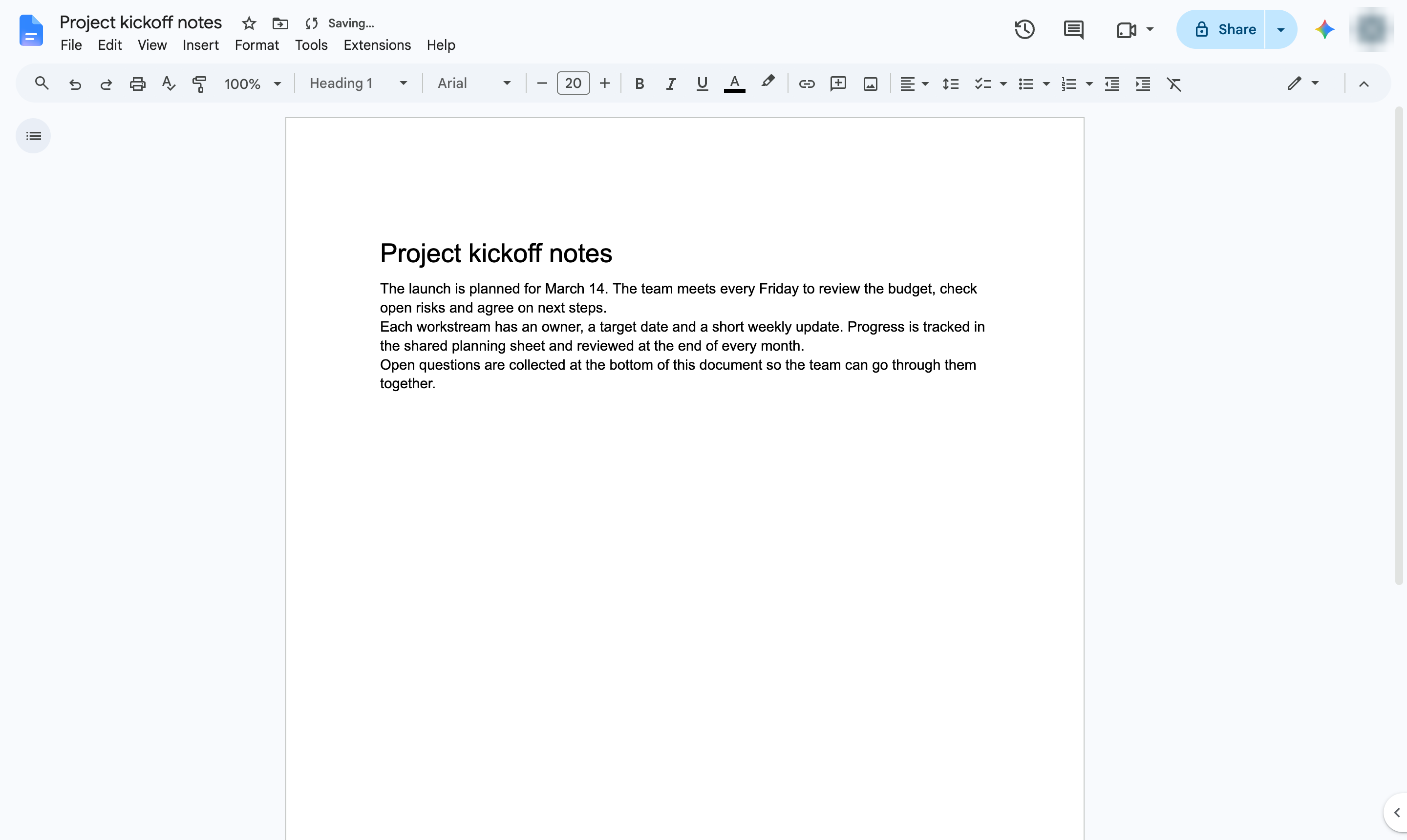
The line is now a heading and appears in the document outline.
Duplicate this template, swap in your own screens, and share it with your team. Free to start — no credit card.
Fill out the form and we'll get back to you as soon as possible.
Tell us about your team and we'll find the right plan together.