1
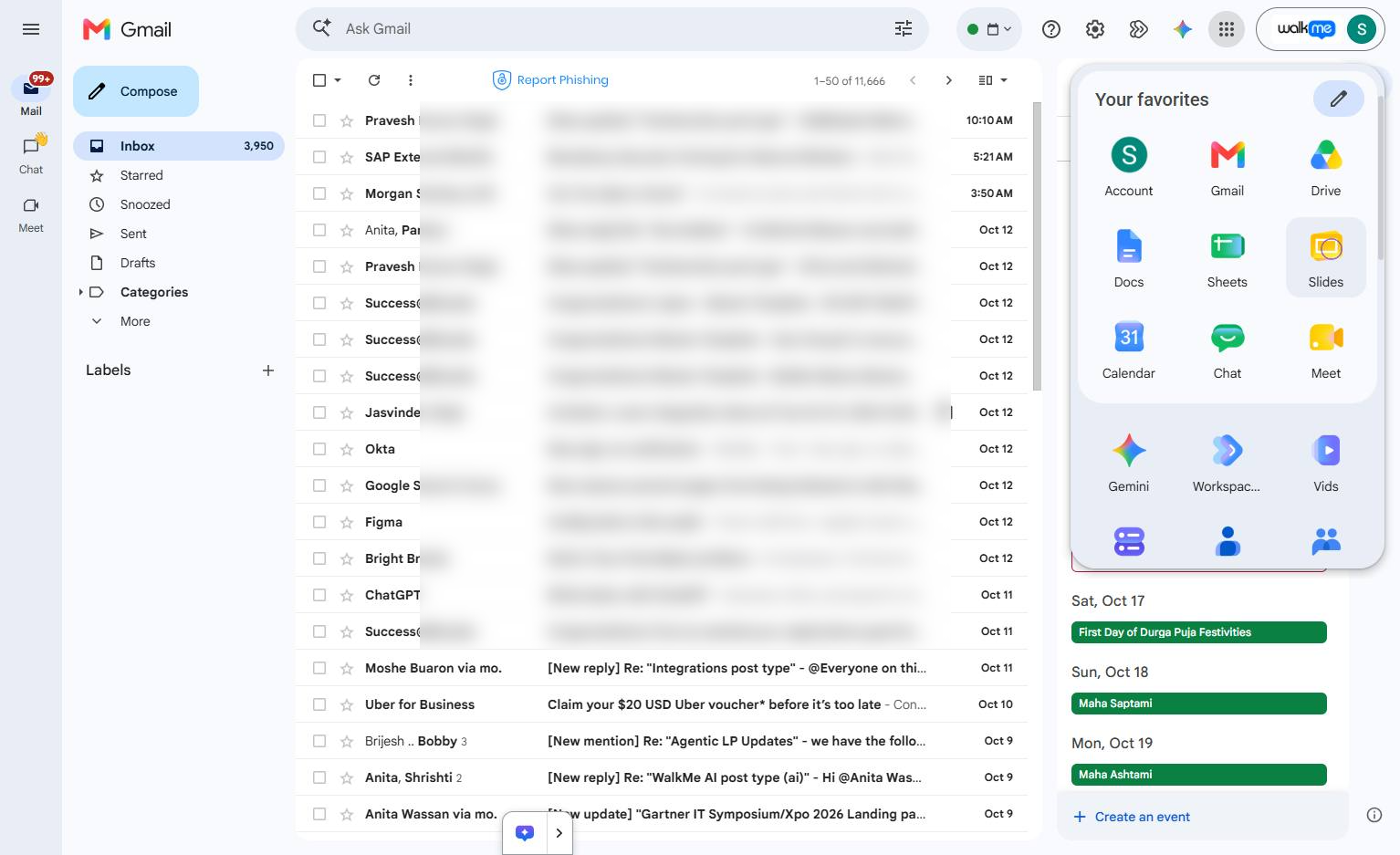
Click the Slides icon
Click the Slides icon in the Google apps menu to open the application.

Discover how to tailor your presentation layouts to any size with the custom slide dimensions feature in Google Slides. This guide walks you through accessing the Page Setup menu, switching to custom dimensions, and defining your exact width and height. By following these steps, you will easily adapt your slides for unique print formats, mobile screens, or specialized display requirements.
Click the Slides icon in the Google apps menu to open the application.
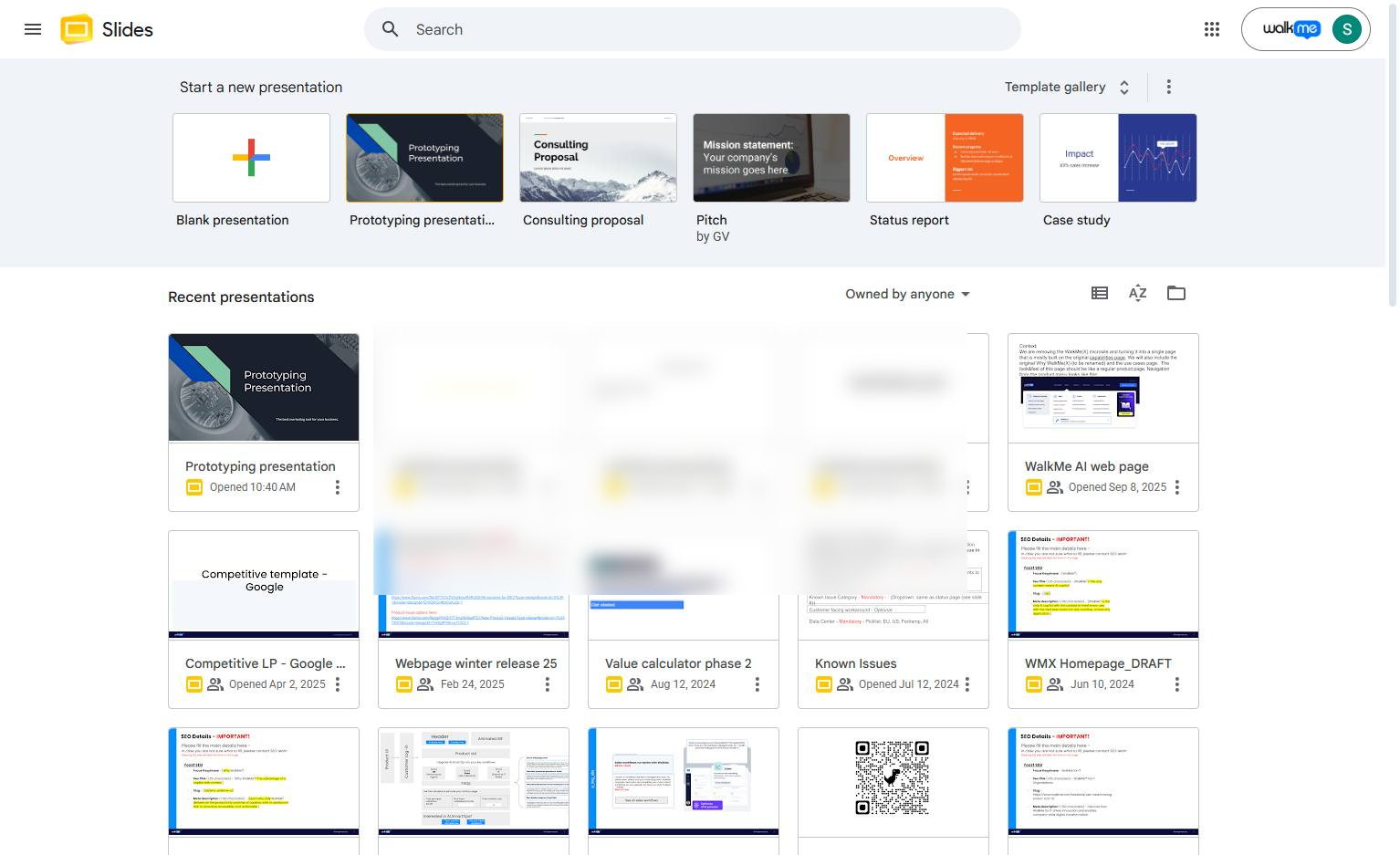
Click "Any presentation" template in the top gallery to start a new presentation or open a blank presentation.
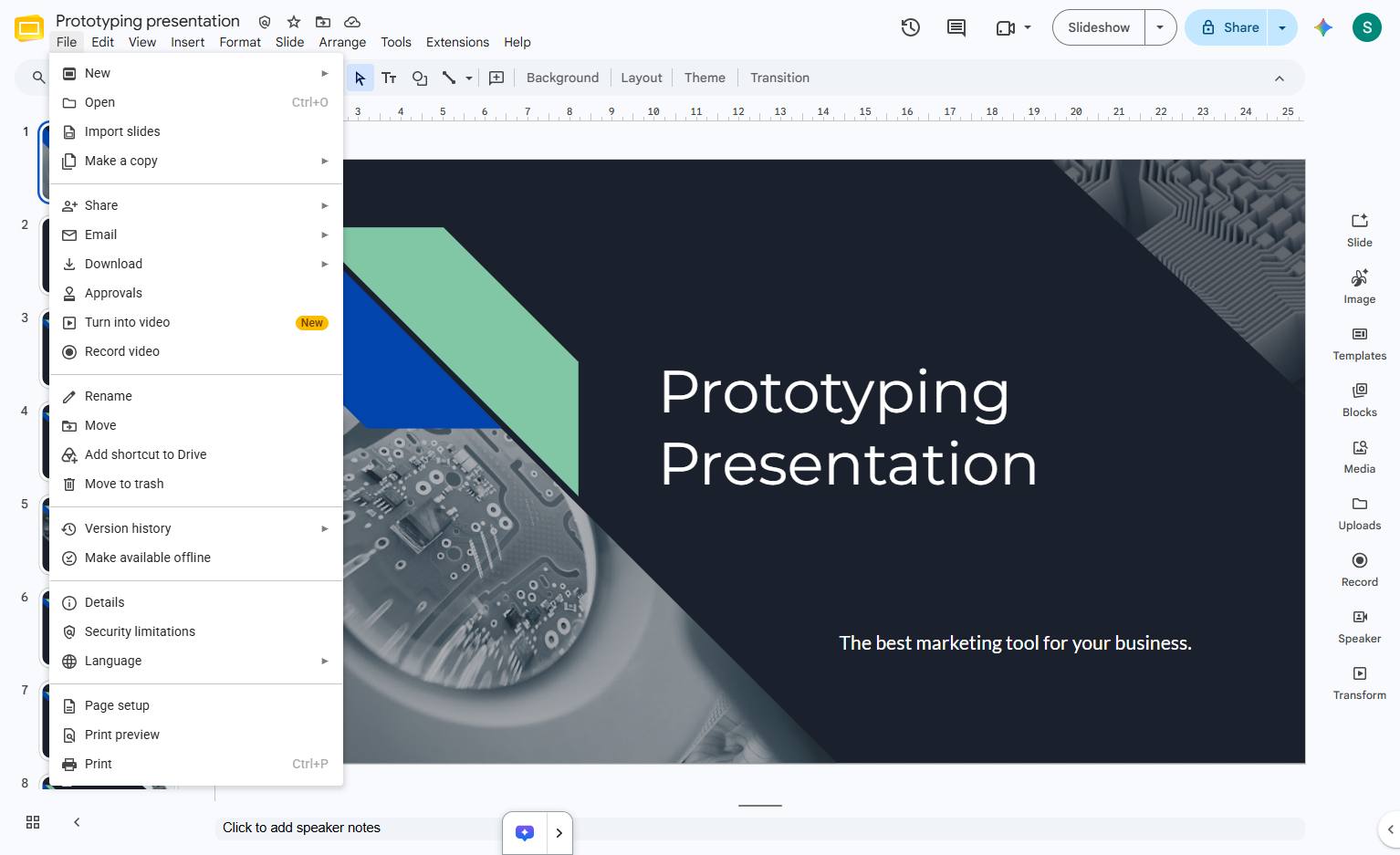
Click the File menu in the top toolbar to open the dropdown options.
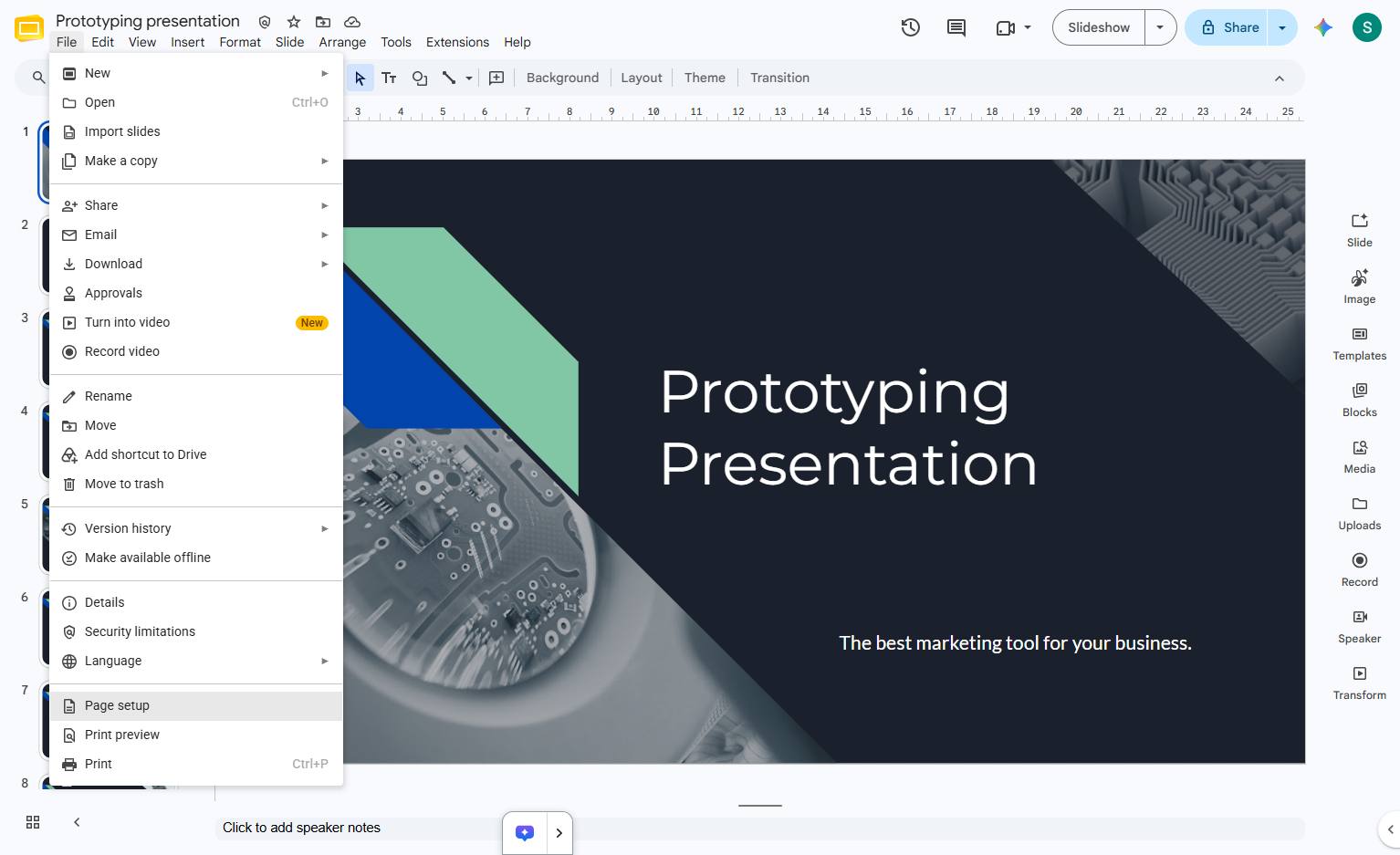
Click the "Page setup" option near the bottom of the File menu to adjust your presentation's dimensions.
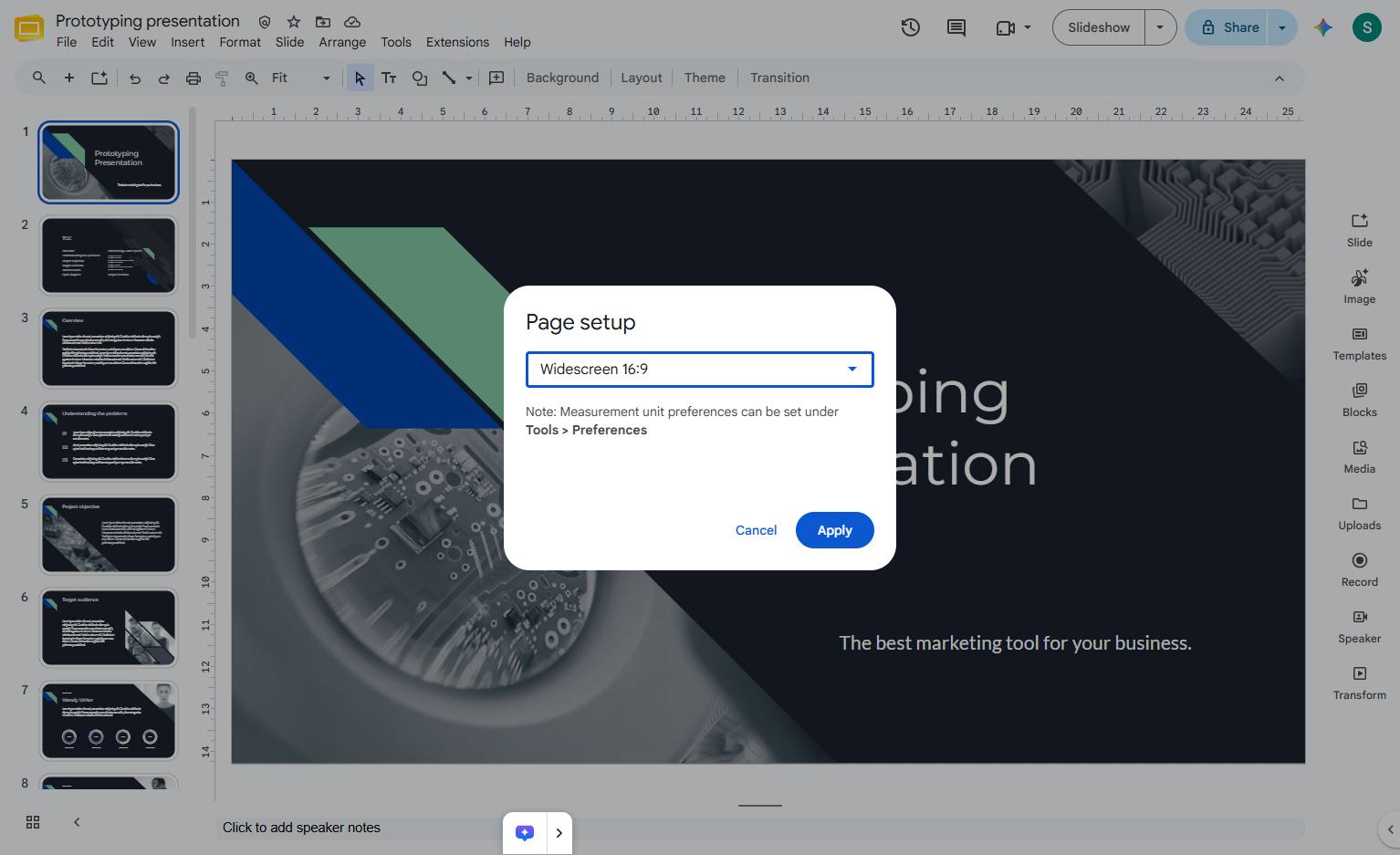
Click the dropdown menu in the Page setup modal to view available aspect ratios.
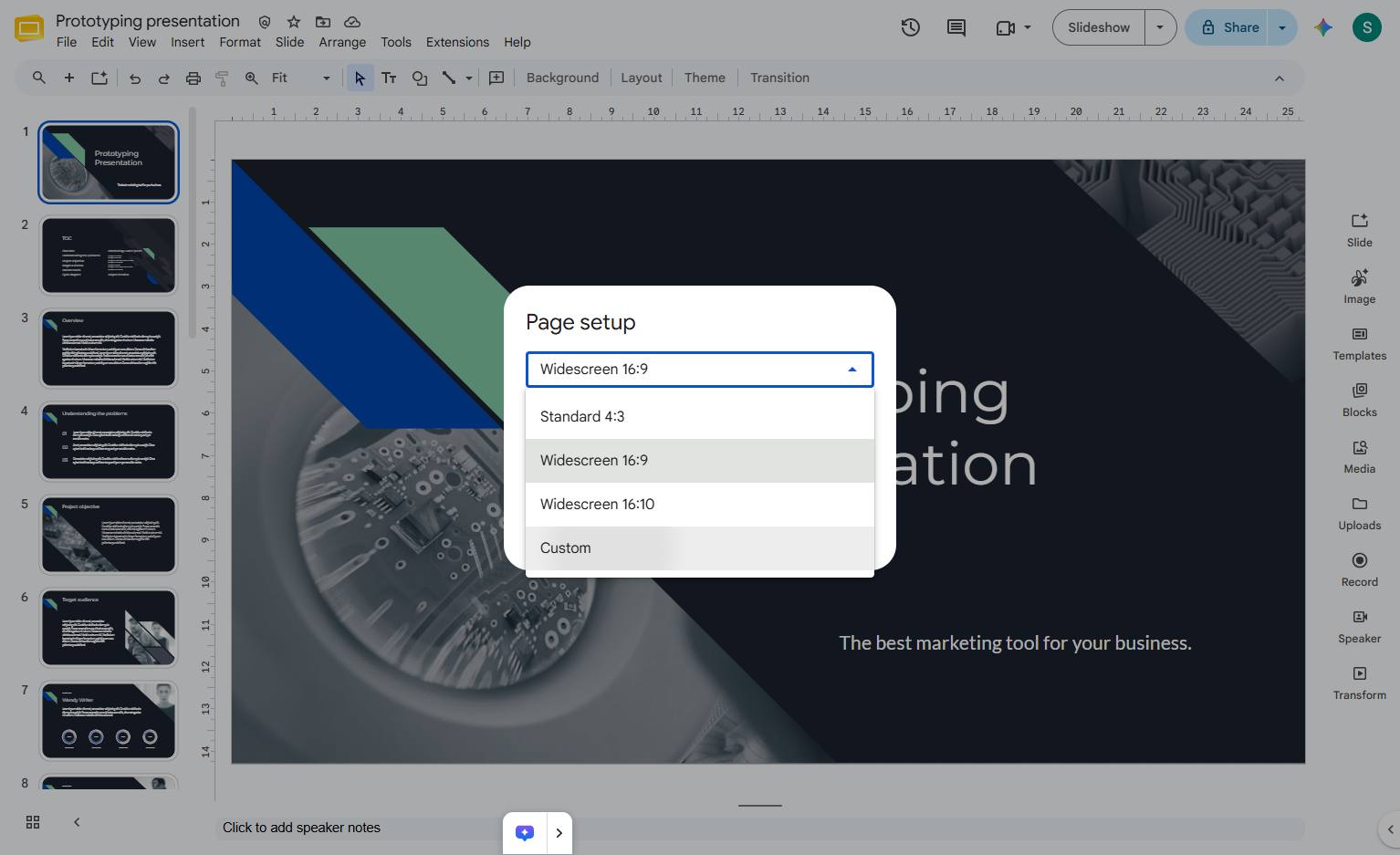
Click the "Custom" option in the dropdown menu to define specific dimensions for your slides.
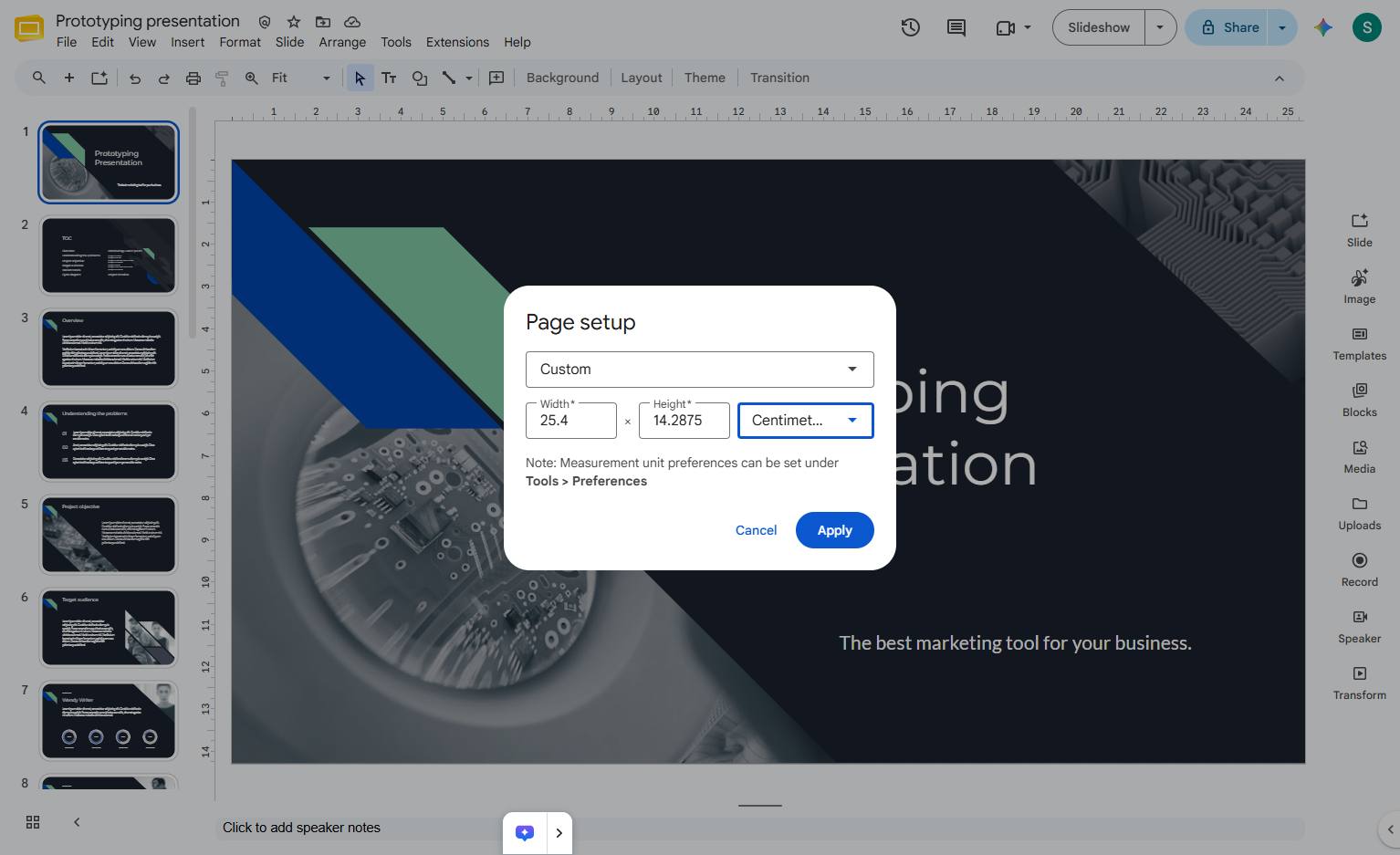
Click the unit dropdown menu in the Page setup modal to select a different measurement unit before set the layout.
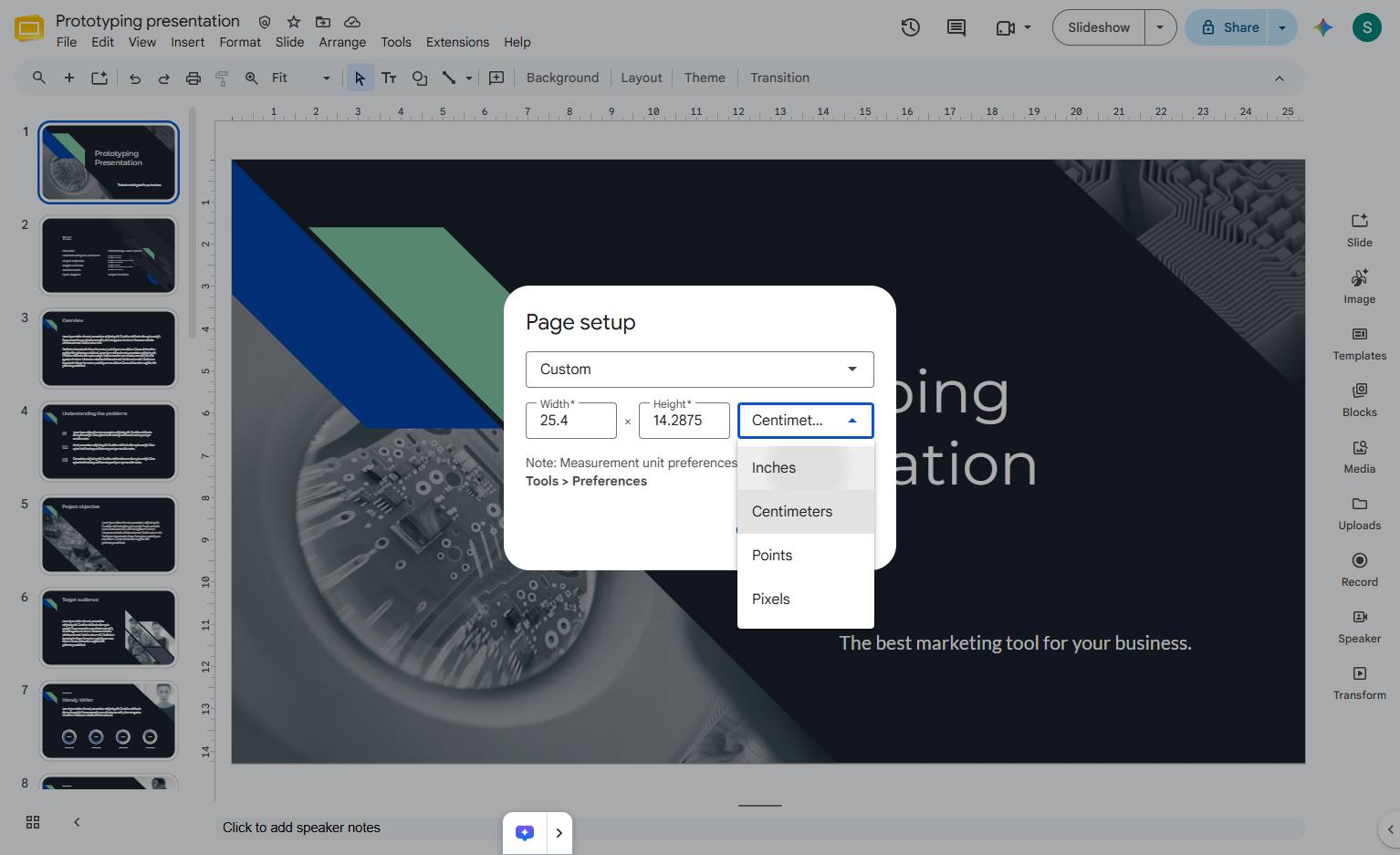
Click the Inches option in the measurement unit dropdown menu within the Page setup dialog.
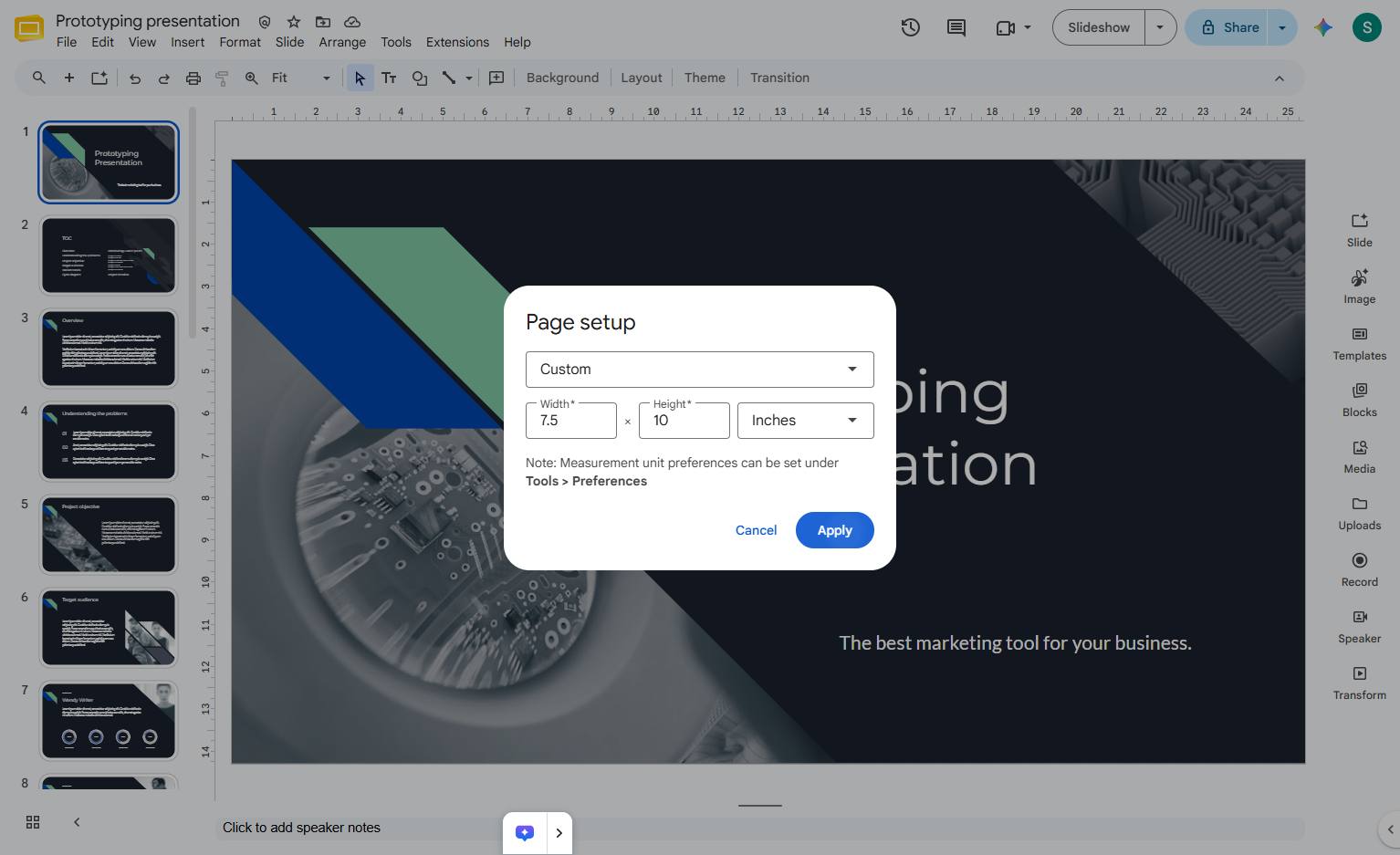
Make the width smaller than the height.For example:Width: 7.5 inchesHeight: 10 inchesYou can also use 21 cm × 29.7 cm for A4 portrait.
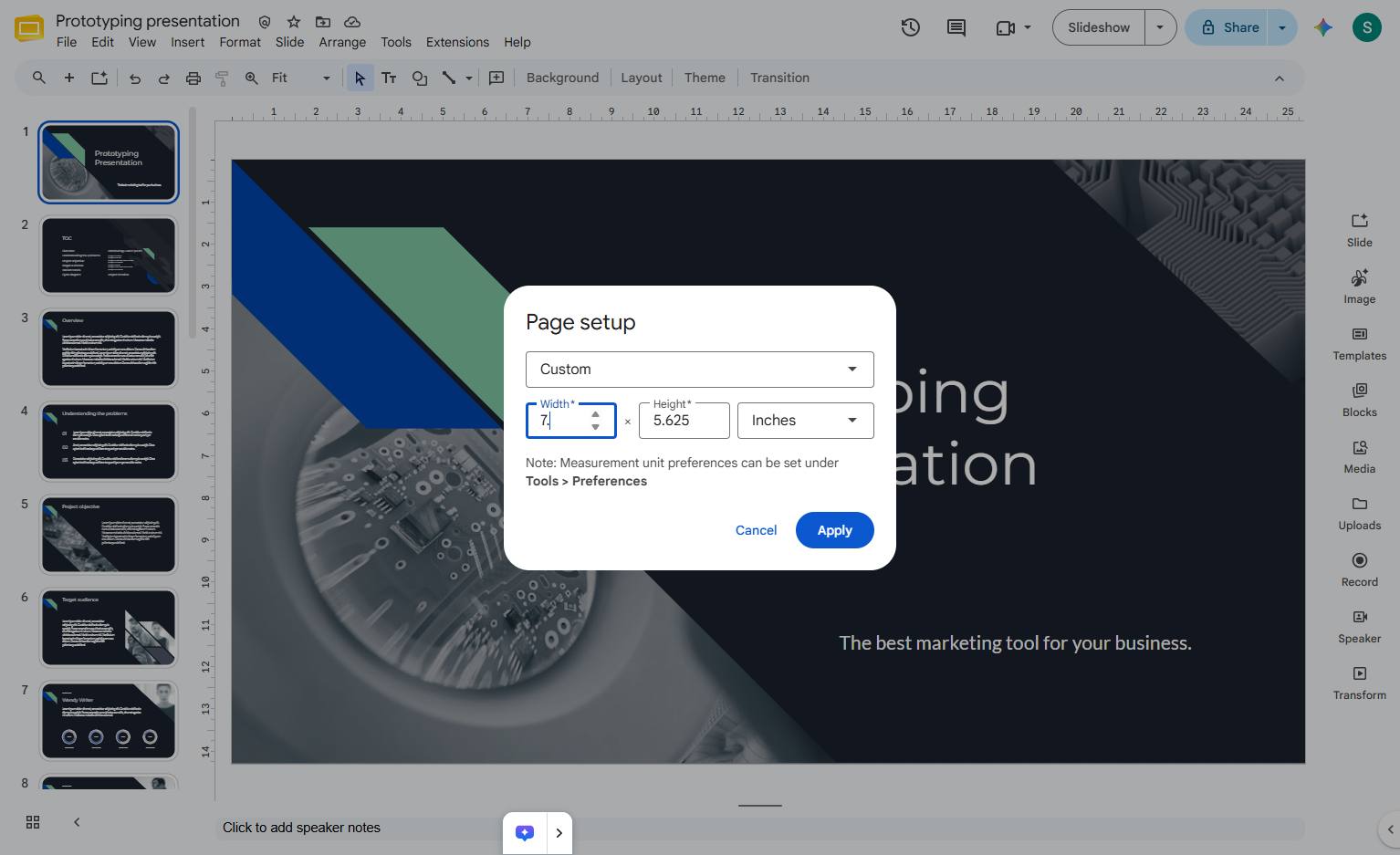
Click the Apply button in the Page setup modal to save your new dimensions.
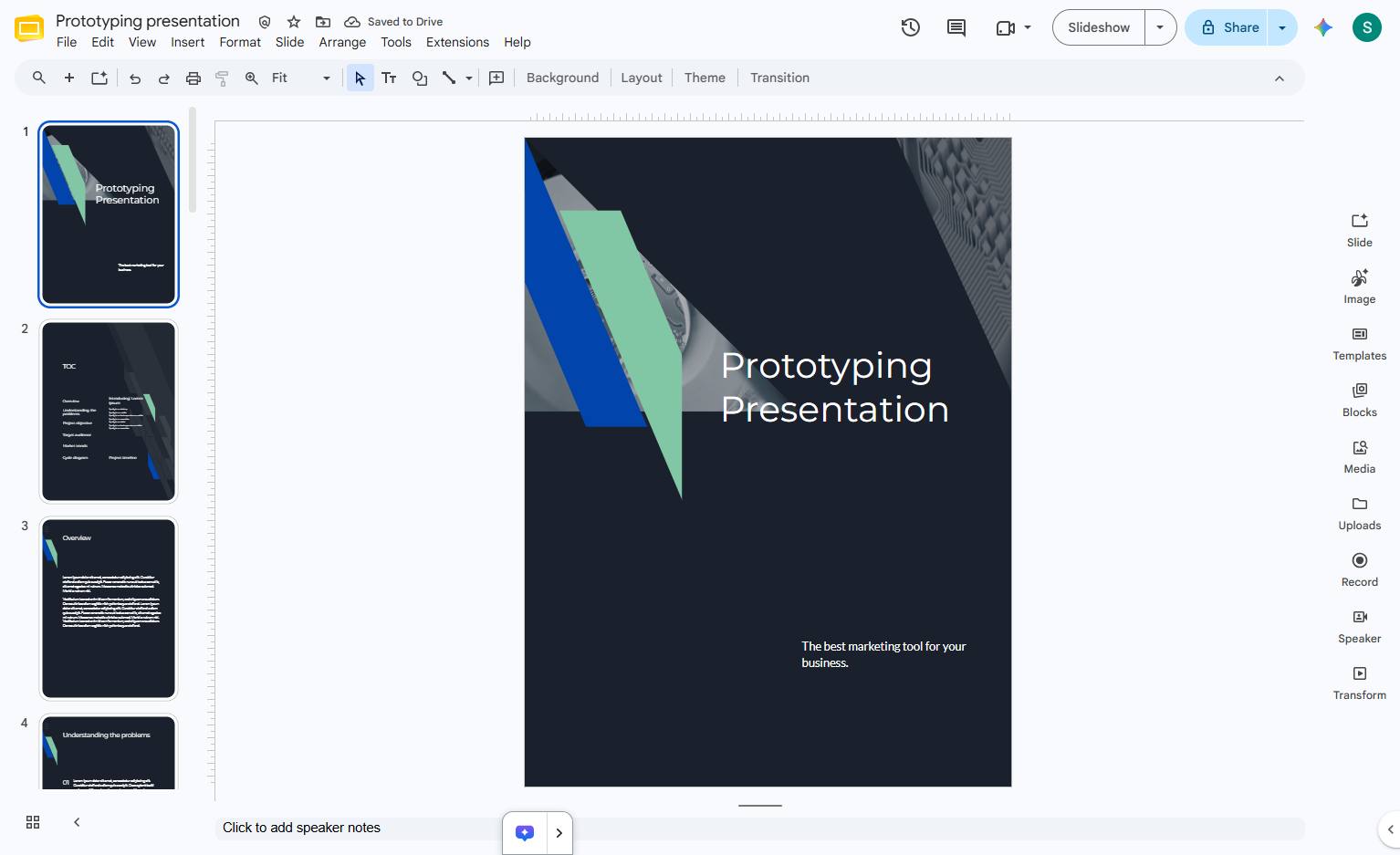
Your slides will now be vertical instead of horizontal.
Duplicate this template, swap in your own screens, and share it with your team. Free to start — no credit card.
Fill out the form and we'll get back to you as soon as possible.
Tell us about your team and we'll find the right plan together.