1
Open Gmail Inbox
Navigate to your Gmail inbox to begin configuring your theme settings.


Learn how to customize your WalkMe Mail interface by configuring your inbox settings and applying the Dark theme. This step-by-step tutorial will guide you through accessing the settings menu, updating your visual preferences, and returning to your inbox.
Navigate to your Gmail inbox to begin configuring your theme settings.
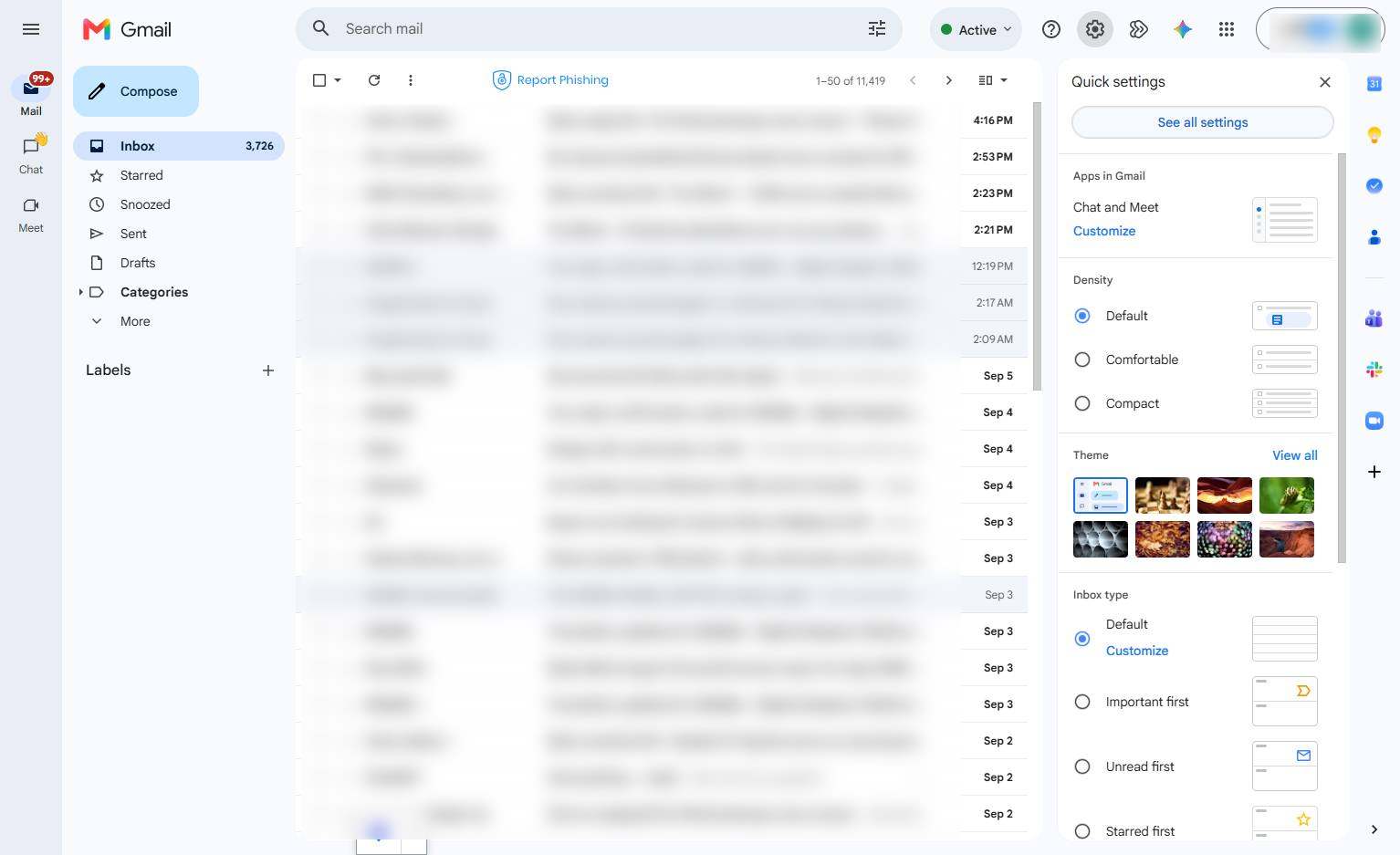
Click the Settings gear icon in the top right toolbar to open the Quick settings panel.
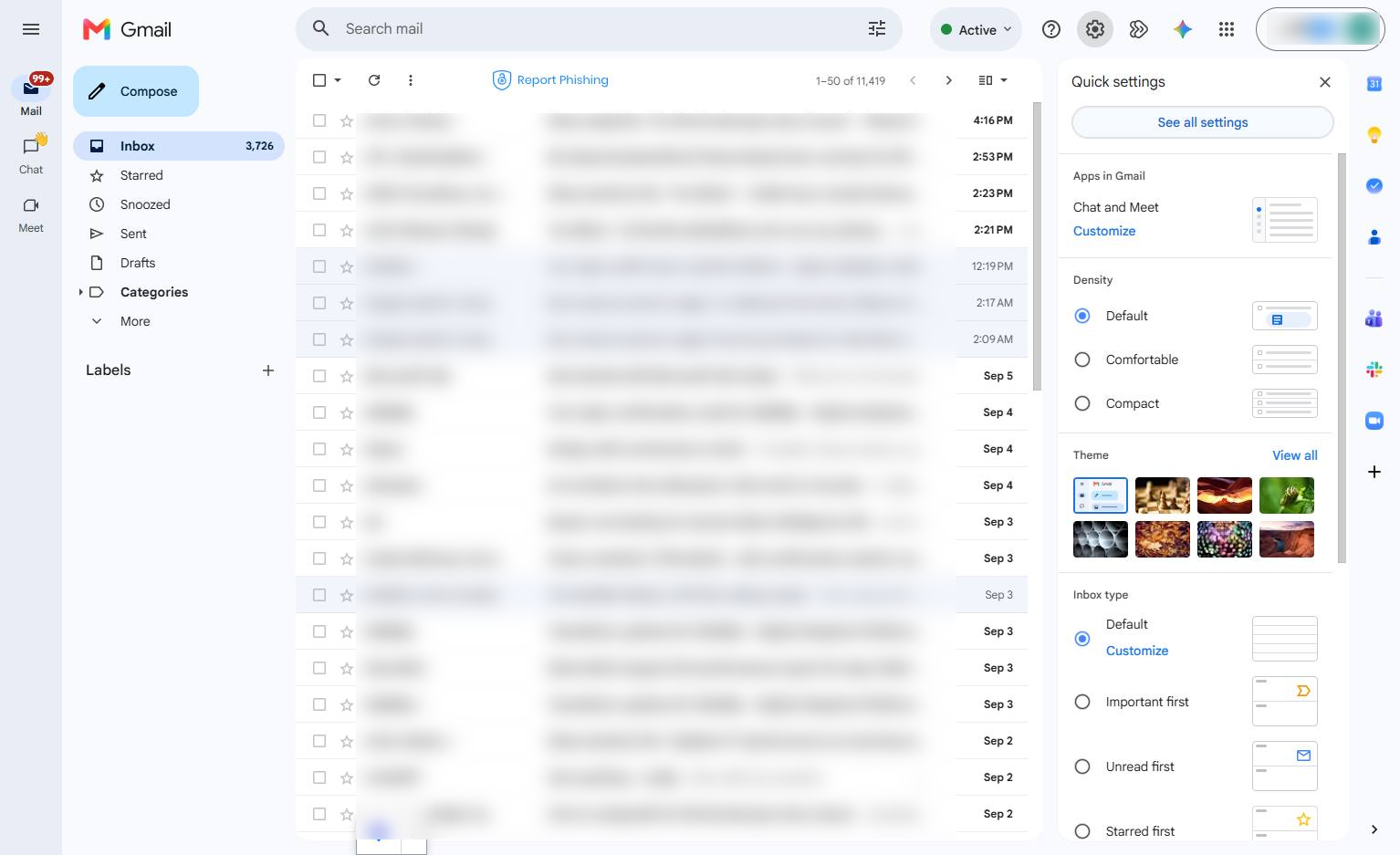
Click the View all link in the Theme section of the Quick settings panel to browse additional themes.
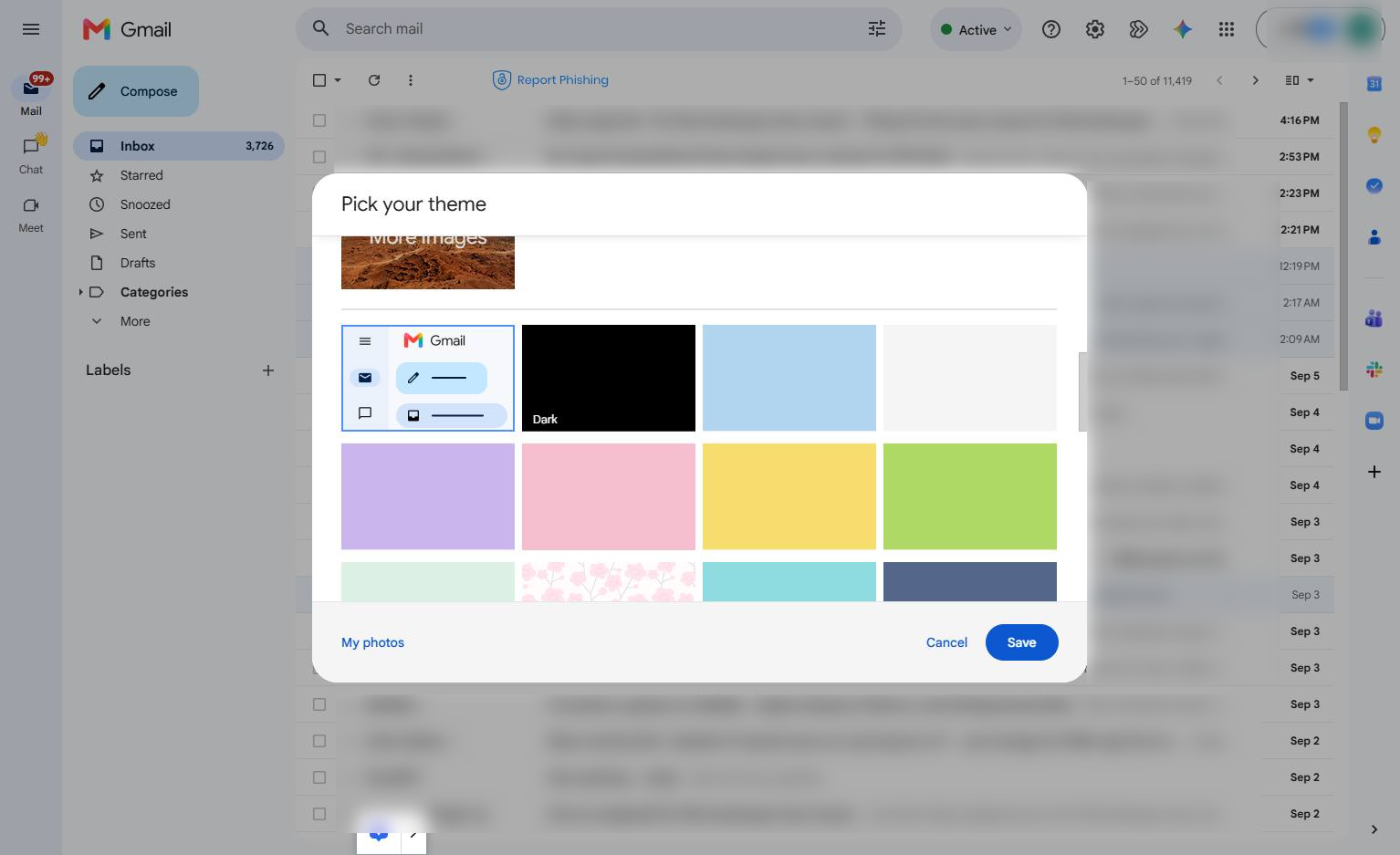
Click the Dark theme option in the Pick your theme modal to change your inbox appearance.
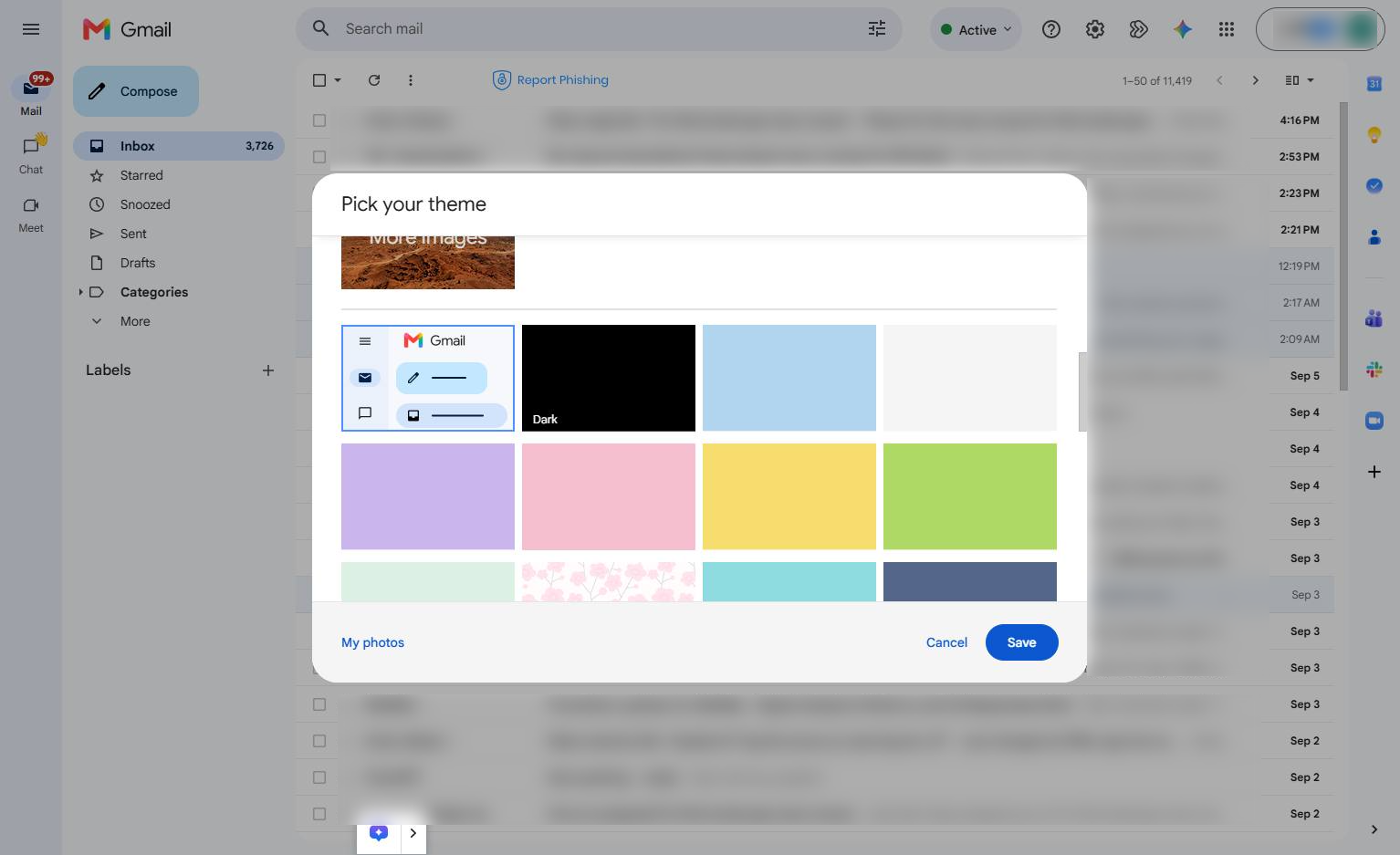
Click the Save button at the bottom right of the modal to apply your new theme.
Duplicate this template, swap in your own screens, and share it with your team. Free to start — no credit card.
Fill out the form and we'll get back to you as soon as possible.
Tell us about your team and we'll find the right plan together.