1
Open a new message in Slack from your desktop
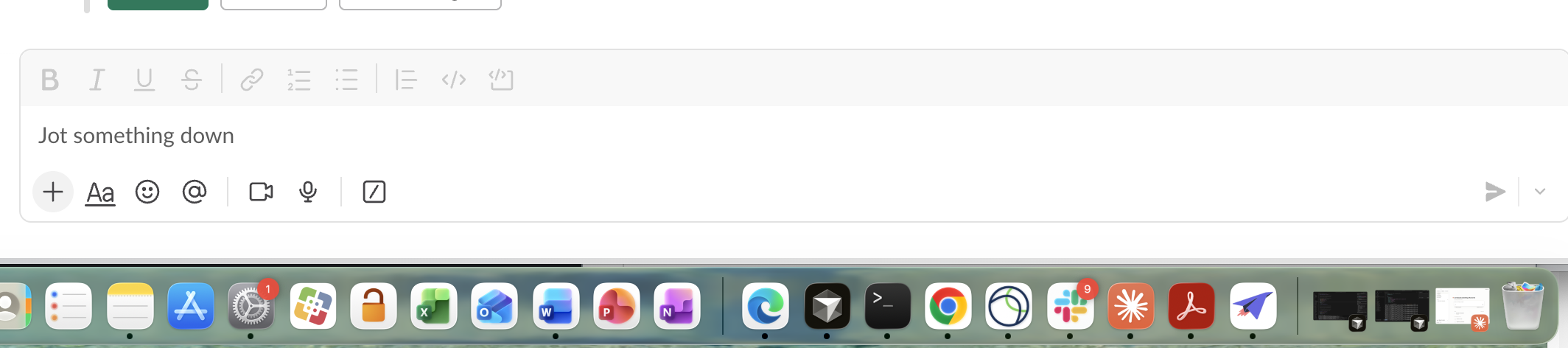
Click inside the text area with the placeholder "Jot something down" to begin typing.

Learn how to upload and save a specific image file within a Slack channel. This guide walks you through selecting the image from your files, opening it, and saving the changes to complete the process.
Click inside the text area with the placeholder "Jot something down" to begin typing.
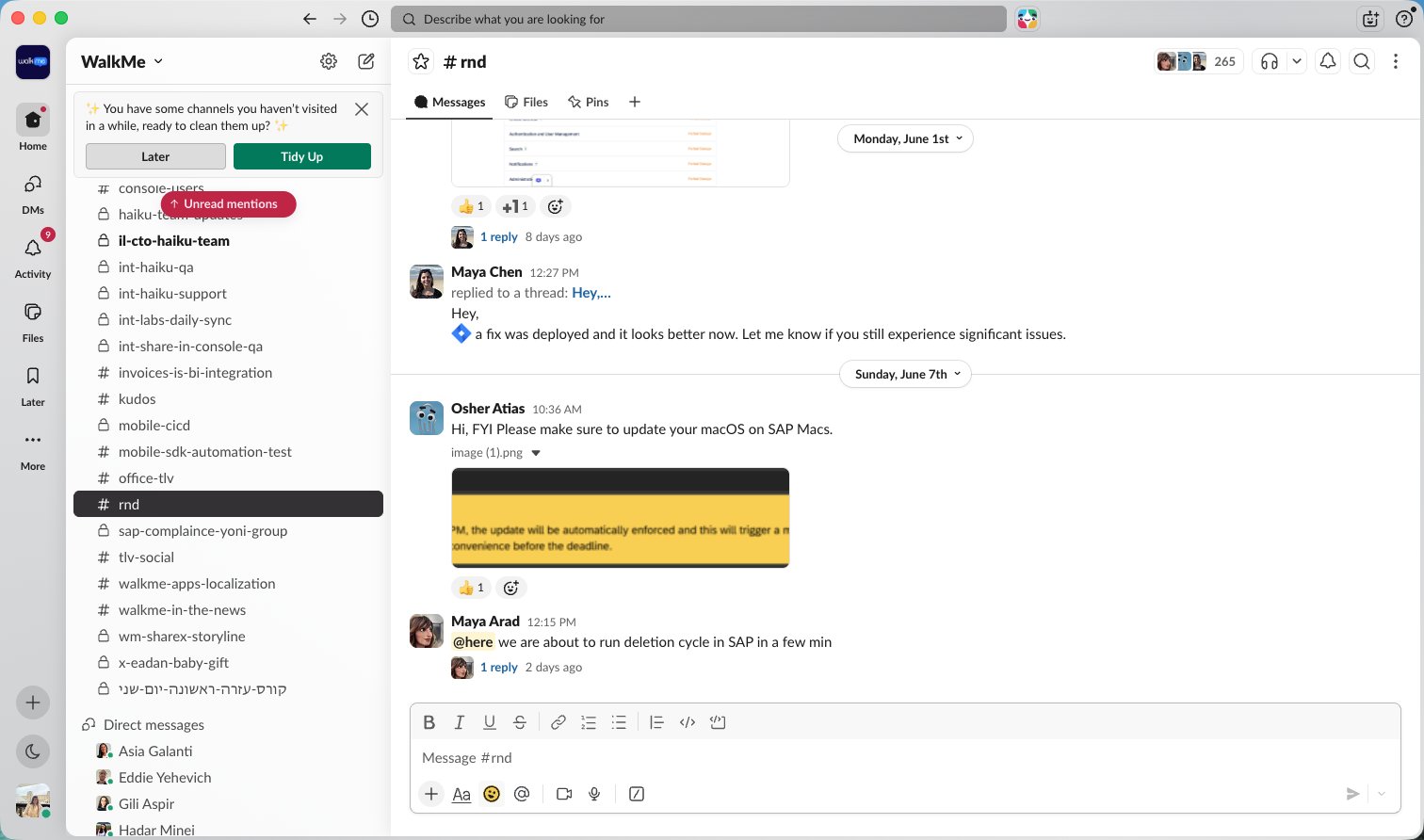
Click the smiley face icon in the message input toolbar to add an emoji to your text.
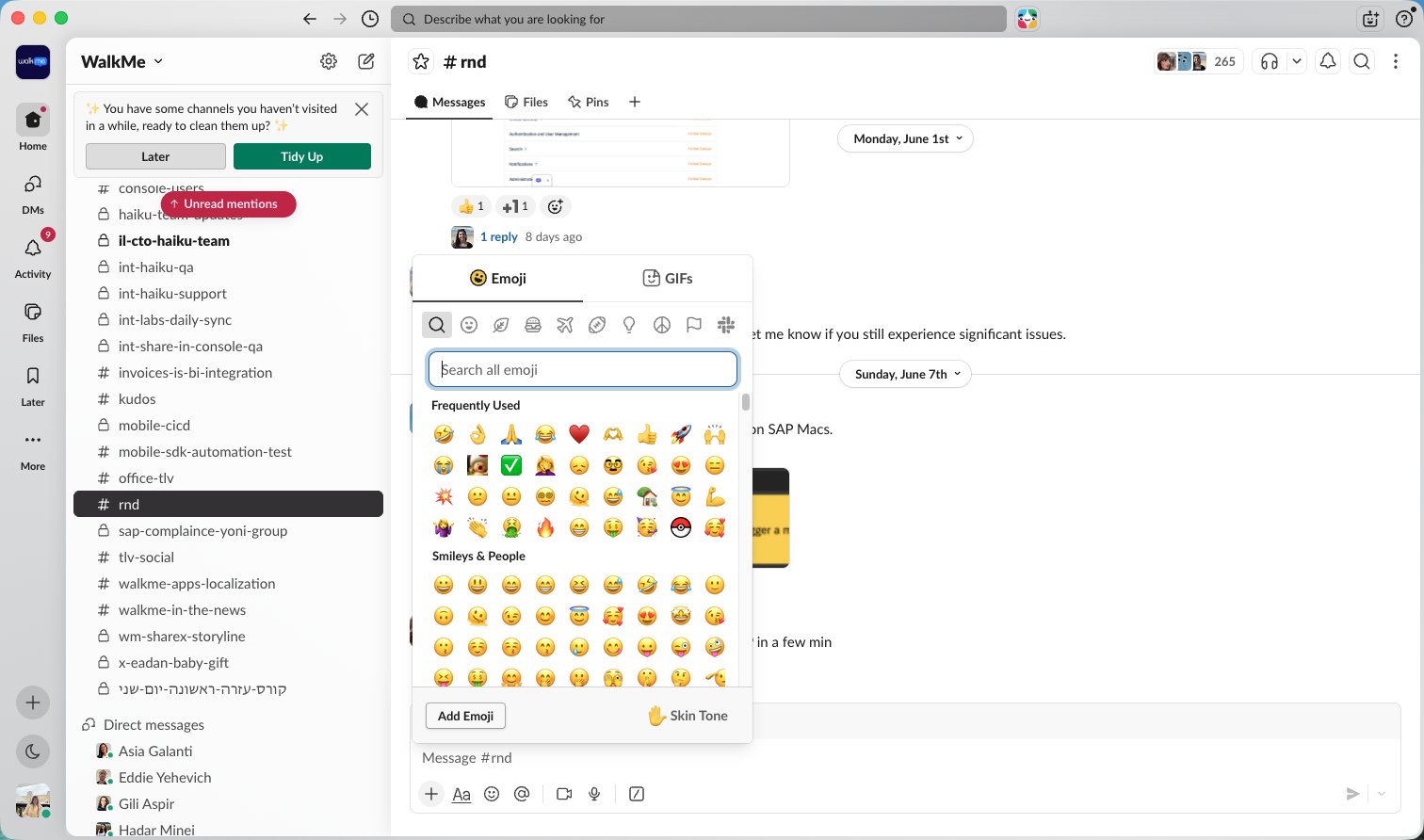
Click the Add Emoji button at the bottom left of the emoji picker panel.
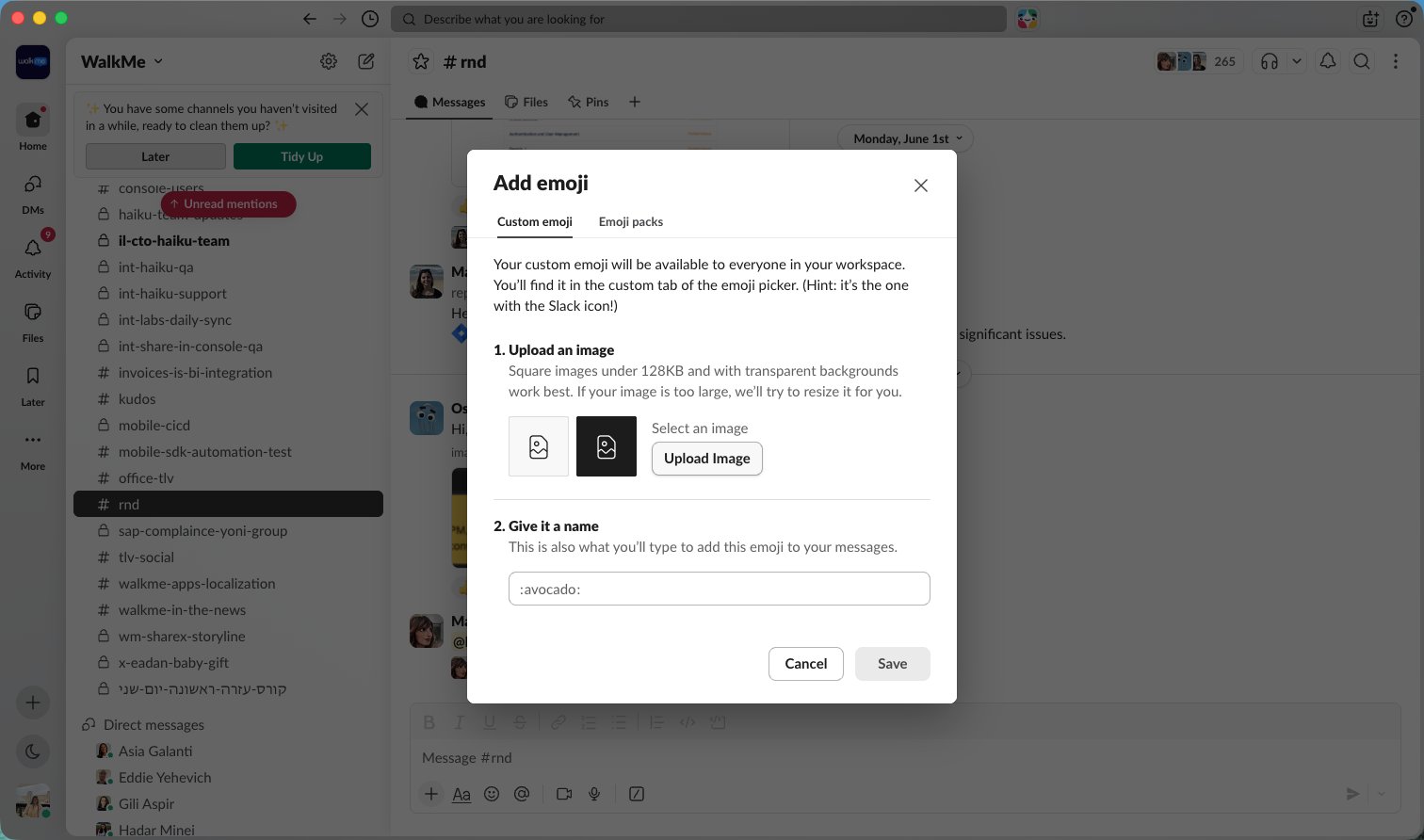
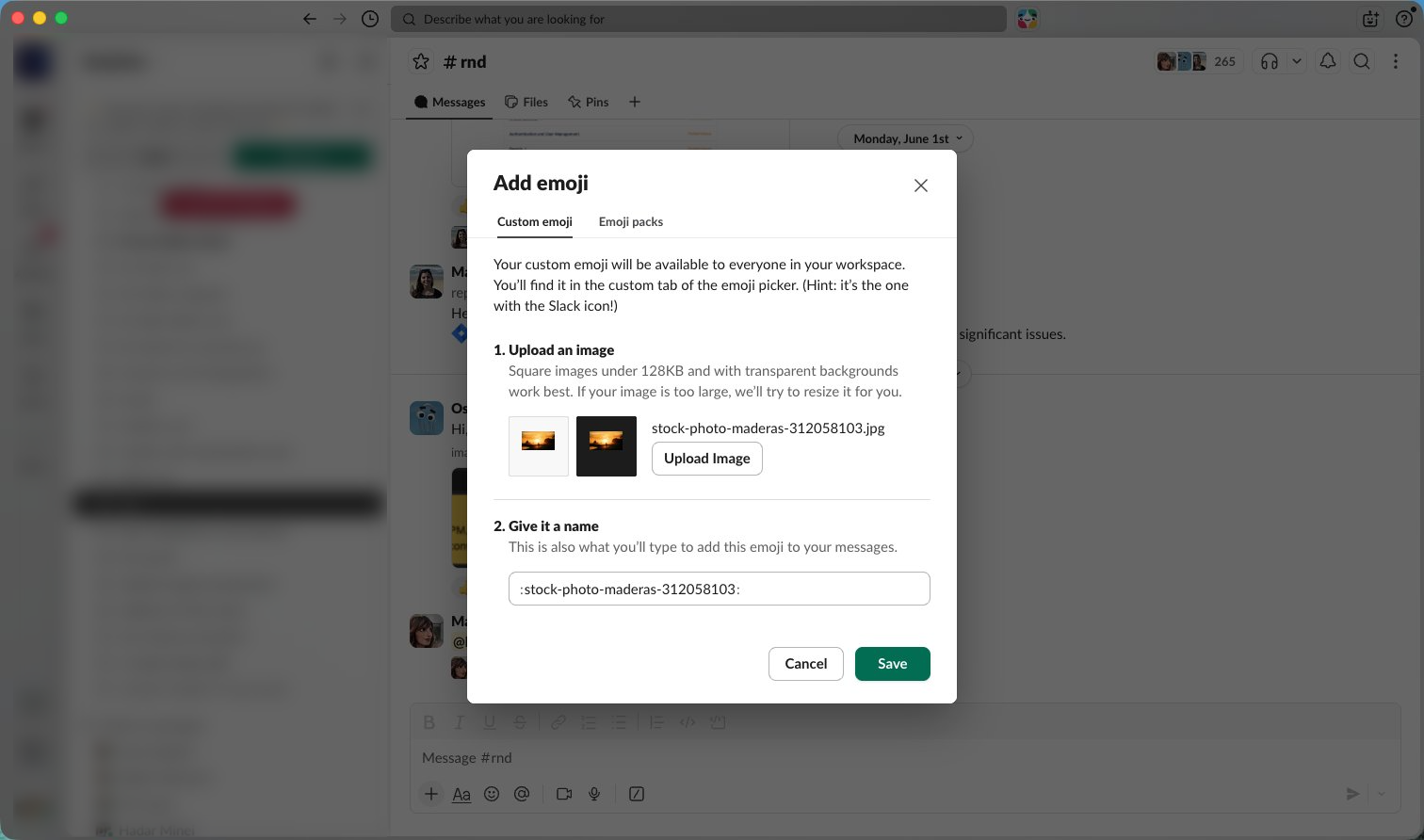
Click the Upload Image button in the Add emoji modal to select a file from your computer.
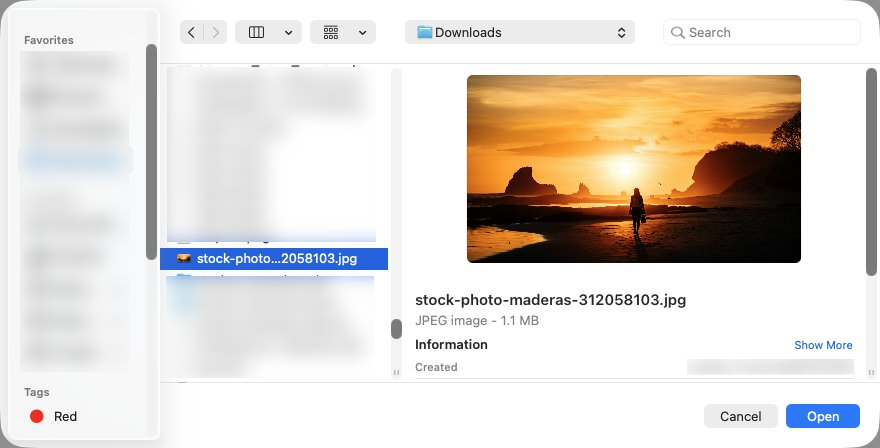
Click the "stock-photo...058103.jpg" file in the file browser to select it for your custom emoji.
Click the Save button at the bottom right of the modal to finish adding your new custom emoji.
Find your new emoji by reopening the menu and typing in its name

Duplicate this template, swap in your own screens, and share it with your team. Free to start — no credit card.
Fill out the form and we'll get back to you as soon as possible.
Tell us about your team and we'll find the right plan together.