1
Click the Google Docs icon
Click the Docs icon in the Google Apps menu to open Google Docs.
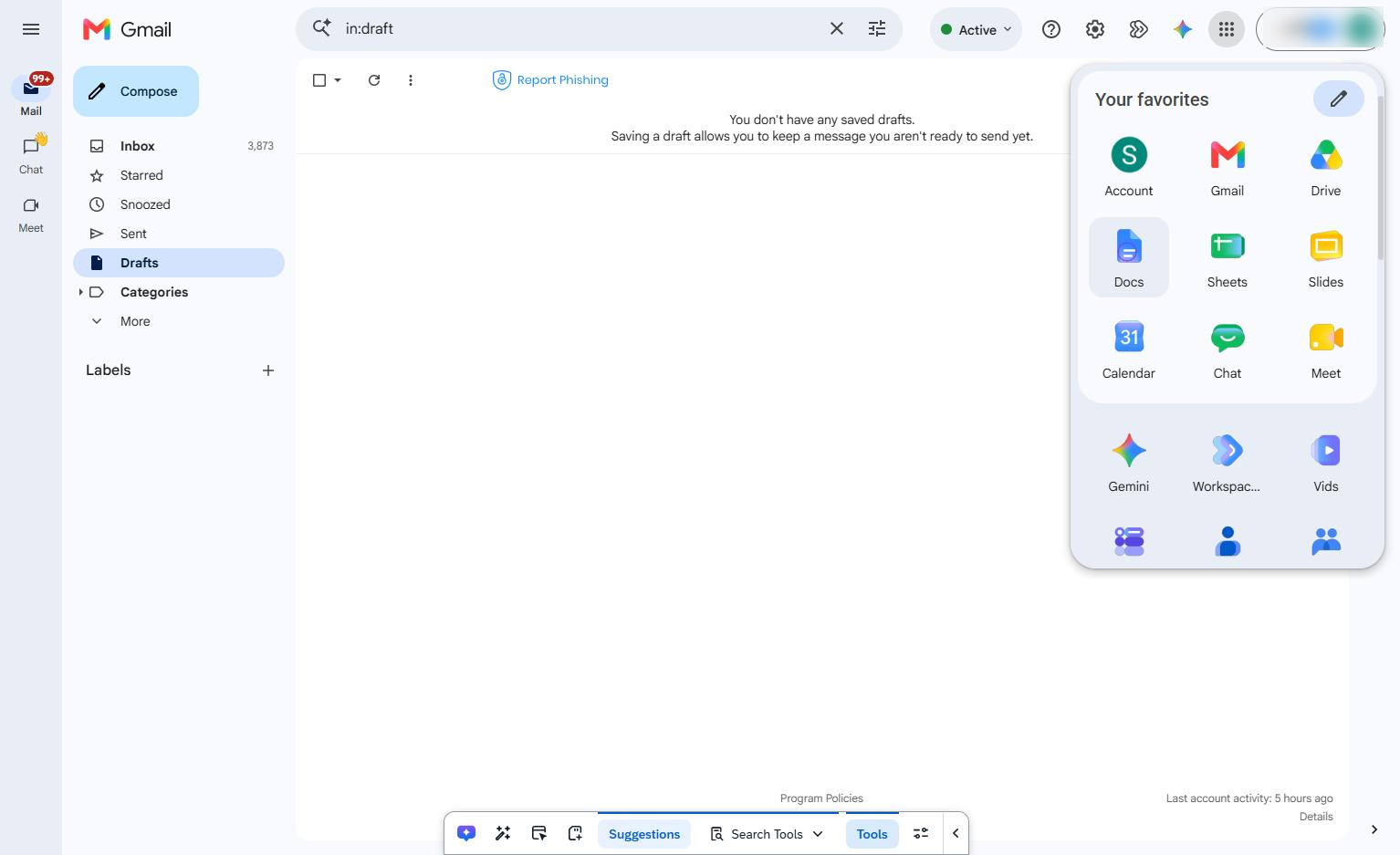

Discover how to seamlessly launch and format a new document in Google Docs directly from your Google Apps menu. This interactive tour will guide you through opening a blank document and using essential formatting tools, such as bulleted and numbered lists, to structure your text. By the end of this guide, you will be able to quickly initiate and organize your written content with ease.
Click the Docs icon in the Google Apps menu to open Google Docs.
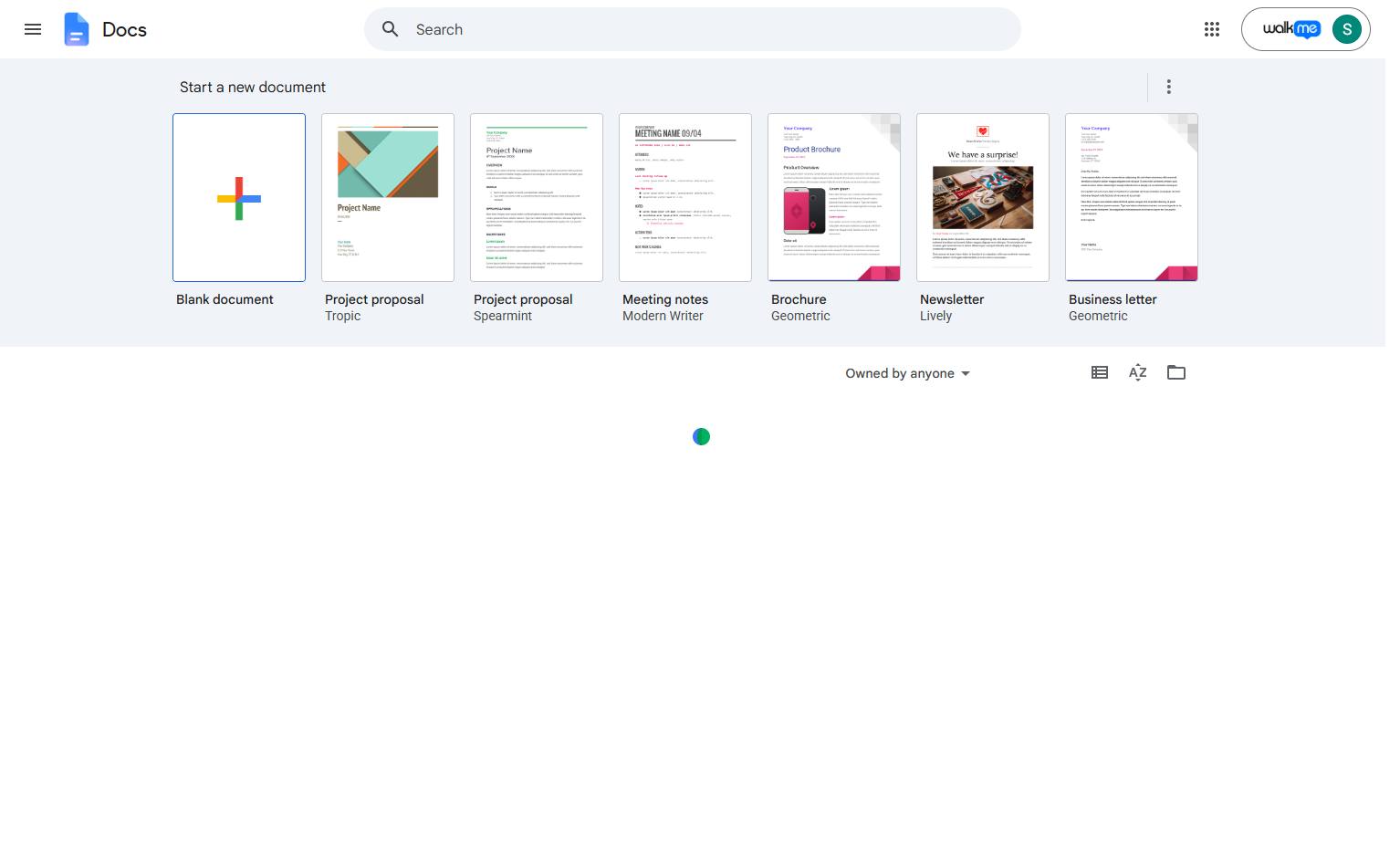
Click the Blank document template in the "Start a new document" section to create a new file.
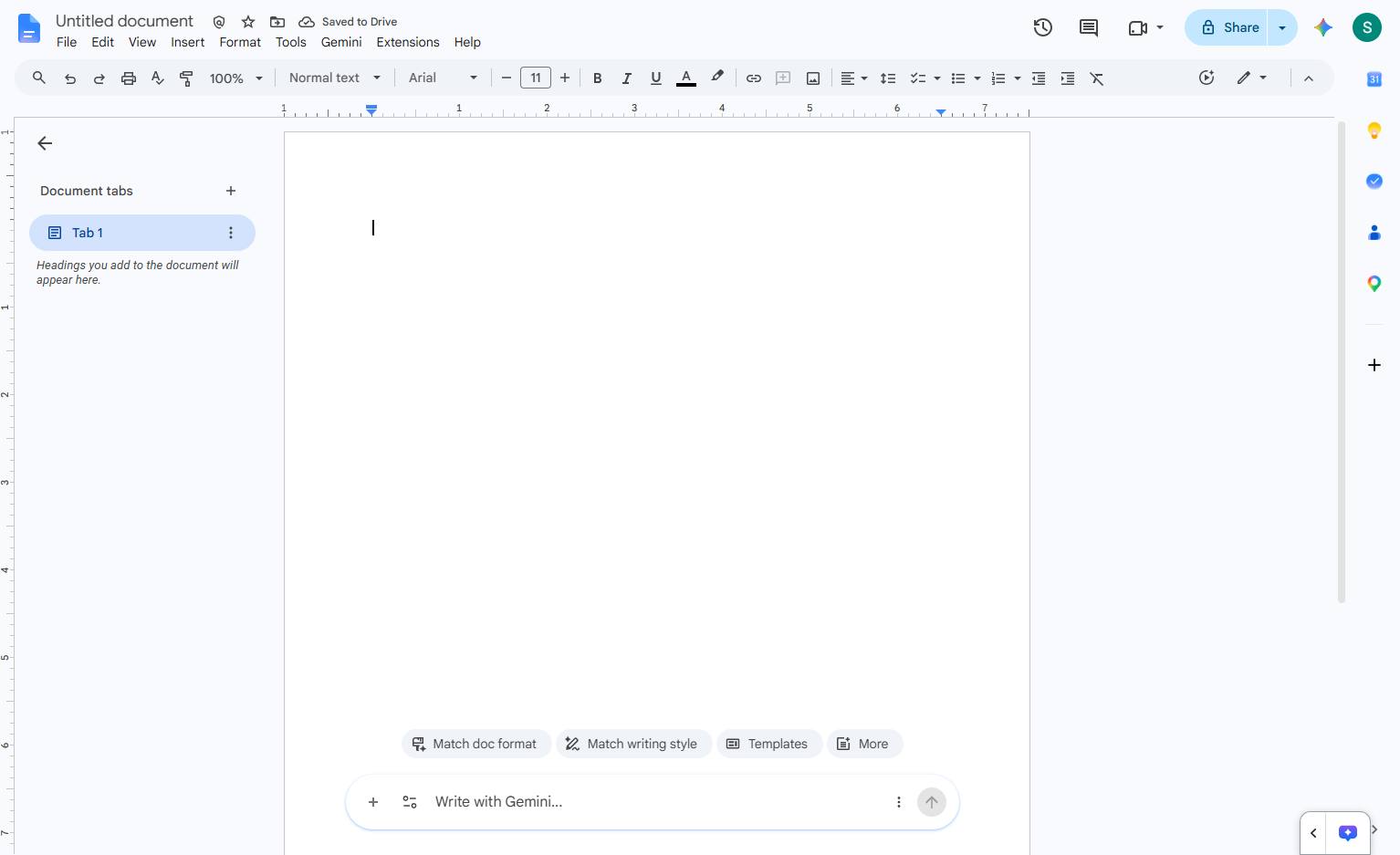
Click inside the blank document area to place your cursor where you want the bullets points.
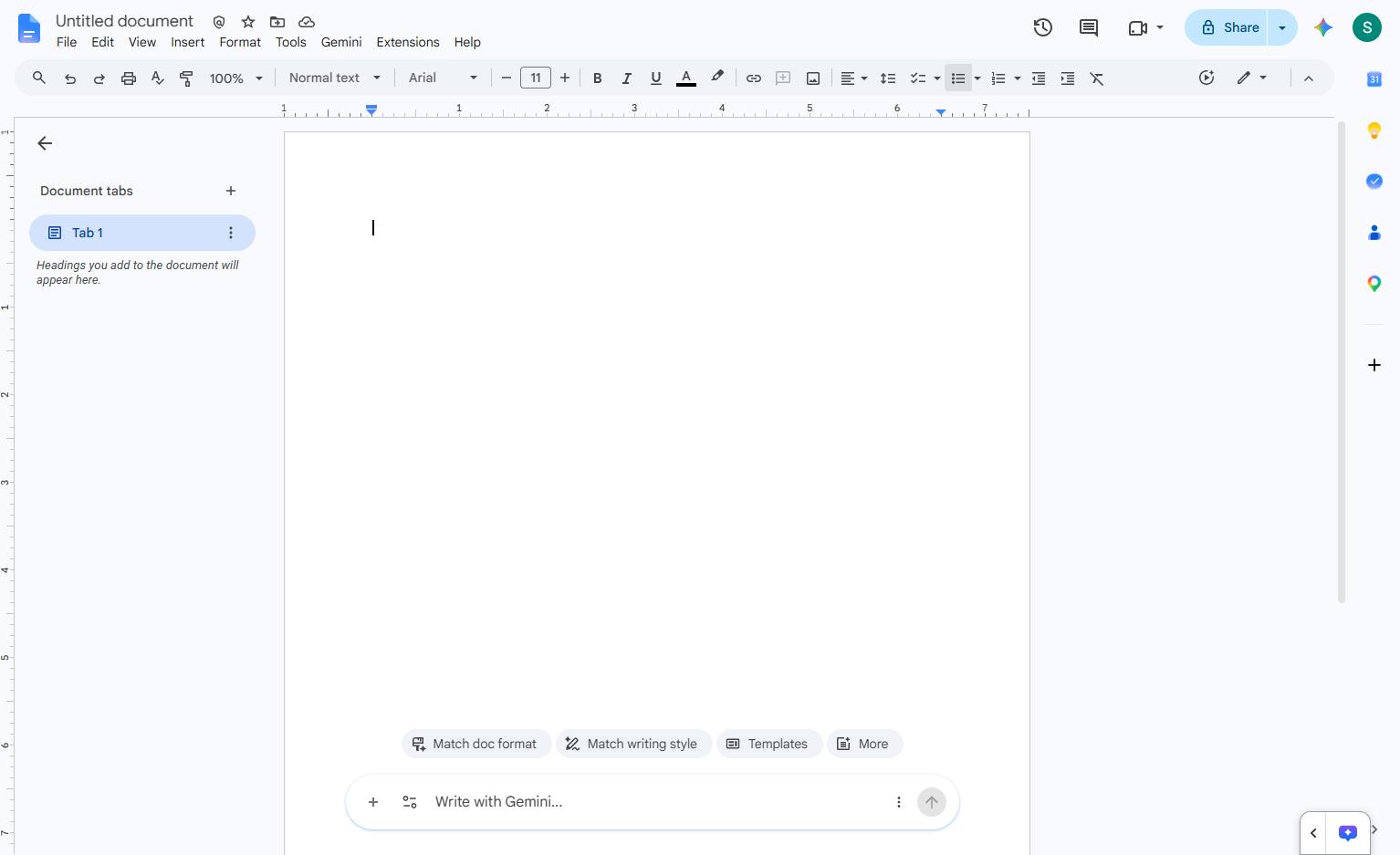
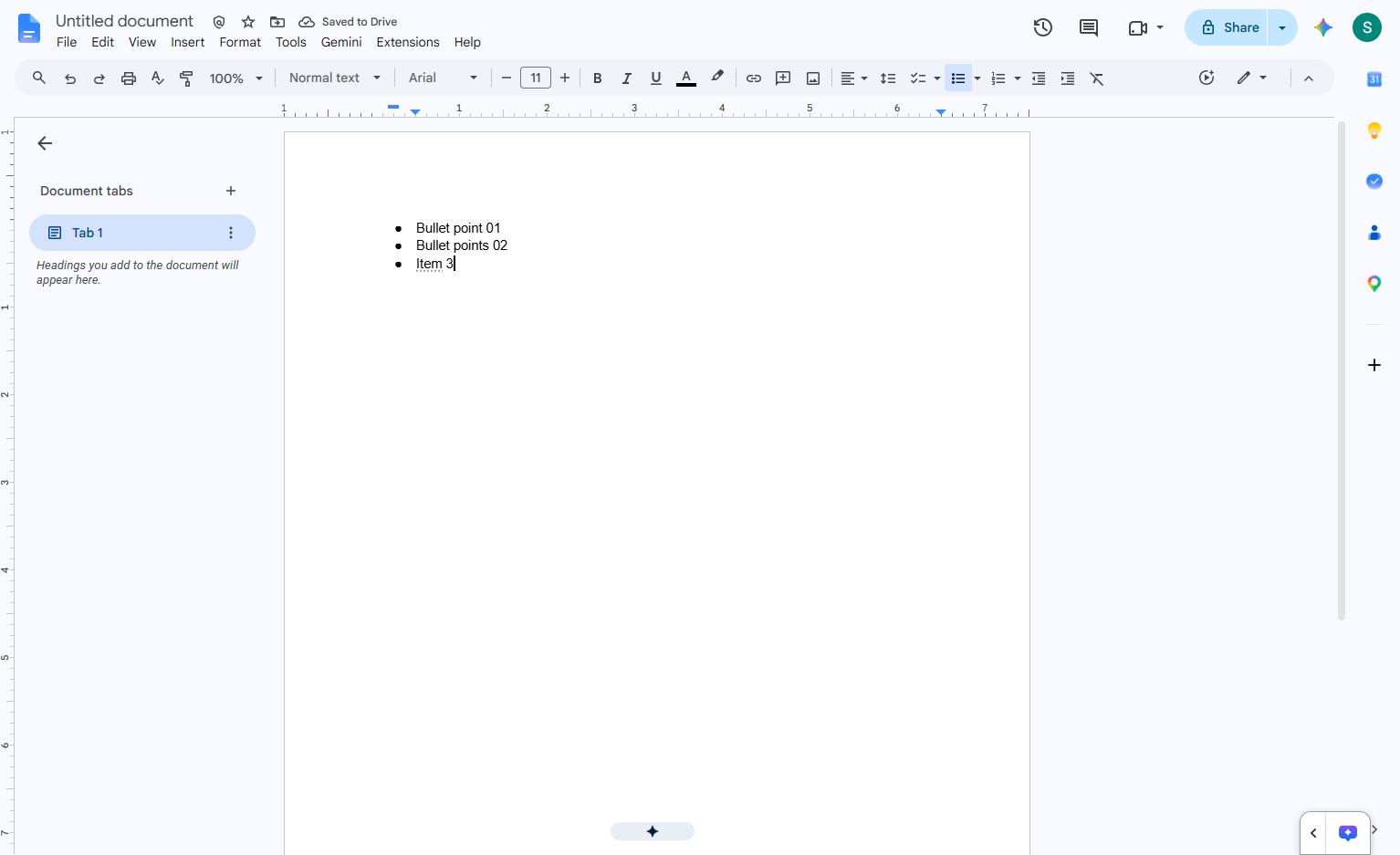
Click the Bulleted list button in the top toolbar to format your text as a bulleted list.
Enter your first bullet point and press Enter to continue the list. Like shown in screenshot
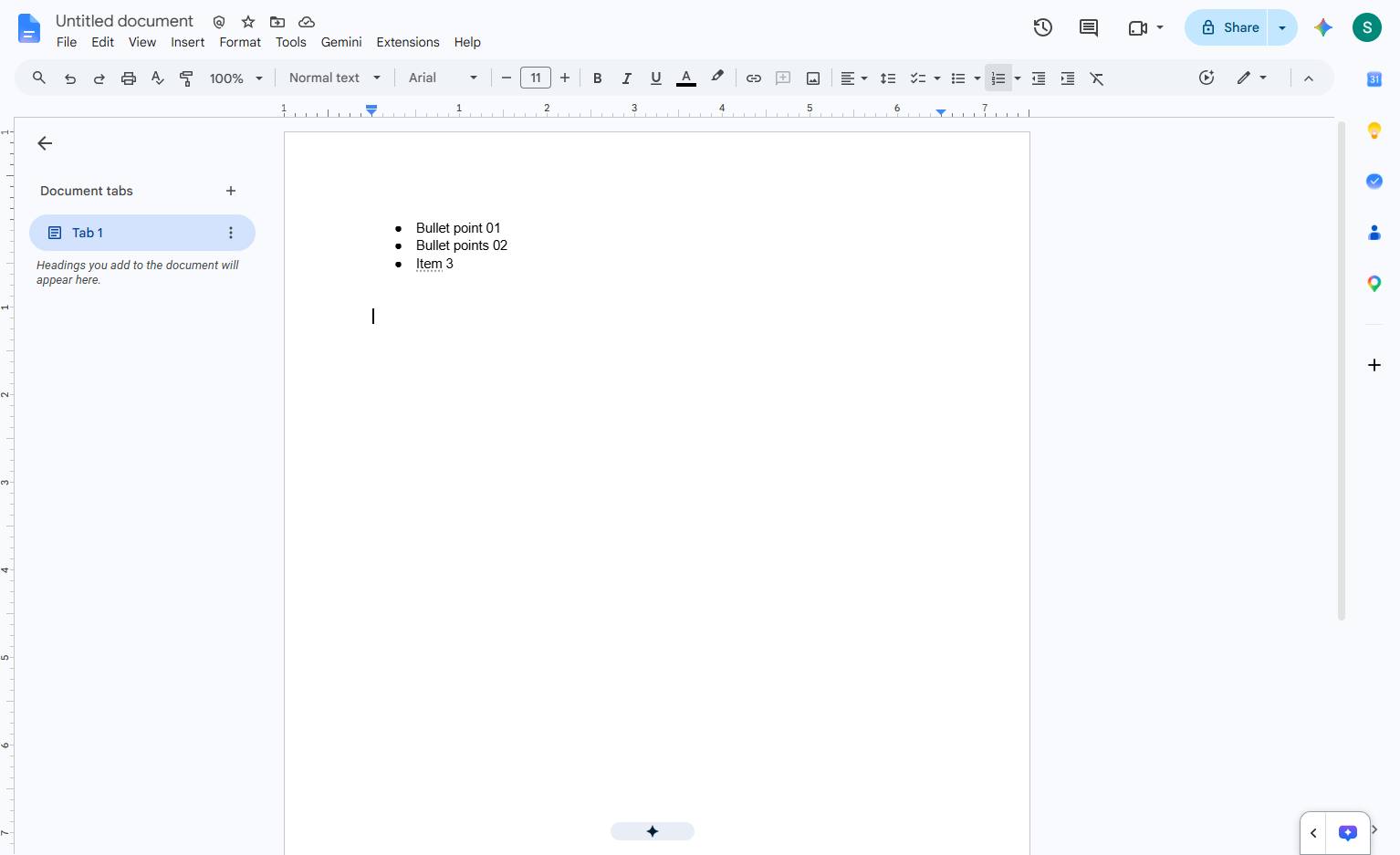
Click the Numbered list button in the top toolbar to format your text as a numbered list.
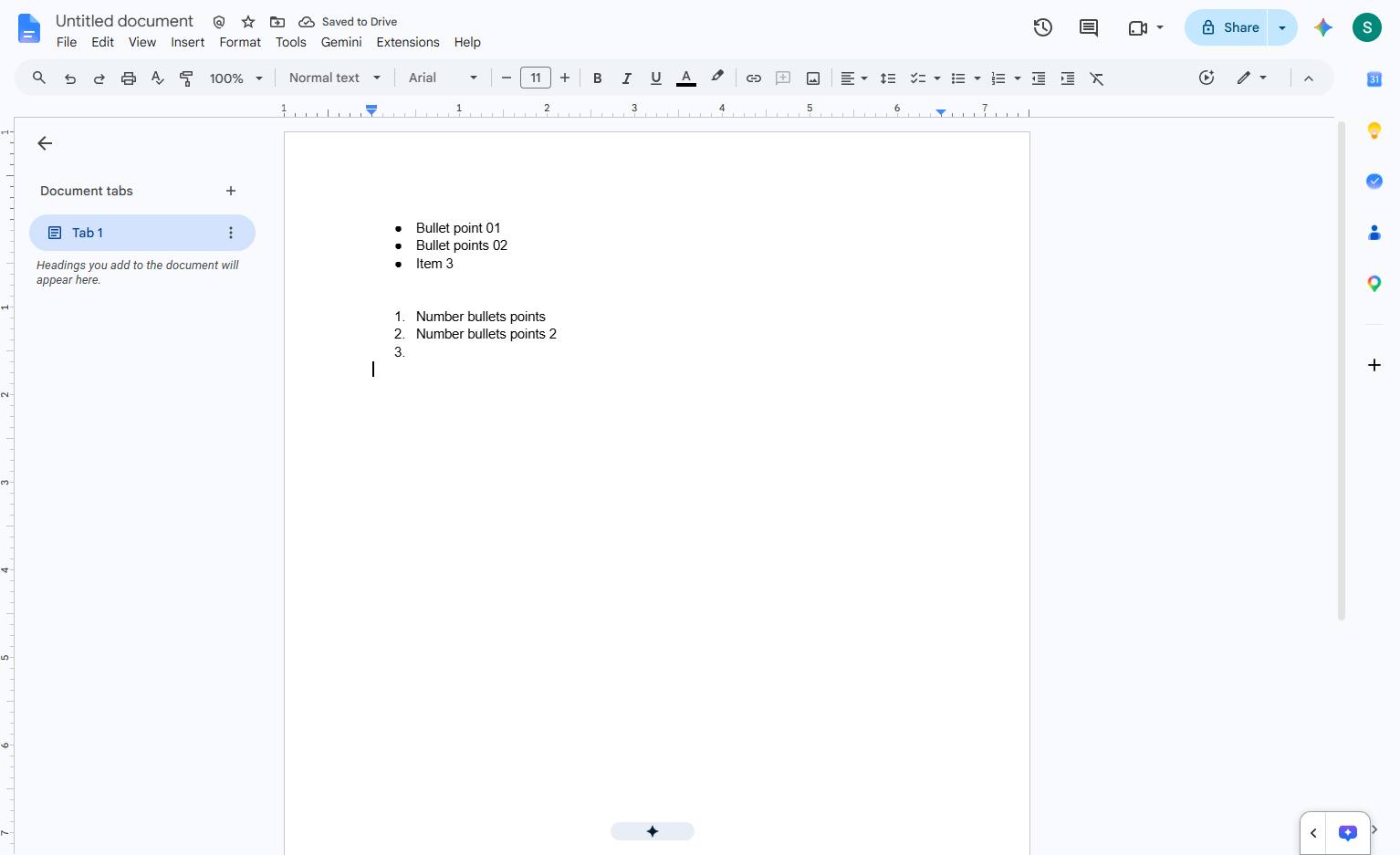
View the Numbered list bullets
Duplicate this template, swap in your own screens, and share it with your team. Free to start — no credit card.
Fill out the form and we'll get back to you as soon as possible.
Tell us about your team and we'll find the right plan together.