1
Click Insert
Open the Insert menu.
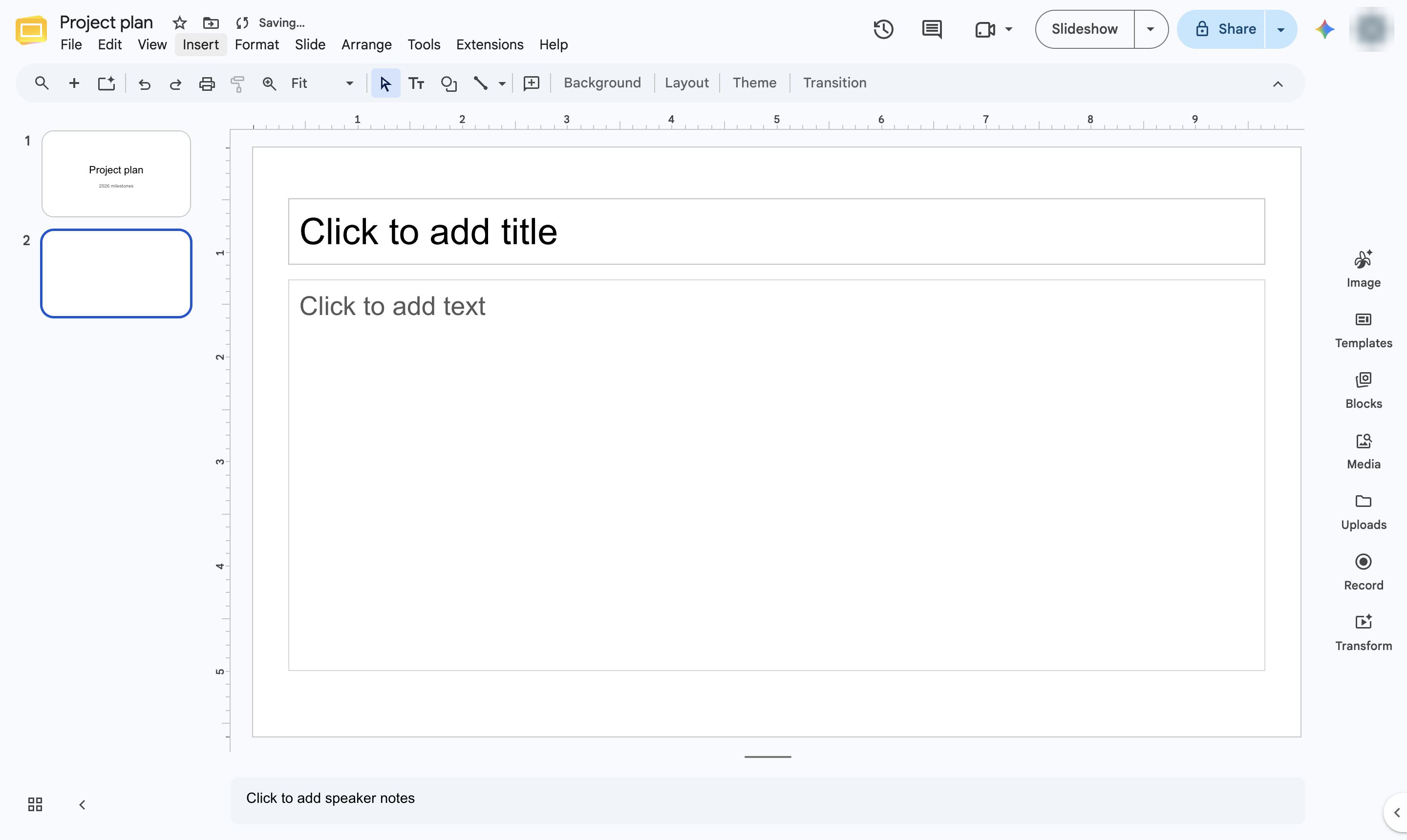

Insert a ready-made timeline diagram and fill in your dates.
Open the Insert menu.
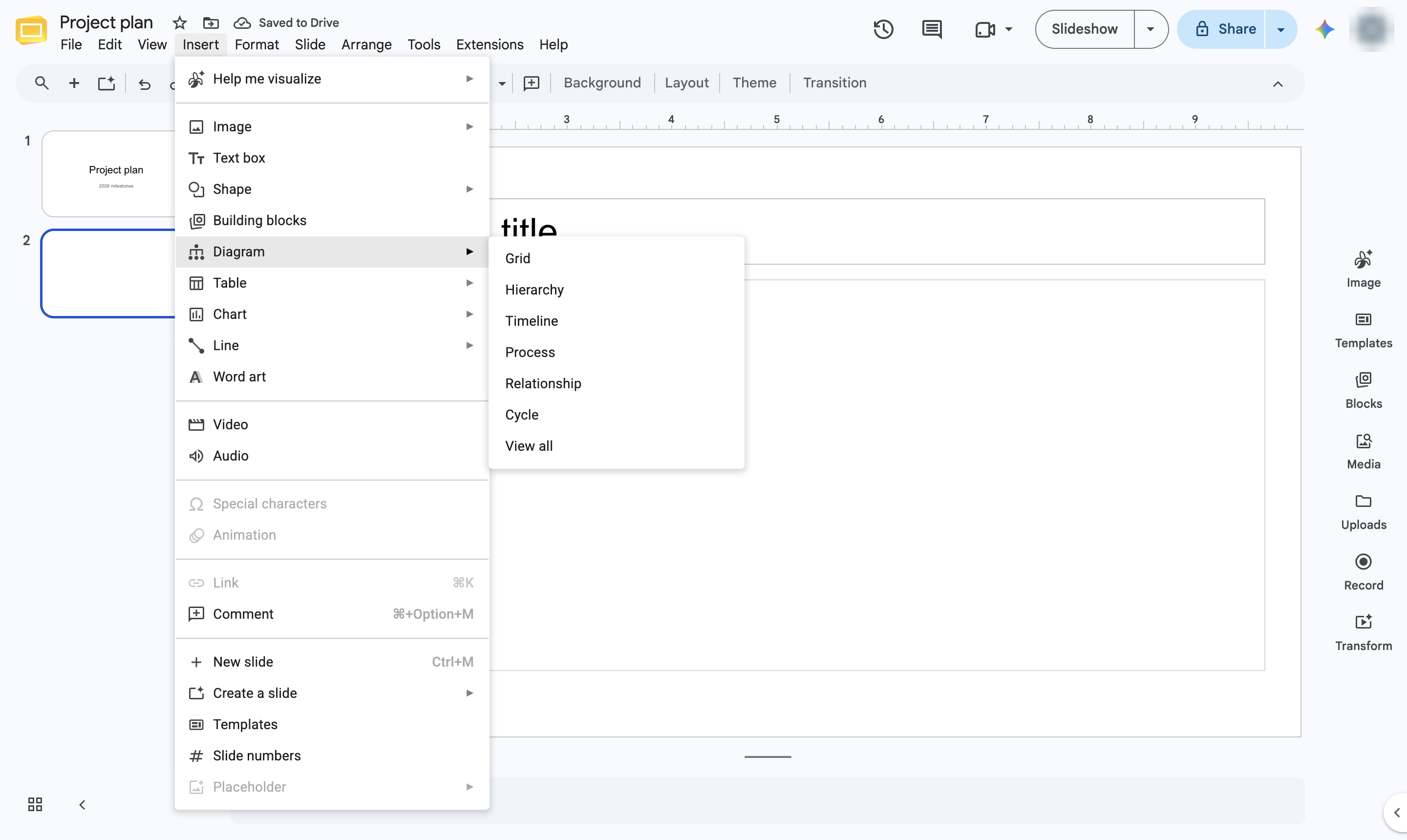
Hover over Diagram.
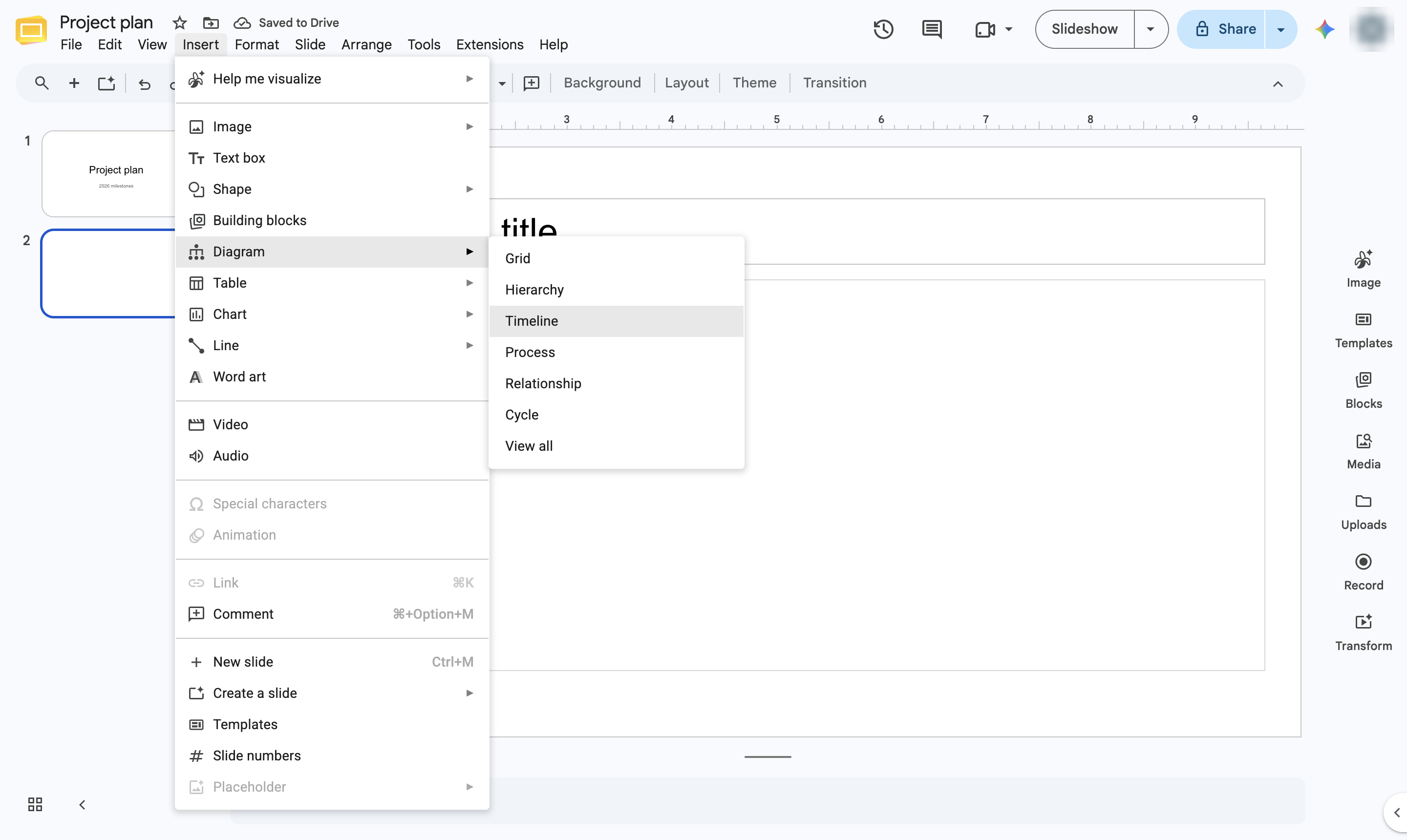
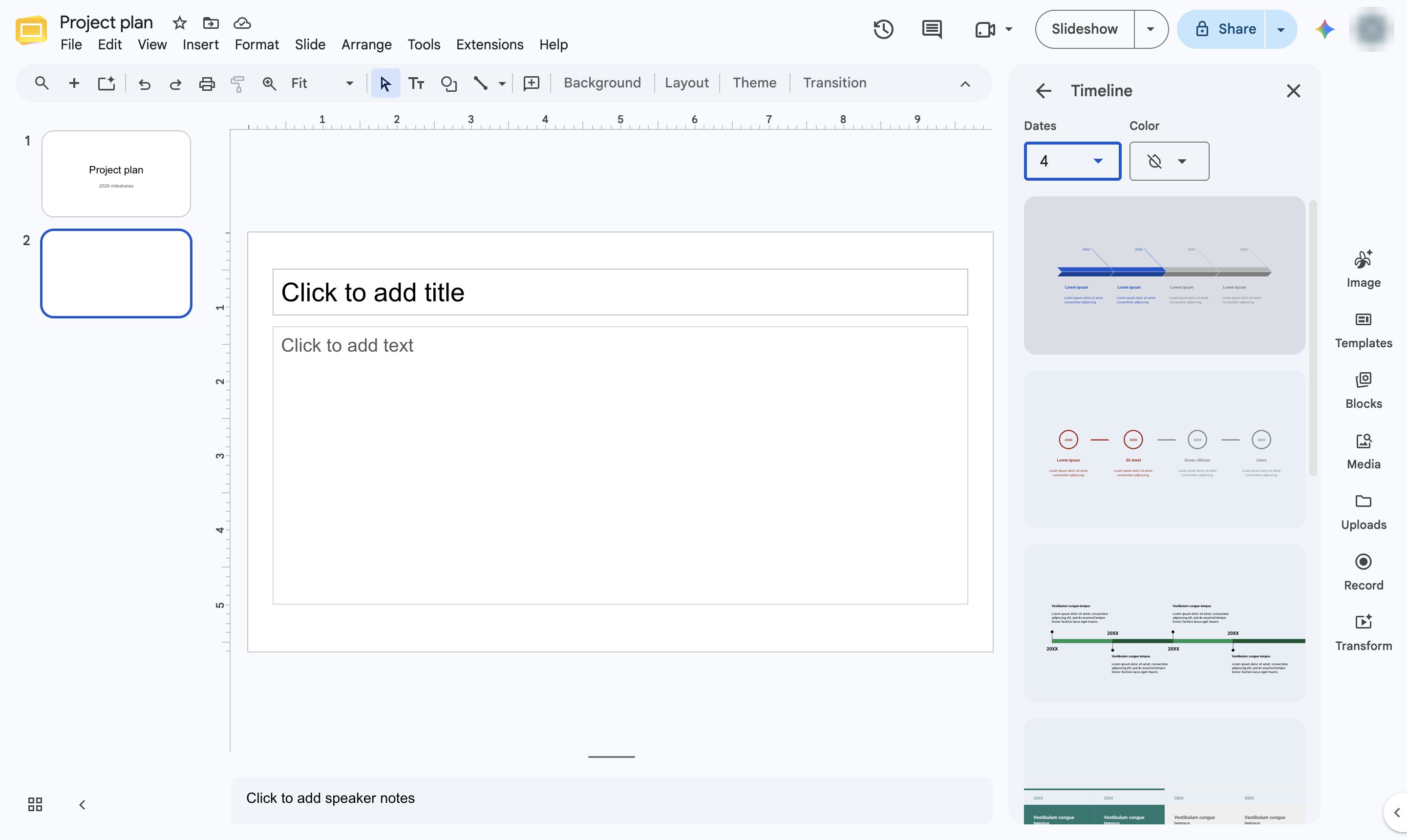
Choose Timeline. The Diagrams panel opens on the right.
Use the drop-down at the top of the panel to choose how many dates the timeline shows.
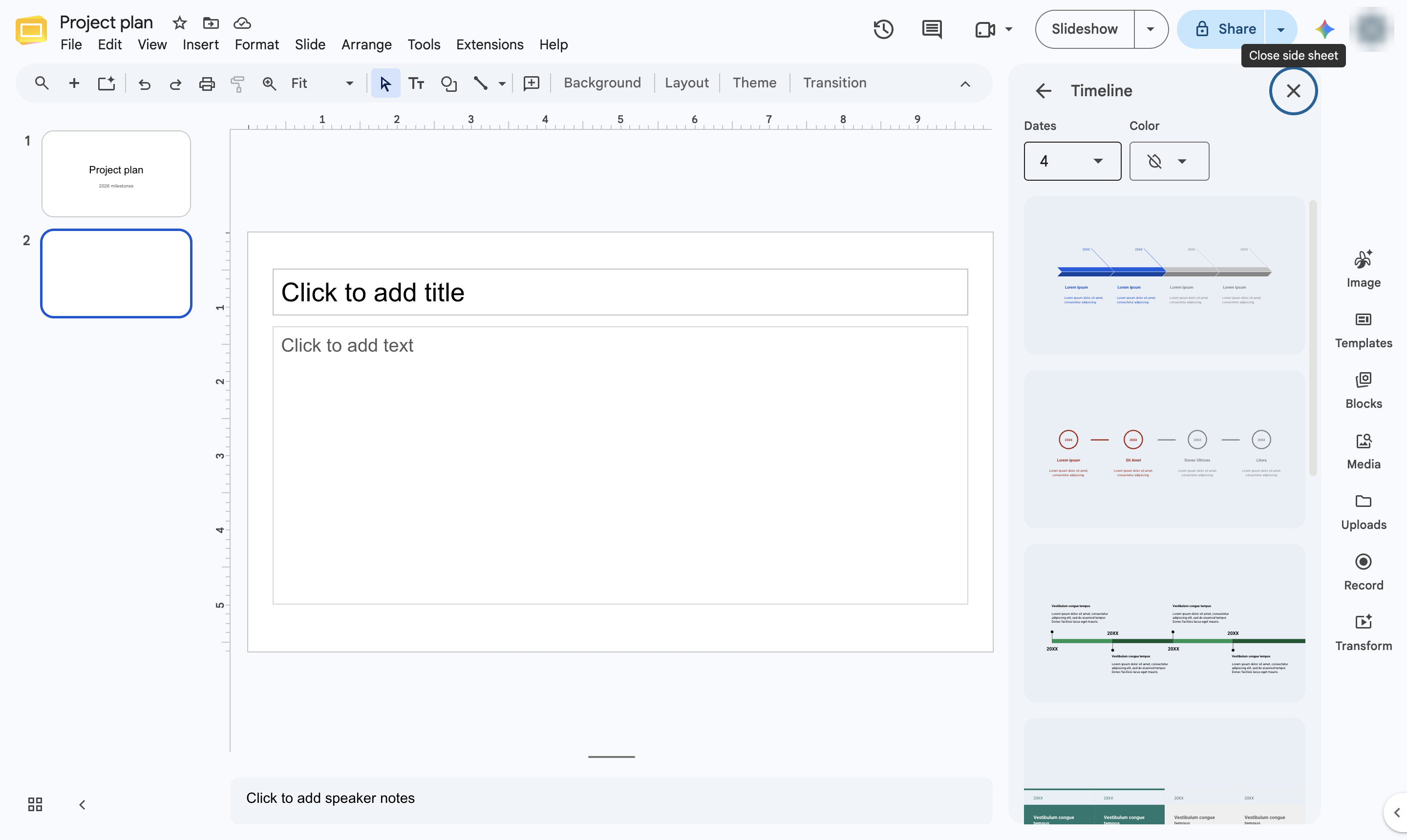
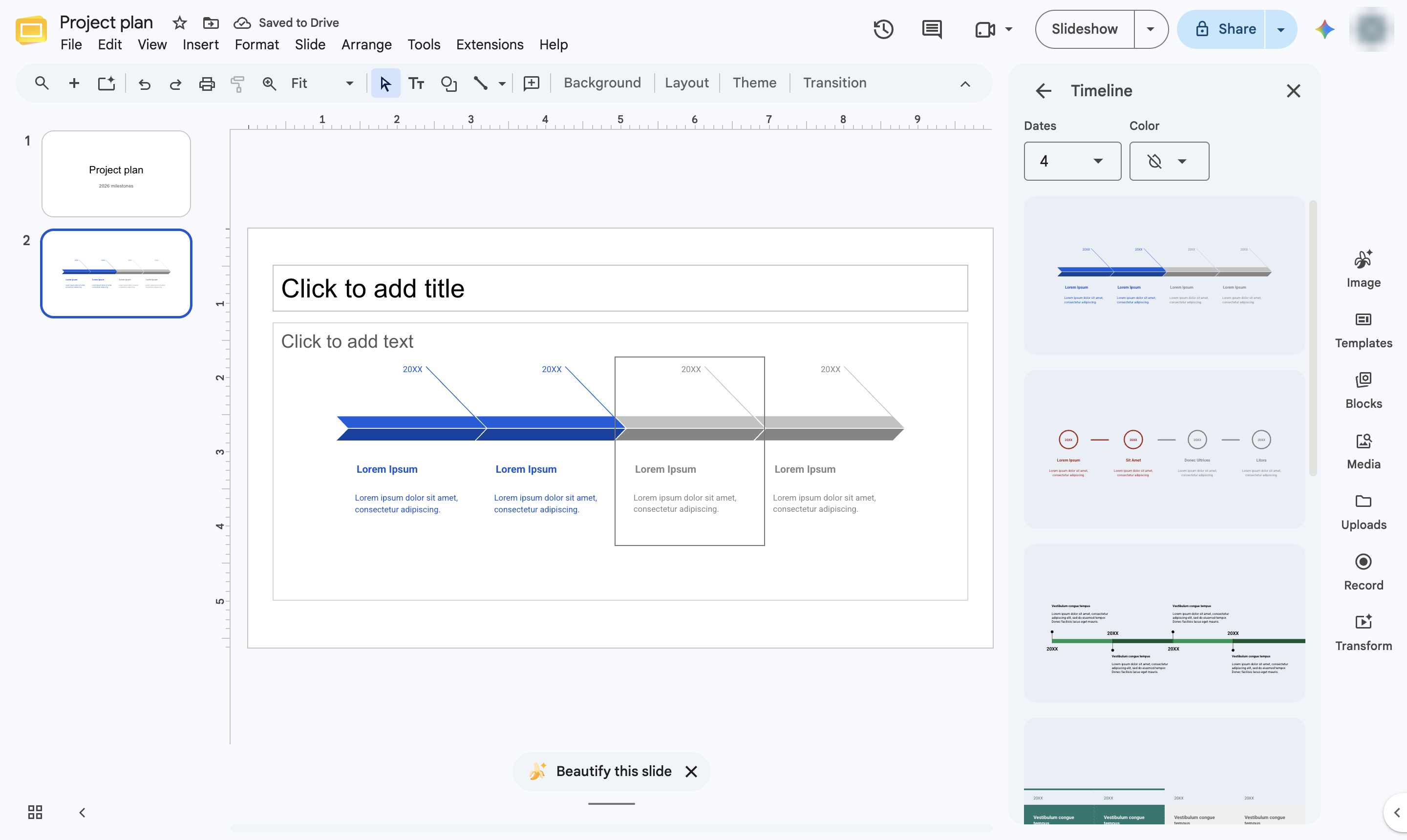
Click the timeline style you like to insert it.
Click any placeholder date or text on the slide and type your own milestones.
Duplicate this template, swap in your own screens, and share it with your team. Free to start — no credit card.
Fill out the form and we'll get back to you as soon as possible.
Tell us about your team and we'll find the right plan together.