1
Open or Navigate to Excel window
Open Microsoft Word or switch to the active Excel window on your taskbar to begin editing your worksheet.
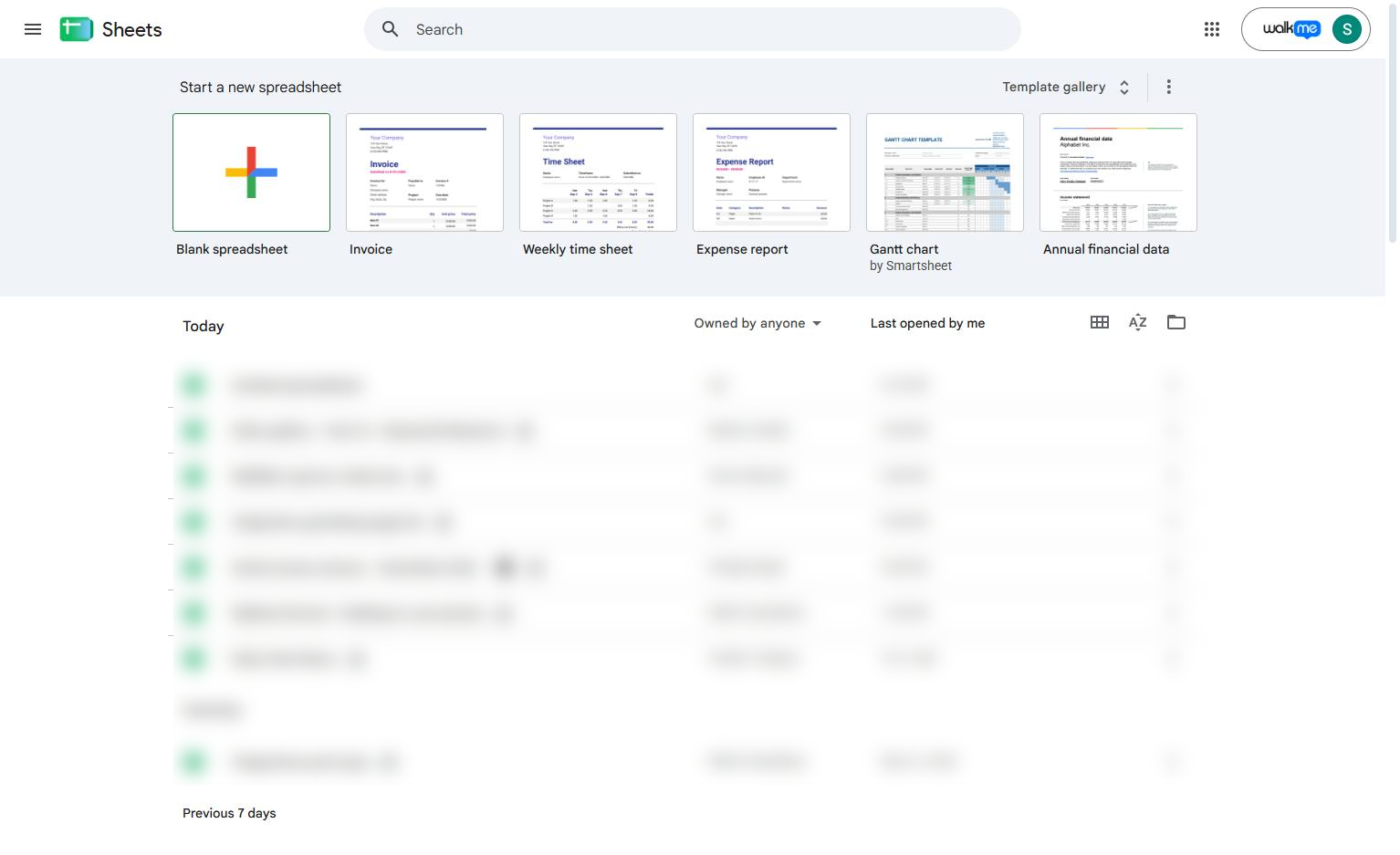

Learn how to quickly organize and format your data by converting it into a table in Google Sheets. This step-by-step tutorial guides you through creating a new spreadsheet, converting your data range, and customizing the table's style with custom colors and gridlines. By the end of this guide, you will be able to efficiently manage and visually enhance your tables for better data presentation.
Open Microsoft Word or switch to the active Excel window on your taskbar to begin editing your worksheet.
Click and drag across the cells you want to convert into a table (e.g., A1:C7).
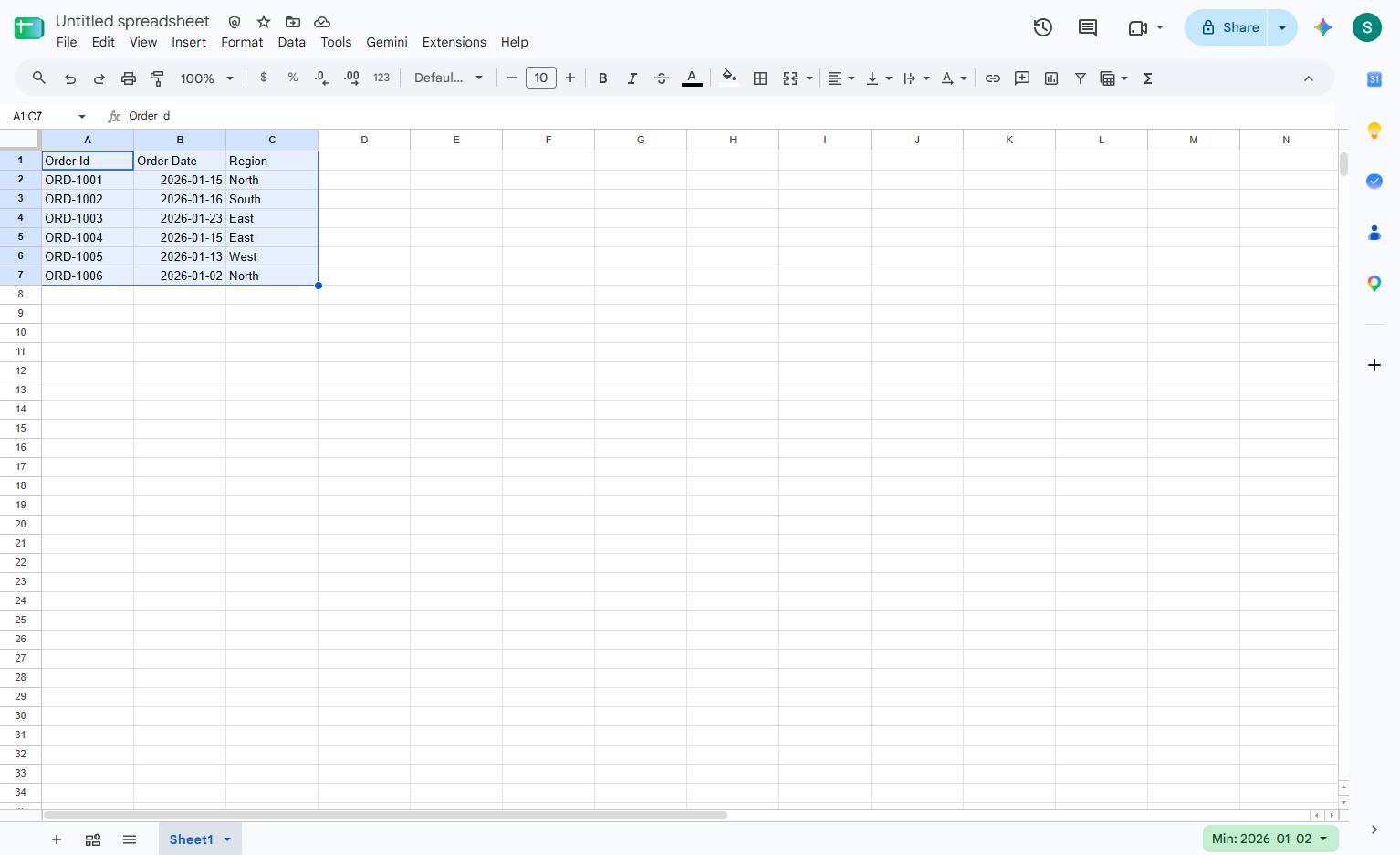
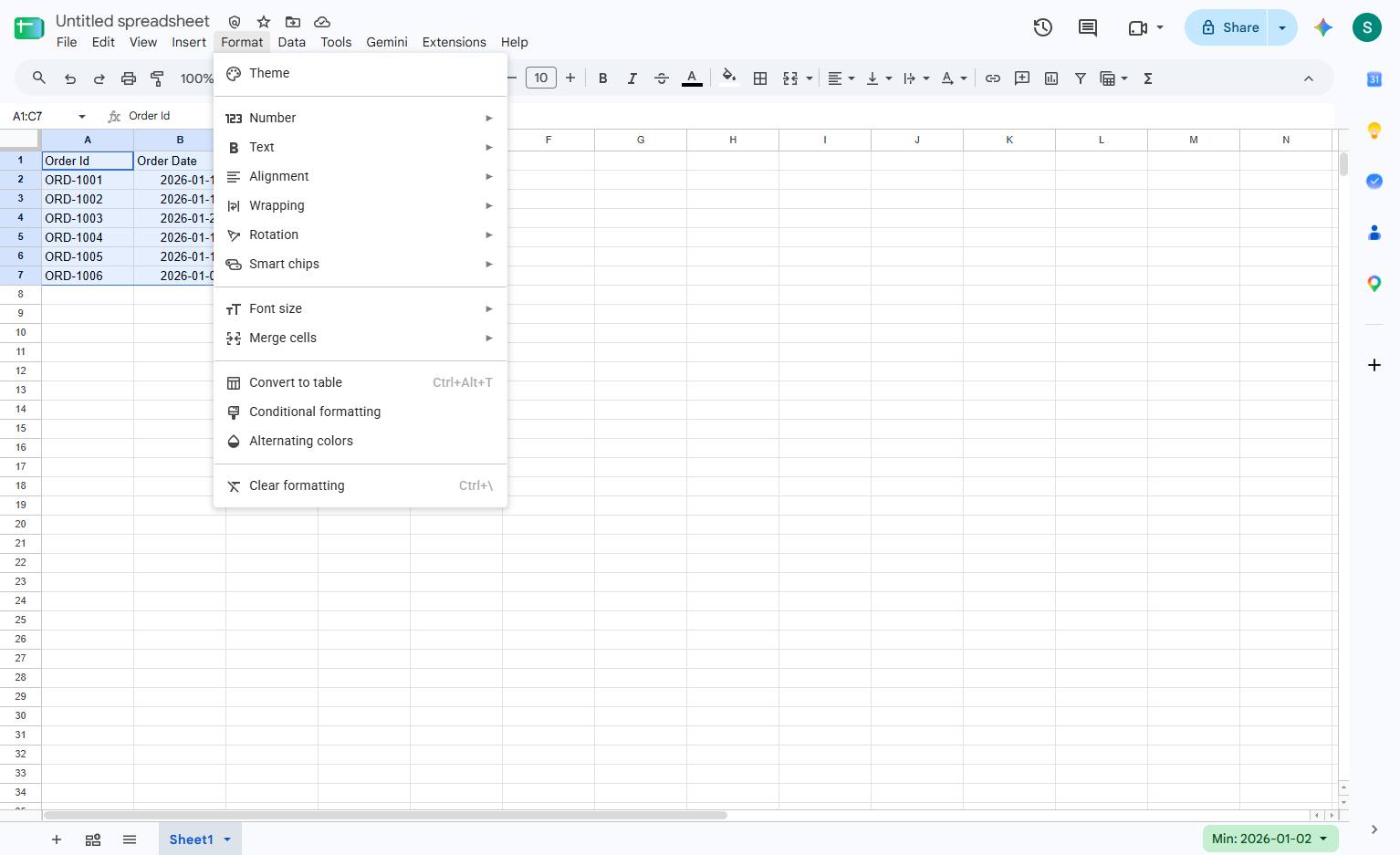
Click the Format menu in the top menu bar to view the formatting options.
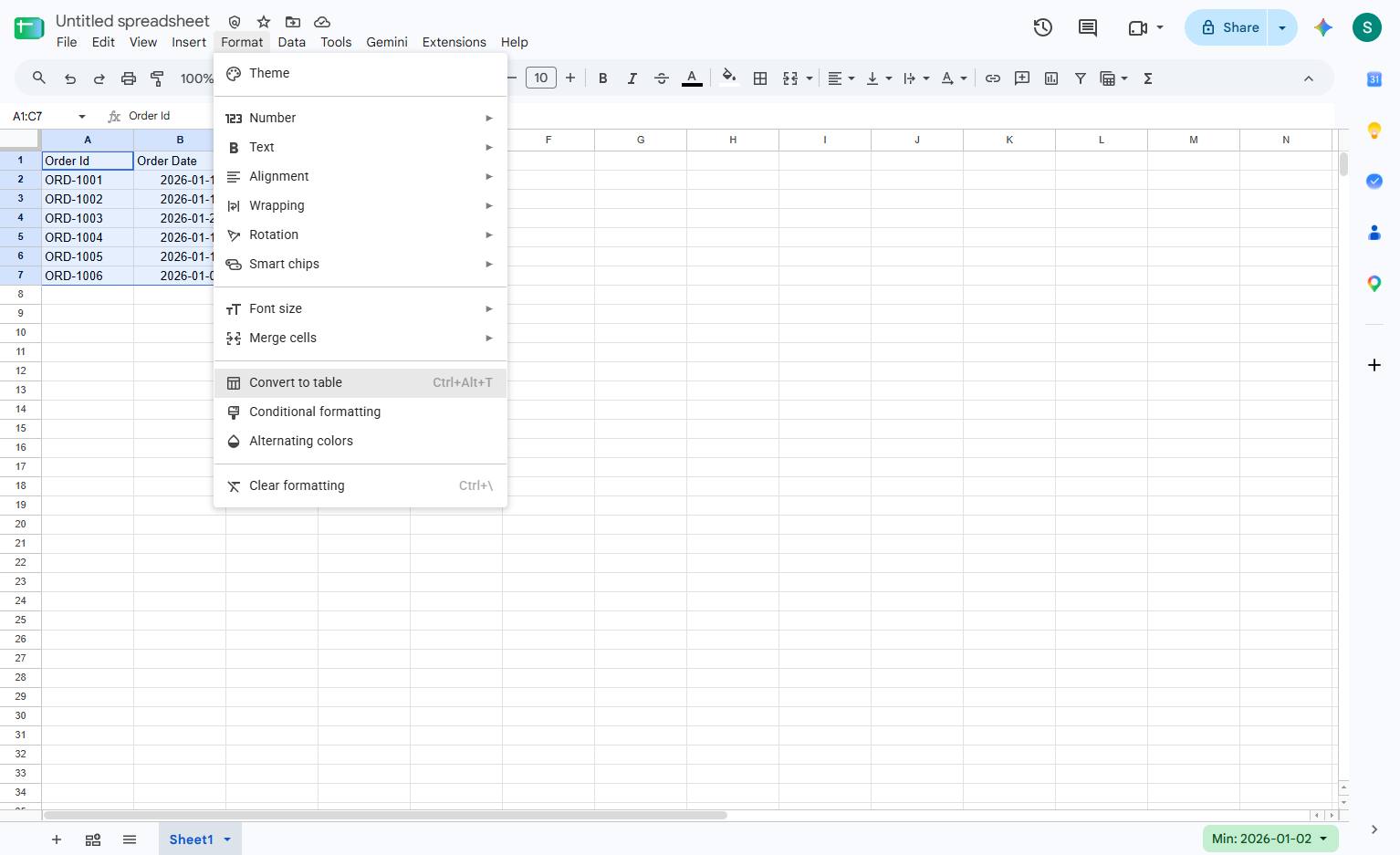
Click the Convert to table option in the dropdown menu to format the selected cells.
Click the dropdown arrow next to "Table 1" to open the table options menu.
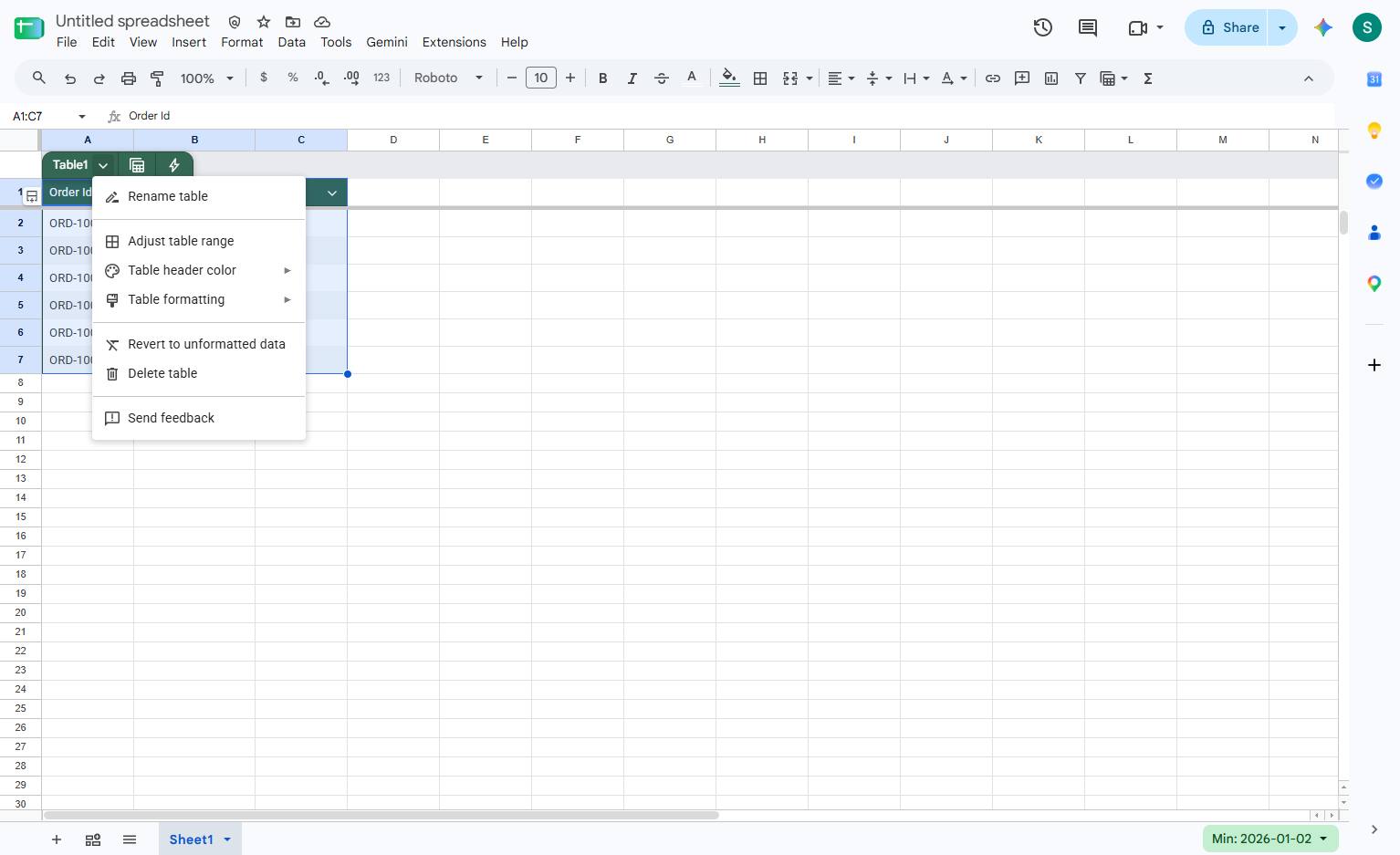
Click the #9b3642 color swatch in the Table Colors menu to apply it to the table header.
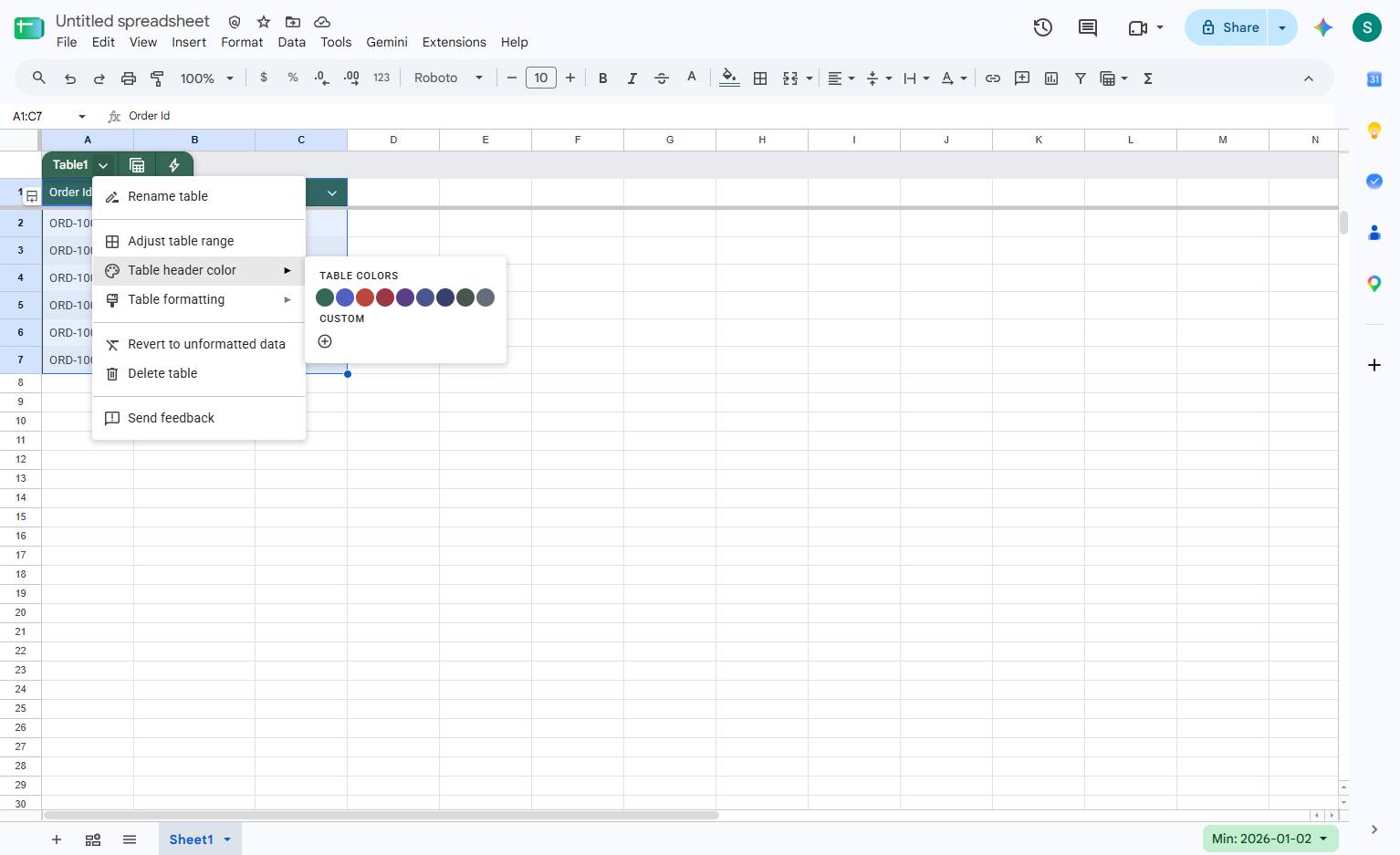
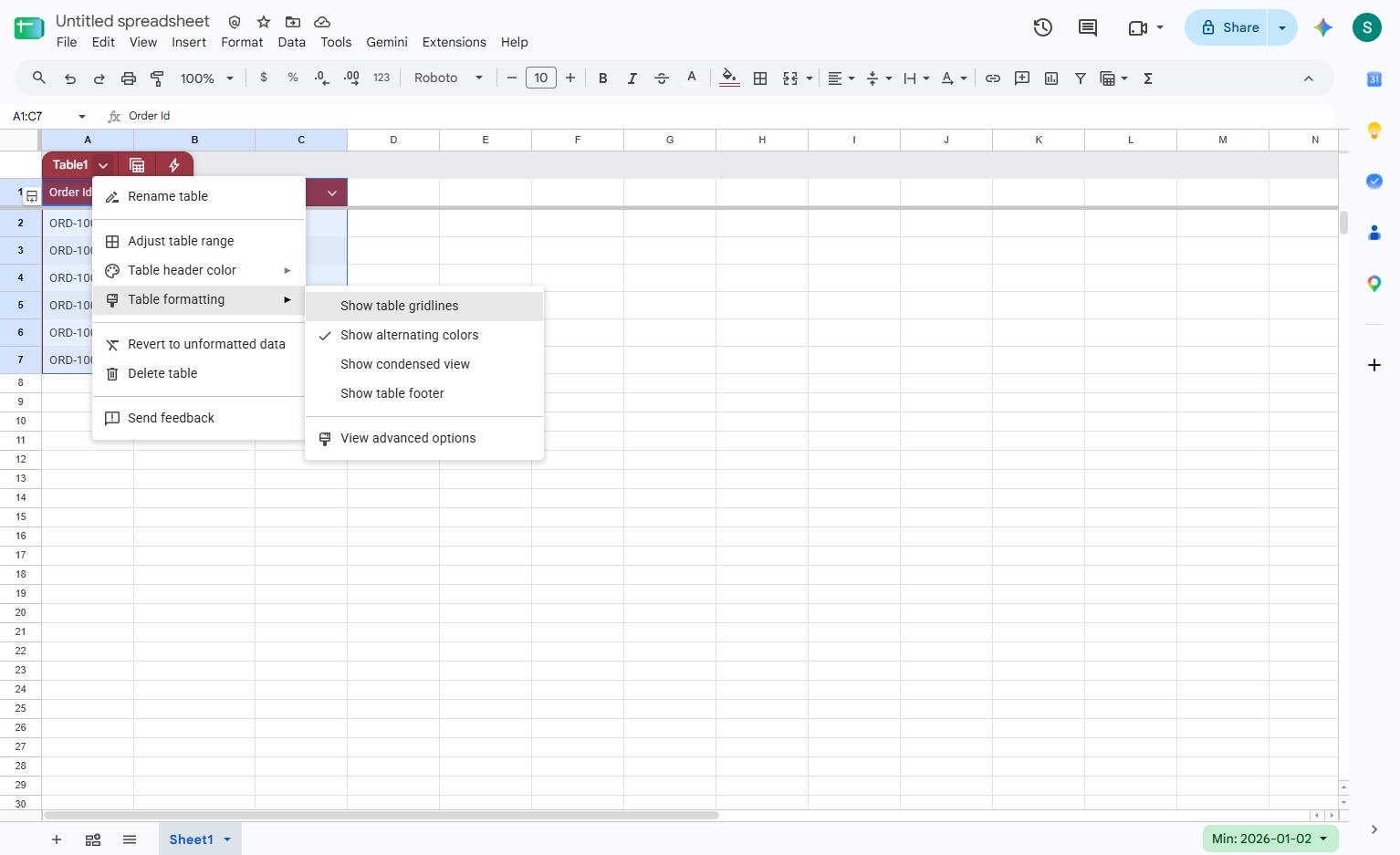
Click the "Show table gridlines" option in the sub-menu to toggle the visibility of gridlines within the table.
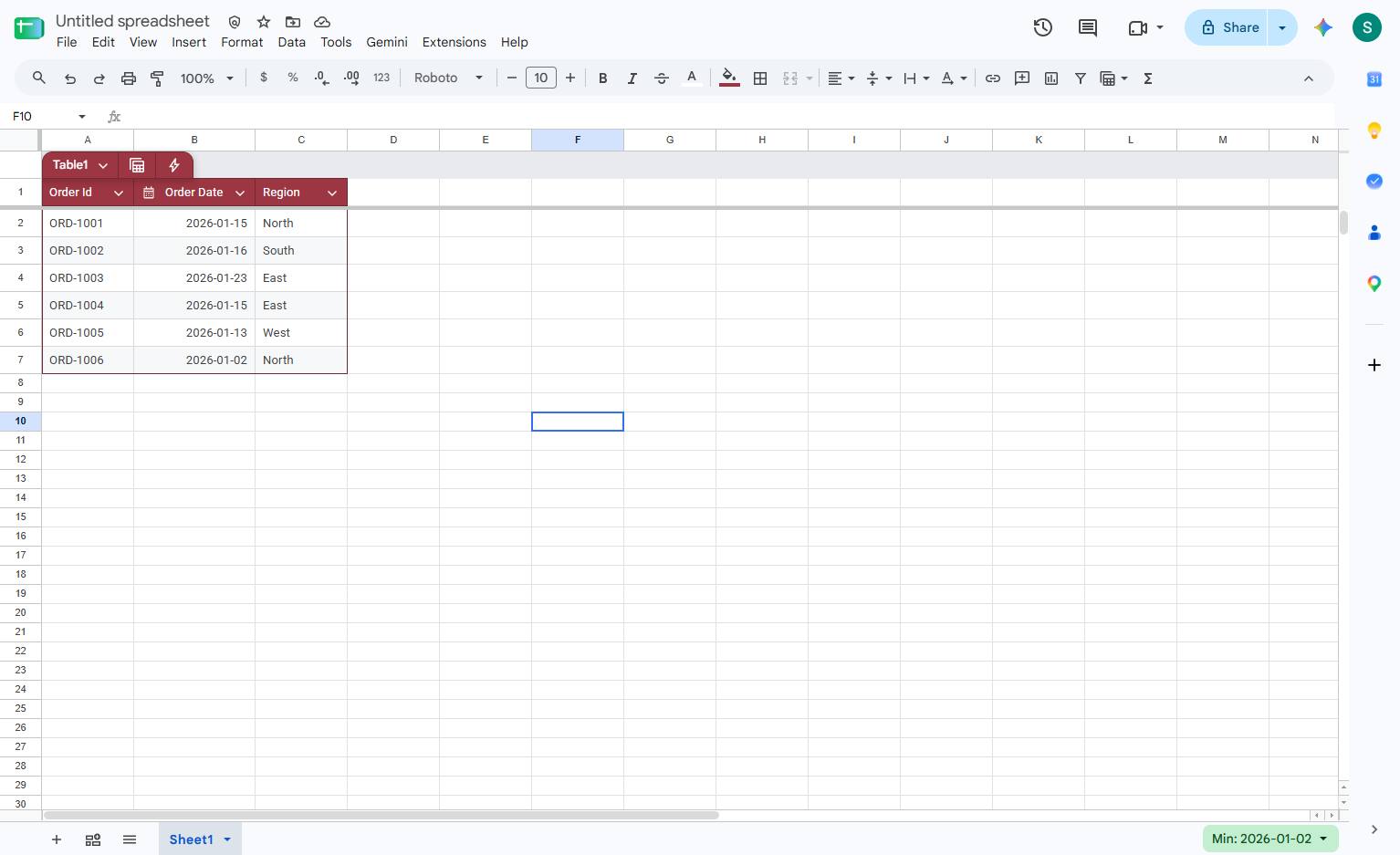
Review the final design and layout before applying your changes.
Duplicate this template, swap in your own screens, and share it with your team. Free to start — no credit card.
Fill out the form and we'll get back to you as soon as possible.
Tell us about your team and we'll find the right plan together.