1
Open Your Google Form
Open the Google Form you want to share and click on the Share button at the top right corner.
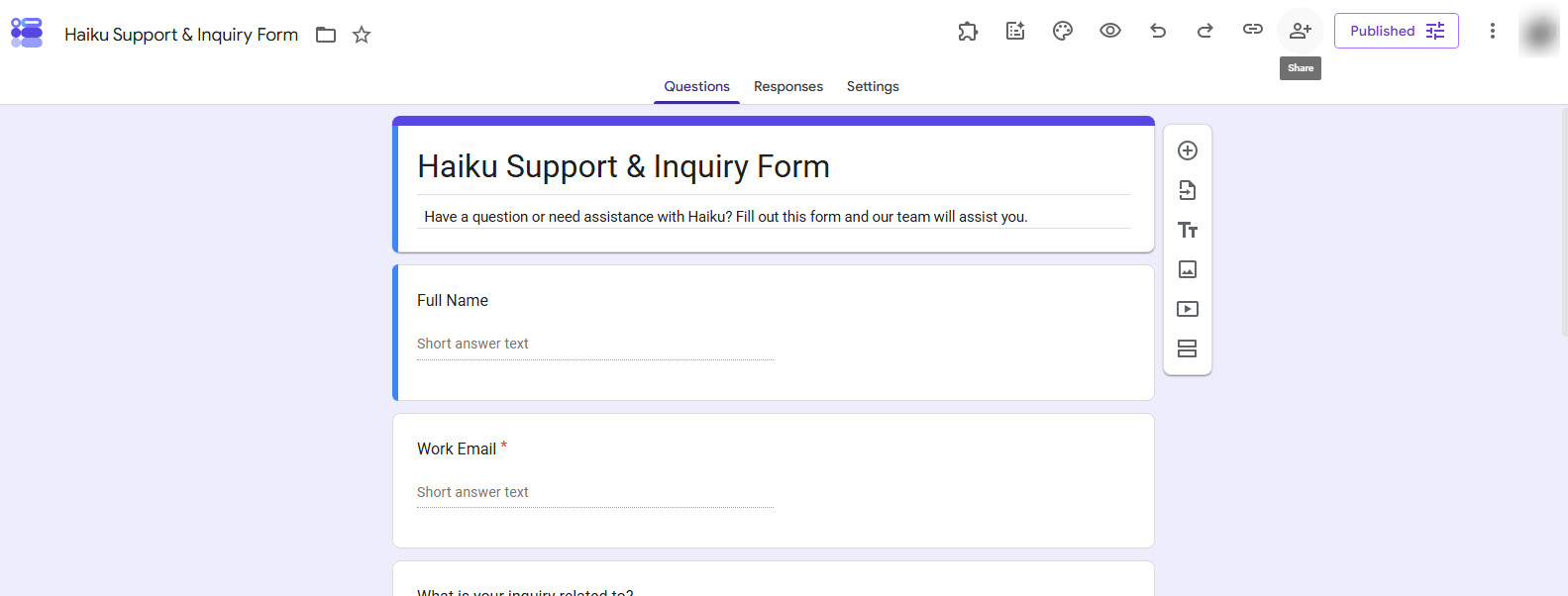

How to make a qr code for a Google form — A simple step-by-step guide to generating and downloading a QR code for your Google Form using a QR code generator.
Open the Google Form you want to share and click on the Share button at the top right corner.
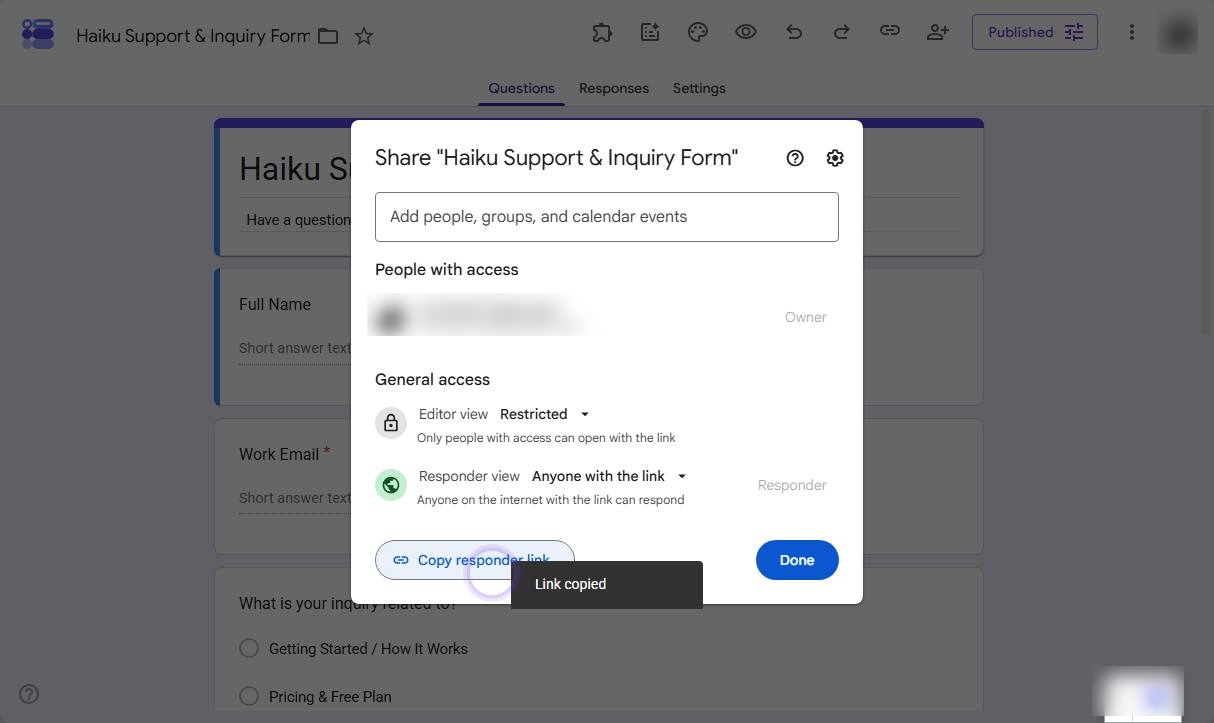
In the Share popup, make sure Editor view remains Restricted so others cannot edit the form. Set Responder view to Anyone with the link and click Copy responder link.
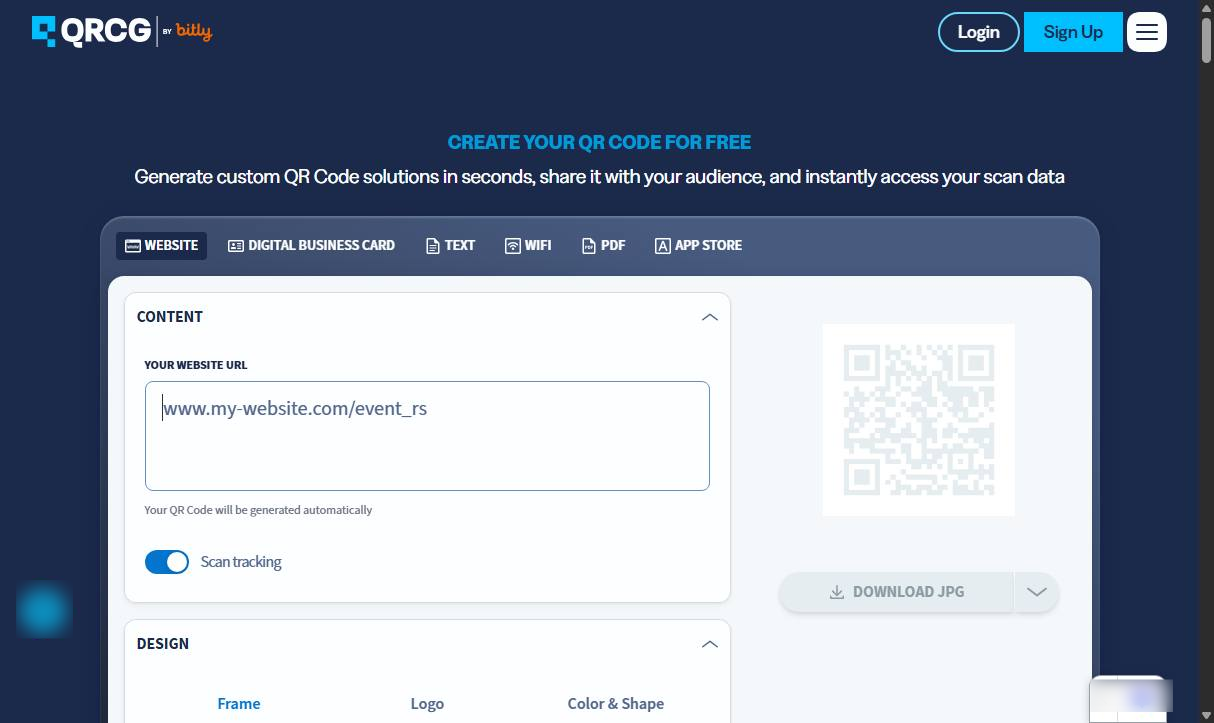
Open a reliable QR Code generator platform (such as qr-code-generator.com, me-qr.com, or Google Chrome’s built-in QR generator tool), select the URL / Website option, and paste your Google Form link.
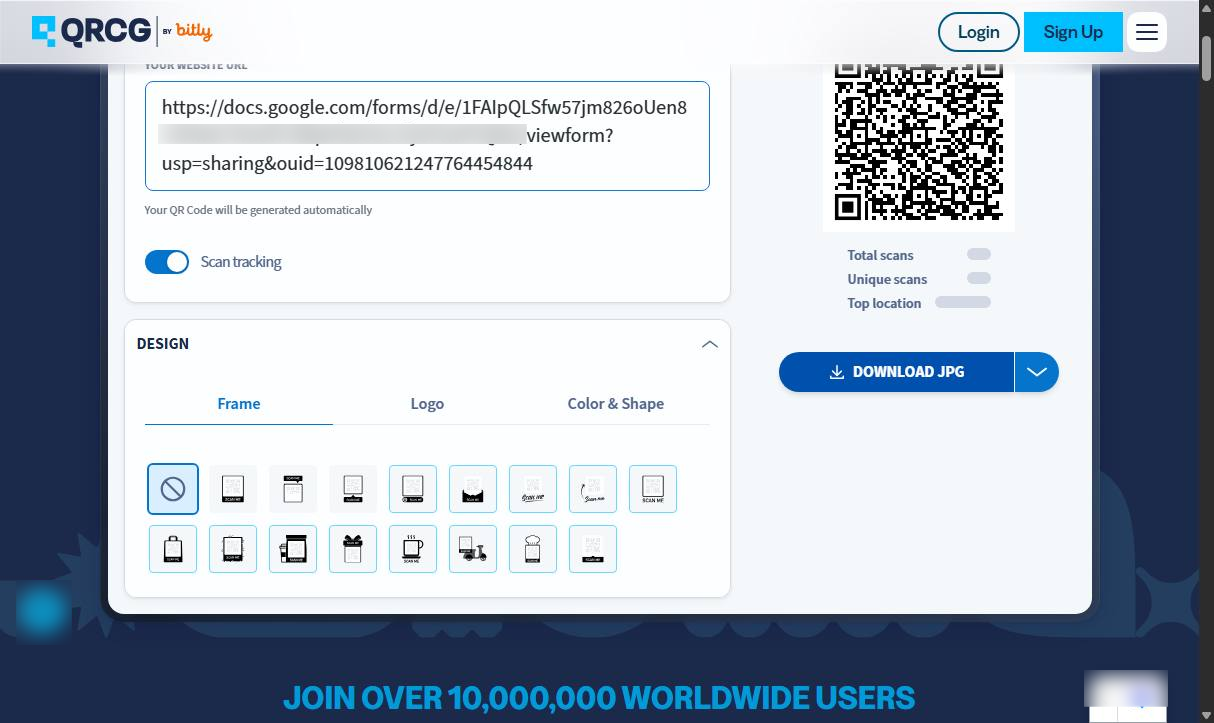
Download the generated QR code in your required format (such as JPG or PNG). Test-scan it with a smartphone camera to verify the link, then share it across digital or print channels.
Duplicate this template, swap in your own screens, and share it with your team. Free to start — no credit card.
Fill out the form and we'll get back to you as soon as possible.
Tell us about your team and we'll find the right plan together.