1
Select your data
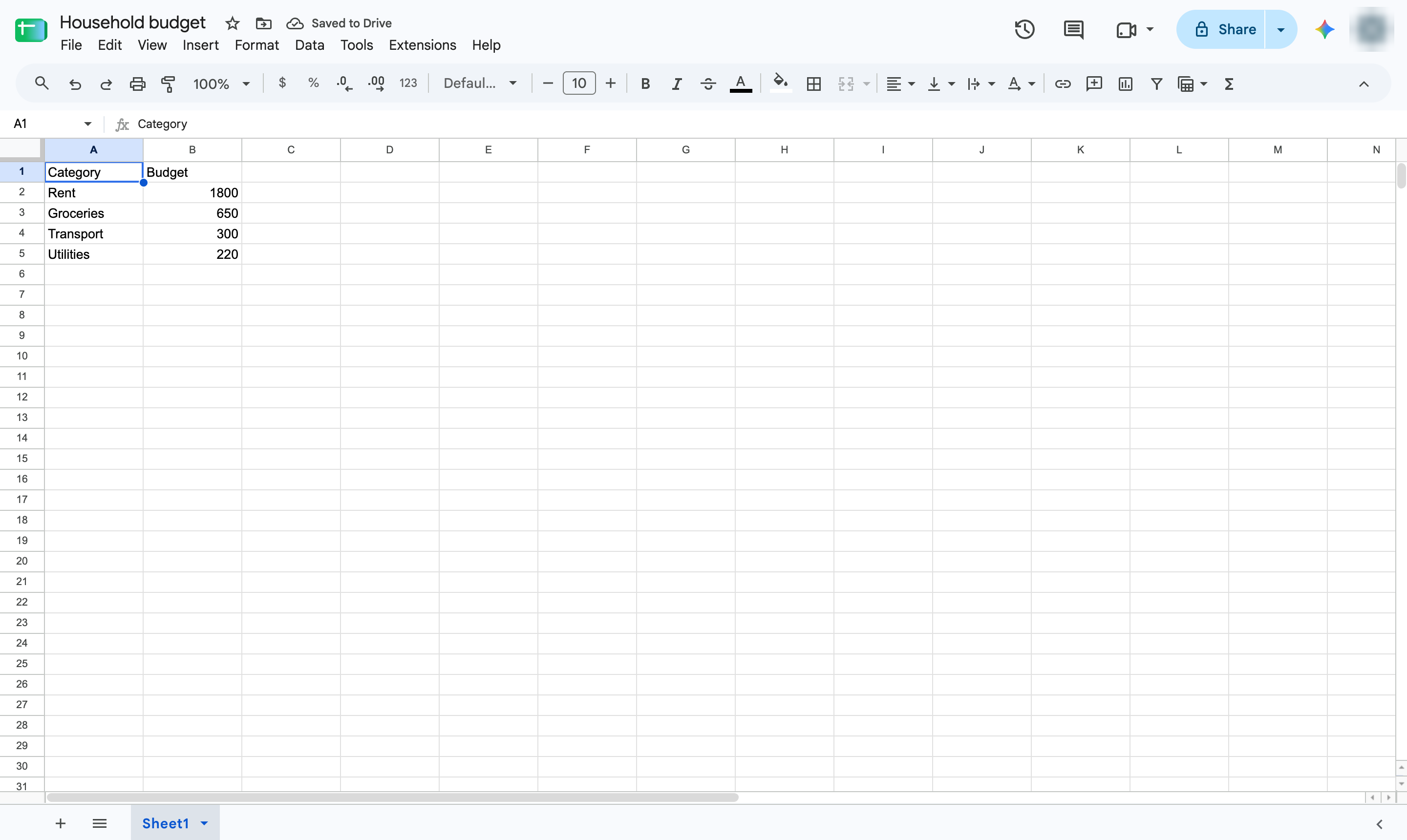
Highlight the cells to chart, including the header row - here, the categories and their amounts.

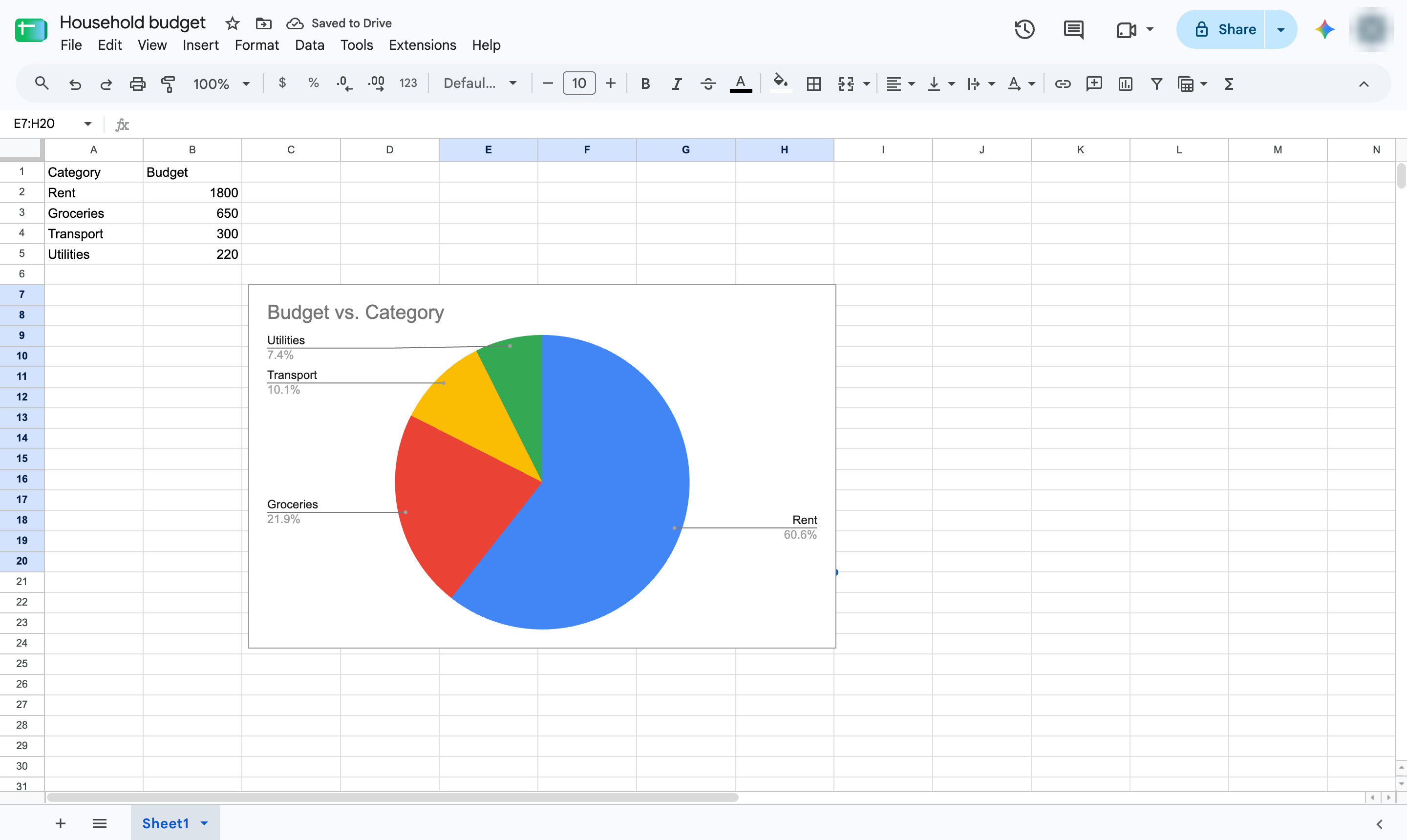
Show how parts make up a whole: select your data, insert a chart and choose Pie chart.
Highlight the cells to chart, including the header row - here, the categories and their amounts.
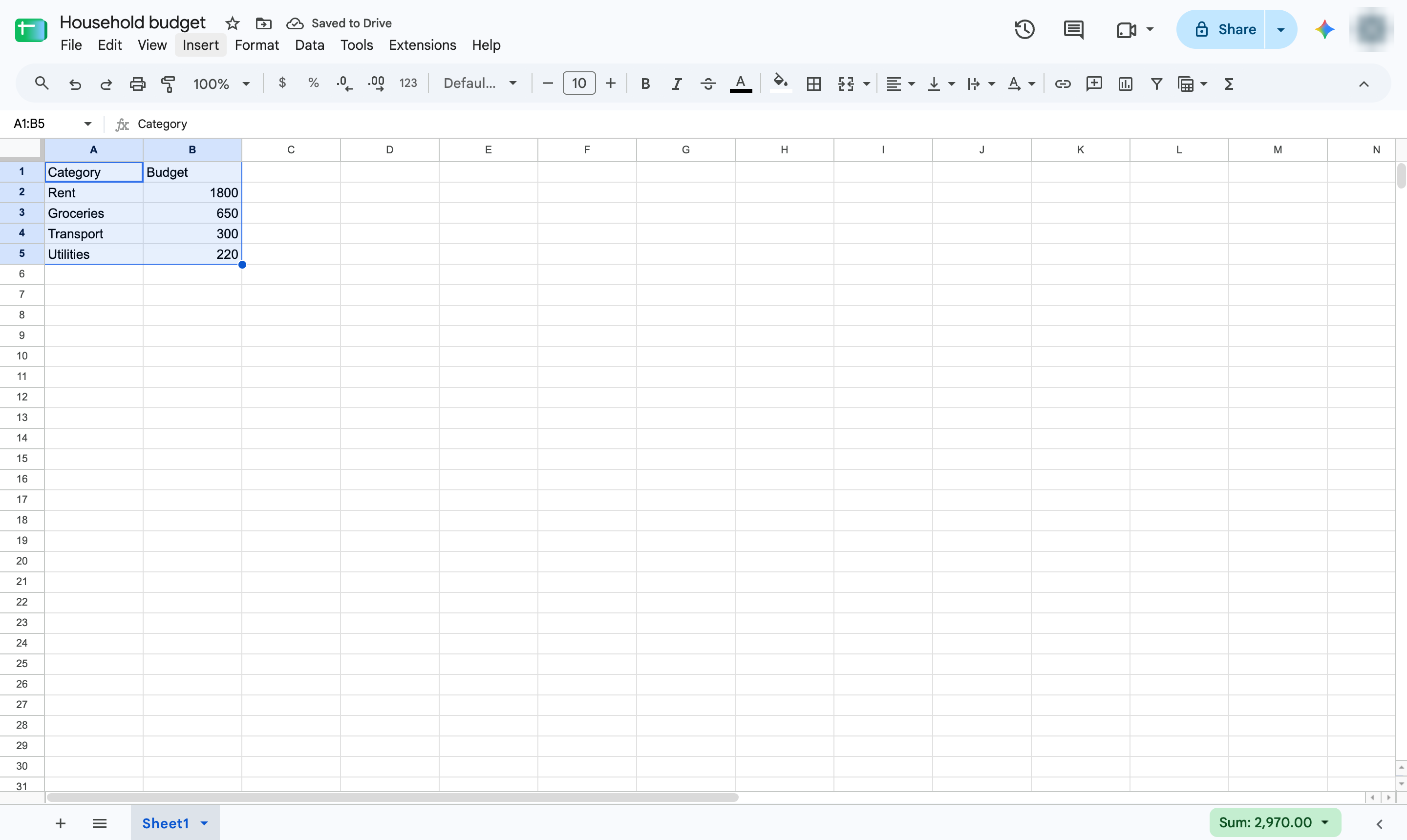
Open the Insert menu.
Choose Chart. A chart appears and the Chart editor opens.
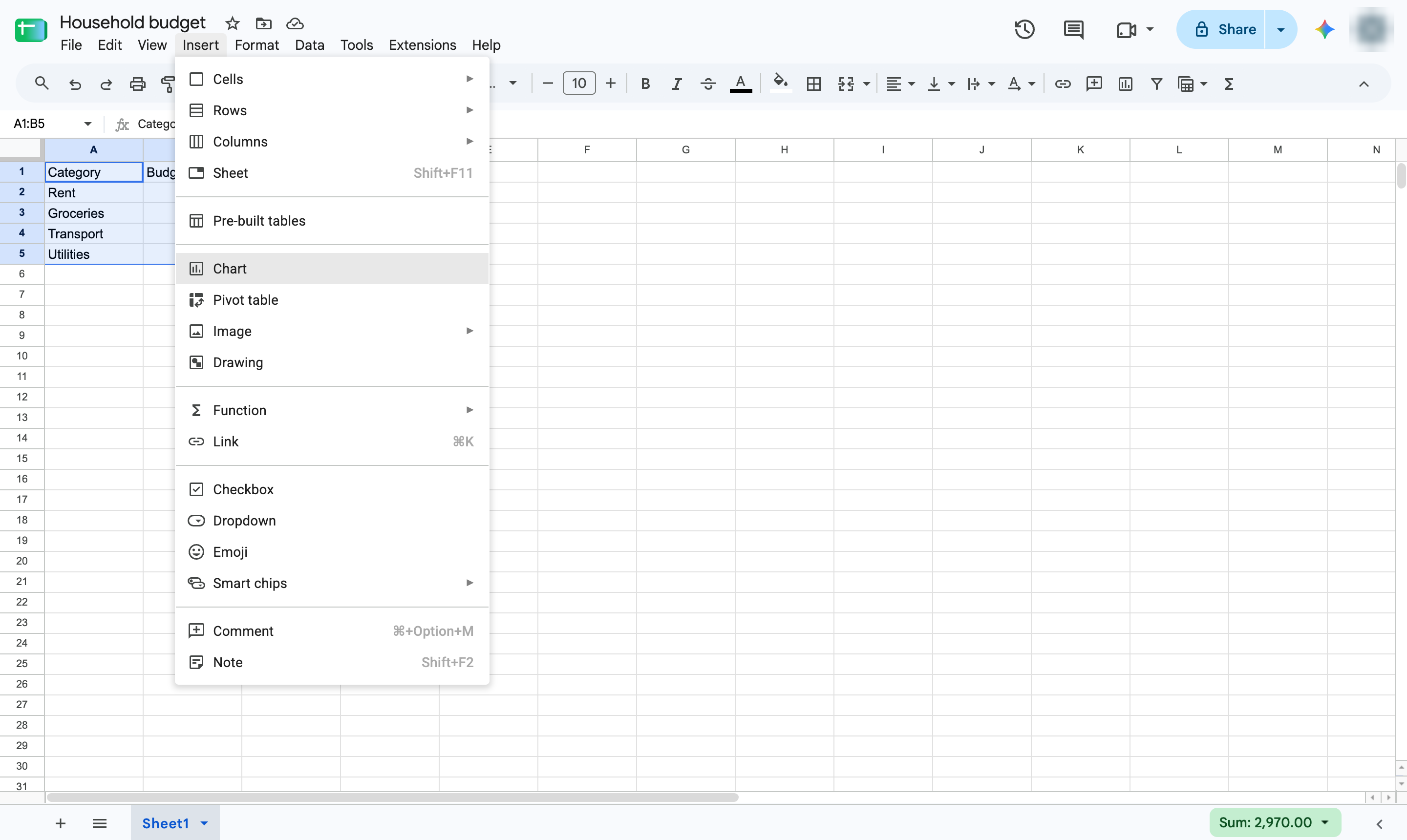
In the Chart editor, open the Chart type list under Setup.
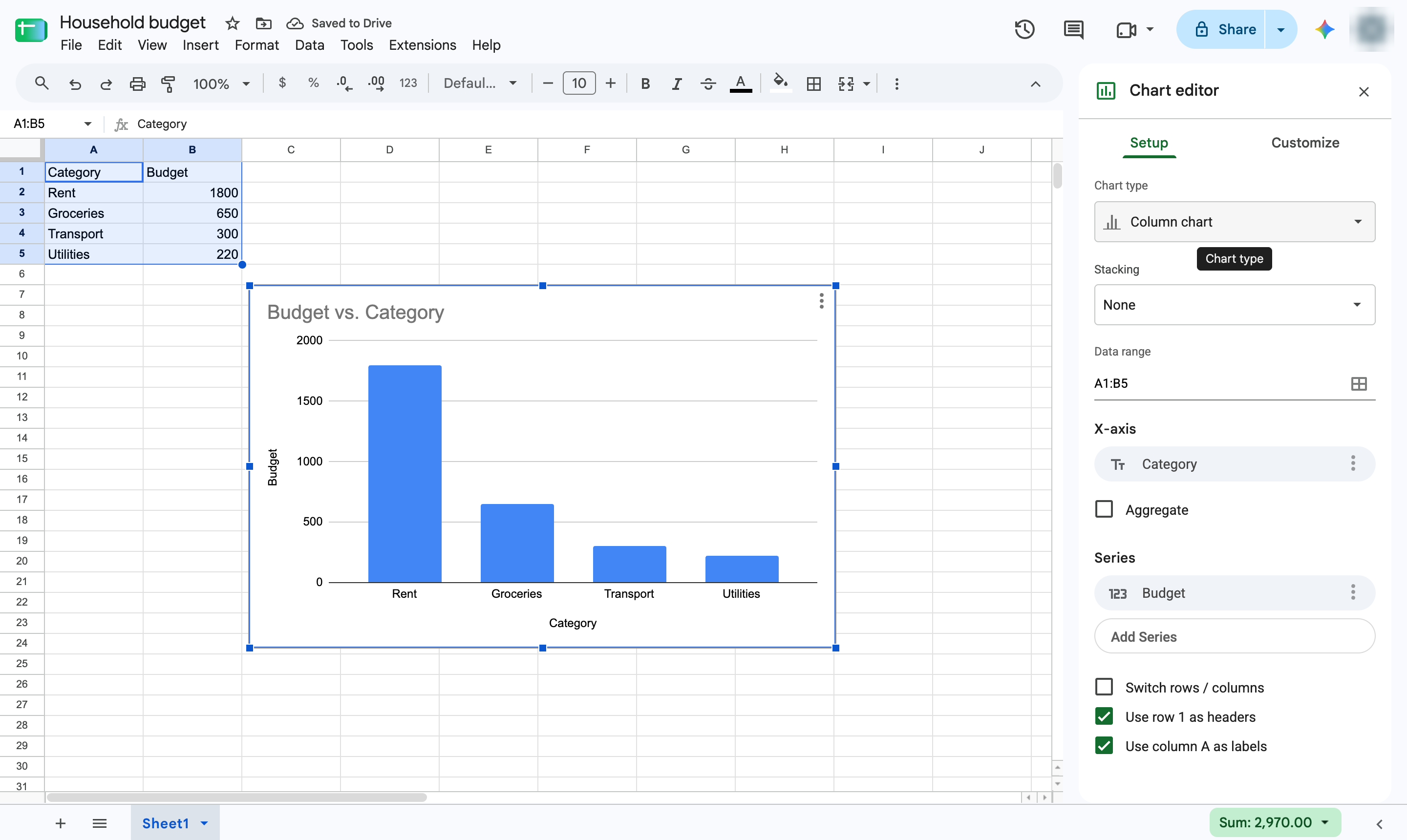
Pick Pie chart from the list.

Each slice shows one category's share of the total. Use the Customize tab to add percentages or change colors.
Duplicate this template, swap in your own screens, and share it with your team. Free to start — no credit card.
Fill out the form and we'll get back to you as soon as possible.
Tell us about your team and we'll find the right plan together.