1
Open Your Presentation
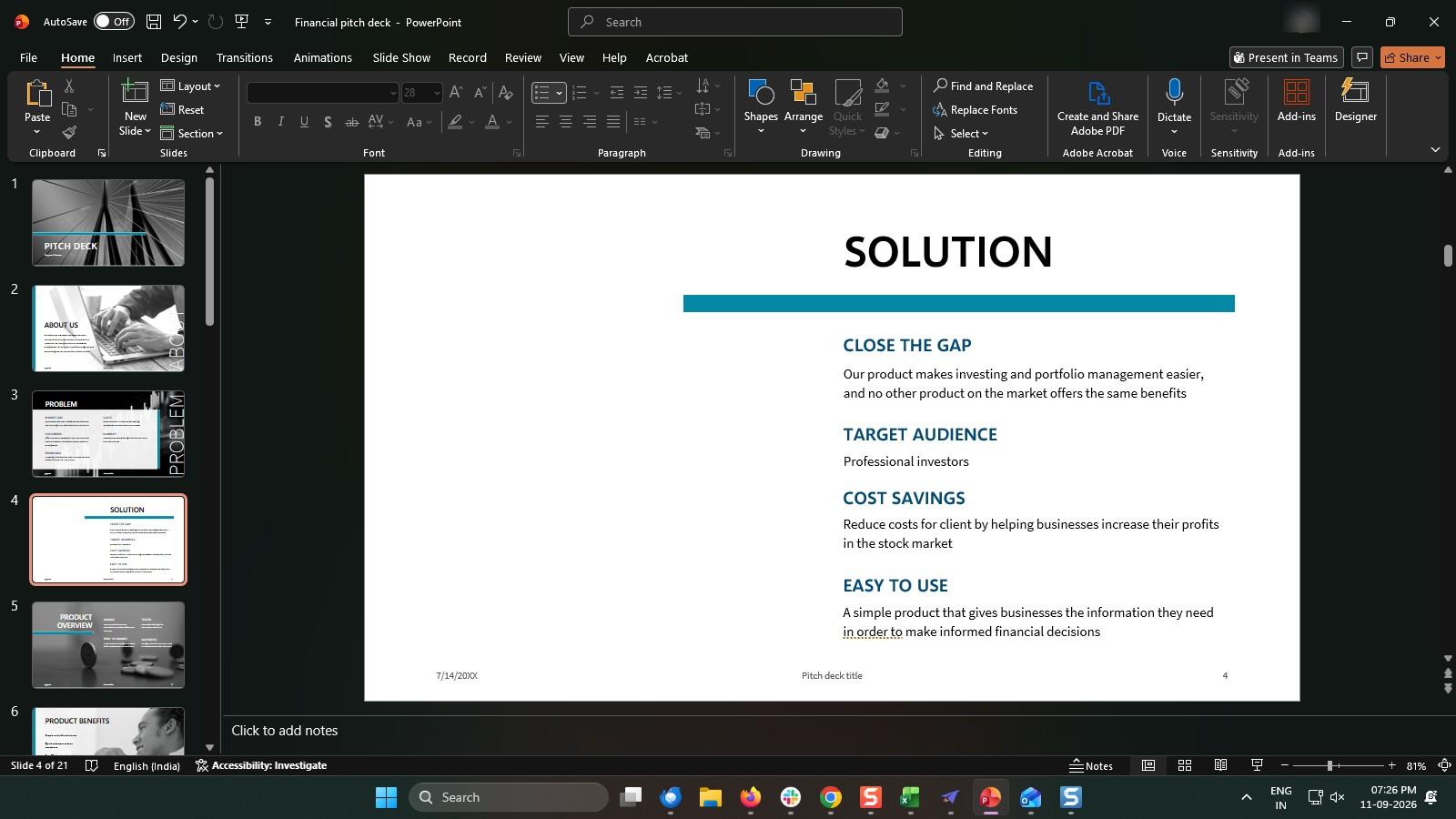
Open the PowerPoint presentation where you want to add the YouTube video.
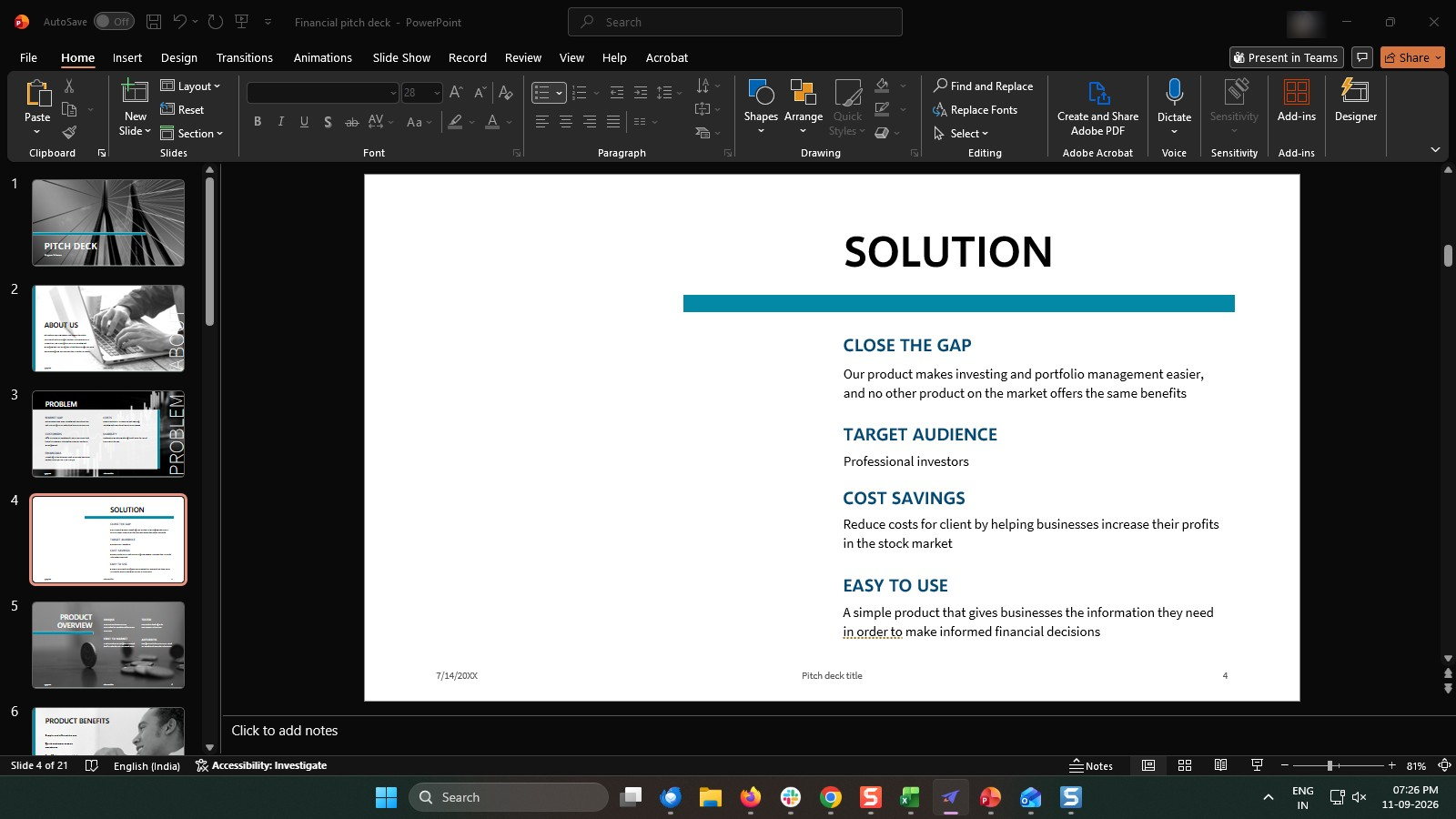

Add an online YouTube video directly to a PowerPoint presentation.
Open the PowerPoint presentation where you want to add the YouTube video.
Open YouTube, find the video you want to use, and copy its URL from the address bar.

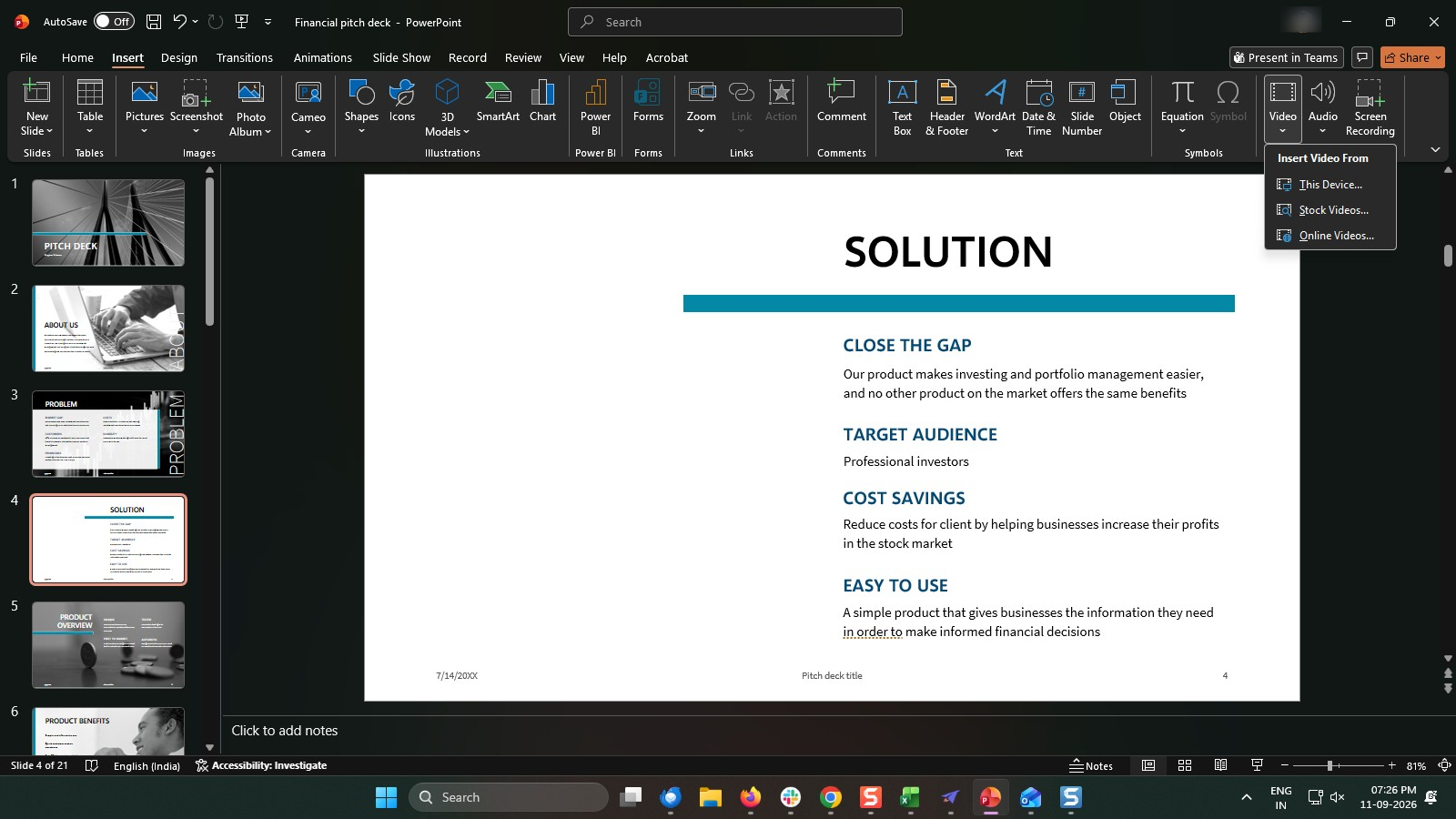
In PowerPoint, select Insert from the top menu to access the available insertion options.
In the Media section, select Video and choose the option for inserting an online video.
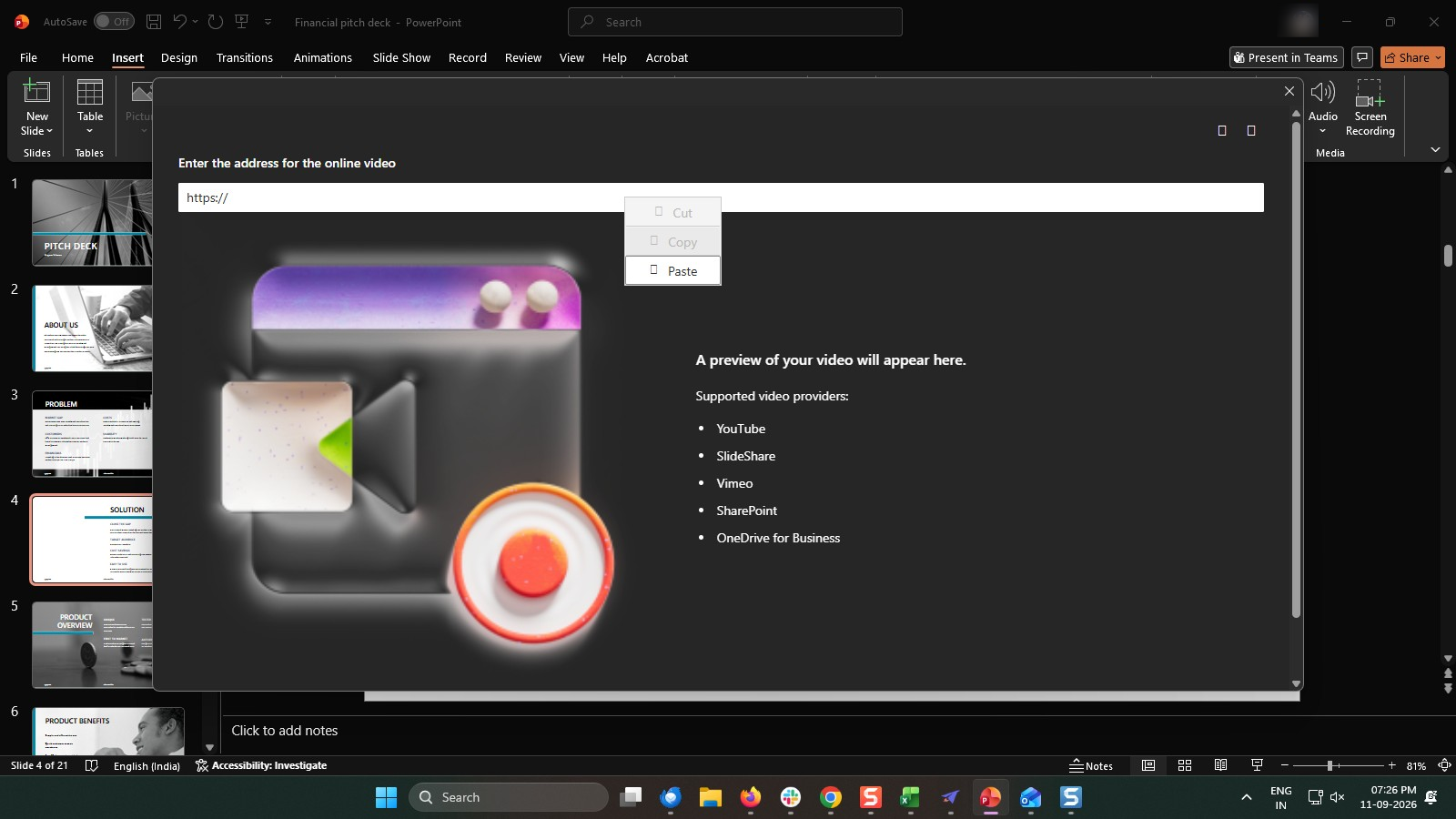
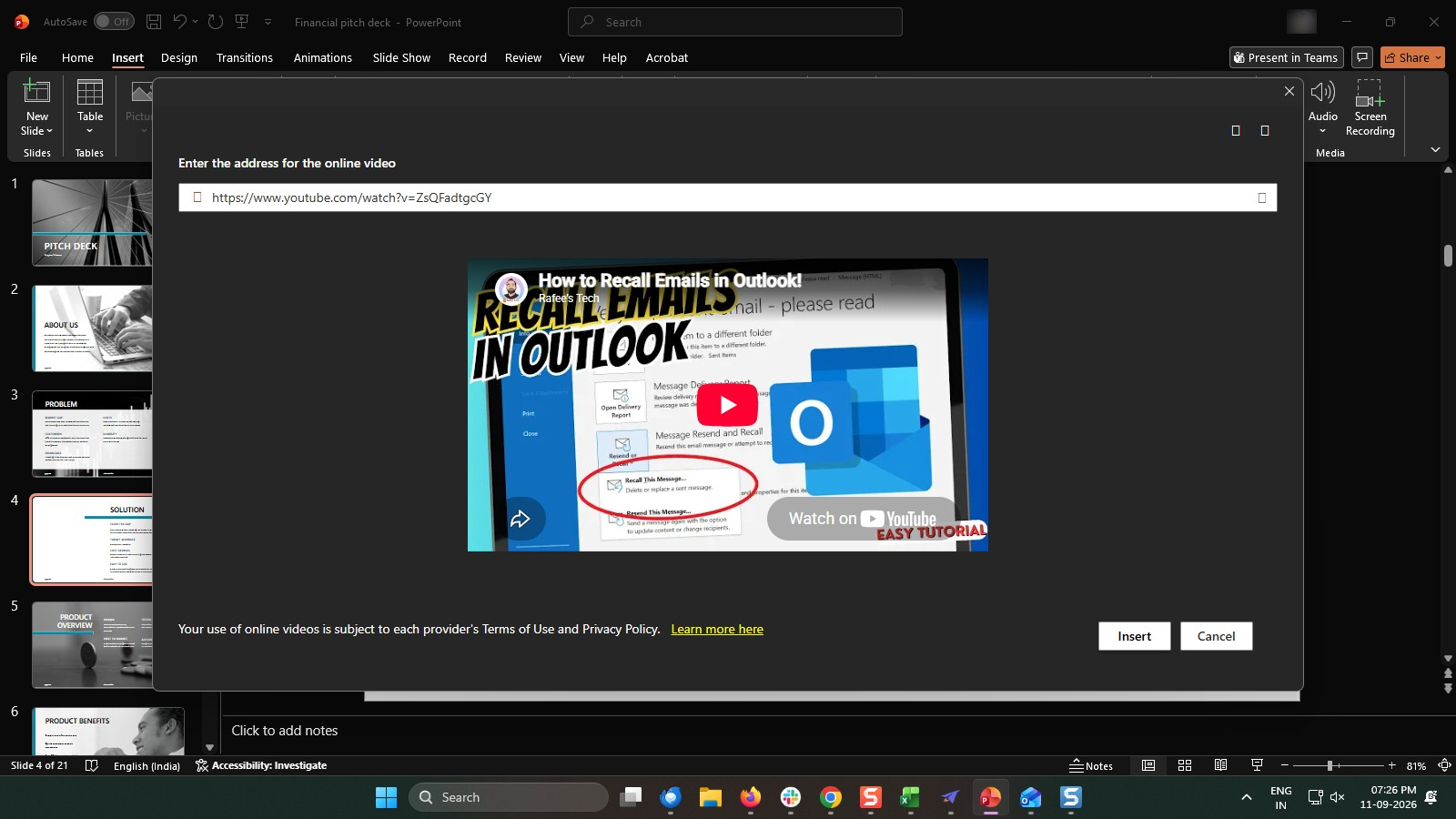
Paste the copied YouTube URL into the online video field.
Click the Insert button at the bottom right of the dialog box to add the video to your slide.
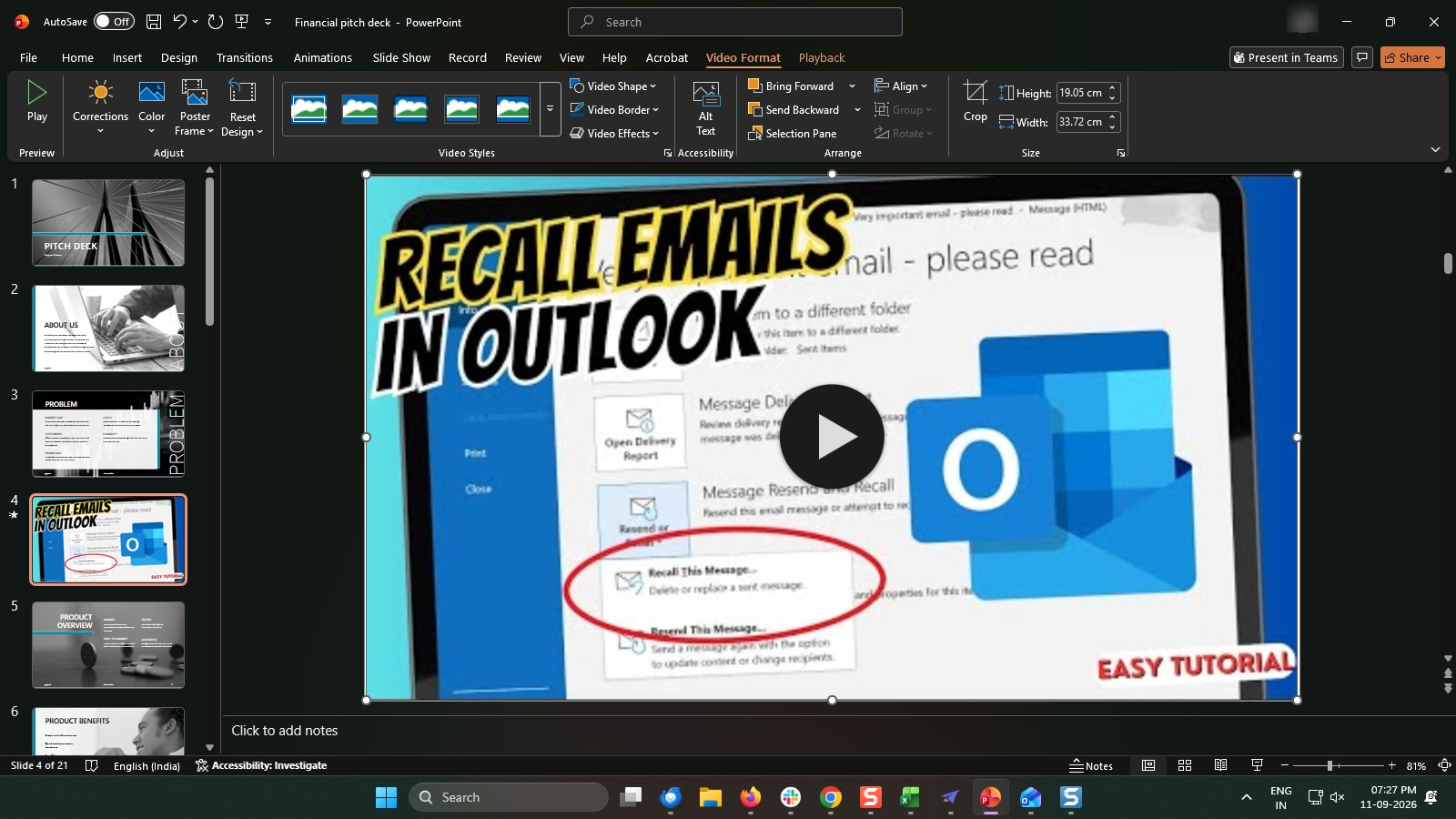
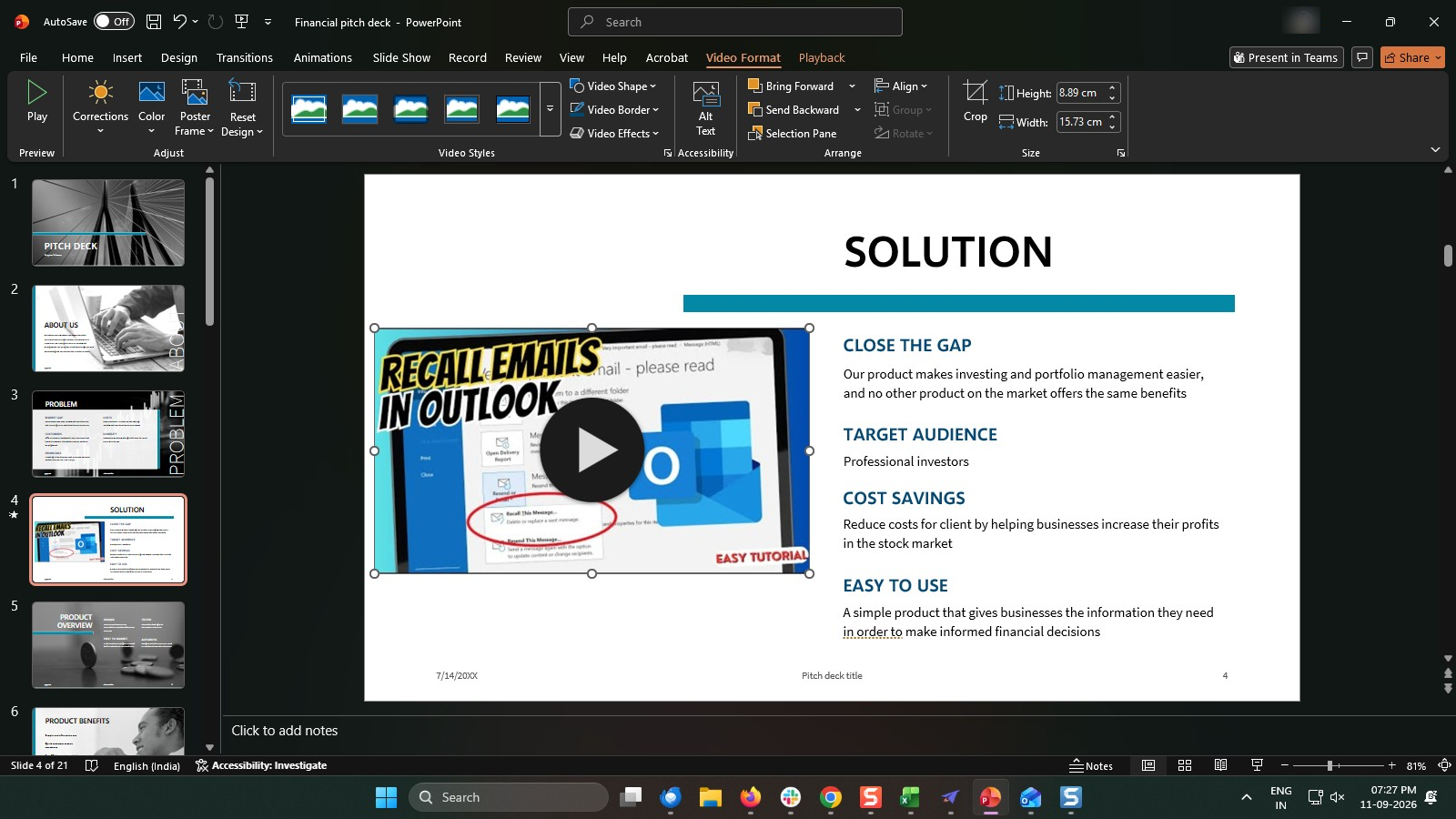
Resize and move the video on the slide to place it where you want.
Start the slideshow and select the video to play it directly from YouTube.
Duplicate this template, swap in your own screens, and share it with your team. Free to start — no credit card.
Fill out the form and we'll get back to you as soon as possible.
Tell us about your team and we'll find the right plan together.