1
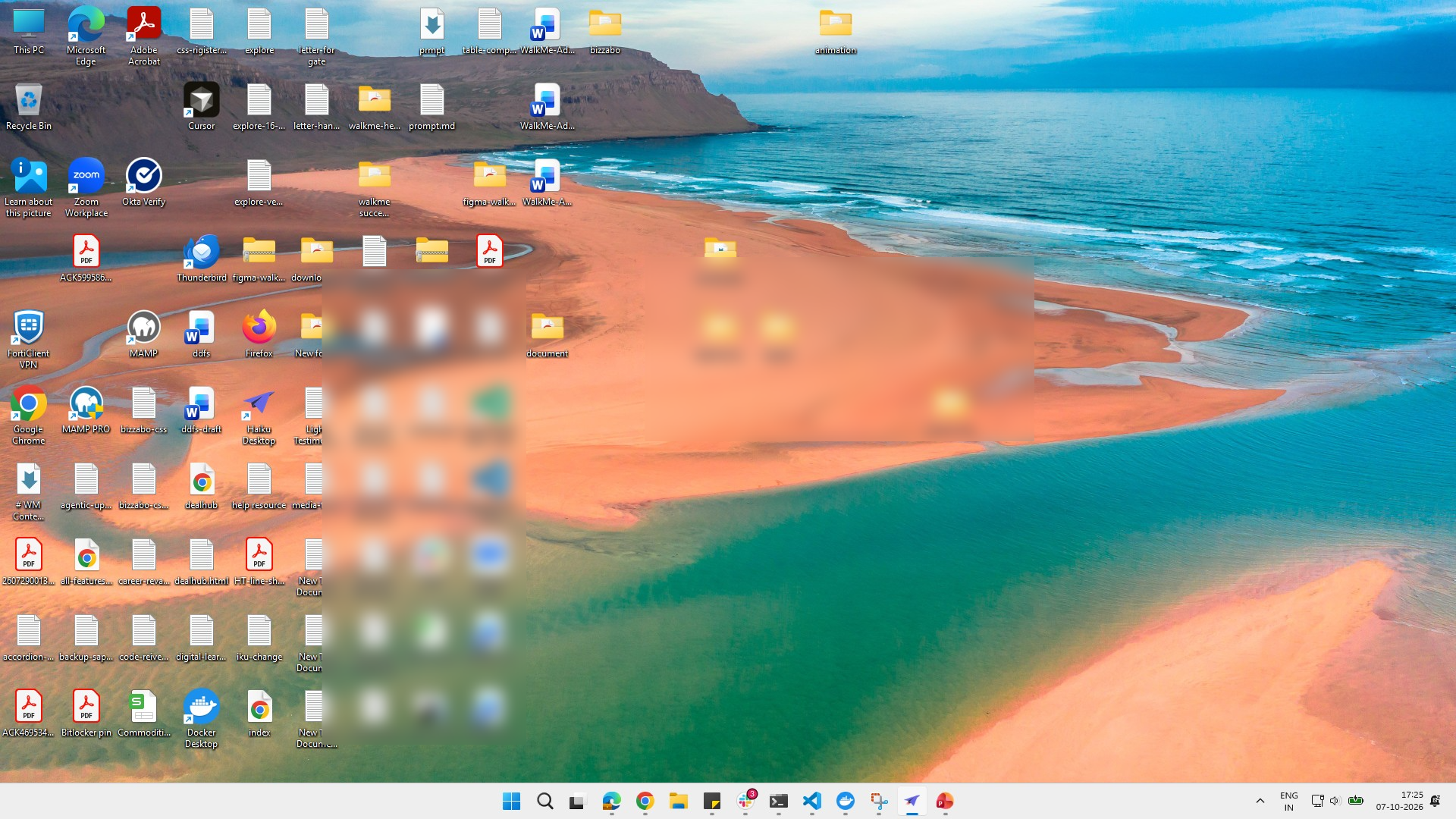
Click the PowerPoint icon
Click the Microsoft PowerPoint icon on the taskbar to open the application.

This guide walks you through the process of inserting a local video file into a Microsoft PowerPoint presentation. You will learn how to locate and insert your video, adjust its size on the slide, and configure the playback settings. By the end of this tutorial, you will have set the video to play automatically as soon as the slide appears during your presentation.
Click the Microsoft PowerPoint icon on the taskbar to open the application.
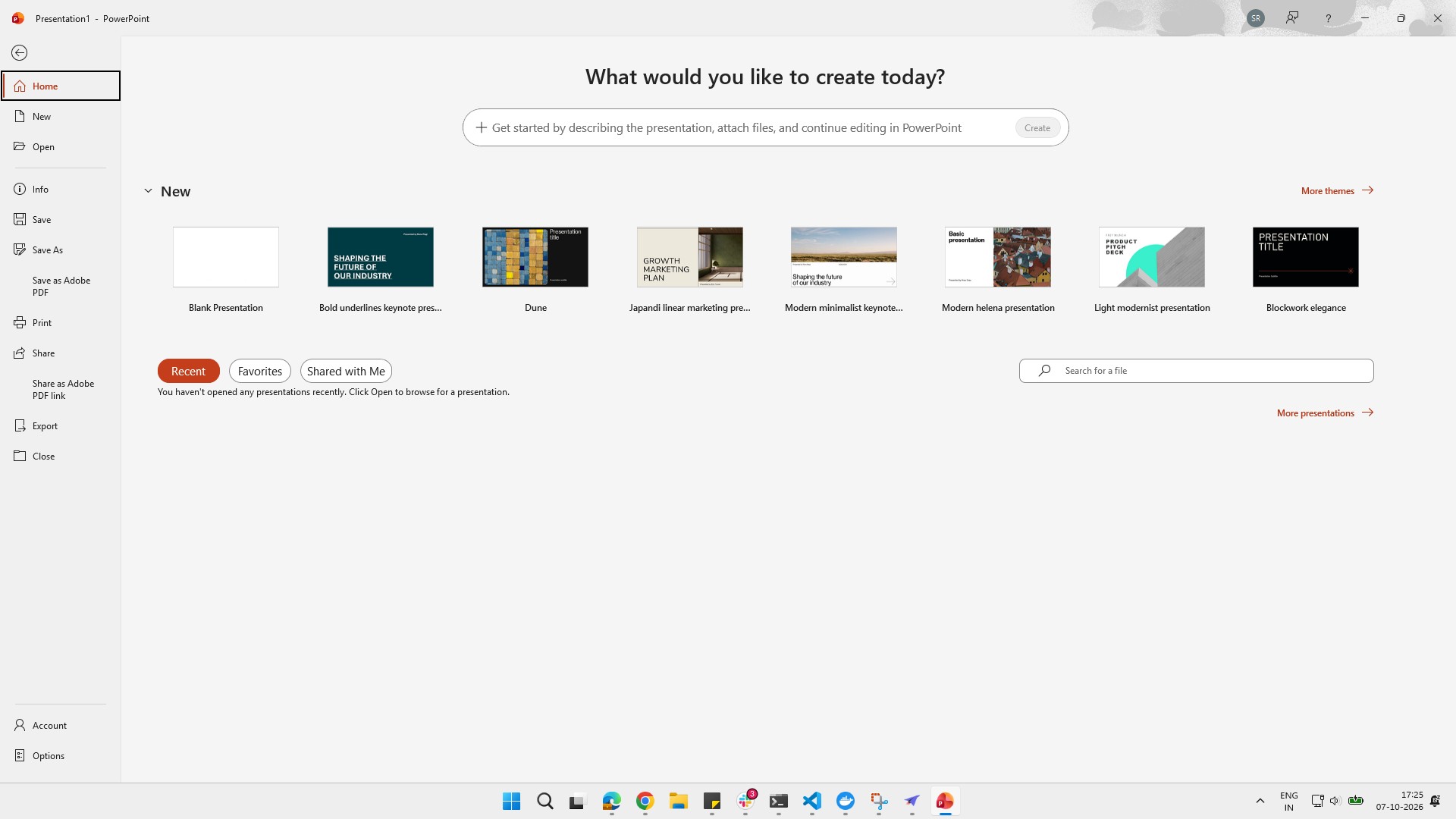
Click the Blank Presentation thumbnail in the New section to start a new file from scratch.
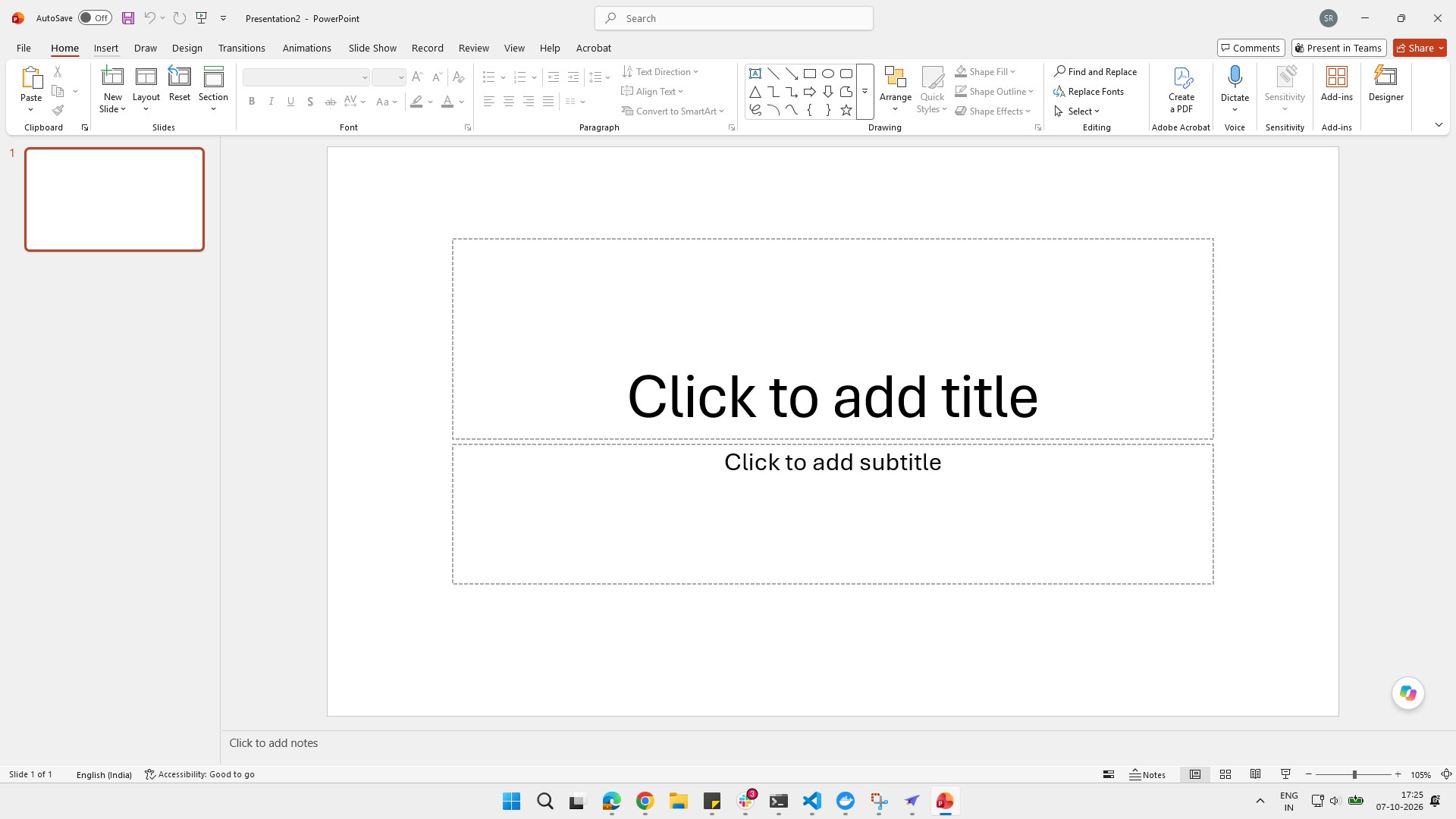
Click the Insert tab in the top ribbon to access additional options.
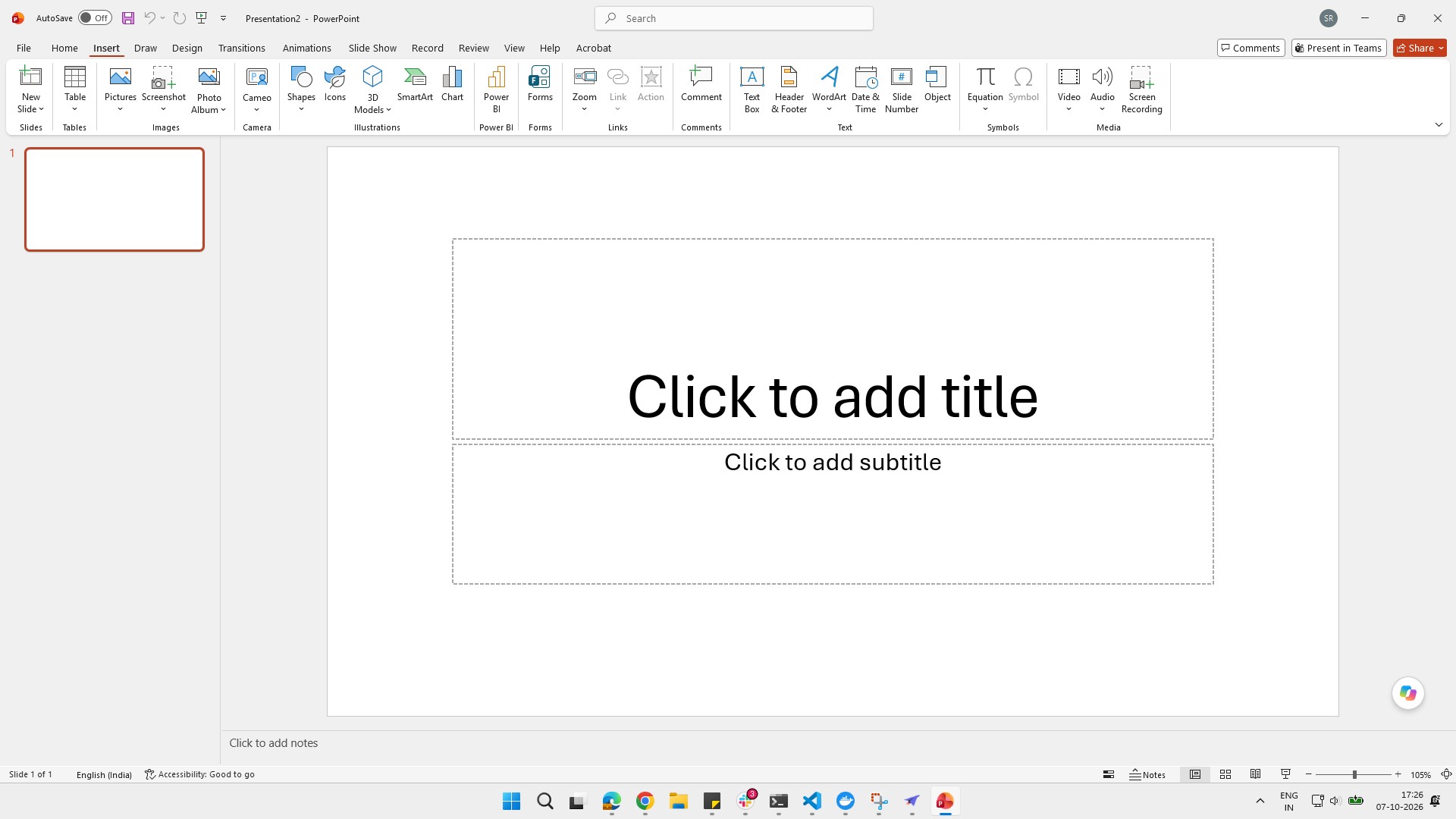
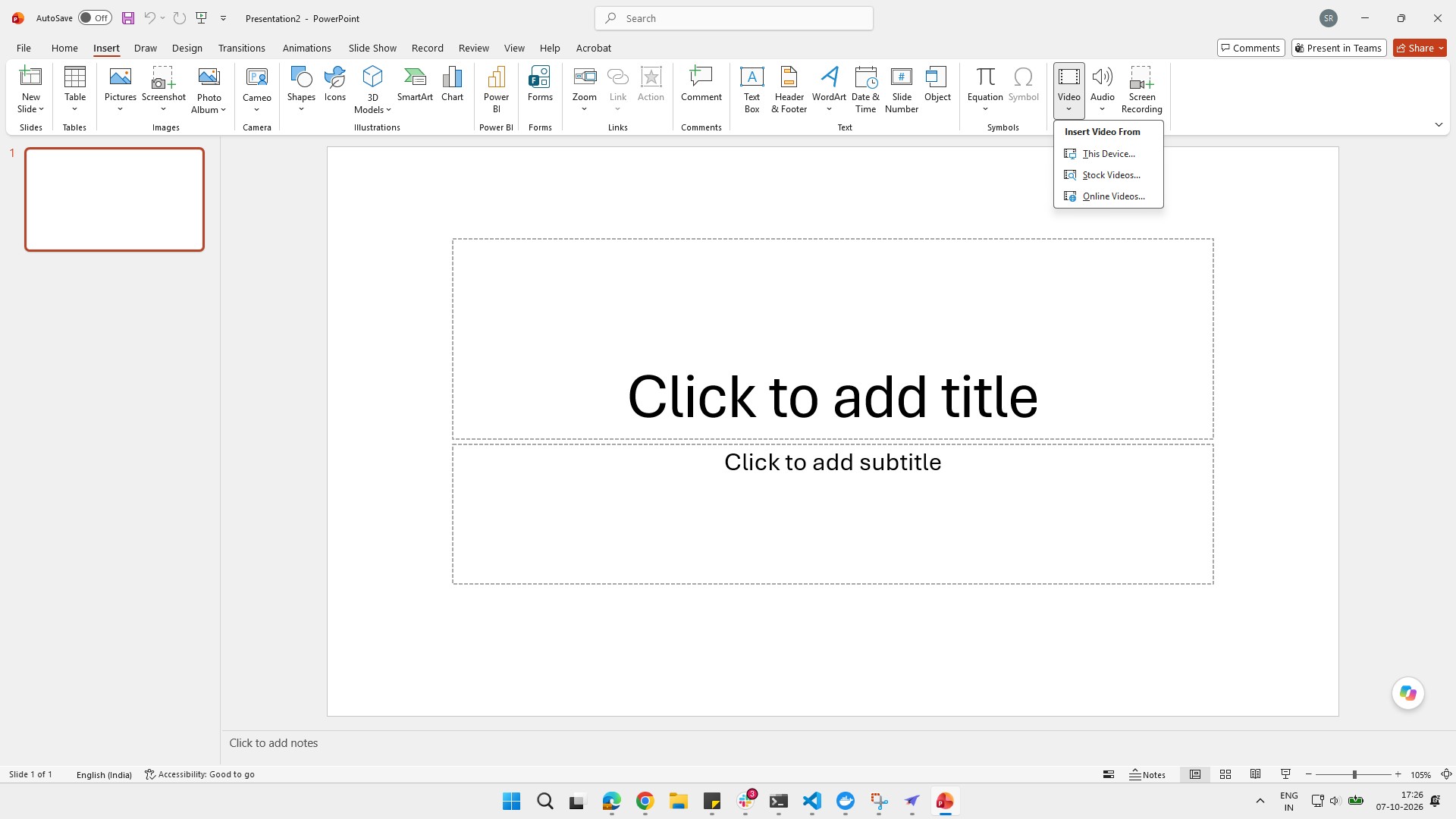
Click the Video button in the Media section of the top toolbar to insert a video into your presentation.
Click the "This Device..." option in the "Insert Video From" dropdown menu to choose a video file from your computer.
Click on the desired video file in the file explorer dialog to select it for insertion.
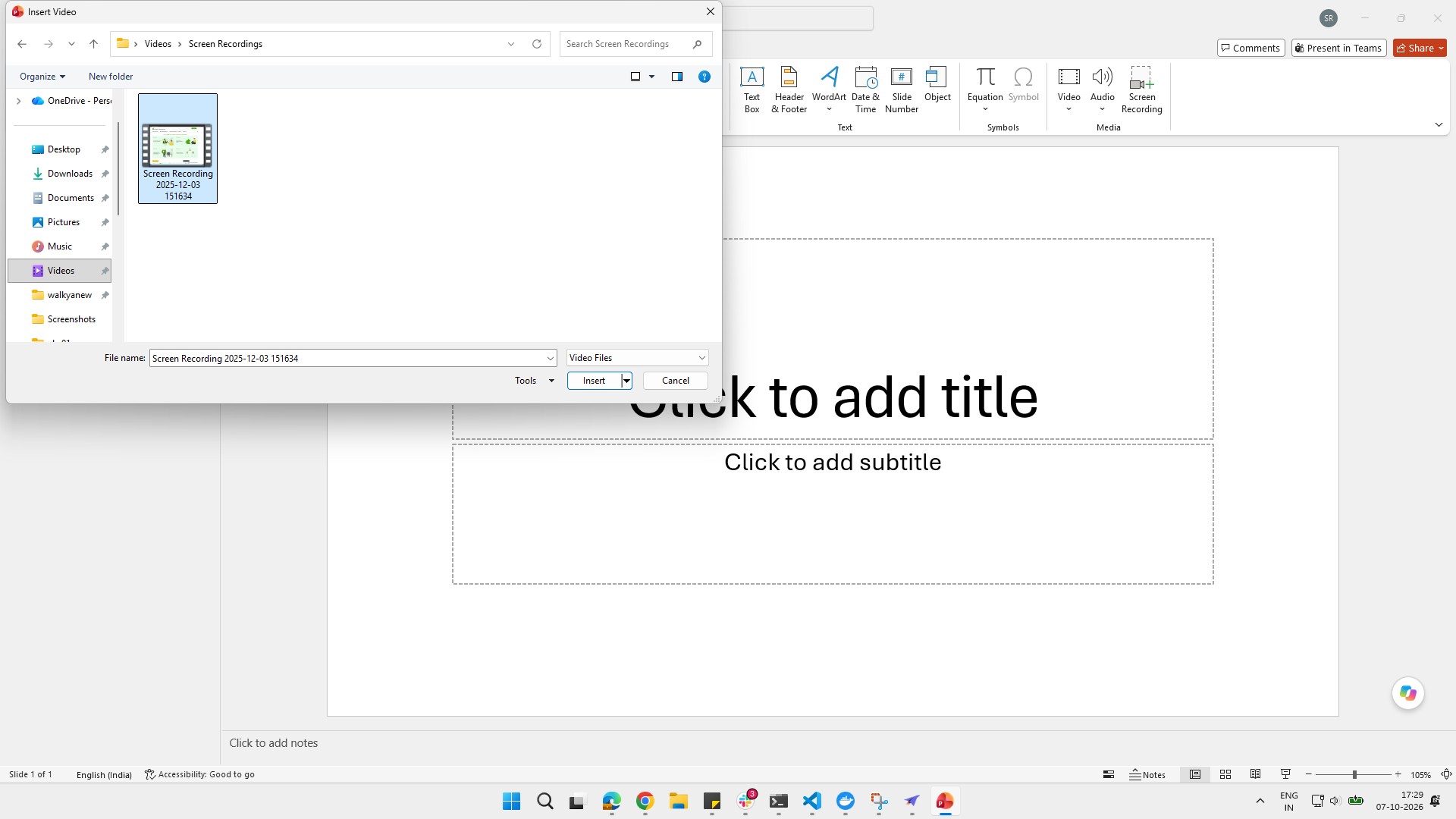
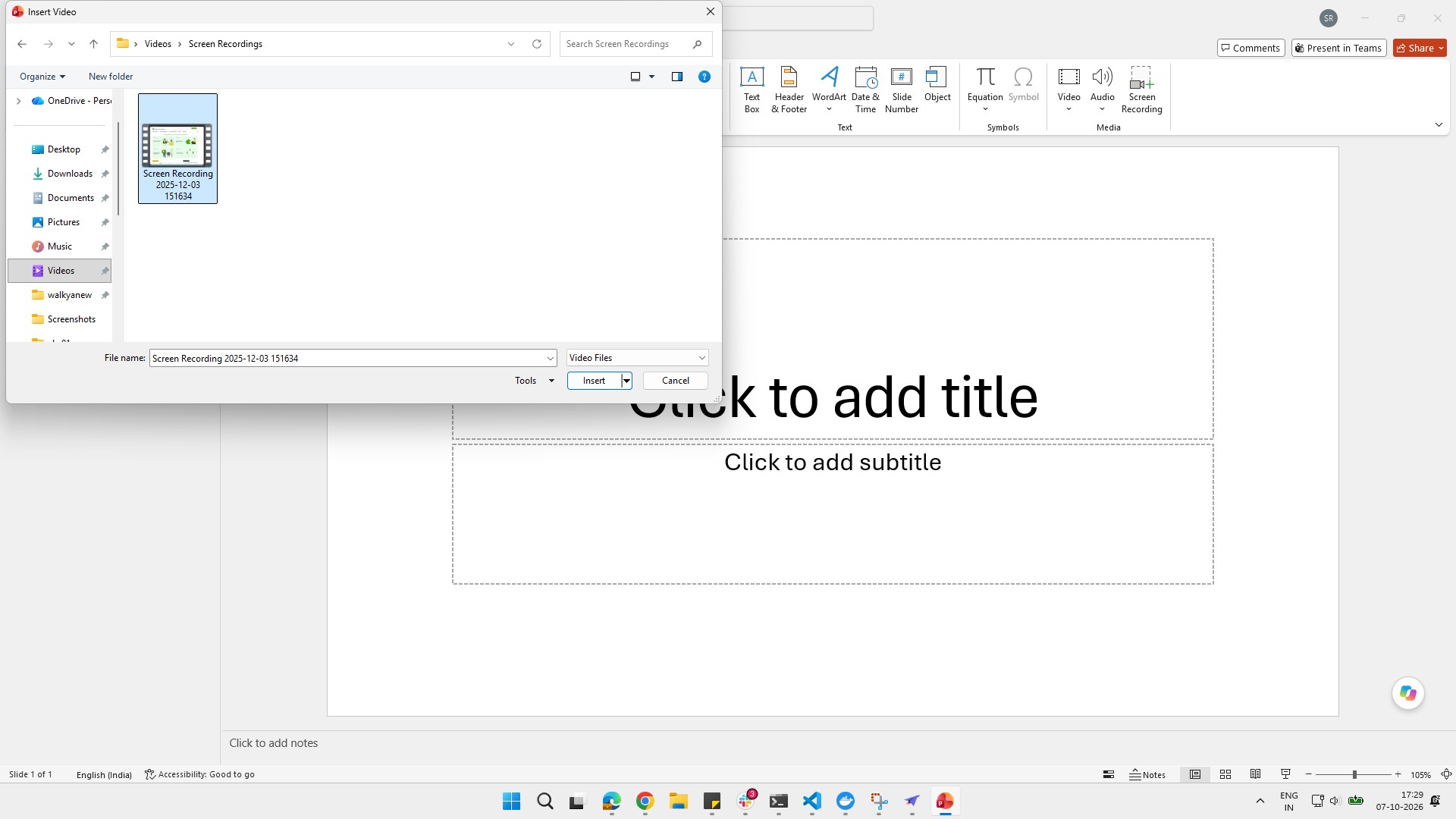
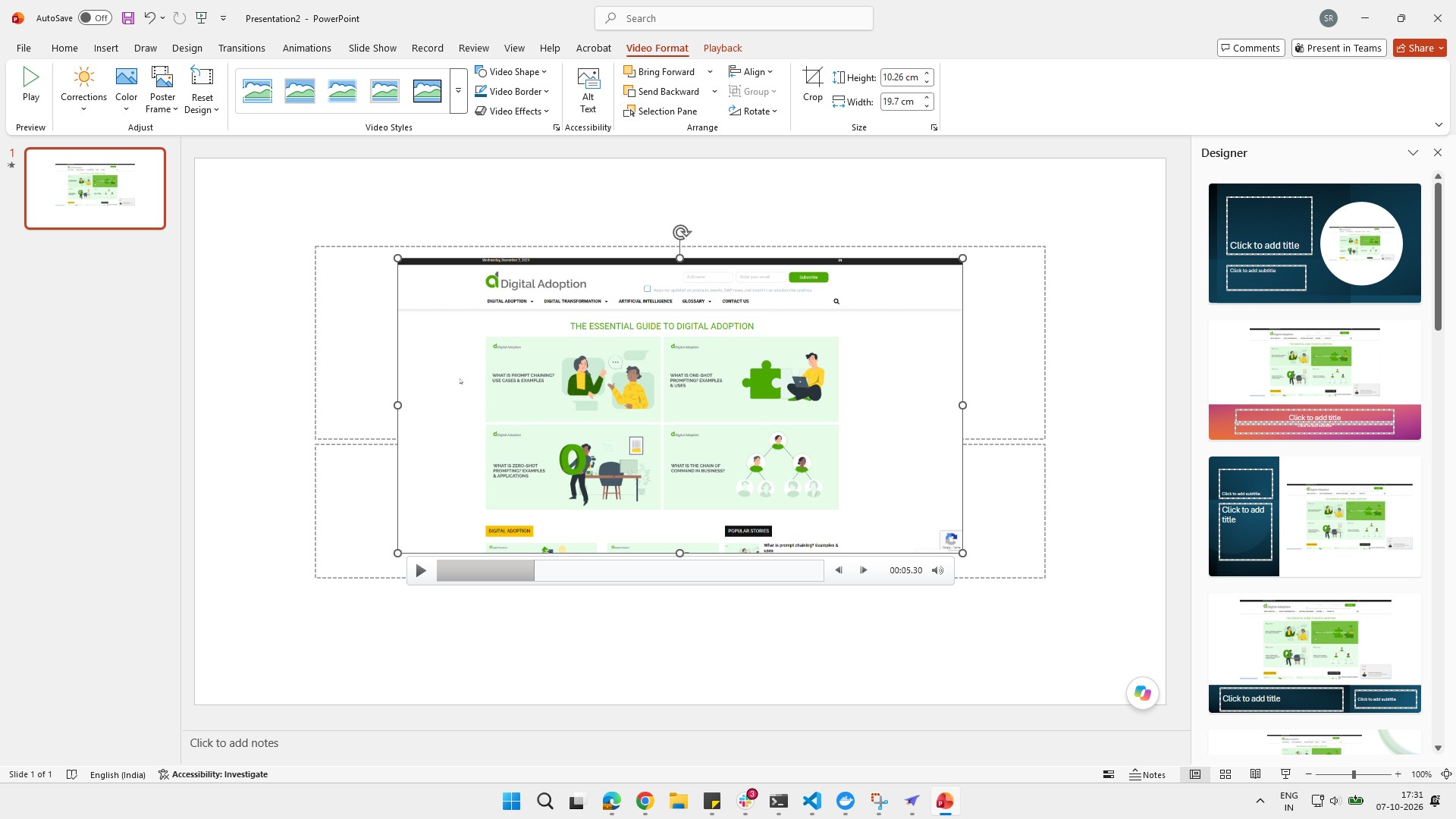
Click the Insert button at the bottom of the file dialog to add the selected video to your presentation.
Click the resize handle on the bottom-left corner of the selected element to adjust its size.
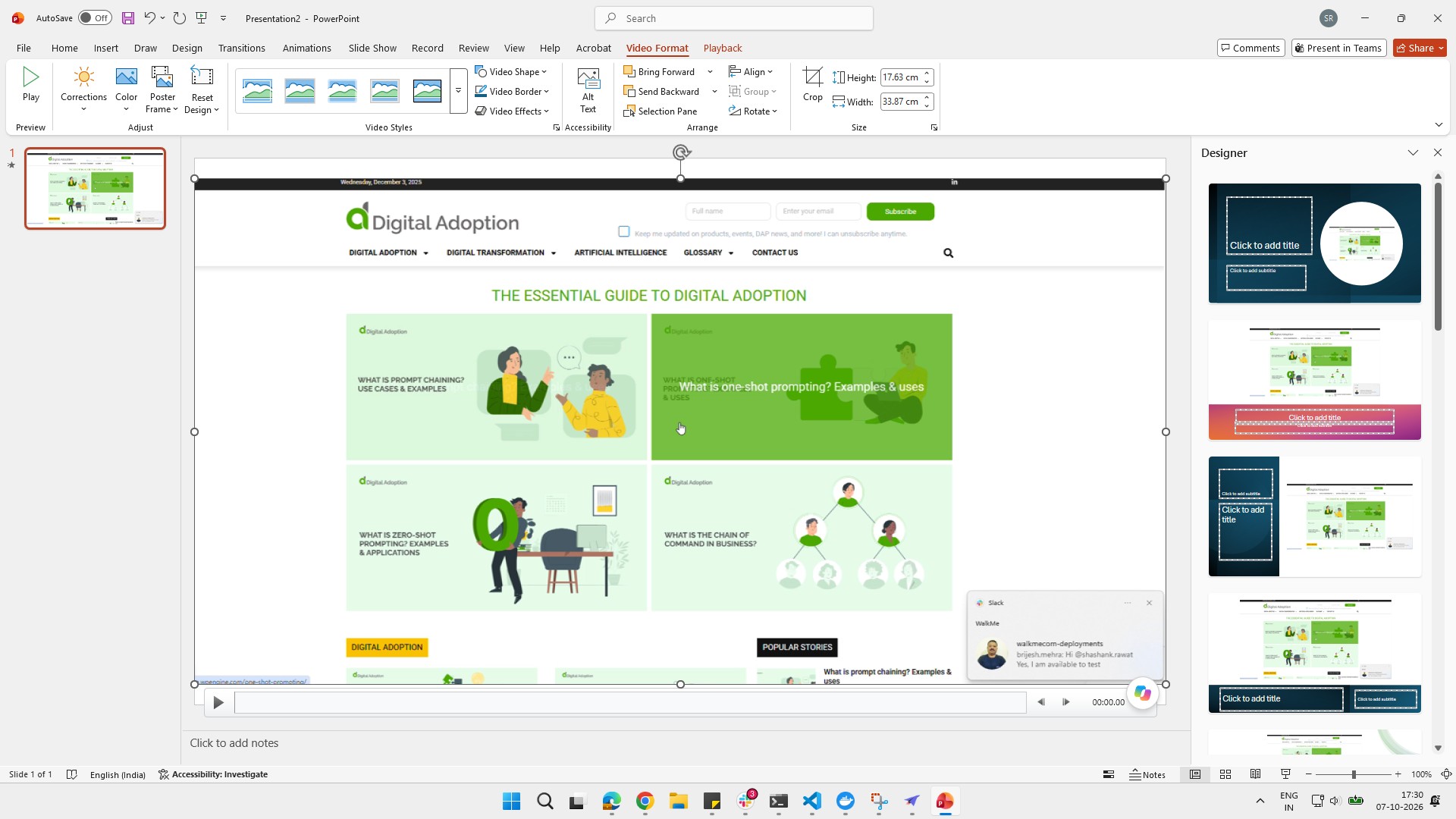
Click the video to play and continue with the demonstration.
Duplicate this template, swap in your own screens, and share it with your team. Free to start — no credit card.
Fill out the form and we'll get back to you as soon as possible.
Tell us about your team and we'll find the right plan together.