1
Open Google Docs
Open the Google Doc where you want to add the PDF.
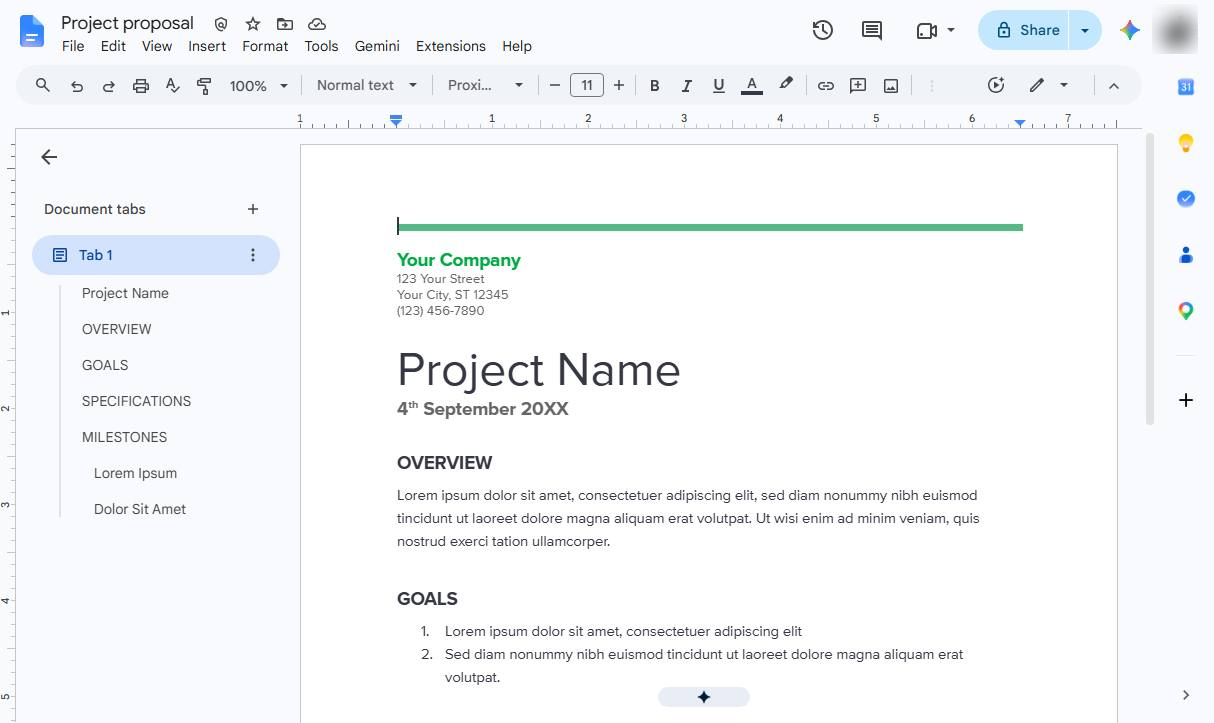

Learn how to add a PDF to a Google Doc by uploading it to Google Drive and inserting a shareable link for easy access.
Open the Google Doc where you want to add the PDF.
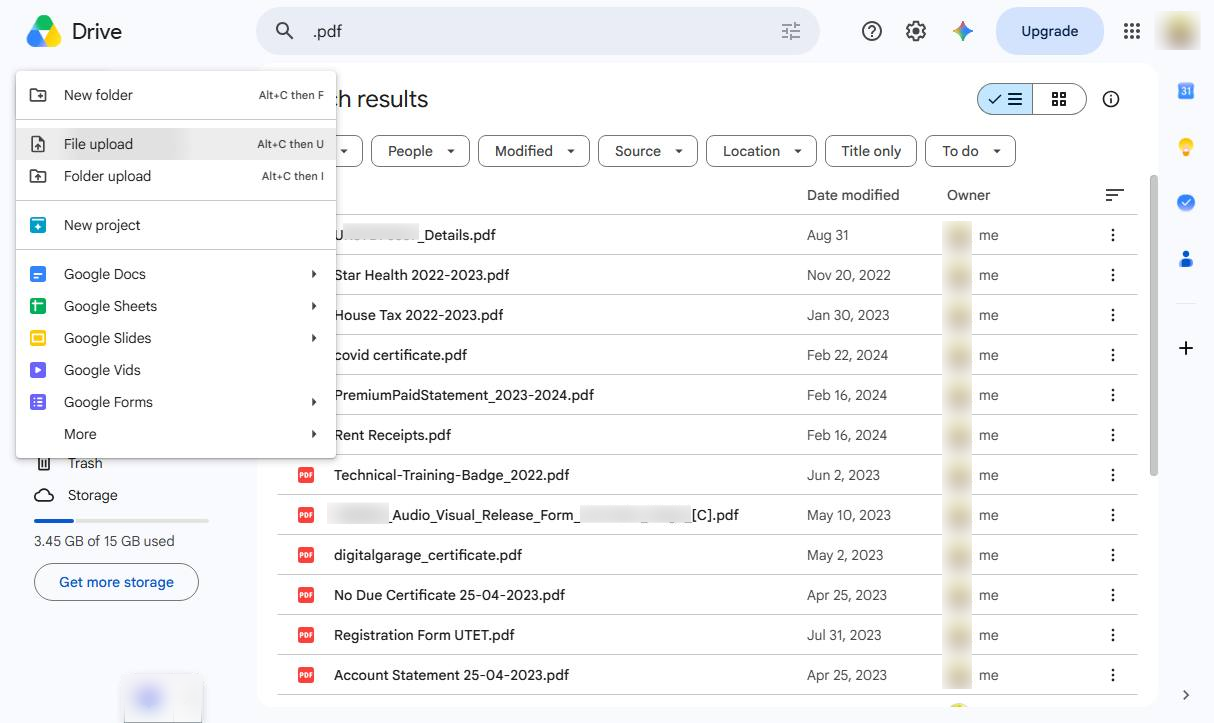
Open Google Drive and upload the PDF file you want to add to your document.
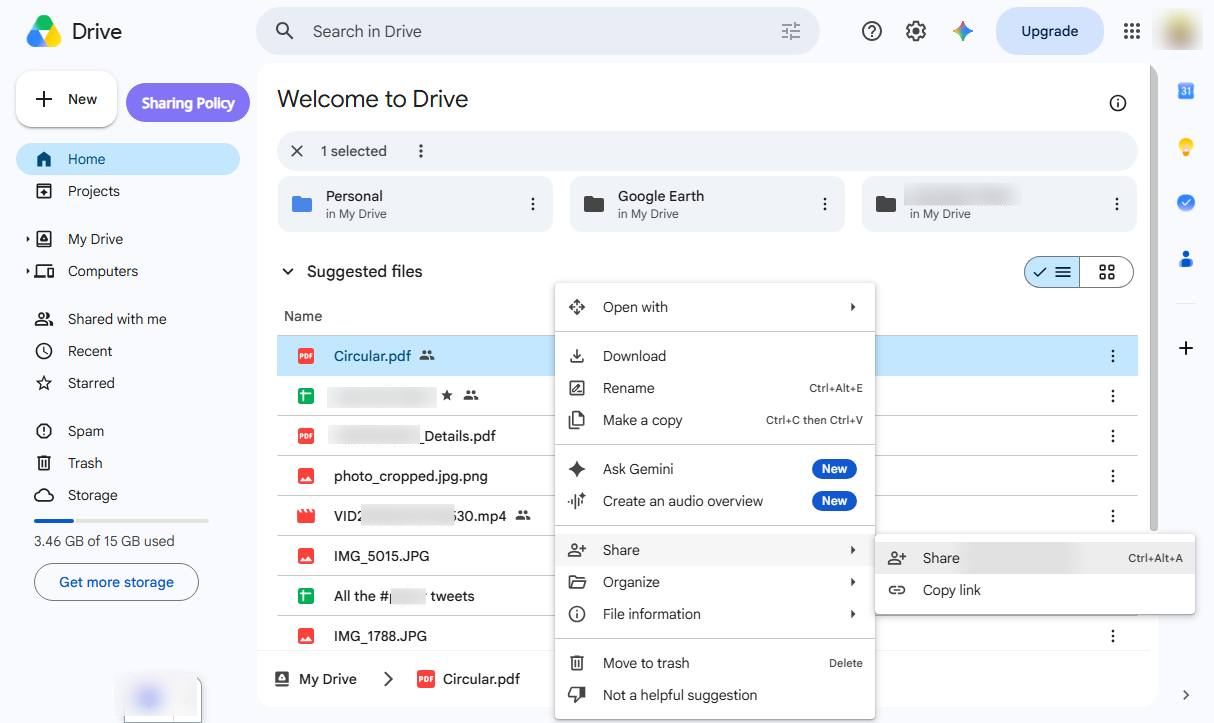
Right-click the uploaded PDF, select Share.
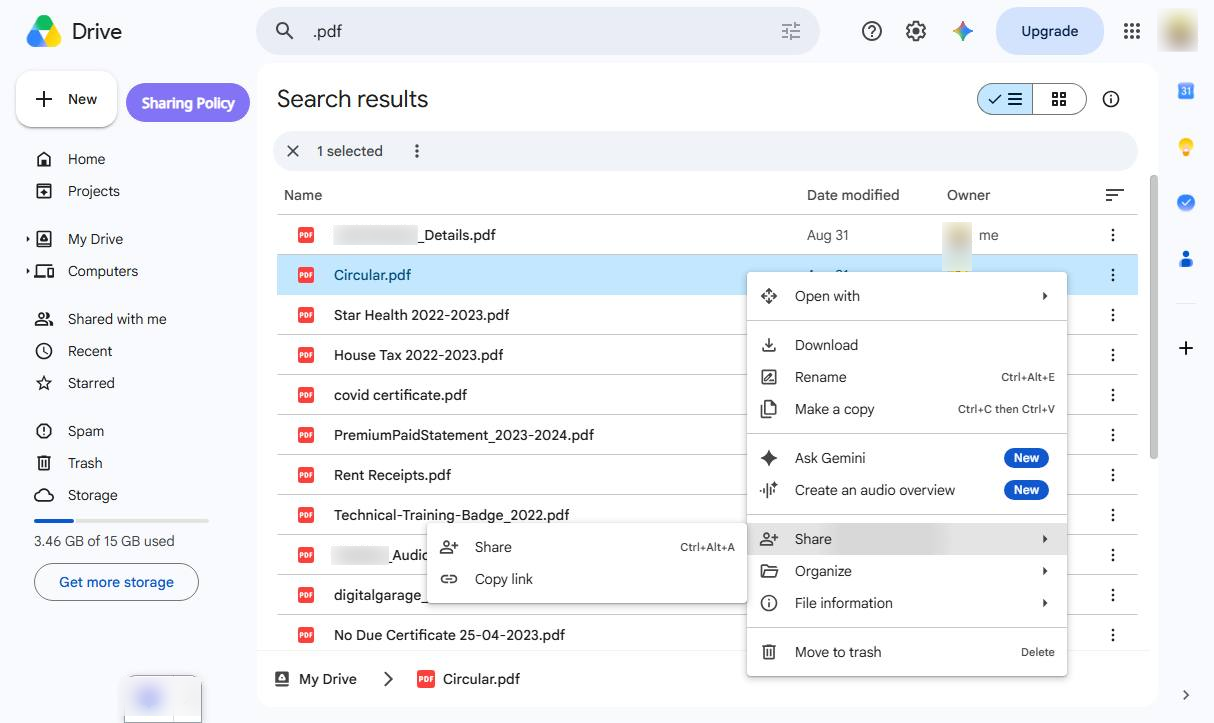
Click the Share option in the sub-menu to open the sharing settings for the selected file.
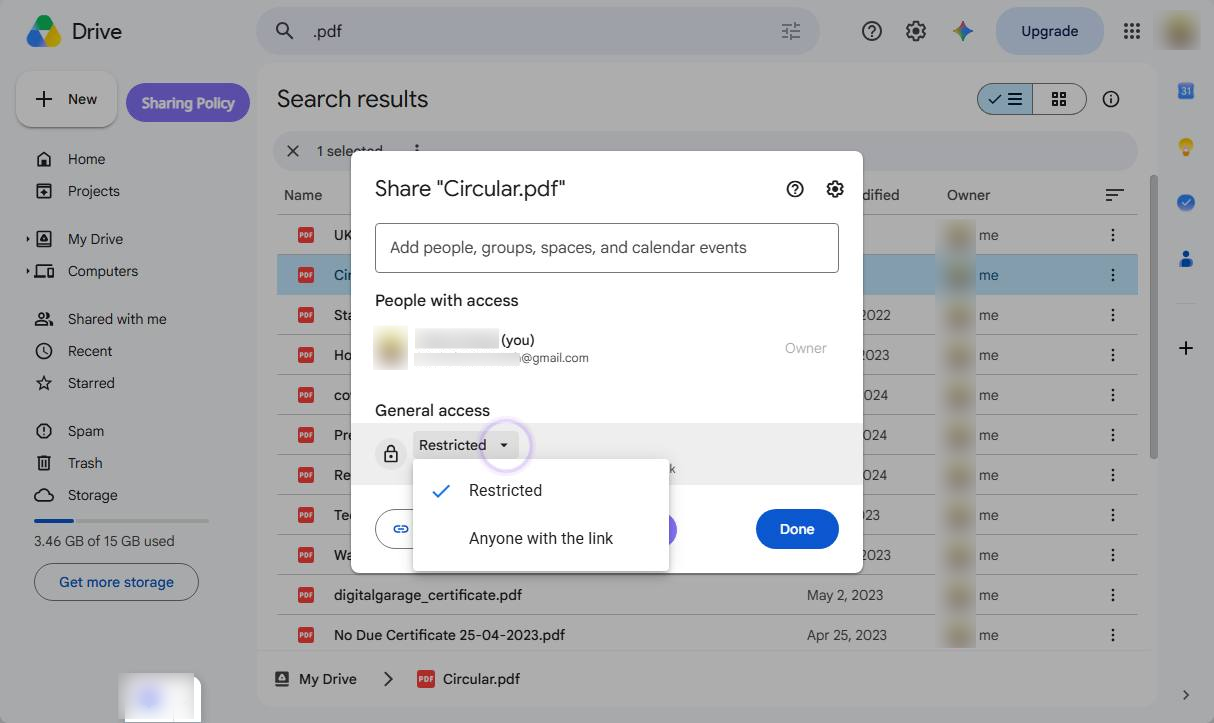
Select Anyone with the link from the dropdown so anyone opening your document can view the PDF.
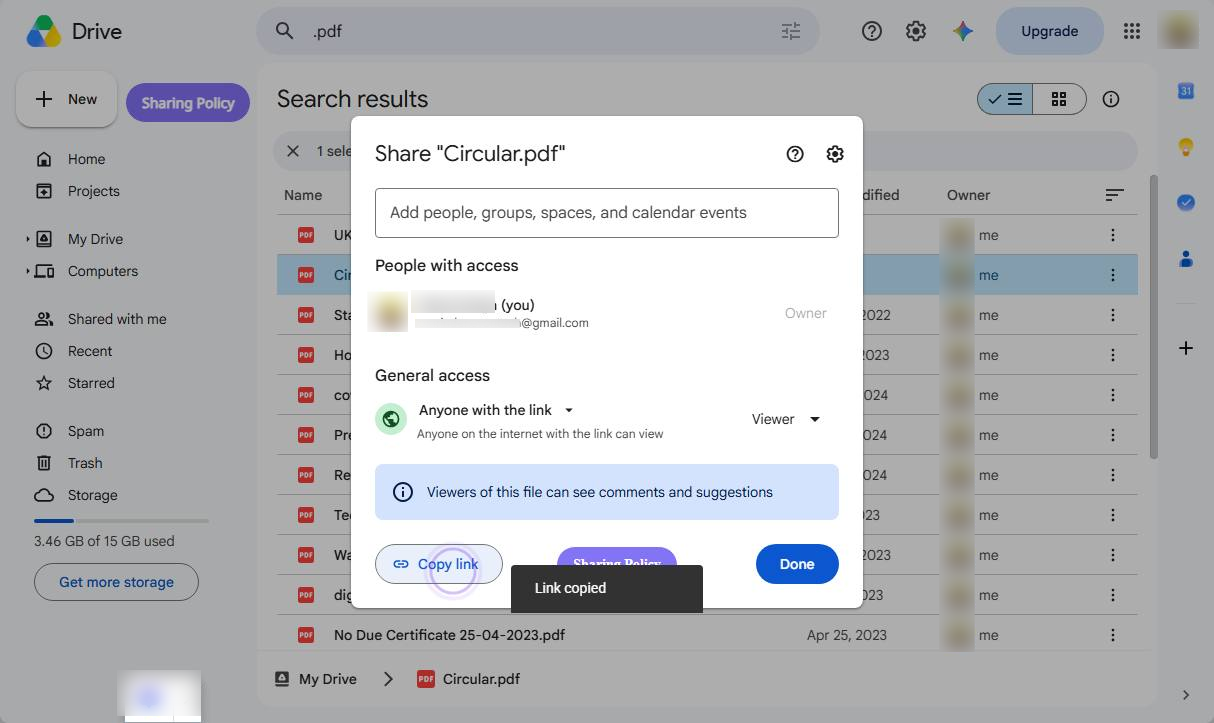
Click Copy link in the bottom-left corner of the Share menu to save the PDF URL to your clipboard.
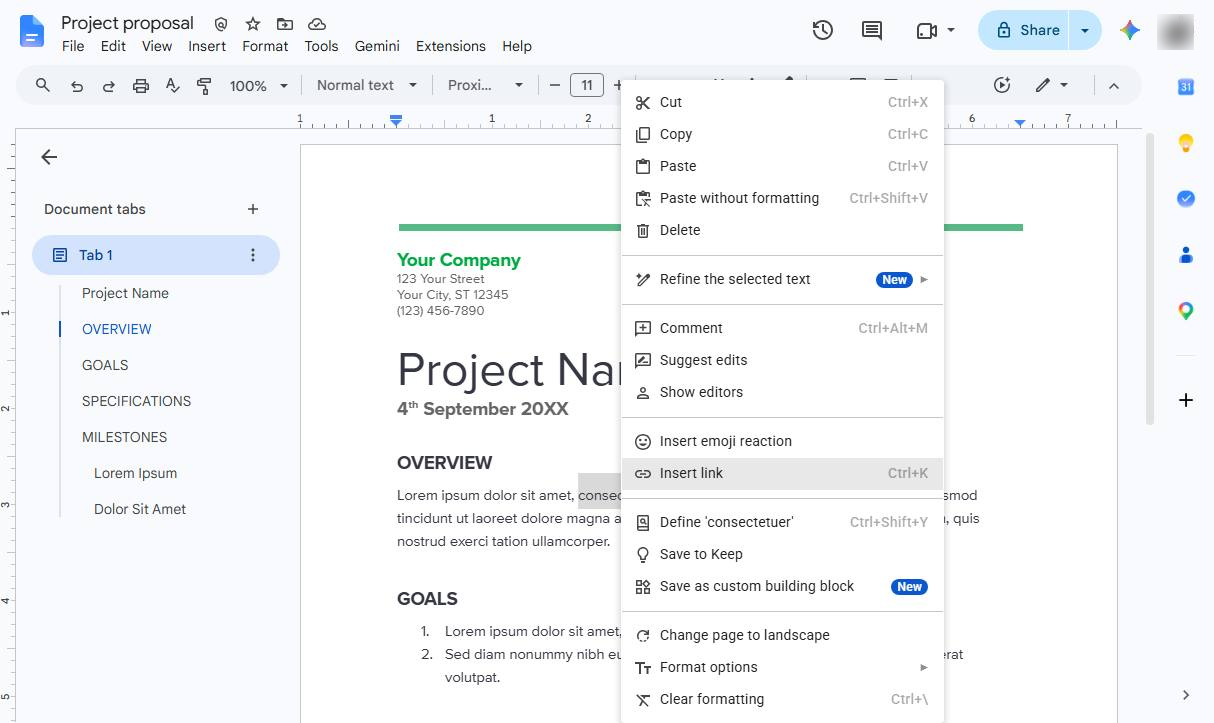
Select the text where you want to attach the PDF link, right-click on it, and select Insert link from the context menu.
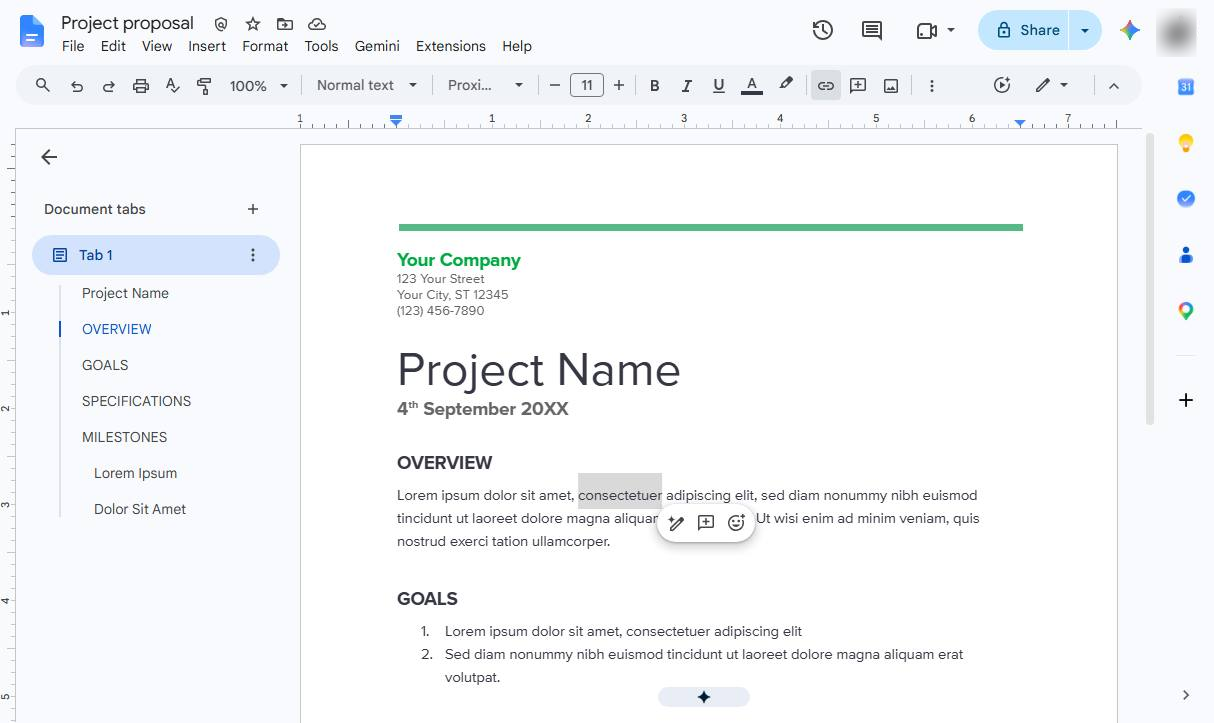
As another way to add the link, you can select the text and click the Insert link icon on the main toolbar
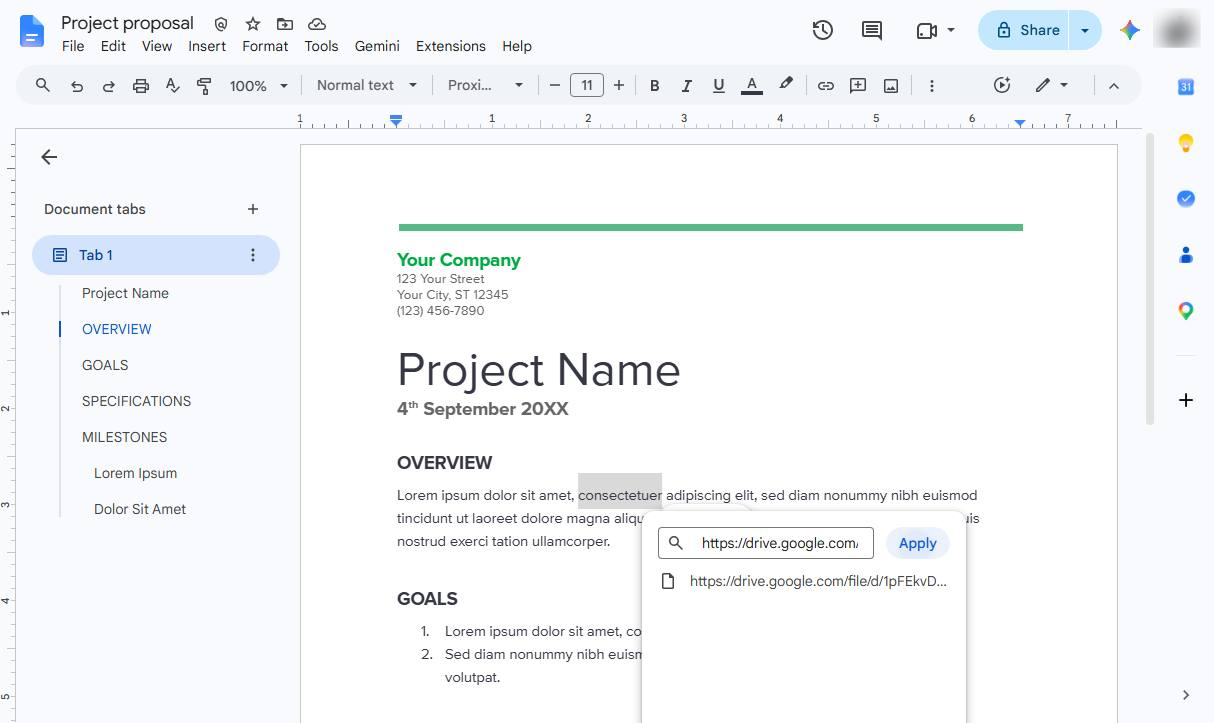
Paste the Google Drive link into the link field and click Apply.
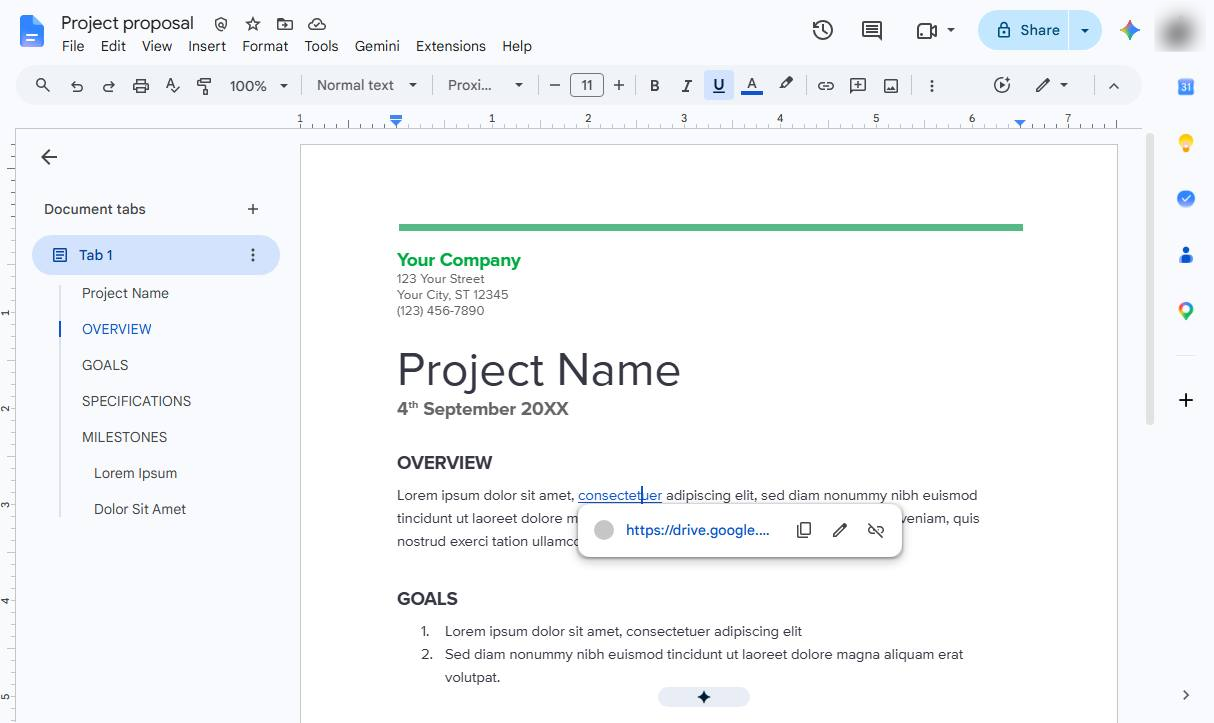
Click the added link in the Google Doc to open the PDF in Google Drive.
Duplicate this template, swap in your own screens, and share it with your team. Free to start — no credit card.
Fill out the form and we'll get back to you as soon as possible.
Tell us about your team and we'll find the right plan together.