1
Select the cells to indent
Highlight the cells to push in.
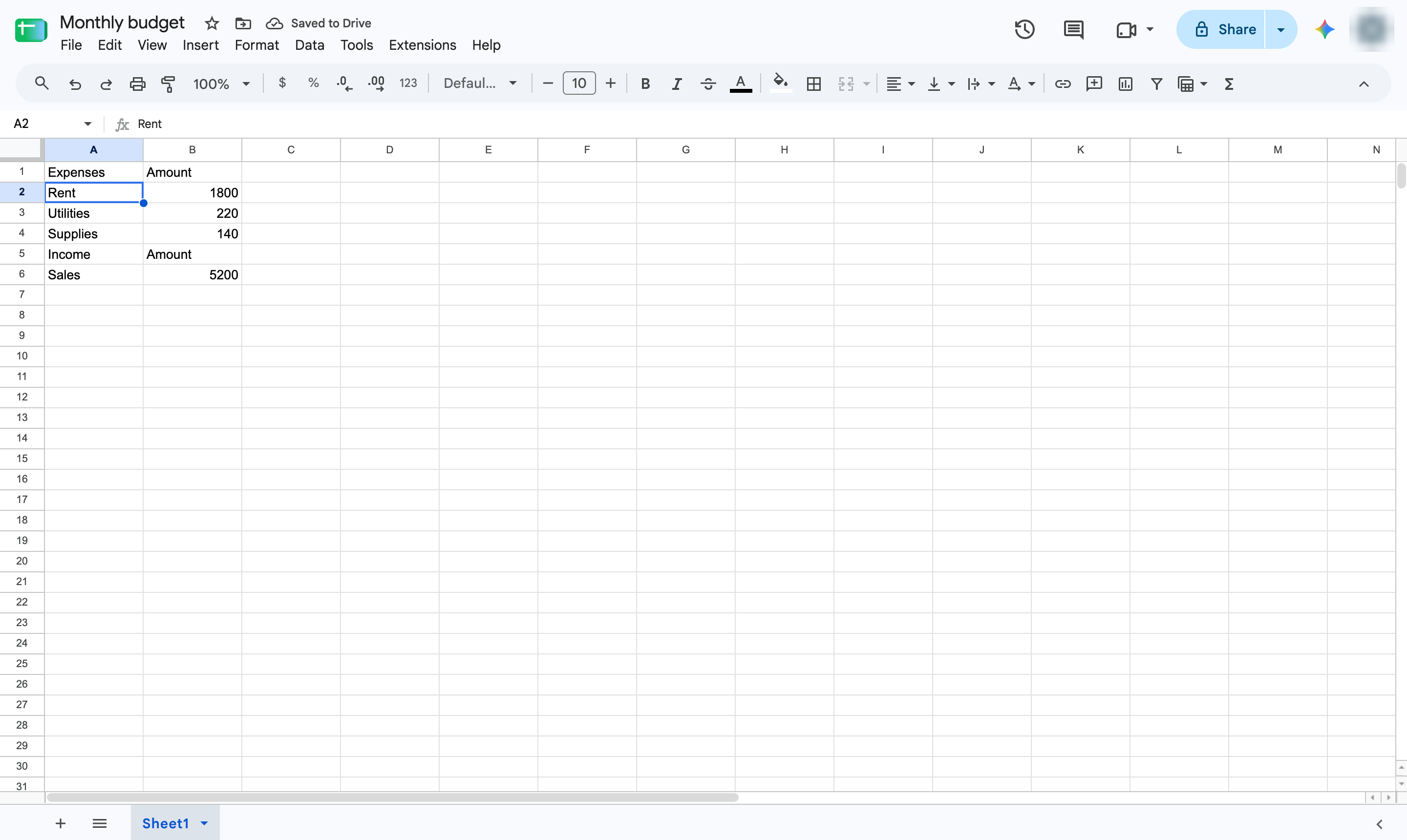

Sheets has no indent button, but a custom number format adds spaces before the text in any cell.
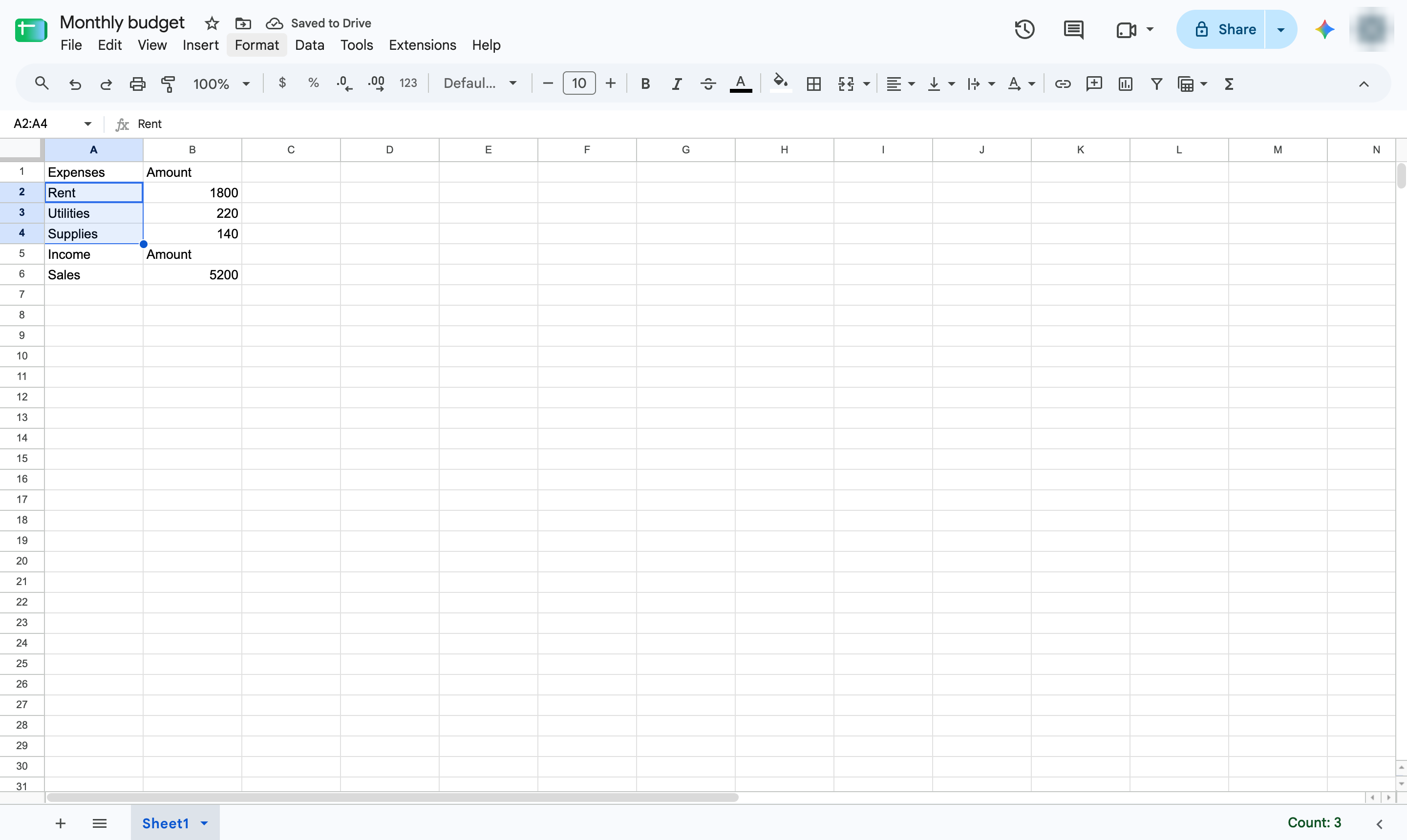
Highlight the cells to push in.
Open the Format menu.
Hover over Number to open its submenu.
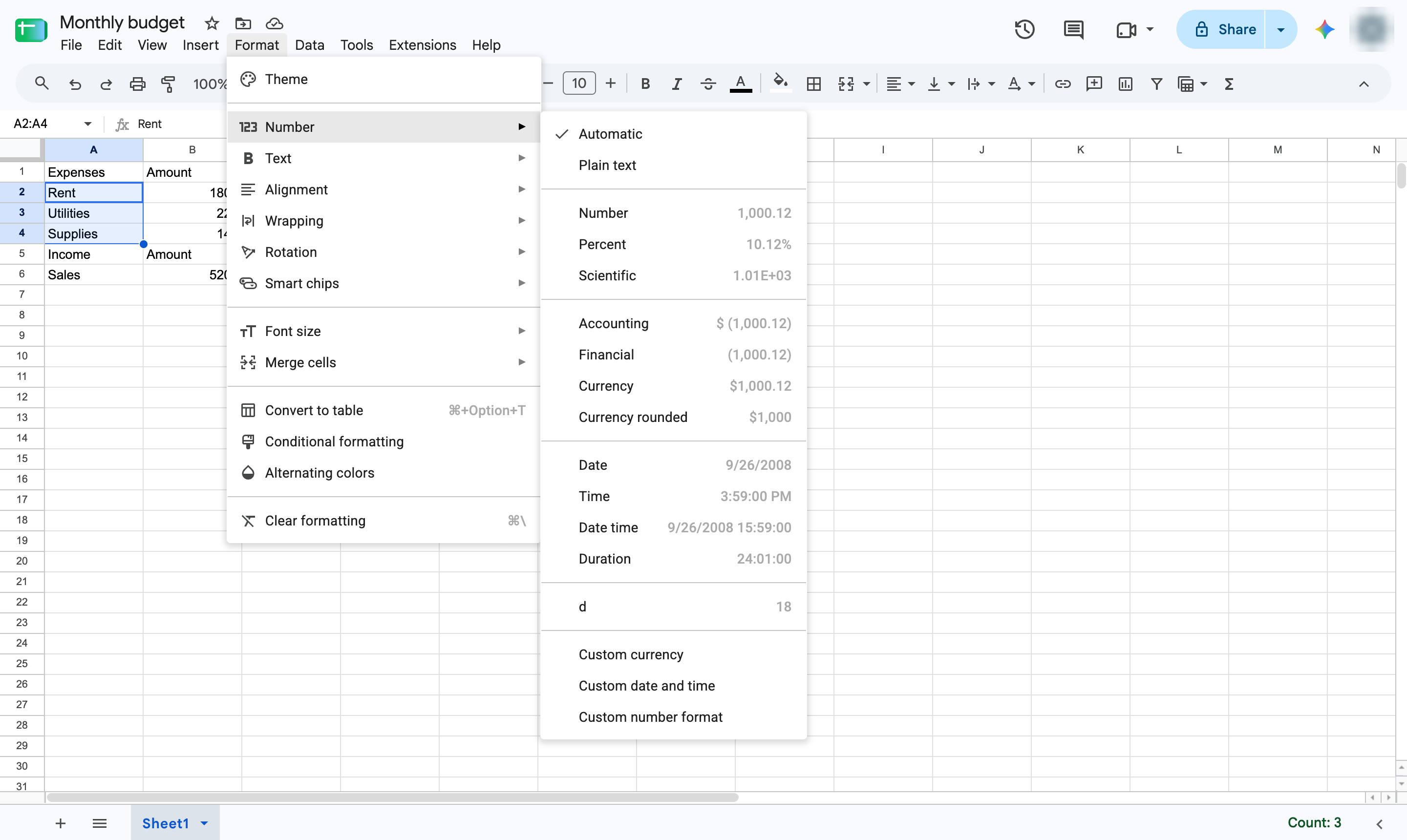
Choose Custom number format at the bottom of the list.

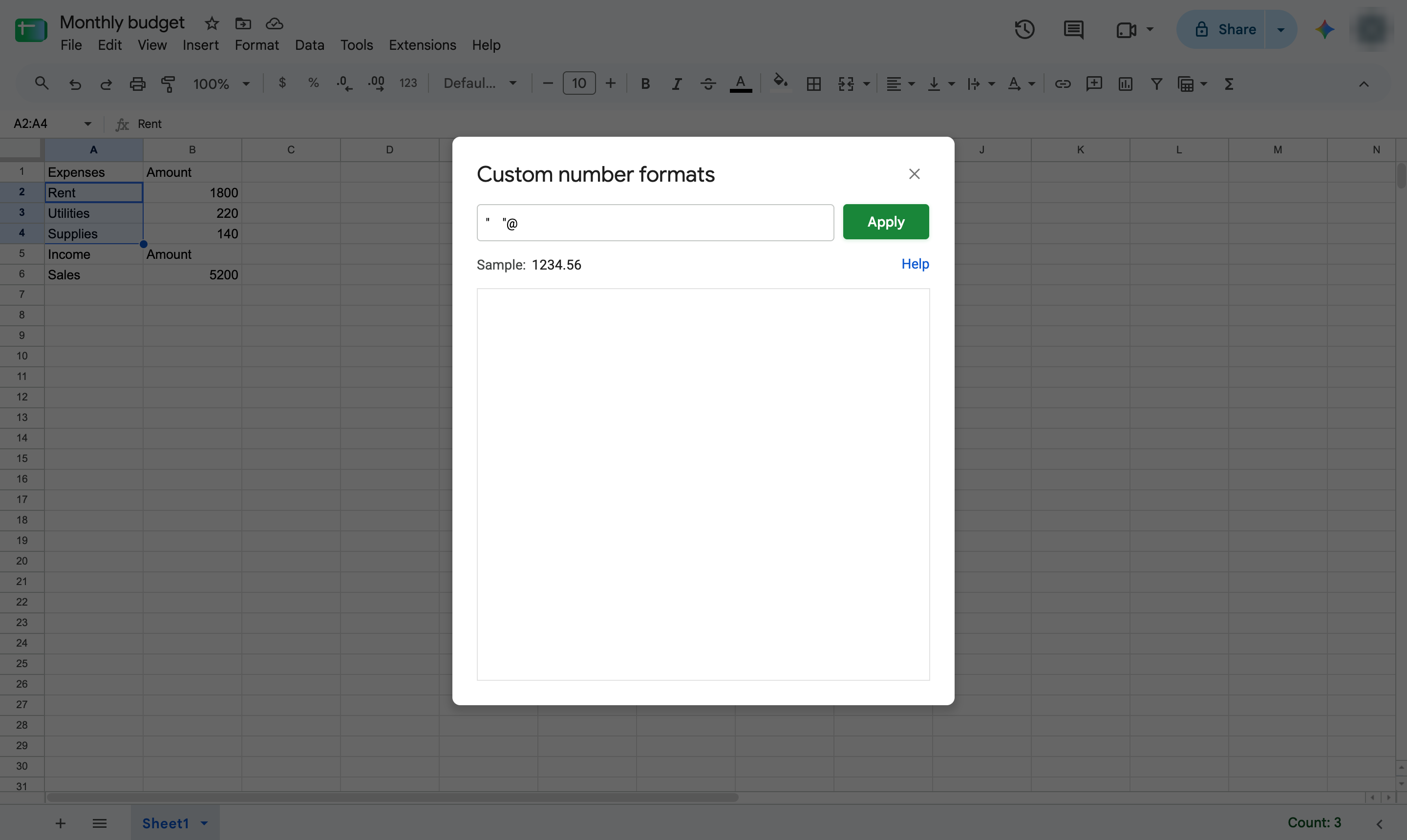
Click the box at the top of the window.
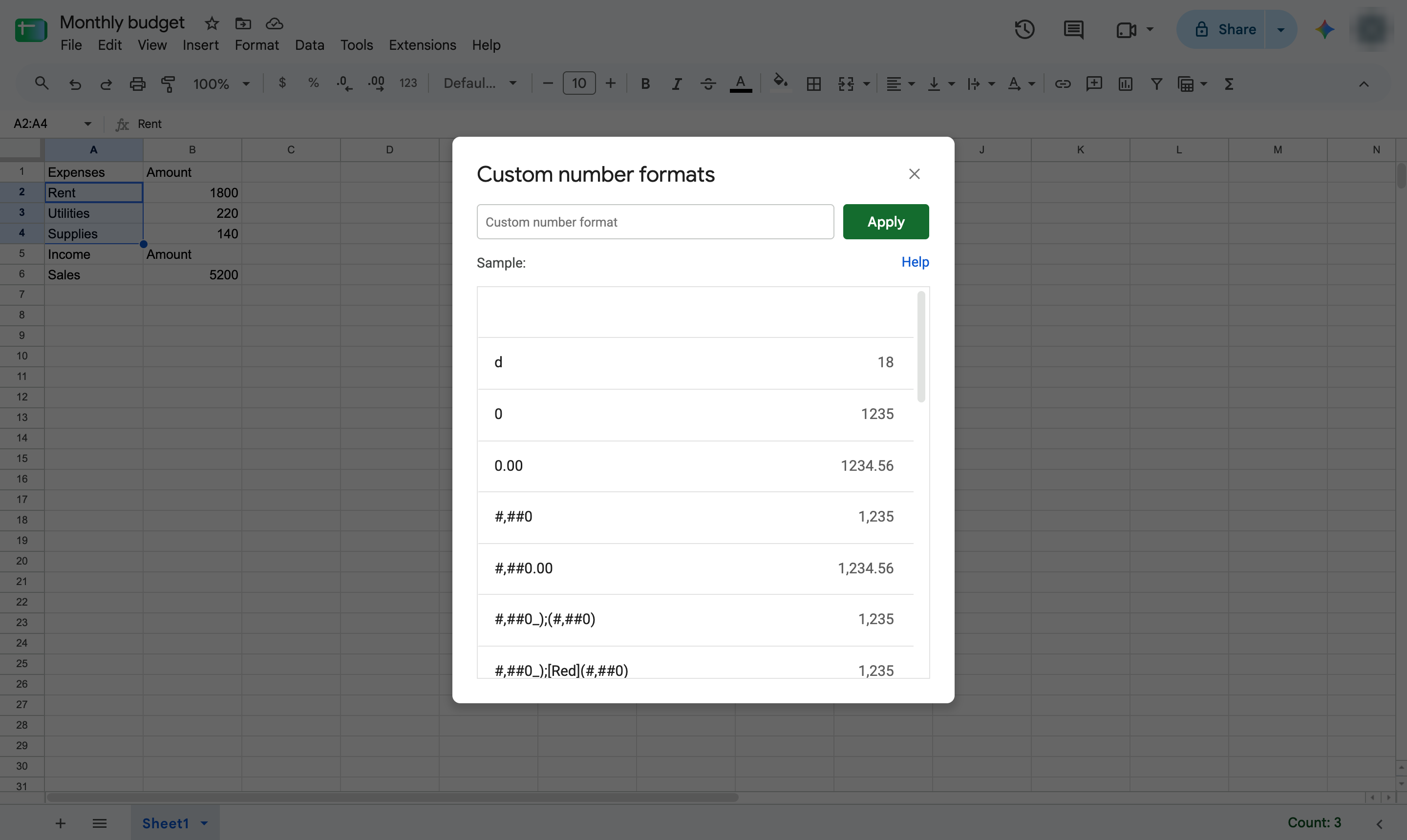
Type " "@ - quote marks around four spaces, then @ for the cell text.
Click Apply to format the selected cells.
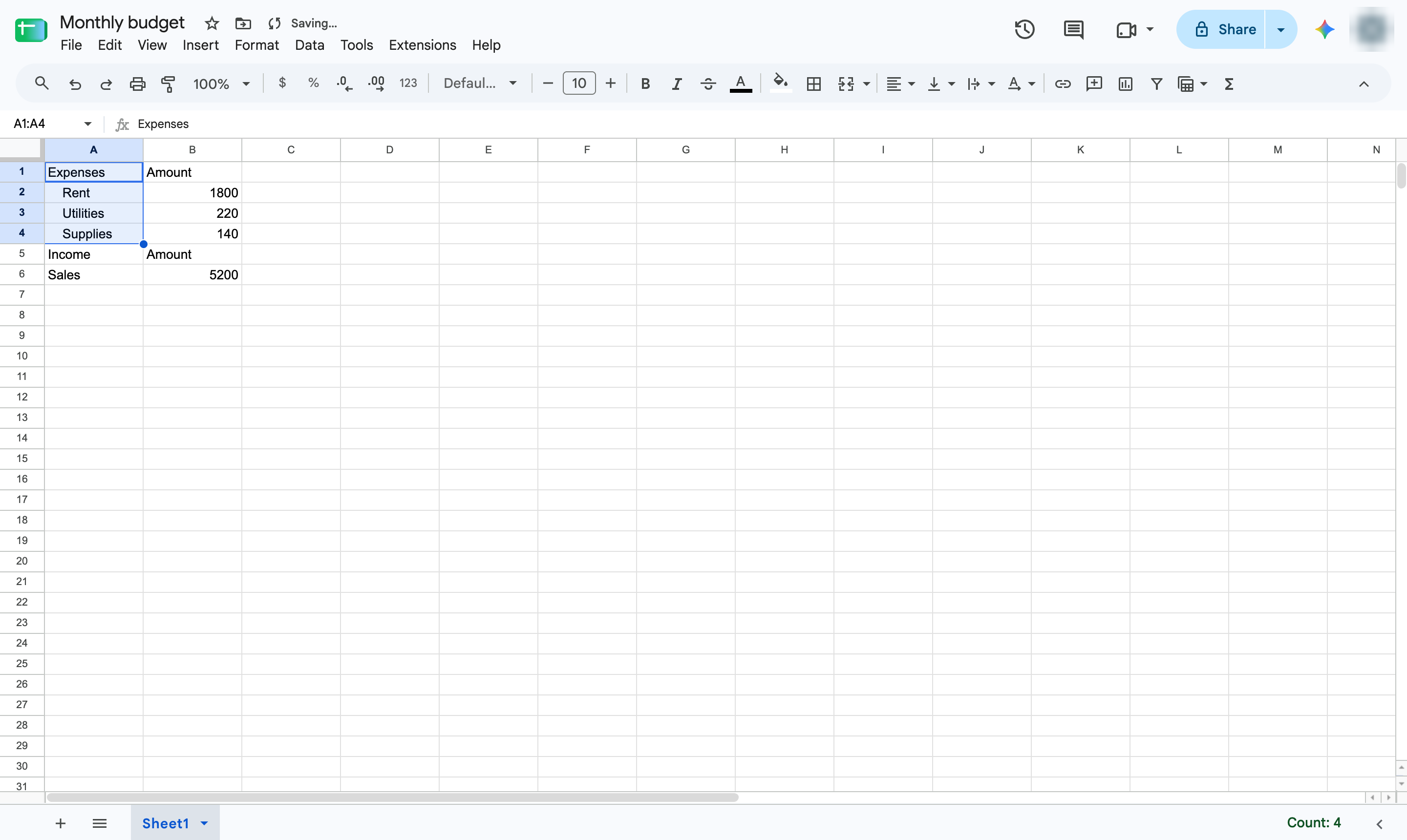
The selected labels now start a few spaces in. Change the number of spaces for a deeper indent.
Duplicate this template, swap in your own screens, and share it with your team. Free to start — no credit card.
Fill out the form and we'll get back to you as soon as possible.
Tell us about your team and we'll find the right plan together.